

Integrate Bitbucket
The Scrut - Bitbucket integration connects your Bitbucket workspace with Scrut to automate the collection of compliance evidence and support access reviews and asset tracking. In this guide, we explain how to connect your Bitbucket repositories with Scrut.
What this Integration Does in Scrut
- Automated Tests: Runs automated compliance checks that continuously evaluate your Bitbucket configurations against applicable compliance frameworks.
- Evidence Tasks: Scrut automatically collects pull request data and uploads it to the Evidence Task "Code Review Results" on the 15th and last day of each month.
- User Access Data: Fetches user details, roles, and permissions from Bitbucket for Access Reviews.
- Asset Management: Populates the Asset Management module in Scrut with discovered repositories and supports the collection of asset-related compliance evidence.
Prerequisites
- An active Bitbucket account with workspace admin access
- At least one workspace and repository configured in Bitbucket
Pro Tip!
Log into your Bitbucket account before starting the setup to avoid being redirected mid-flow during authentication.
Permissions and Access Requirements
For Bitbucket
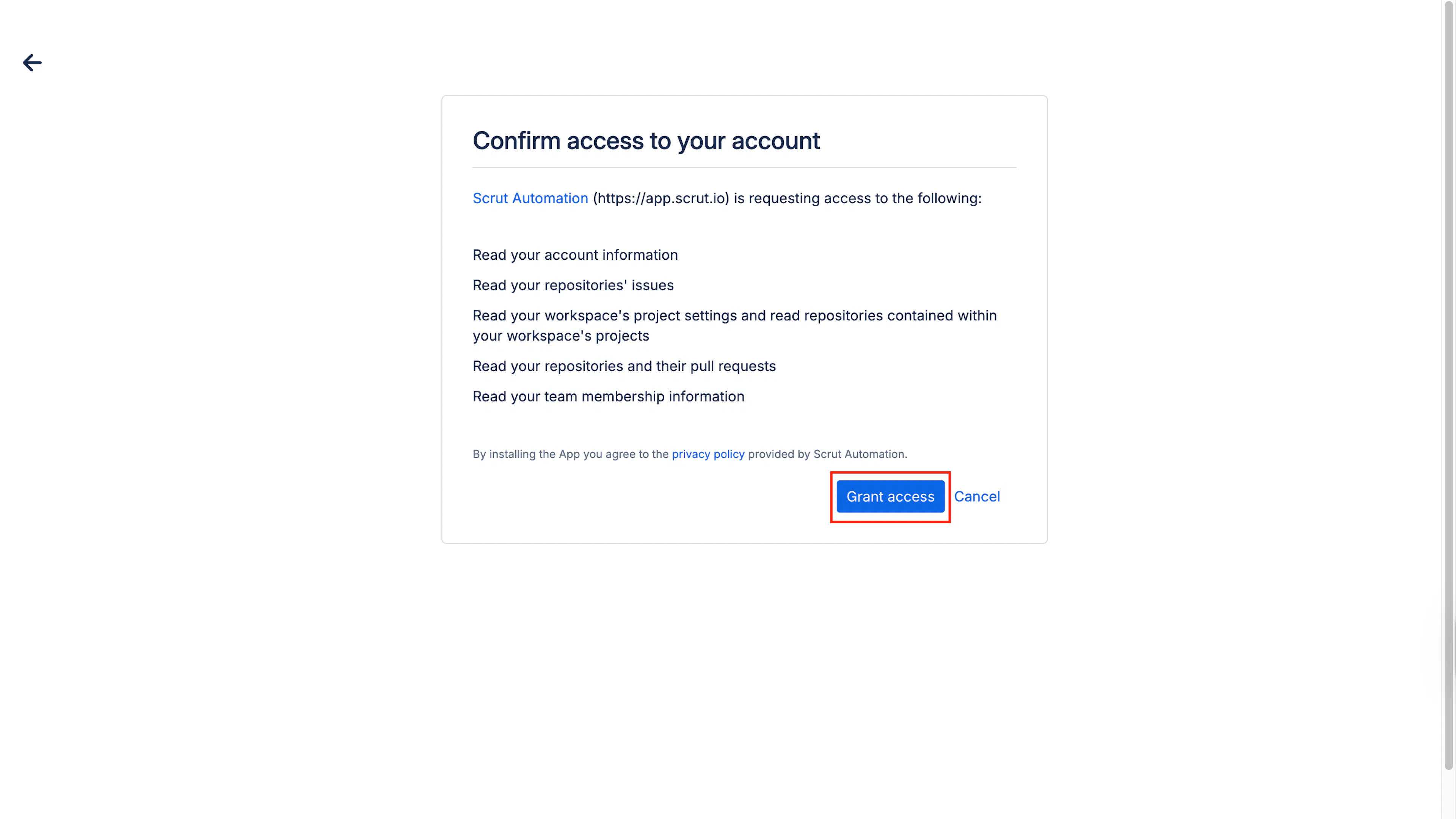
Scrut requests read-only access to the following:
- Account information
- Repository issues
- Workspace and project settings
- Repositories contained within your workspace’s projects
- Repository and pull request data
- Team membership information
For Scrut
- Admin access to Scrut (or Contributor role with access to the Integration module)
Data Collected
- Bitbucket workspace details
- Team membership and user profiles
- Bitbucket project metadata
- Repository metadata
Sync Frequency
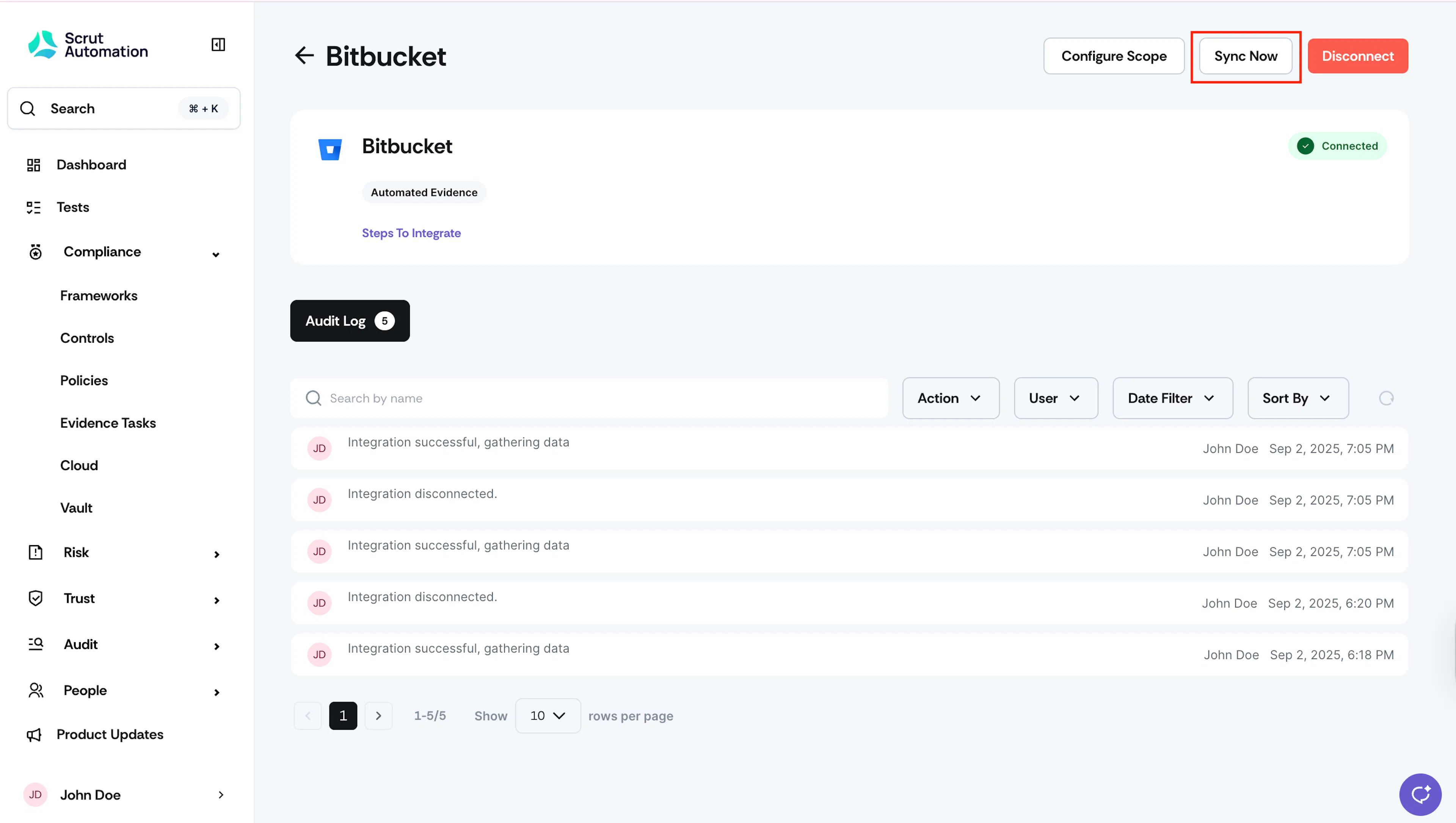
Data for Access Reviews, Automated Tests, and Asset Management syncs every 24 hours. You can also trigger a manual sync at any time by clicking Sync Now on the Bitbucket integration page.
For evidence collection, Scrut uses a separate schedule. After connecting Bitbucket, Scrut automatically collects pull request data and uploads it to the Evidence Task "Code Review Results" on the 15th and last day of each month.
Integration Setup
Step 1: Connect Bitbucket in Scrut
- Sign in to Scrut and click Integrations in the left navigation panel.
- Go to the Integrations Library tab.
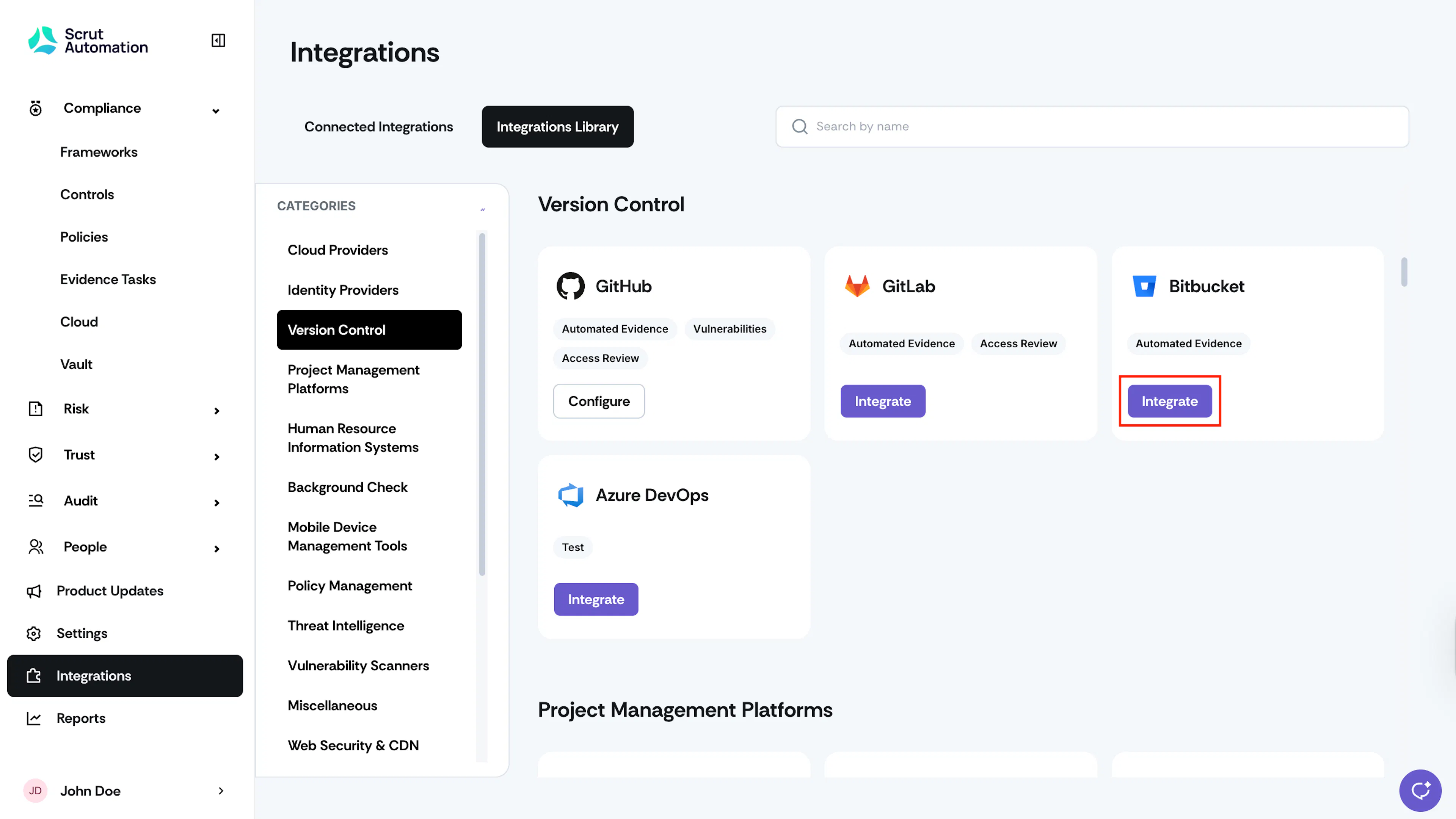
- In the Categories section, scroll to Version Control.
- Locate the Bitbucket tile and click Integrate.
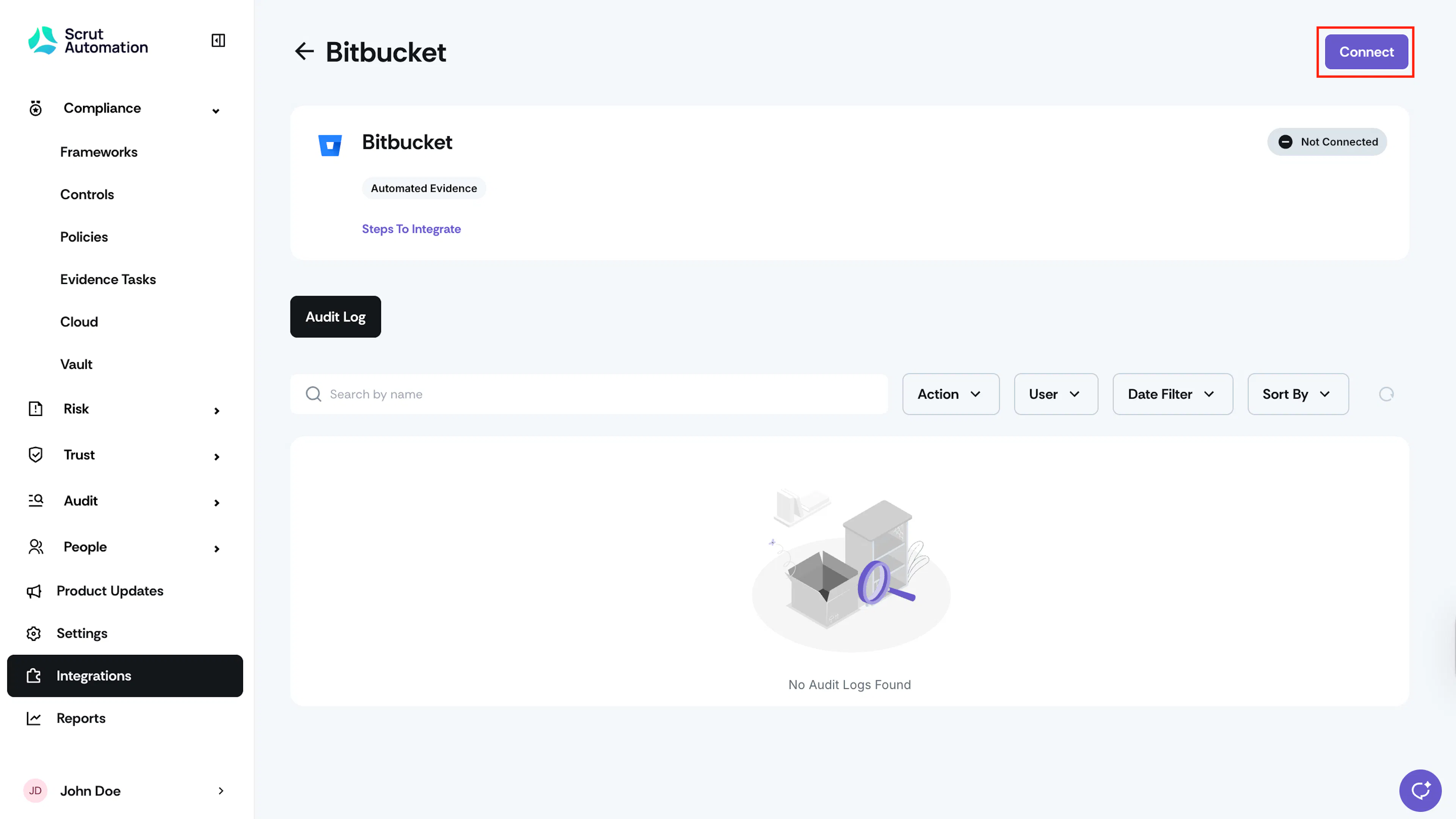
- On the Bitbucket integration page, click Connect in the top right corner.
Step 2: Authenticate and Configure Scope
- Scrut redirects you to the Bitbucket authentication page. If you are not already logged in, complete the Bitbucket login before proceeding.
- Review the permissions Scrut is requesting and click Grant Access.
- Watch for the Connected status indicator on the Bitbucket integration page in Scrut.
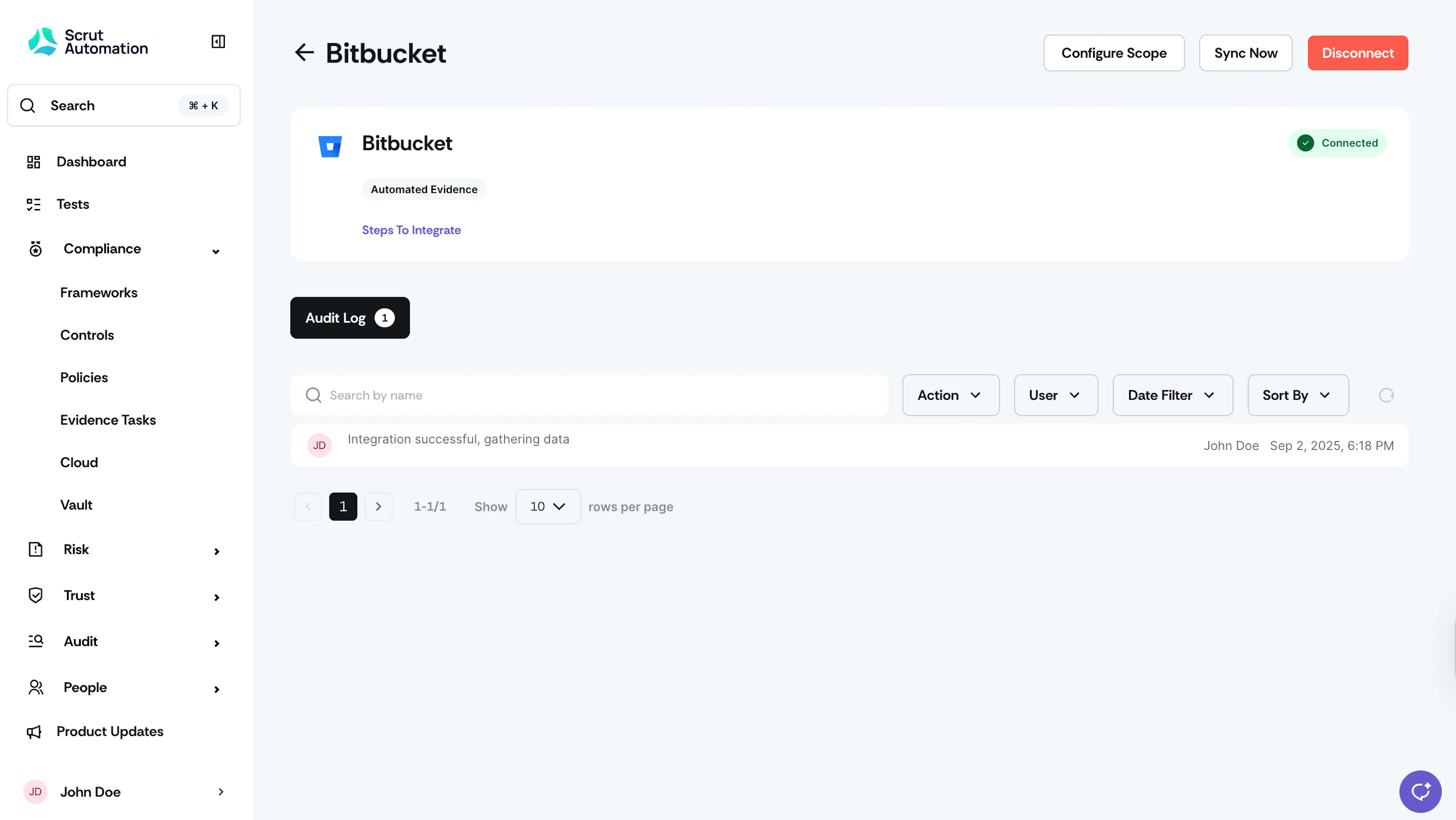
- Click Configure Scope in the top right corner of the Bitbucket integration page.
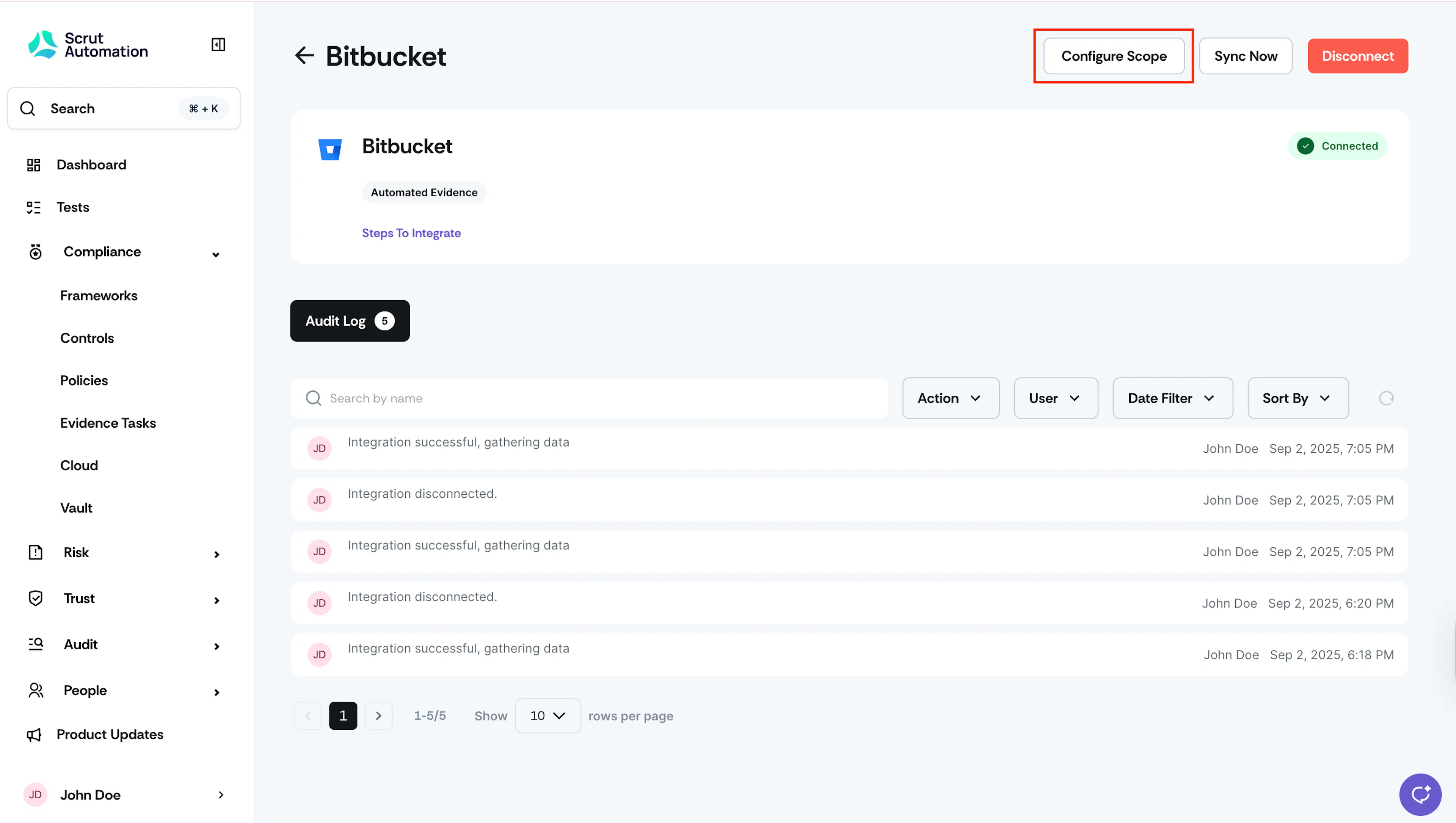
- Select the repositories from which you want Scrut to collect evidence.
- Click Save.
What Happens Next?
Initial data sync
Once the integration is connected and the scope is configured, Scrut begins collecting data from Bitbucket. You can monitor sync activity in the Audit Log tab on the Bitbucket integration page.
Review synced data
- Navigate to Tests to view automated test results and flagged misconfigurations for Bitbucket. Use the Application filter to view tests only for Bitbucket.
- Navigate to Compliance → Evidence Tasks to view the Code Review Results evidence task, where pull request evidence is uploaded on the 15th and the last day of each month.
- Navigate to People → Access Reviews to create an access review and validate access data for your GitHub organization.
- Navigate to Asset Management to view code repositories discovered through the integration.
Note: You can trigger an on-demand sync at any time by clicking Sync Now on the Bitbucket integration page.
Common Errors and Troubleshooting
Authentication failure
Possible solutions:
- Confirm you are logged into the correct Bitbucket account before clicking Connect.
- Disconnect the integration and repeat the setup flow.
- Check that your Bitbucket account has workspace admin access.
Data not appearing in Scrut
Possible solutions:
- Verify that the correct repositories are selected under Configure Scope.
- Trigger a manual sync using the Sync Now button and check the Audit Log for errors.
- Confirm that the integration status shows Connected on the Bitbucket integration page.
Users or repositories missing from Asset Management
Possible solutions:
- Check that the missing repositories fall within the configured scope.
- Confirm that the relevant Bitbucket users are active members of the workspace.
- Allow up to 24 hours after a scope change for data to reflect.
FAQs
Reach out to support@scrut.io or contact your CSM for further assistance.