

Integrate GitLab
Connect your GitLab account to Scrut to automatically collect pull request evidence, run automated compliance checks, and keep your access review and asset data up to date.
What This Integration Does in Scrut
- Automated Tests: Runs automated compliance checks that continuously evaluate your GitLab configurations against applicable compliance frameworks.
- Evidence Task: Scrut automatically collects pull request data and uploads it to the Evidence Task "Code Review Results" on the 15th and last day of each month.
- User Access Data: Fetches user details, roles, and permissions from GitLab for Access Reviews.
- Asset Management: Populates the Asset Management module in Scrut with discovered repositories and supports the collection of asset-related compliance evidence.
Prerequisites
An active GitLab account with access to the repositories you want to scope. GitLab organization admin credentials (required to authorize the OAuth connection).
Permissions and Access Requirements
For GitLab
Scrut requests the following OAuth scopes during authorization:
- read_user: Grants read-only access to the authenticated user's profile, including username, public email, and full name. Also grants access to read-only API endpoints under /users.
- read_repository: Grants read-only access to repositories on private projects using Git-over-HTTP or the Repository Files API.
- read_api: Grants read access to the API, including all groups, projects, the container registry, and the package registry.
For Scrut
Admin access to Scrut, or Contributor access with the Integration module enabled.
Data Collected
For Code Review Results (Evidence Task)
- Pull Request Title: Fetched from scoped repositories
- Pull Request Status: Reflects the state at the time of sync
- Author: Merge request author username
- Reviewer(s): Assigned reviewers (Only populated if reviewers are assigned in GitLab)
- Merge Date: Merged at timestamp
- Repository: Project name and namespace (Corresponds to the scoped repository selected during setup)
For Access Reviews (User Access Data)
- User Name: GitLab username
- Email: Primary email address
- Role / Access Level: Reflects the user's role in the scoped repositories
For Asset Management
- GitLab project name: Each scoped repository is surfaced as an asset.
Sync Frequency
Data is synced automatically once every 24 hours. You can also manually trigger a sync by clicking Sync Now on the GitLab integration settings page in Scrut.
Integration Setup
Step 1: Authorize Scrut in GitLab
-
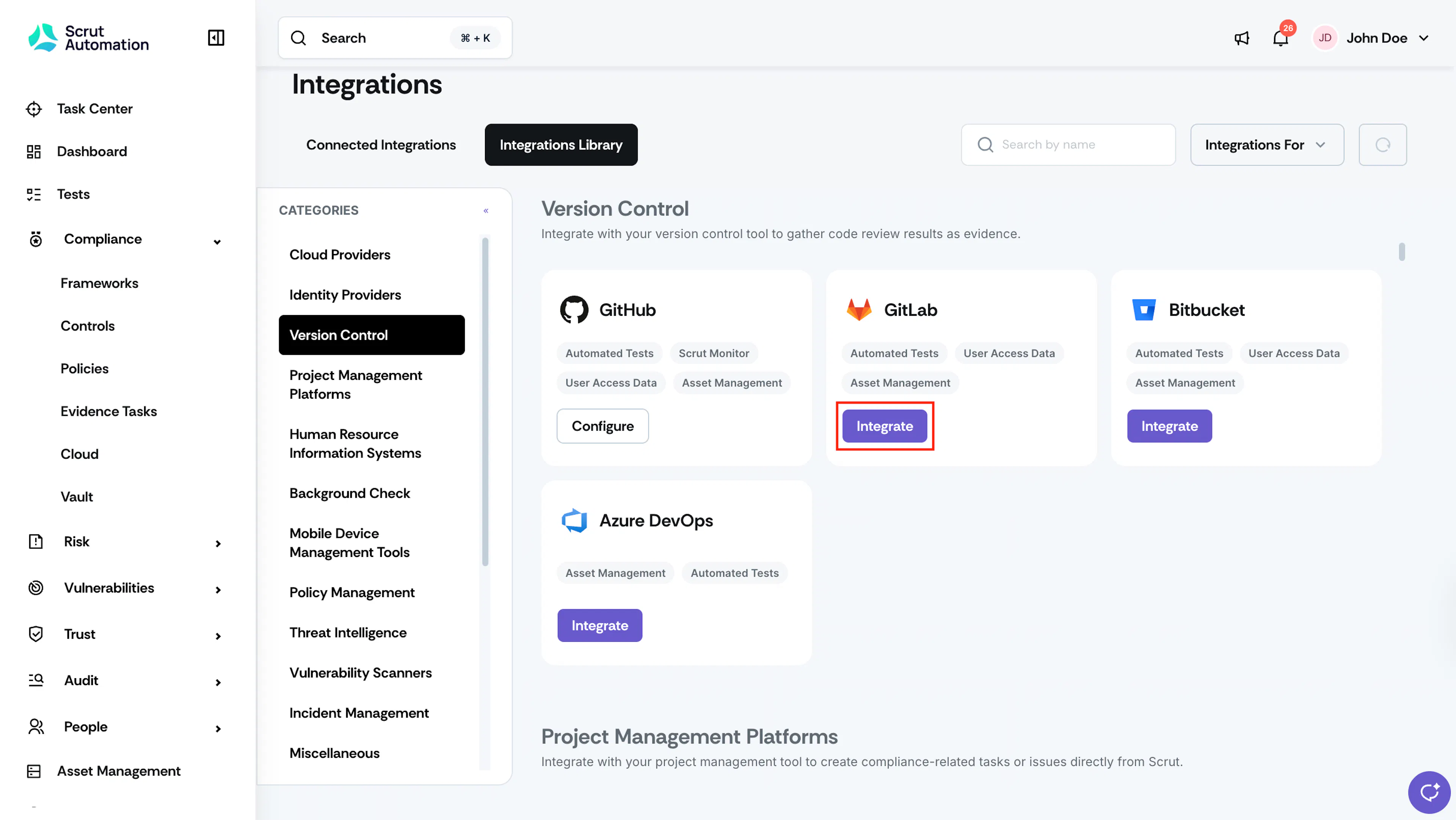
From the left navigation menu in Scrut, click Integrations.
-
Navigate to the Integrations Library tab.
-
Scroll to the Version Control section and locate GitLab.
-
Click Integrate.
-
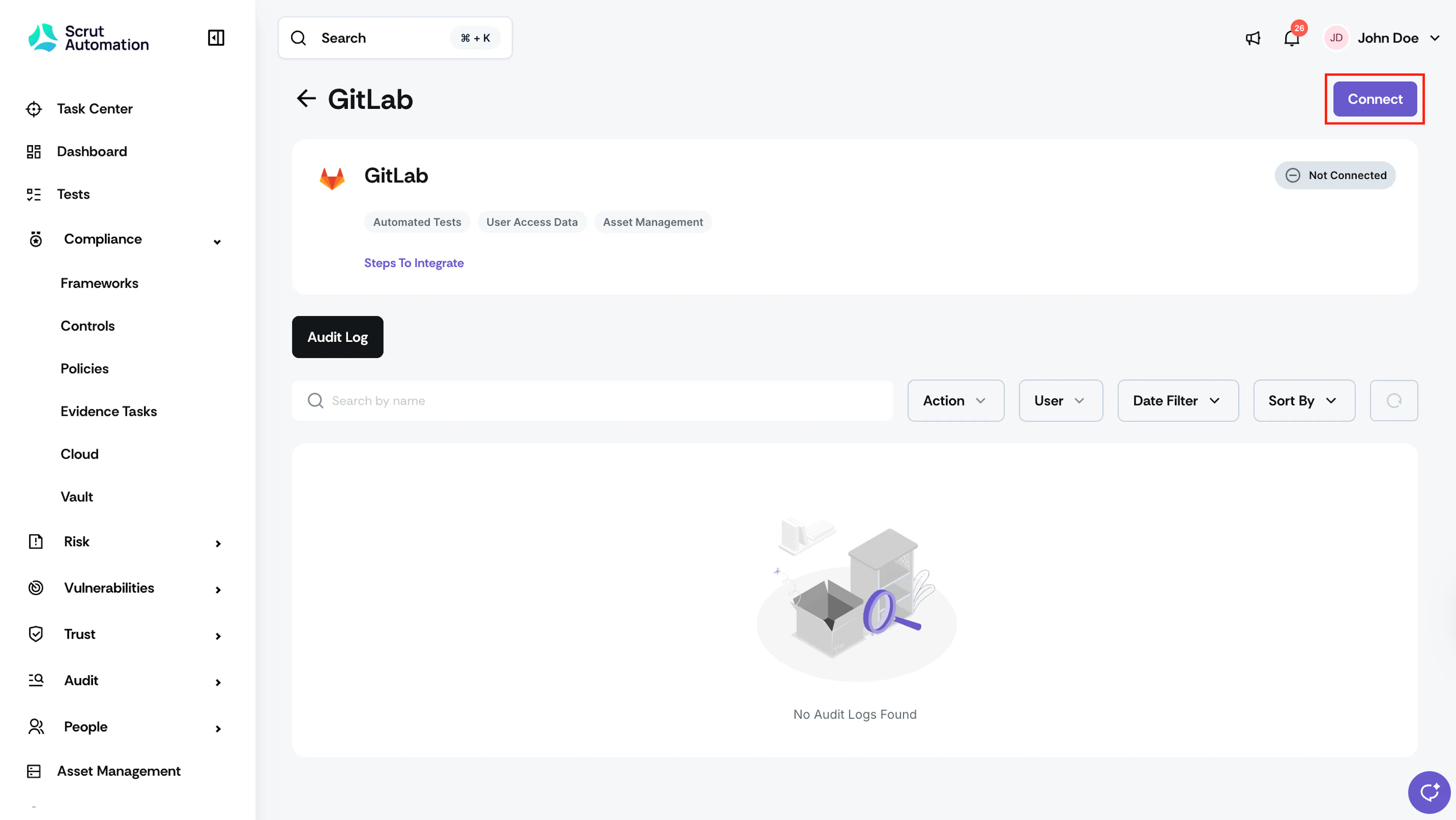
Once you’re on the GitLab integration page, click Connect.
-
You are redirected to the GitLab authorization page.
-
Sign in to your GitLab organization account if prompted.
-
Review the permissions requested by Scrut and click Authorize Scrut Automation.
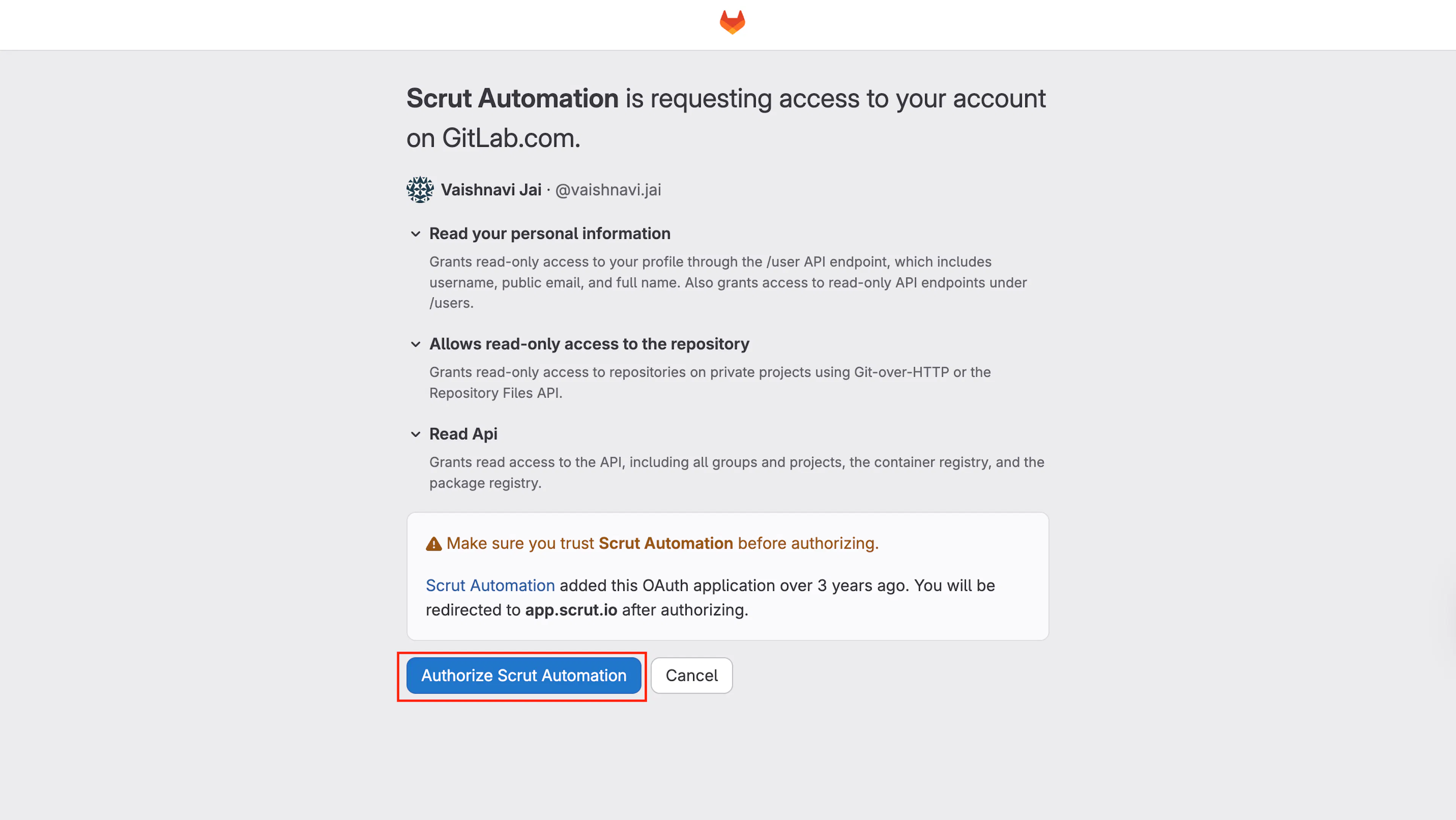
Note: Scrut requests read-only access to your GitLab account. No write permissions are granted during this flow.
Step 2: Configure Scope in Scrut
-
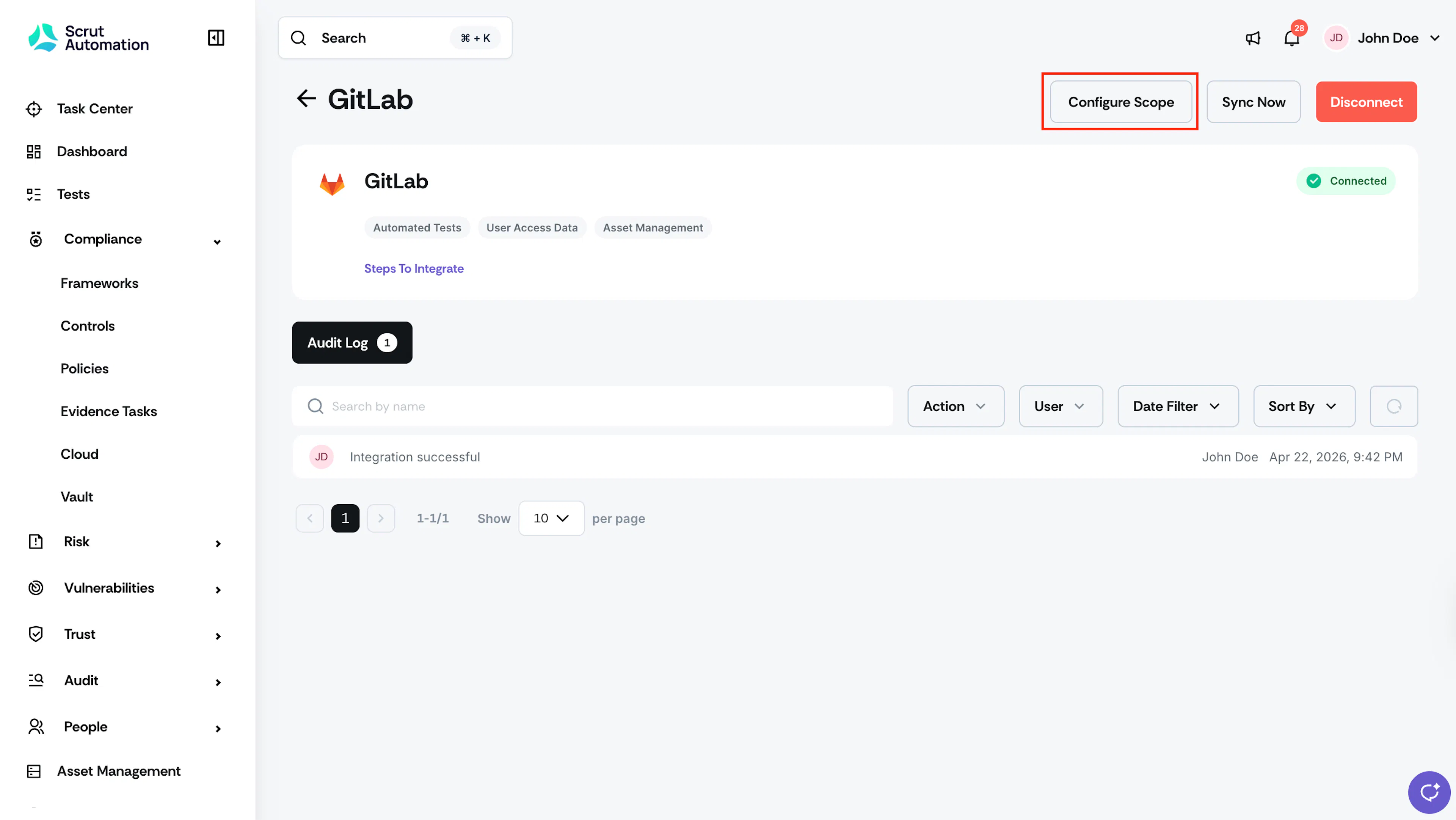
After authorization is complete, you are redirected back to the GitLab integration page in Scrut. Click Configure Scope.
-
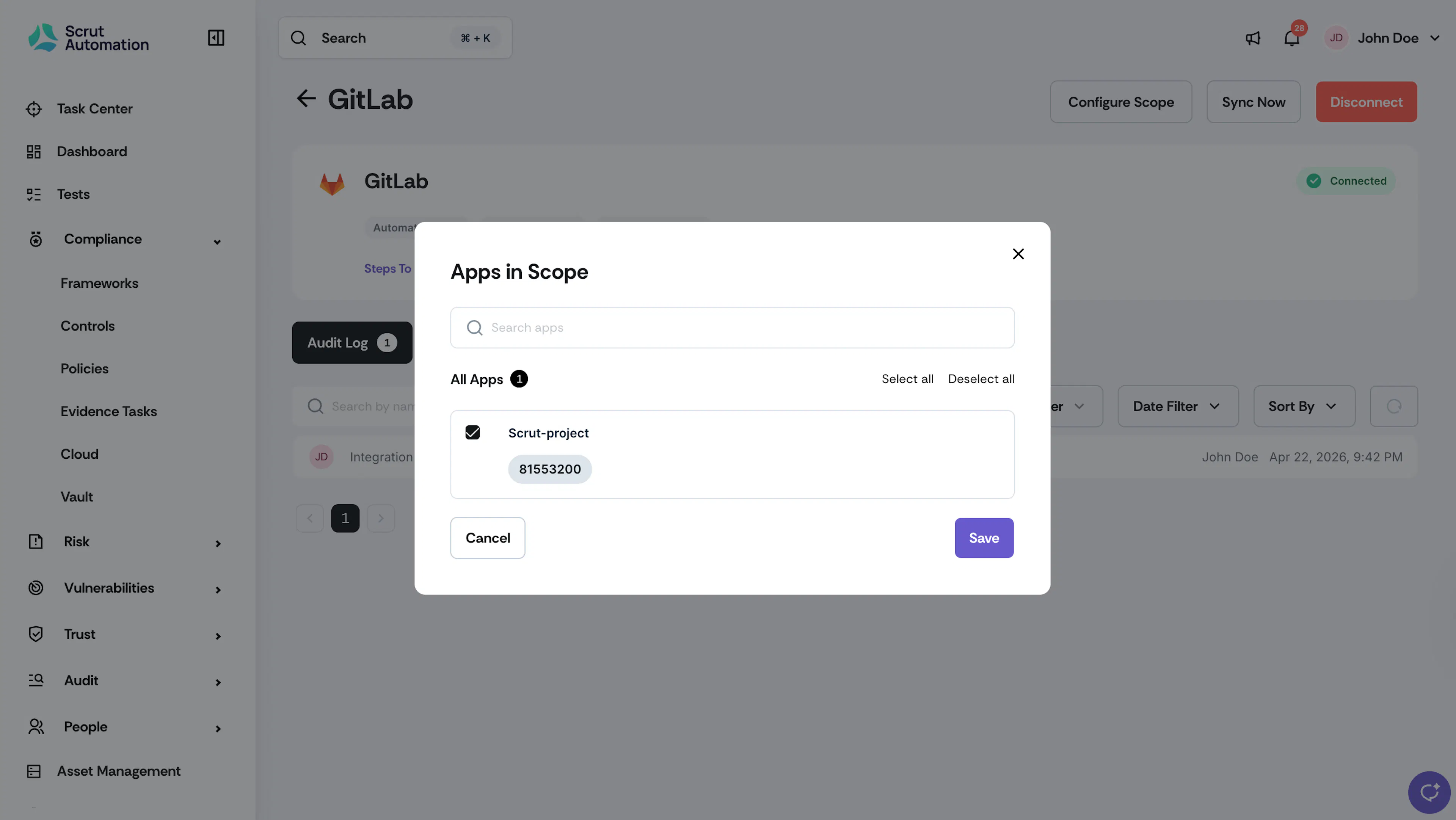
In the Apps in Scope dialog, select the repositories from which you want to collect pull request evidence.
-
Click Save.
Pro Tip!
You can return to Configure Scope at any time to add or remove repositories from your sync scope.
What Happens Next?
Initial data sync
After you save your scope configuration, Scrut begins the initial data sync automatically. You can monitor sync activity and review connection events in the Audit Log on the GitLab integration settings page.
Review synced data
Once the sync completes, verify that data has landed correctly in the following locations:
- Navigate to Compliance → Evidence Tasks and open the relevant evidence task named Code Review Results to confirm pull request evidence has been attached.
- Navigate to People → Access Reviews → Applications to verify that user access data from GitLab is reflected in Access Reviews. You can include GitLab in scope for future access reviews.
- Navigate to Asset Management to confirm that scoped GitLab repositories appear as assets.
- Navigate to Tests → Automated Tests to view automated test results and flagged misconfigurations for GitLab.
Common Errors and Troubleshooting
Authorization Fails or Redirects to an Error Page
Possible solutions: Confirm you are signed in to the correct GitLab organization account before clicking Authorize. Check that your GitLab account has access to the repositories you intend to scope. Try the connection flow again.
Integration Shows "Not Connected" After Authorization
Possible solutions: Refresh the GitLab integration settings page in Scrut. Confirm the OAuth flow completed fully and that you clicked Authorize (not Deny) on the GitLab permissions screen. If the issue persists, disconnect and reconnect the integration.
Pull Request Data Not Appearing in Evidence Tasks
Possible solutions: Confirm that the relevant repository is selected in Configure Scope and that you clicked Save. Check that pull requests exist in the scoped repository within the sync window.
User Access Data Not Appearing in Access Reviews
Possible solutions: Confirm the sync has completed by checking the Audit Log on the integration settings page. Verify that the users you expect to see have a public email address set in their GitLab profile, as the read_user scope only surfaces public email addresses.
No Assets Visible in Asset Management
Possible solutions: Confirm that at least one repository is selected in Configure Scope. Trigger a manual sync and allow a few minutes for the Asset Management module to refresh.
FAQs
Reach out to support@scrut.io or contact your CSM for further assistance.