

Troubleshoot Integration Issues
Integrations play a key role in automating evidence collection and helping you progress on your compliance journey. In this article, we explain how to review and resolve common integration errors.
Common Errors
Wrong or Inadequate Permissions
Scrut requires specific permissions for each integration. Often, these are read-only permissions to fetch the requisite data to ensure compliance. Failure to grant the necessary permissions during integration can result in an error or a failed connection.
Inadequate Access
Scrut Access
You must be a Scrut Administrator (or Contributor with access to the Integration module) to complete the integration steps.
Platform Access
Similarly, you need certain platform-specific privileges to grant permissions or access to Scrut. For example, you need to be an Organization Administrator, Global Administrator, or User Access Administrator (or have a custom role) with equivalent permissions to perform the Azure integration. Lacking these privileges may lead to an integration error.
Outdated Credentials
If the credentials you used for integration expire or become invalid, it can lead to integration failure.
Expired Keys
Many platforms have predefined key/token expiry periods for better security. Expired keys and tokens cause your existing integration to fail. So, make sure to reconnect the integration with new tokens, as required.
Changes in Permissions
If the service provider changes the required permissions or access structure, it may lead to errors for existing integrations.
API Changes
Service providers may update their API endpoints, authentication methods, or data formats, causing compatibility issues with existing integrations.
Rate Limiting
Exceeding the service provider’s API rate limits can cause temporary integration failures.
Service Outages
Temporary outages or maintenance windows on the service provider’s end can cause temporary integration failures.
How To Resolve Integration Errors
1: Update Integrations
Periodically, Scrut provides integration updates to prevent and fix errors proactively. Look for the lightning symbol that indicates an update is available for a specific integration.
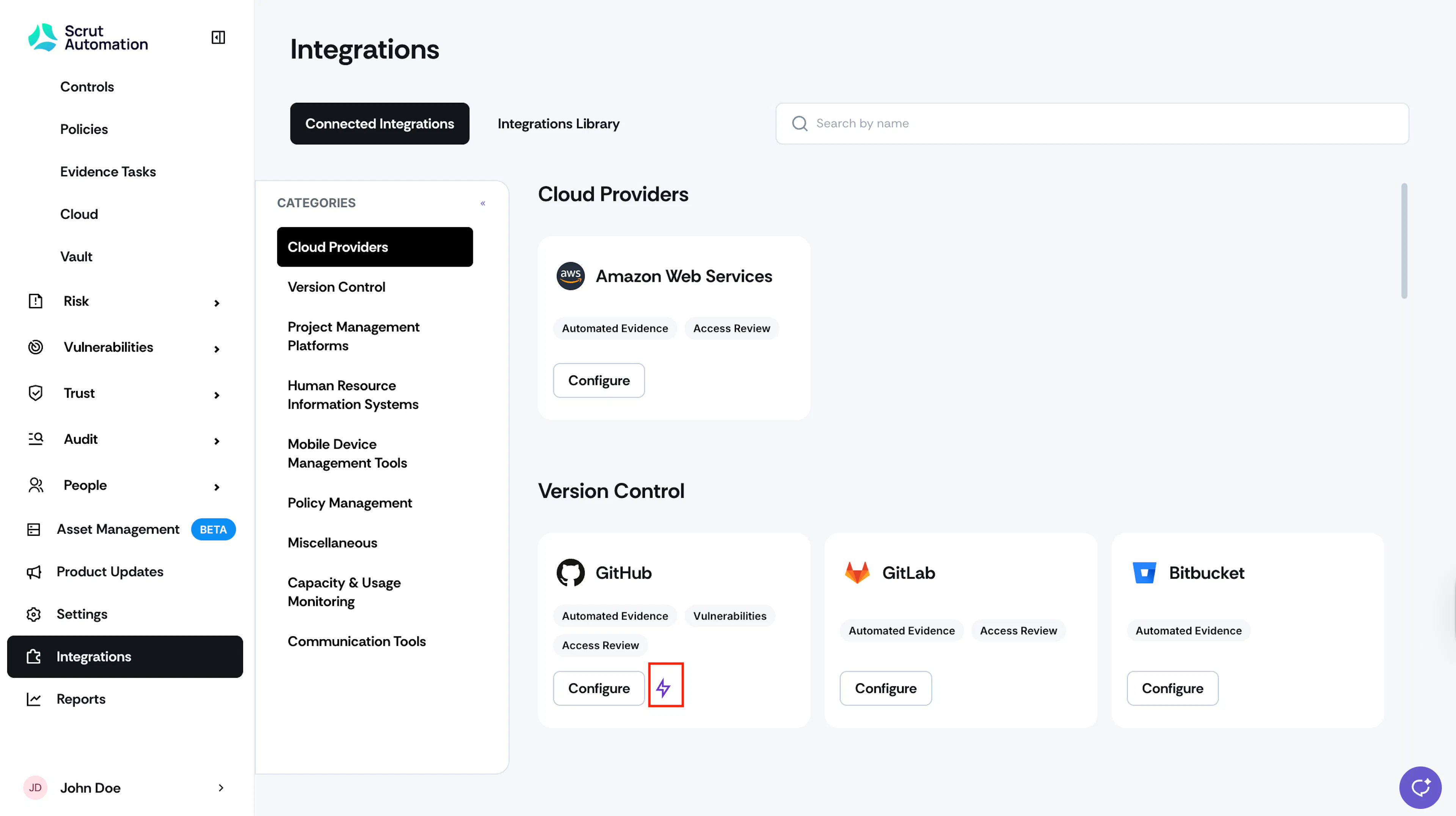
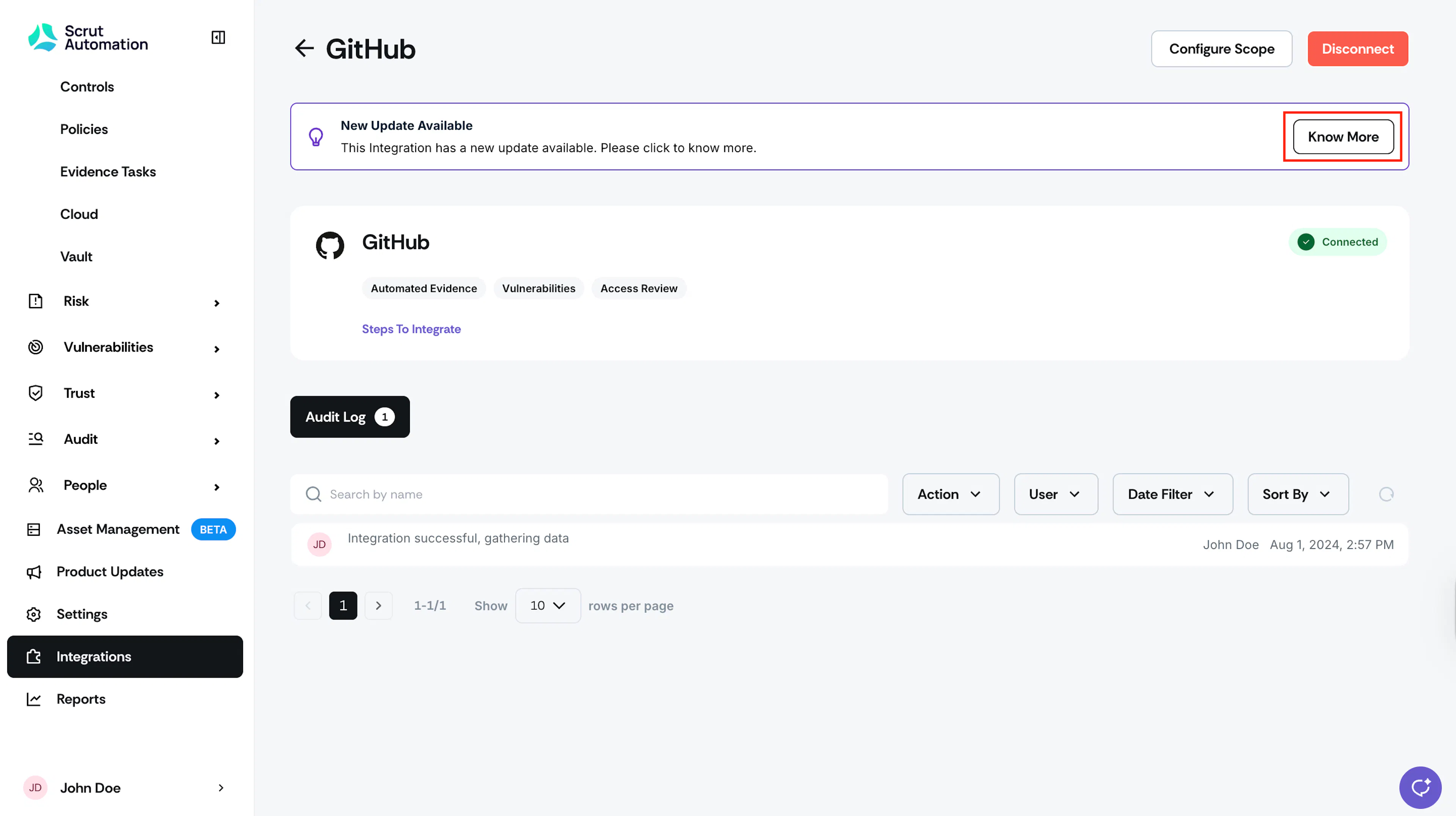
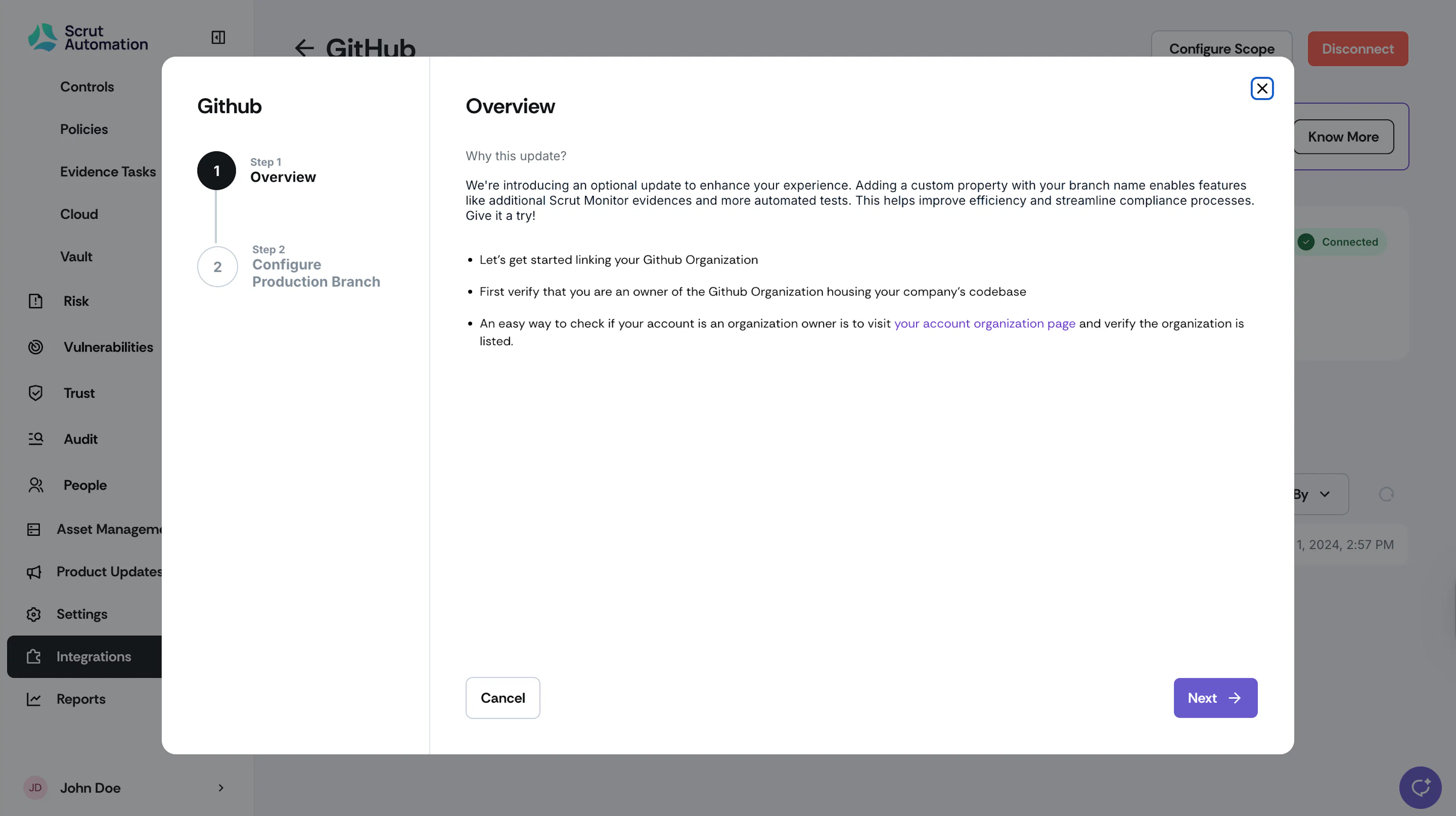
When you notice the update available symbol, click Configure and go to the integration page. Follow the steps available on screen to update your integration.
2: Review Integration Errors
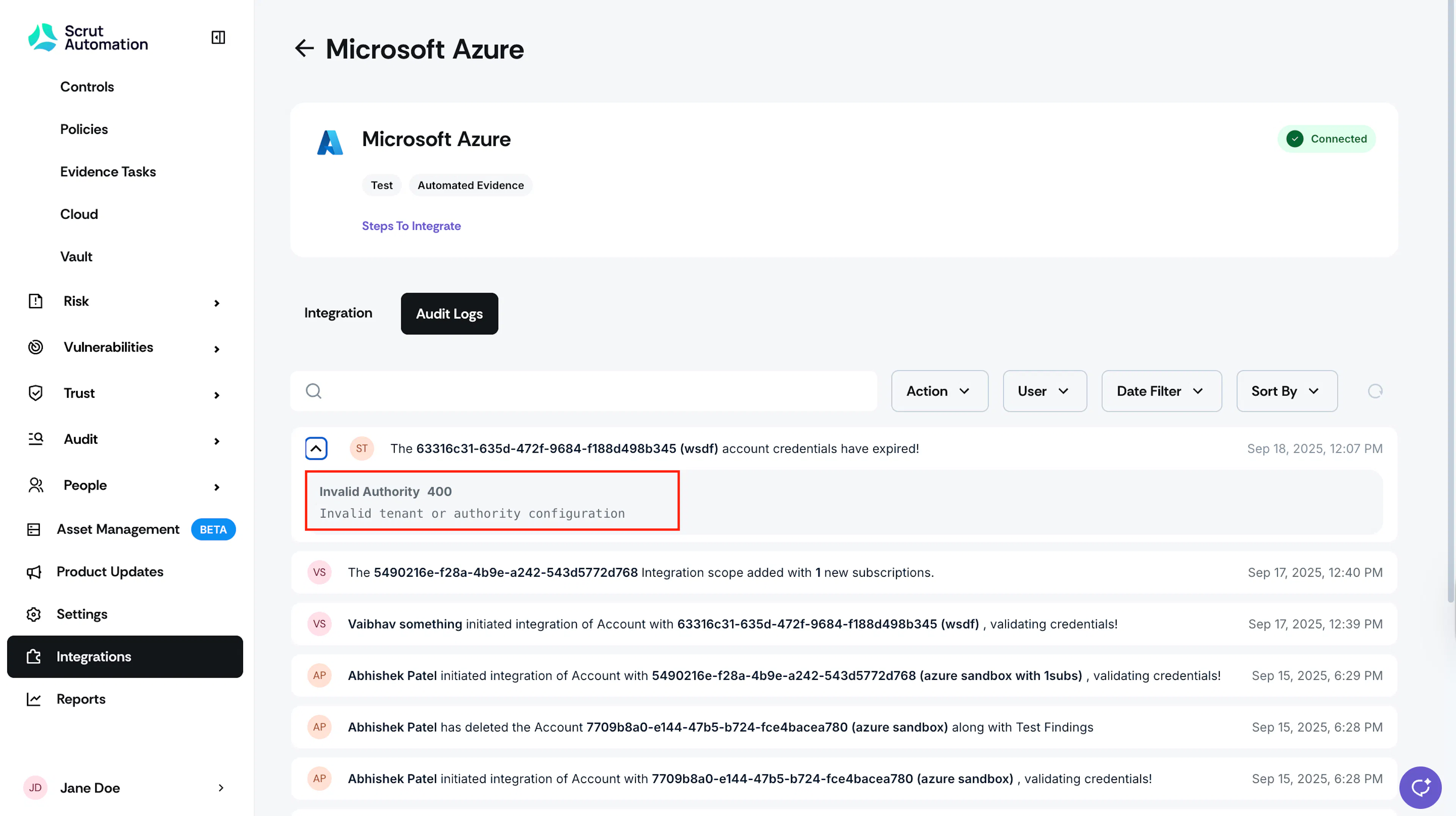
When an integration fails, check the Audit Log to understand the reason for the failure.
-
Log in to Scrut, click Integrations on the left navigation panel, and go to the Connected Integrations tab.
-
Click Configure to go to the Integration details page, and click the Audit Logs tab.
-
Once you fix the error, reconnect the integration to resolve it. Refer to our integration guides for step-by-step instructions on connecting your integration.
3: Contact Scrut Support
If you need additional help, reach out to Scrut Support with the following information:
- Integration name and error codes
- Screenshots of error messages
- Steps already attempted
- Timeline of when issues started
- And, other relevant details
Our friendly team will help you resolve the issue.
Best Practices To Minimize Integration Errors
- Regular Monitoring: Periodically review the Integrations module in Scrut to check for updates and integration failure alerts.
- Keep your credentials updated: Track credential expiry dates and renew them proactively.
- Review permissions: Periodically review and verify that all required permissions are still granted.