Evidence Tasks: Walkthrough
Who can use this feature
- Supported on Foundation, Growth, and Scale plans
What Are Evidence Tasks?
Every compliance framework, whether ISO 27001, SOC 2, GDPR, or HIPAA, consists of controls that define security and compliance requirements. To demonstrate that you meet these controls, you need to provide proof. These proofs are called evidence.
Evidence Tasks in Scrut refer to activities related to the collection, storage, and management of evidence documents required for your audits. These tasks include:
- Collecting evidence from various sources
- Storing them in an organized manner
- Assigning ownership for evidence collection
- Setting up the frequency for recurring tasks and
- Ensuring that the evidence is updated and easily accessible for audits
Understanding Evidence Tasks
Each evidence task represents a specific piece of proof required to satisfy one or more controls in your compliance framework. For example:
- Access control logs prove that you monitor who accesses your systems
- Encryption certificates prove that your data is encrypted at rest and in transit
- Training completion records prove that employees have completed security awareness training
- Backup verification reports prove that you maintain data backups
When auditors assess your compliance, they review these evidence tasks to verify that you're meeting the requirements of your chosen frameworks.
Scrut stores evidence documentation contextually for every control and test, ensuring it is not misplaced or deleted. It also logs all changes to the evidence, enhancing the audit process's credibility. Scrut keeps all evidence-related tasks in one location, making them easy for the auditor to review. This also reduces the need to manage multiple sheets or documents for evidence.
How Does Scrut Collect Evidence
Evidence tasks in Scrut can be fulfilled in two ways:
Automated Evidence
Scrut automatically fetches the required evidence from your connected integrations; no manual work is needed from you. For example:
- When you connect to AWS, Scrut can automatically pull reports showing which S3 buckets have encryption enabled.
- When you connect to GitHub, Scrut can automatically collect logs of code changes and pull request reviews.
- When you connect your HRIS system, Scrut can automatically retrieve employee training completion records.
This happens through two automation mechanisms:
- Tests: Automated checks that validate compliance requirements (e.g., "Are all databases encrypted?")
- Scrut Monitors: Automated data collectors that fetch proof documents from your integrations or internal Scrut modules
Manual Evidence
For tools not integrated with Scrut or for evidence that requires physical documents, you need to collect and upload the necessary proof manually. This might include:
- PDF copies of signed policies
- Screenshots of security configurations from systems that Scrut doesn't integrate with
- Photos of physical security measures (badge readers, server room access logs)
Evidence Module Tabs
The Evidence Tasks module in Scrut has two main navigational tabs:
- The Evidence Dashboard provides a real-time view of all your evidence tasks across assignees, departments, frameworks, and review stages. Use it to track collection status, monitor gaps, and act on evidence that needs your attention.
How to Access the Evidence Dashboard
- Sign in to Scrut.
- Navigate to Compliance → Evidence Tasks.
- Click the Dashboard tab.
Heads Up!
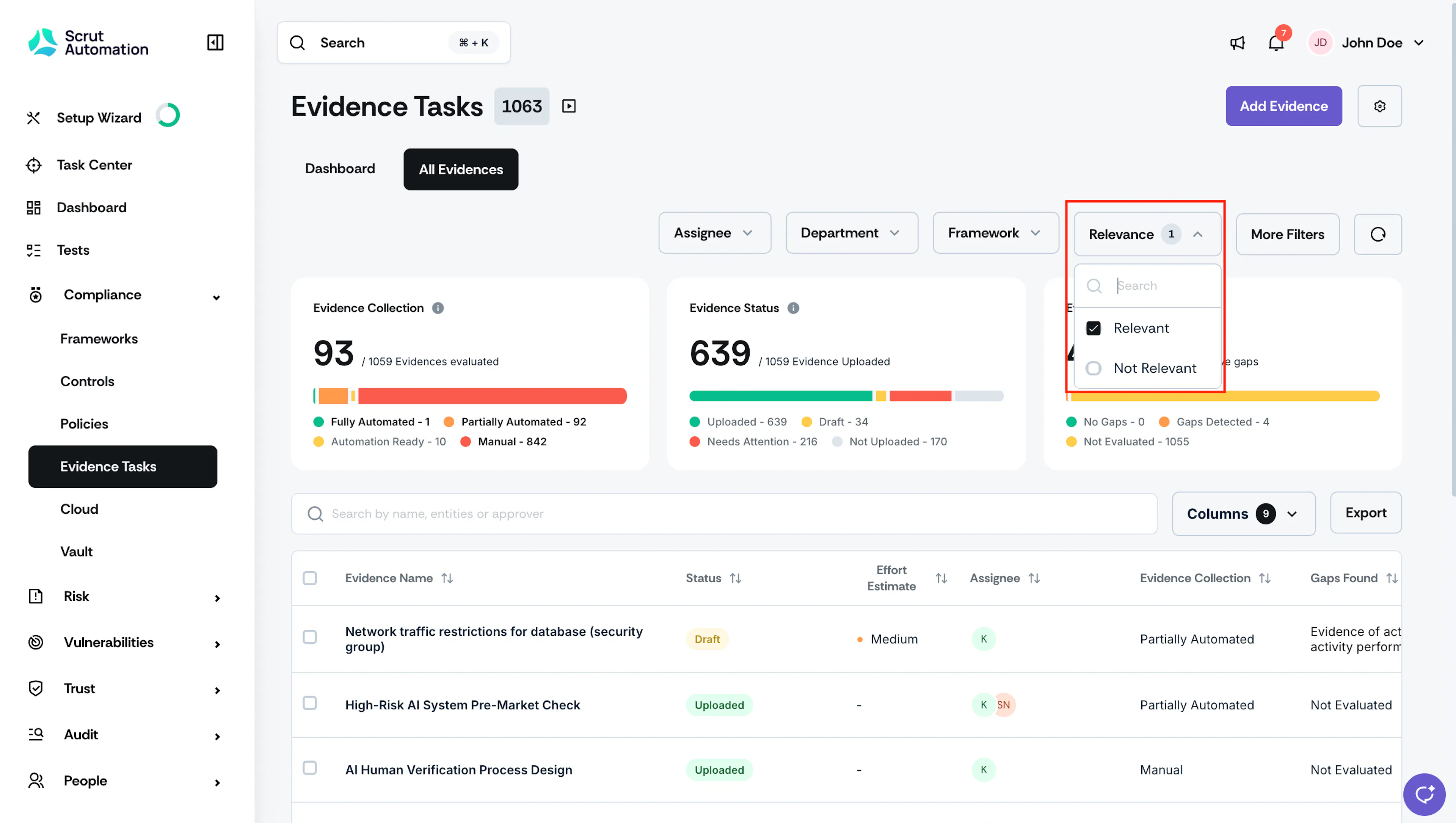
Evidence tasks marked as "Not Relevant" are hidden from the dashboard by default. To include it, click the Relevance filter and select Not Relevant.
Dashboard Filters
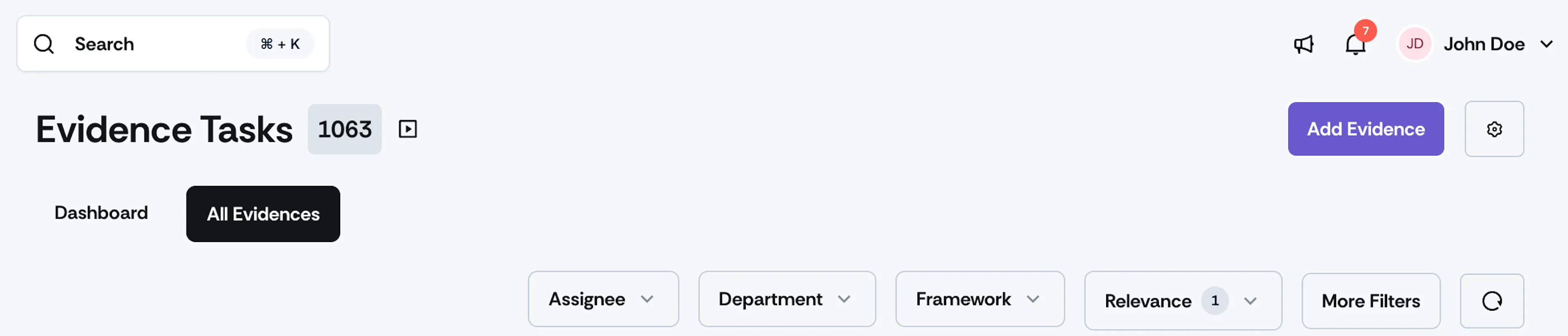
Use the filters at the top of the dashboard to narrow your view by specific criteria:
- Assignee: View evidence assigned to specific users, unassigned evidence, or evidence assigned to deactivated users.
- Department: View evidence by department, or find evidence with no department linked.
- Framework: View evidence mapped to a specific framework. Select No Framework to see all evidence without a framework.
- Entities: View evidence by entity.
- Relevance: Switch between Relevant and Not Relevant evidence.
Pro Tip!
Click the circular reset icon to the right of the filters to remove all applied filters.

Evidence Status
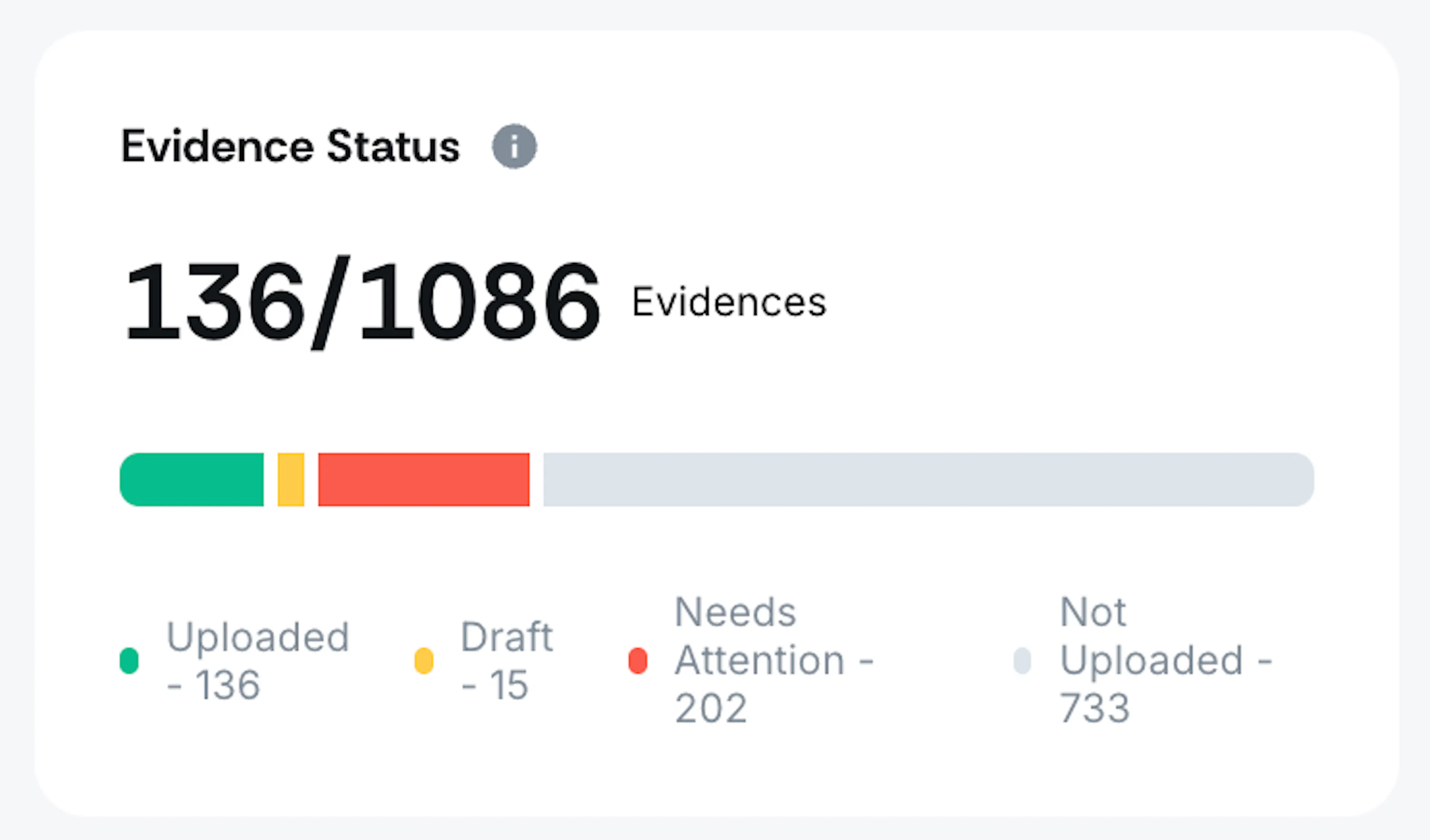
The Evidence Status widget gives you a quick view of where your evidence currently stands. The progress bar breaks down your evidence into four states: Uploaded, Draft, Needs Attention, and Not Uploaded. The count at the top (for example, 136/1086) shows how many evidence tasks currently have an uploaded status. Learn more about evidence statuses.
Note: Evidence moves to Draft status only when the evidence approval workflow is turned on.
Evidence Gap Status
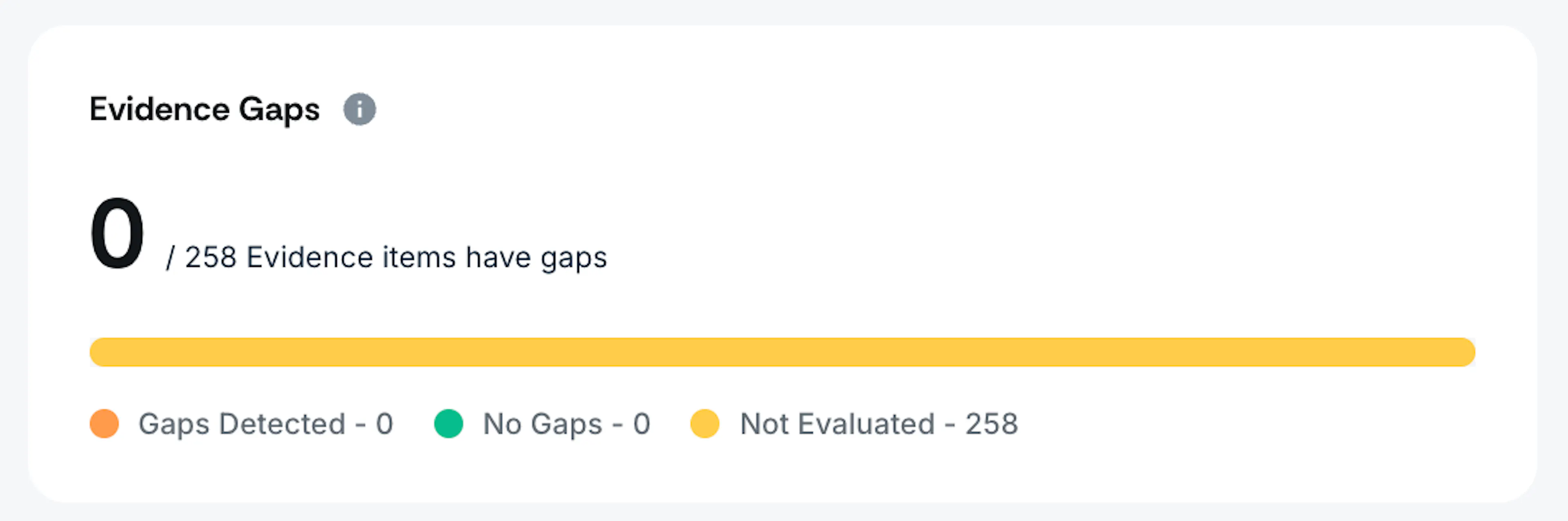
The Evidence Gap Status widget shows how many of your evidence tasks have been evaluated for content gaps. The progress bar breaks down your evidence into three states:
- No Gaps: Evidence that has been evaluated and has no gaps.
- Gaps Detected: Evidence where one or more gaps were found.
- Not Evaluated: Evidence that has not yet been evaluated.
The count at the top (for example, 15/258) shows how many of your total evidence tasks currently have no gaps.
Upcoming Evidence for Review
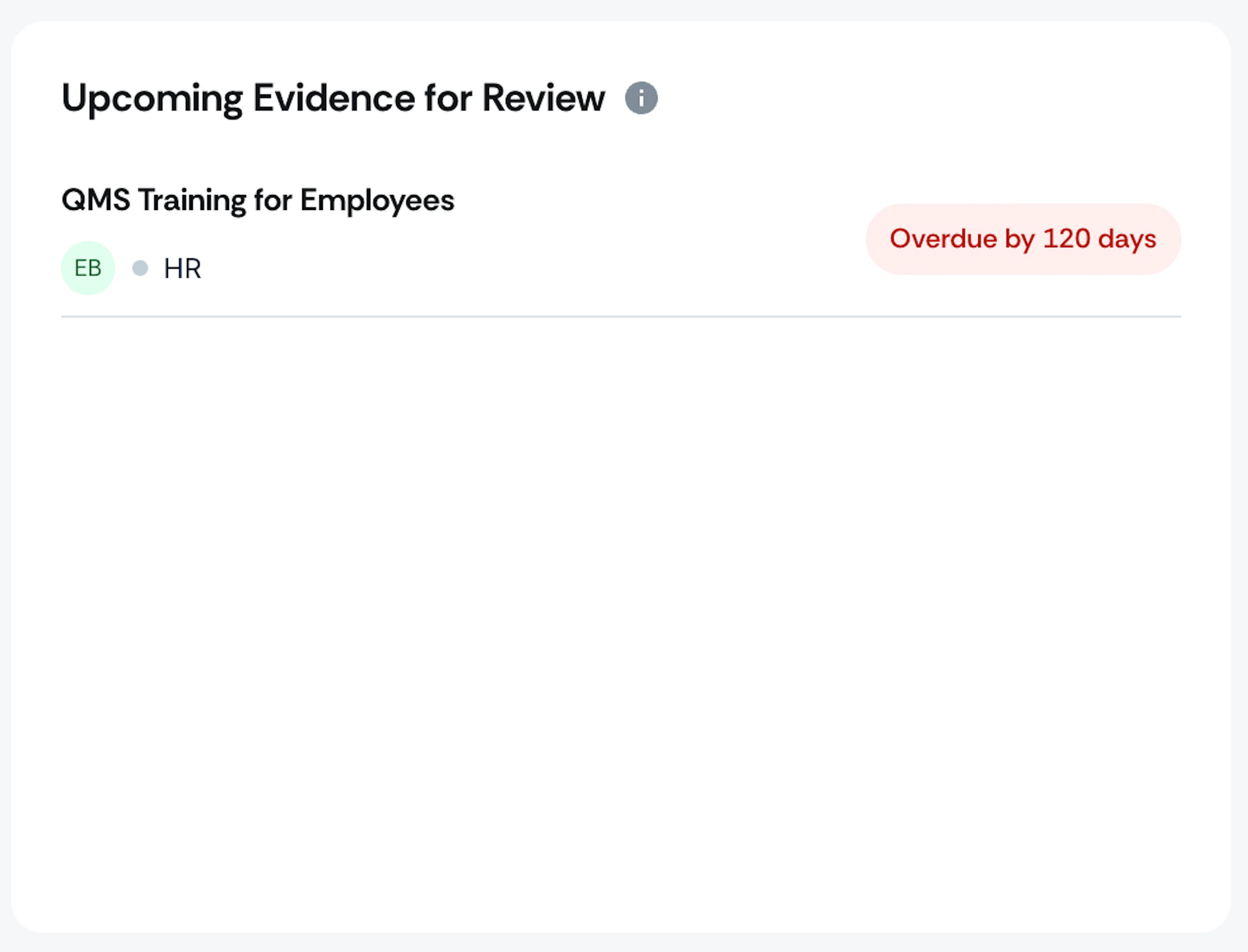
This section lists evidence tasks that are overdue for review. Click View All to see the full list of evidence marked as Needs Attention.
AI-Detected Evidence Gaps
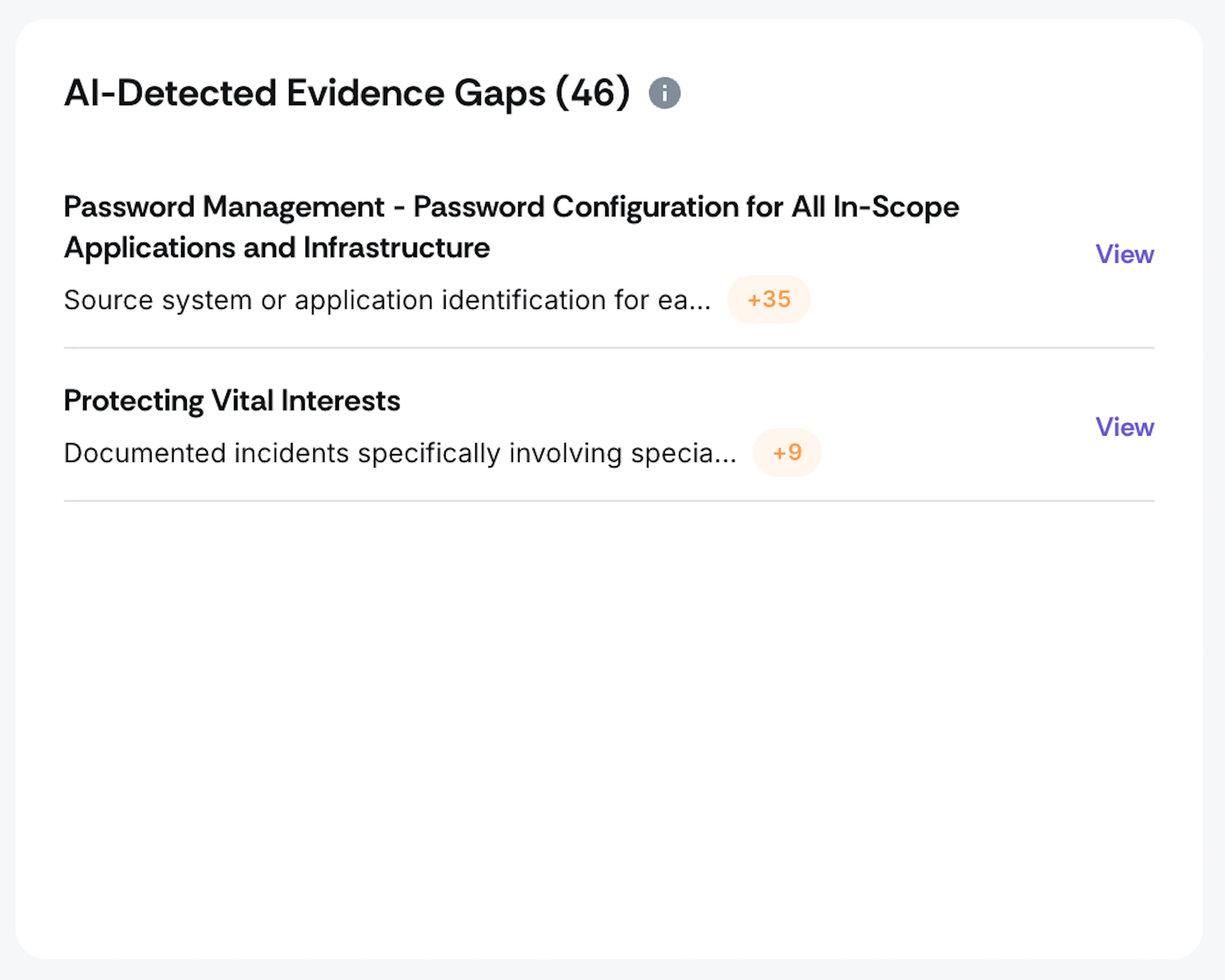
The AI-Detected Evidence Gaps section lists evidence tasks where Scrut Teammates has identified missing or incomplete content. Each entry shows the evidence name and the number of gaps detected. Click View next to any evidence task to see the specific gaps. Click View All to see the complete list of evidence with AI-detected gaps.
Evidence by Assignee
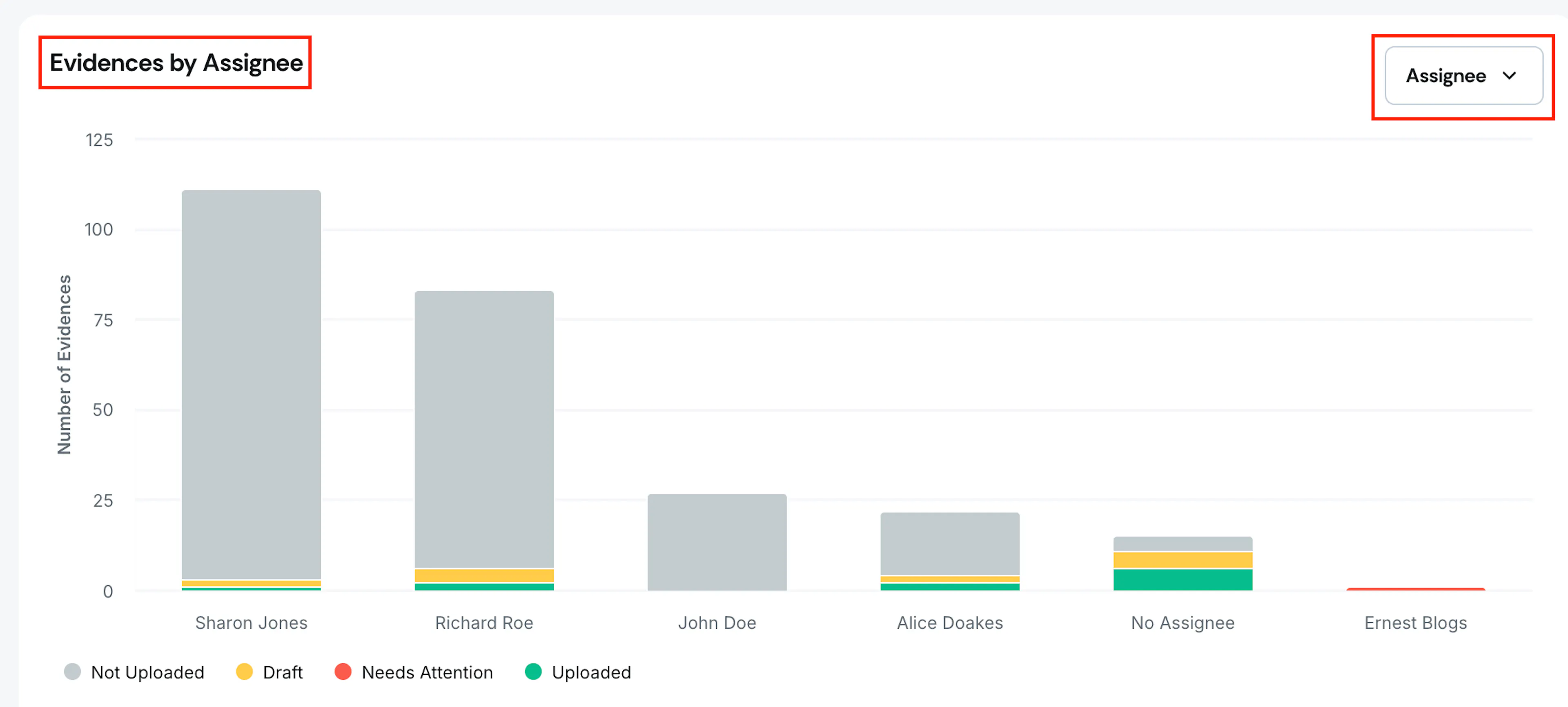
The Evidence by Assignee chart shows the number of evidence tasks assigned to each user, broken down by status. Click any bar to go to the All Evidences page with the assignee and status filters already applied.
Evidence by Department
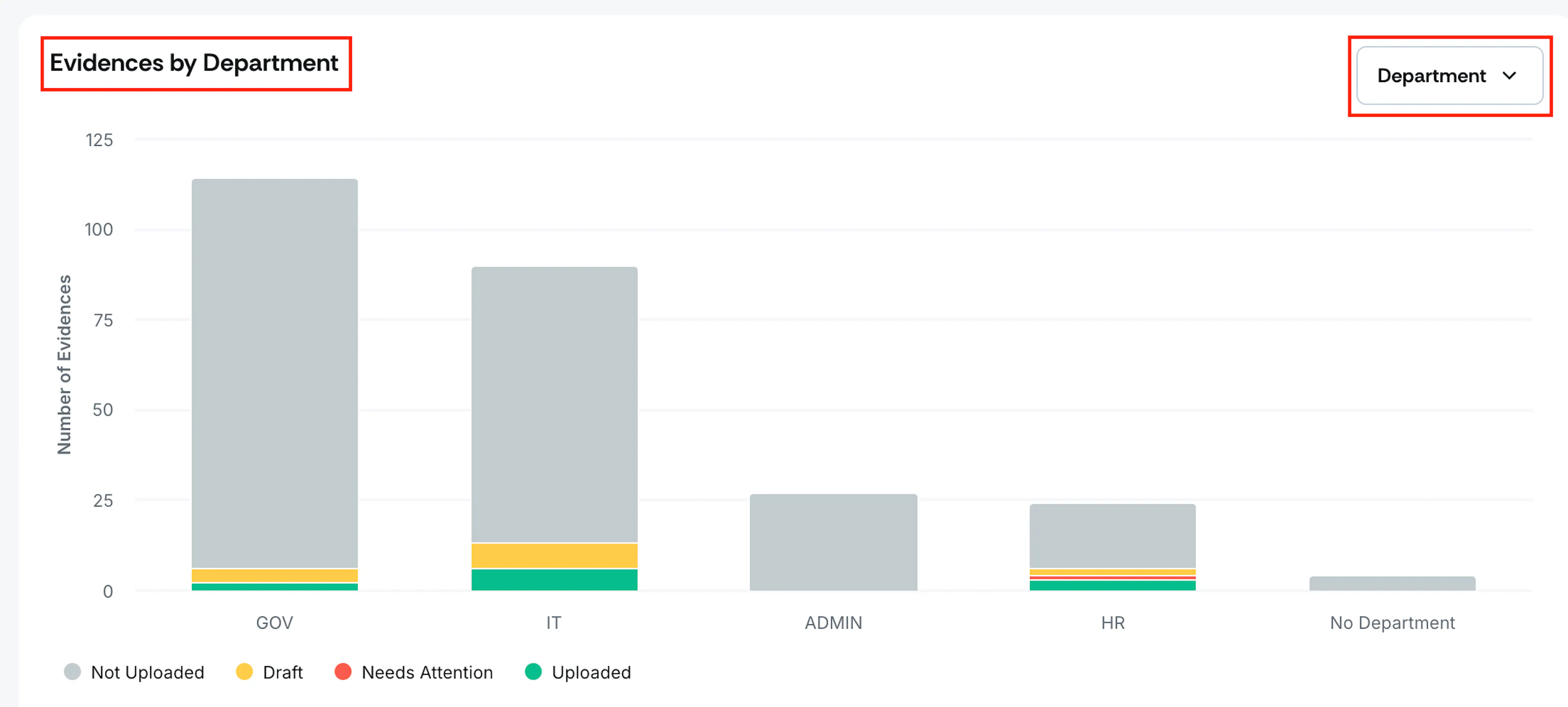
The Evidence by Department chart shows the number of evidence tasks across each department, broken down by status. Click any bar to go to the All Evidences page with the department and status filters already applied.
Evidence by Framework
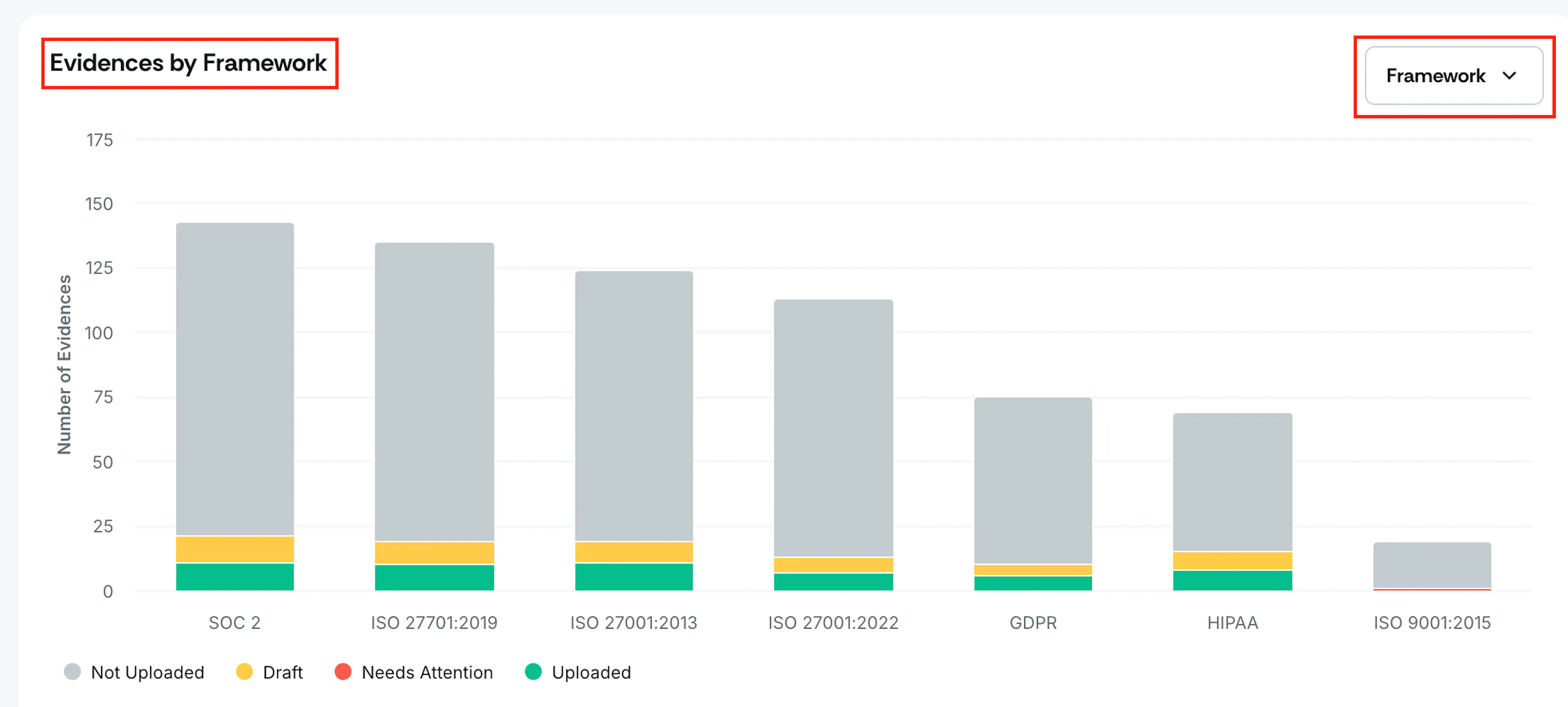
The Evidence by Framework chart shows how many evidence tasks are mapped to each compliance framework, broken down by status. Click any bar to go to the All Evidences page with the framework and status filters already applied.
Heads Up!
Use the dropdown above each chart to switch the view between Assignee, Department, and Framework.
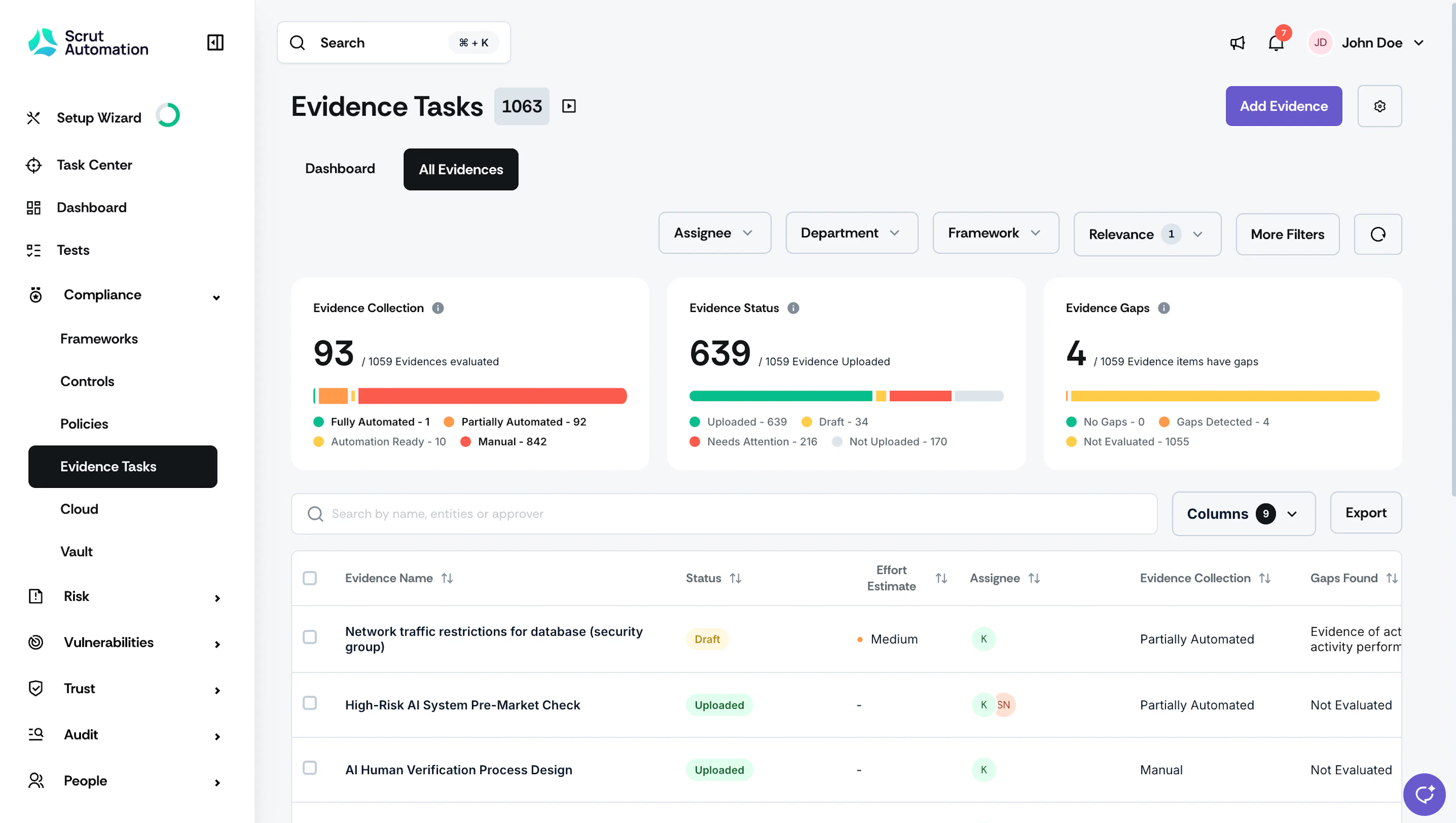
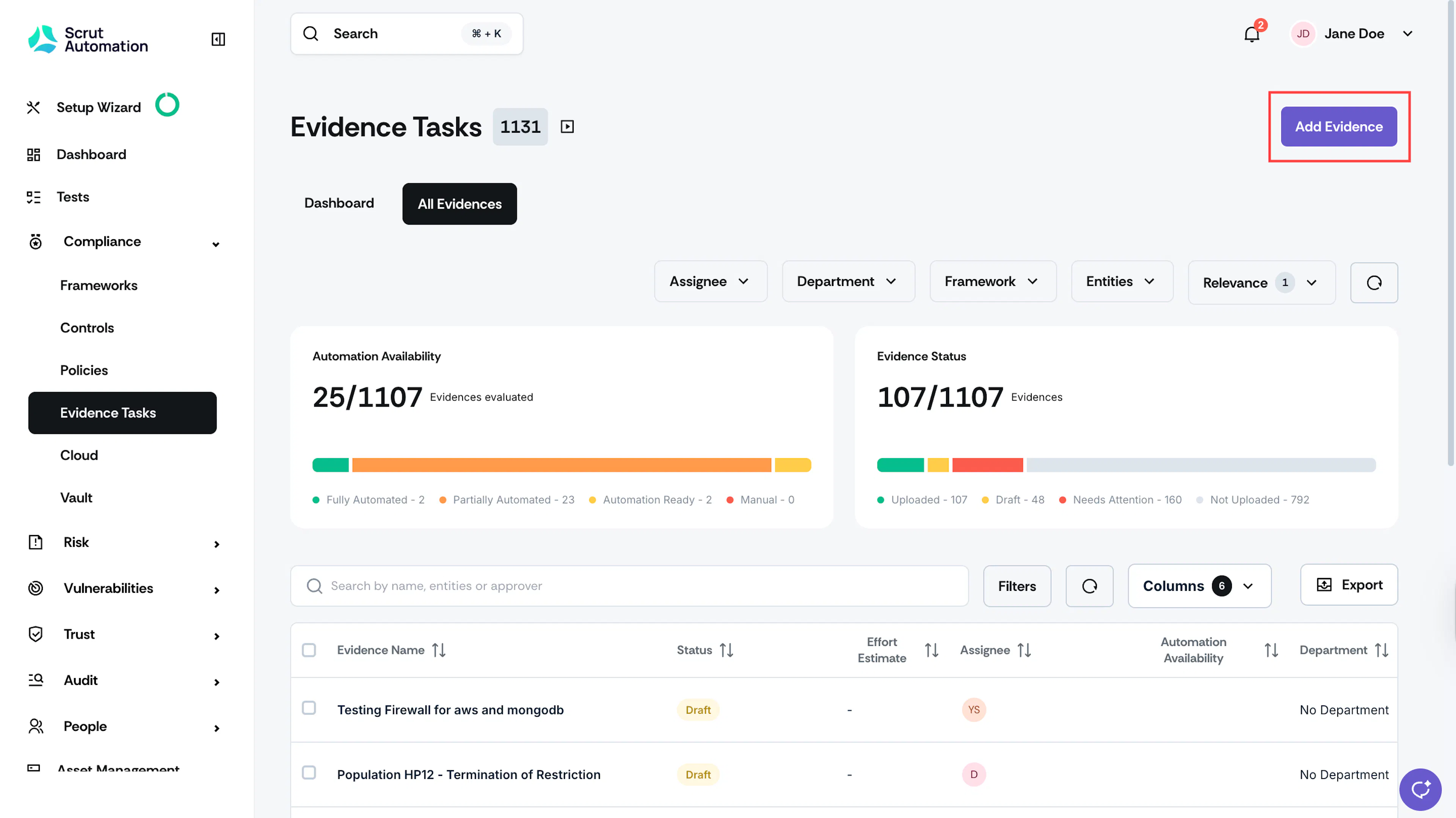
The All Evidences page provides a comprehensive overview of all your evidence tasks along with their current statuses.
How To Access the All Evidences Page
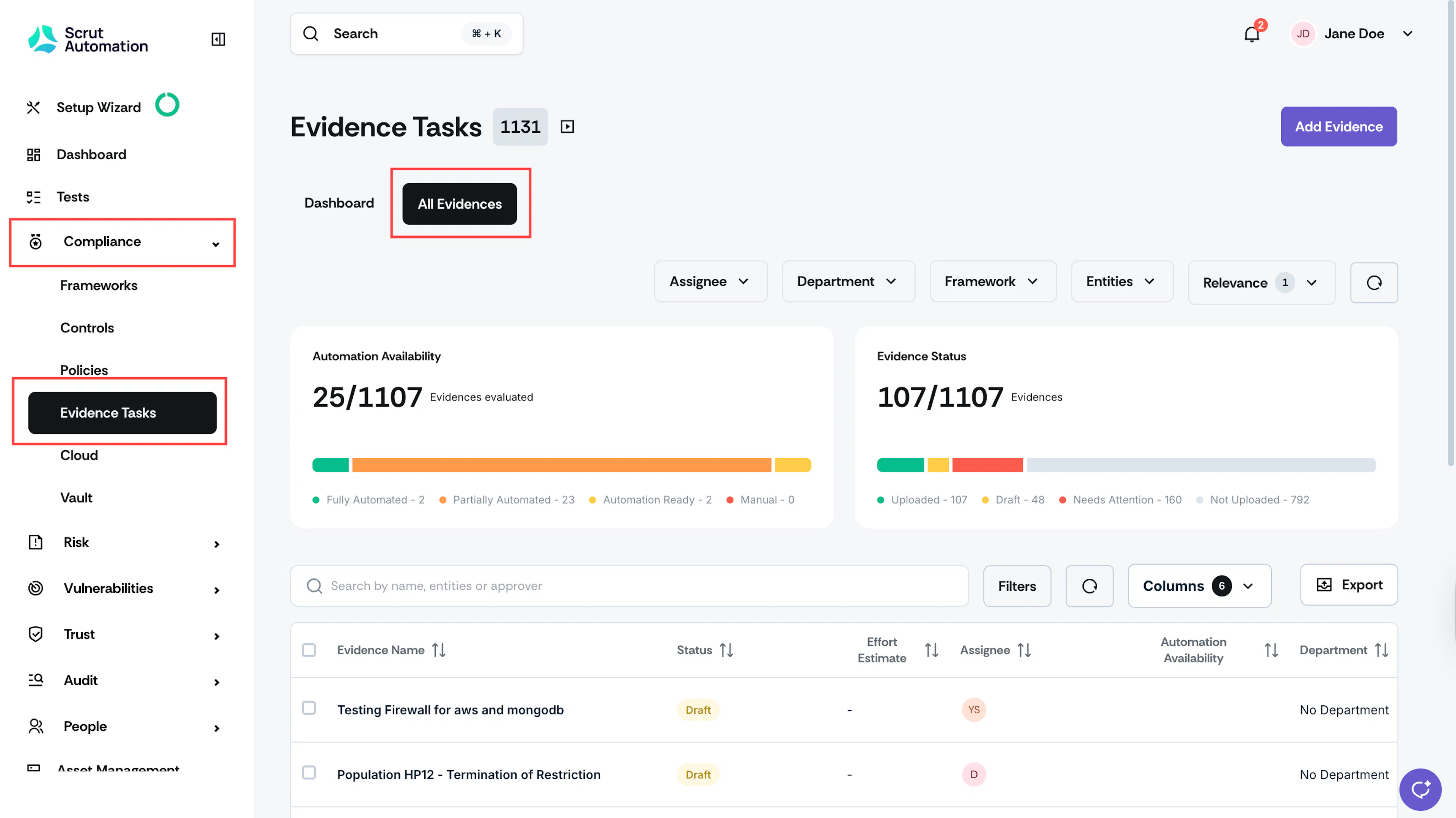
Sign in to Scrut and click Compliance → Evidence Tasks on the left navigation panel. Click the All Evidences tab. Once you’re on this page, you can perform the following key actions:
Create New Evidence
Click the Add Evidence button on the top-right to create custom evidence. Refer to this guide for more information on creating custom evidences.
Evidence Status
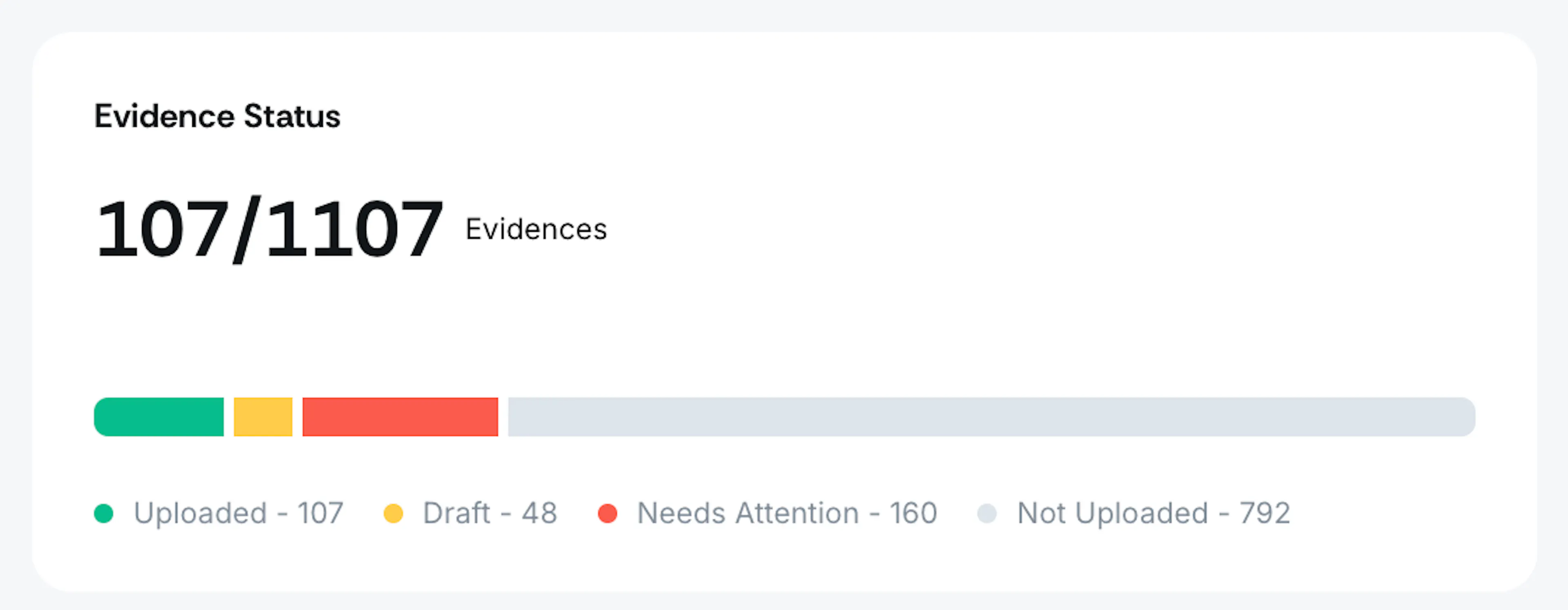
The Evidence Status bar shows the number of evidence tasks under each status. See here to learn more about each evidence status.
Note:
Evidences move to the Draft status only when the evidence approval workflow is turned on.
Table Filters

Use the filters at the top of the table to find evidence tasks based on specific criteria:
- Assignee: Use this filter to view evidence assigned to specific users. You can also check evidence that isn’t assigned to anyone or is assigned to deactivated users.
- Department: To find evidence belonging to certain departments or evidence that isn't linked to any department.
- Framework: To view evidence belonging to specific frameworks. Click on No Framework to display all evidence not linked to any frameworks.
- Entities: To view evidence belonging to specific entities.
- Relevance: To view evidence marked as “Relevant” and “Not Relevant.”
Pro Tip!
Click the circular reset icon to the right of the filters to remove all applied filters.
Evidence Table
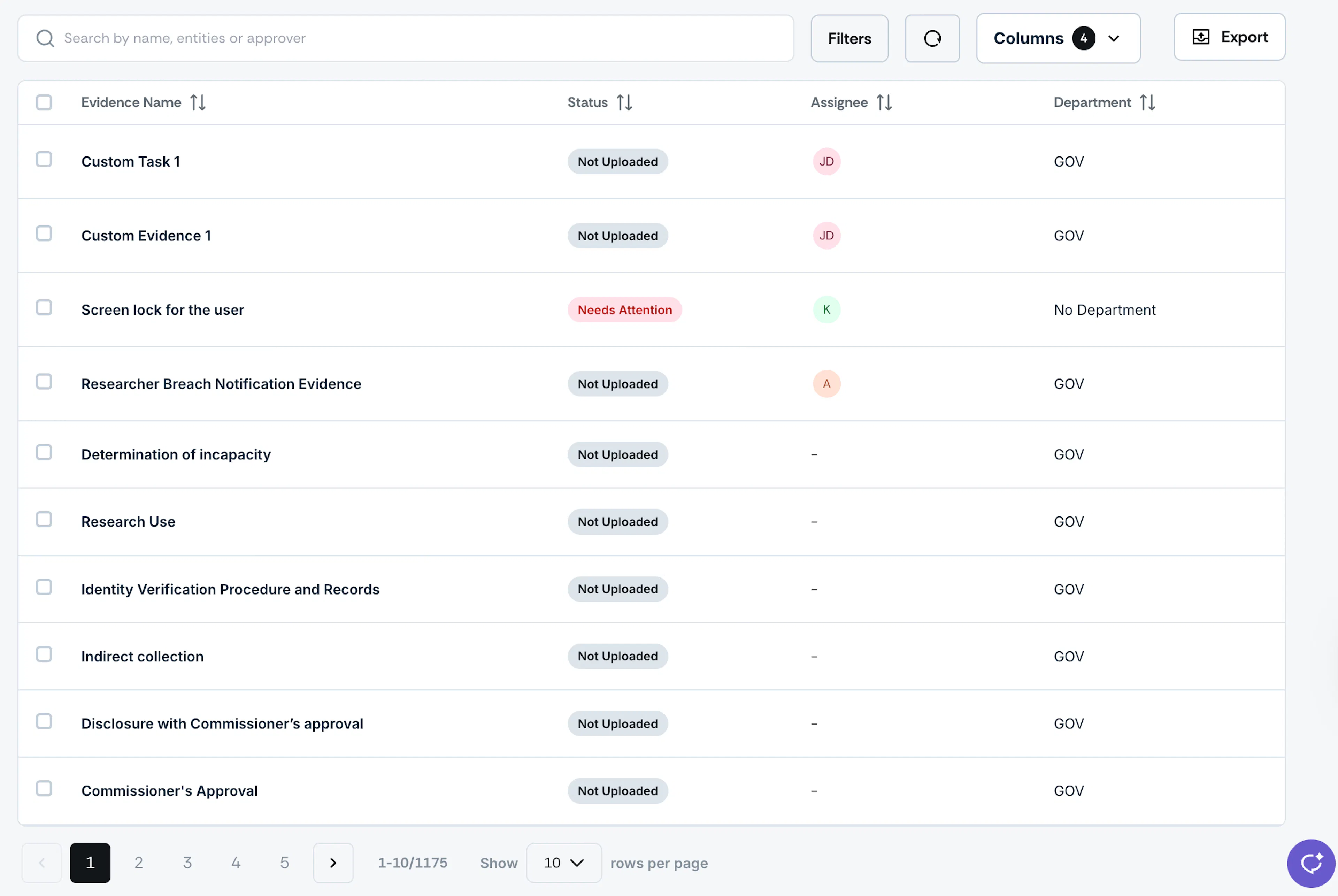
The main focus of the All Evidences page is the Evidence table. It provides a quick snapshot of each piece of evidence, including relevant metadata such as the evidence name, status, assignee, approver, and more. Clicking on any evidence in the table takes you to the Evidence Details page.
Search Bar
Use the search bar at the top of the table to search evidence tasks by name, entities, or approver.

Filters
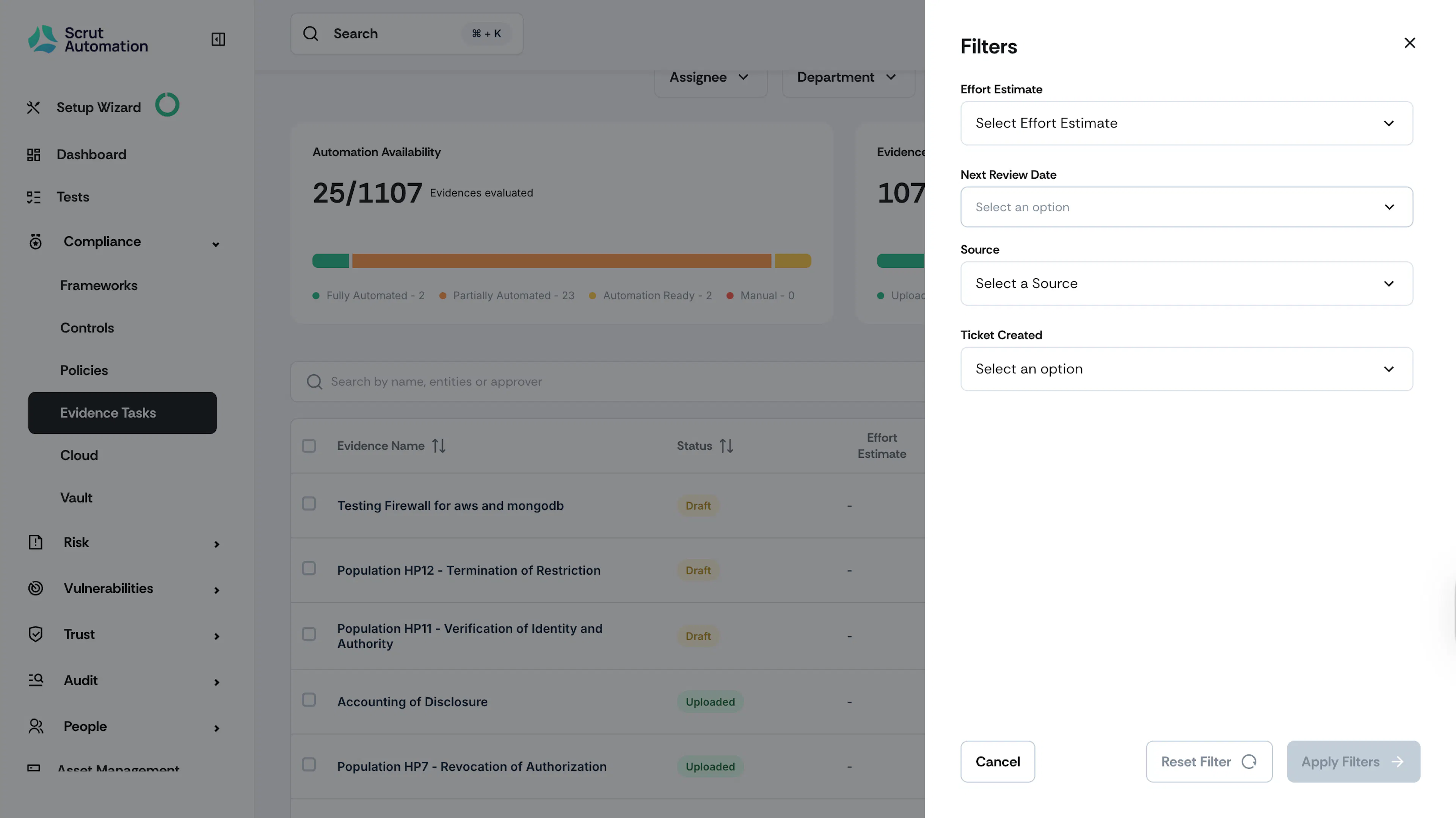
Filter evidence based on:
- Effort Estimate: Low, Medium, or High
- Next Review Date: Overdue, current month, next month, or custom range
- Source: Scrut / Custom
- Ticket Created: Yes / No
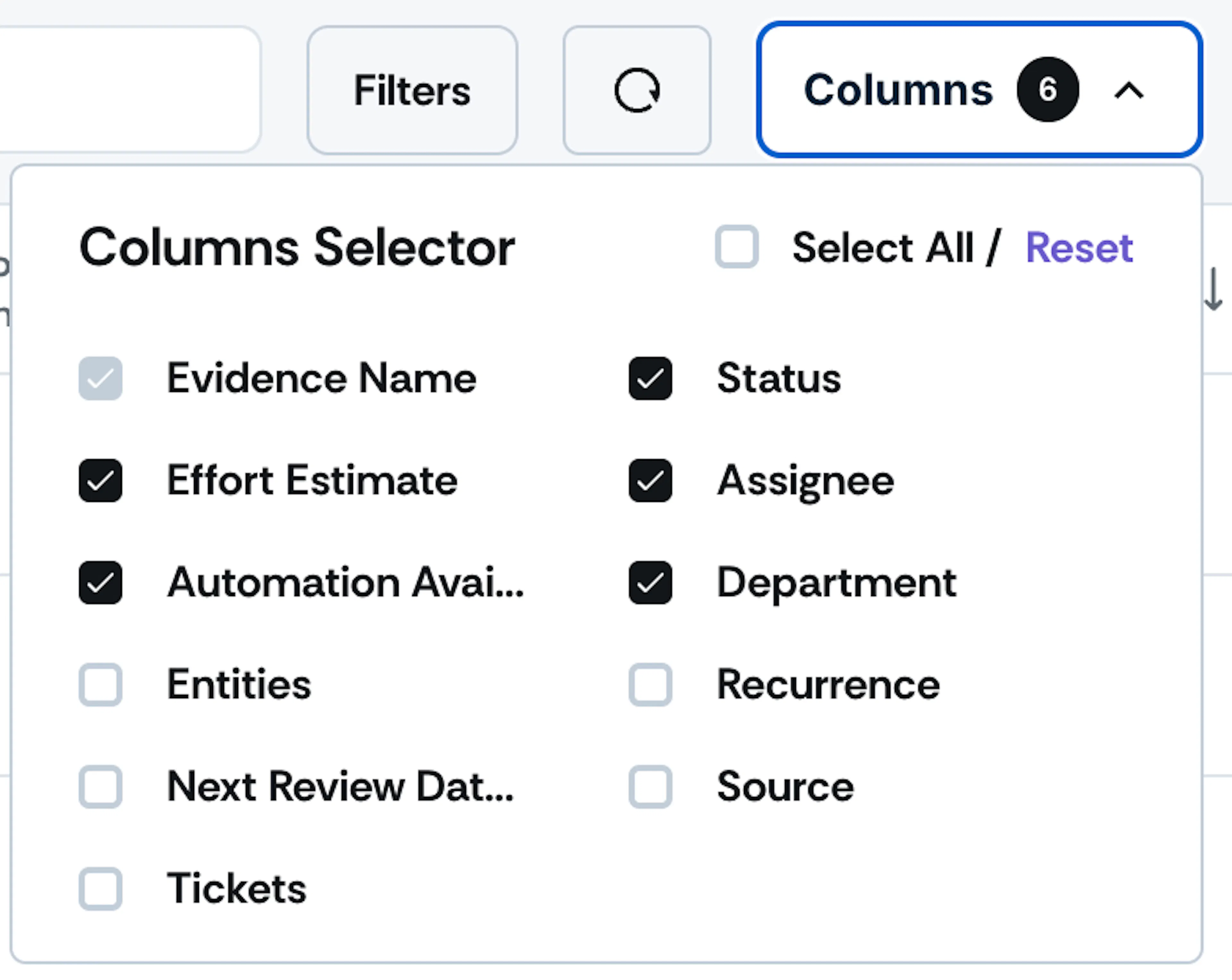
Column Selector
Use the column selector at the top of the table to choose the columns to be visible in the table.