Create a Custom Evidence Task
Scrut offers an extensive library of over 400 evidence tasks, pre-mapped with various standard requirements, including ISO, SOC2, GDPR, and more. For tailored needs, you have the flexibility to create a custom evidence task to match your unique organizational requirements.
How To Create a Custom Evidence Task
-
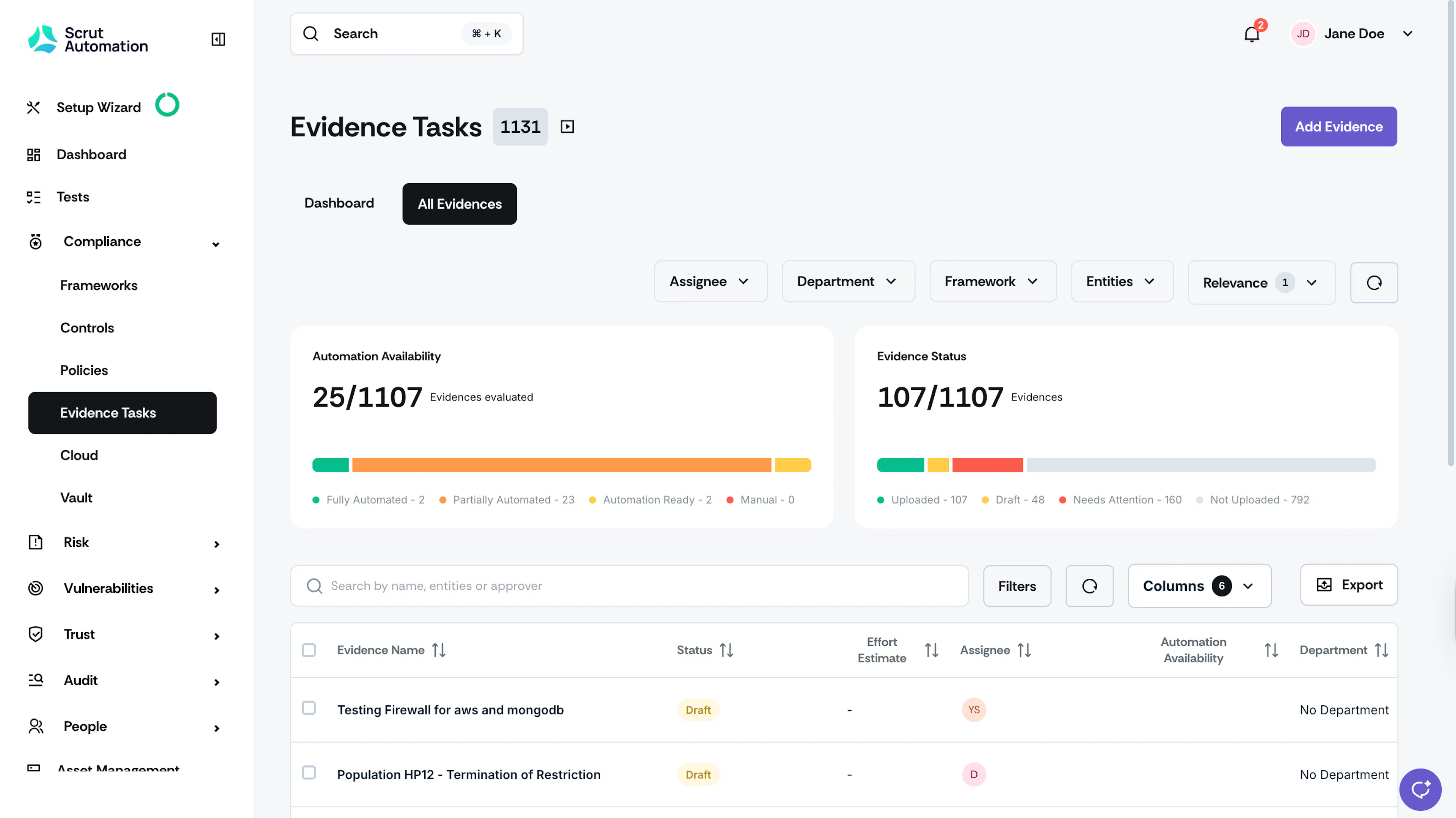
Sign in to Scrut, and click Compliance → Evidence on the left navigation panel.
-
Go to the All Evidences tab.
-
Click the Add Evidence button at the top right.
-
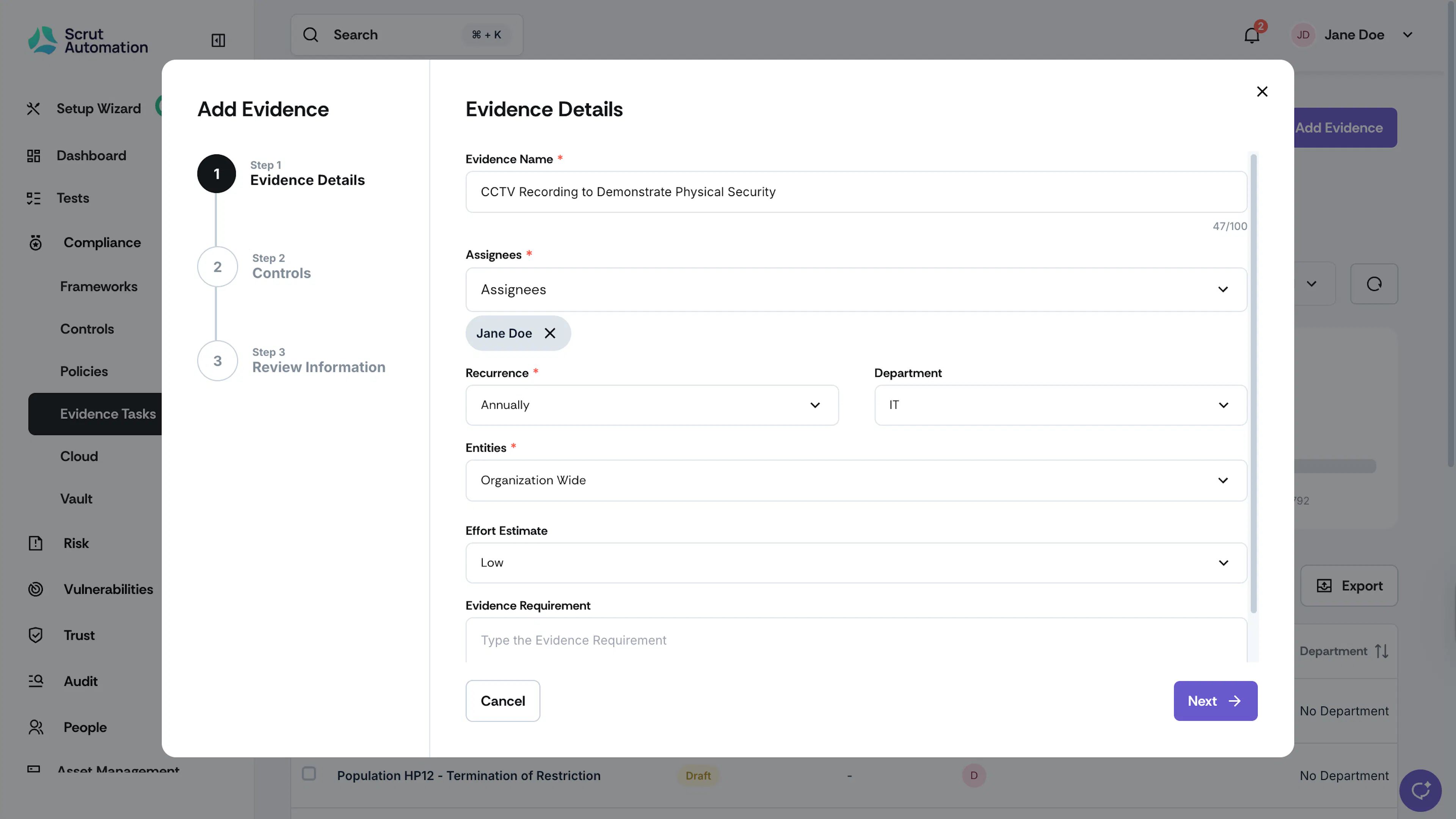
Enter the evidence details, such as:
-
Name: Enter a suitable name for the evidence task.
-
Assignee: Use the dropdown to select one or more users who will be assigned the evidence task.
Note:
The assignee(s) will be notified via email about the assigned evidence task.
-
Recurrence: Select the frequency for the evidence task. For example, if the evidence needs to be reviewed once every quarter, select Quarterly.
-
Department: Select the department to which the evidence task belongs.
-
Entity: Select the organizational entities to which the evidence belongs. By default, all evidences are linked to “Organization Wide.”
-
Effort Estimate: Optionally, you can also select the effort required to complete this evidence task. You can classify it as Low, Medium, or High.
-
Evidence Requirement [Optional]: Enter a description for the task.
-
-
Click Next.
-
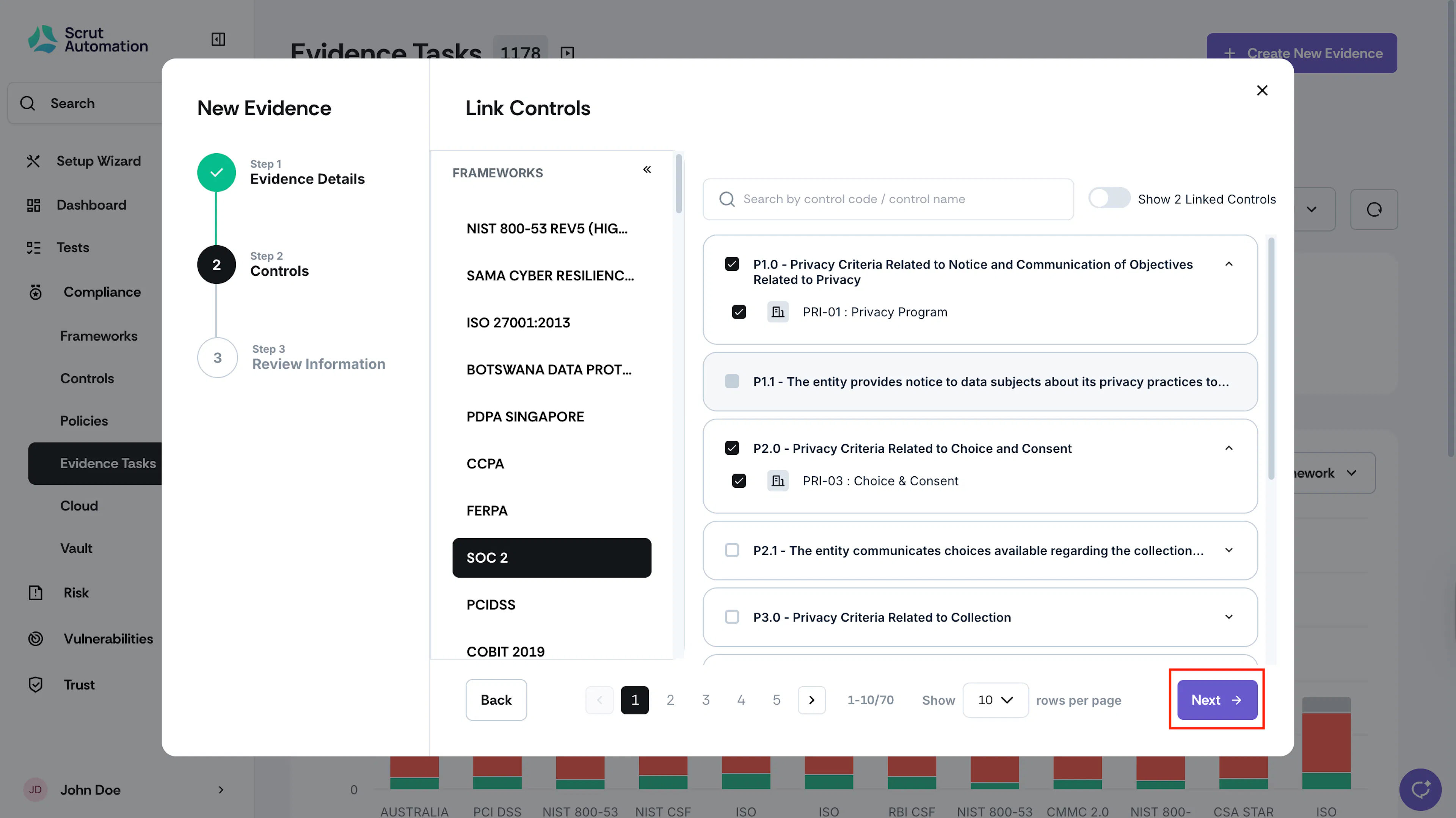
The next step is to link the controls for the evidence.
-
Use the Frameworks panel to view controls relevant to your frameworks.
-
Expand a specific requirement to see all controls associated with it.
- When you select a requirement, all controls within it will be selected by default.
- If needed, you can then select/unselect specific controls as required.
-
Select the checkboxes next to the controls you want to link.
-
Note: Any requirement that is not applicable will appear greyed out.
-
Optionally, use the search bar at the top to quickly locate controls by name or code.
-
Once you've made the selections, enable the "Show Linked Controls" toggle to review and verify the controls you've chosen to link.
-
Click Next to confirm your selections.
-
-
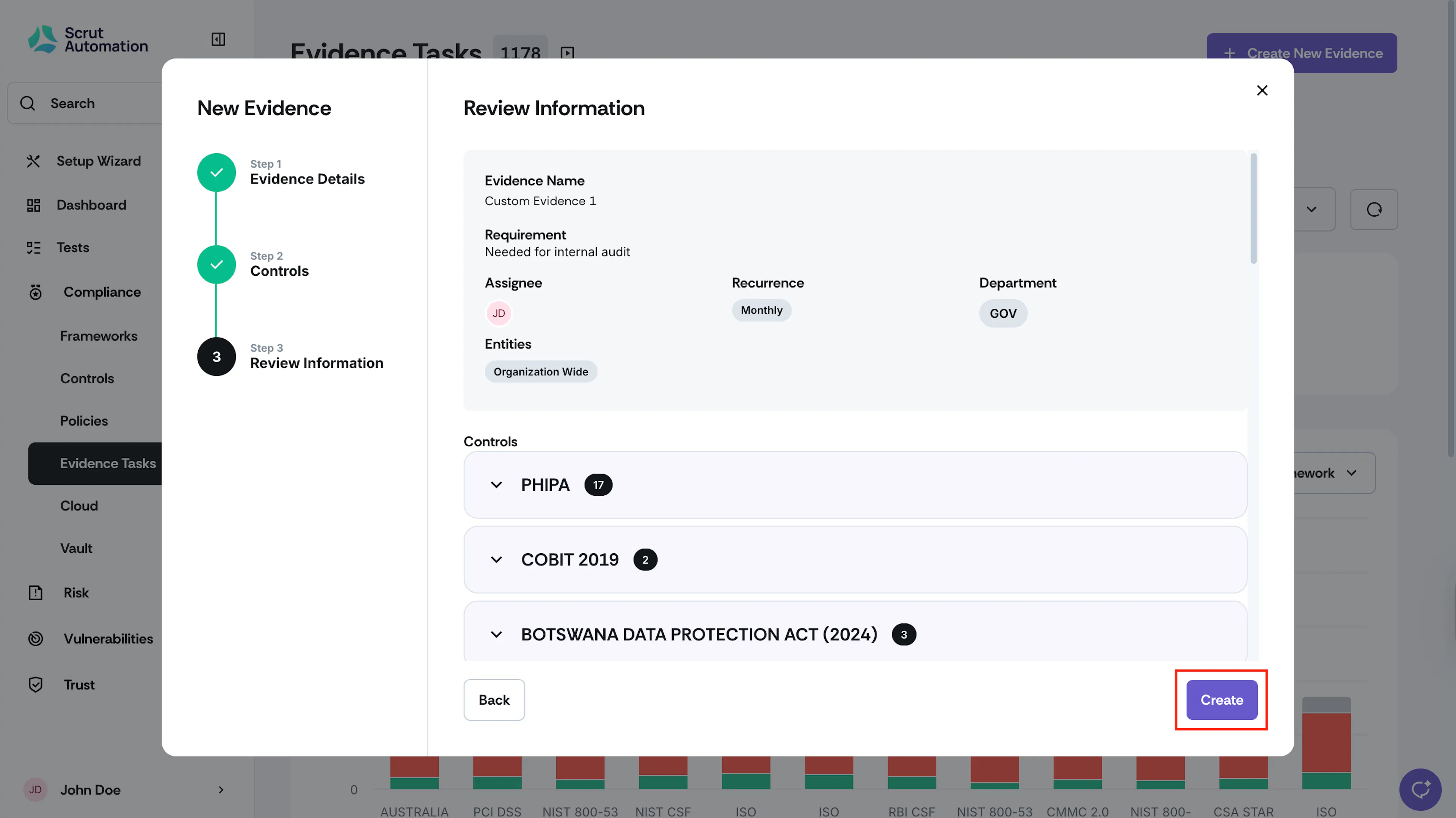
Review the information and click Create.
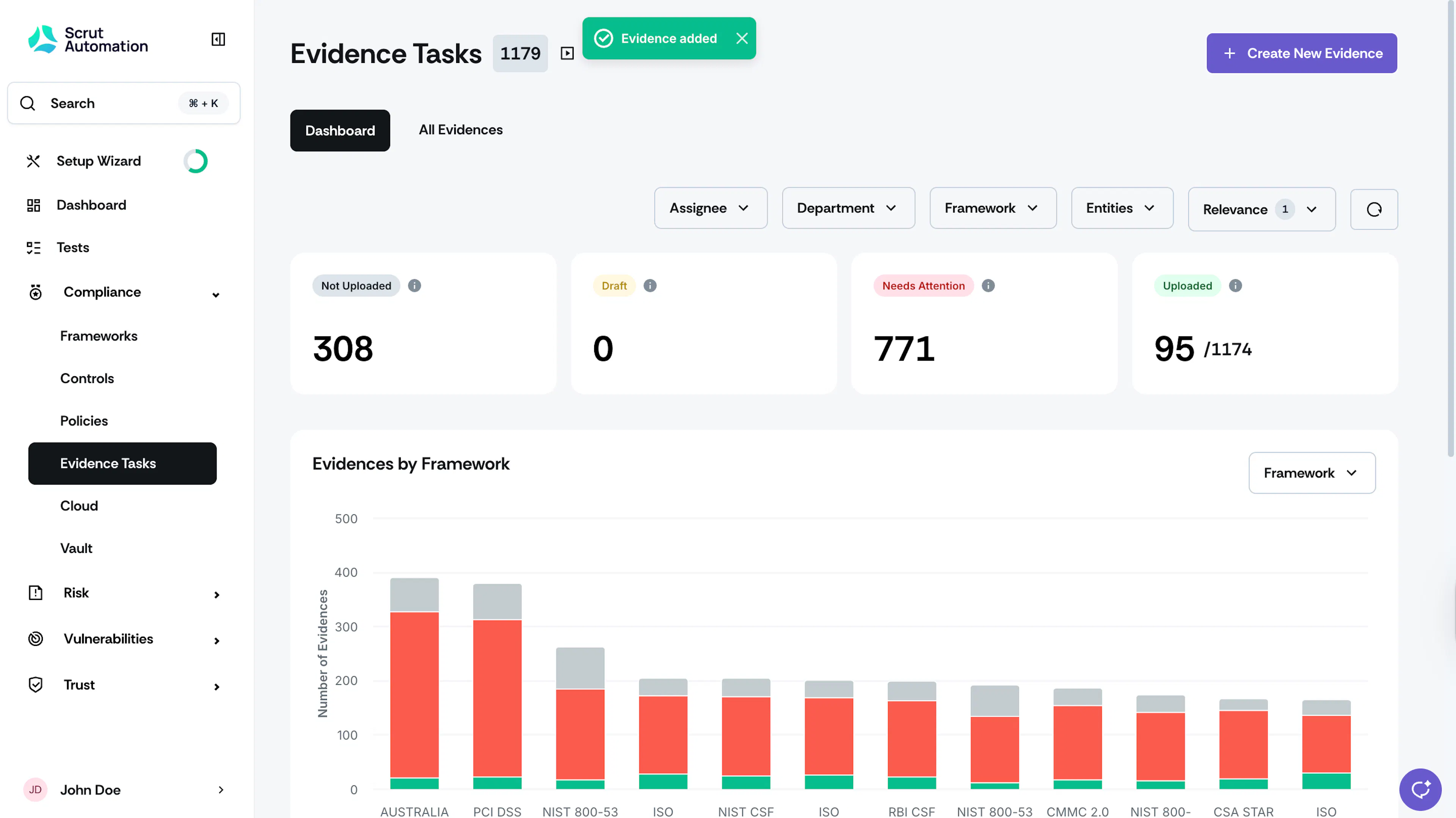
Scrut will create the custom evidence task.
Heads Up!
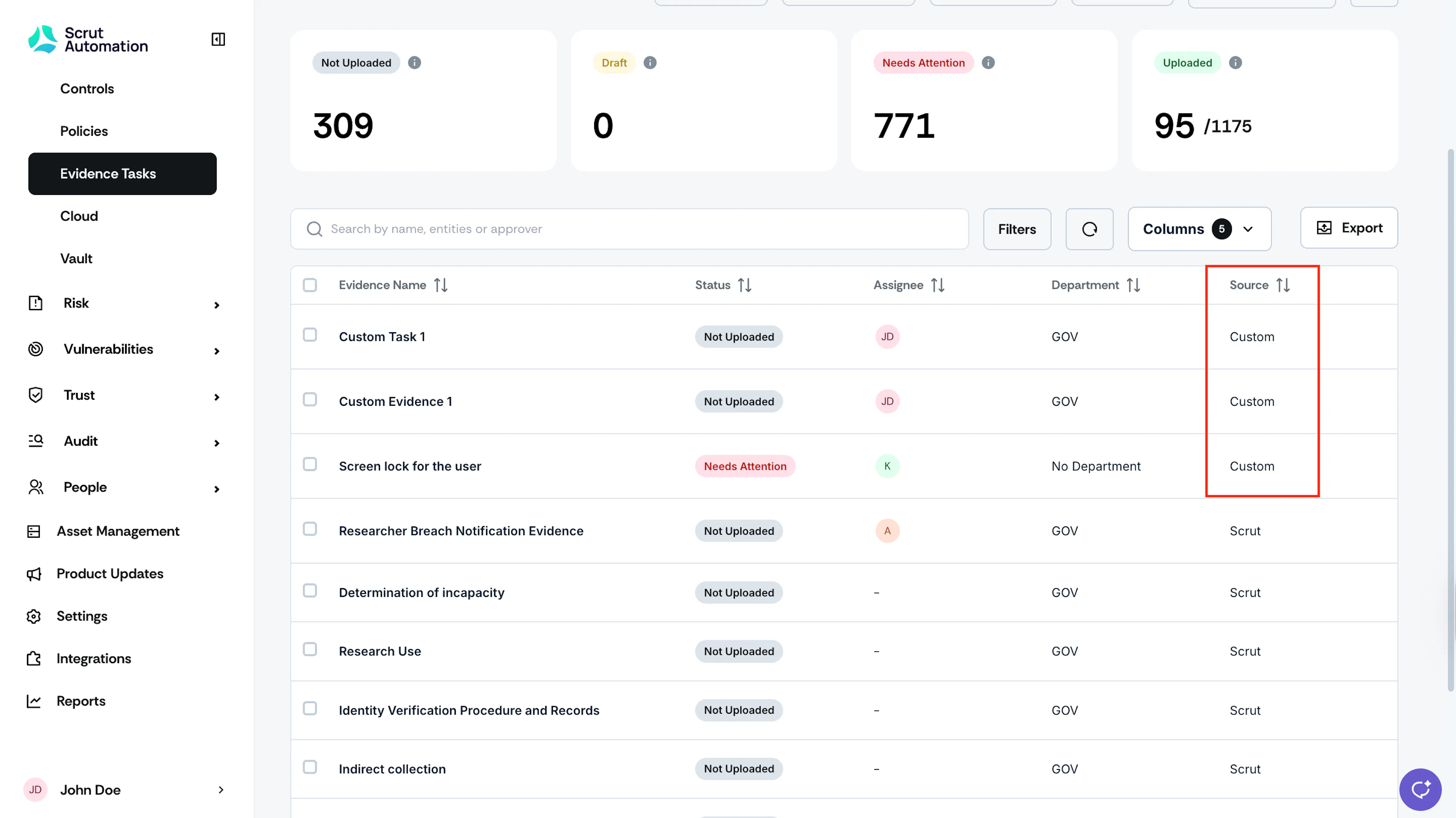
The Source column on the evidence details page for this task will be marked as Custom. This is to easily differentiate custom tasks from those provided by Scrut.