

Export Evidence
The "Export Evidence" feature in Scrut allows you to quickly export the evidence tasks related to various framework requirements. This feature simplifies the process of preparing evidence for auditors, enabling users to generate bulk exports for easy auditing.
In this article, we cover how to export:
How To Export Evidence Tasks for a Framework
-
Sign in to Scrut, and click Compliance → Evidence Tasks on the left navigation panel.
-
Go to the All Evidences tab.
-
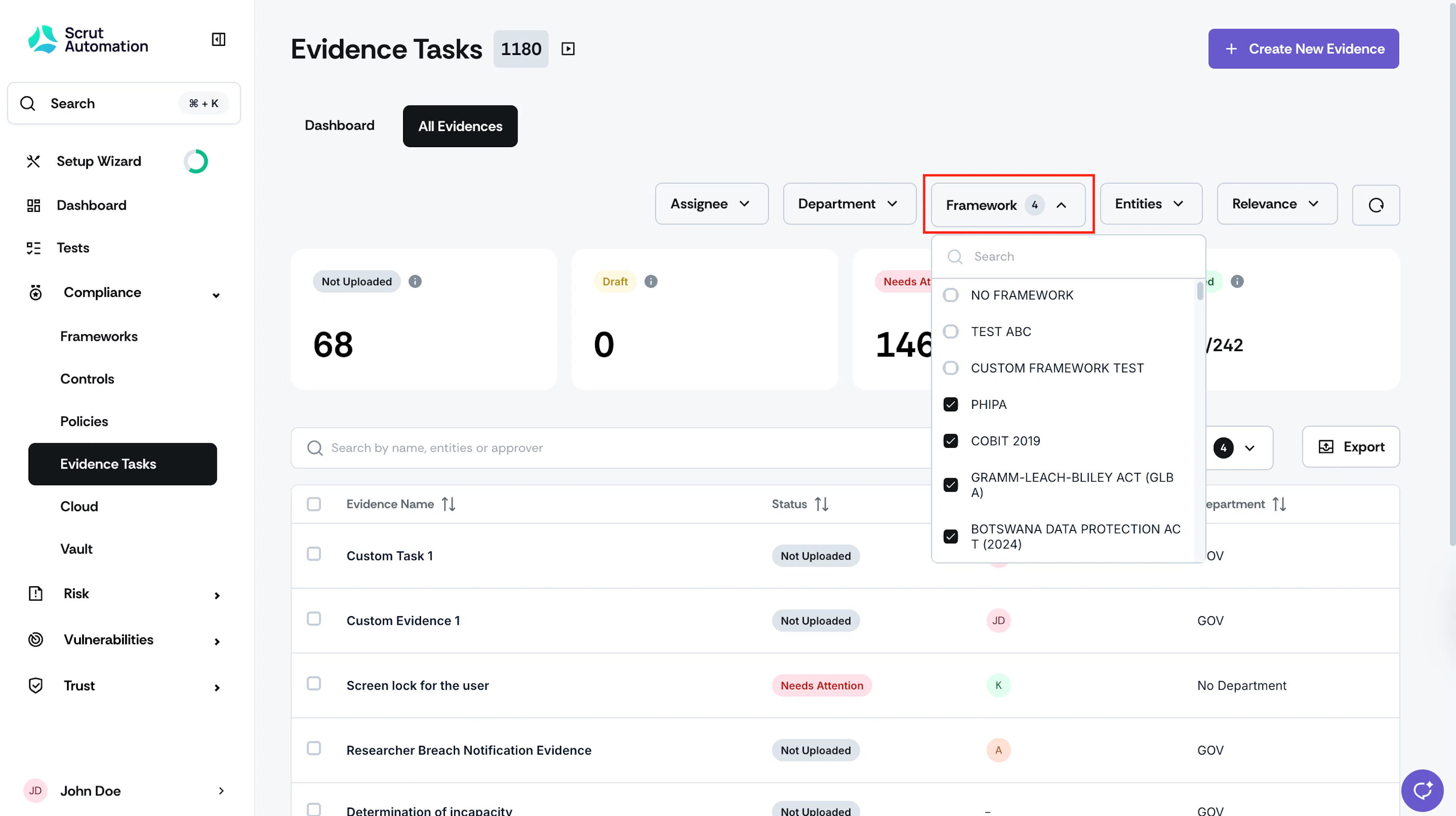
Click the Framework filter at the top of the page and select the frameworks for which you want to export the associated evidence tasks.
-
Use the Columns field to select the columns to include in the export.
-
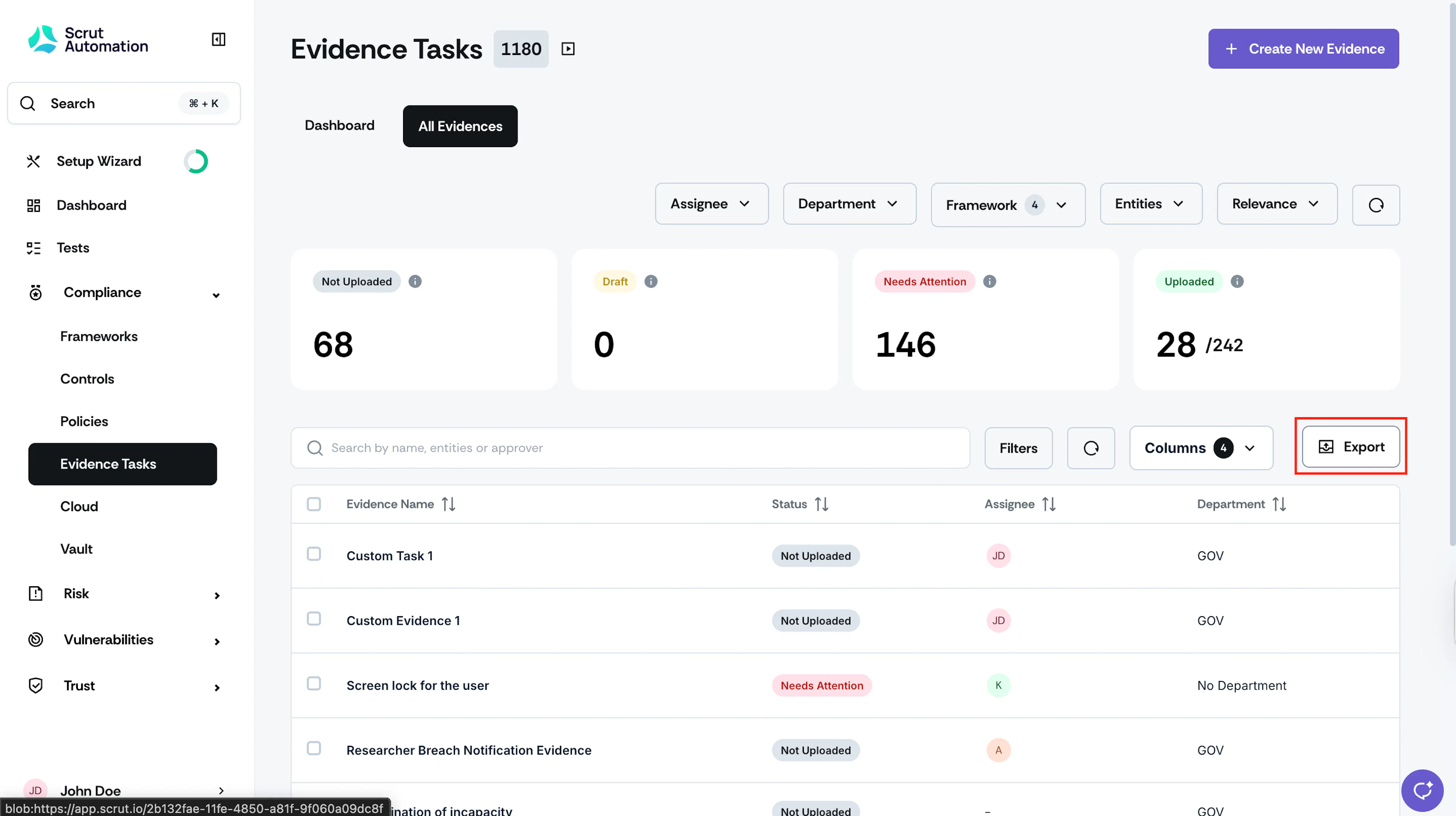
Click the Export button at the top of the evidence table.
-
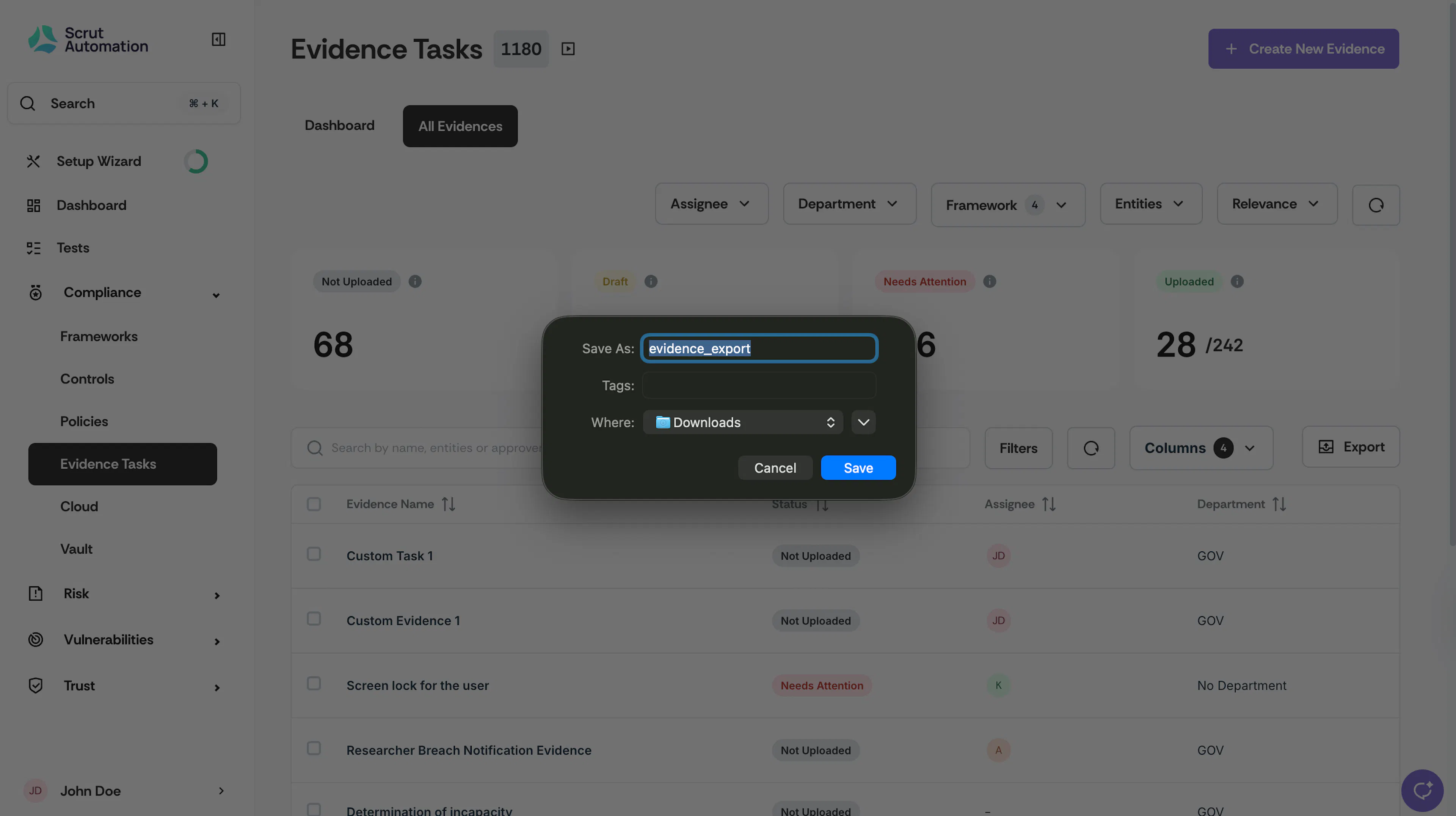
Scrut will download the file in the specified location. Check the downloads folder or recent download history on your browser.
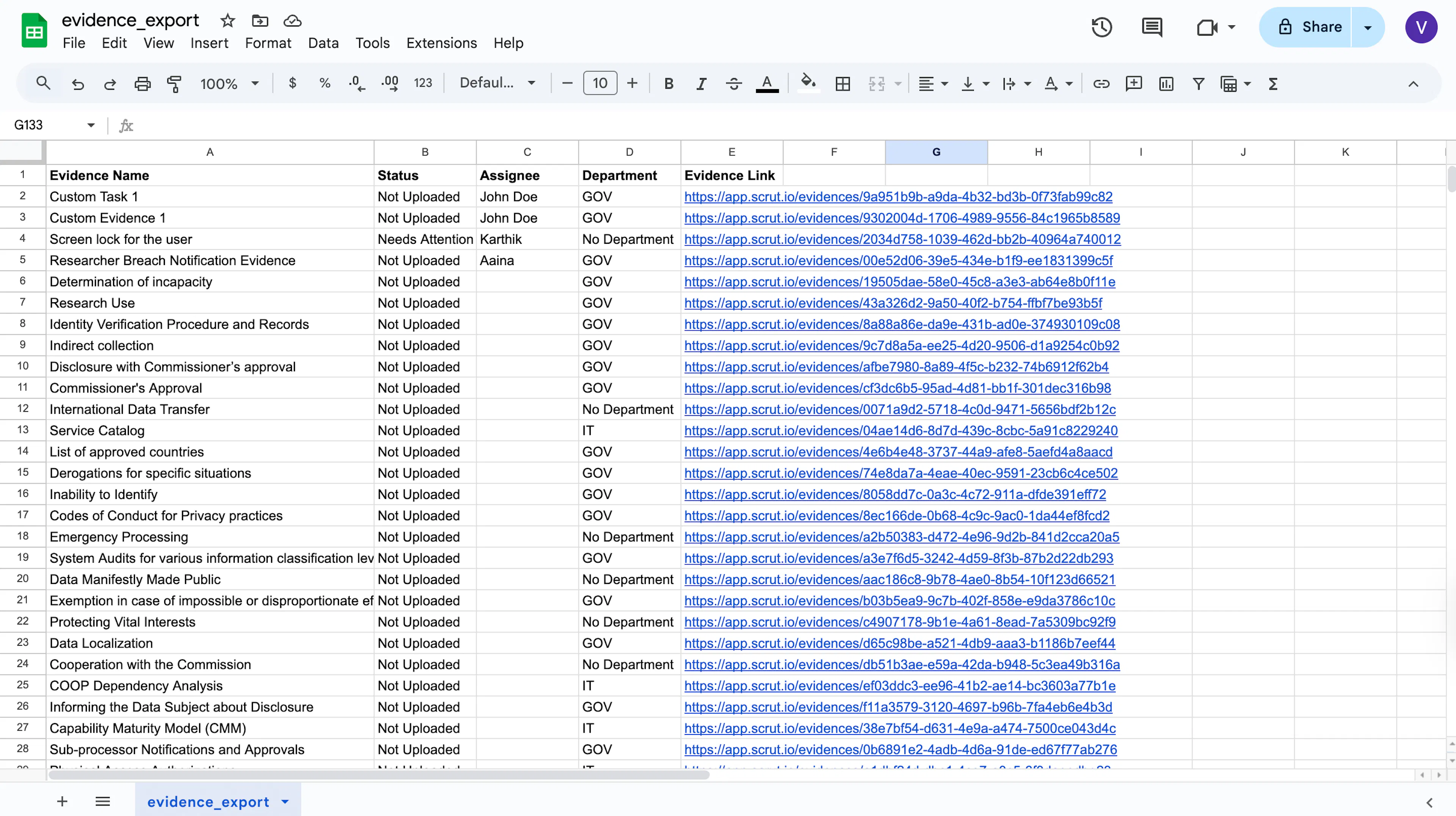
Sample Evidence Export
How to Export Evidence Attachments
Follow these steps to export the attachments added to evidence tasks:
-
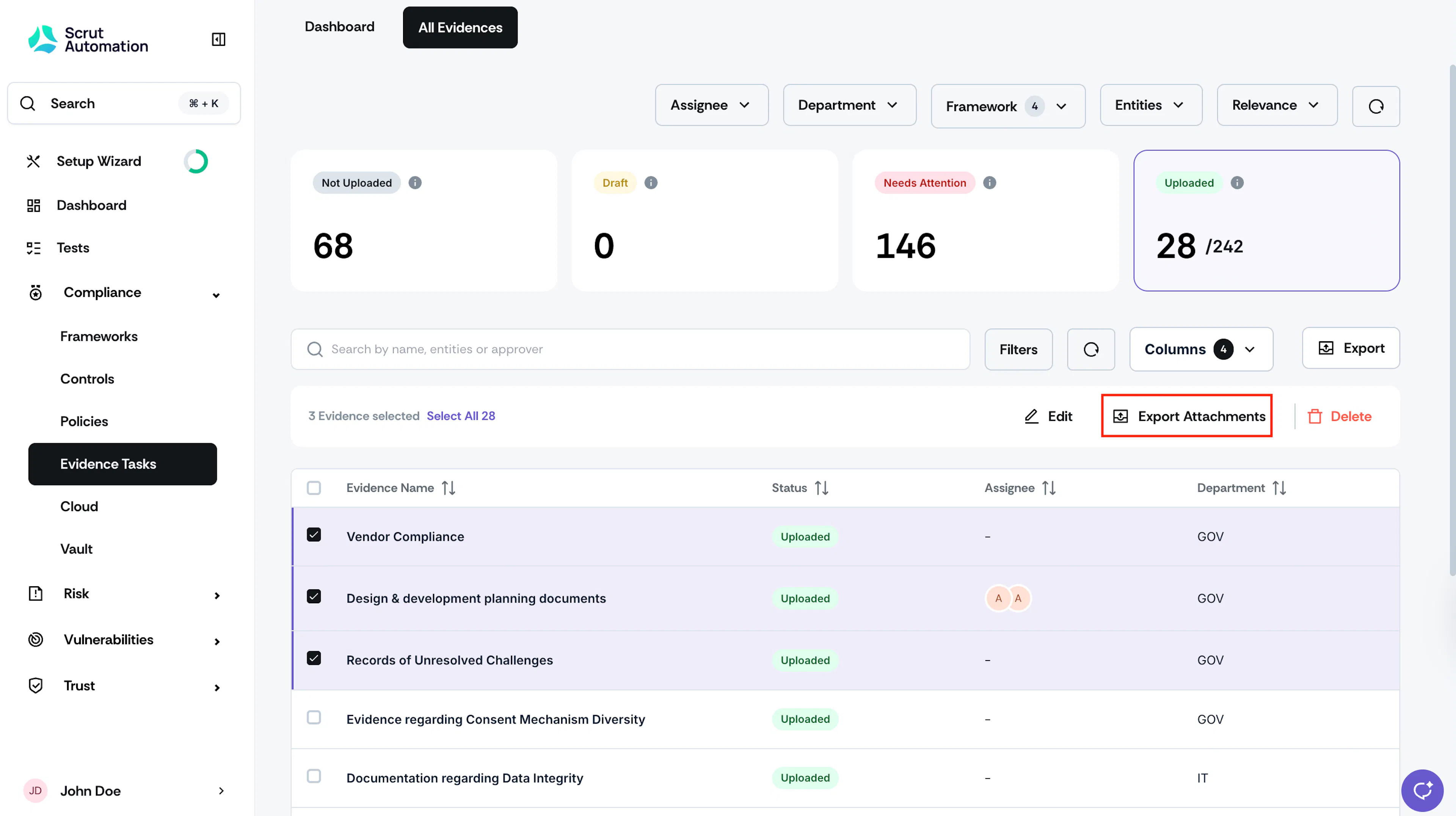
Go to the All Evidences tab and select the evidence(s) for which you want to export the attached documents.
-
Click the Export Attachment button at the top of the Evidence Tasks table.
-
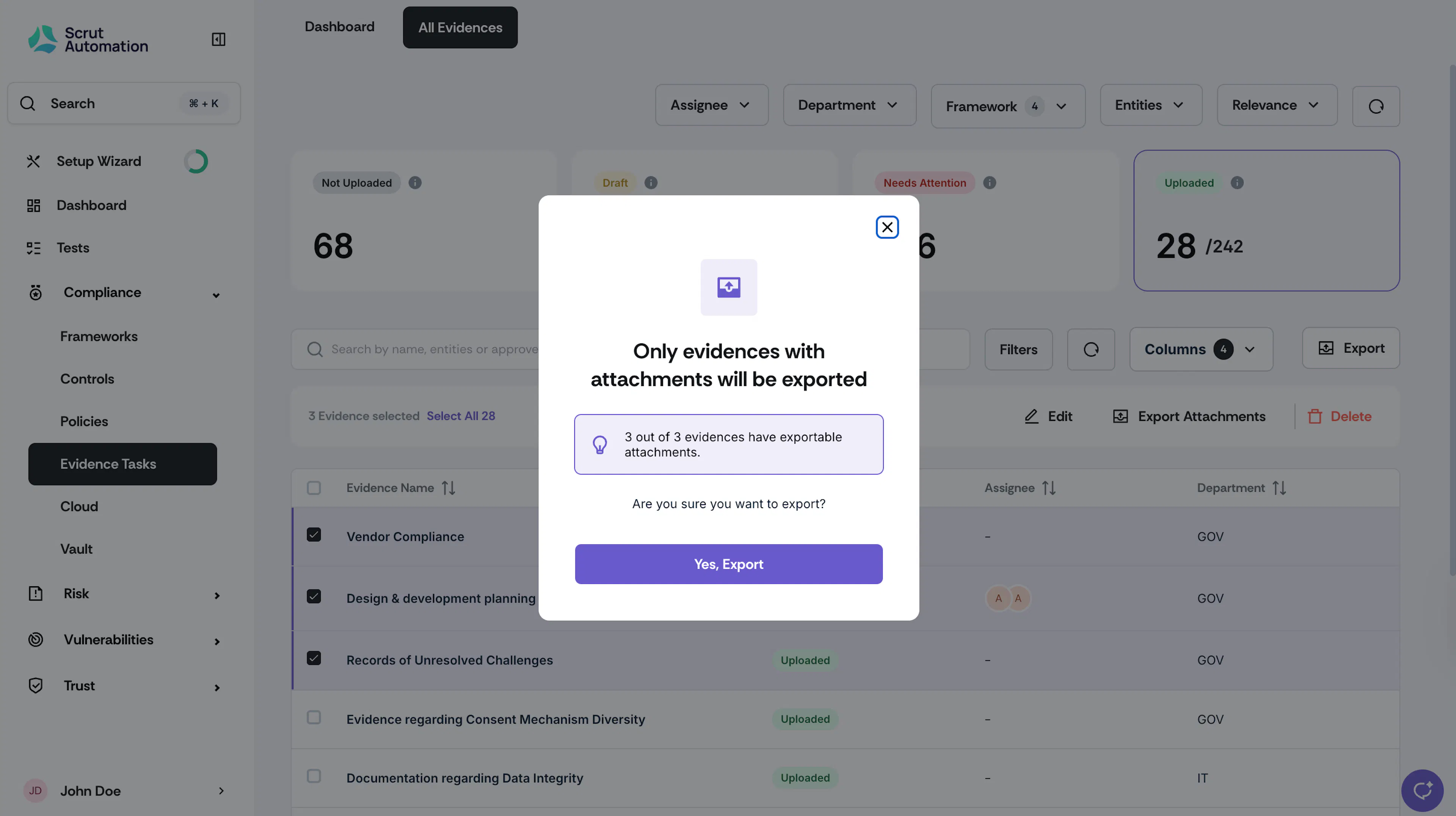
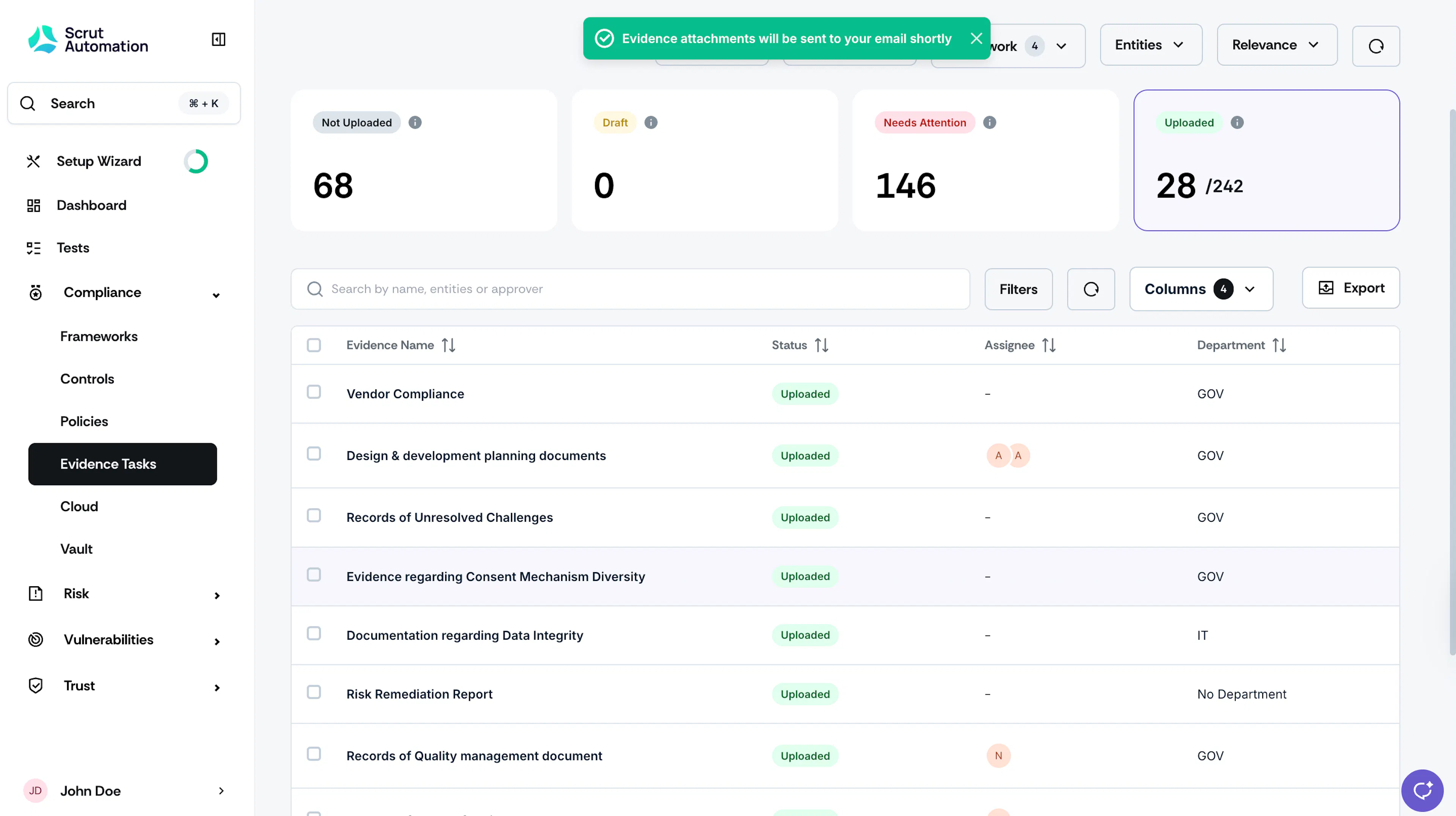
Scrut will email you the attachments.
Note:
- The download link sent to your email is valid for 7 days.
- Scrut will automatically organize the attachments into folders based on framework requirements.
- Only attachments are downloaded. If an evidence task has no attachments, it will not be included in the export. Links are not supported.