

Add Assignees to Evidence Tasks
When creating a custom evidence, you can easily add an assignee while creating the task. For default Scrut-provided evidence tasks, you have two different ways to add assignees:
Adding an Assignee Individually to an Evidence Task
-
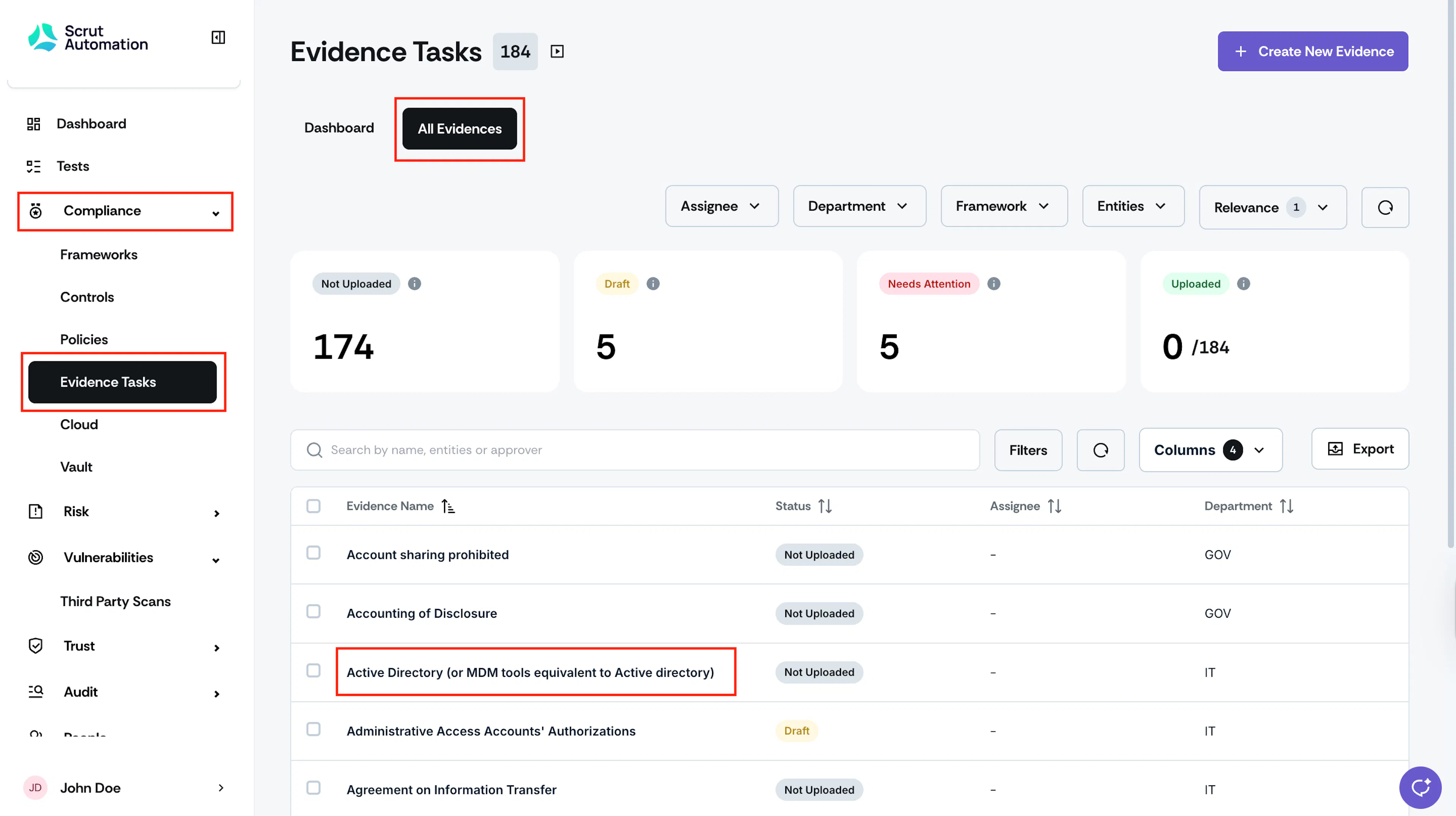
Sign in to Scrut, and click Compliance → Evidence Tasks on the left navigation panel.
-
Go to the All Evidences tab and select the evidence for which you want to add an assignee.
-
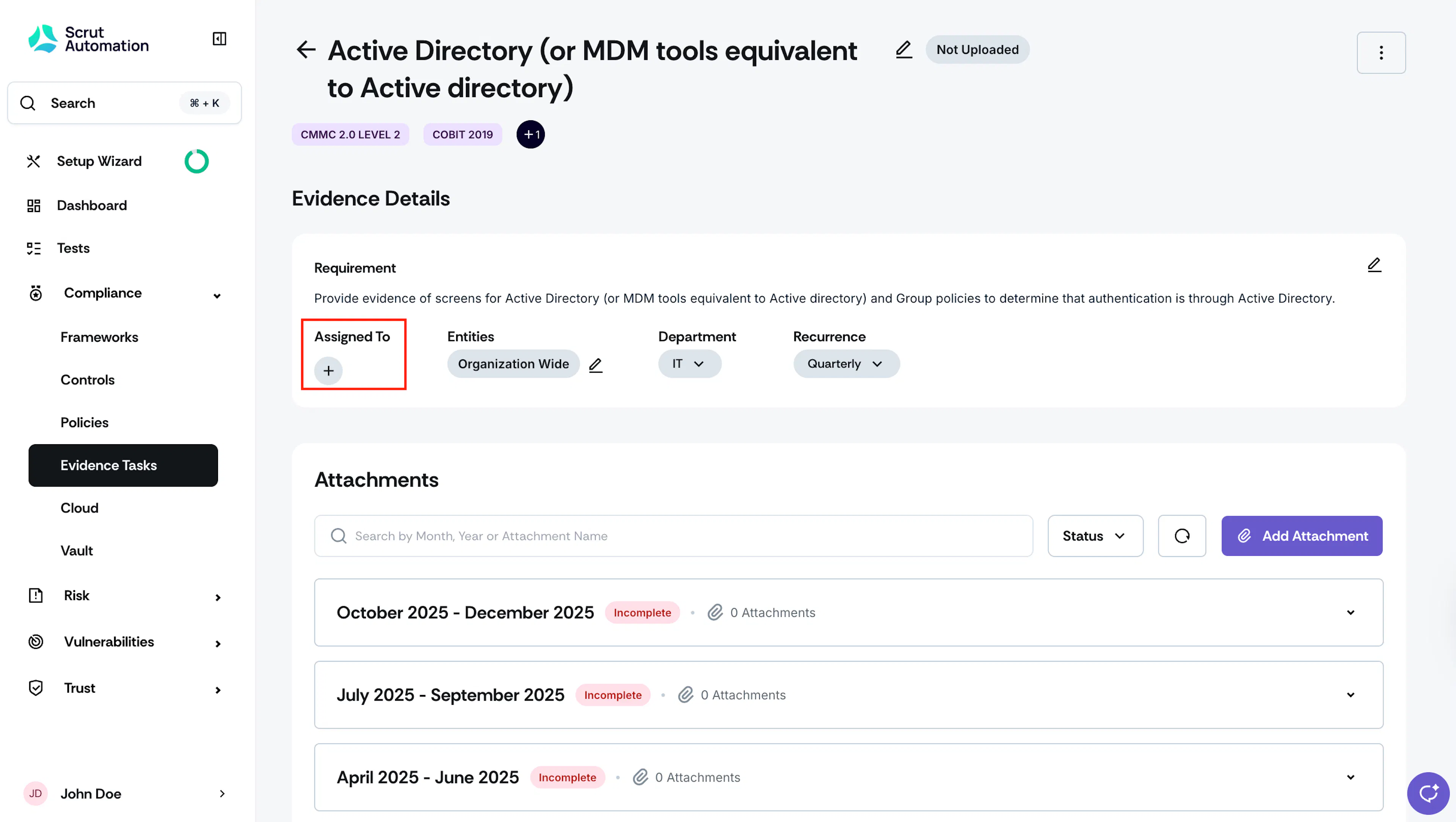
Click the + icon under the Assigned to section.
-
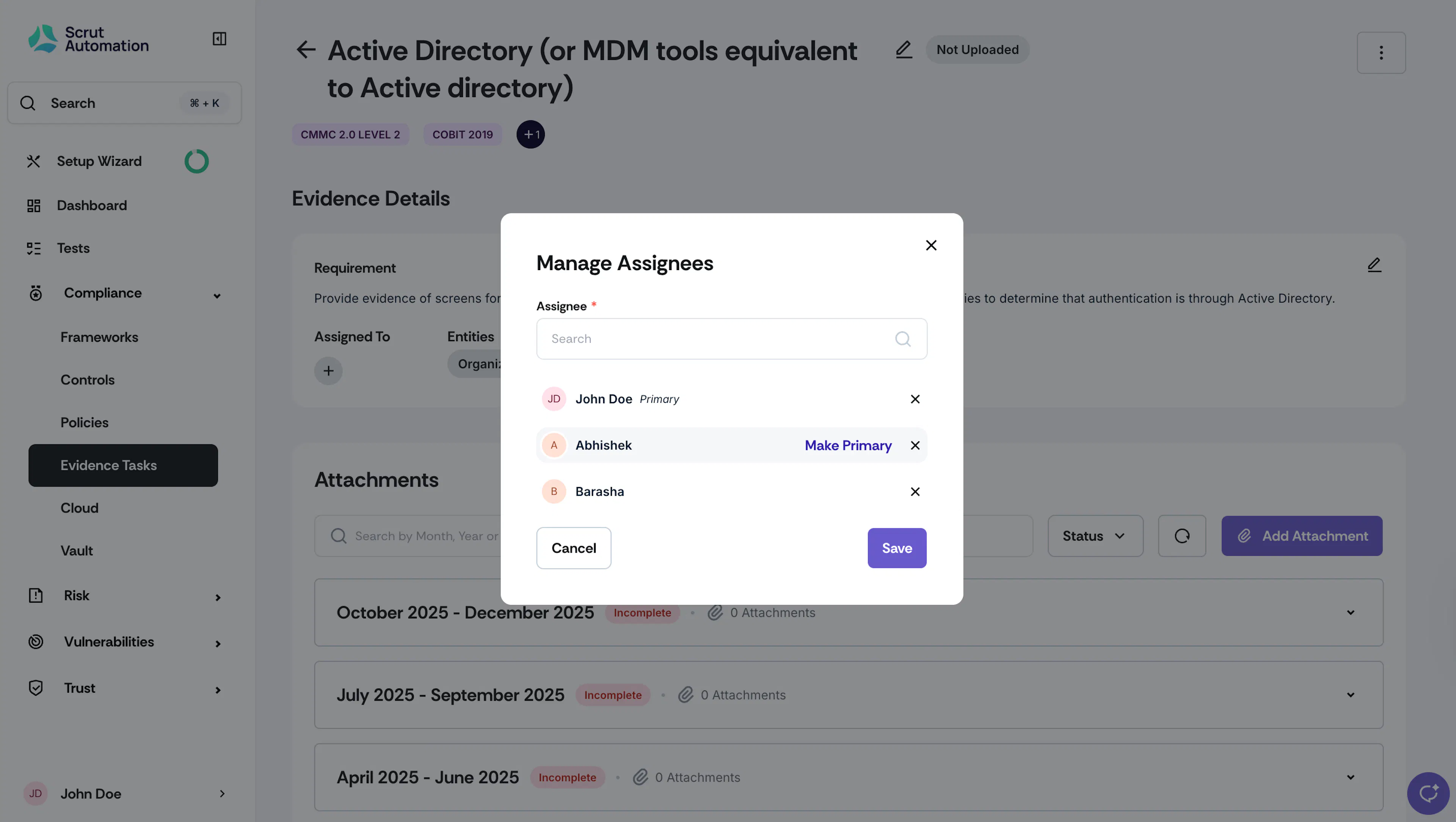
Choose the required assignees from the dropdown.
-
To designate a primary assignee, click the Make Primary option next to the desired name.
-
Add as many assignees as required.
-
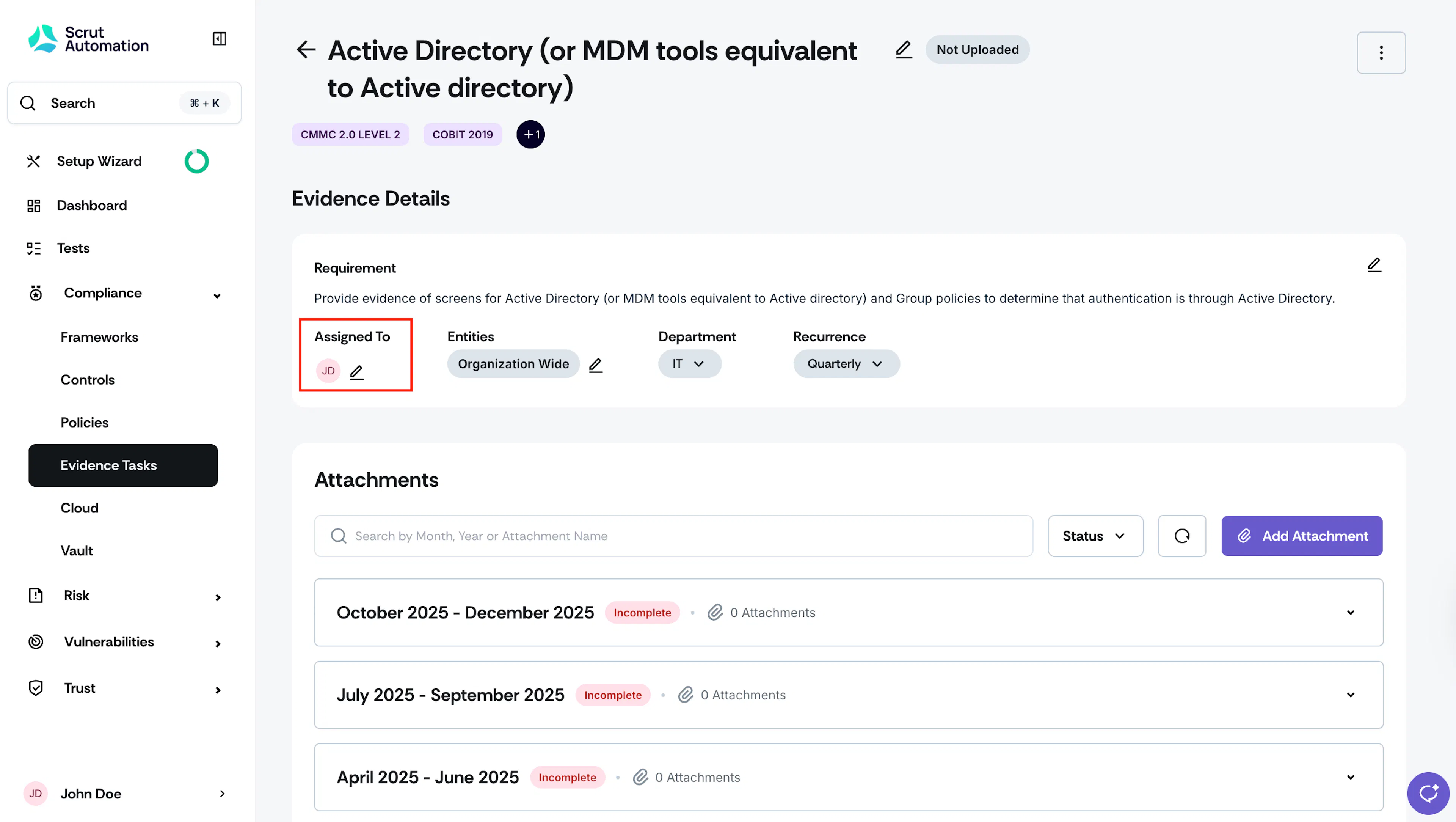
Click Save to finalize the assignments.
Heads Up!
Once added, Scrut will notify all assignees via email regarding their new task assignment.
Bulk Assignment
Scrut also gives you the flexibility to add assignees to several evidence tasks at once:
-
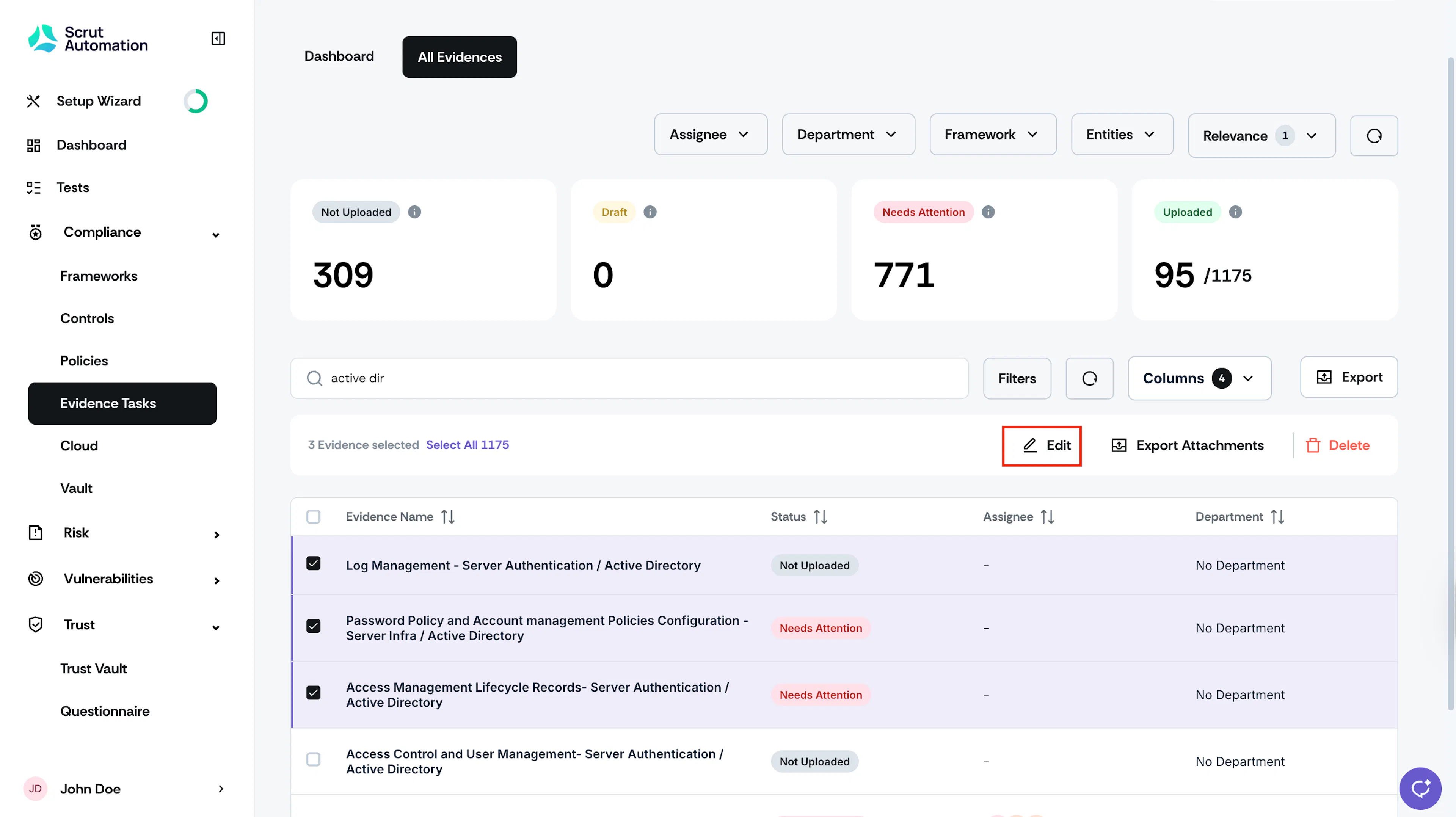
Go to the All Evidences tab and select the evidences that require assignees.
-
Click the Edit button at the top of the Evidence Tasks table.
-
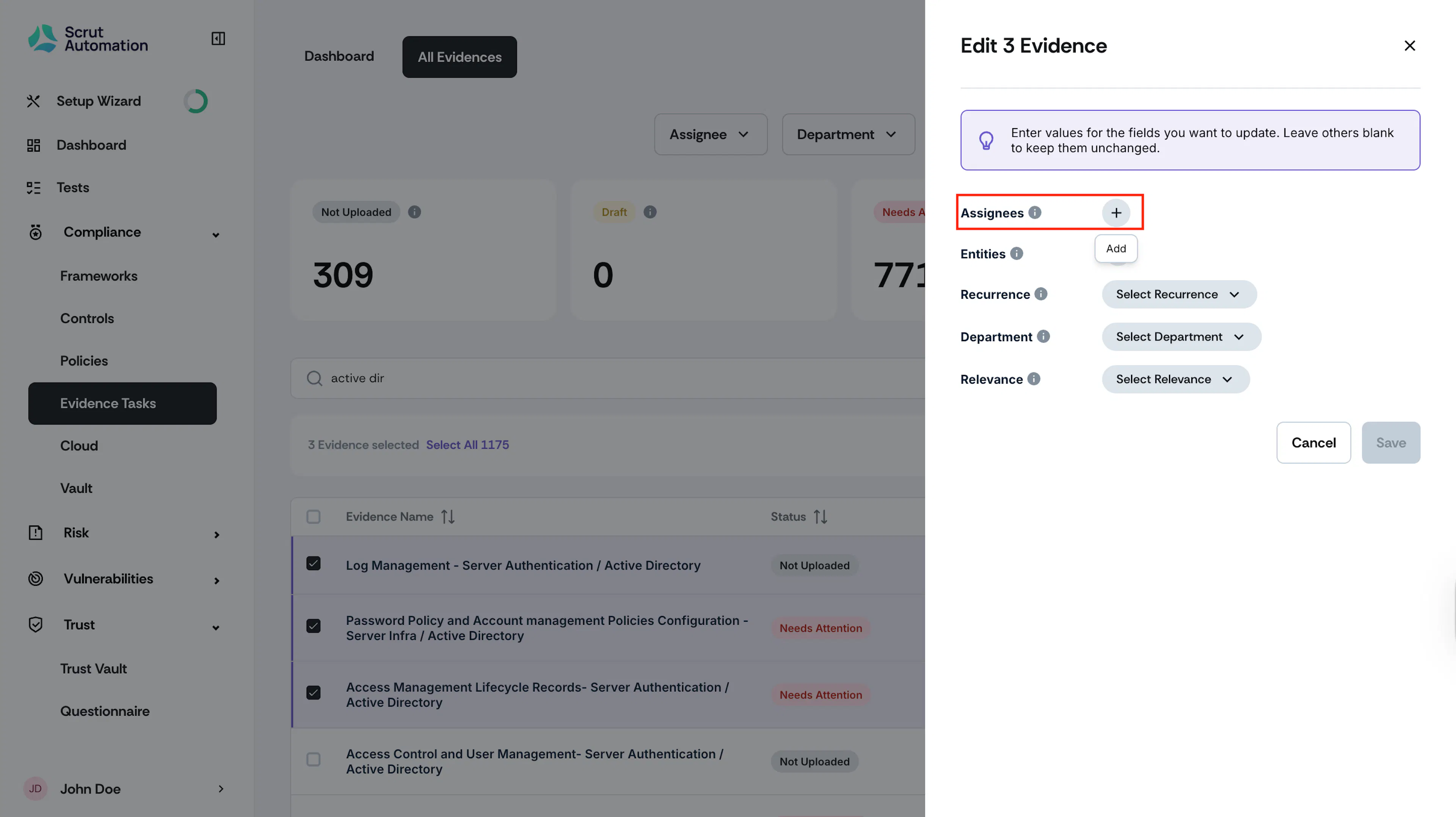
Click the + icon next to the Assignees field.
-
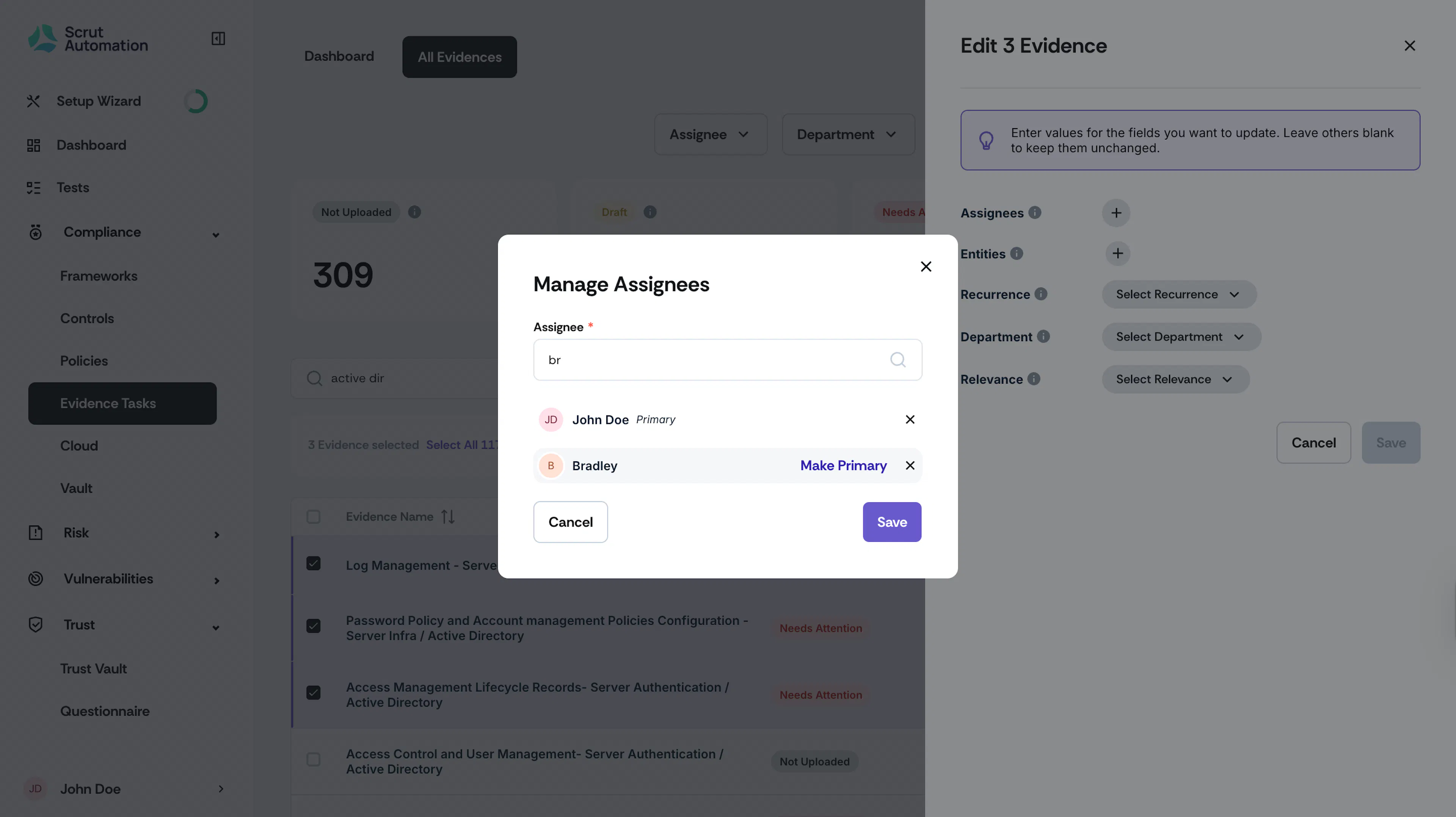
Choose the required assignees from the dropdown.
-
To designate a primary assignee, click the Make Primary option next to the desired name.
-
Add as many assignees as required.
-
Click Save to complete the bulk assignments.
Note:
If you wish to retain the existing values for fields like Department, Recurrence, Entities, and Relevance, simply leave them unchanged. Scrut will only update the fields you've modified in this window, ensuring that the other values remain intact.