

Create GitHub Issues
Once your GitHub integration is connected, you can:
- Create new GitHub issues directly from Scrut
- Link existing GitHub issues to Scrut
Issues you create or link appear in the corresponding artifact details page along with their status, assignees, and labels, so you can track remediation without switching to GitHub.
Before You Begin
- Ensure the Scrut - GitHub integration is active with read and write access for Issues
- If you connected GitHub before the Issues scope update, see Updating Your GitHub Connection to reconnect.
Create a New GitHub Issue
-
Navigate to the module where you want to create an issue. You can create/link issues from the following compliance task modules in Scrut:
- Policies
- Evidence Tasks
- Tests
- Cloud
- Risk Management
- Audit → Audit Center → Requests
- Audit → Audit Center → Findings
- Audit → Audit Center → Corrective Actions
- Vulnerabilities → Findings
-
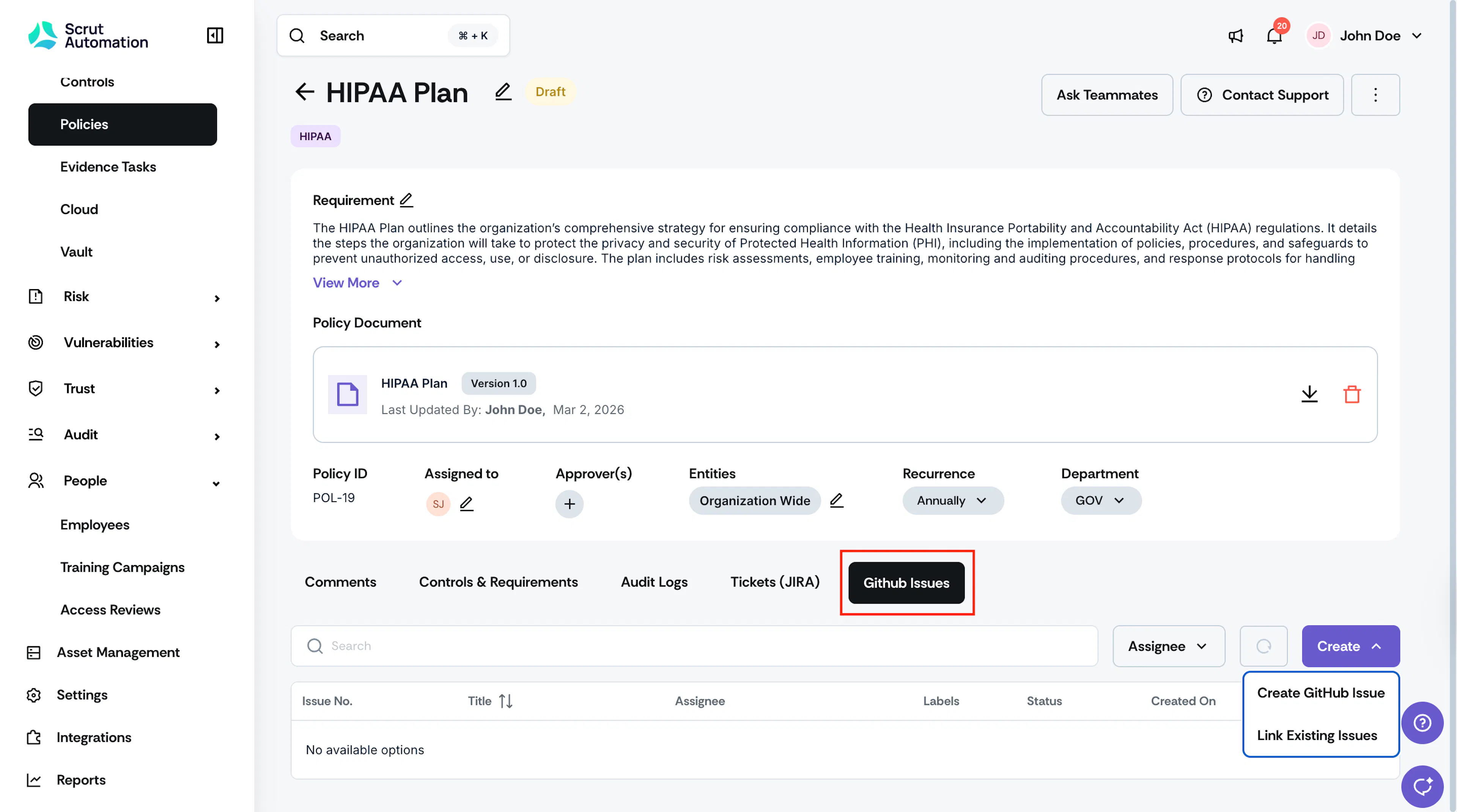
Open the item you want to track and click the GitHub Issues tab.
-
Click Create → Create GitHub Issue.
-
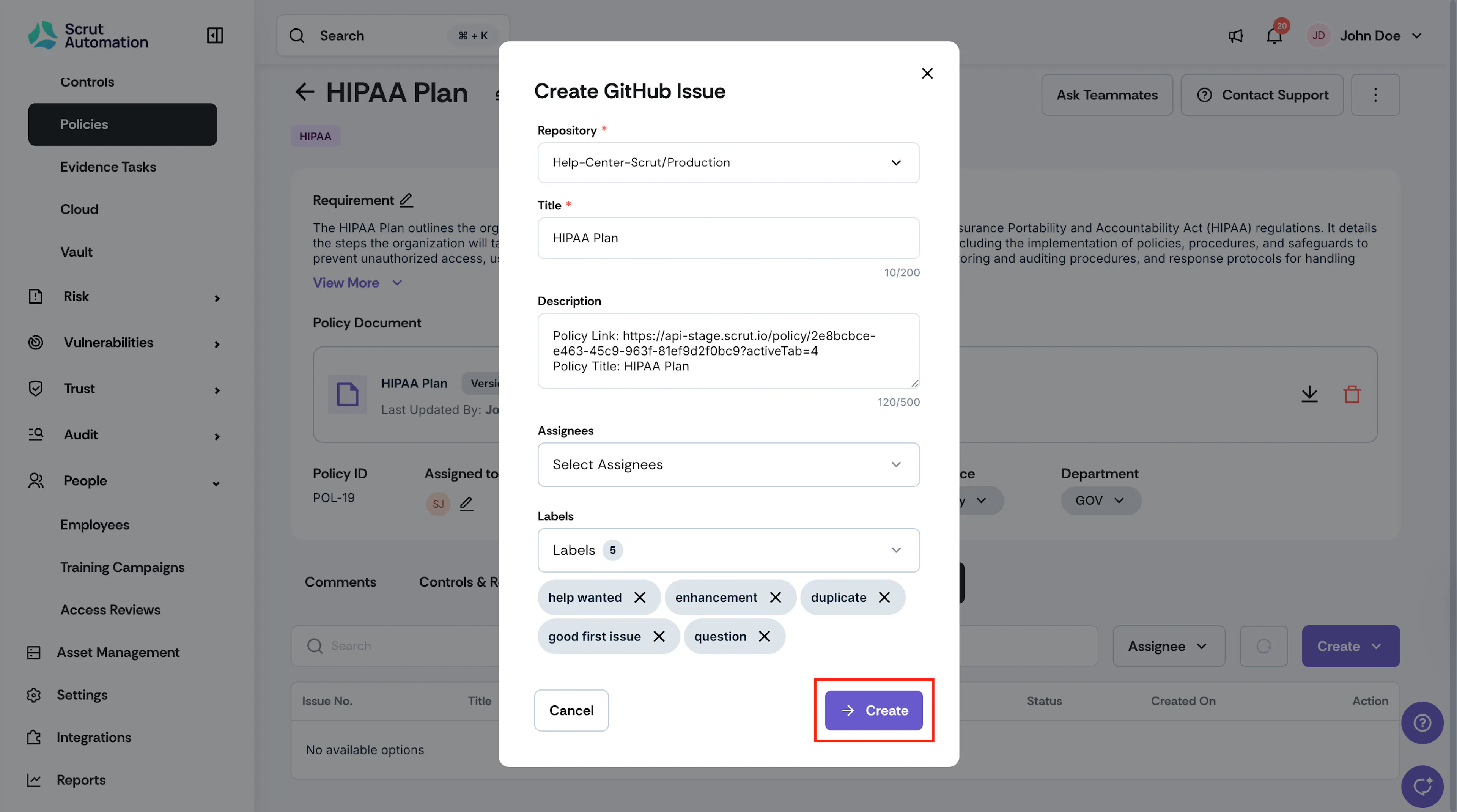
In the Create Issue modal, fill in the following fields:
- Repo: Select the repository where the issue should be created. The dropdown shows repositories accessible to your connected GitHub account.
- Title: Enter a title for the issue. This field is prefilled based on the item name. Edit it if needed.
- Description: Optional. Enter additional context or steps. This field is prefilled with the link to the corresponding artifact in Scrut.
- Assignees: Optional. Select one or more GitHub users to assign the issue to.
- Labels: Optional. Select one or more labels from the repository's label list.
-
Click Create.
-
The issue is created in GitHub and linked to this item in Scrut. You can click on the issue to open it directly in GitHub.
Link an Existing GitHub Issue
If an issue already exists in GitHub, you can link it to an item in Scrut instead of creating a new one.
-
Navigate to the module and open the item you want to track.
-
Click the GitHub Issues tab.
-
Click Create → Link Existing Issues.
-
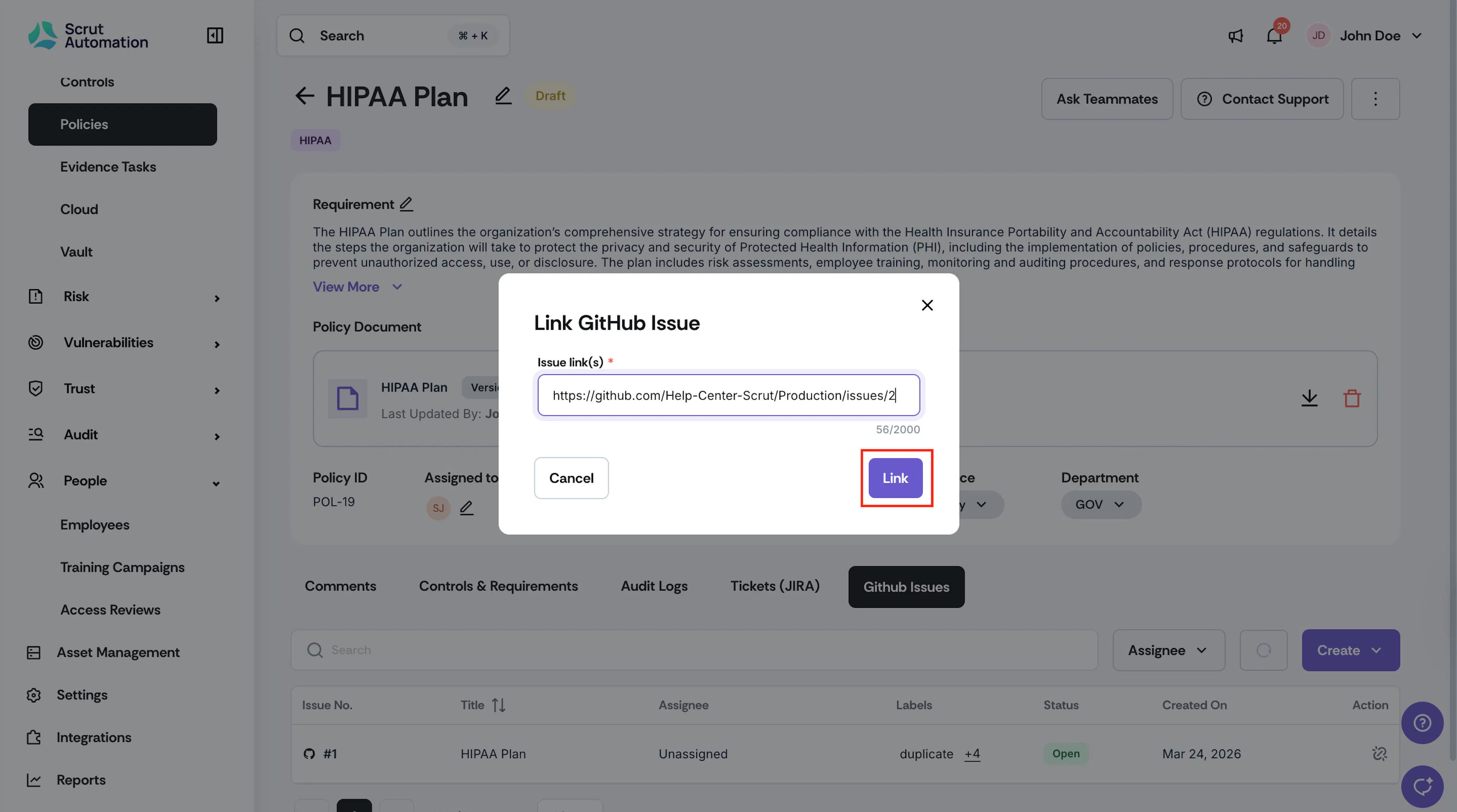
Enter the links of one or more GitHub issues, separated by commas.
-
Click Link.
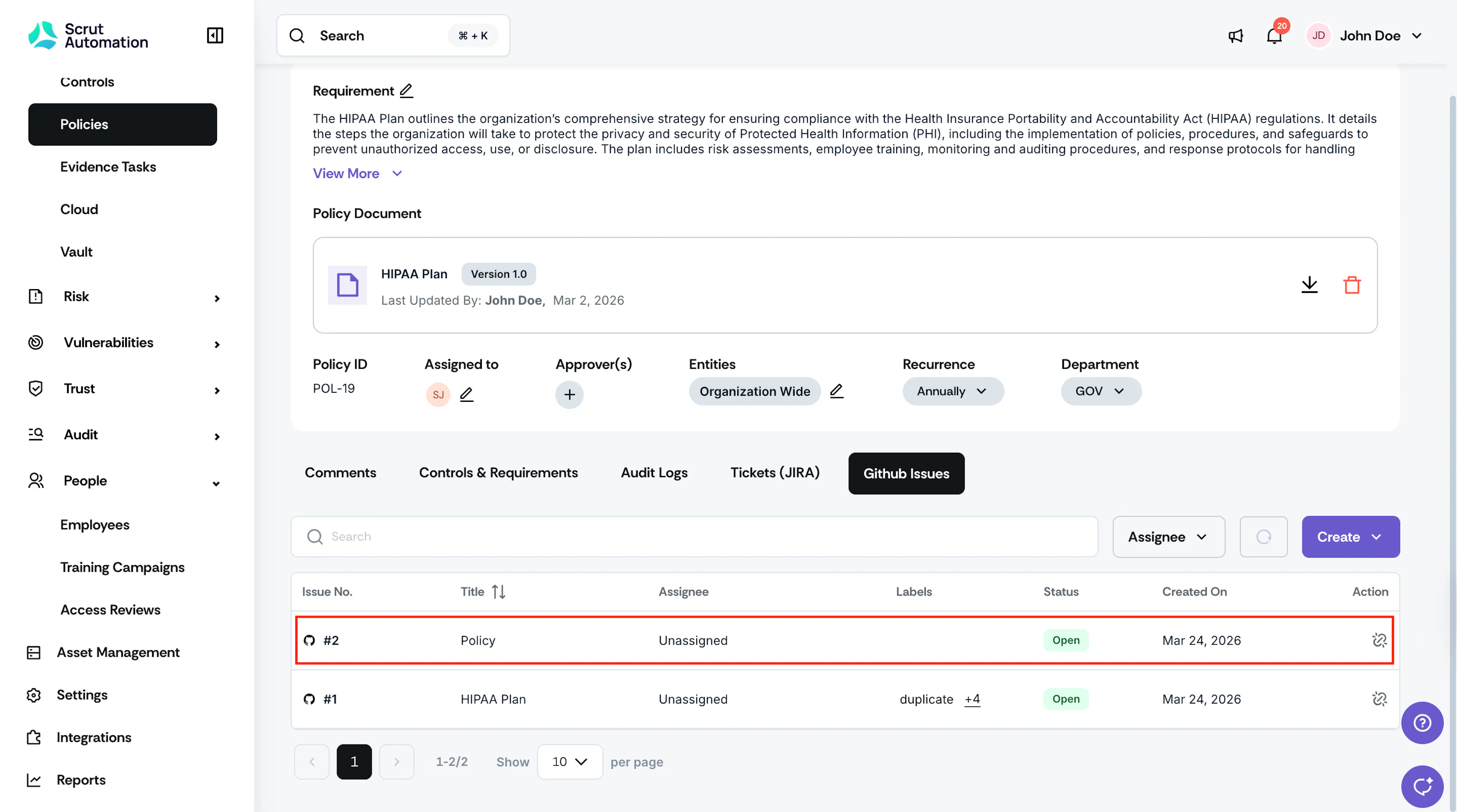
Scrut fetches the issue details from GitHub and links them to the artifact. The issue title, assignees, labels, and status appear in the tab.
Note:
The issue must exist in GitHub and the repository must be accessible to your connected GitHub account. If either condition is not met, an error will appear.
What Happens Next?
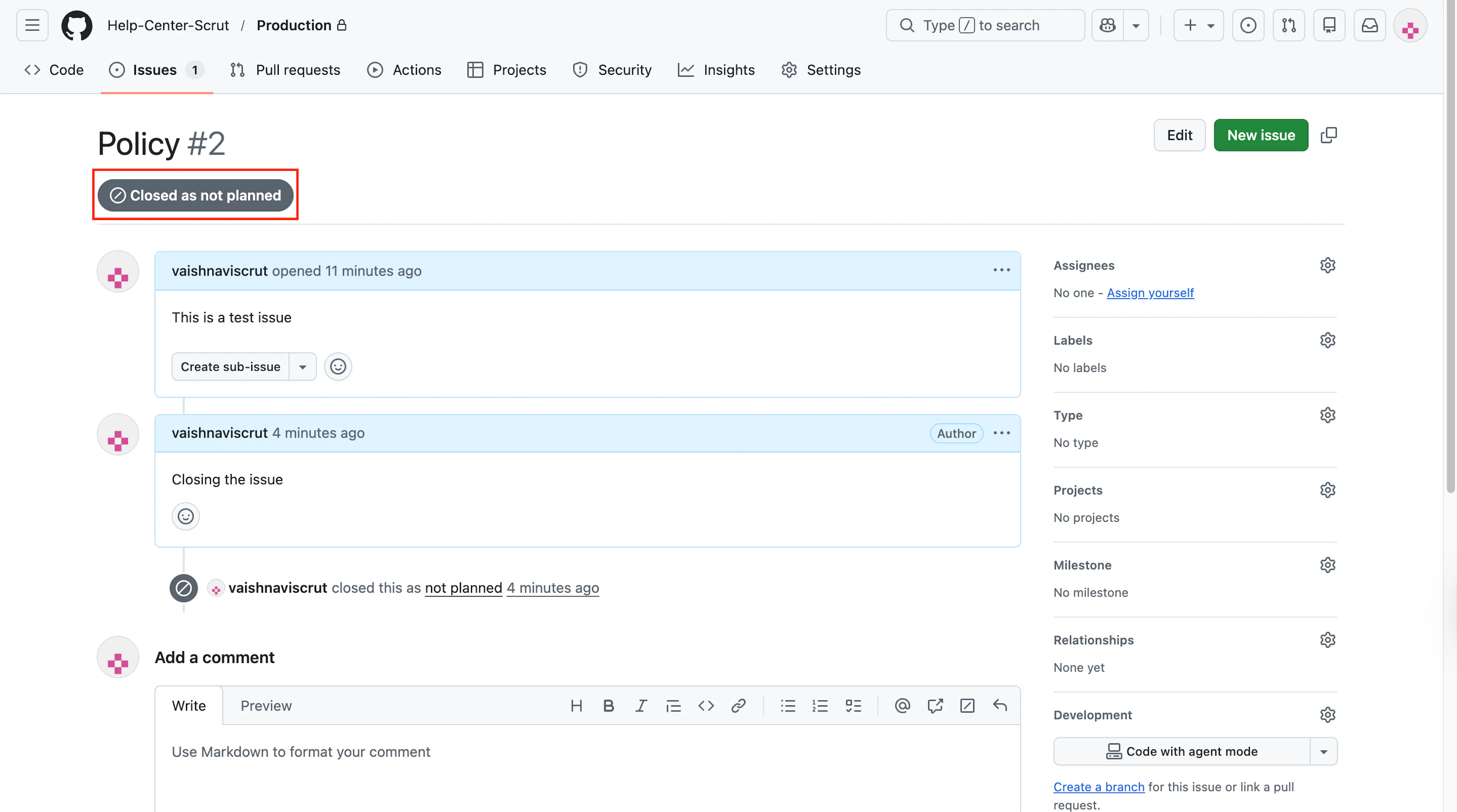
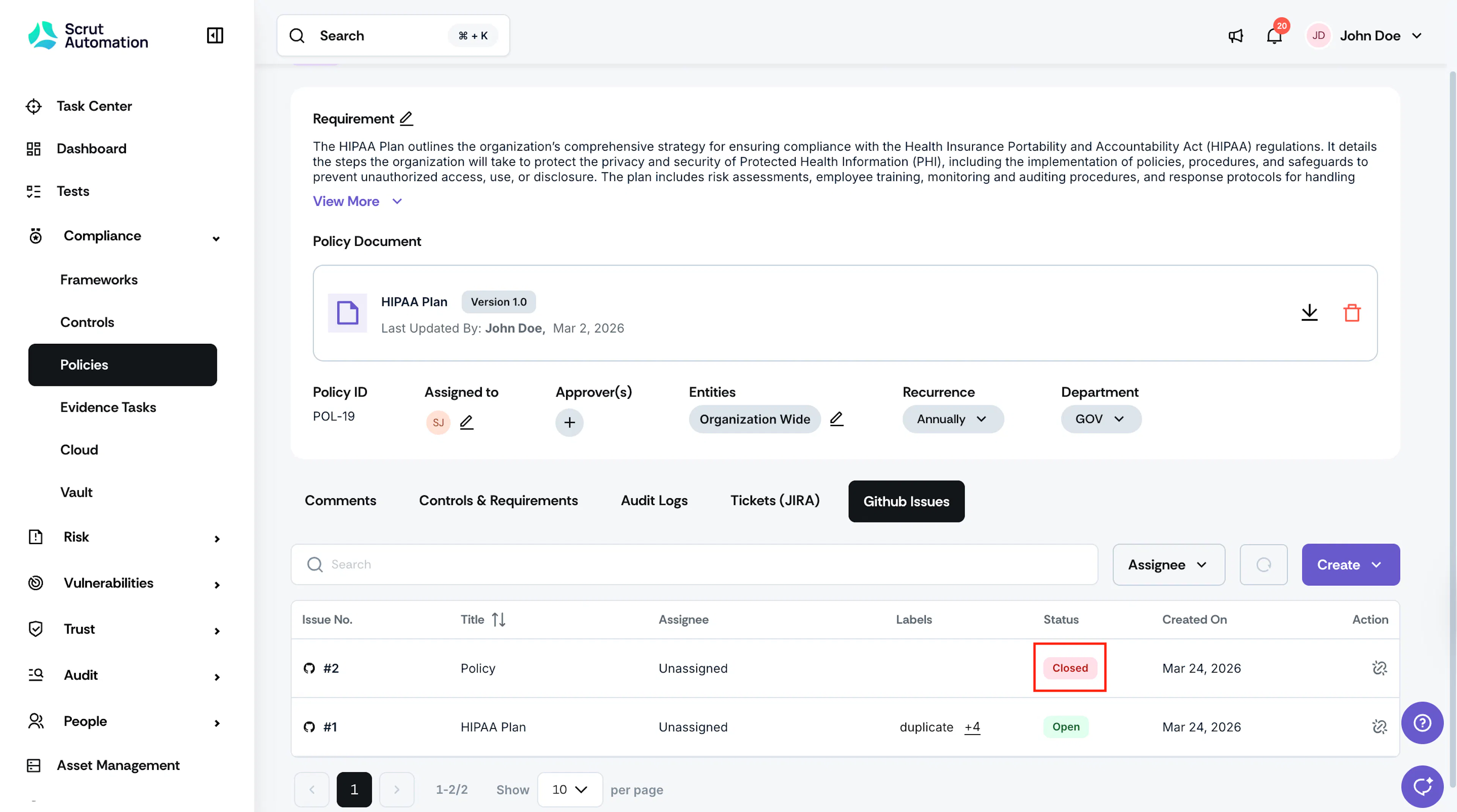
Scrut automatically syncs any changes made to an issue in GitHub. For example, if you update the status, title, assignee, or labels in GitHub, the changes reflect in Scrut.
Unlink a GitHub Issue
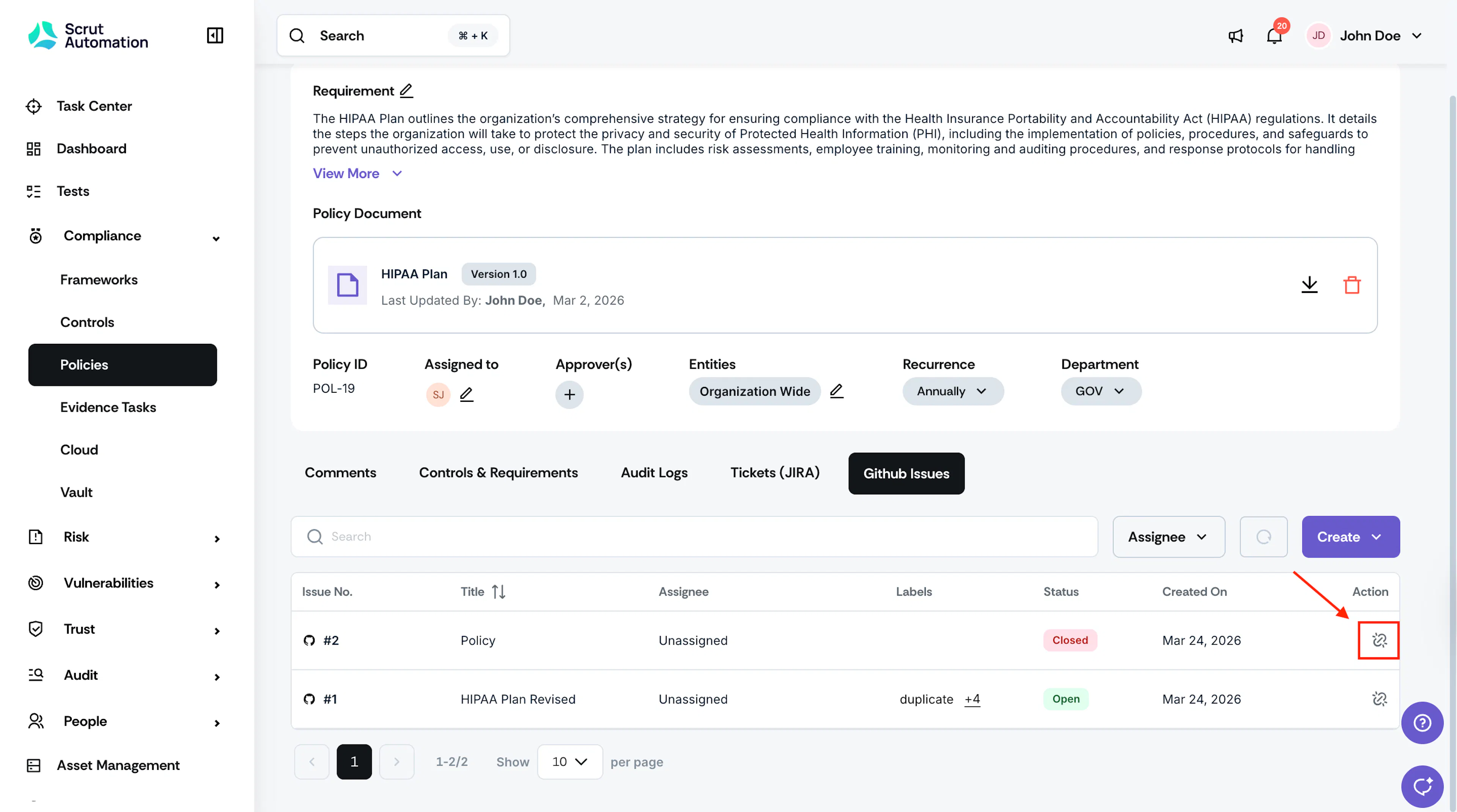
To unlink an issue from an artifact, navigate to the GitHub Issues tab in the artifact and click the Unlink icon.
Reach out to support@scrut.io or contact your CSM for further assistance.