

Access Reviews: Walkthrough
What is an Access Review?
An Access Review is a critical security process that helps organizations maintain strict control over user access to critical applications. By creating an access review in Scrut, you can regularly evaluate user permissions across diverse applications, ensuring only authorized users have the access they need to different apps and services.
Why is it needed?
By conducting access reviews, organizations can significantly enhance their security posture, mitigate risks, and ensure compliance with industry regulations and standards.
You can quickly identify who (among your workforce) has access to specific apps, review their permissions based on their current roles, and make appropriate modifications as needed. It includes revoking access that is no longer warranted, updating permissions for users who have changed roles, and identifying any anomalies or potential security threats.
Overall, access reviews safeguard sensitive data and also contribute to a culture of accountability and transparency within your organization, reducing the likelihood of unauthorized access.
Scope
With Scrut’s Access module, you can monitor, review, and verify user permissions across a wide range of applications, such as cloud services, databases, and enterprise software. This module supports the following application types:
| Application Type | What is it? |
|---|---|
| Integration | Applications you’ve integrated with Scrut |
| Vendor | Vendors added to your Scrut organization |
| Manual | Custom applications that you’ve manually added to the Access module in Scrut |
| SSO | Third-party applications that your employees access via single sign-on (SSO) / Vendors discovered through SSO |
| Native | The Scrut application itself |
Access Review Tabs
The Access Review module contains three key tabs:
- Reviews: Displays a list of all ongoing and past access reviews along with their current statuses.
- Applications: Lists all applications in your organization.
- Access Chart: Provides a quick, at-a-glance view of all employees and their roles across your organization’s applications.
Reviews Tab
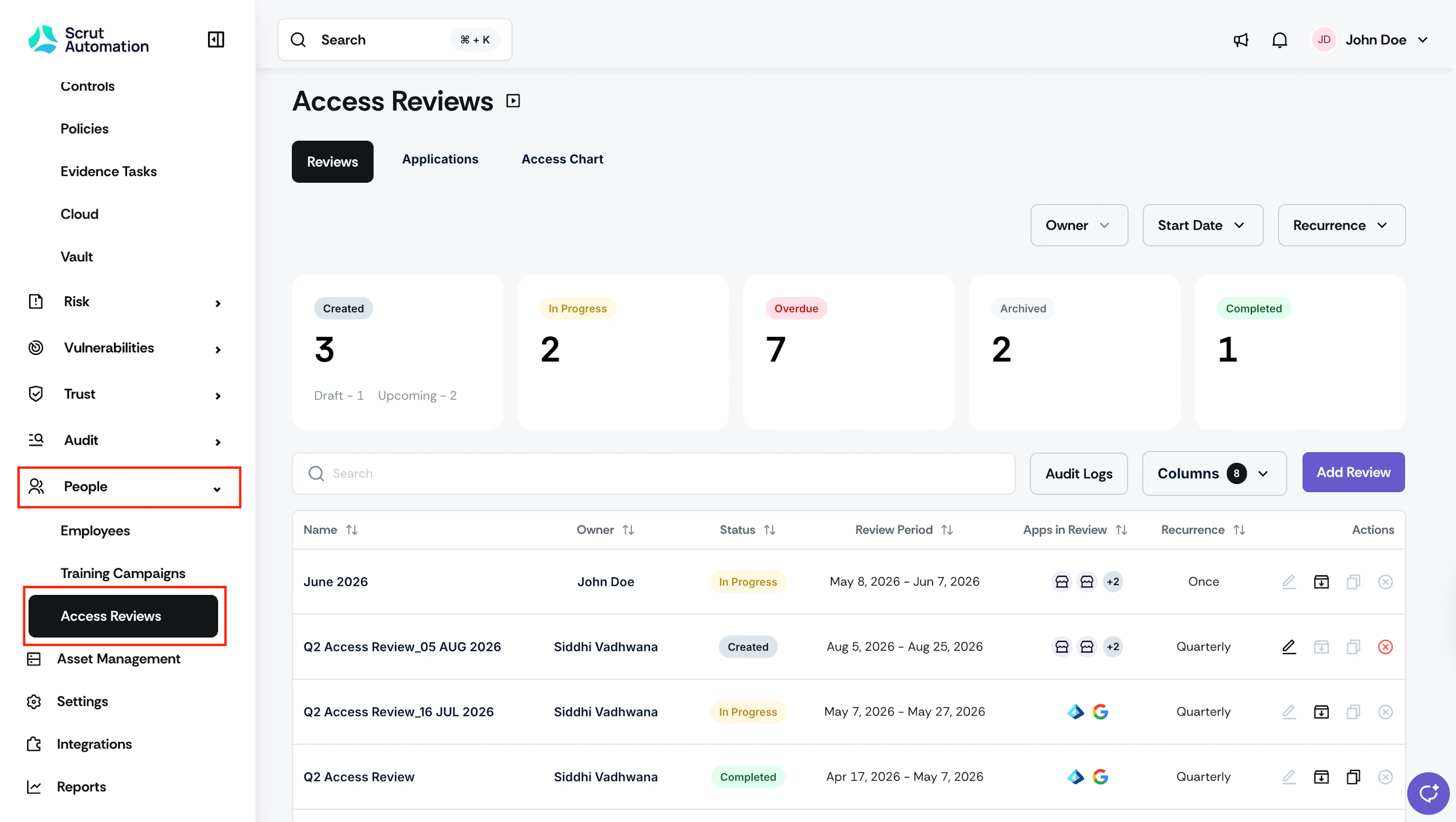
Click People → Access Reviews in the left navigation panel to open Access Reviews. By default, you’ll land on the Reviews tab. This tab displays a list of all ongoing and past access reviews along with their current statuses. It serves as a centralized hub for searching, filtering, and managing access reviews.
Review Status
As an access review progresses, it moves through several statuses in its lifecycle, such as:

- Draft: You’re still setting up the access review; it has not yet been scheduled.
- Upcoming: You’ve scheduled the access review, and it’s ready to begin.
- Active: The access review is currently underway.
- Overdue: The access review has passed its deadline, and some reviewers and approvers haven't completed their tasks.
- Completed: All tasks within the access review have been finished and submitted.
- Archived: You’ve archived the review for future reference.
Reviews Table
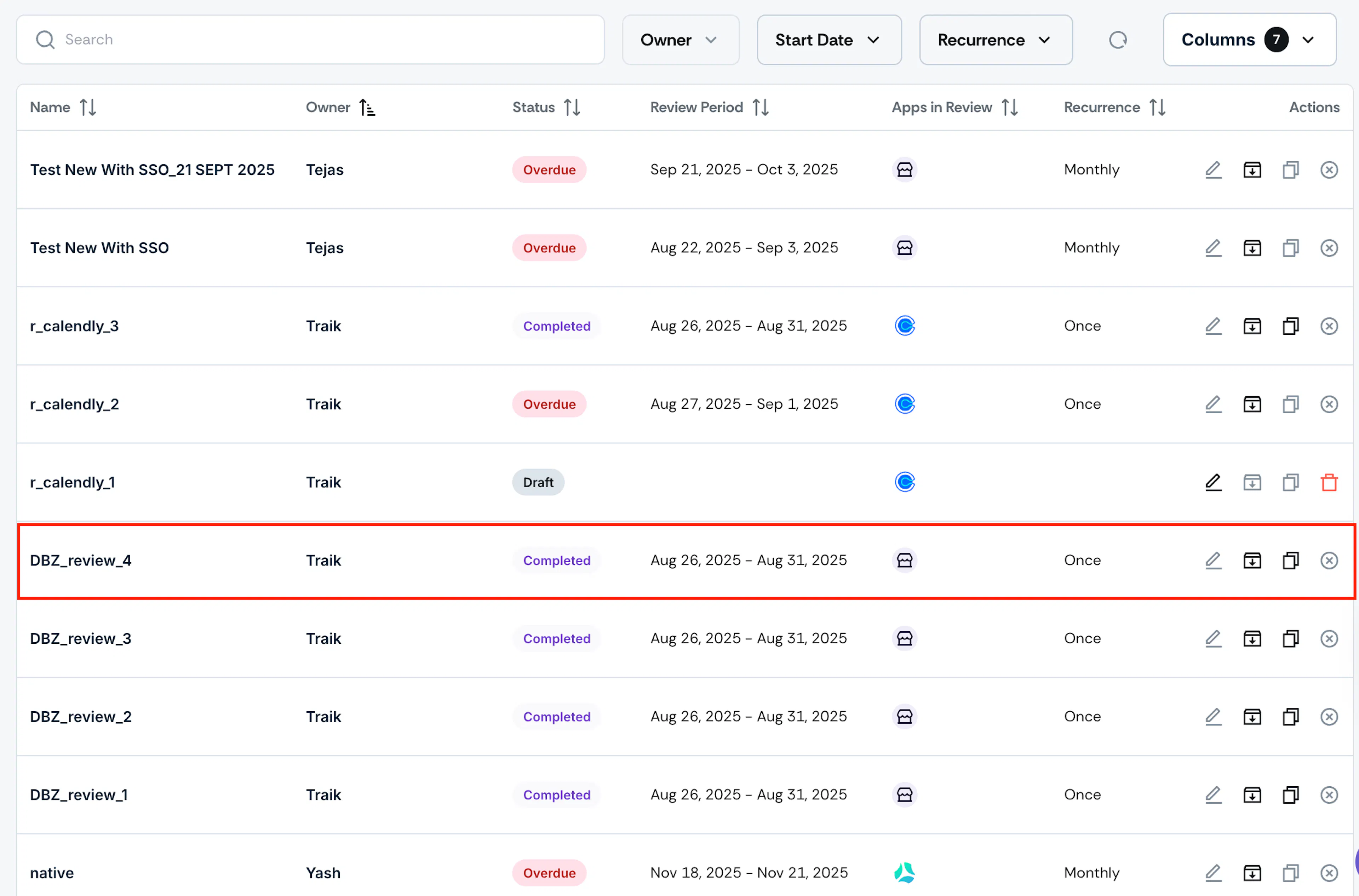
It displays details of each review, including:
- Review Name
- Owner
- Status
- Review Period
- Applications under review
- Recurrence settings
- Action Items: Options available for each review include:
- Edit (only for draft and upcoming reviews)
- Archive (for active, upcoming, and completed reviews)
- Clone (only for completed reviews)
- Cancel (only for upcoming reviews)
- Delete (only for draft reviews)
Applications Tab
The Applications tab in Access Reviews shows all applications in your organization. This table includes the application name, access data (access scope), number of reviews, and total users for each app.
By default, this tab shows all applications and users for apps that you have:
- Integrated with Scrut
- Vendors
- SSO applications
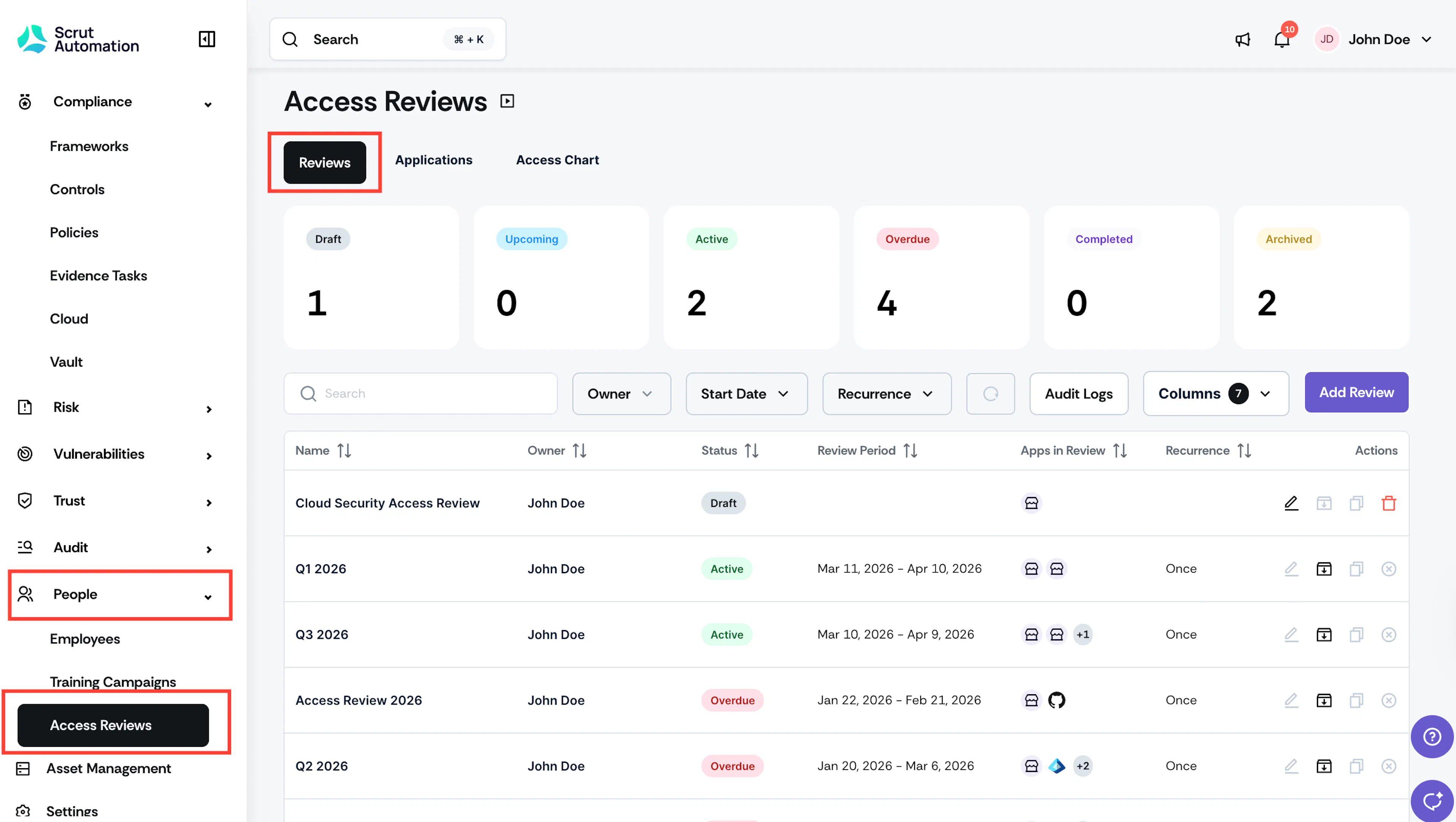
Additionally, you can also add custom applications.
How to Add a Custom Application
Use the Applications tab to add and manage custom applications for access reviews. To add a custom application:
- Navigate to People → Access Reviews.
- Click the Applications tab.
- Click Add Custom App.
- Enter the application name and click Save.
Your custom application appears in the Applications tab.
Adding Application Users for a Custom App
- Navigate to People → Access Reviews.
- Click the Applications tab.
- Open your custom application.
- Click Add User to add one user.
- Click Import File to upload users in bulk. Refer to the bulk import section for detailed import steps.
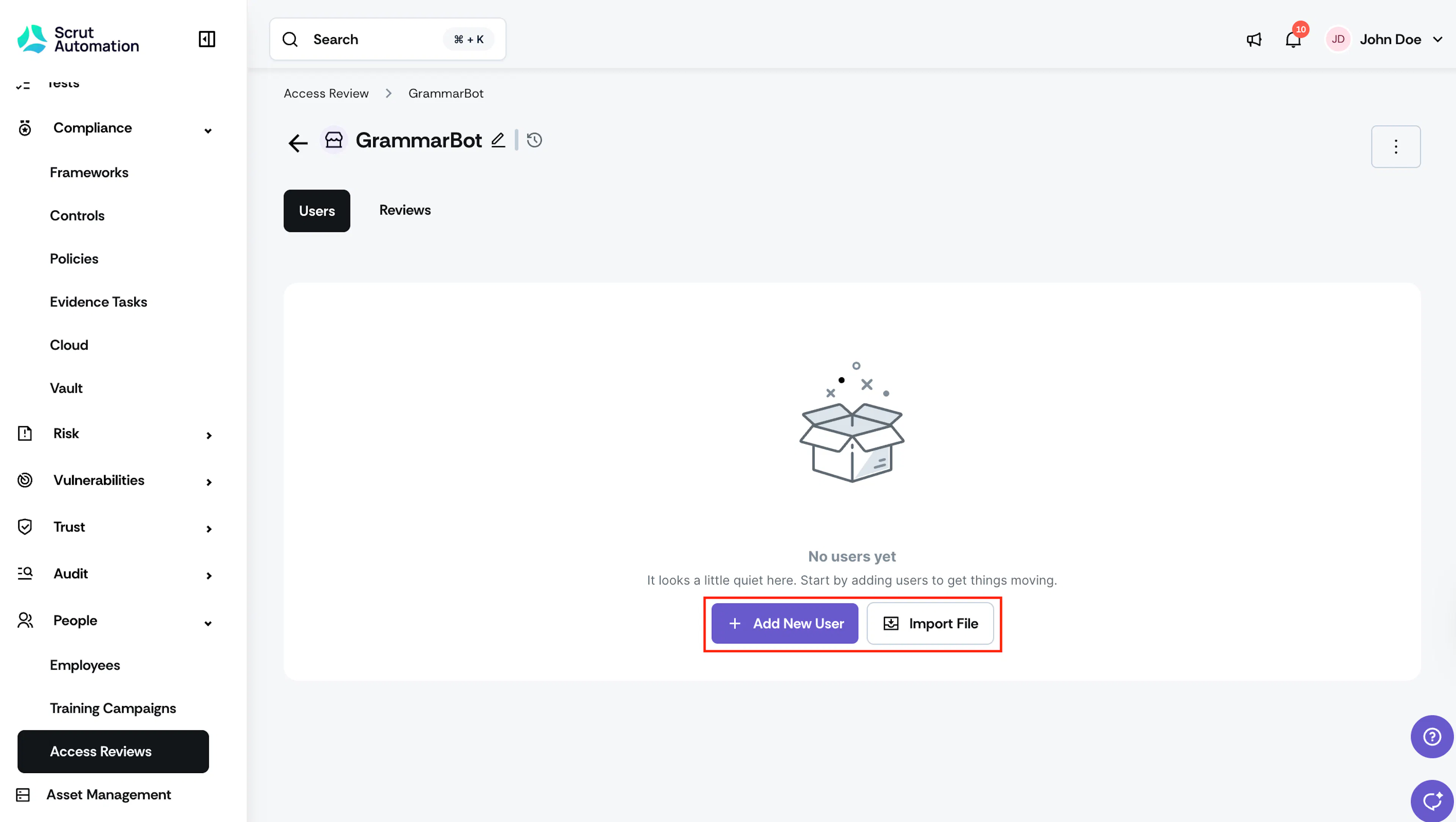
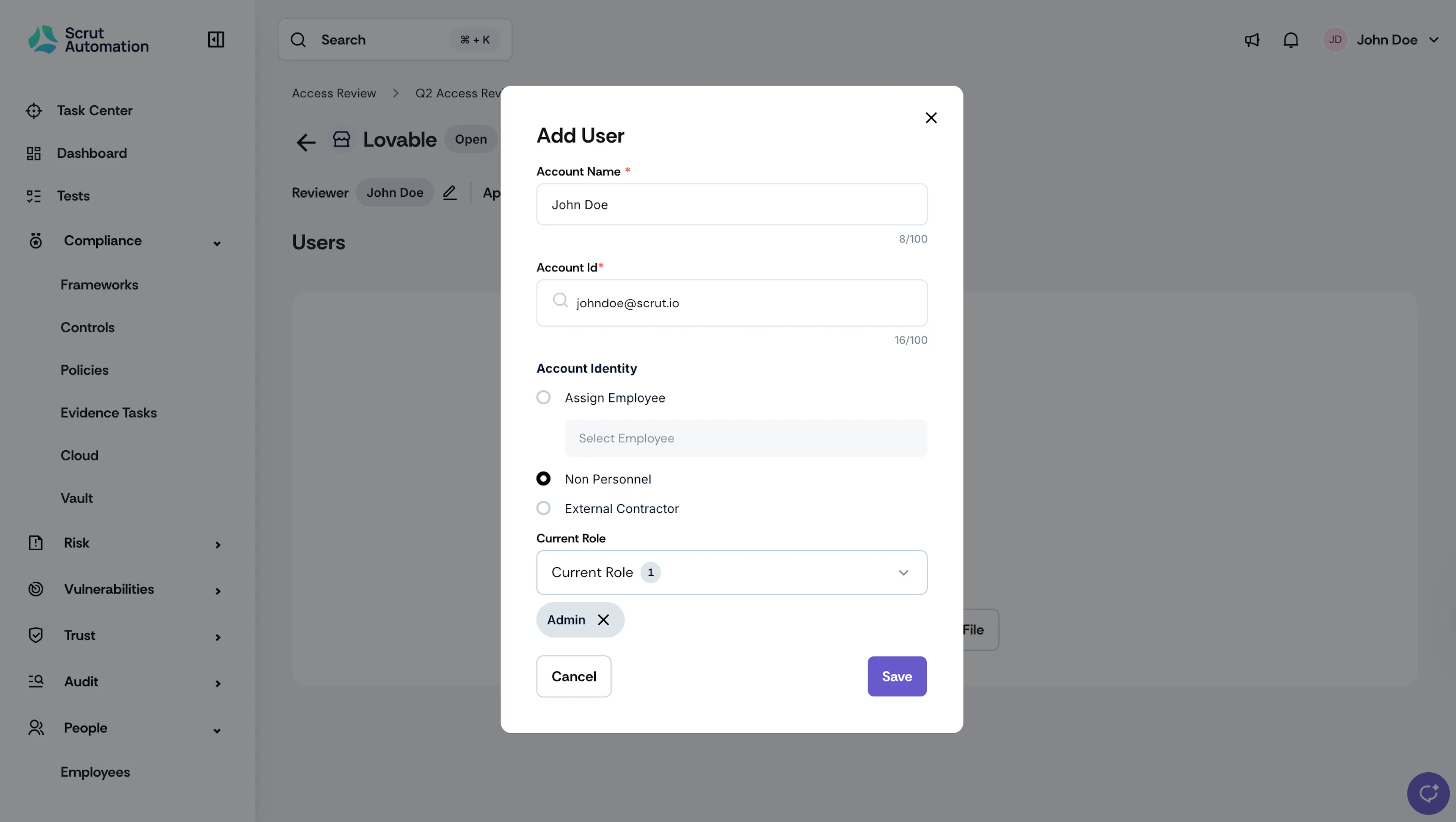
- When you add a user, provide these details:
- Account Name: Enter the user’s first and last name.
- Account ID: Enter the user’s email address.
- Account Identity: Map the application user to the corresponding account identity in Scrut. Select whether the user is:
- An employee
- A non-personnel or
- An external contractor Note: This does not change the user’s access in the application.
- Role: Select the user’s role in the application.
Edit and Delete Users for a Custom App
-
Navigate to People → Access Reviews.
-
Click the Applications tab.
-
Open your custom application.
-
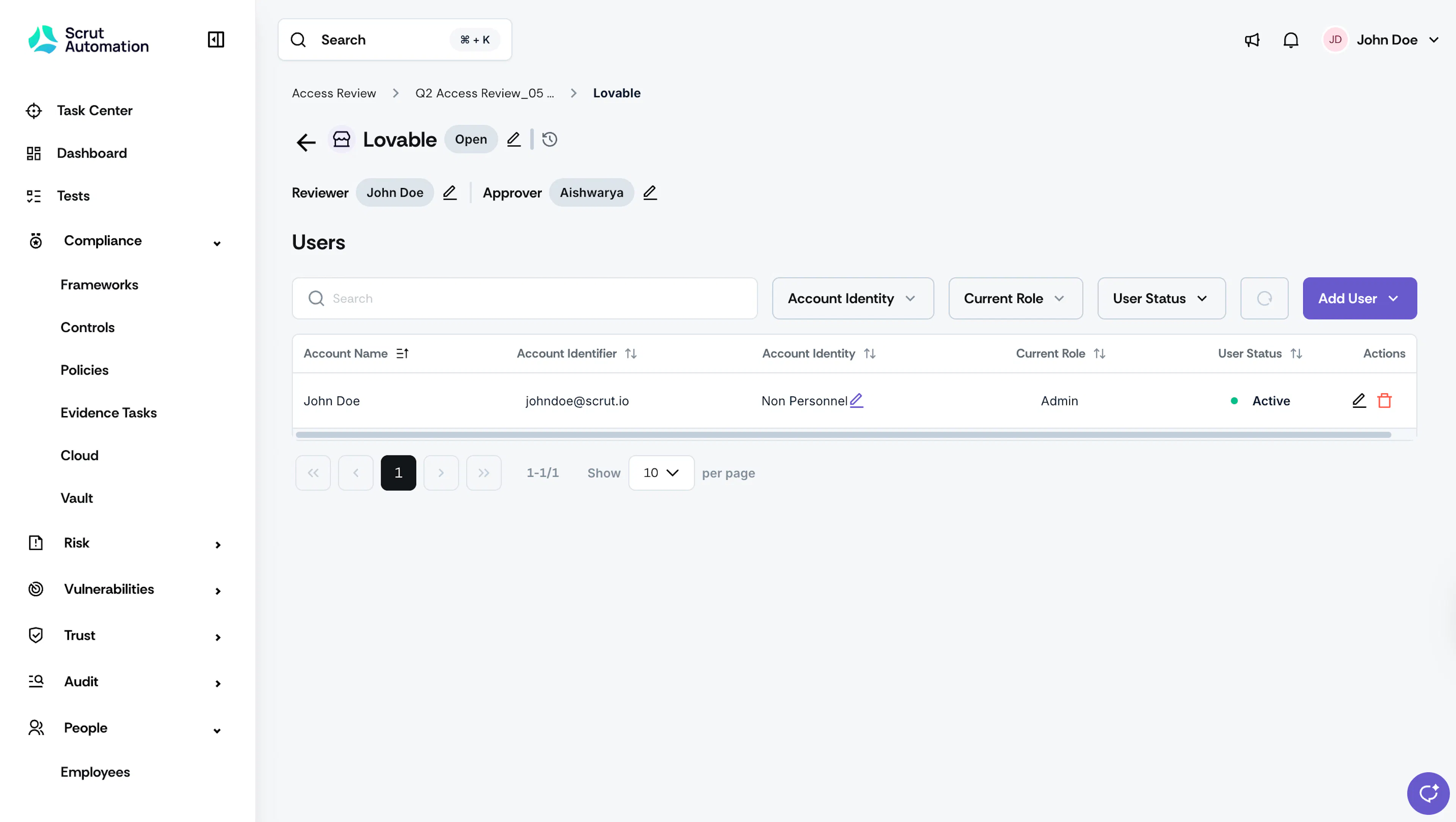
Click the edit icon to update the account name, account identity, or role.
-
Click the delete icon to remove a user from the application.
Note: This action removes the user from Scrut only. It does not remove their access to the application.
Access Chart Tab
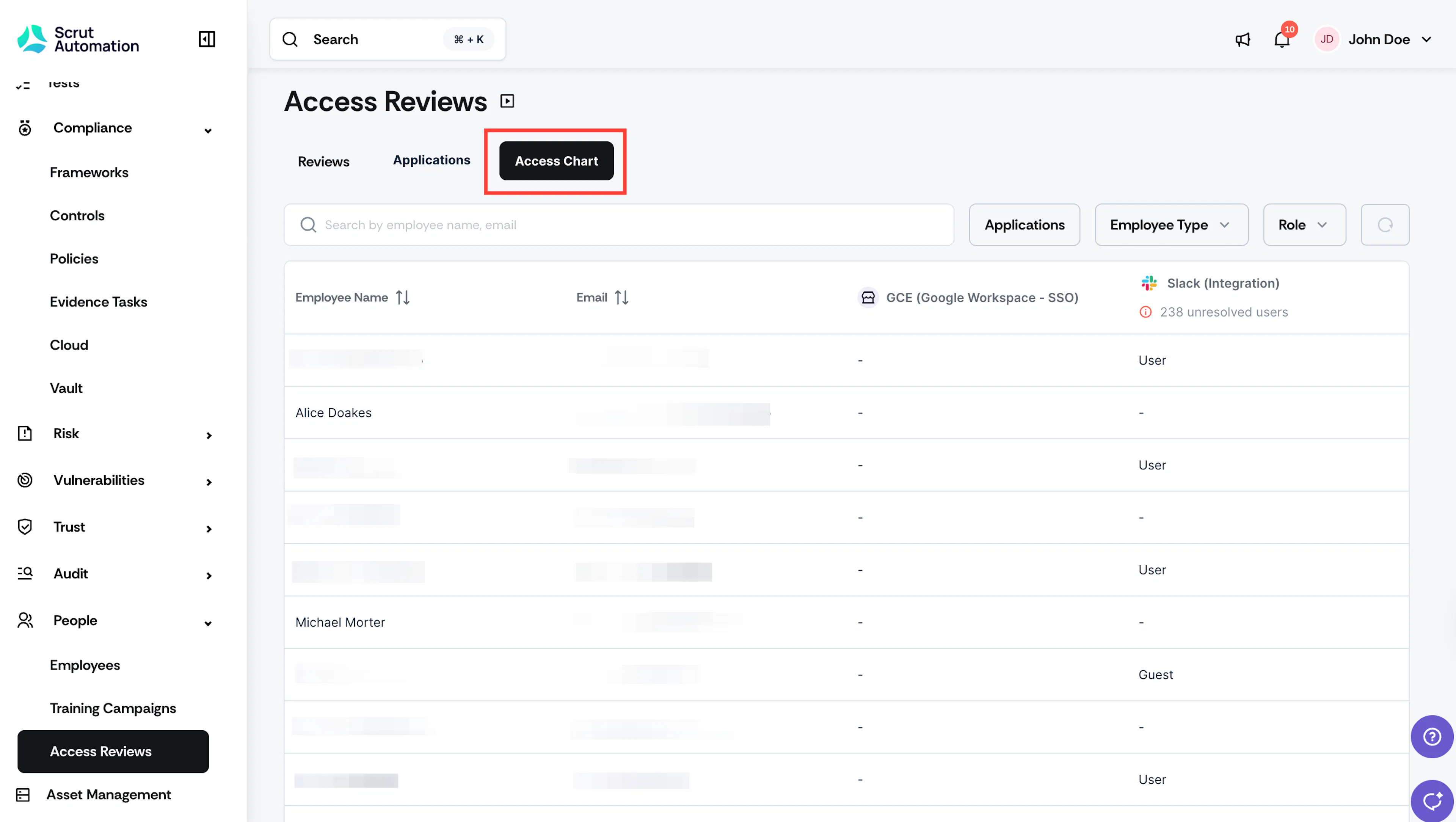
The Access Chart provides a quick, at-a-glance view of all employees and their roles across your organization’s applications. Admins and compliance teams can review access patterns, identify potential risks, and confirm that permissions align with your organizational policies. It helps you identify irregularities and spot users with overly privileged access.
How To View the Access Chart
- Navigate to People → Access Reviews in the left navigation panel.
- Select the Access Chart tab.
- The Access Chart shows the latest access data from all applications integrated with Scrut.
Understanding the Access Chart
Layout
The table is organized as a spreadsheet-style grid, where:
- Rows: Represent individual employees
- Columns: Represent applications used in your organization
- Cells: Roles assigned to that employee in each application
The header row and the first column (employee name) remain fixed as you scroll, making it easy to keep track of your position.
Employee Information (Rows)
Each row represents a unique employee in your organization. The first column specifies the employee's name, and the other columns specify the employee's role and access for different applications.
Heads Up!
Unmapped users (those not mapped to a corresponding account identity in Scrut) are not displayed in the table.
Application Information (Columns)
The apps your organization uses are listed alphabetically at the top. Click any application name to open its detailed view in People → Access Reviews → Applications.
Note: If an application shows the unresolved icon, it includes unmapped users. These application users are not mapped to a corresponding employee in Scrut. Click the application to open it in Access Reviews → Applications, where you can assign unresolved users to corresponding owners in Scrut.

Role Information (Cells)
Each cell shows the role(s) assigned to an employee in a specific application:
- Role name, such as Admin, User, Editor, etc. A user can have multiple roles. Click the +N tooltip in the role cell to view the complete list of roles for a user.
- If the cell has a dash (-), it indicates that the employee has no access to the specific application.
- If the cell has dots (..), it indicates that data has not yet synced from the specific application.
- Roles with a purple triangle icon indicate that the user has privileged access, as defined during the access review.

Filtering and Search
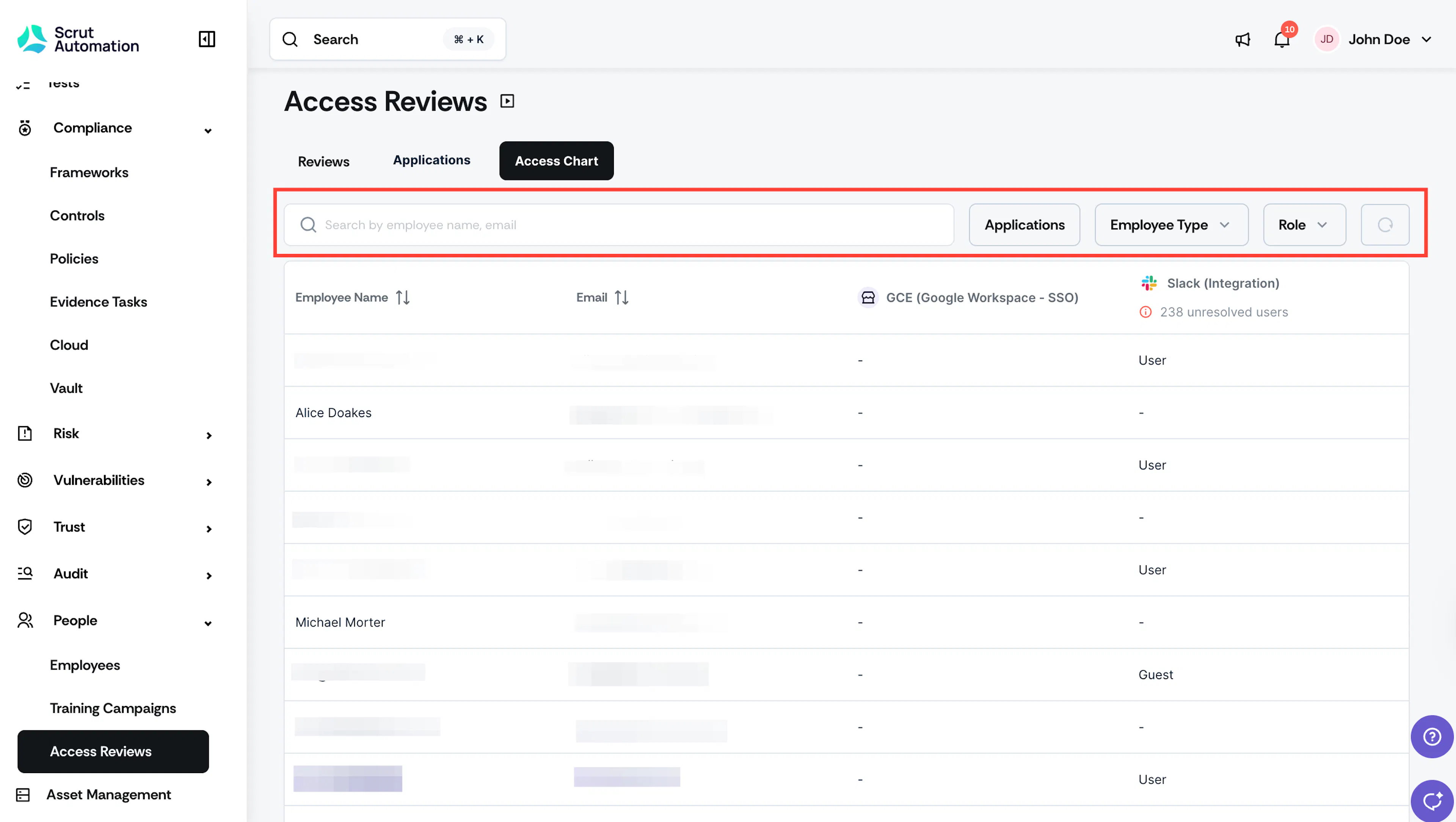
Filters
Use the filters at the top of the table to narrow down the displayed information based on specific criteria, such as:
- Applications: This filter allows you to select specific applications for which you want to view user access. For example, if you’re interested in viewing users who have access to your Google Workspace, you can choose that application from the list.
- Employee Type: Use this filter to view users by employment status. It includes the following options:
- Active: Current employees who are using the selected applications.
- Ex-Employees: Former employees who may still have access to the selected applications. You need to review and remove their access.
- Non-Personnel: Service accounts or non-personnel users with access to the selected applications, such as vendors.
- External Contractors: Contractors who have access to the selected applications.
- Role: This filter enables you to view users based on their specific roles within an application. Roles may include Administrator, User, Viewer, or other designations defined in the selected applications.
Using these filters, you can quickly view user access based on specific criteria and ensure only the right individuals have the required permissions.
Search
Use the search bar at the top to filter employees by name or email.