

Create a New Access Review
Here’s a step-by-step guide for creating a new access review:
-
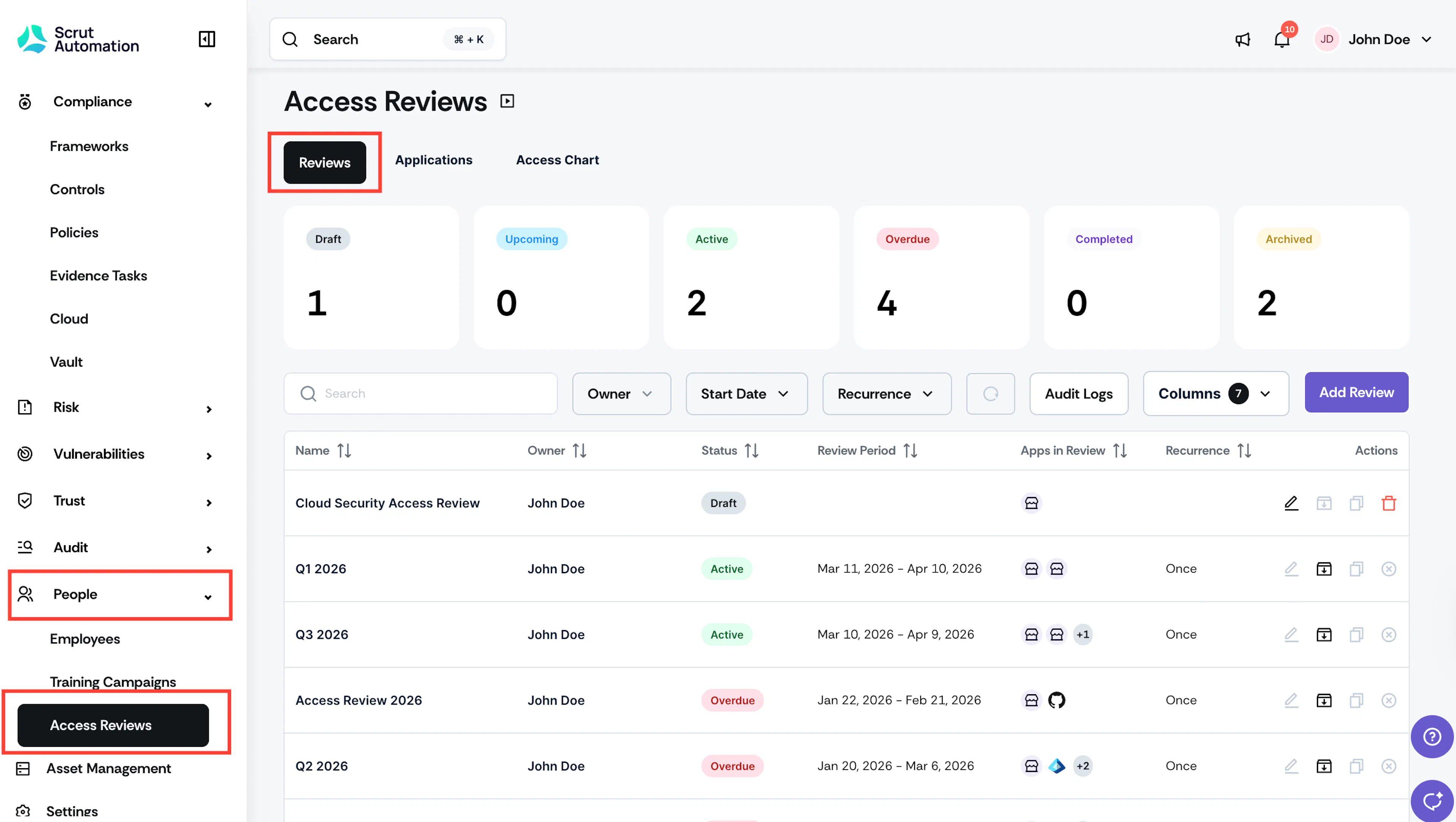
Sign in to Scrut and go to People → Access Reviews using the left navigation panel.
-
On the Reviews tab, click Add Review.
-
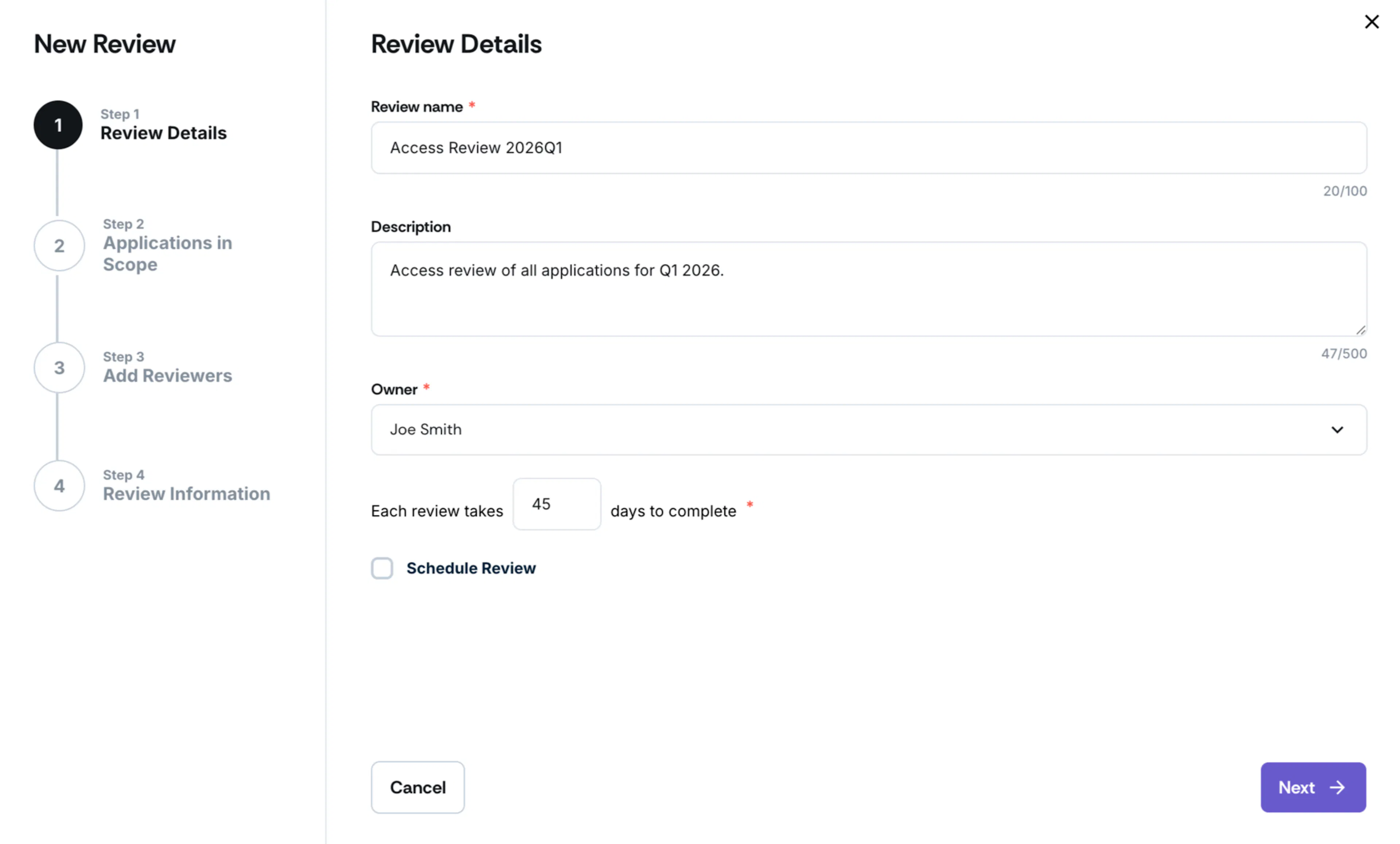
Next, enter the review details.
- Enter the Review Name and, optionally, include a Description.
- Select an Owner who will oversee the entire process.
- Set the review duration in days, i.e., the time it takes to complete the review (e.g., 10 days).
- Select the Schedule Review checkbox to have the review recur periodically. If you select this checkbox, you’ll have to choose a Start Date and define the Recurrence frequency:
- Monthly
- Quarterly
- Semi-Annually
- Annually
-
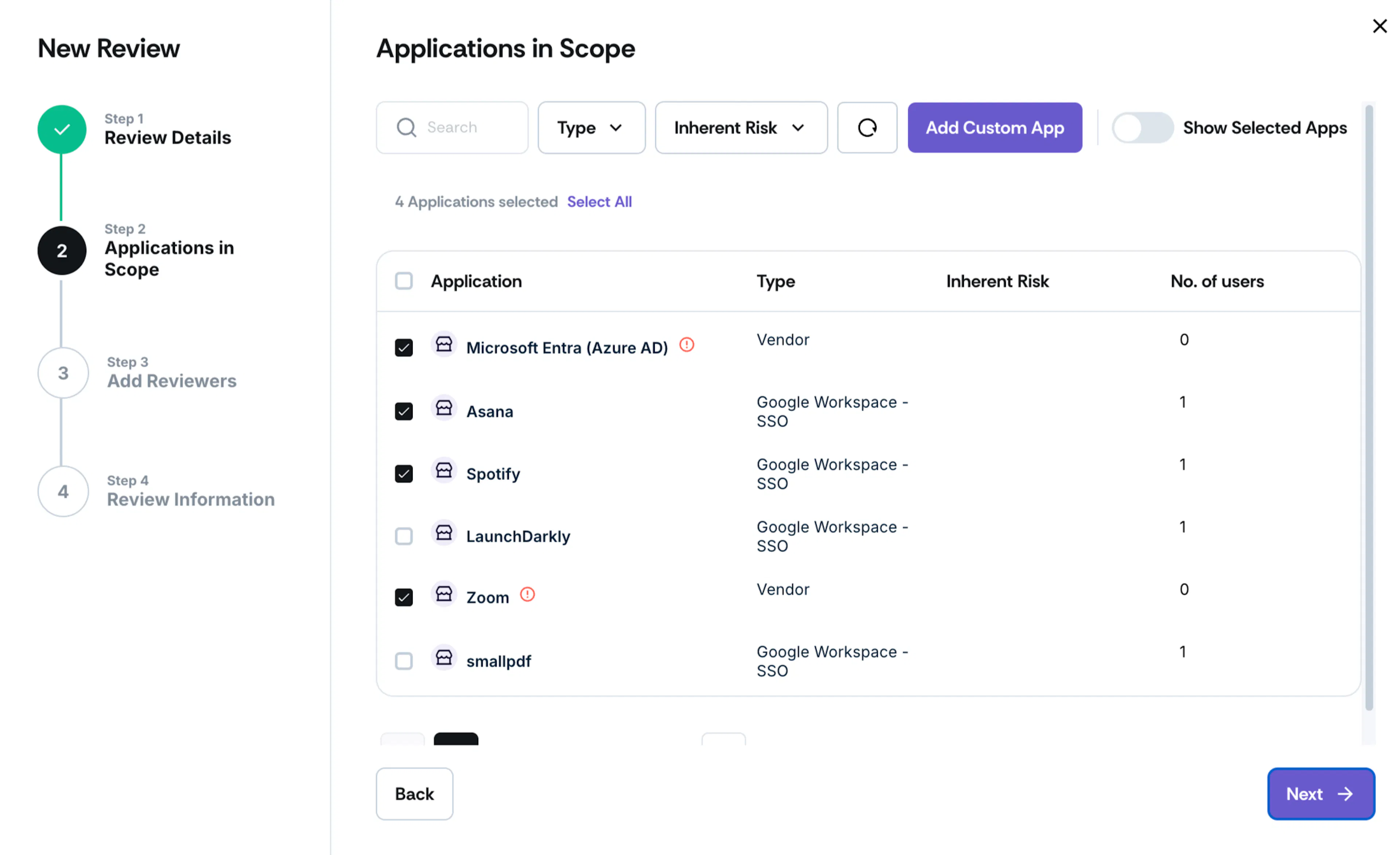
The second step is to select the applications that are in scope for this access review.
-
Use the Type filter to filter applications to include in the review from:
- Integration: Applications you’ve integrated with Scrut.
- Vendor: Vendors added to your Scrut organization.
- Manual: Custom applications that you’ve manually added to Access Reviews.
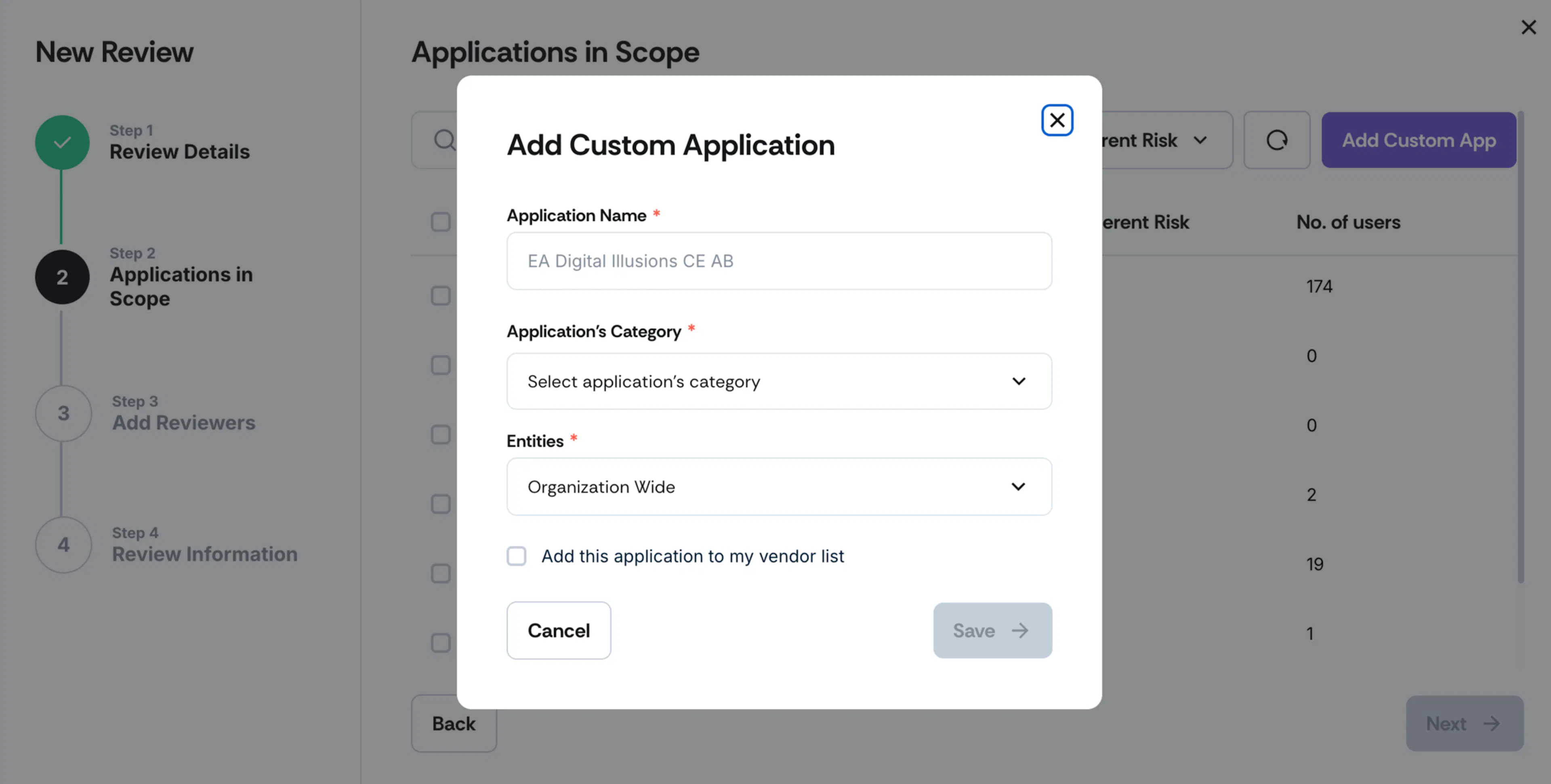
- Click the Add Application button to add a custom app.
- Enter the Application Name, select its Category, and choose the associated entity.
- You can also add the application to your vendor list if required.
- Once you add it, it will begin showing in the applications list.
- SSO: Third-party applications that your employees access via single sign-on.
- Native: The Scrut application itself.
-
Use the Inherent Risk filter to select applications by risk level: High, Medium, or Low.
-
Click the Reset icon to remove the applied filters.
-
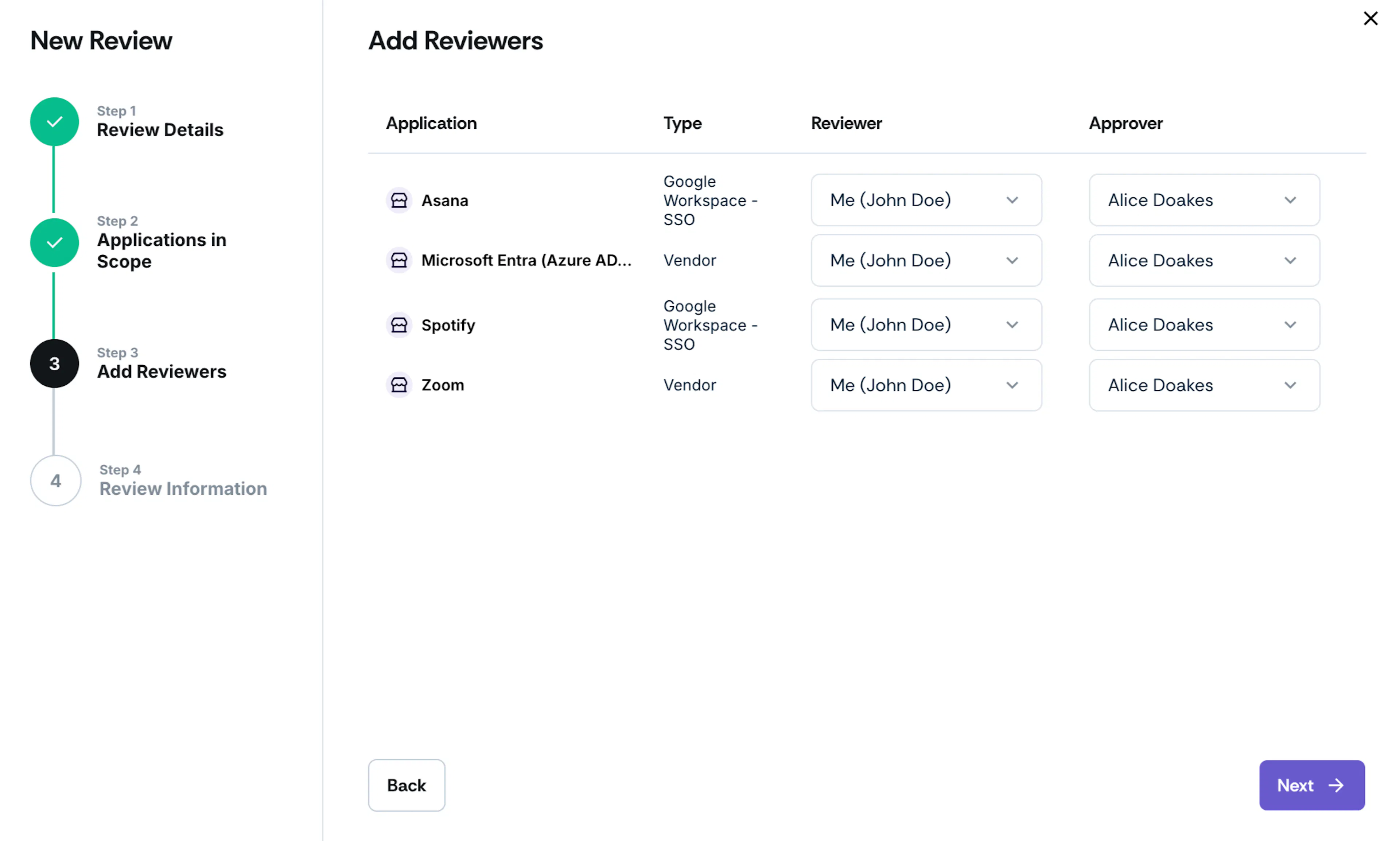
The third step is to add reviewers and approvers. Select a Reviewer and Approver using the dropdown for each application you selected in the previous step.
Note: Scrut recommends not selecting the same user as both the Reviewer and the Approver. If the application has an integration owner, Scrut pre-fills them as the Reviewer. You can select a different reviewer. Changing the reviewer here doesn't change the integration owner.
-
In the final step, review the information and create the access review.
-
Review all settings and click Save Review.
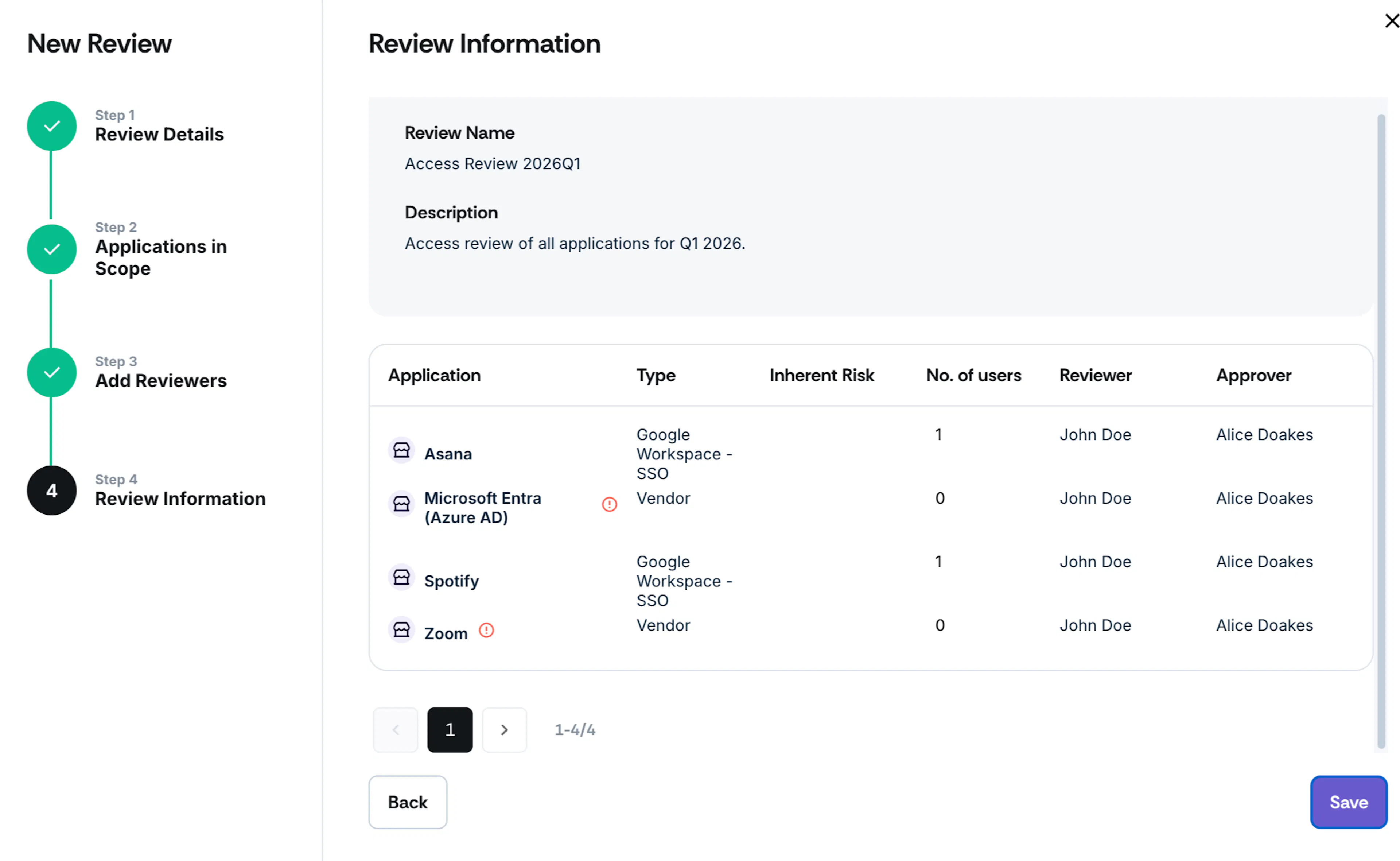
The newly created review will appear in the table on the Reviews page. You can search for it by typing its name in the search bar. The table displays the following details of each access review: Name, Owner, Status, Review Period, Apps in Review, and Recurrence.