

Change Vendor Assessment Status Manually
Important:
Scrut recommends following the vendor risk assessment workflow to capture assessment statuses. This ensures vendor responses, risk scores, and evaluation history are captured in the platform.
We recommend manually setting the assessment status only when you have assessed a vendor outside of Scrut and need to reflect that in the vendor module.
How To Change Vendor Assessment Status Manually
-
Navigate to Risk → Vendors → Vendors (Tab) and open a specific vendor.
-
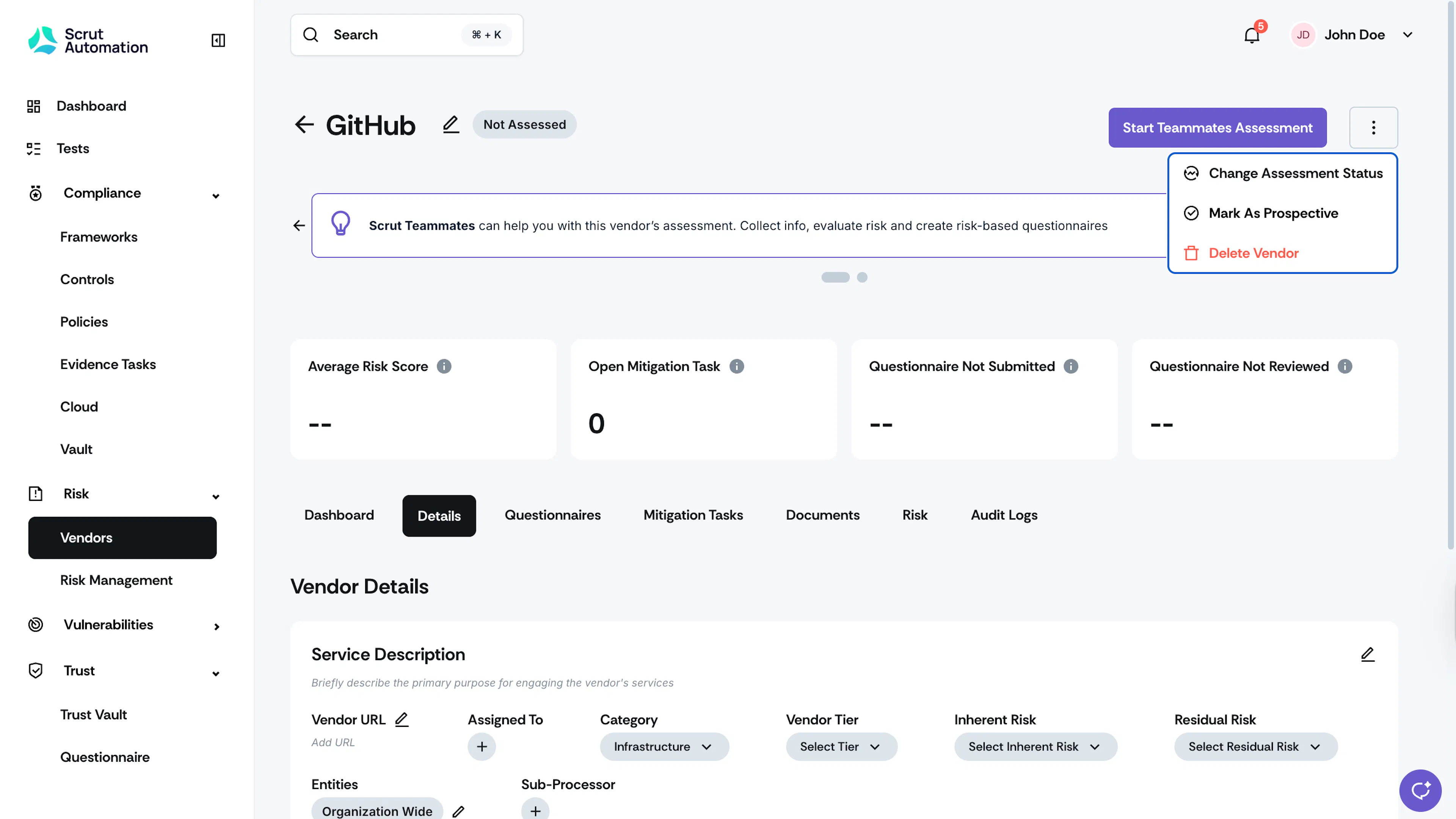
Click the three-dots icon on the top-right and select Change Assessment Status.
-
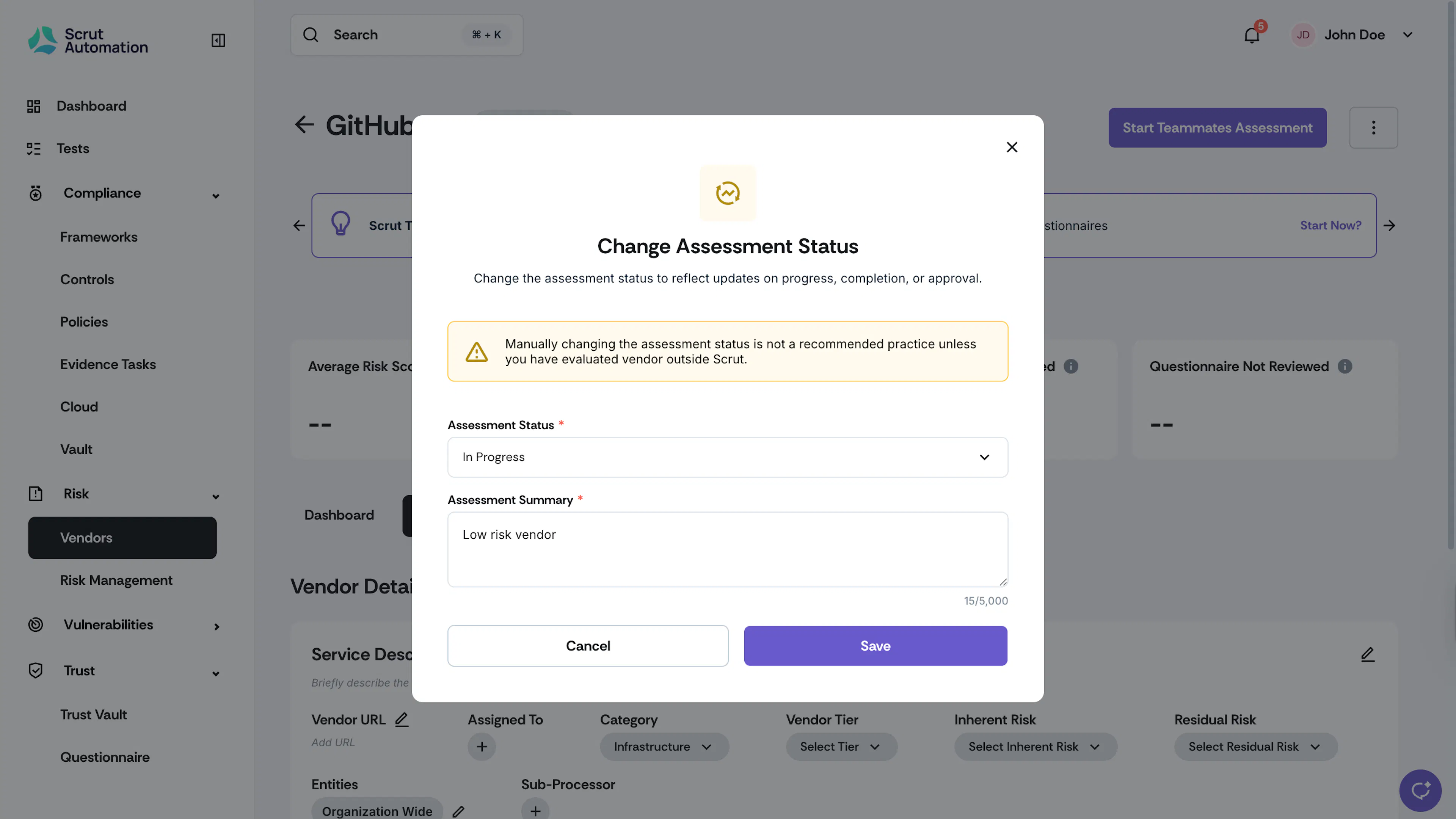
Select the Assessment Status: Not Assessed, In Progress, or Assessed.
-
Enter the reason for the status change and include any other relevant details.
-
Click Save.
-
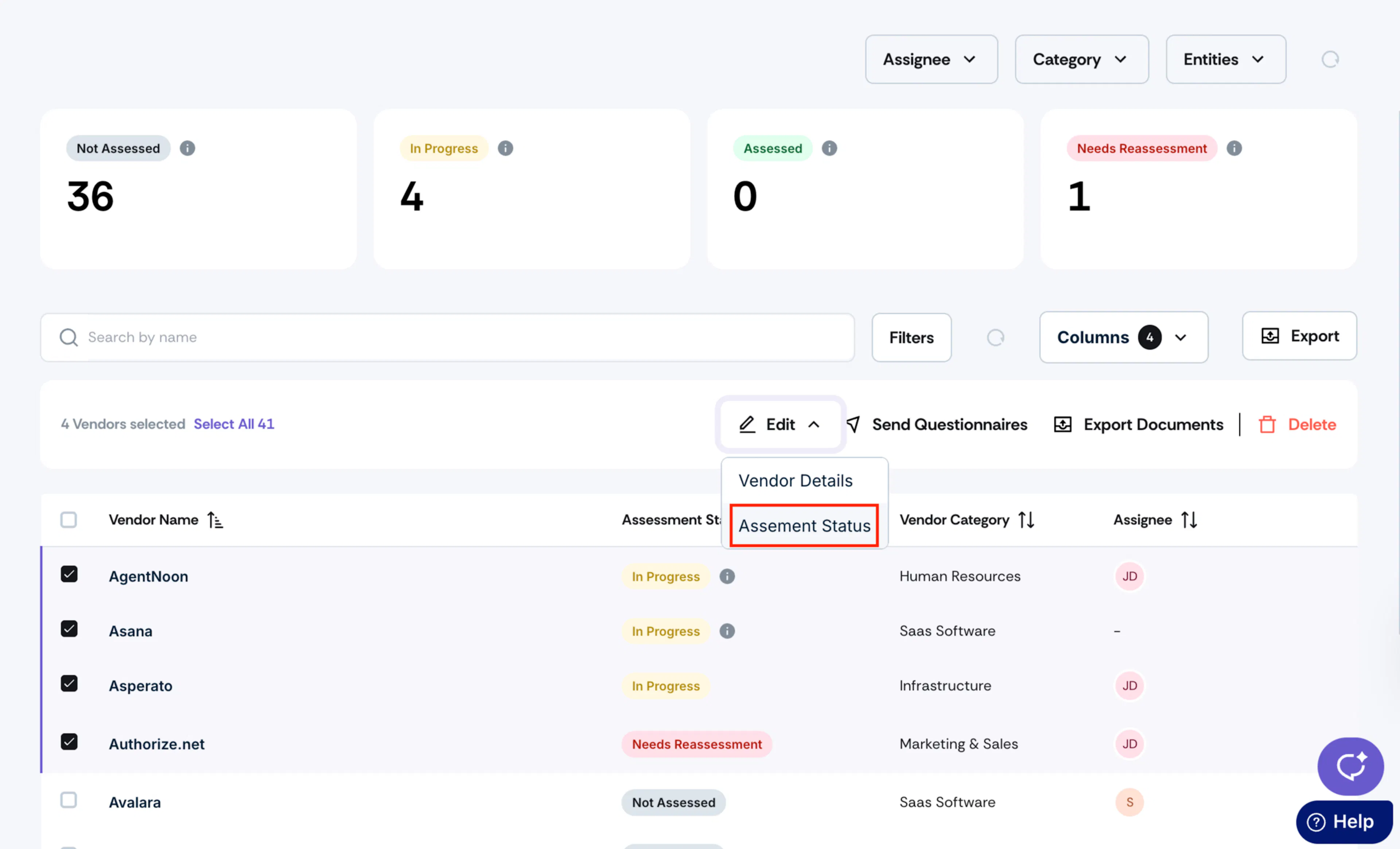
Select the vendor(s) whose status you want to update.
-
Click the Edit button and select Assessment Status.
-
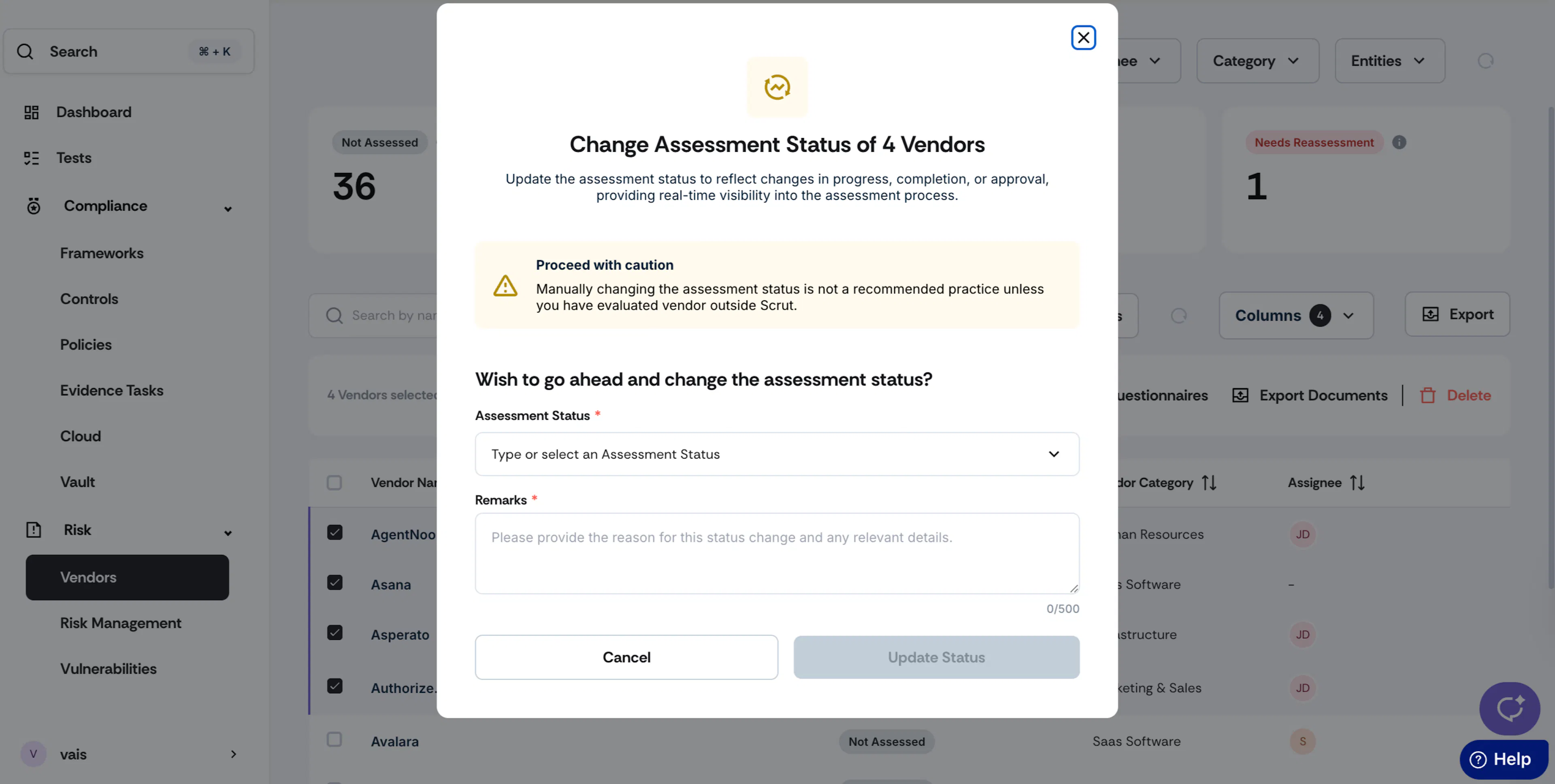
Select the Assessment Status: Not Assessed, In Progress, or Assessed.
-
Enter the reason for the status change and include any other relevant details.
-
Click Save.
Note:
As you’re changing the assessment status manually, you’ll notice a cautionary warning. You can ignore this and proceed if you’ve manually assessed the vendor outside Scrut.