

Export Vendor Risk Assessment Report
Who can use this feature
- Supported on Foundation, Growth, and Scale plans
The Vendor Risk Assessment Report is a comprehensive PDF report that provides detailed insights into vendor assessments. It’s a professional report that you can download and share quickly with team members and other stakeholders. It includes a cover page and is organized into key sections, including vendor details, assessment summary, graphical insights into assessment results, risk scores, questionnaire responses, mitigation tasks, and identified vendor risks. This guide explains how to export the vendor risk assessment report in Scrut.
How To Export the Vendor Risk Assessment Report
Method 1: Via the Vendor → Questionnaire Module
-
Sign in to Scrut, and click Risk → Vendors on the left navigation panel, and go to the Vendors tab.
-
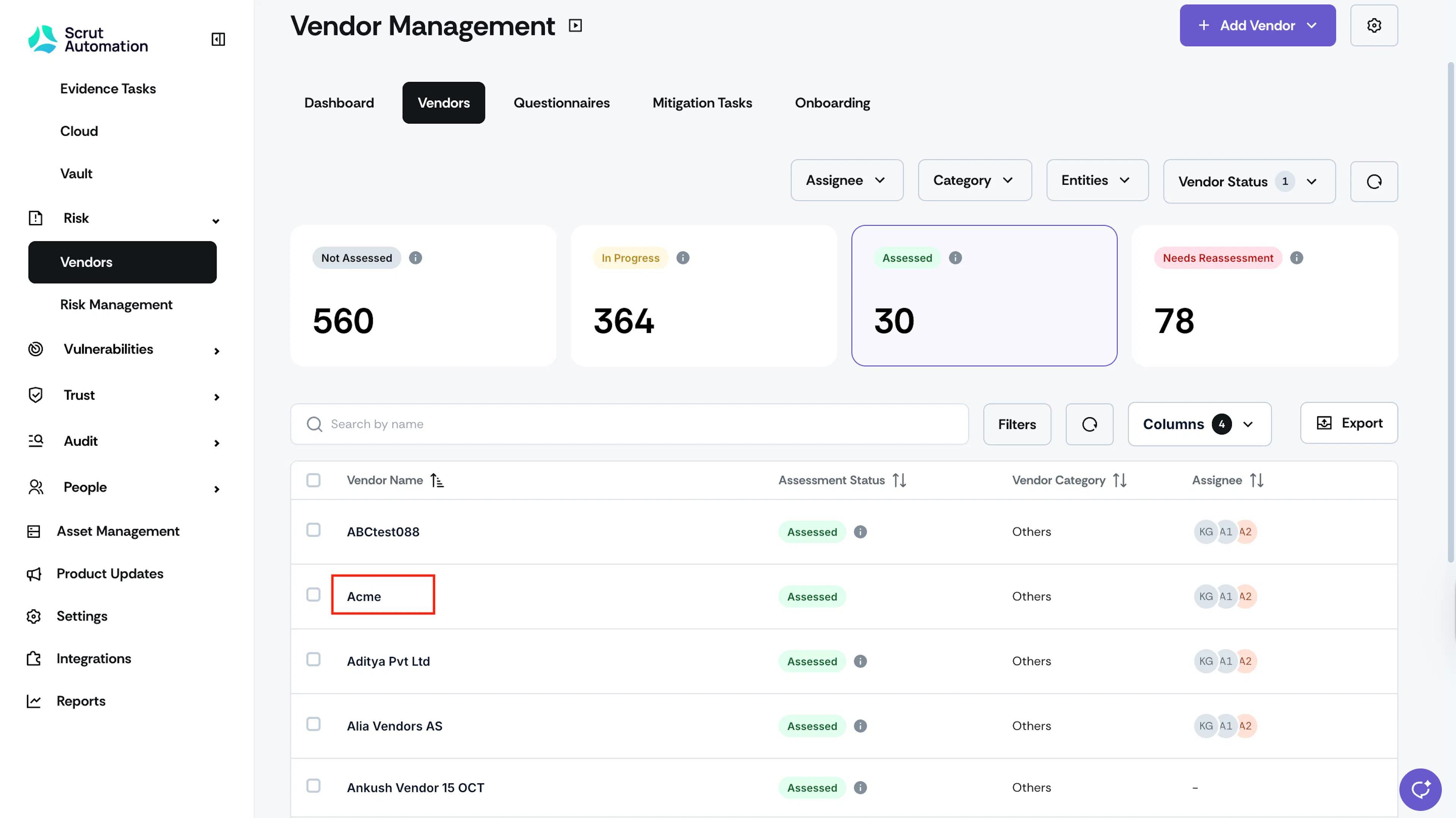
Click on the vendor for whom you want to export the report.
-
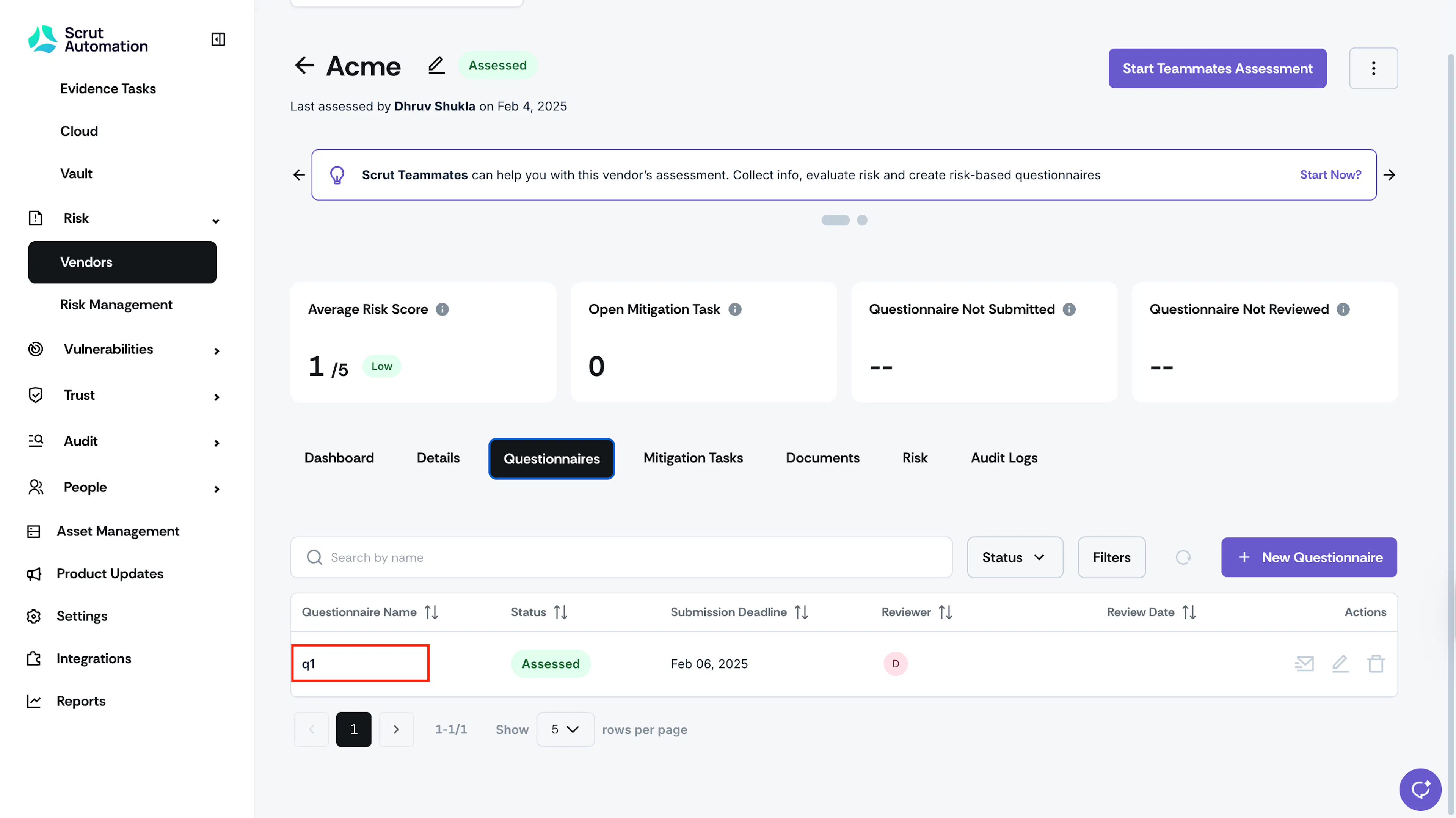
Go to the Questionnaires tab and click the questionnaire you want to export.
-
Click Complete Assessment if you haven’t done it already. See here for step-by-step instructions on evaluating vendor responses and completing vendor assessment.
Heads Up!
- You can only export questionnaires in the Submitted status.
- The PDF export option is only available for questionnaires for which you have completed the assessment. If you haven’t completed the assessment, you can only download the questionnaire as a CSV file.
- The export does not include vendor-uploaded attachments. To view or download the files a vendor attached to their questionnaire responses, go to the Vendor Documents tab, which consolidates all attachments submitted across their questionnaires.
-
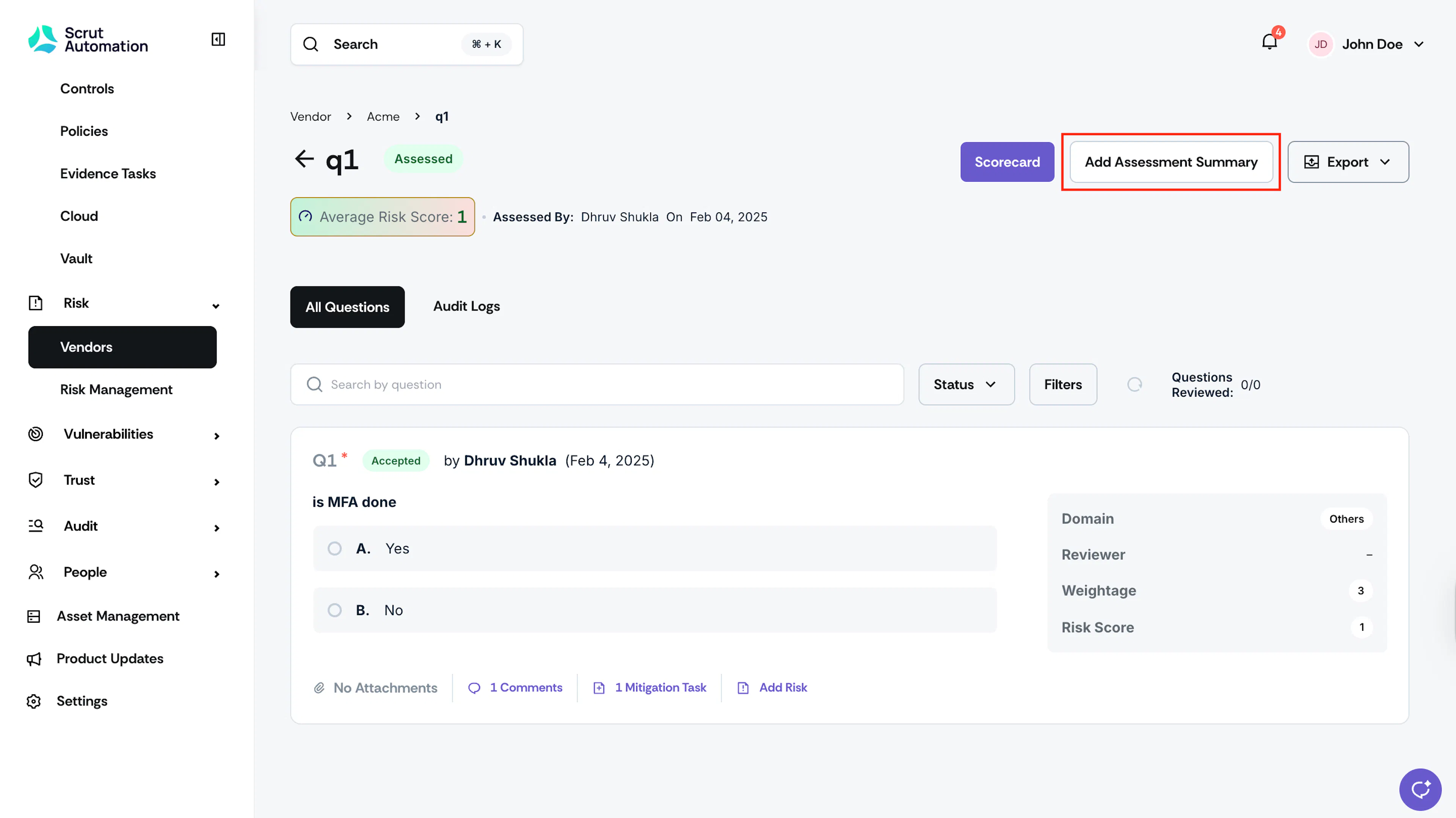
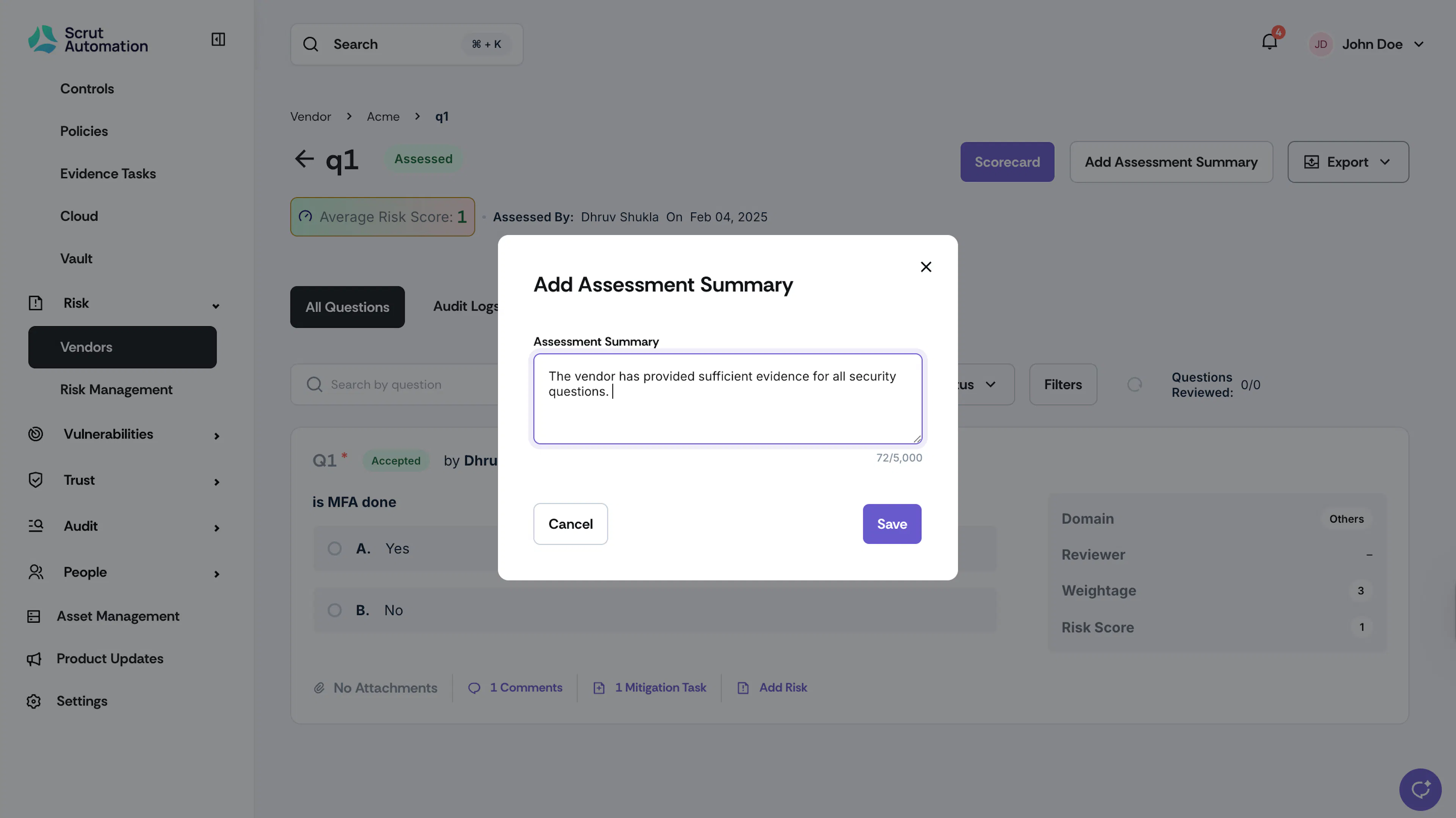
(Optional) Click Add Assessment Summary. Use this field to summarize your observations or add any additional notes identified during the vendor assessment.
Why it matters: This summary is especially beneficial for executives and other external stakeholders who will read the report, as it allows them to quickly grasp the key points without having to go through each individual question and vendor response. The information you include in this field will be incorporated into the final report, right after the vendor details.
Note: You can edit the assessment summary at any time by clicking the edit icon next to it.
-
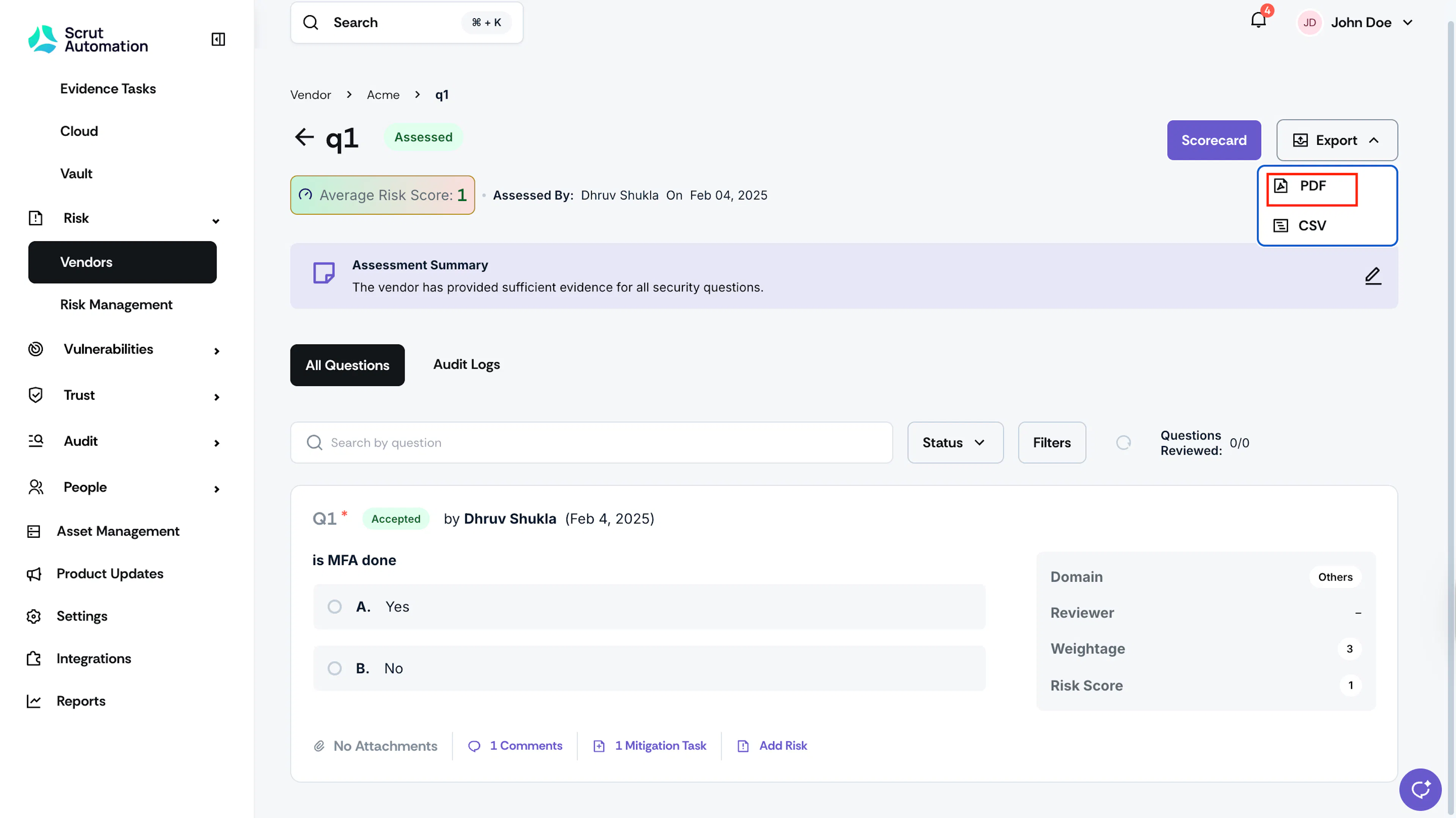
Click Export and select your preferred file format.
-
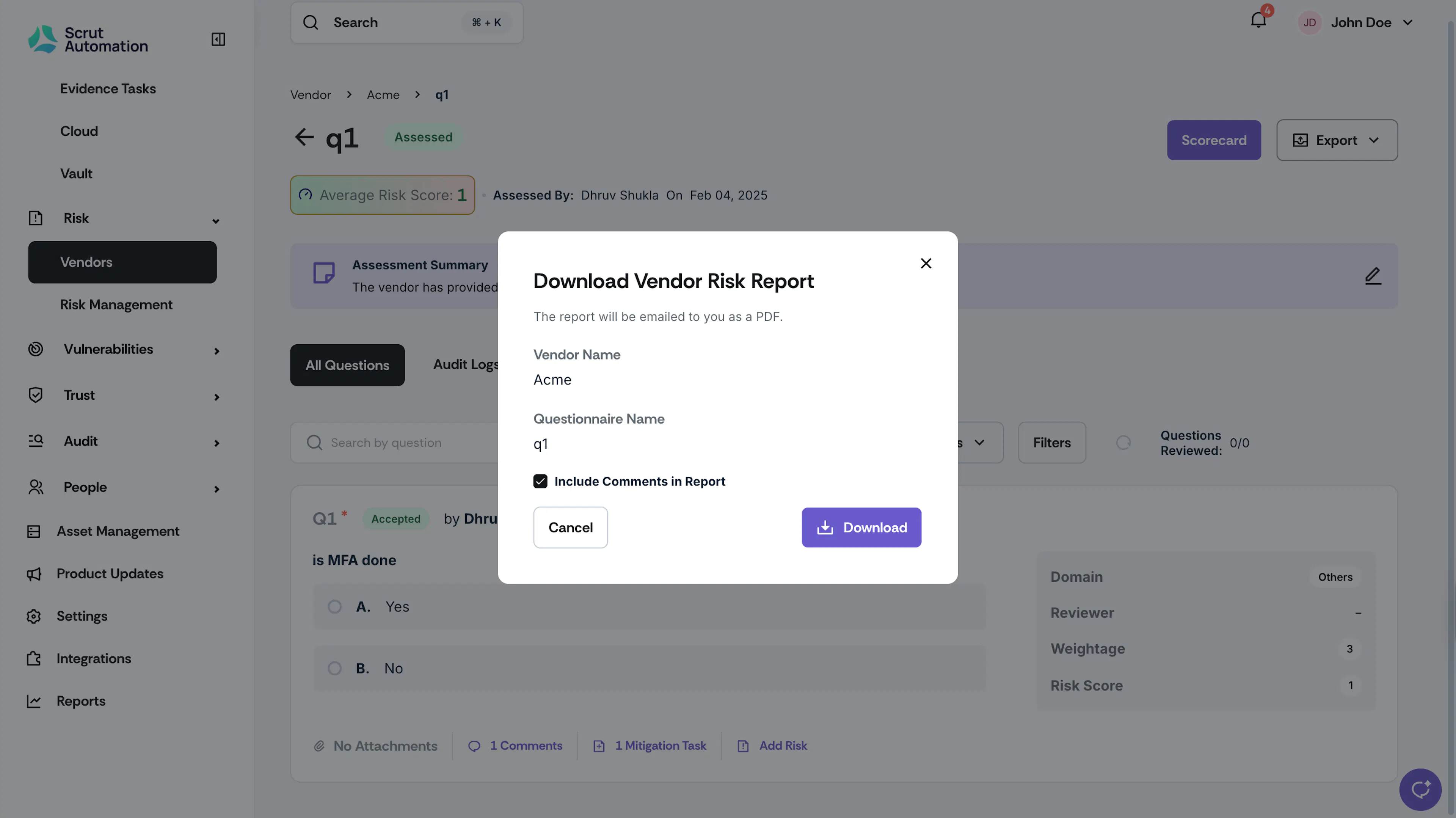
Choose whether to include the comments you’ve added while evaluating the questionnaire in the export.
-
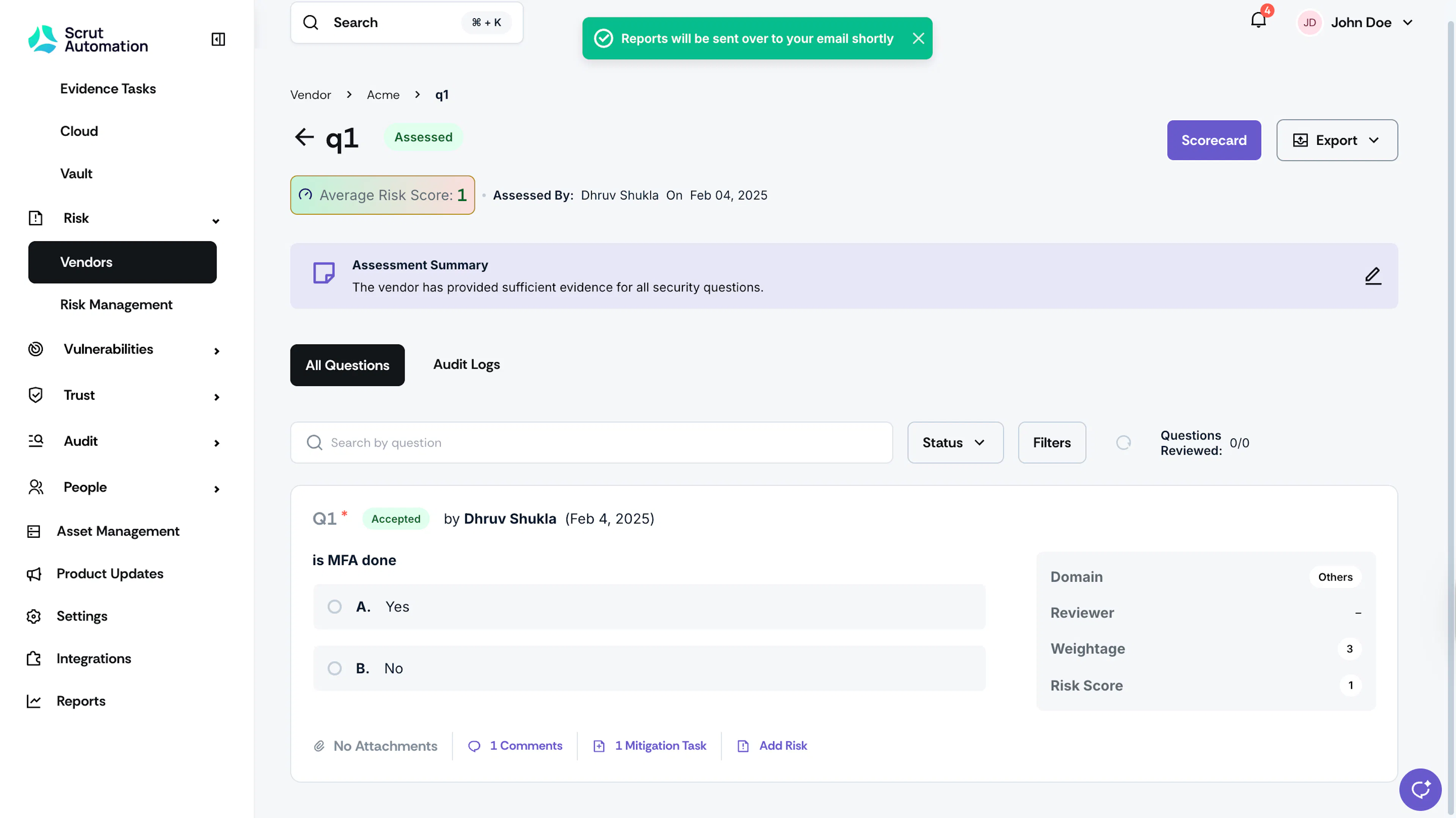
Scrut will generate the report and email it to you.
Method 2: Via the Reports Module
-
Sign in to Scrut and click Reports on the left navigation panel.
-
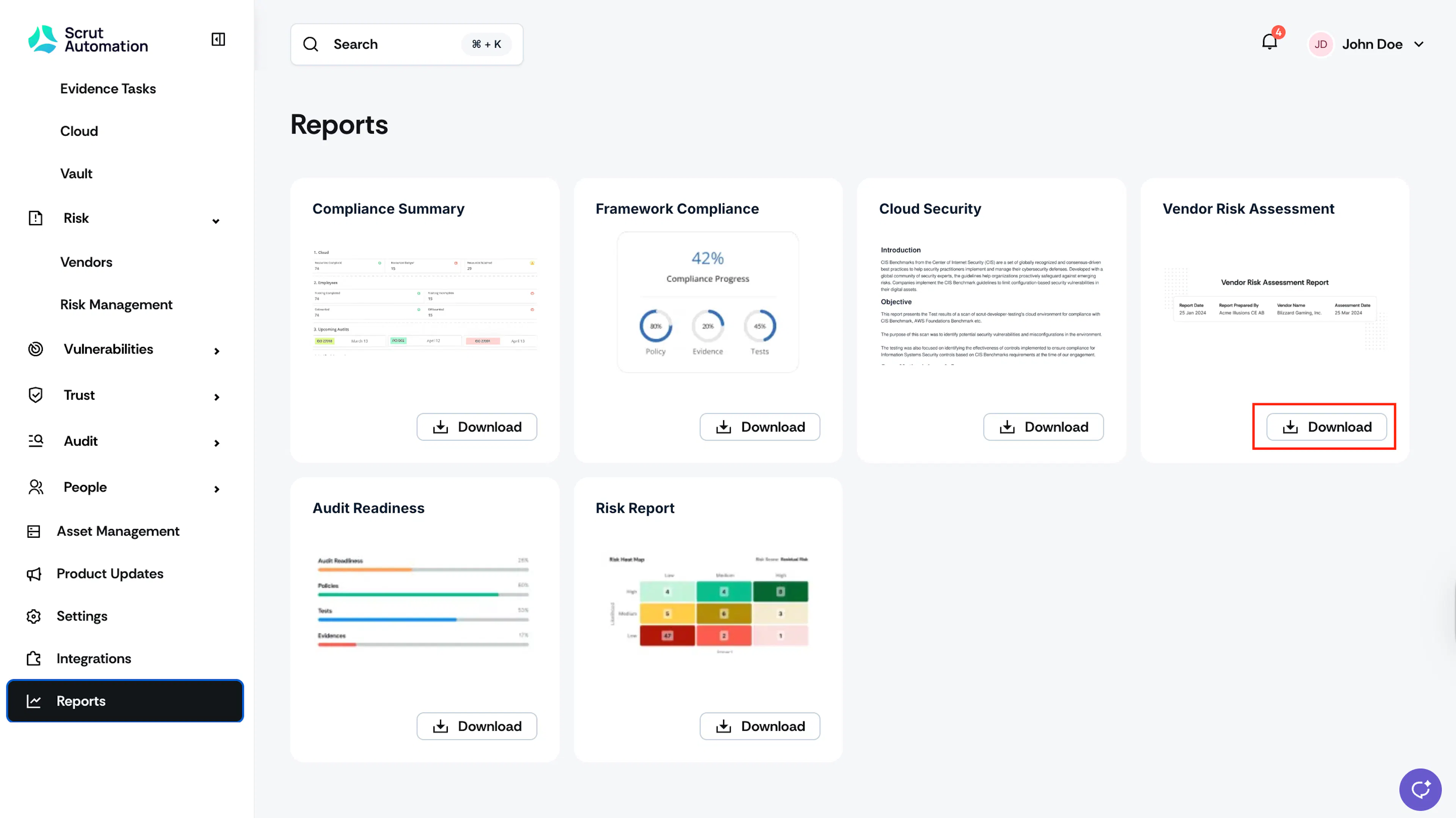
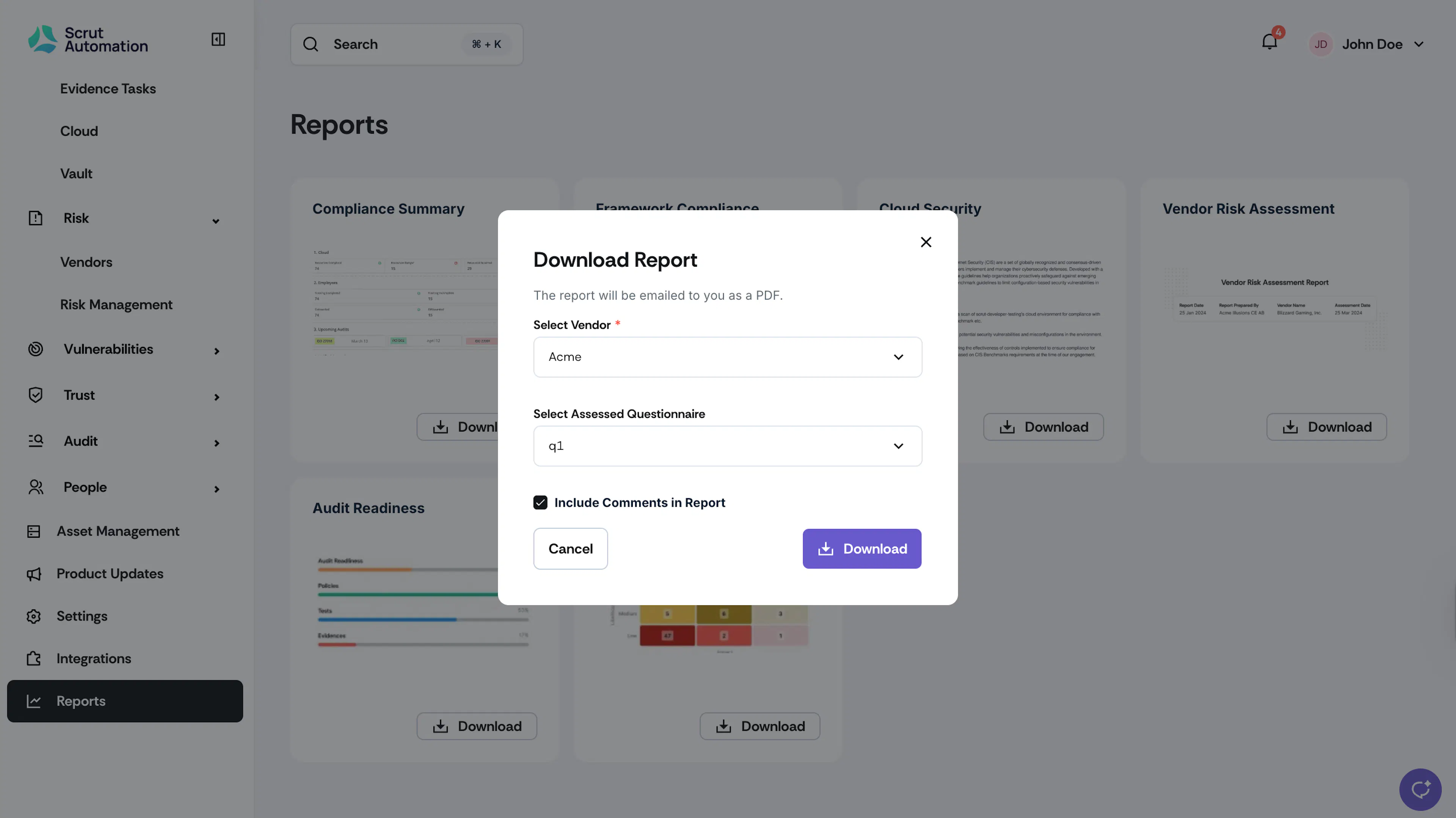
Scroll to the Vendor Risk Assessment tile, and click the Download button.
-
Select your preferred vendor from the dropdown.
-
If the vendor has questionnaires, select the specific questionnaire you want to export.
-
Choose whether to include comments in the report.
-
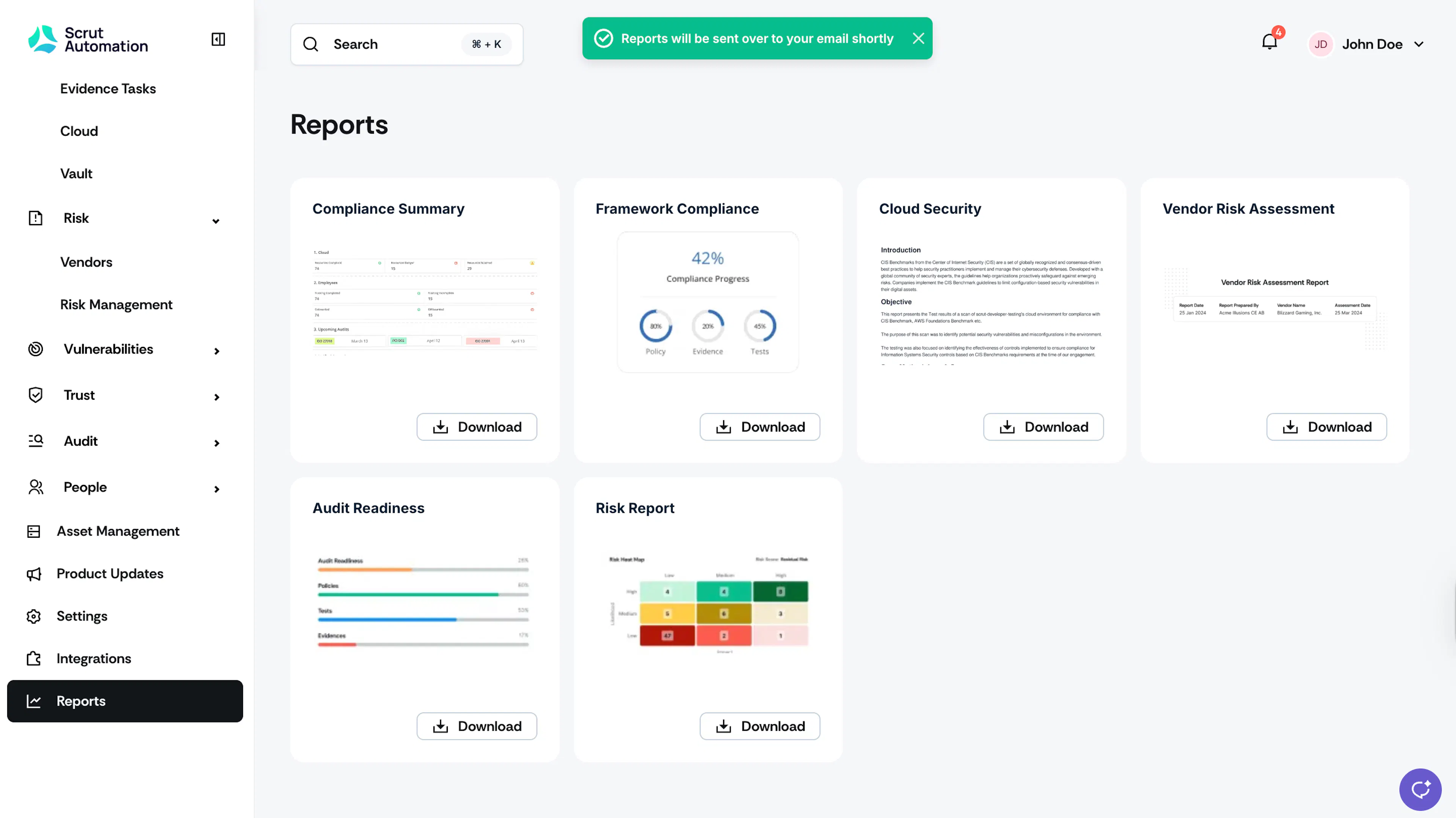
Scrut will generate the report and email it to you.
Heads Up!
If the selected vendor doesn't have a questionnaire, you'll skip step 4 and proceed directly to generating the report.
Downloading the Vendor Risk Assessment Report
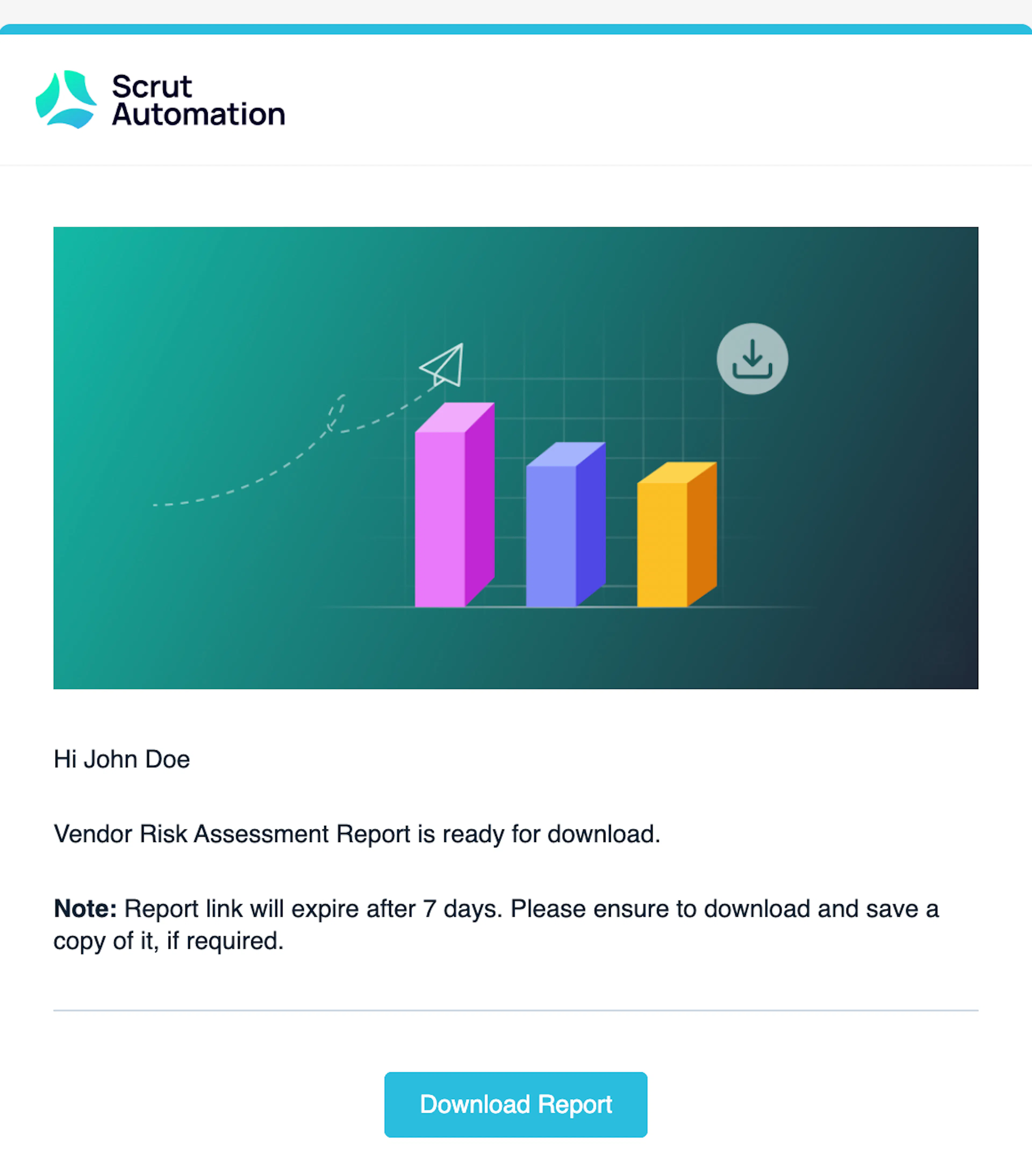
Click the Download Report button in the email from Scrut to download the PDF.
Heads Up!
The download link will remain active for seven days. If you don't download within that time, you can regenerate the report again by following the steps mentioned above.
What’s Included in the Vendor Risk Assessment Report
The report includes the following key sections:
Title Page
It includes the organization name, vendor name, report date (export date), report prepared by (the user who generated the export in Scrut), and vendor assessment date (completion date).
Vendor Details
All information from the Vendor Details page, such as vendor URL, service description, and any custom fields you’ve configured.
Assessment Summary
Contains the assessment summary from the questionnaire OR from the vendor page. If both exist, the questionnaire summary takes precedence. This section is excluded if you haven’t added a summary.
Overview & Summary of Findings
This section includes the following data:
For vendors WITH questionnaires:
- Average Risk Score (Gauge Chart)
- Average Risk Score per Domain (Bar Chart)
- Domain-wise breakdown of questions by risk category (Table)
- Question Review Status (Donut Chart)
- Mitigation Tasks Status (Donut Chart)*
- Risk Tasks Status (Donut Chart)*
For vendors WITHOUT questionnaires:
- Mitigation Tasks Status (Donut Chart)*
- Risk Tasks Status (Donut Chart)*
*Charts only appear if tasks/risks have been created
Summary of Mitigation Tasks
Includes all mitigation tasks from the questionnaire and standalone tasks. It provides task details, task status, and task source (question number or standalone).
Summary of Risks
Includes all risks from the questionnaire and standalone risks. It provides risk details, risk status, and risk source (question number or standalone).
Detailed Questionnaire Content
Only present for vendors with questionnaires. It includes the questionnaire questions and answers, linked mitigation tasks and risks, question comments (if selected during export), and flagged reasons (if applicable).