

Deactivate or Reactivate a User
Remove a user's access to Scrut temporarily, reassign their tasks, and restore their access later.
Who can use this feature
- Supported on Foundation, Growth, and Scale plans
Deactivate a user when they need to lose access to Scrut for a while, for example, when they go on extended leave or a contractor's work ends. Their audit history is kept, and you can reassign their open tasks to someone else. When they return, reactivate them.
Deactivate a User
- Navigate to Settings → Manage Users & Roles.
- On the Users tab, click the deactivate icon in the Actions column for the user.
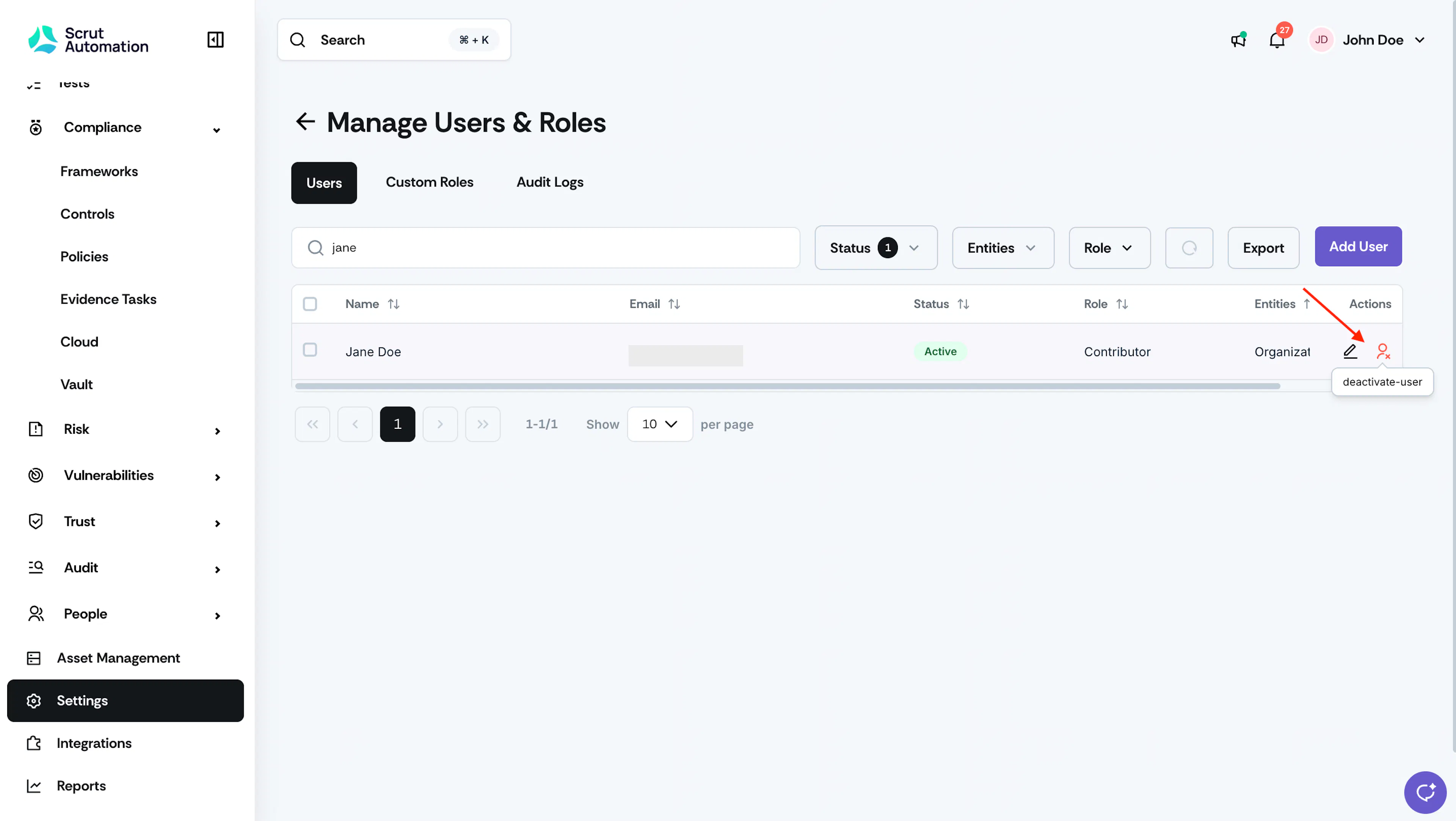
Deactivate icon in the Actions column - Confirm the deactivation. What you see depends on whether the user has open tasks.
- No open tasks: Click Deactivate User.
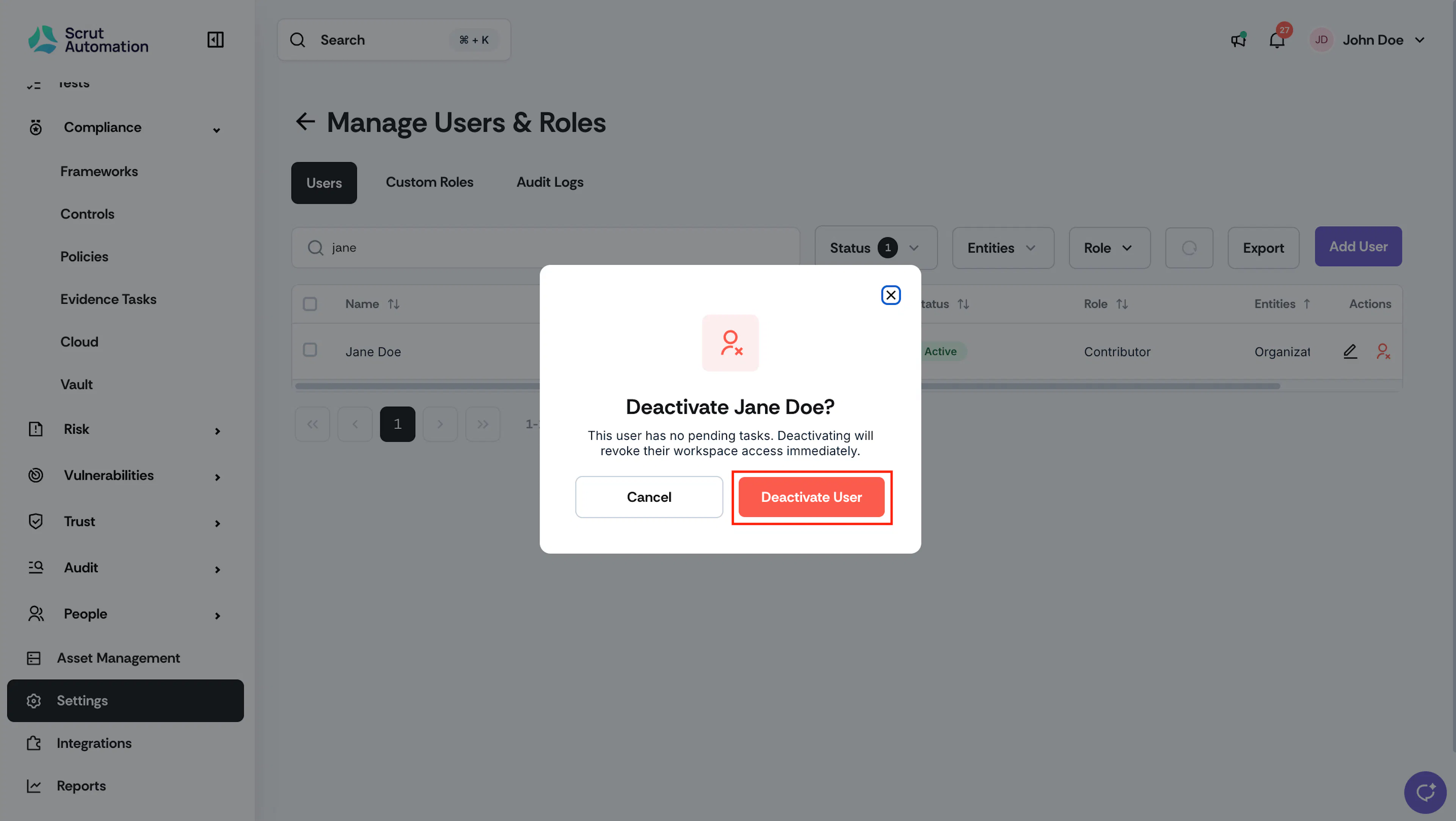
Deactivate user confirmation for a user with no open tasks - Open tasks: The window shows how many open tasks the user has, grouped by module. Under Reassign Tasks, select a new owner for each module in the Reassign to list, then click Reassign & Deactivate. To deactivate the user now and reassign their tasks later, click Assign Later.
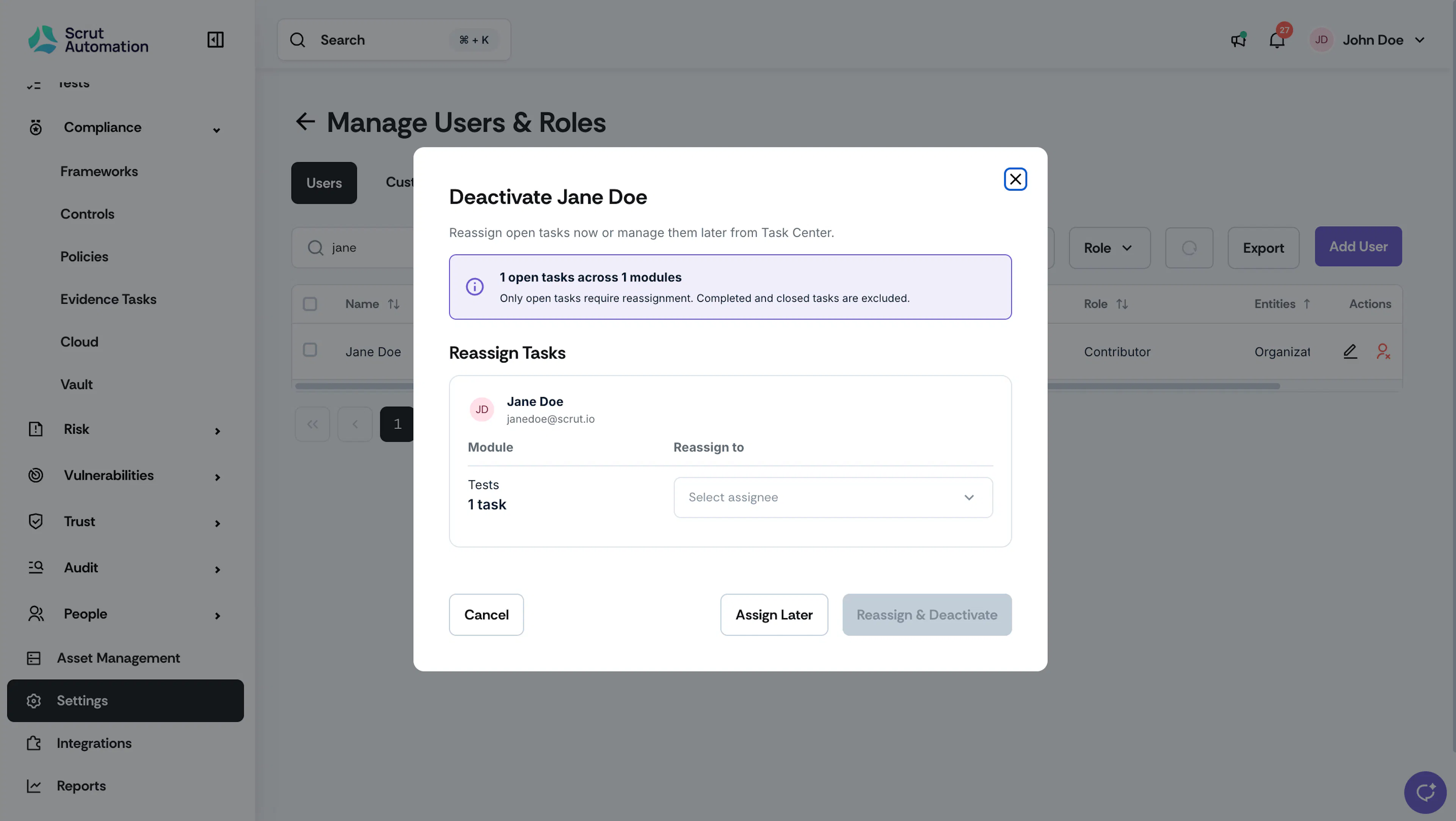
Deactivate user window with open tasks to reassign by module
- No open tasks: Click Deactivate User.
Only open tasks need a new owner. Completed and closed tasks stay with the deactivated user.
When you deactivate a user:
- They lose access to the workspace immediately.
- Their status changes to Deactivated on the Users tab.
- The Audit Logs tab records who deactivated the user and when.
Pro Tip! Reassign open tasks while you deactivate the user, so their work isn't held up.
Reassign a Deactivated User's Tasks
If you chose Assign Later, reassign the user's open tasks from the Users tab.
- Navigate to Settings → Manage Users & Roles.
- On the Users tab, click the reassign tasks icon in the Actions column for the deactivated user.
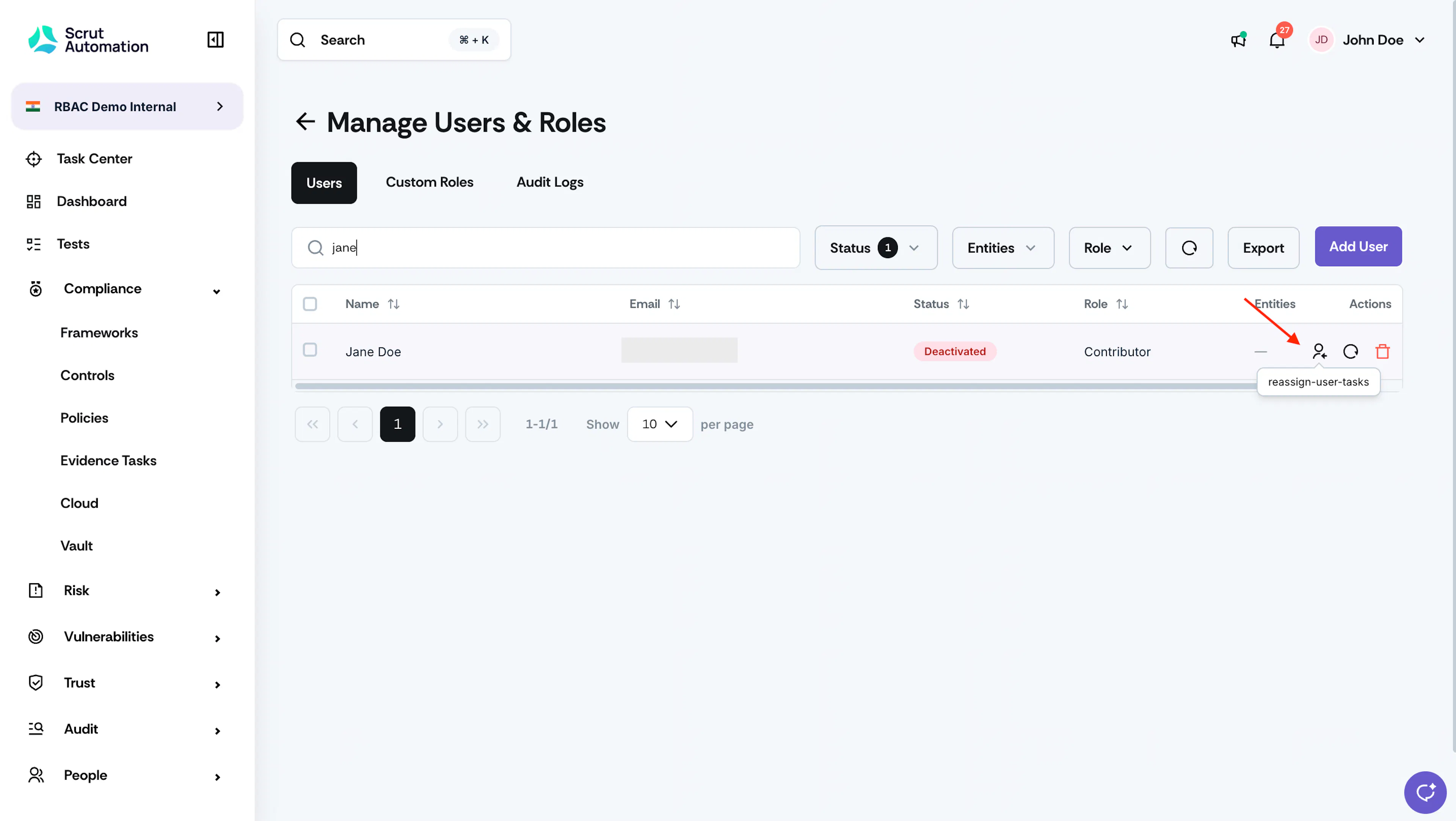
Reassign tasks icon for a deactivated user - For each module, select a new owner in the Reassign to list.
- Click Save.
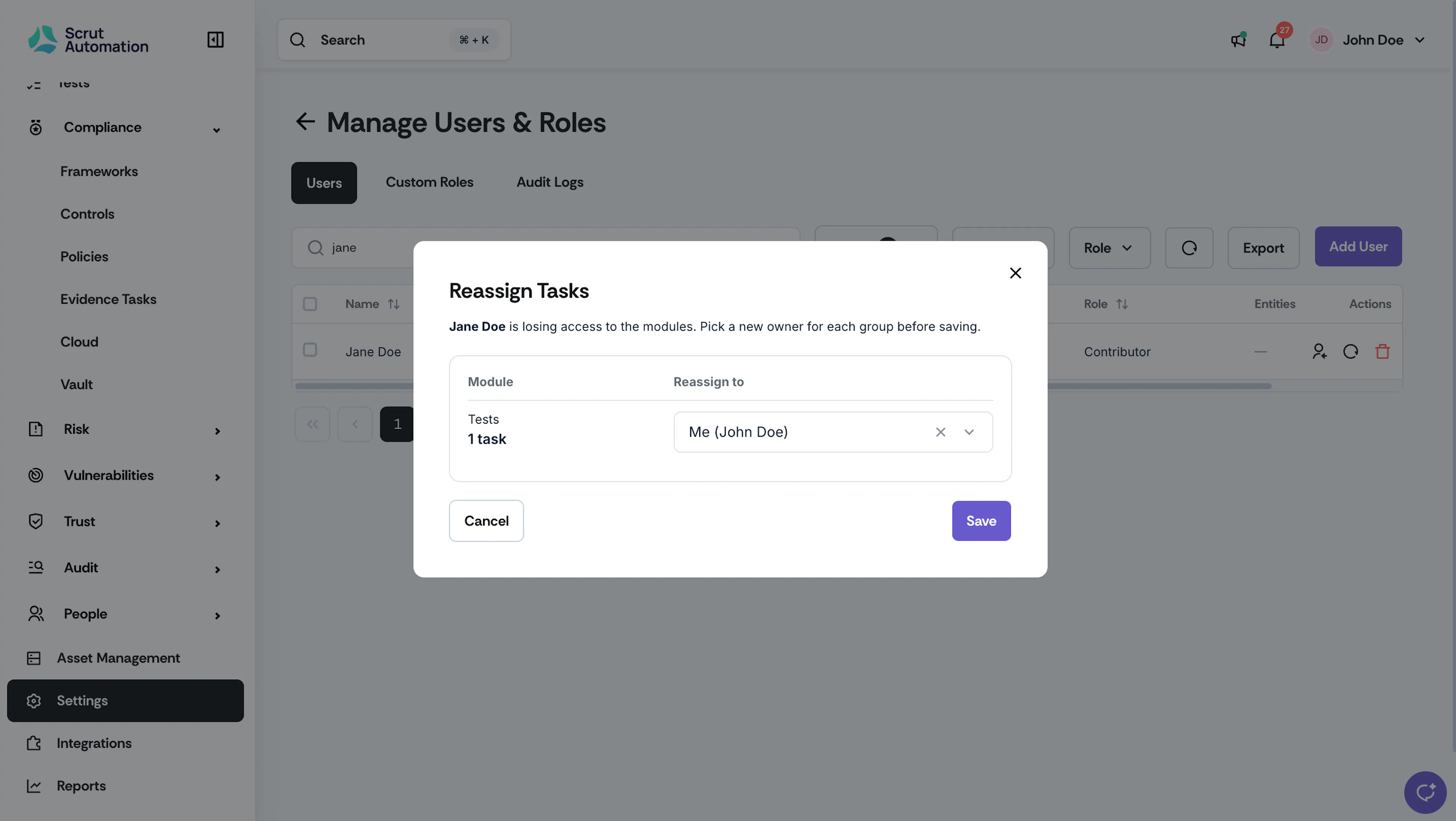
Reassign Tasks window with a new owner selected for each module
You can also manage a deactivated user's open tasks from Task Center.
Reactivate a User
- Navigate to Settings → Manage Users & Roles.
- On the Users tab, click the reactivate icon in the Actions column for the deactivated user.
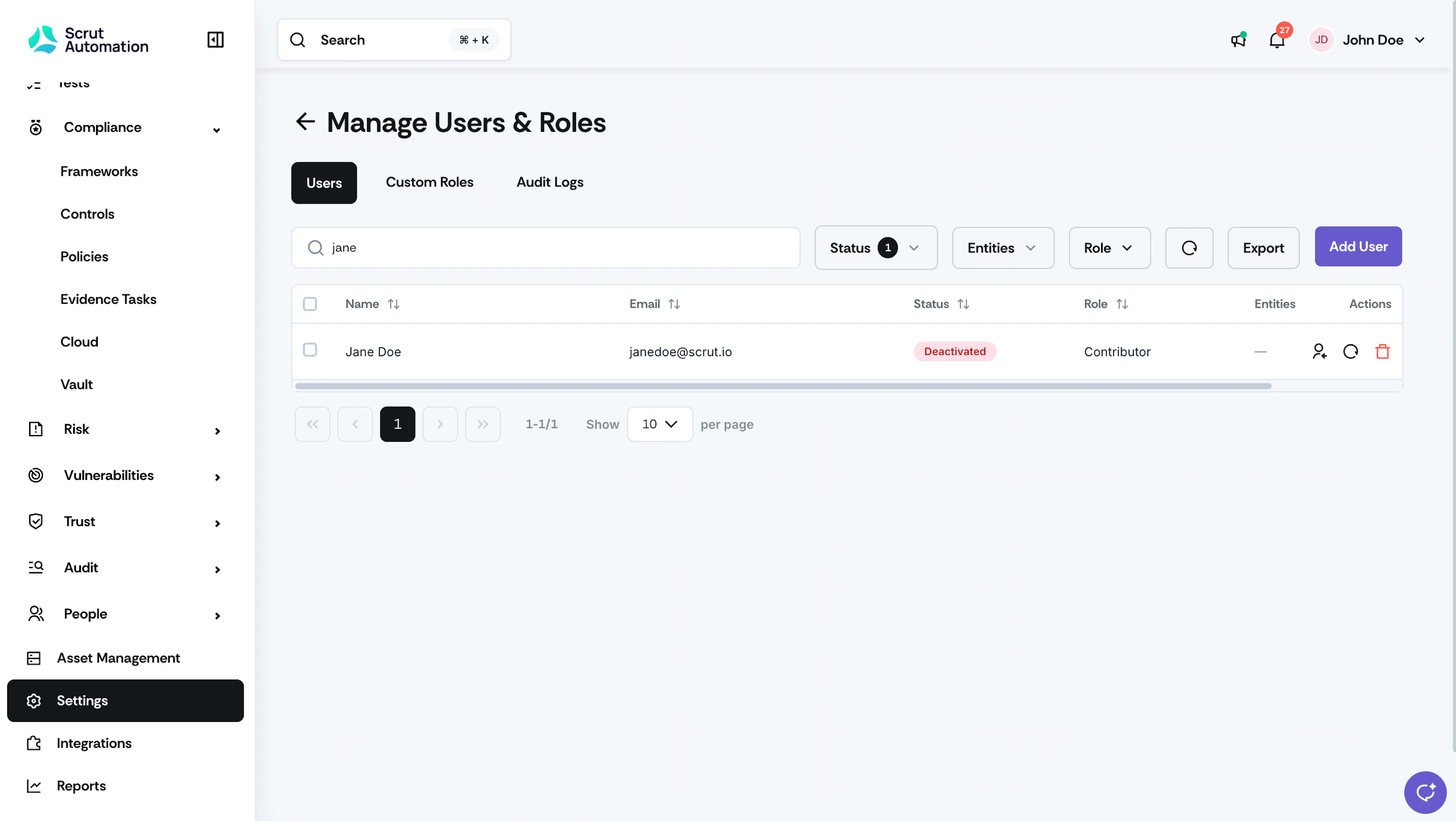
Actions for a deactivated user: reassign tasks, reactivate, and delete - Click Reactivate User.
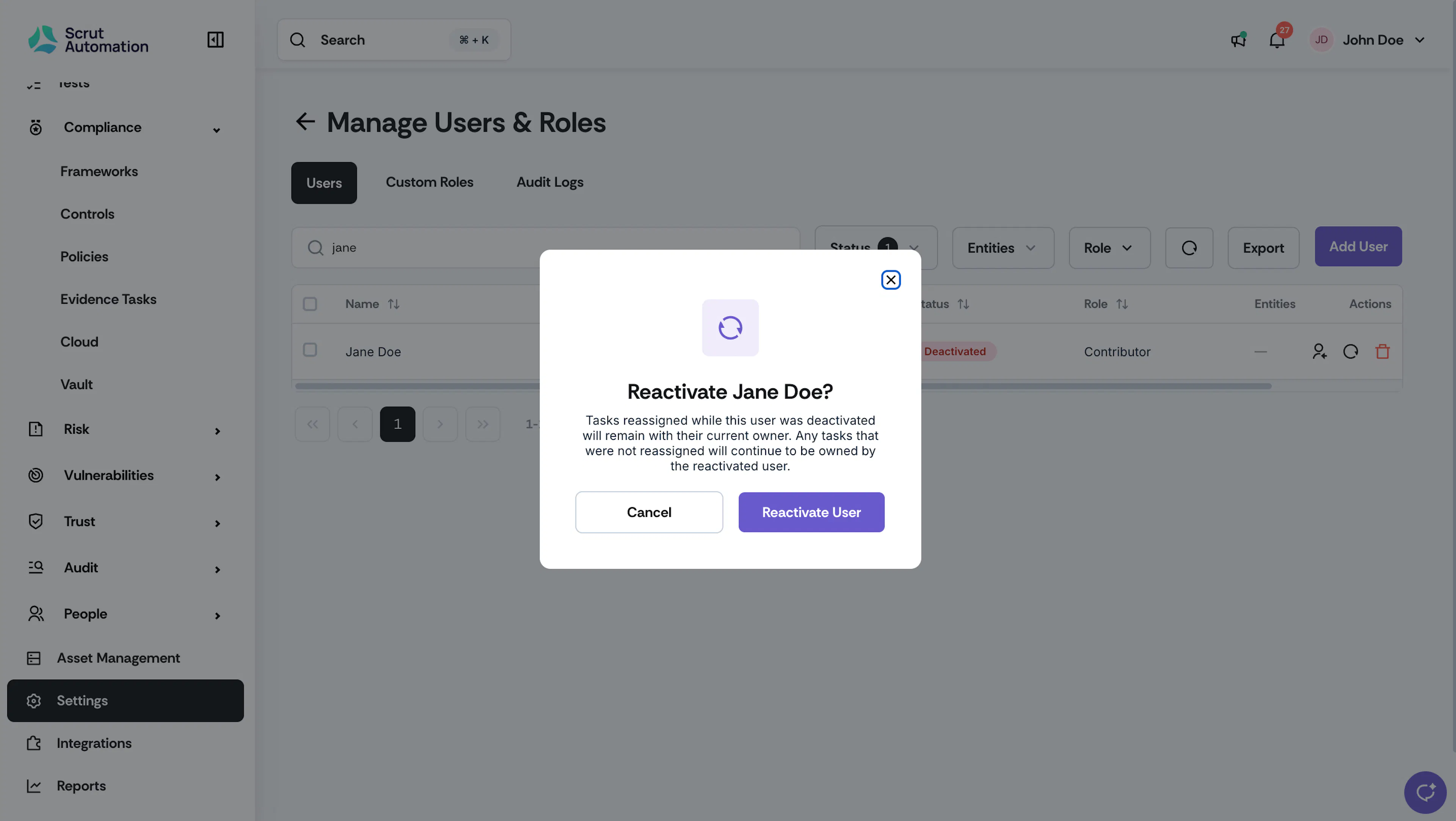
Reactivate user confirmation
When you reactivate a user:
- They can access the workspace again.
- Their status changes back to Active on the Users tab.
- They get back the role and access they had before.
- The Audit Logs tab records the reactivation.
Heads Up! Tasks you reassigned while the user was deactivated stay with their new owners. Tasks you didn't reassign stay with the reactivated user.
FAQs
Contact support@scrut.io or your CSM for further assistance.