

Create and Manage Custom Roles
Build custom roles with module-level permissions and assign them to users.
Who can use this feature
- Supported on Growth and Scale plans
Custom roles let you give each person the granular access their job needs, and nothing more. Build a role once, set its permissions for each module, and assign it to as many users as you need.
Before You Start
Every custom role is built on a base role:
- Contributor: For people who work on compliance tasks, such as policies, evidence, risks, or vendors.
- Auditor: For people who review data during audits.
The number of custom roles you can create depends on your plan. Growth plans support up to 10 custom roles, including the default custom roles. Scale plans support unlimited custom roles.
Create a Custom Role
- Navigate to Settings → Manage Users & Roles.
- Click the Custom Roles tab.
- Click Add Custom Role.
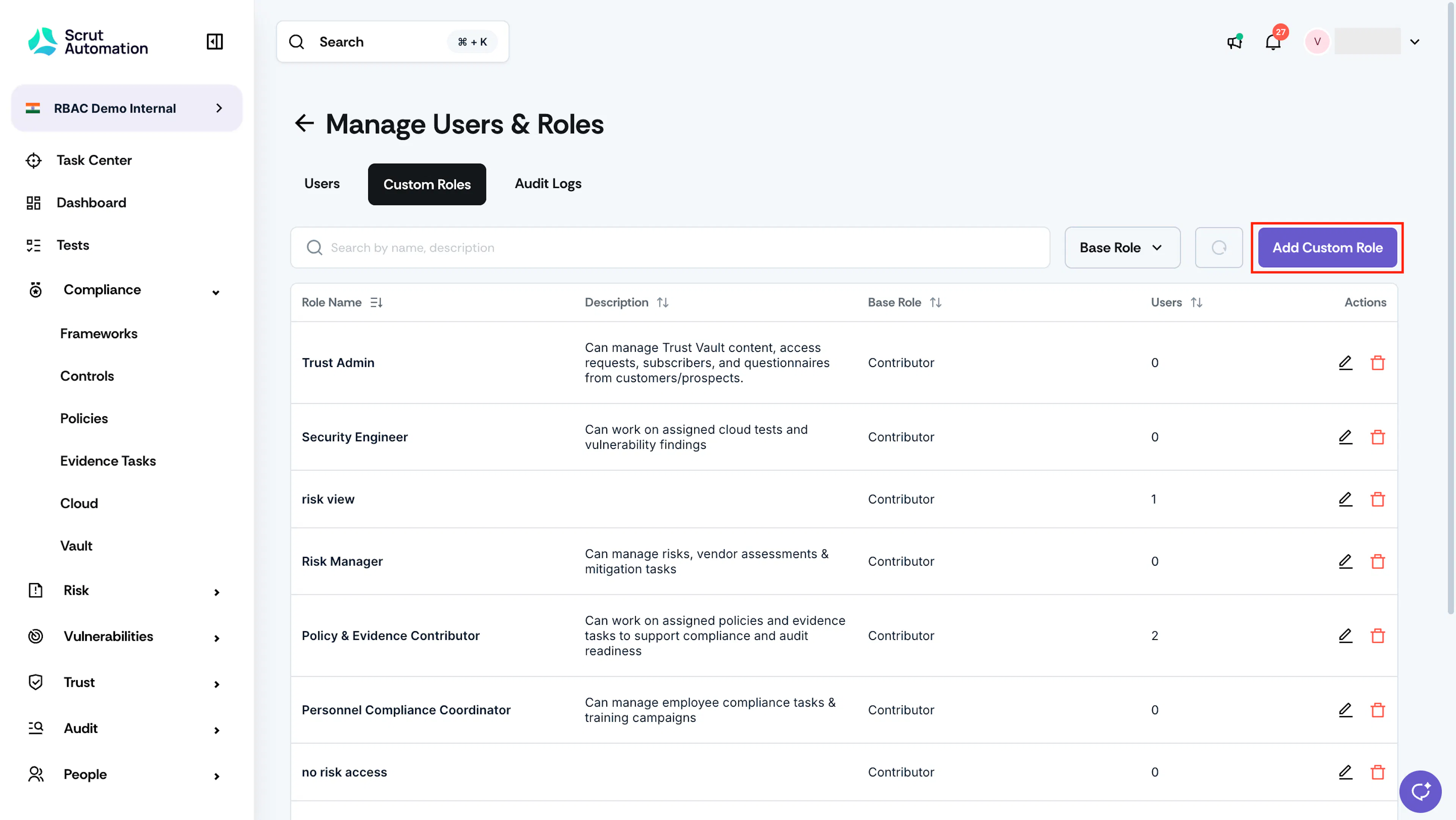
Add Custom Role RBAC v2 - Enter a Role Name. Use up to 50 characters.
- Enter a Description of what the role is for. Use up to 100 characters.
- Select a Base Role.
- Under Module Access, select an Access Level for each module the role needs. Every module starts at No access.
- Turn on Download Access for each module where the role needs to download or export data.
- Click Save.
- The role appears on the Custom Roles tab, and you can select it when you add or edit a user.
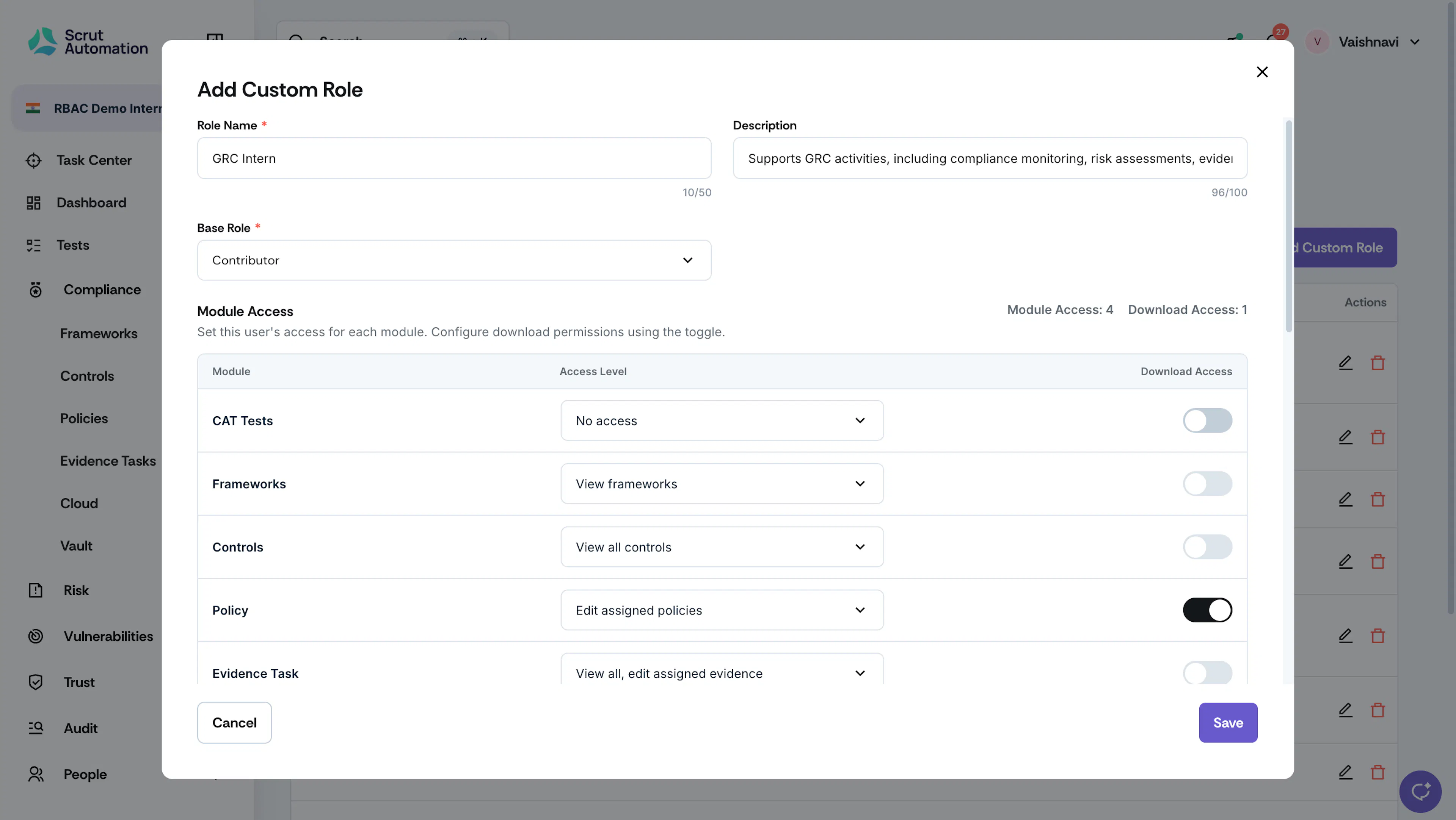
Add a Custom Role RBAC v2
Pro Tip! Start with the lowest access level that lets someone do their work. For people who only work on items assigned to them, Edit assigned is usually enough.
Default Custom Roles
Scrut includes six default custom roles. You can assign them as-is, or edit them to fit your team. Download Access is off for every module in the default custom roles. To let users download or export data, edit the role and turn on Download Access for the modules they need.
| Role | What it's for | Base role | Modules | Access level |
|---|---|---|---|---|
| Information Security Lead | Manage workflows across Compliance, Risk, and Trust modules. | Contributor | Frameworks, Controls, Tests, Cloud, Evidence Tasks, Policies, Audit Center, Corrective Actions, Vault, Risk Management, Vendor Management, Trust Vault, Questionnaires, Employees, Access Reviews, and Training Campaigns | Full access |
| Policy & Evidence Contributor | Work on assigned policies and evidence tasks. | Contributor | Policies and Evidence Tasks | Edit assigned |
| Risk Manager | Manage risks, vendor assessments, and mitigation tasks. | Contributor | Risk Management and Vendor Management | Full access |
| Security Engineer | Work on assigned cloud tests and vulnerability findings. | Contributor | Cloud and Vulnerabilities | Edit assigned |
| Trust Admin | Manage Trust Vault content, access requests, subscribers, and customer questionnaires. | Contributor | Trust Vault and Questionnaires | Full access |
| Personnel Compliance Coordinator | Manage employee compliance tasks and training campaigns. | Contributor | Employees and Training Campaigns | Full access |
Edit a Custom Role
- Navigate to Settings → Manage Users & Roles.
- Click the Custom Roles tab.
- Click the edit icon in the Actions column for the role.
- Update the role's details or module access.
- Click Save.
Your changes apply to every user who has this role. It can take from a few seconds to a minute for the updated permissions to apply, depending on the amount of data.
Delete a Custom Role
- Navigate to Settings → Manage Users & Roles.
- Click the Custom Roles tab.
- Click the delete icon in the Actions column for the role.
- Review the confirmation message. If the role is assigned to users, the message shows how many.
- Click Delete.
Heads Up! When you delete a custom role, users who had it are moved to its base role (Contributor or Auditor). You can't undo this action.
FAQs
Contact support@scrut.io or your CSM for further assistance.