

Discover Vendors via SSO Integrations
Learn how to discover and onboard vendors via your connected SSO apps.
Who can use this feature
- Supported on Foundation, Growth, and Scale plans
Managing third-party vendors starts with knowing the ones already in your environment. Scrut automatically fetches all apps used across your organization when you integrate with your SSO provider, such as Google Workspace or Azure AD.
Instead of relying on team members to self-report the tools they use, Scrut gives you a real-time, integration-driven view of your vendor landscape, directly from the source of truth. This is particularly useful for surfacing shadow IT or tools that weren't formally procured.
Scrut also flags applications with broad or sensitive access to your organization's data, so you know which ones to review first.
Why does this matter?
For frameworks such as SOC 2, ISO 27001, GDPR, etc., maintaining an accurate, up-to-date vendor inventory is a core requirement. Gaps in your vendor list, whether due to shadow IT or simple oversight, can create compliance risks. By connecting Scrut to SSO tools, you ensure newly authorized applications sync automatically, keeping your vendor list current with minimal manual effort.
Supported Integrations
Scrut currently supports vendor discovery through:
- Google Workspace: Discovers apps authorized via your Google Workspace account
- Azure AD: Discovers apps connected through your Azure Active Directory tenant
Step 1: Integrate with Google Workspace or Azure AD
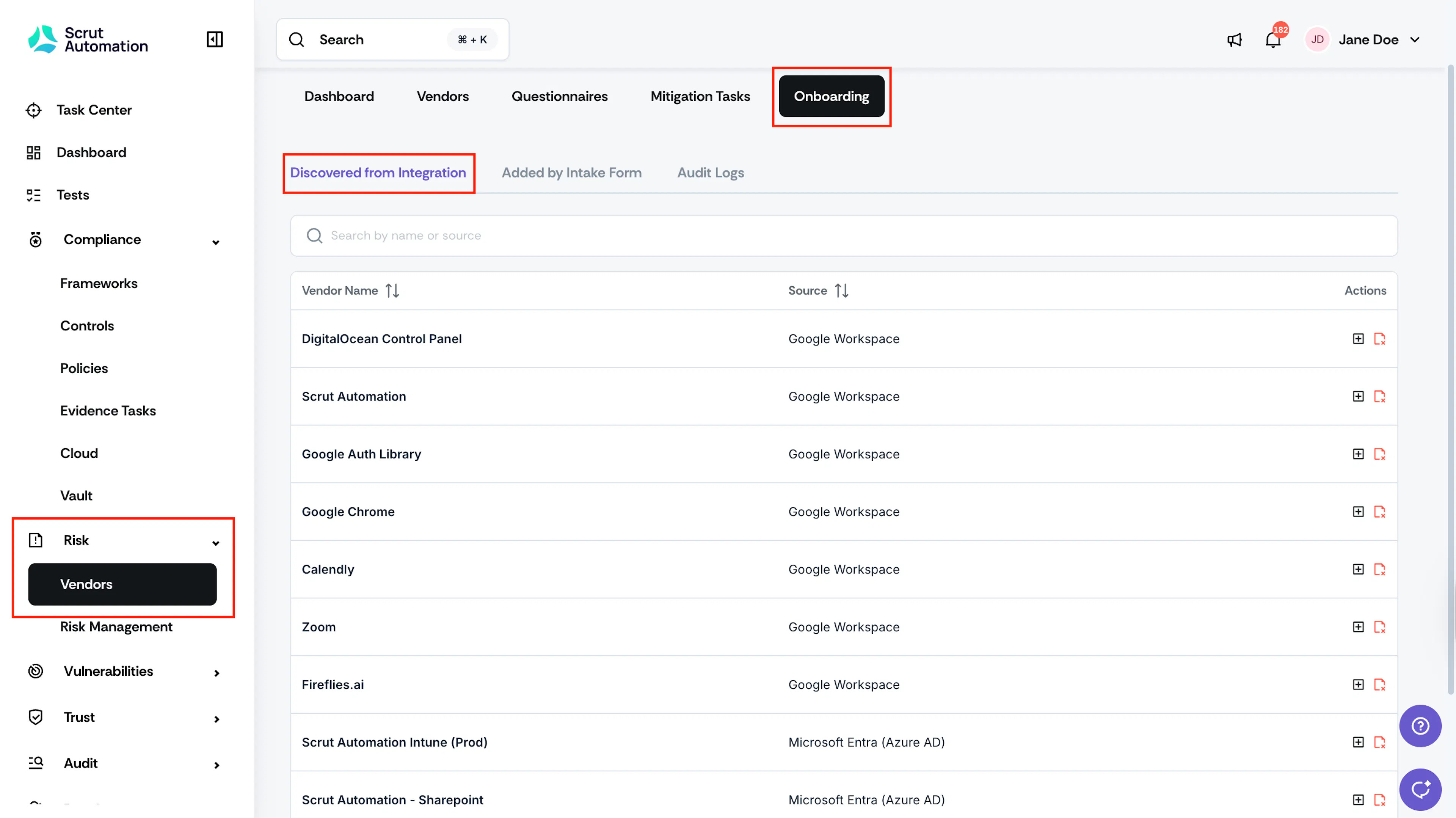
Once you integrate Scrut with Google Workspace or Azure AD, Scrut automatically pulls in the third-party applications that are active in your account. These appear on the Risk → Vendors → Onboarding → Discovered from Integration page, where you can review and act on each one.
Heads Up!
The Source column specifies where the vendor originates: Google Workspace or Microsoft Entra (Azure AD).
Step 2: Check for Duplicate Vendors
Some discovered applications may already be in your vendor list. Scrut compares each discovered application against your existing vendors and shows a Duplicate Vendor badge next to the application name when it finds a match.
Note: Scrut only flags a duplicate vendor. It does not add, ignore, or remove the discovered application. You need to review and take the appropriate action.
Review a matched application
- Navigate to Risk → Vendors → Onboarding → Discovered from Integration.
- Locate an application with the Duplicate Vendor badge.
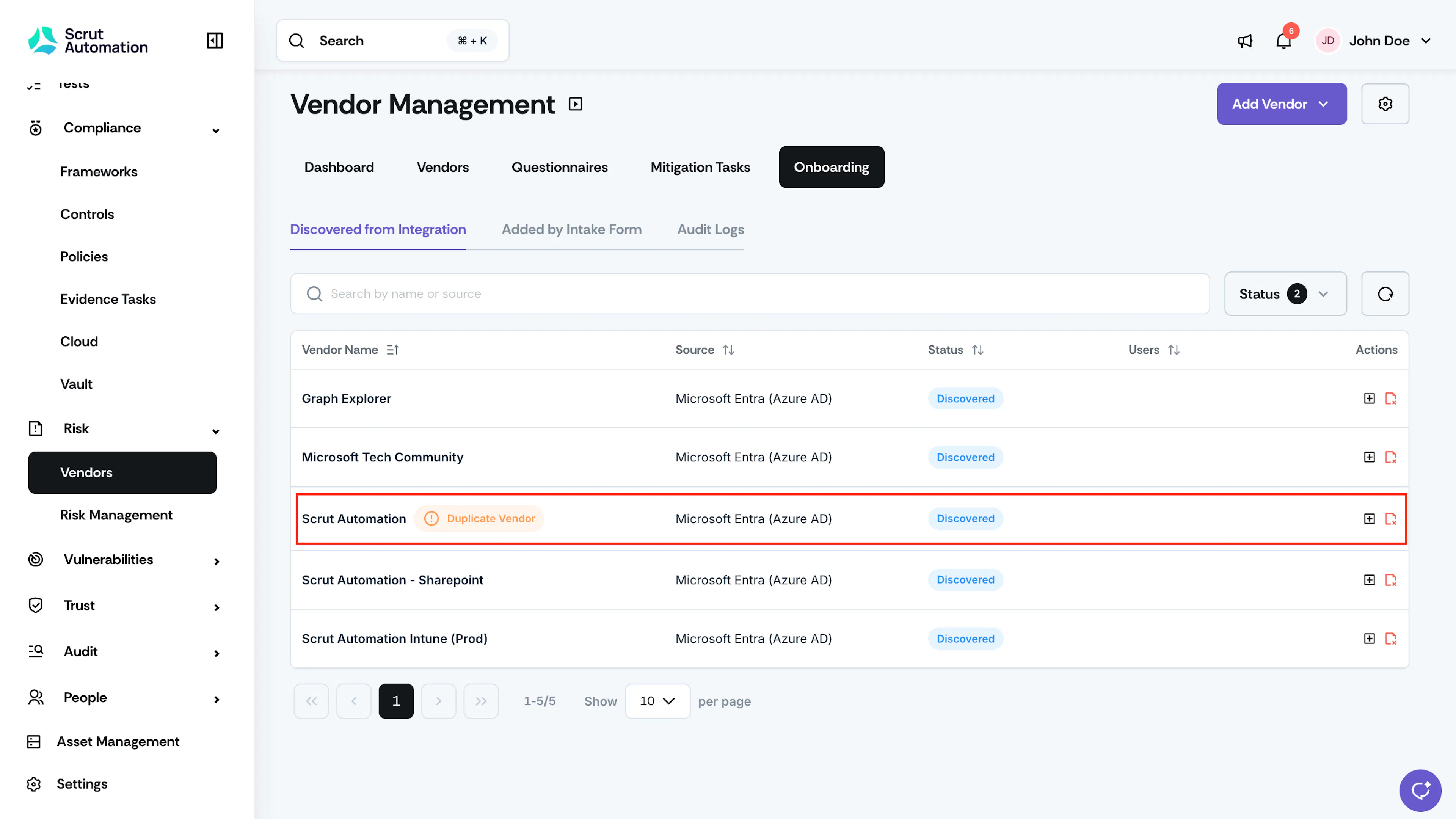
Duplicate Vendor Badge - Click the application name to review the match and decide what to do. You can:
- If it's a unique app and not a duplicate, click Add as Vendor to add it to your vendor list. See Step 4.
- If it's a duplicate, click Ignore. See Step 5.
Step 3: Review Flagged Applications
Some discovered applications may have wider access to your organization's data. For example, an app that can read your codebase or your entire directory carries more risk than a browser that only asks for a name and email.
Scrut reviews each application's permissions and how many people authorized it, then shows a Flagged for Review label on the ones that need a closer look. This helps you review them first.
Review a flagged application
- Navigate to Risk → Vendors → Onboarding → Discovered from Integration.
- Locate an application with the Flagged for Review label.
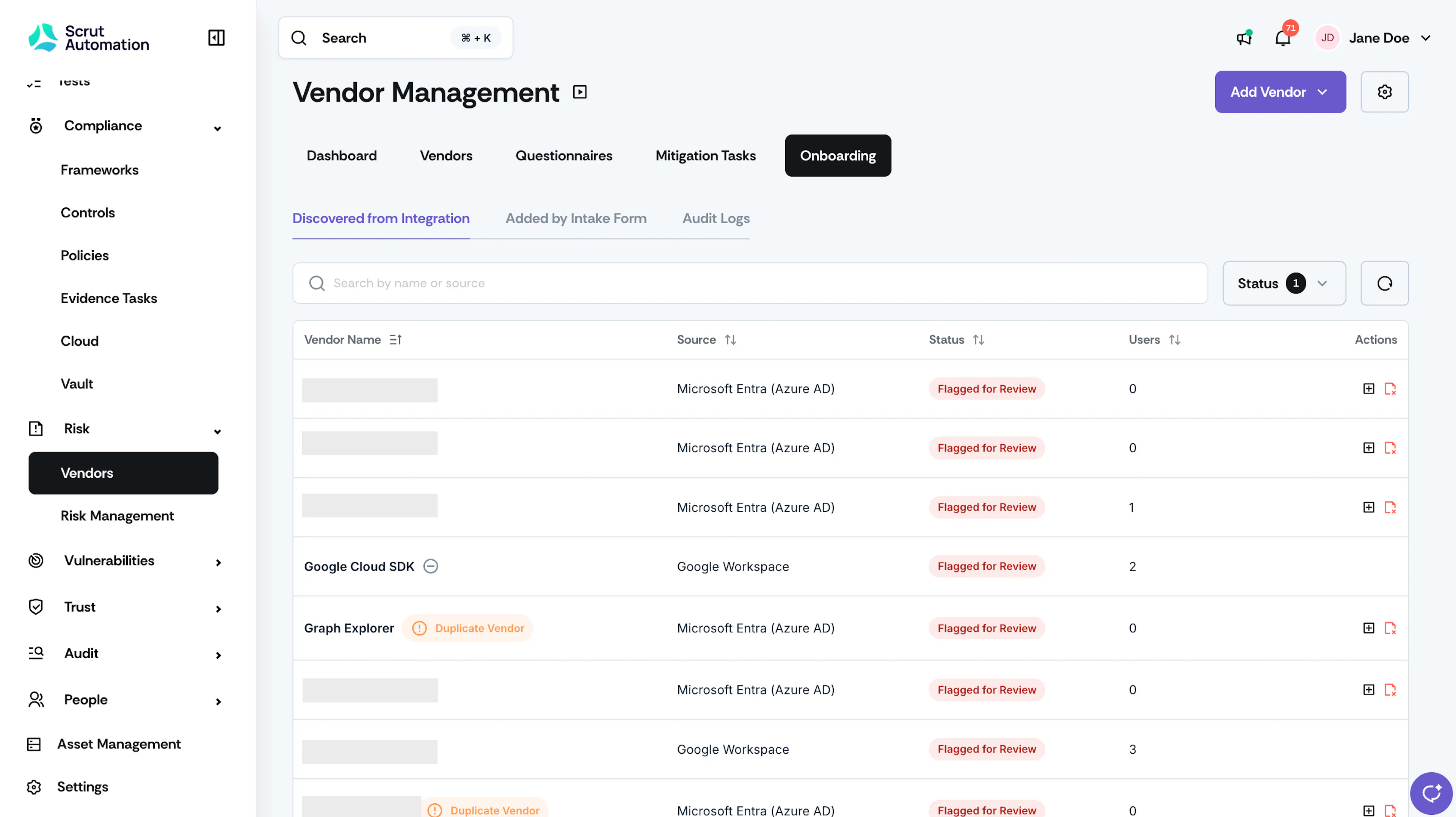
Vendor Flagged for Review - Click the application name.
- Read the summary to understand why Scrut flagged the application.
- Review the Permissions section to see what the application is allowed to do, described in plain language.
- Decide what to do with the application. Scrut doesn't add or ignore it for you.
- Click Add as Vendor to add it to your vendor list. See Step 4.
- Click Not a Vendor if you don't need to track it as a vendor. See Step 5.
Heads Up! If an application's permissions or the number of people who authorized it change, the Flagged for Review label may appear or disappear. An application that you marked as Not a Vendor can be flagged again if its access becomes broader.
Step 4: Add as Vendor
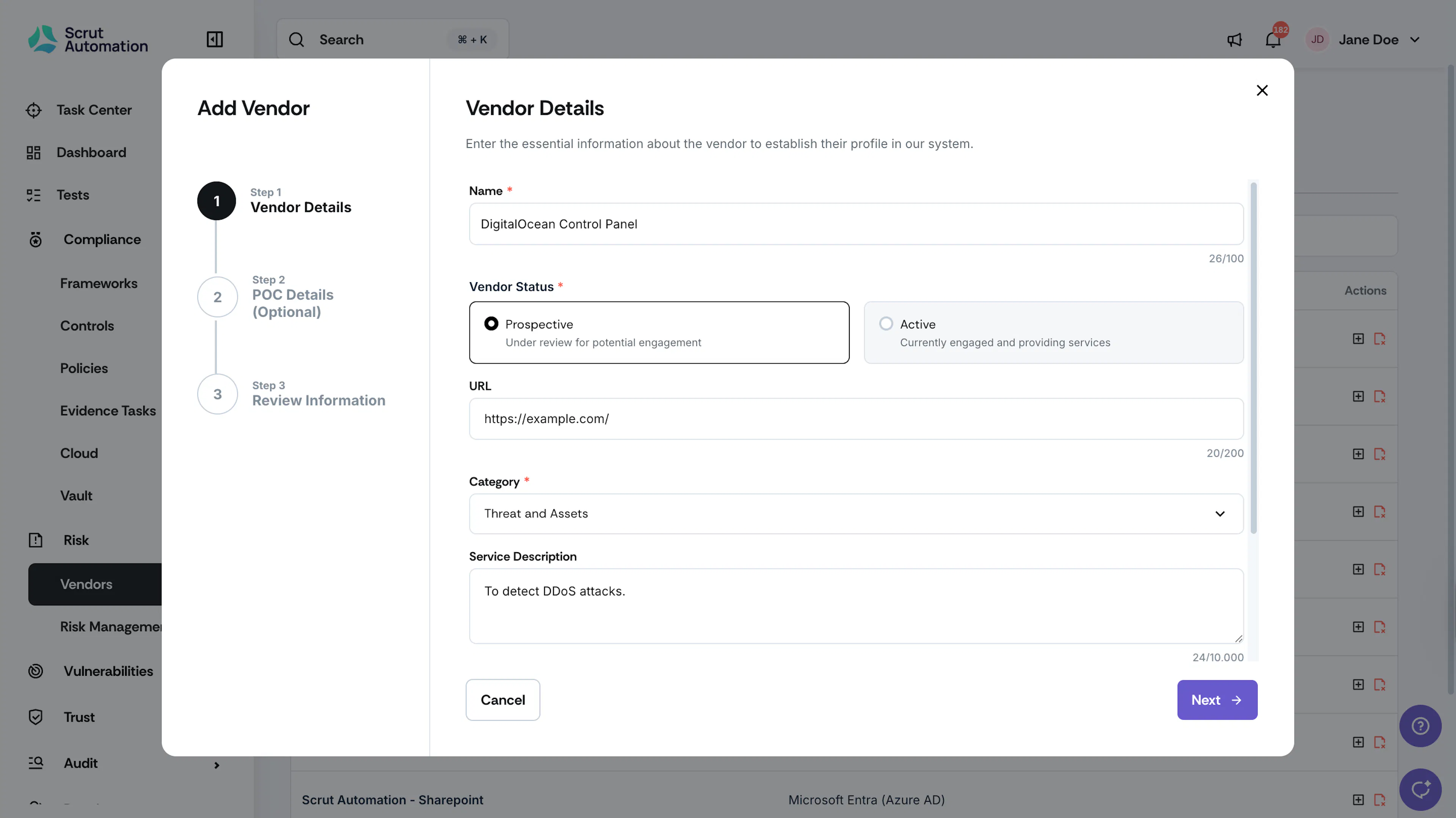
- Review the discovered applications and click Add as Vendor for the applications you want to track for compliance.
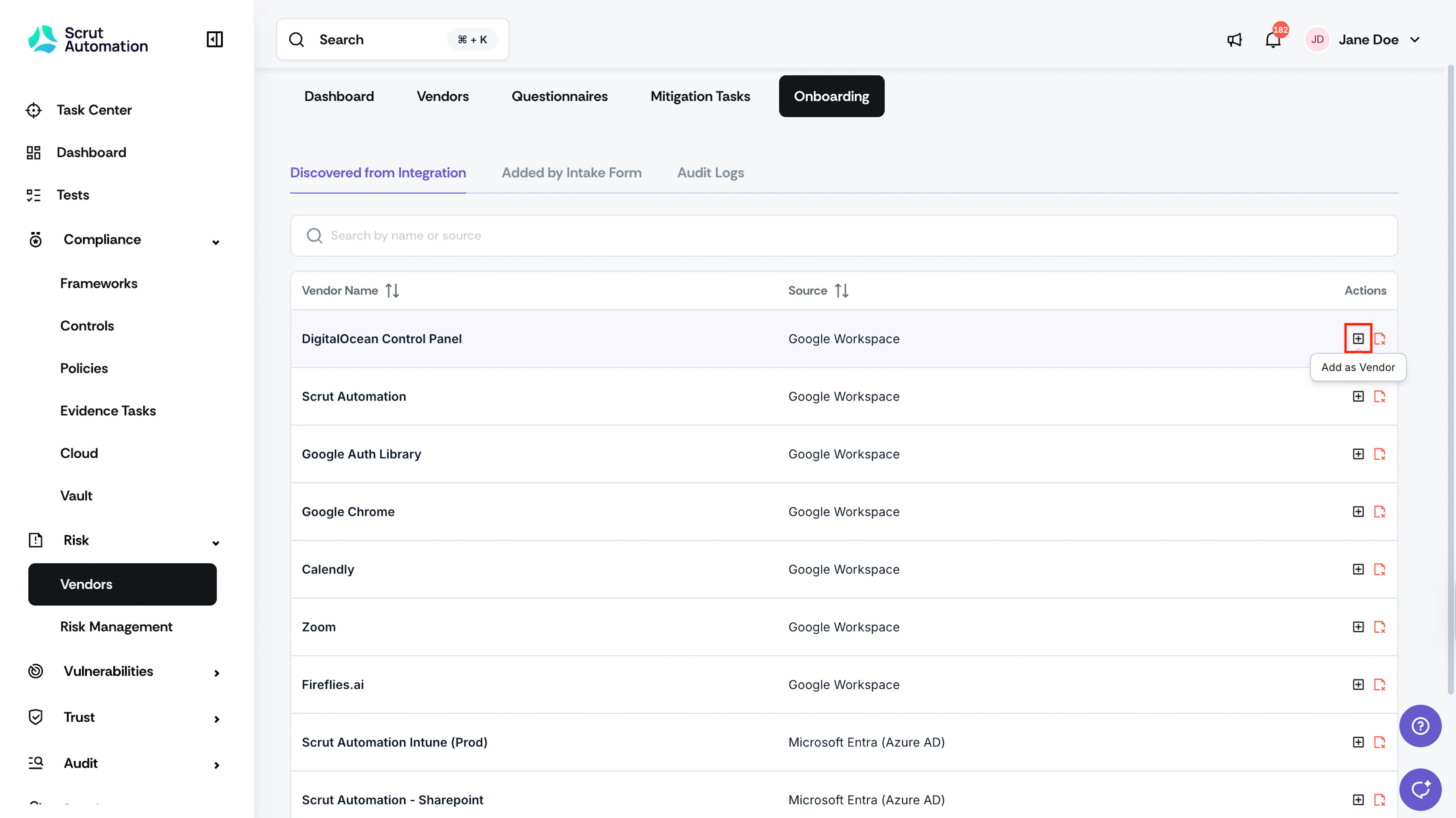
- Enter the vendor details, including Status, URL, Category, Service Description, Assignee, and Entities. Include the vendor POC details (optional).
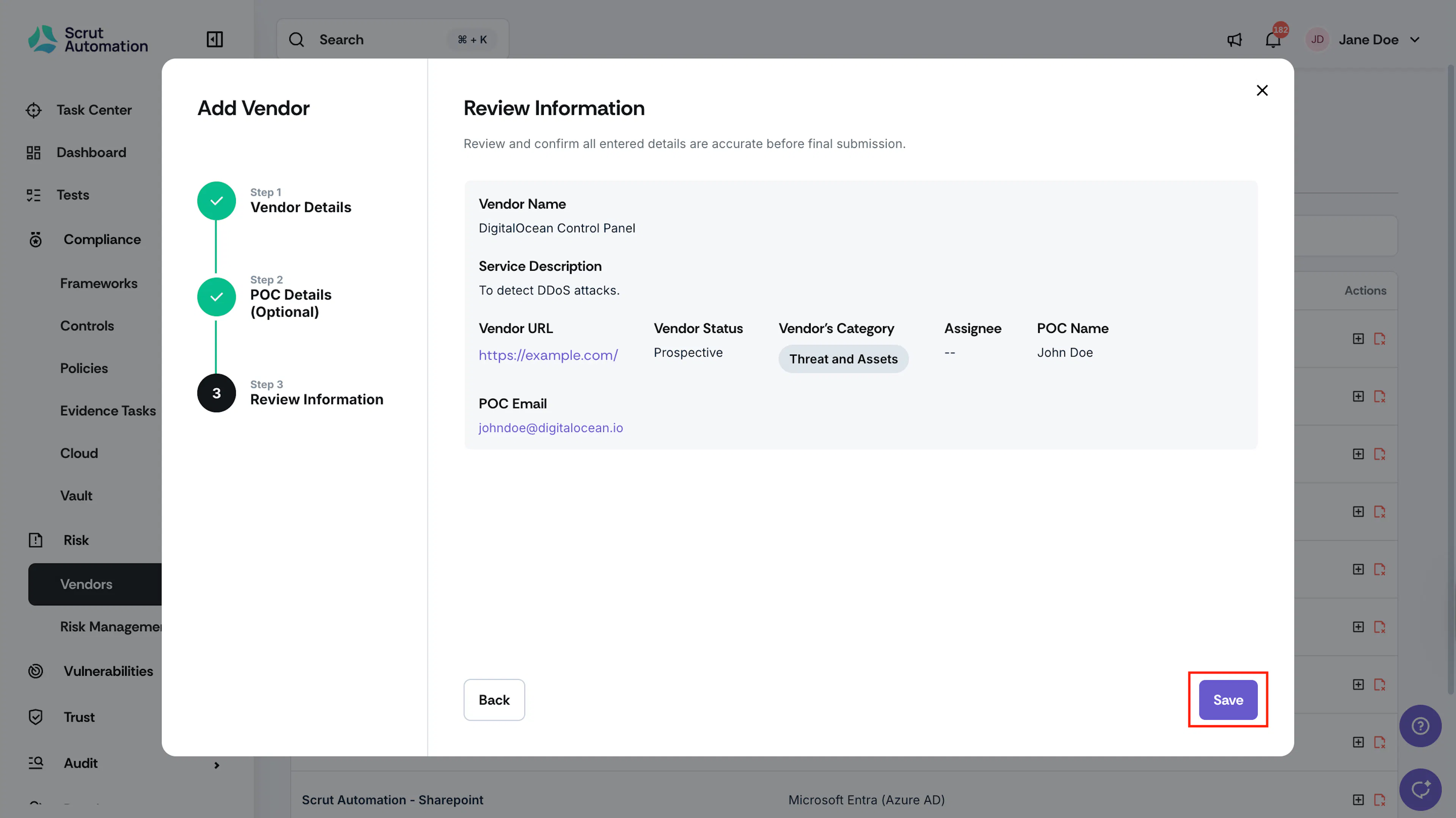
- Review the details and click Save.
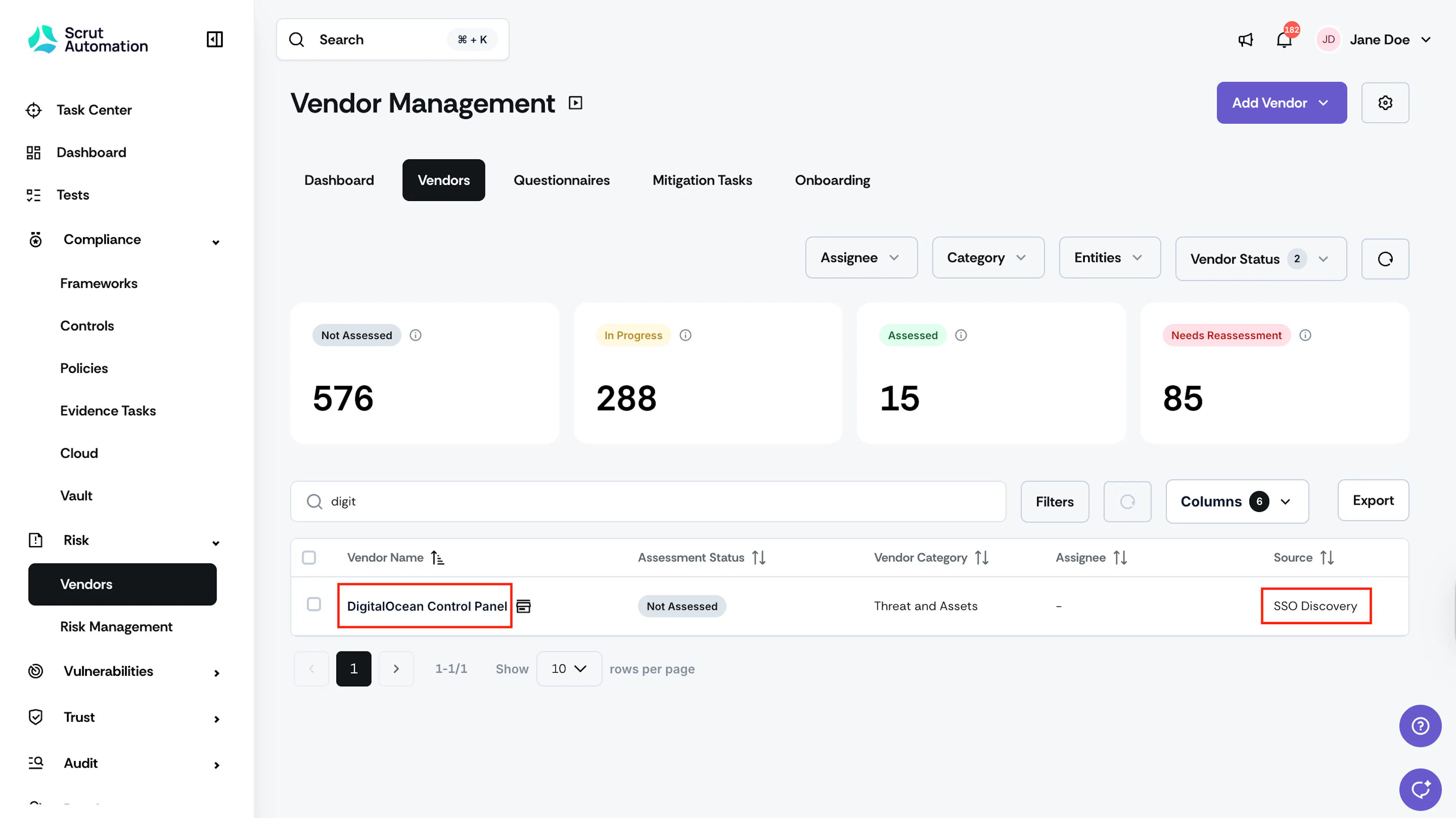
- The vendor is now included in the official vendor list in the Vendor table.
Heads Up!
For vendors discovered via Google Workspace or Azure AD SSO integrations, the Source in the vendor table will be: SSO Discovery.
Step 5: Ignore an Application
You may want to ignore an application and not add it to your vendor list. For example, skip adding an application if it doesn't represent a vendor you want to track. Sometimes you may encounter duplicate entries for vendors already on your list; in that case, ignore the duplicate.
- Click Not a Vendor.
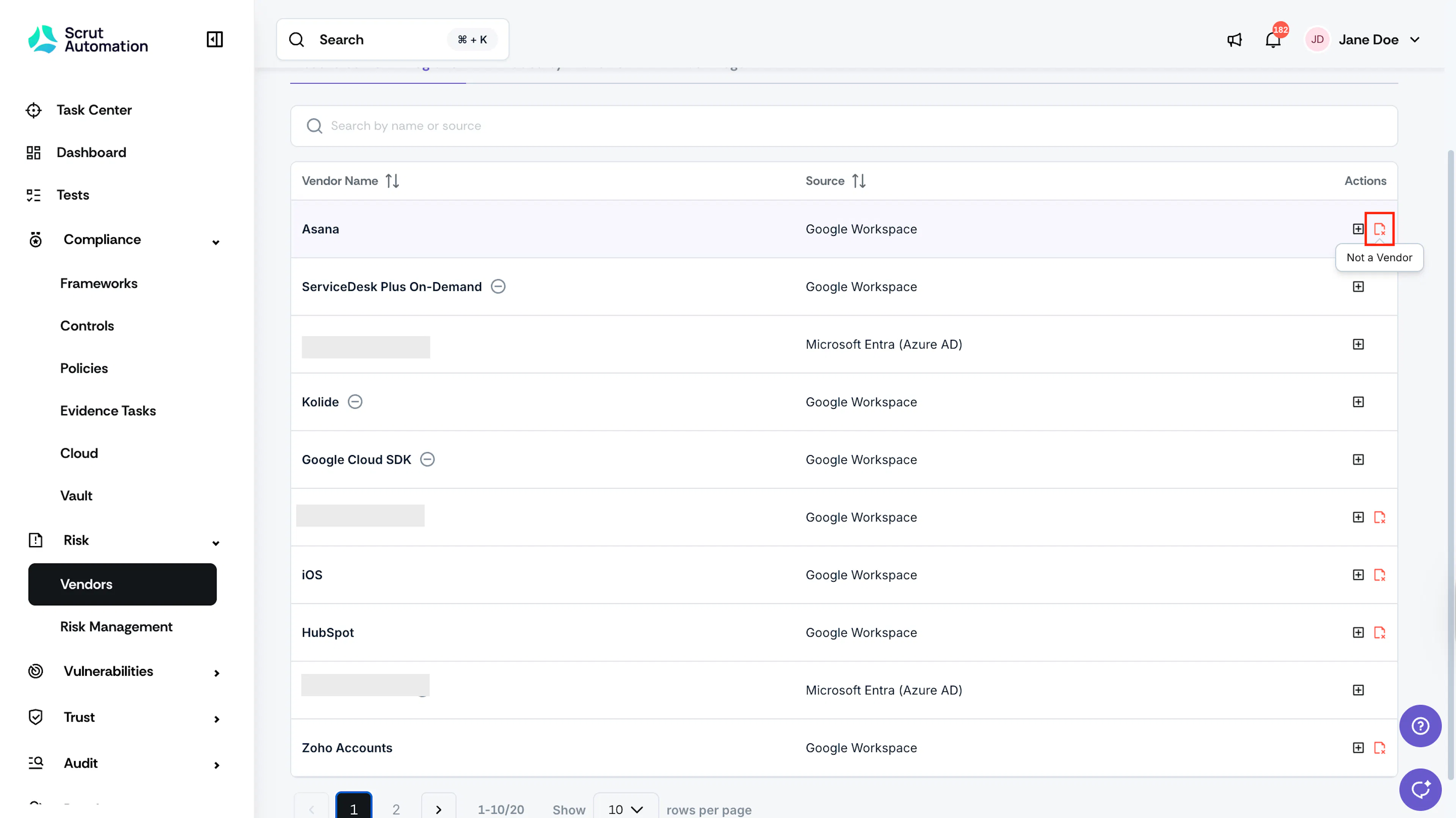
- Provide a brief justification for your action.
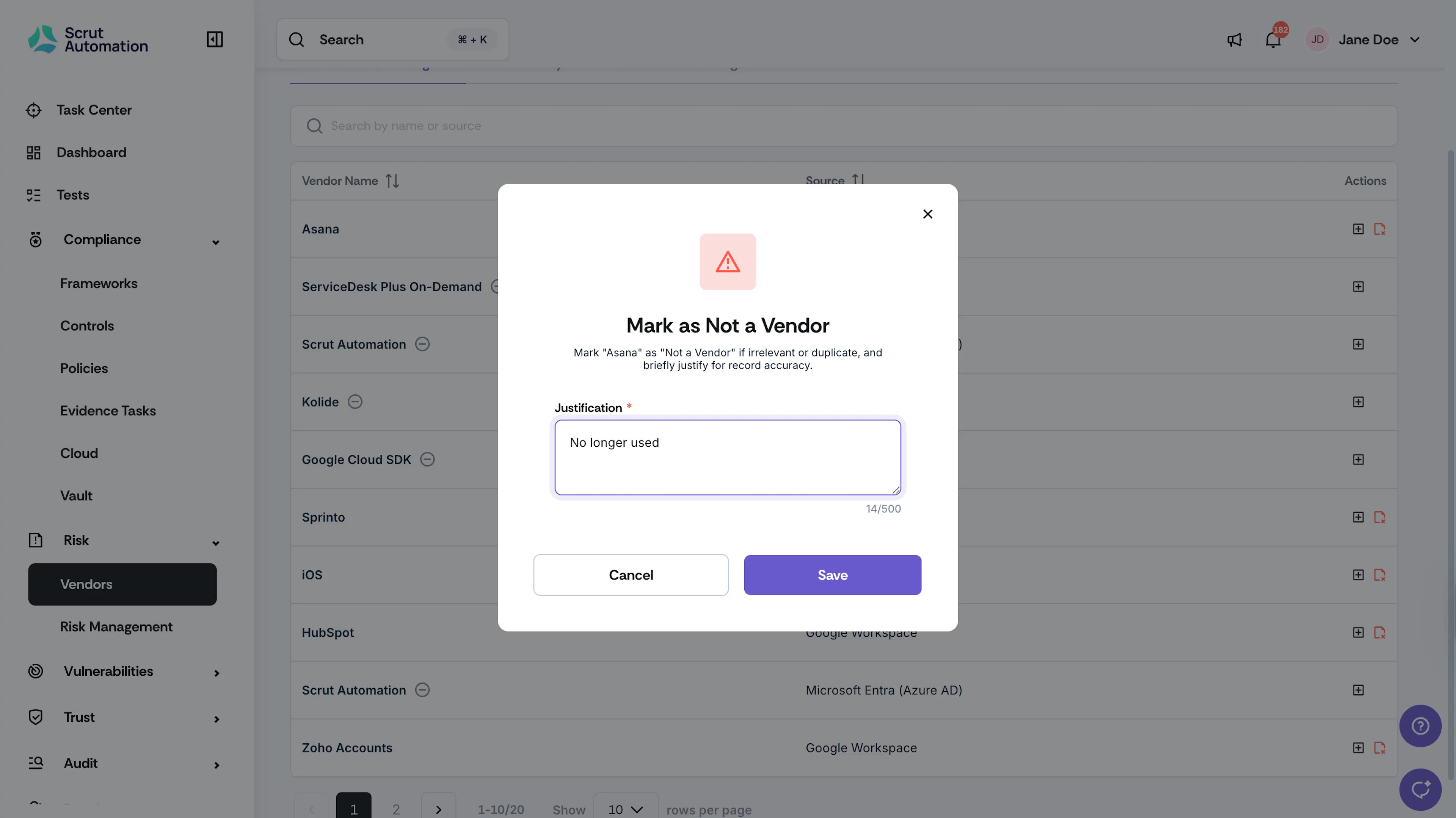
- The application stays on the Discovered from Integration page for reference, but won't appear in your Vendor table.
- To reverse this decision, click Add as Vendor to move a previously ignored application to the Vendor table.
Heads Up!
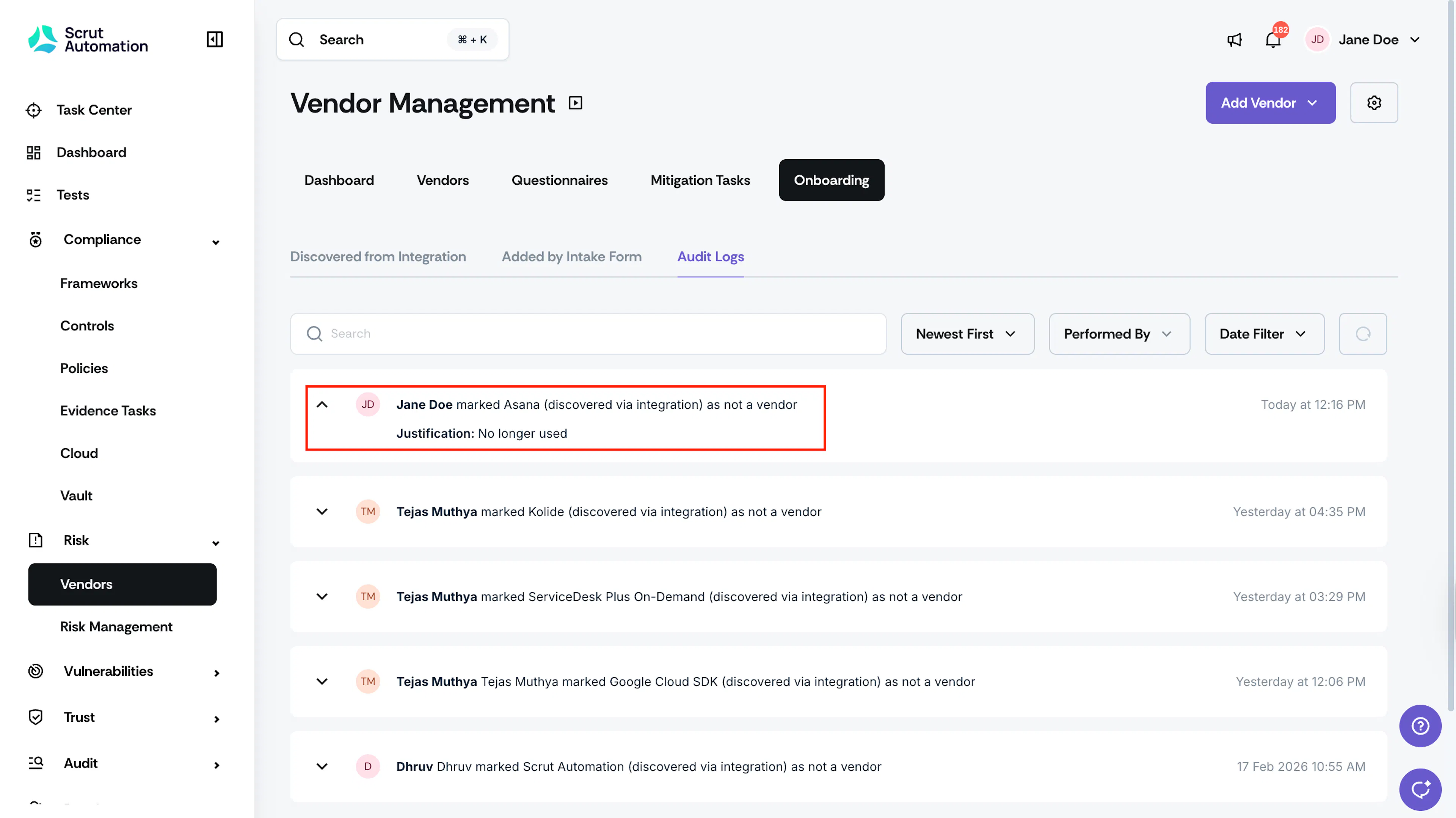
Any actions you take on the Discovered from Integrations page are automatically captured in the corresponding Audit Logs.
Contact support@scrut.io or your CSM for further assistance.