

Upload Evidence from Google Drive
Learn how to upload evidence files directly from your Google Drive.
How To Upload Evidence Attachments Directly from Google Drive
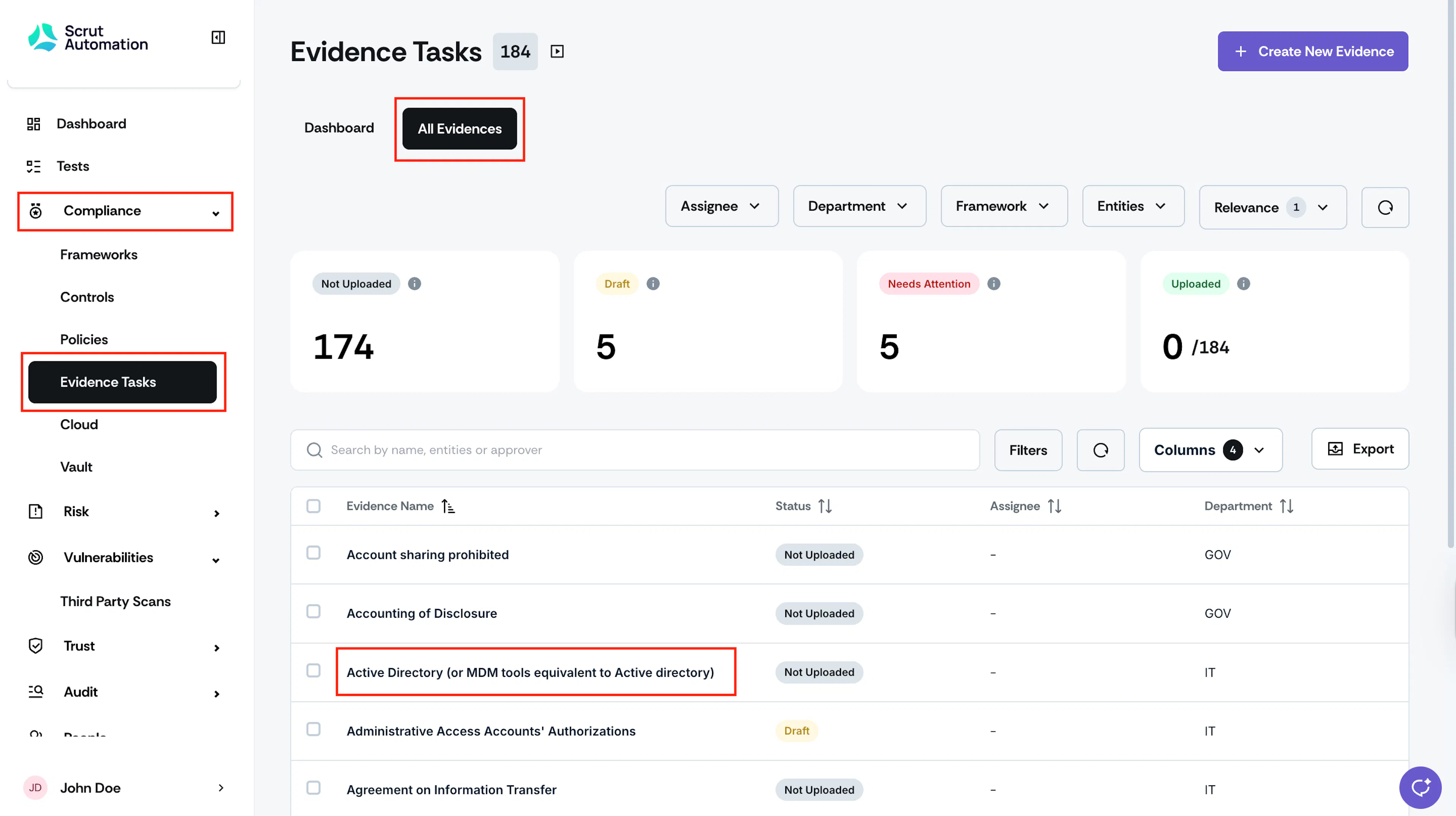
- Sign in to Scrut and click Compliance → Evidence Tasks on the left navigation panel.
- Go to the All Evidences dashboard, and click the evidence task for which you want to upload attachments directly from your Google Drive.
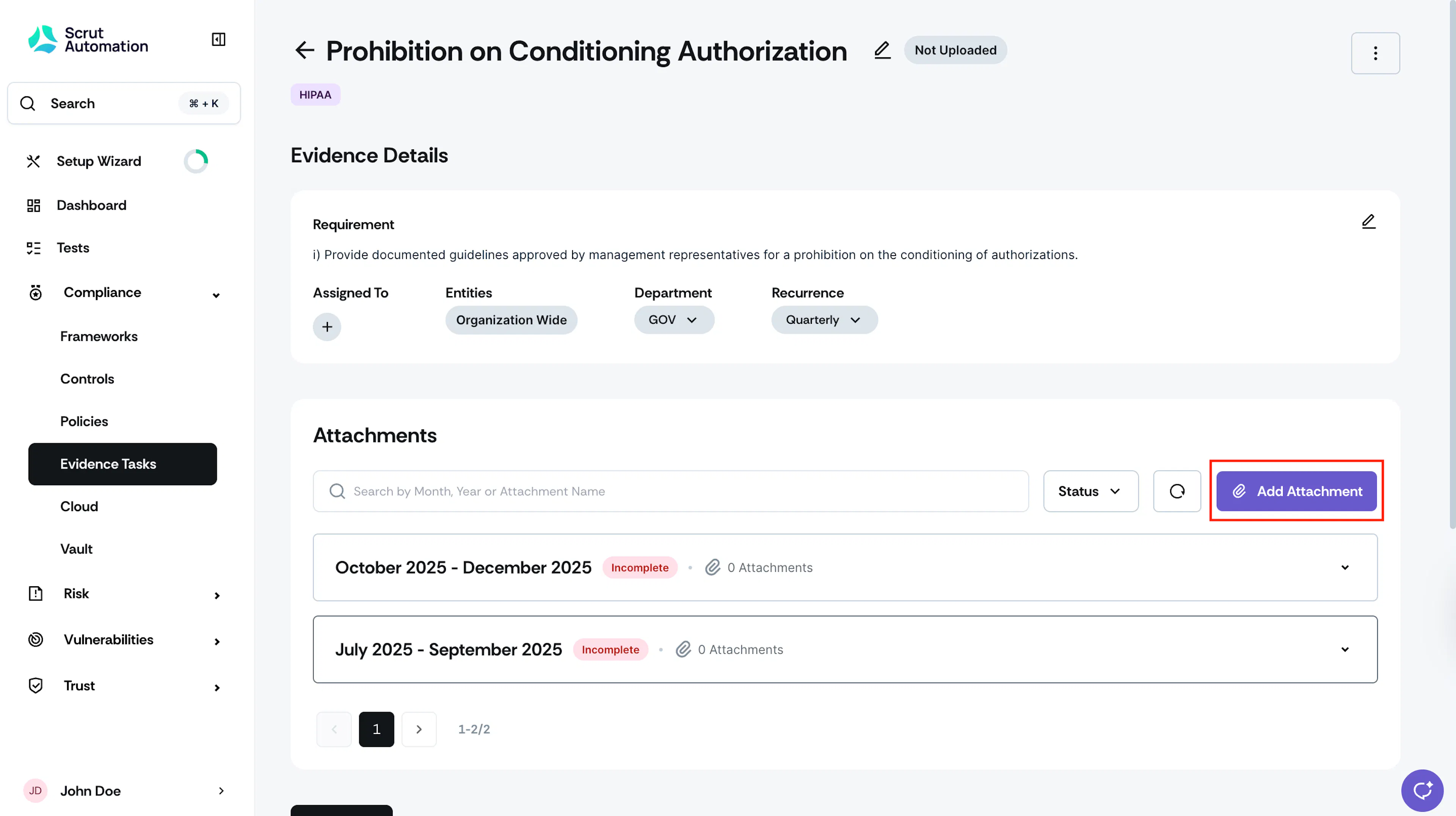
- On the Evidence Details page, scroll to the Attachments section and click the Add Attachment button.
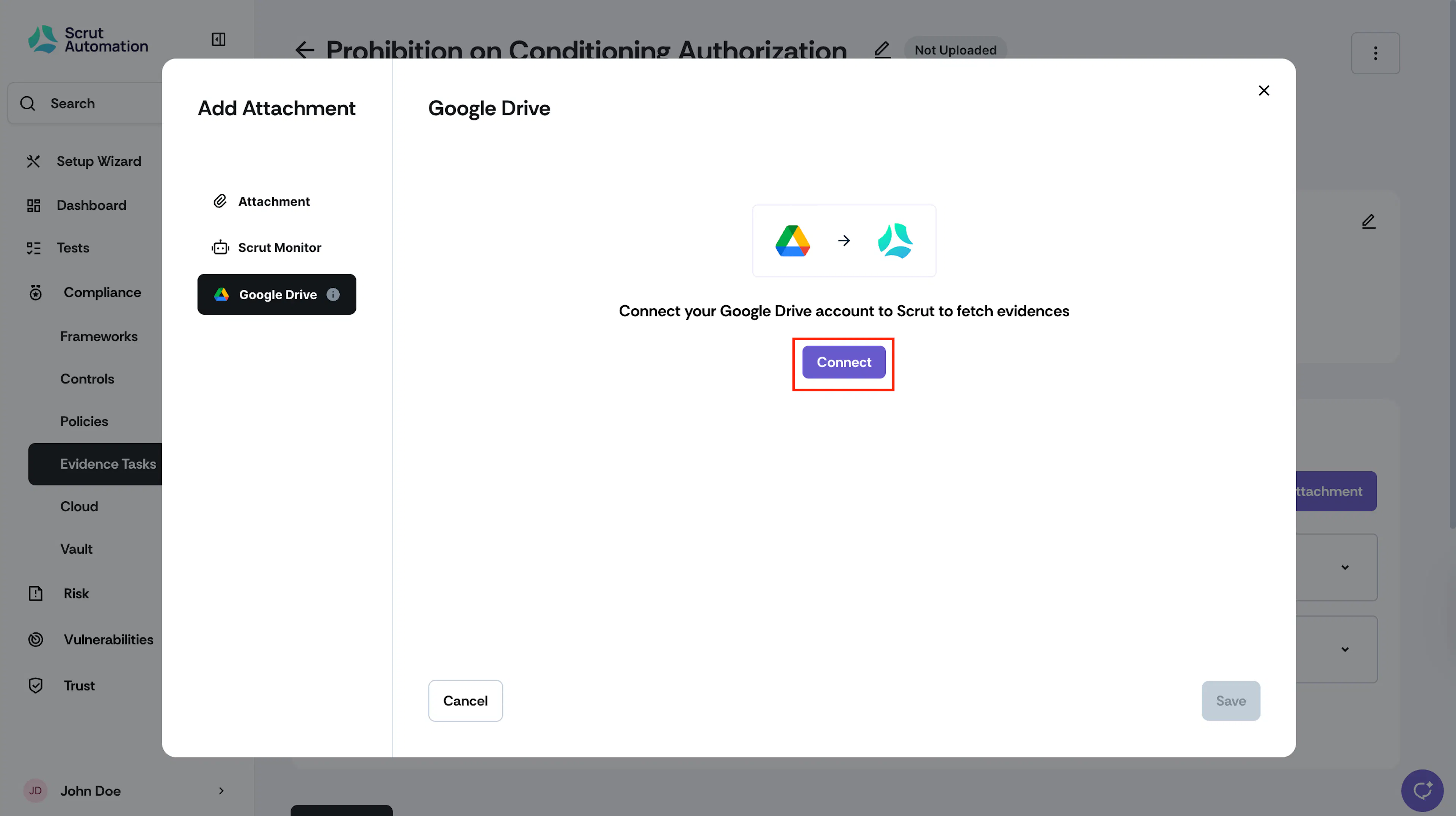
- Select Google Drive from the options.
- Click Connect.
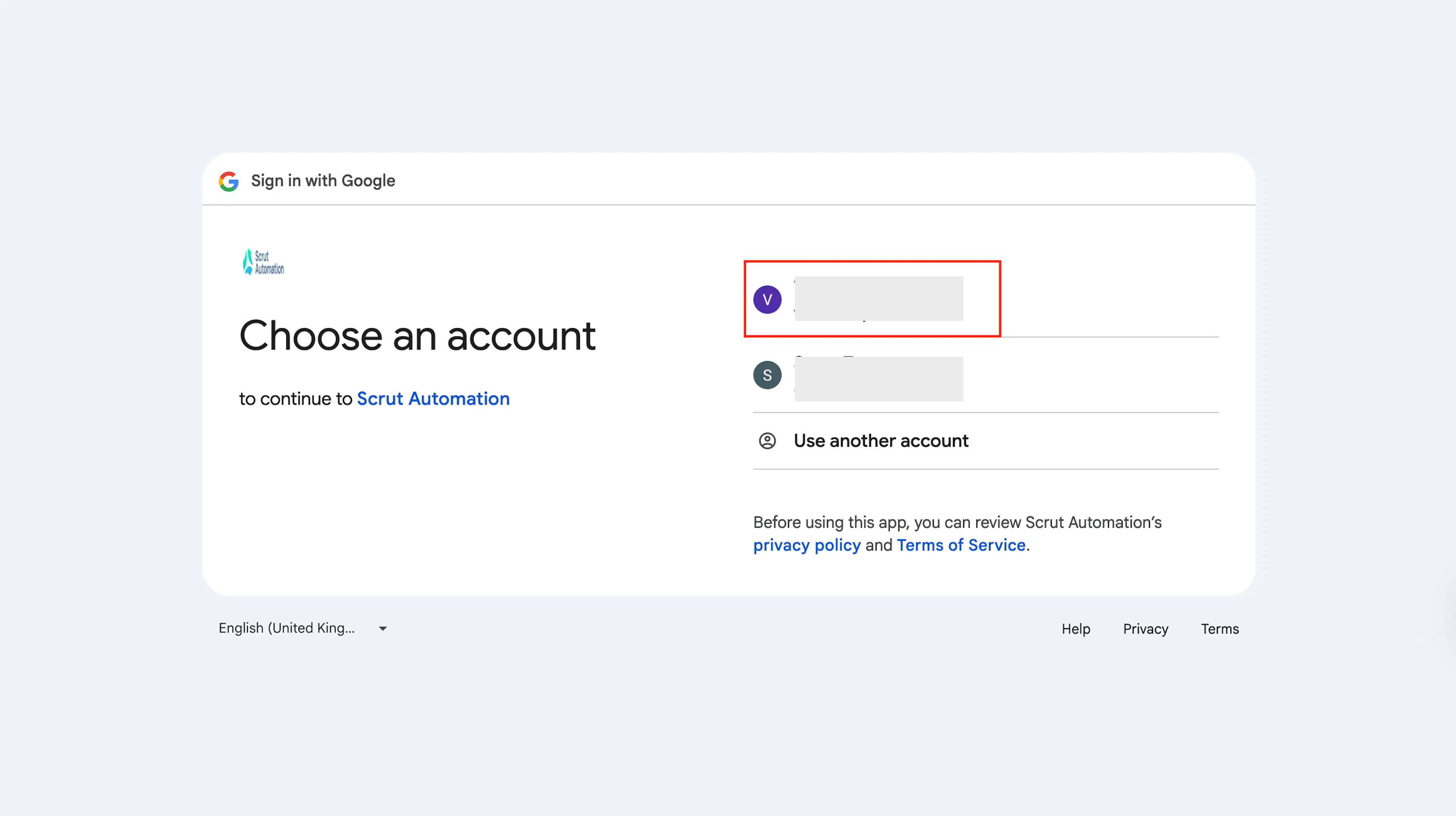
- Select the Google account that contains the files you want to upload.
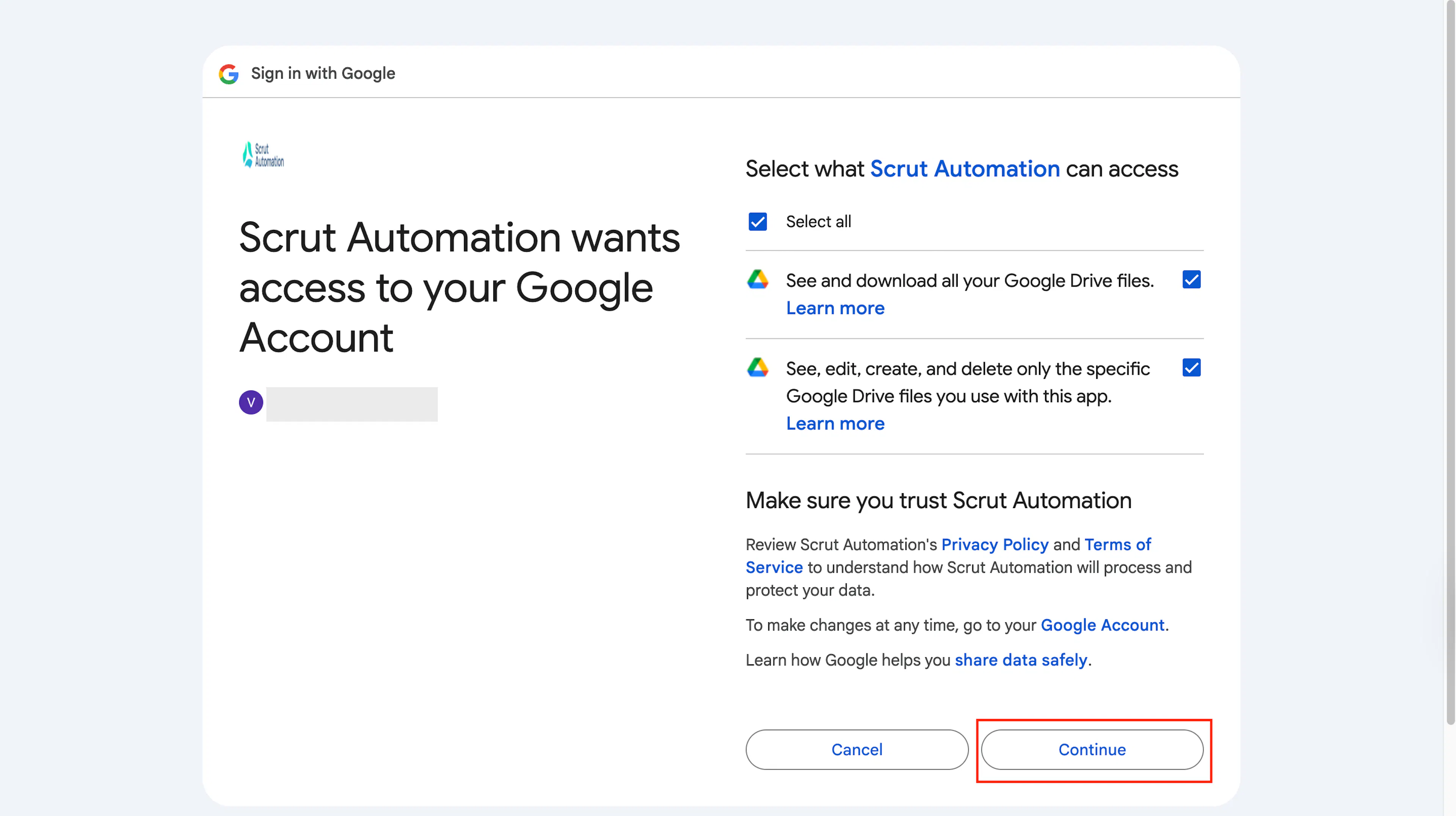
- Review and grant the required permissions. Click Continue to proceed.
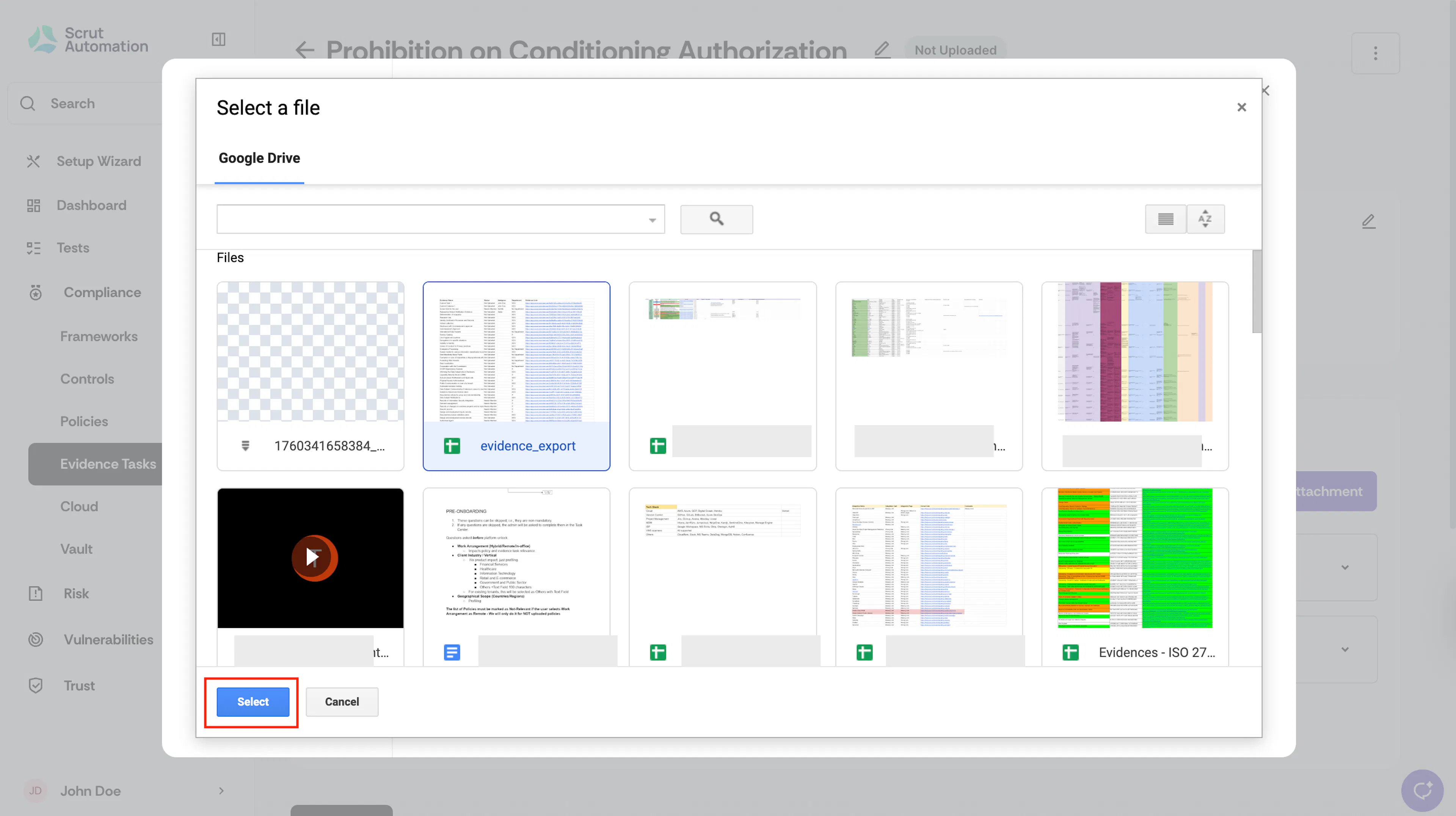
- Select the files from your Google Drive that you want to upload as evidence. You can select multiple files if required.
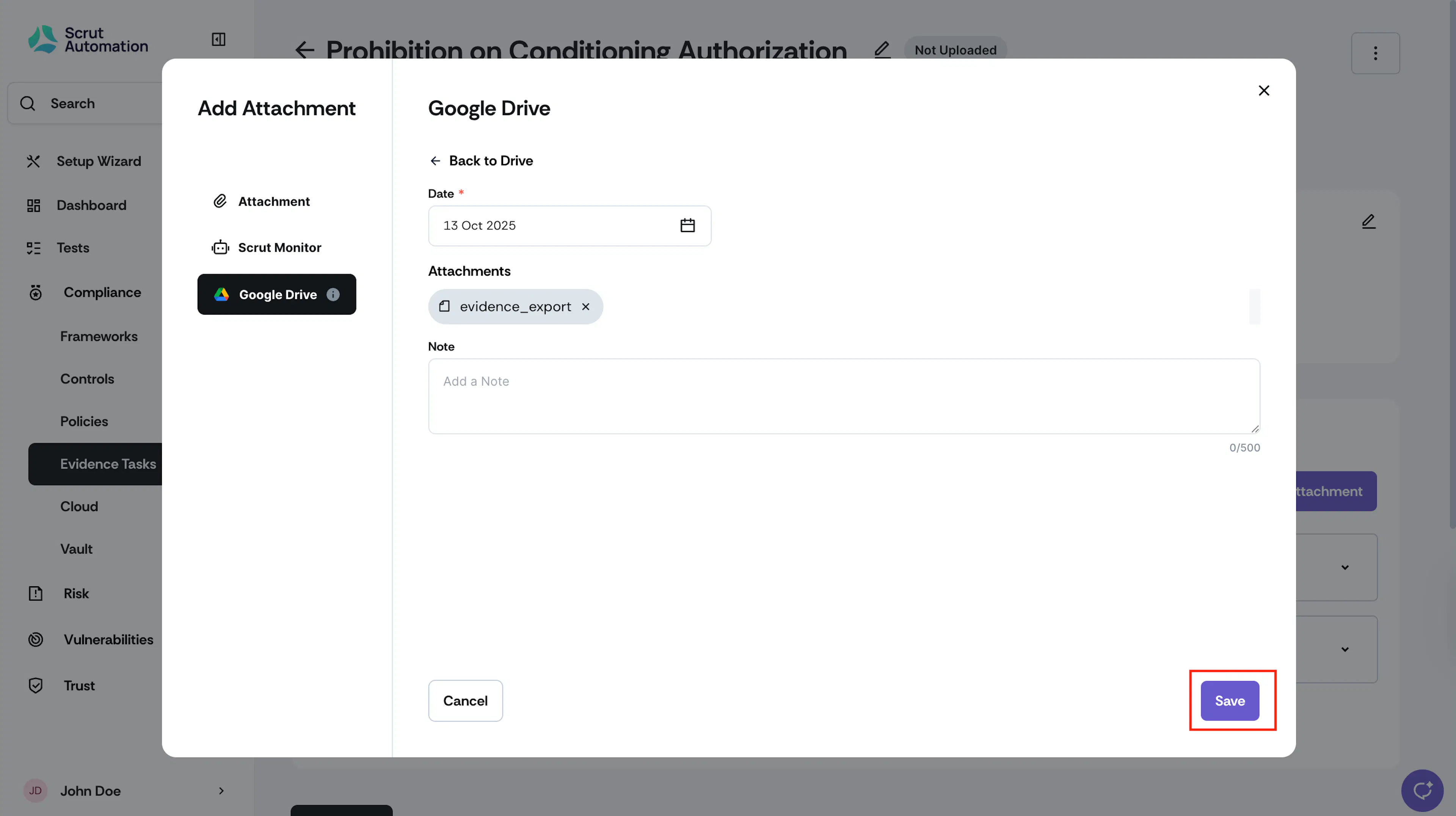
- Select the evidence date and, optionally, add Notes (additional comments about the attachments).
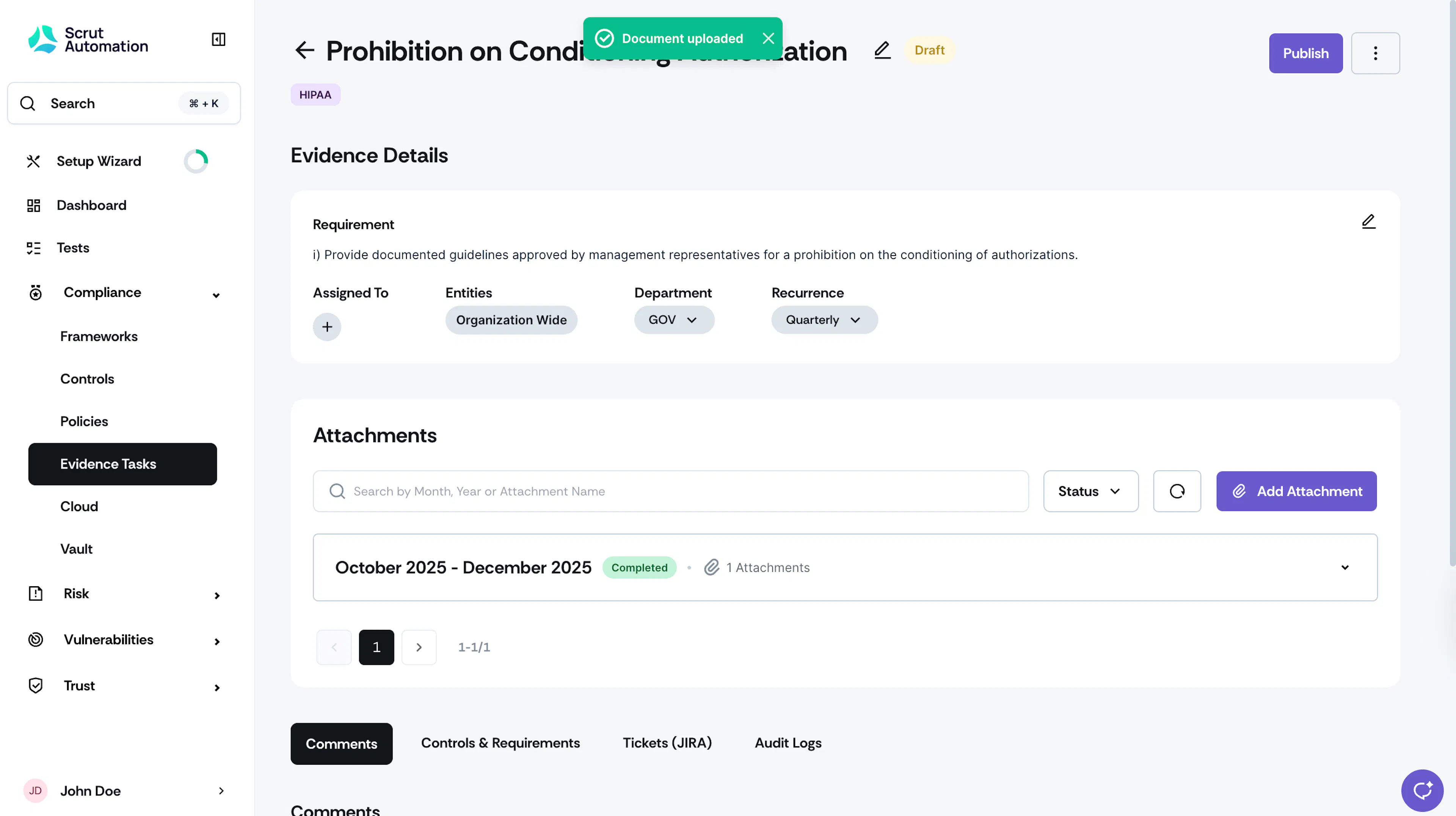
- Click Save. Scrut adds the file as an attachment to the evidence task.
FAQs
Was this page helpful?