Upload Evidence Manually
Learn how to manually upload files as an evidence in Scrut.
Supported File Types
You can upload evidence files in the following formats:
| Type | Extensions |
|---|---|
.pdf | |
| Word | .doc, .docx, .dotx |
| Excel | .xls, .xlsx, .xlsm |
| PowerPoint | .ppt, .pptx |
| Text | .txt, .log, .html |
| Markdown | .md |
| YAML | .yaml, .yml |
| CSV | .csv |
| JSON | .json |
| XML | .xml |
| Images | Any image type, such as PNG, JPG, GIF, SVG |
| Video | .mp4, .avi |
| Audio | .mp3, .wav |
| Archives | .zip, .rar |
| Apple iWork | .numbers, .pages |
.eml, .msg | |
| Other | .dwf, .evtx |
Note
Scrut accepts Apple iWork files (.numbers, .pages) only when it detects them as zip packages. If Scrut rejects an iWork file, export it to PDF, Excel, or Word and upload it again.
How To Upload Evidence Manually
-
Sign in to Scrut and click Compliance → Evidence Tasks on the left navigation panel.
-
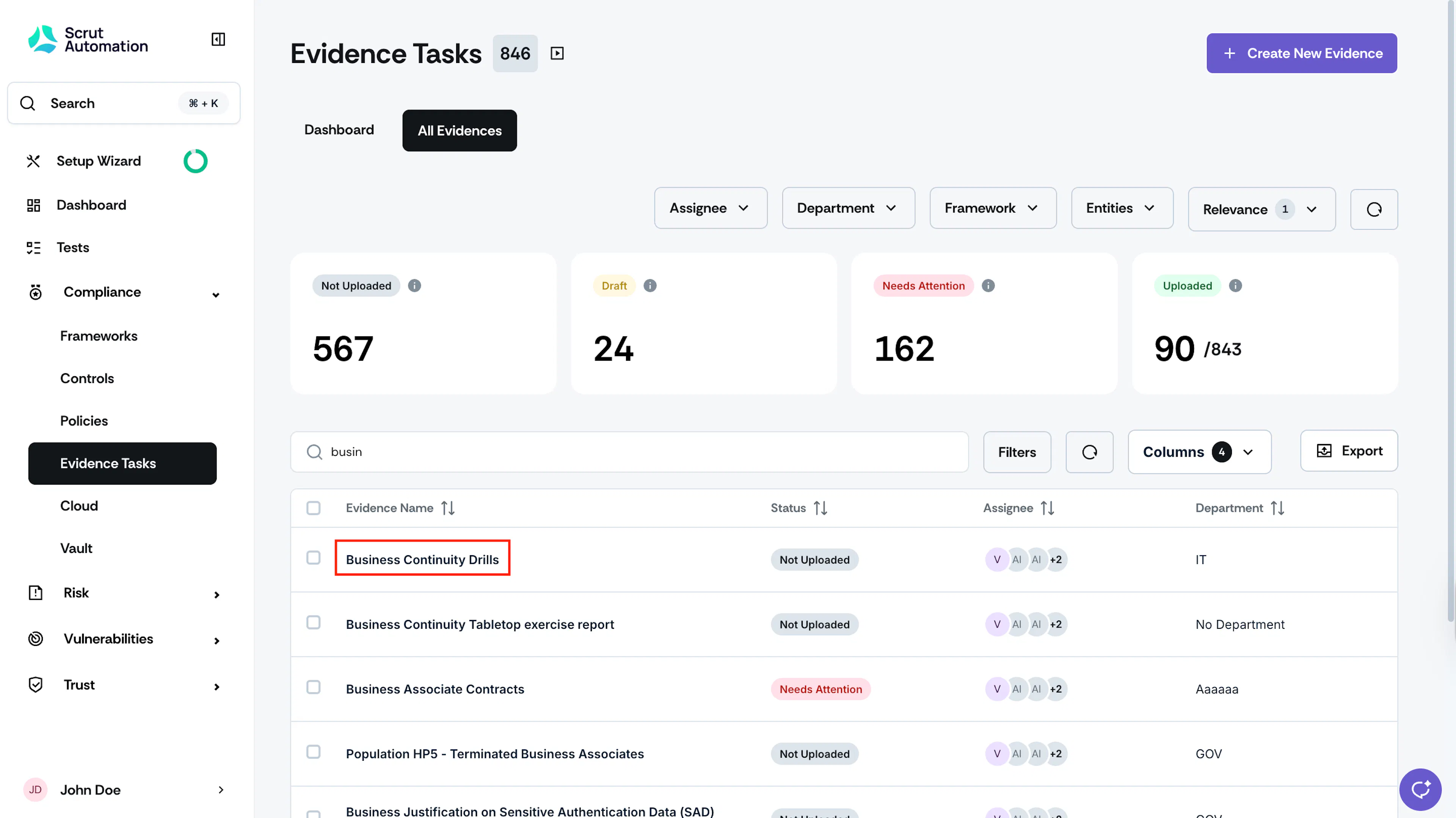
Go to the All Evidences tab and click on the task for which you want to upload manual evidence.
-
Click the Add Attachment button on the evidence detail page.
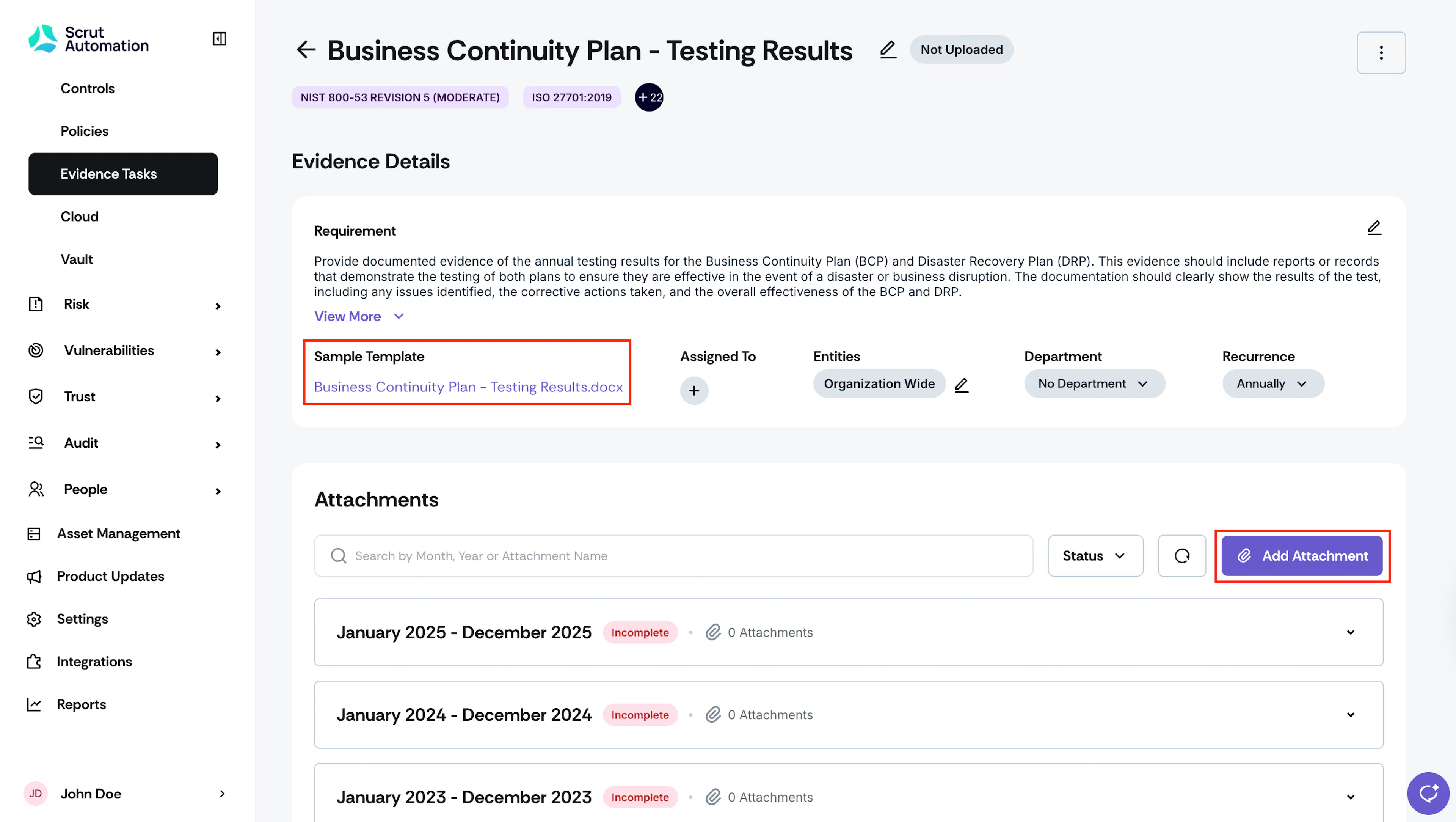
Pro Tip: Download or Edit the Sample Template
Not sure what to include in your evidence file? Use the sample template on the Evidence Details page to get started:
- Download the template to use as a reference when preparing your evidence file. It gives you a clear idea of what information to include in it to meet audit requirements.
- Edit the template to tailor it to your organization's process — adjust the tone, steps, links, or formatting to match your requirements.
Learn more about downloading and editing the sample template.
-
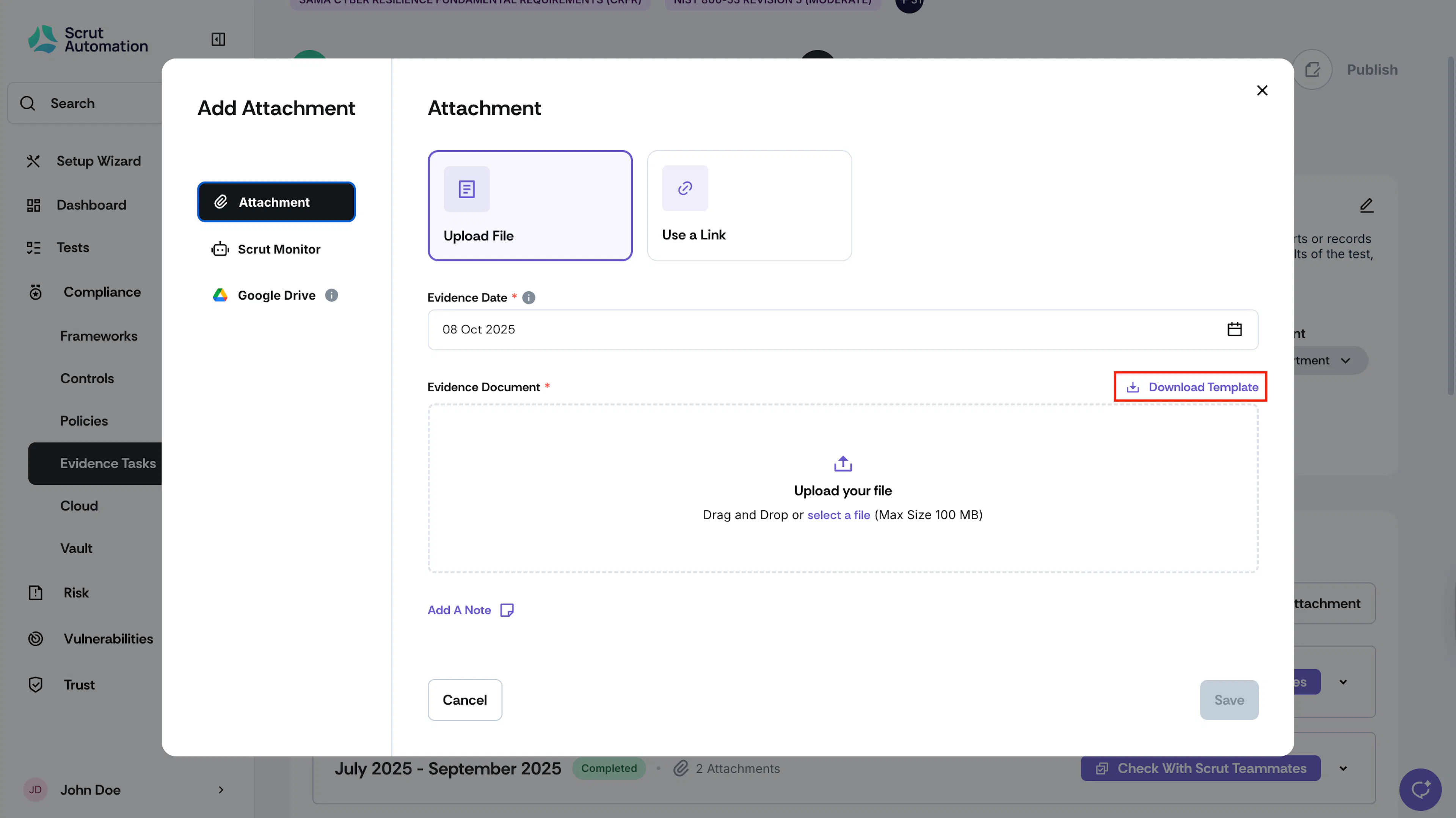
Select the Source you want to use to add the attachment. You can either:
-
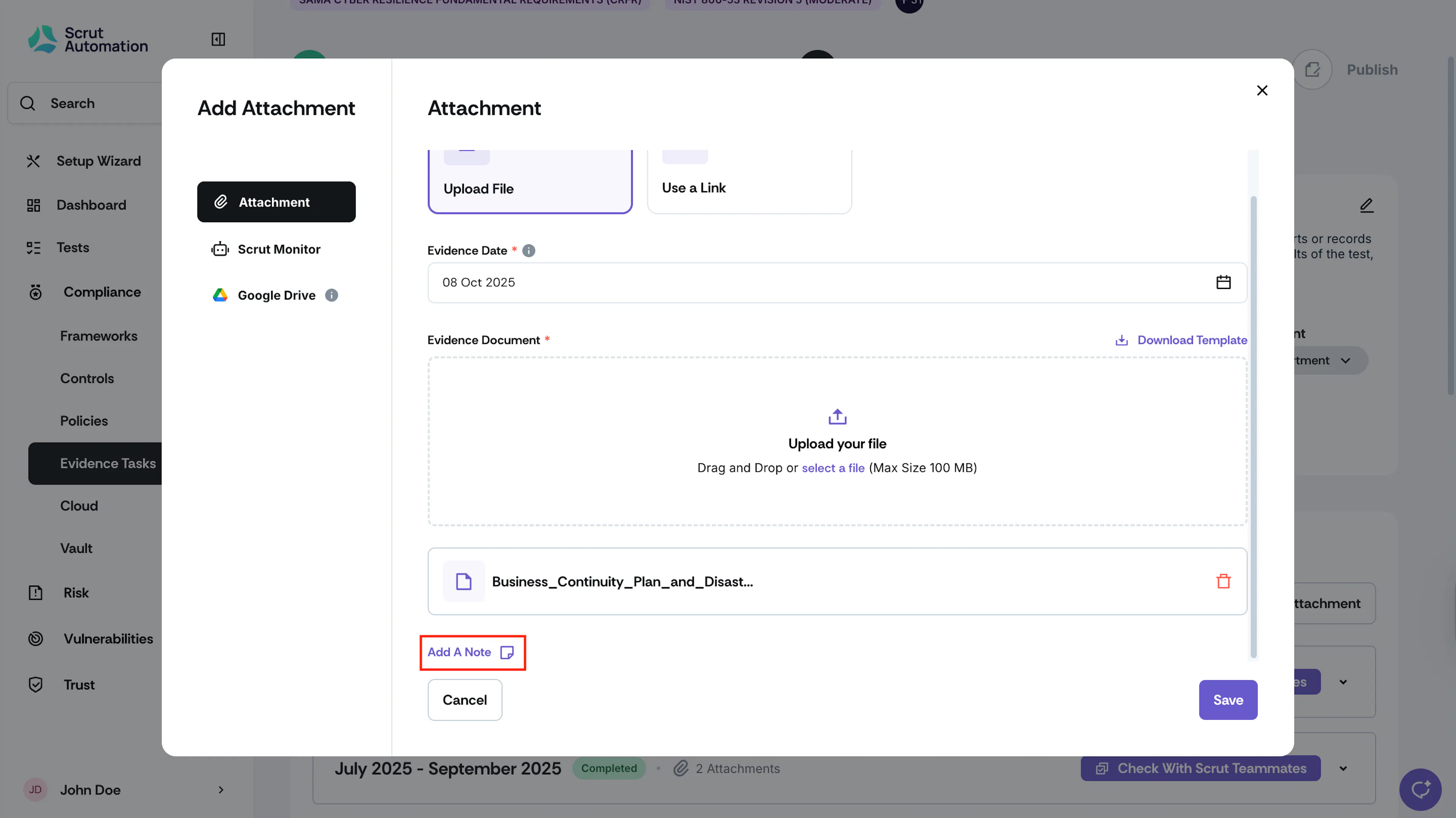
Upload a File: Use this to upload an evidence file from your device. Drag and drop or select a file.
-
Use a Link: To upload an evidence file available in an external link.
Note
- You can upload multiple files at once
- Each file must not exceed 100 MB
- See Supported File Types for the full list. If you upload an unsupported file type, Scrut shows an error explaining why it rejected the file.
-
-
Heads Up! Click Download Template for a sample template that you can use as a reference.
-
In the Date field, select the date on which you’re uploading the evidence. By default, it is set to today's date. Click on the calendar widget to change the date, as required.
-
Optionally, use the Add a Note field to enter additional information about the evidence you uploaded.
-
Click Save.
Key Points to Know
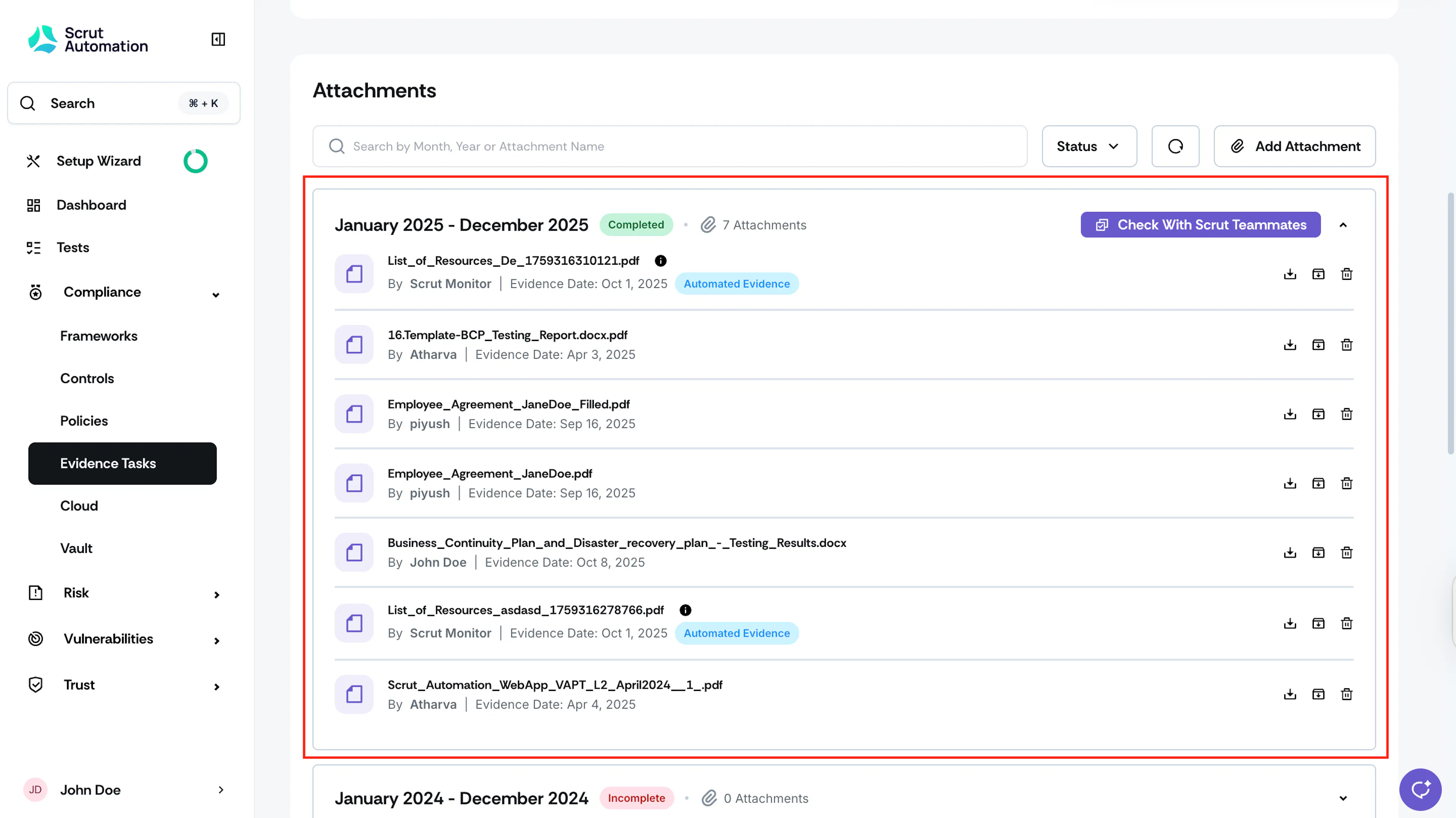
Automatic Date-Based Organization
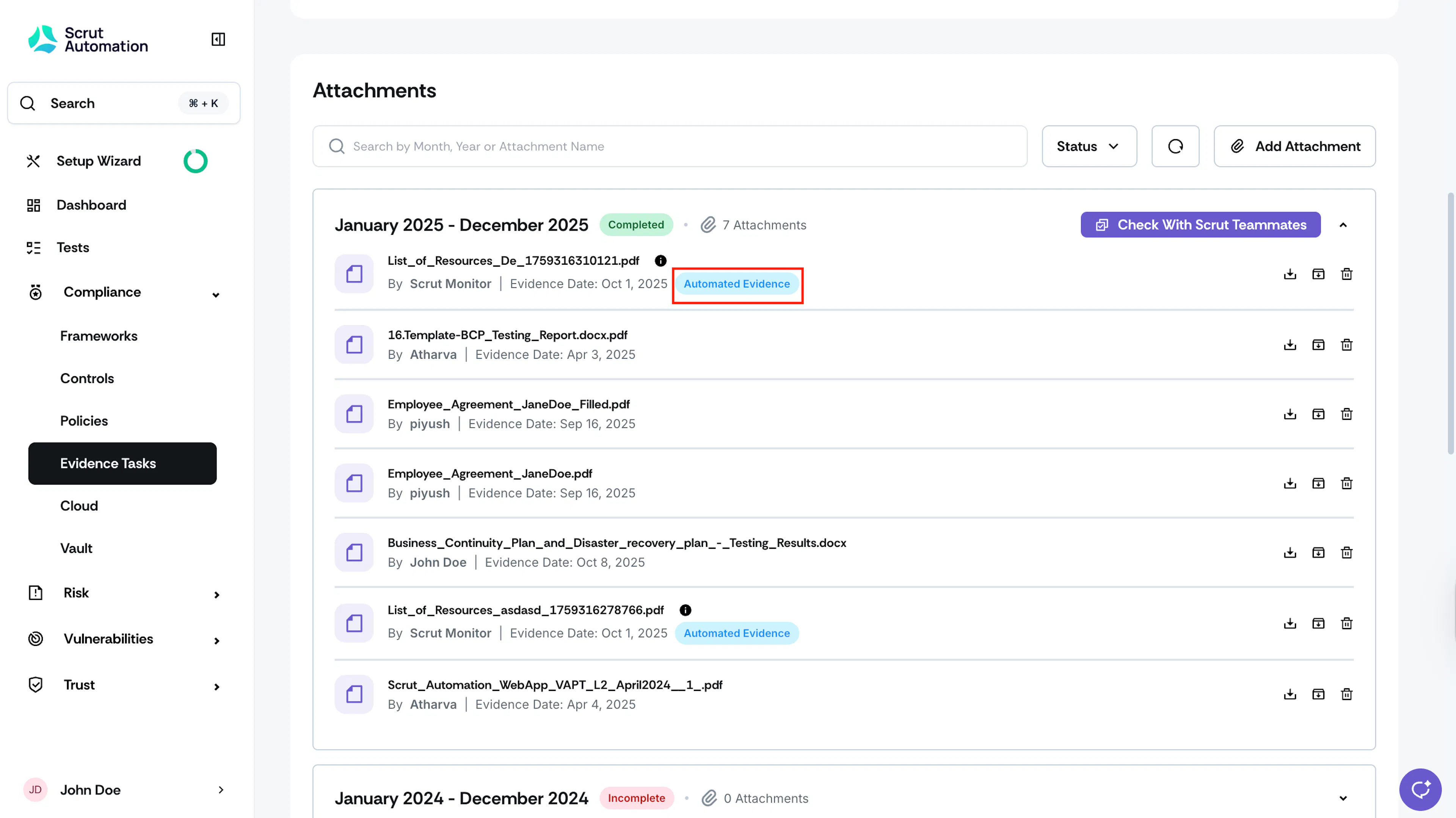
Scrut automatically organizes evidence into date-specific folders as shown in the screenshot below. The date format follows the fiscal year format you set in Settings.
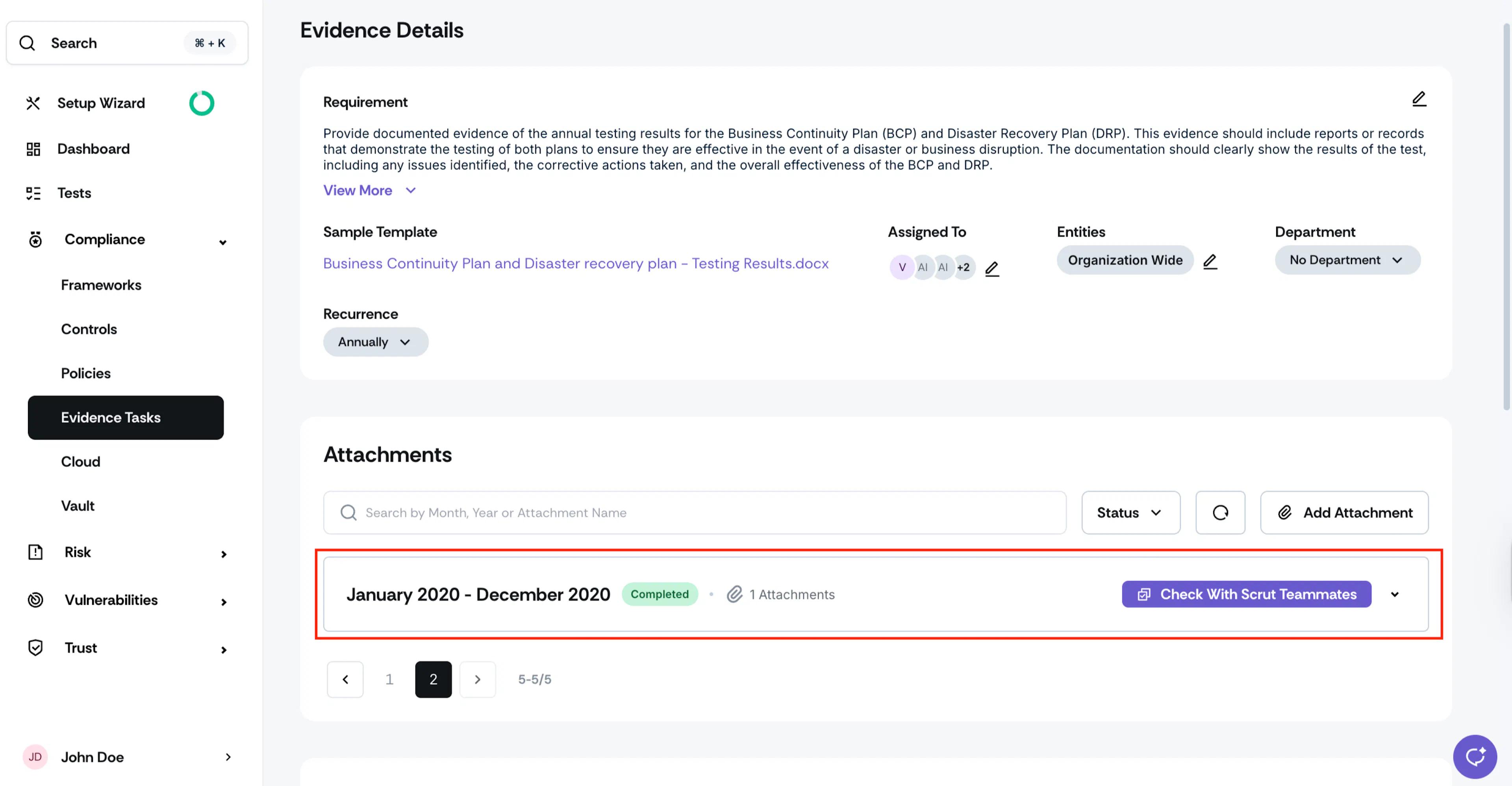
Backdated Evidence Handling
Evidence created with a backdate will be automatically added to a new bucket for the appropriate timeframe, depending on the recurrence frequency.
Distinguish between Manual and Automated Evidence
To distinguish between manually uploaded evidence and automated evidence, Scrut adds the “Automated Evidence” tag for evidence fetched from integrations via Scrut Monitor. Manually uploaded evidence documentation has no tags.