

Import a Policy from Google Drive
Who can use this feature
- Supported on Foundation, Growth, and Scale plans
You can import policy documents stored in Google Drive directly into Scrut. Depending on the file type, Scrut opens the document in the Scrut policy editor for editing or saves it as a reference attachment.
Before You Begin
To import from Google Drive, you need to connect your Google account to Scrut. Scrut will prompt you to authenticate the first time you use this option. Once connected, Scrut remembers your account and skips the authentication step on future policy document imports.
Supported File Types
| File Type | Compatible with Policy Editor | Save as Attachment |
|---|---|---|
| Documents (.doc, .docx, .pdf) | Yes | Yes |
| Spreadsheets (.xlsx) | No | Yes |
| Presentations (.ppt) | No | Yes |
| Images (.jpeg, .png) | No | Yes |
| Others | No | No |
Important: Files not listed above cannot be imported or added as attachments and will be rejected during the compatibility check.
How to Import a Policy from Google Drive
Method 1: From a Policy's Detail Page
Use this method when the policy already exists in Scrut, and you want to attach or import a document to it.
-
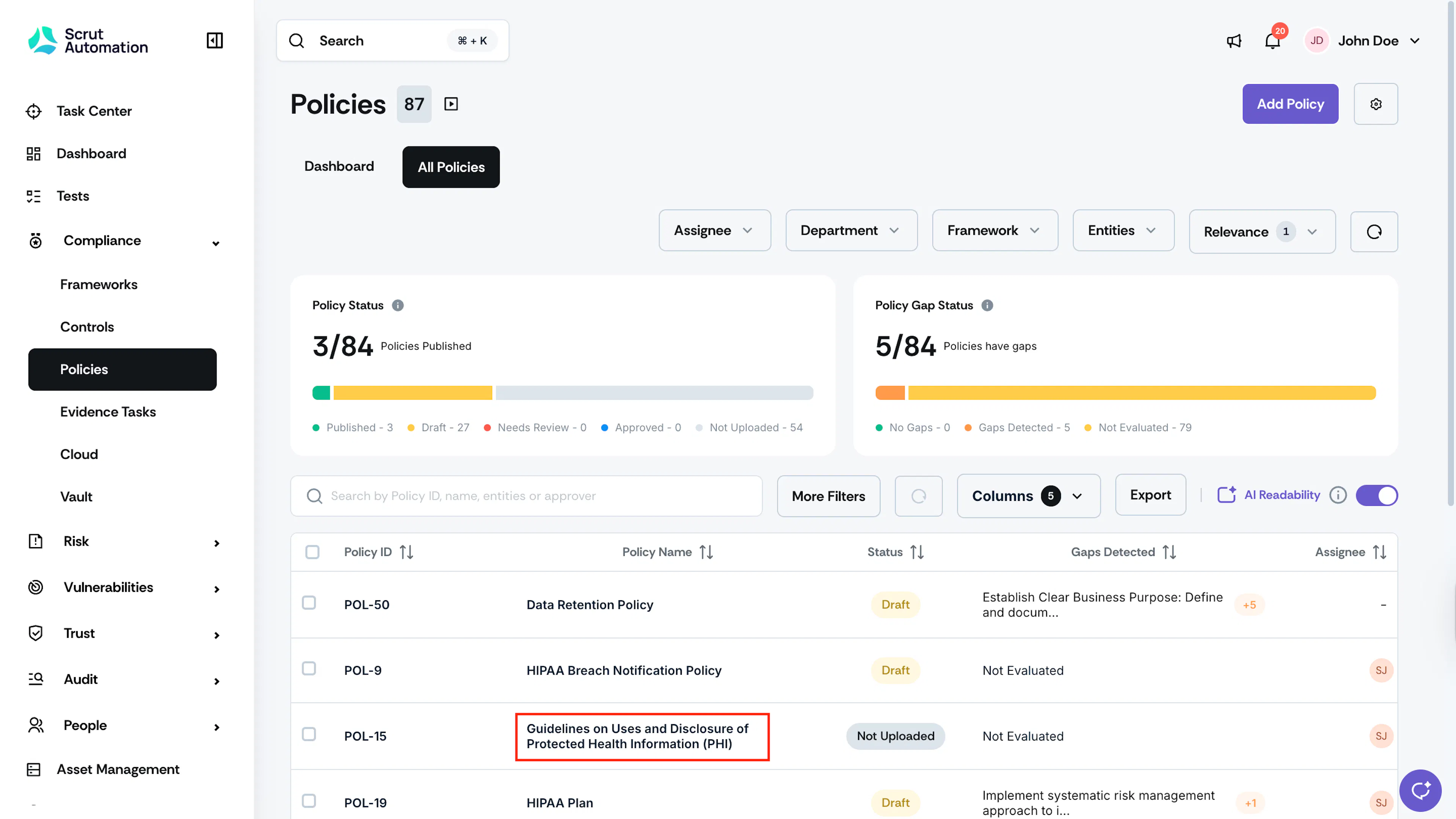
Navigate to Compliance → Policies using the left navigation panel.
-
Click the policy you want to add a document to.
-
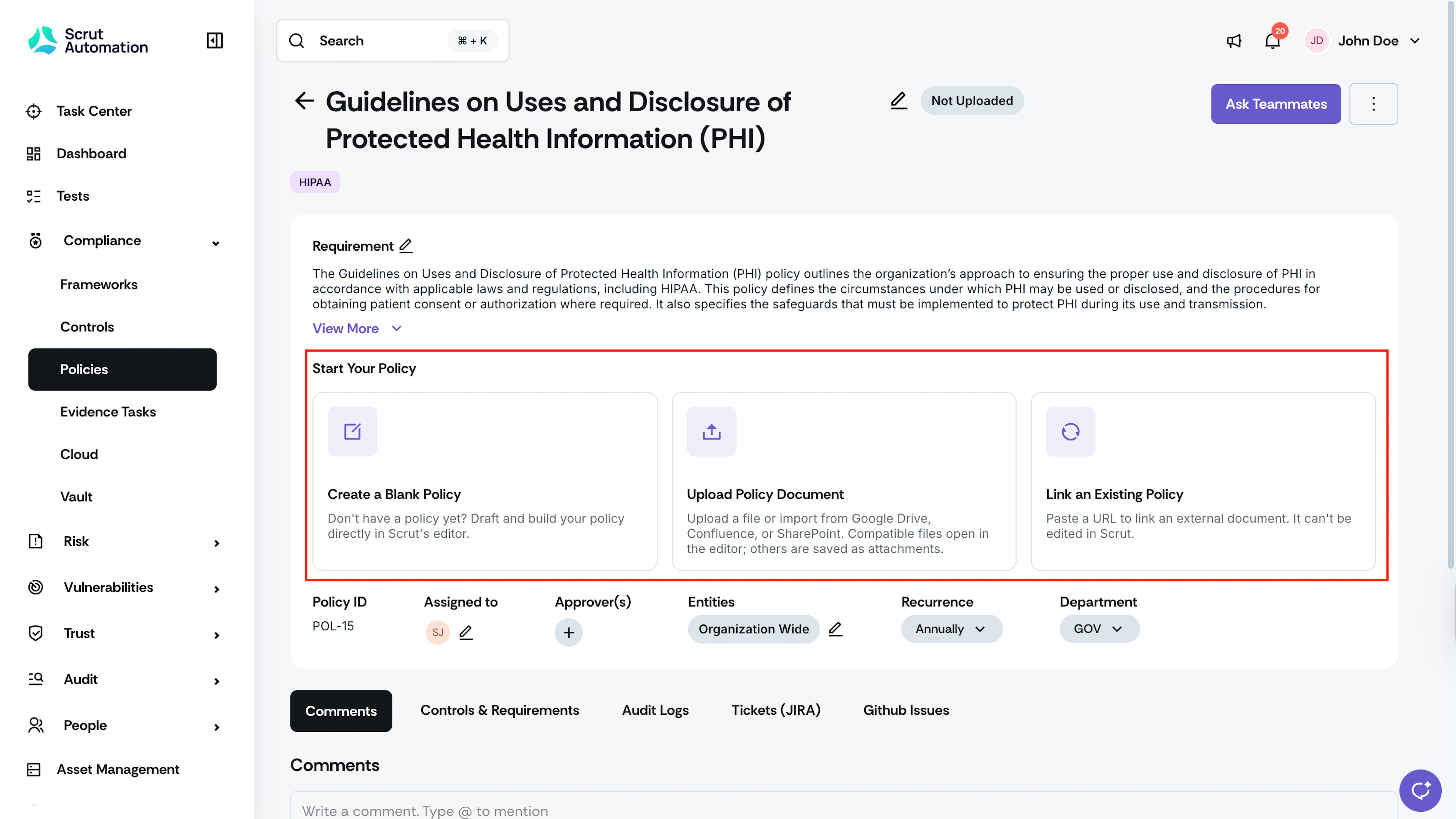
In the Start Your Policy section on the policy detail page, click Upload Policy Document.
-
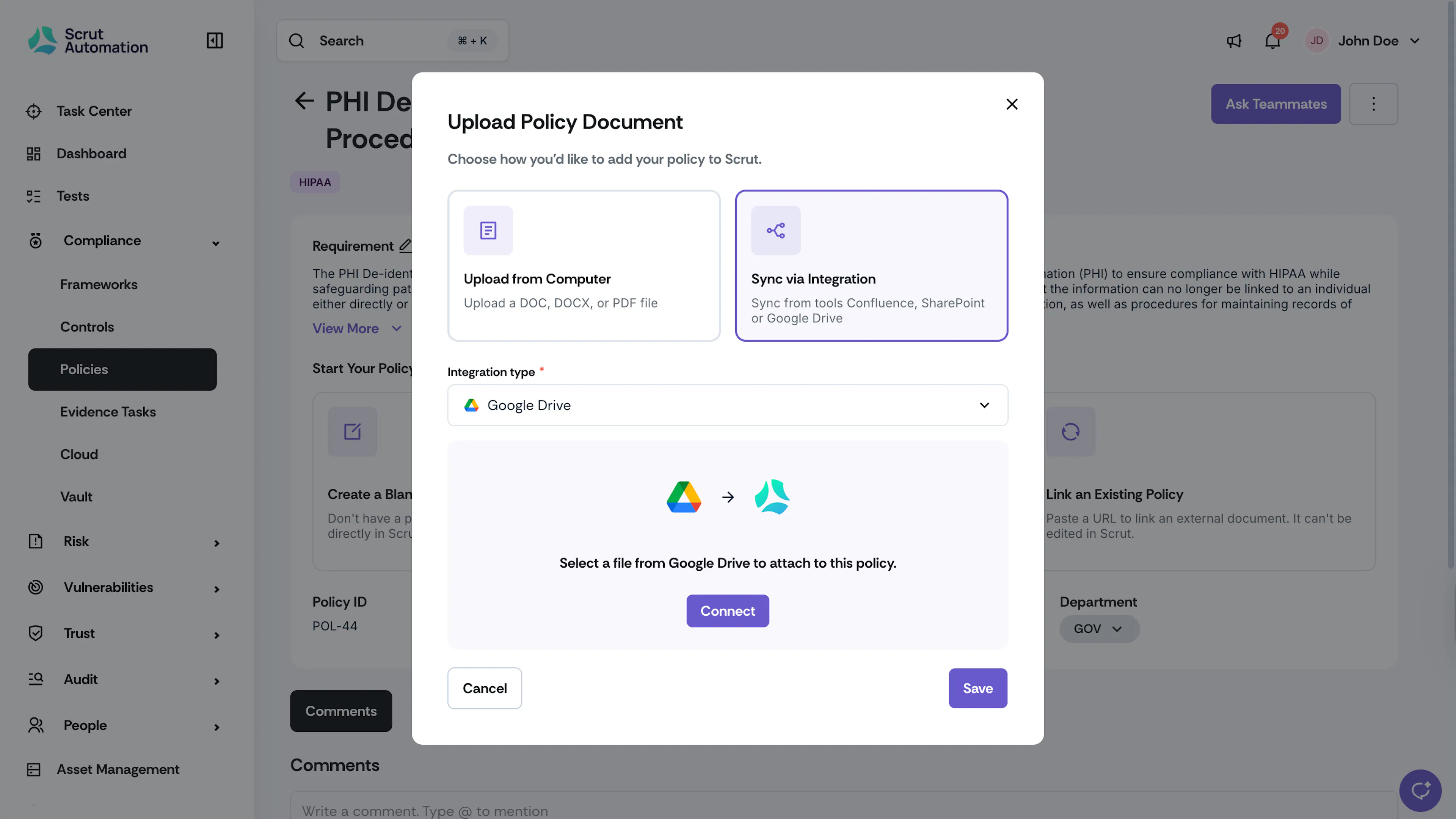
In the Upload Policy Document modal, click Sync via Integration.
-
From the Integration type dropdown, select Google Drive.
-
Click Connect.
Heads Up!
If this is your first time connecting, Scrut opens the Google sign-in screen. Select your Google account and follow the prompts to authorize access. If you have already connected your account, Scrut skips this step and opens the file browser directly.
-
In the Select a file modal, browse your Google Drive and click the file you want to import. Click Select.
-
Scrut checks whether the file is compatible with the Scrut policy editor. This typically takes 10 to 20 seconds.
-
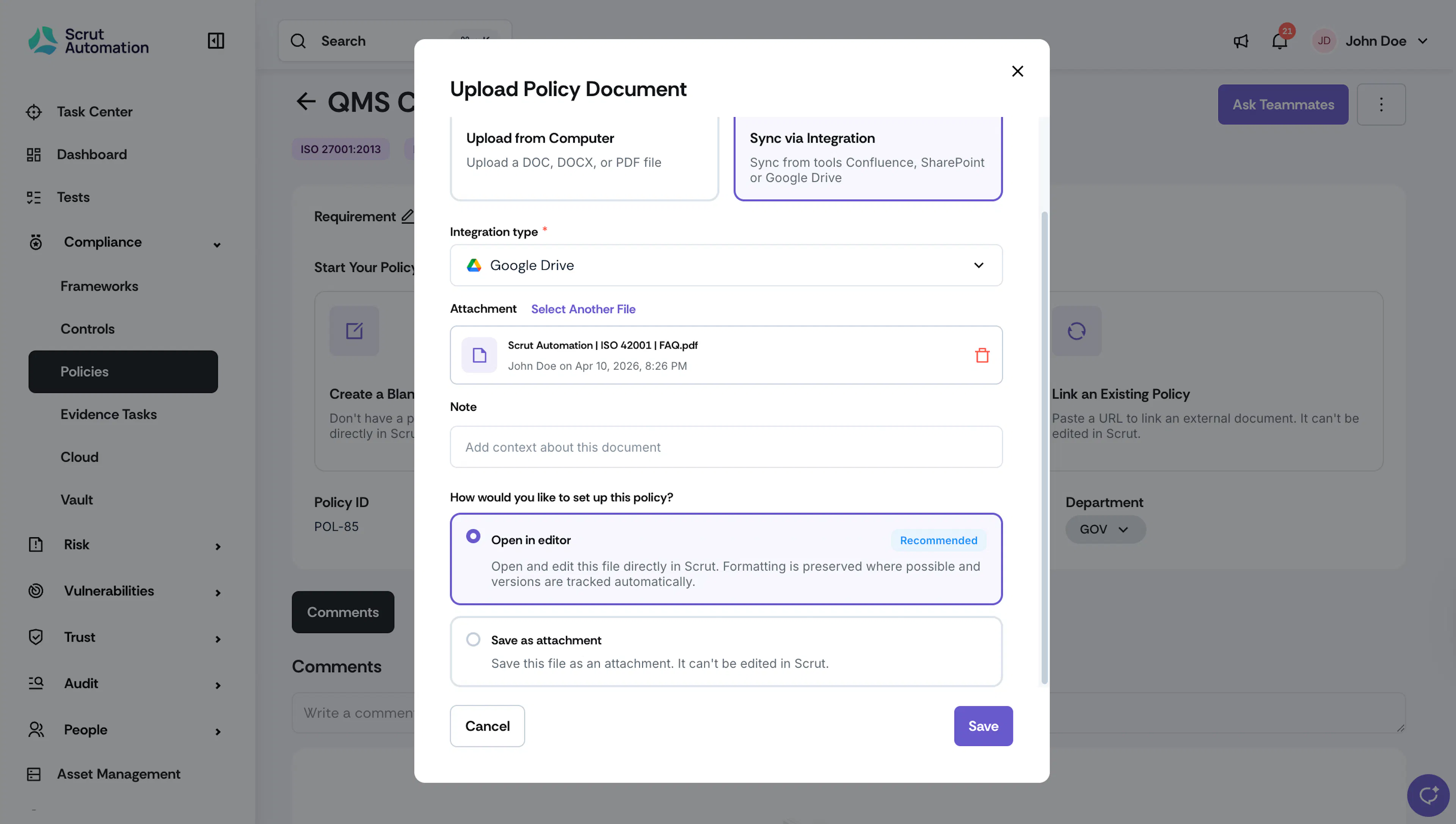
Once the check completes, the selected file appears under Attachment. Optionally, add context in the Note field.
-
Under How would you like to set up this policy?, select one of the following:
- Open in editor (Recommended): Opens the document in the Scrut policy editor. Formatting is preserved where possible_,_ and versions are tracked automatically. Available for .doc, .docx, and .pdf files.
- Save as attachment: Saves the file as a non-editable reference document. It cannot be edited in Scrut.
-
Click Save.
The document is attached to the policy. If you chose Open in editor, the document is available for editing in the Scrut policy editor.
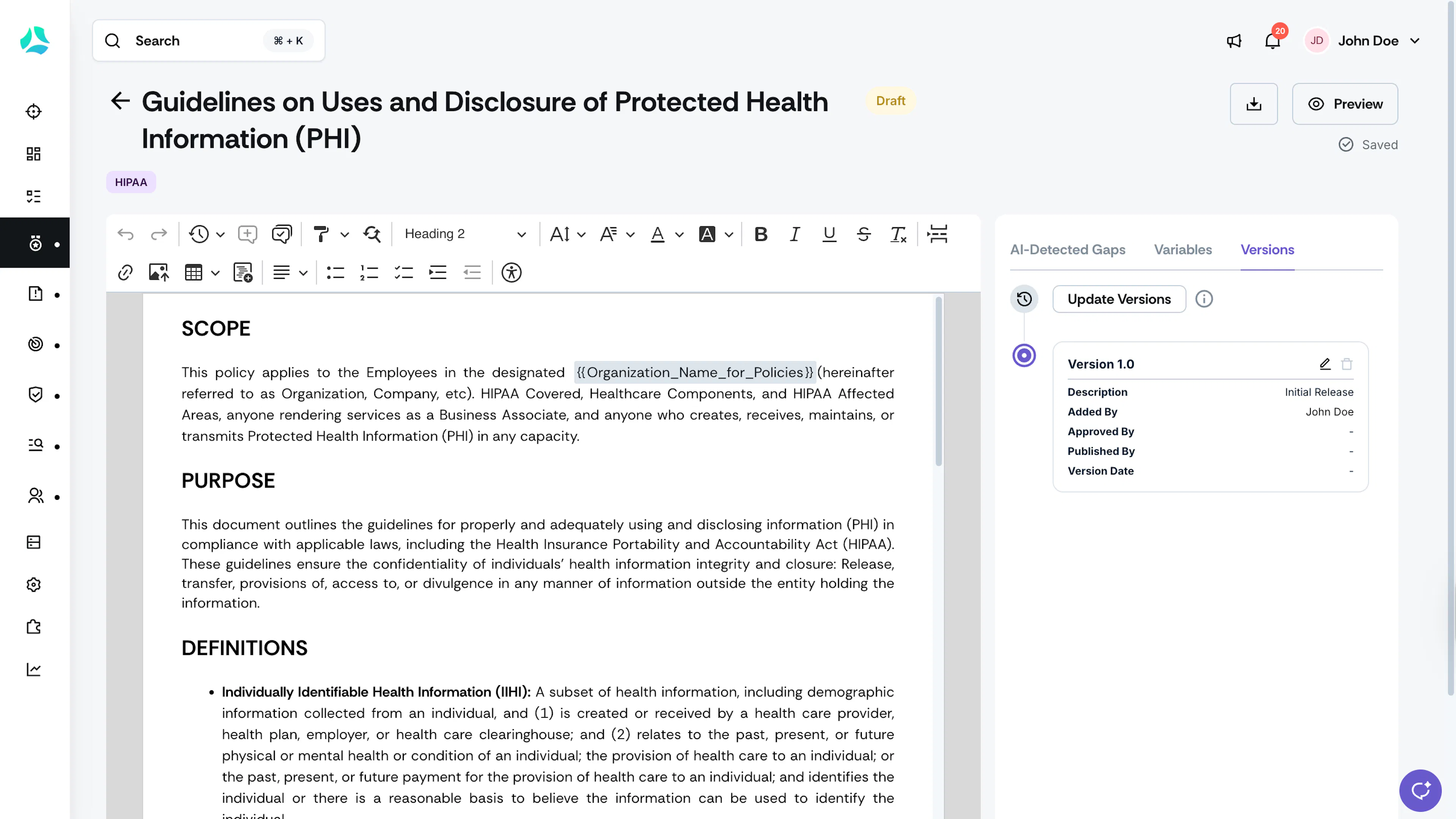
Method 2: From the Add Policy Workflow
Use this method when you are creating a new policy and want to import its content from Google Drive simultaneously.
-
Navigate to Compliance → Policies using the left navigation panel.
-
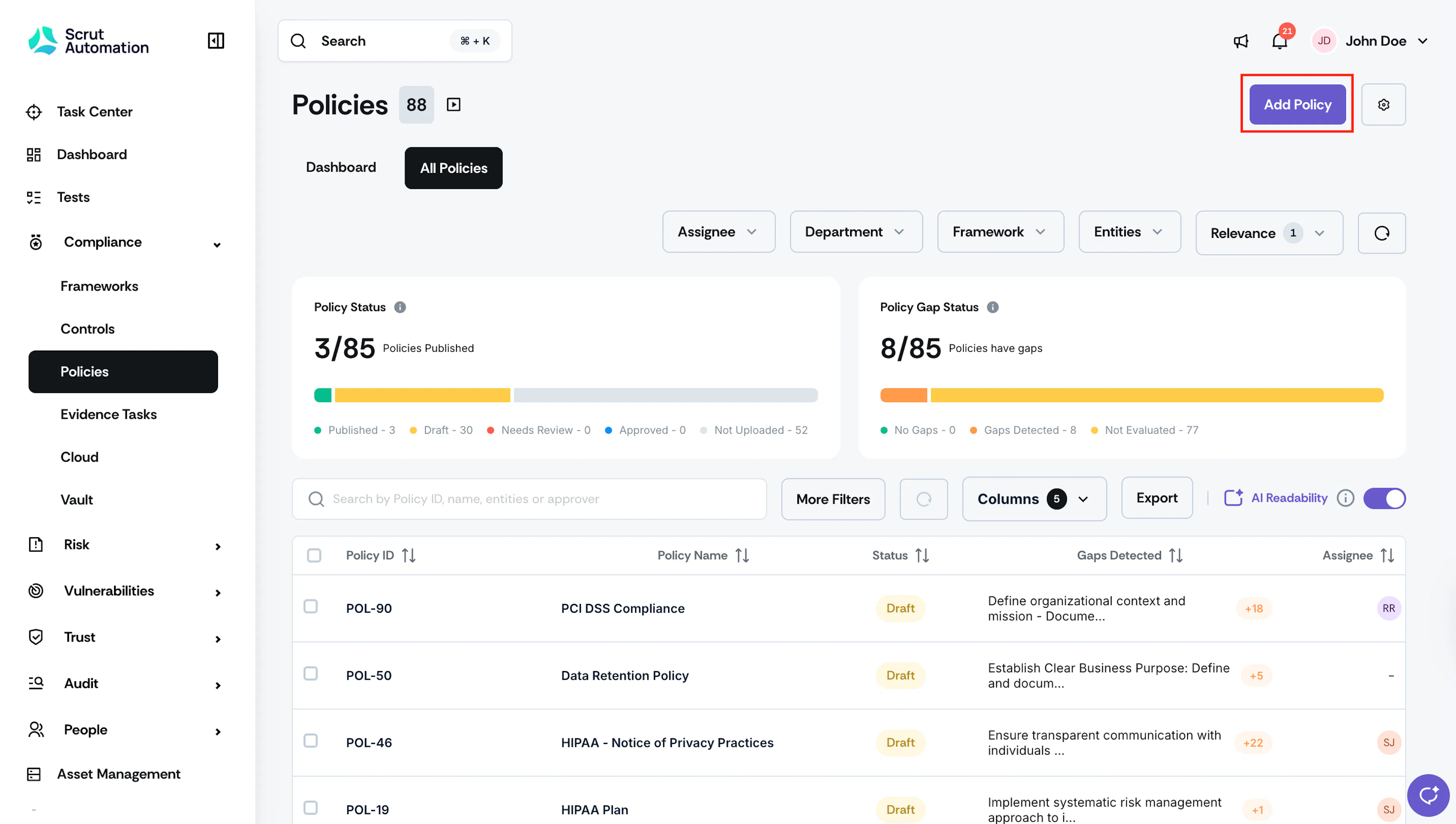
Click Add Policy at the top right of the page.
-
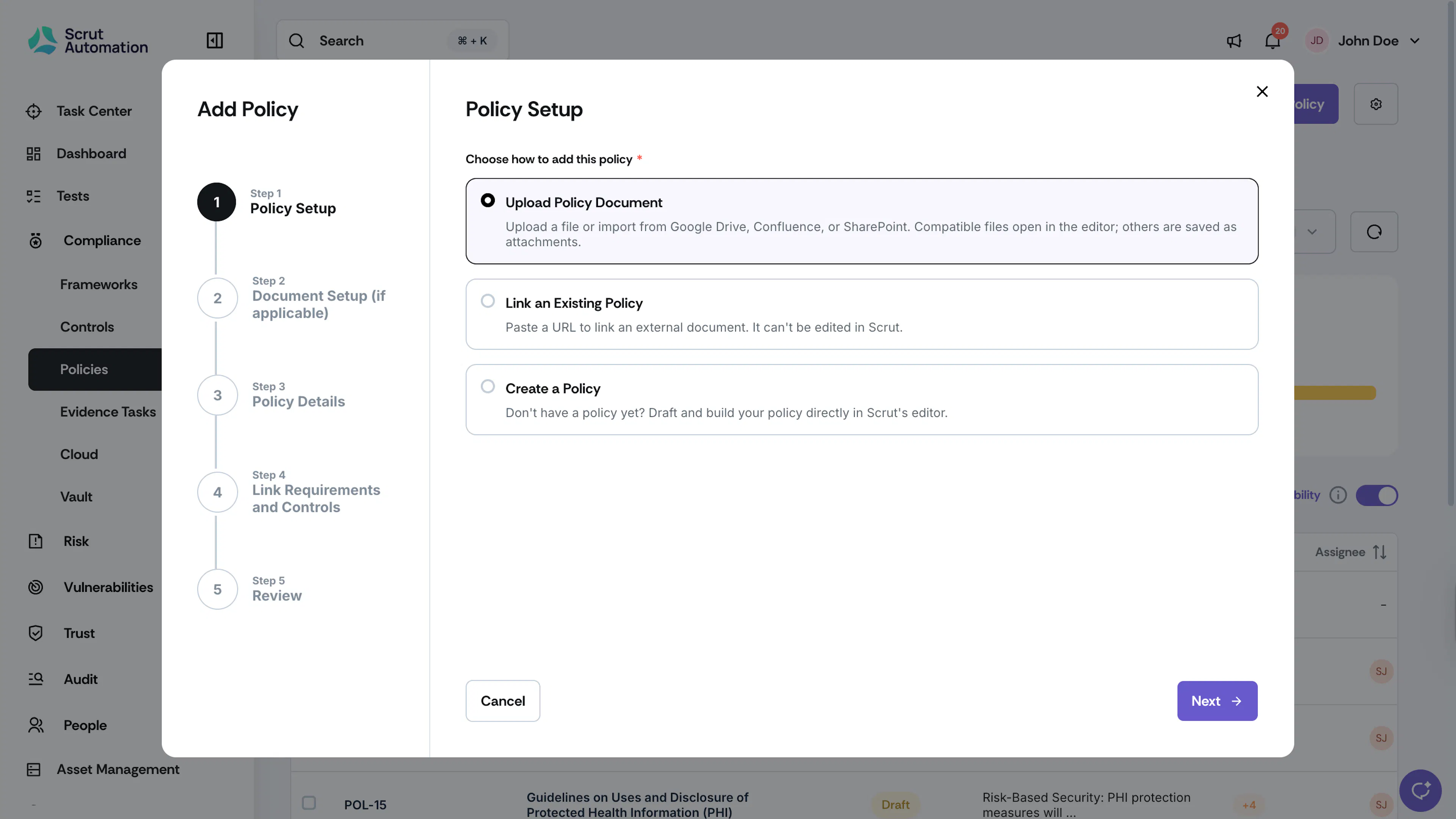
On the Policy Setup step, select Upload Policy Document and click Next.
-
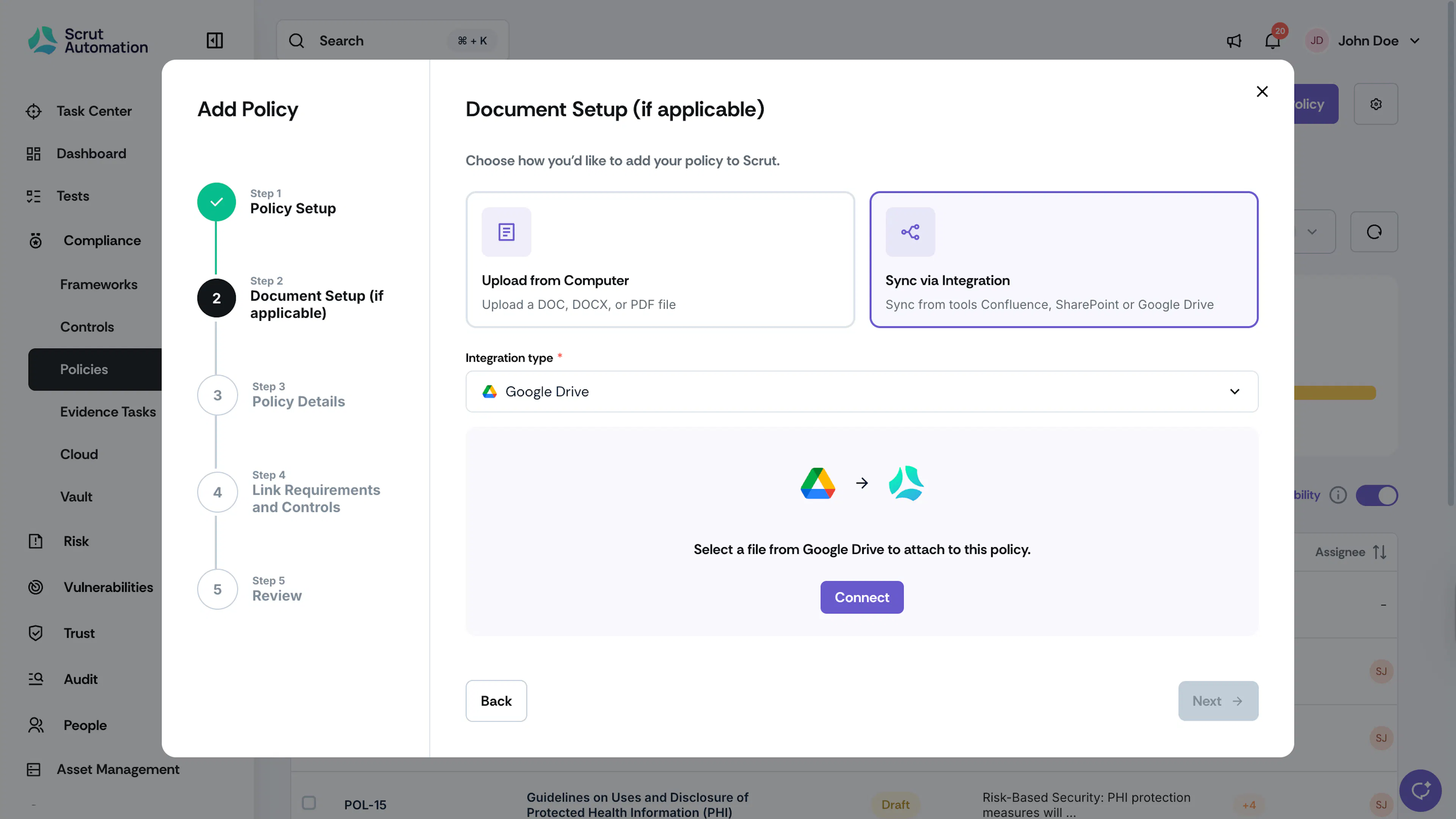
On the Document Setup step, click Sync via Integration.
-
From the Integration type dropdown, select Google Drive.
-
Click Connect.
Heads Up!
If this is your first time connecting, Scrut opens the Google sign-in screen. Select your Google account and follow the prompts to authorize access. If you have already connected your account, Scrut skips this step and opens the file browser directly.
-
In the Select a file modal, browse your Google Drive and click the file you want to import. Click Select.
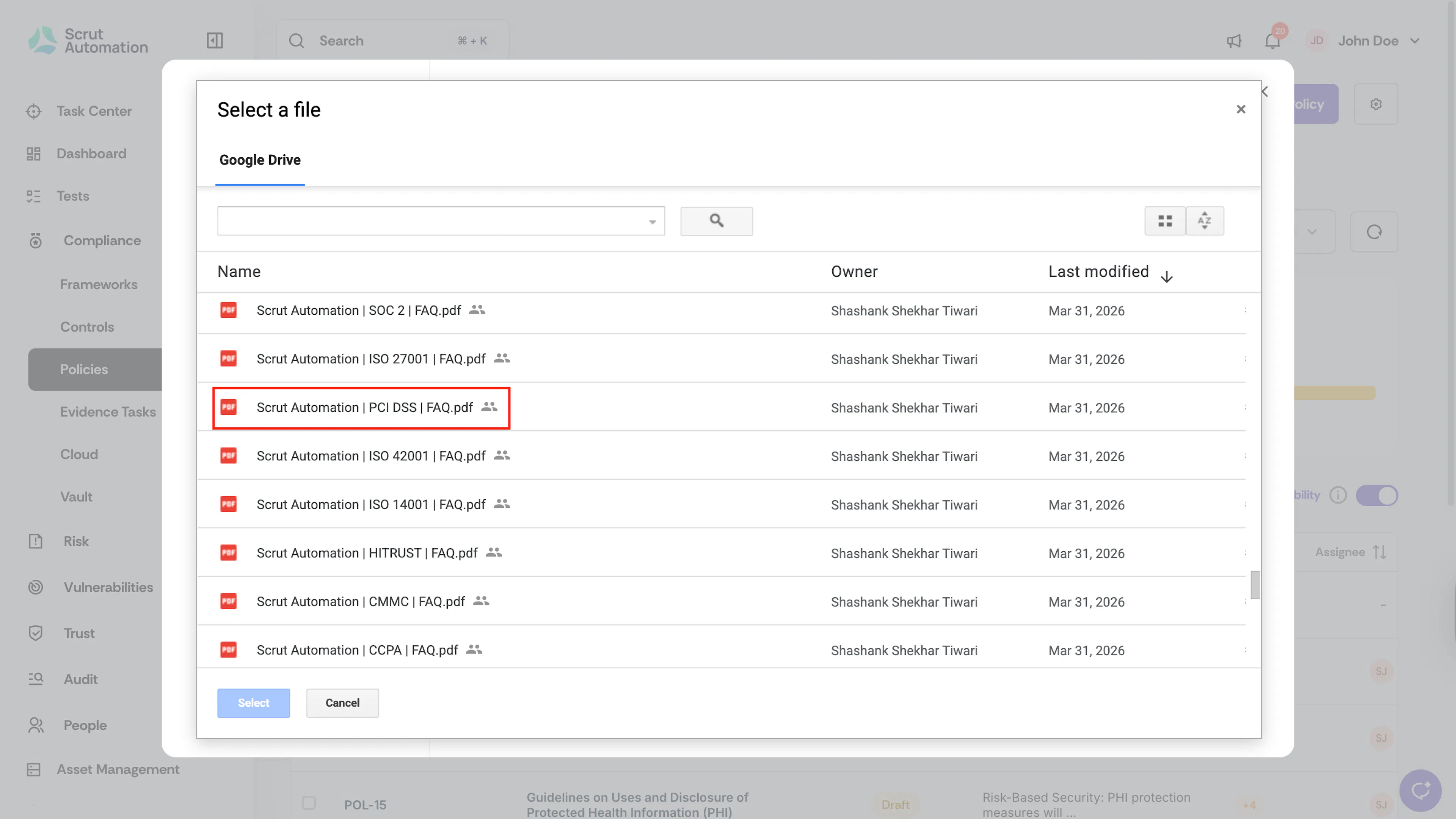
-
Scrut checks whether the file is compatible with the Scrut policy editor. This typically takes 10 to 20 seconds.
-
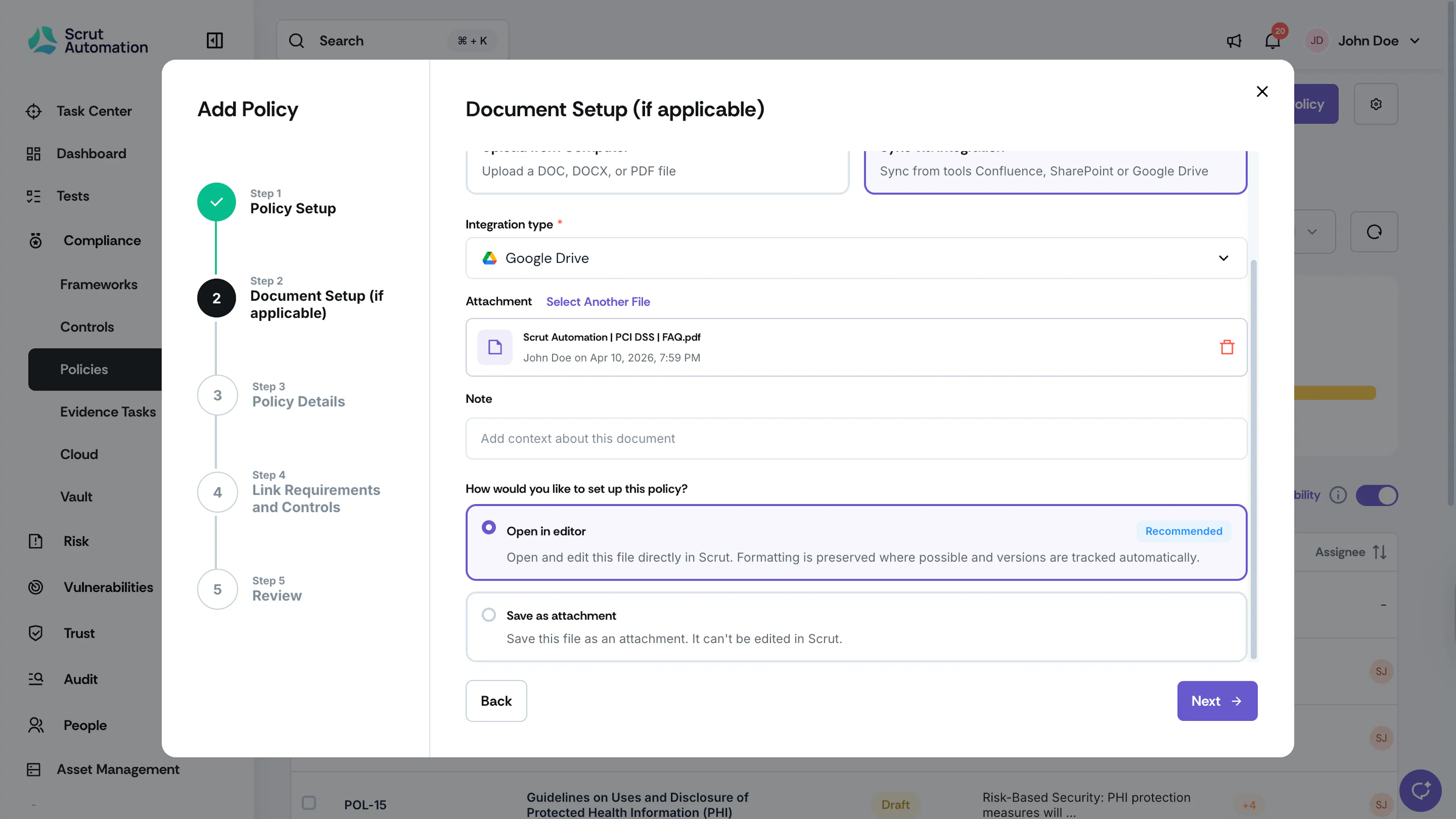
Once the check completes, the selected file appears under Attachment. Optionally, add context in the Note field.
-
Under How would you like to set up this policy?, select one of the following:
- Open in editor (Recommended): Opens the document in the Scrut policy editor. Formatting is preserved where possible, and versions are tracked automatically. Available for .doc, .docx, and .pdf files.
- Save as attachment: Saves the file as a non-editable reference document. It cannot be edited in Scrut.
-
Click Next to proceed to the Policy Details step.
-
Scrut extracts policy details from your document. This may take a few moments.
-
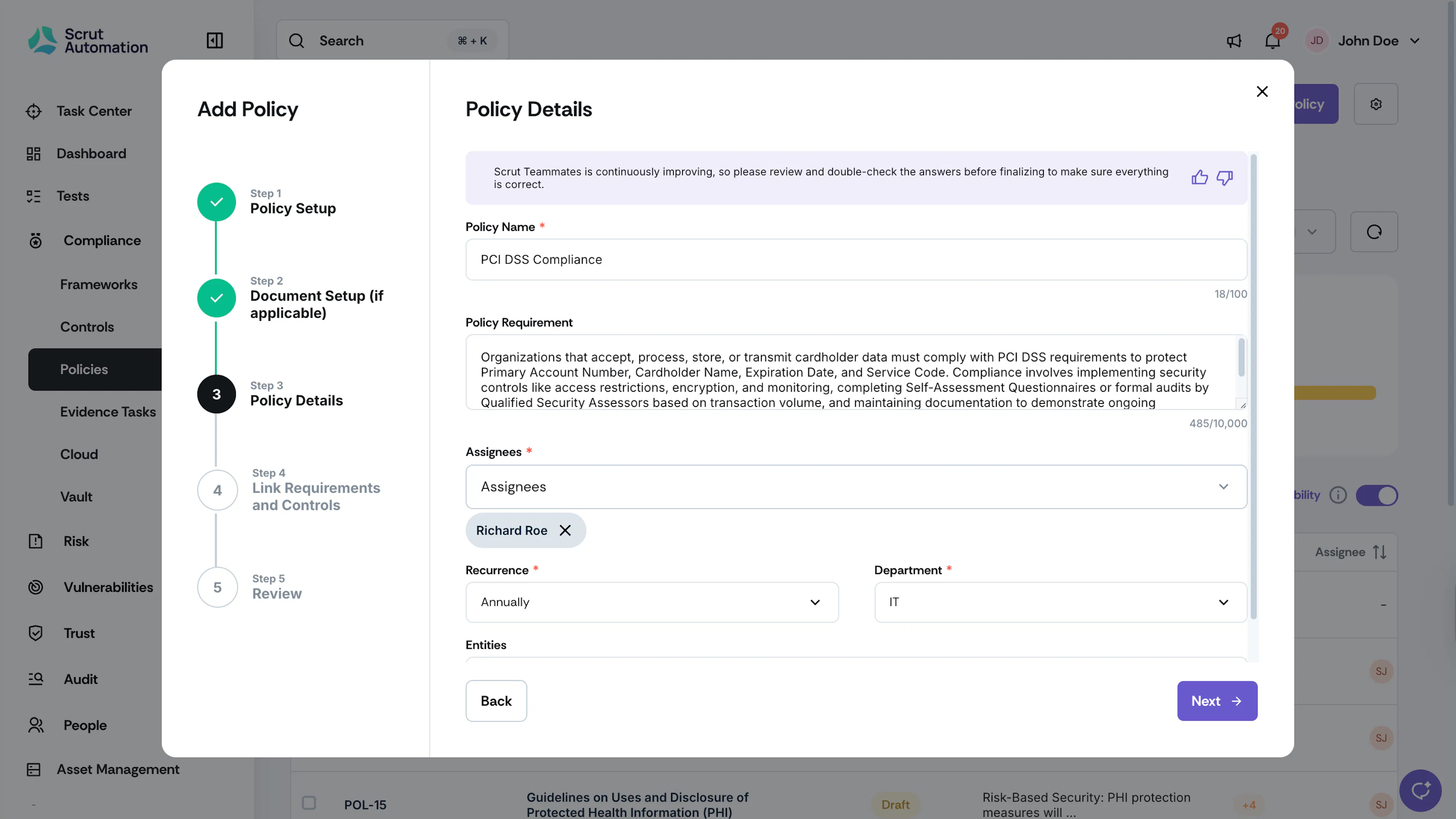
Once complete, the Policy Details form appears. If your organization has Scrut Teammates enabled, fields like Policy Name and Requirement are pre-filled based on the imported document's content.
Heads Up!
Scrut Teammates is continuously improving. Always review the pre-filled details carefully and correct any fields before proceeding. If Scrut Teammates is not enabled for your organization, fill in the policy details manually.
-
Review and edit the policy details as needed, then click Next.
-
On the Link Requirements and Controls step, select the controls you want to link to this policy using the Frameworks panel, then click Next.
-
If your organization has Scrut Teammates enabled, Teammates will automatically suggest the relevant controls to link to the policy.
-
On the Review step, verify all the details and click Save. If needed, hit Back to go to previous steps to make any changes.
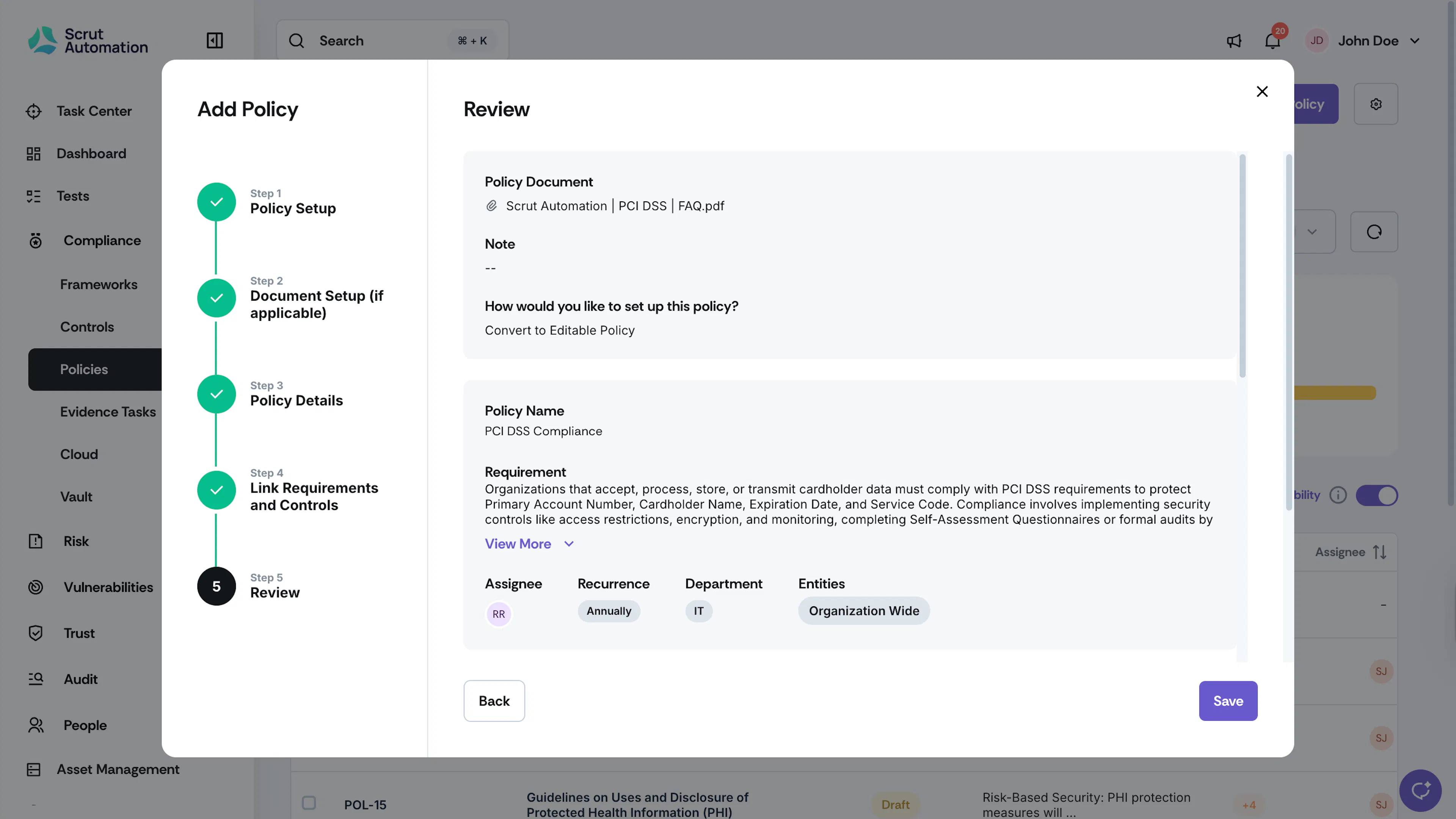
Scrut creates the policy and begins preparing the document.
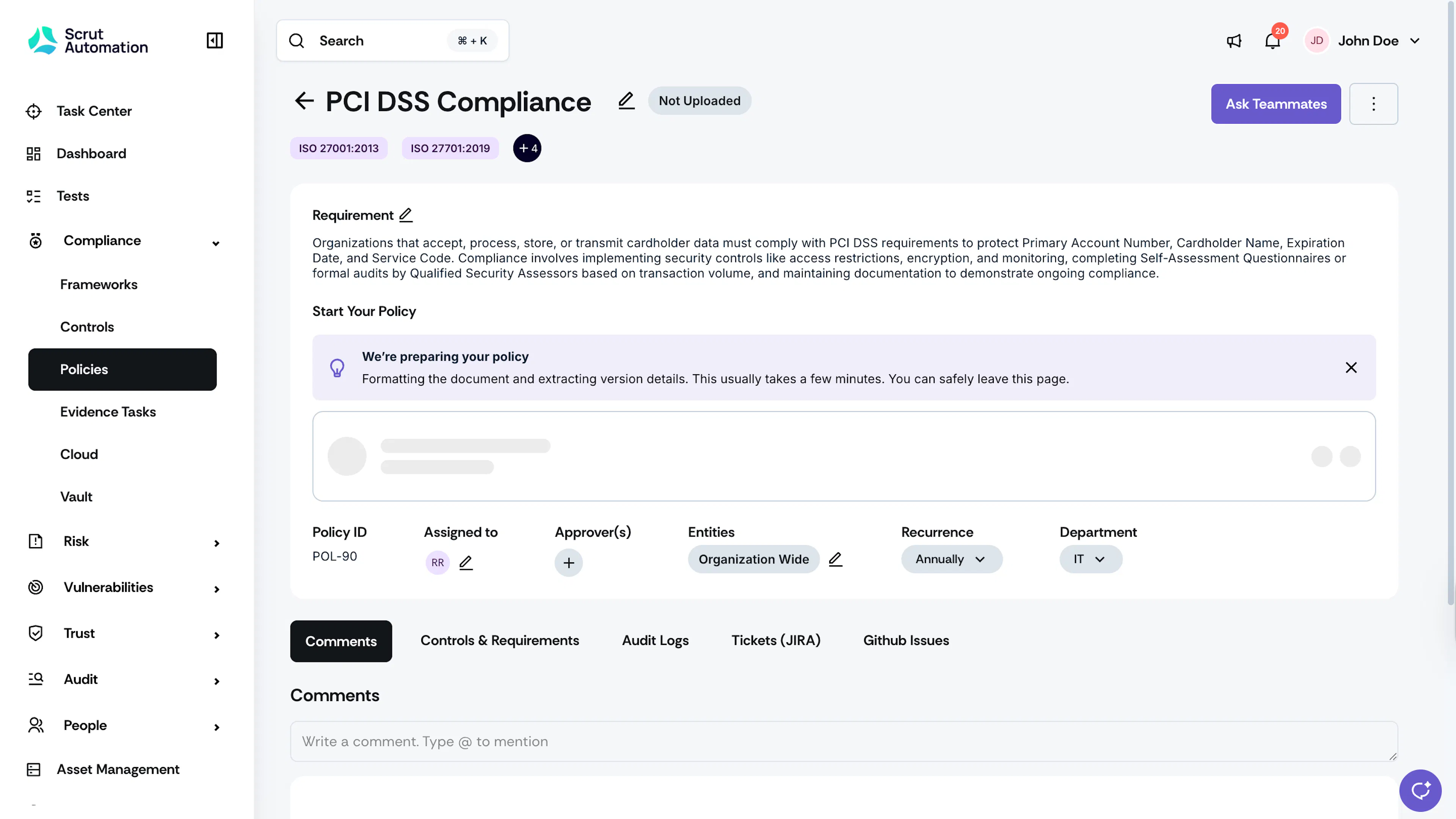
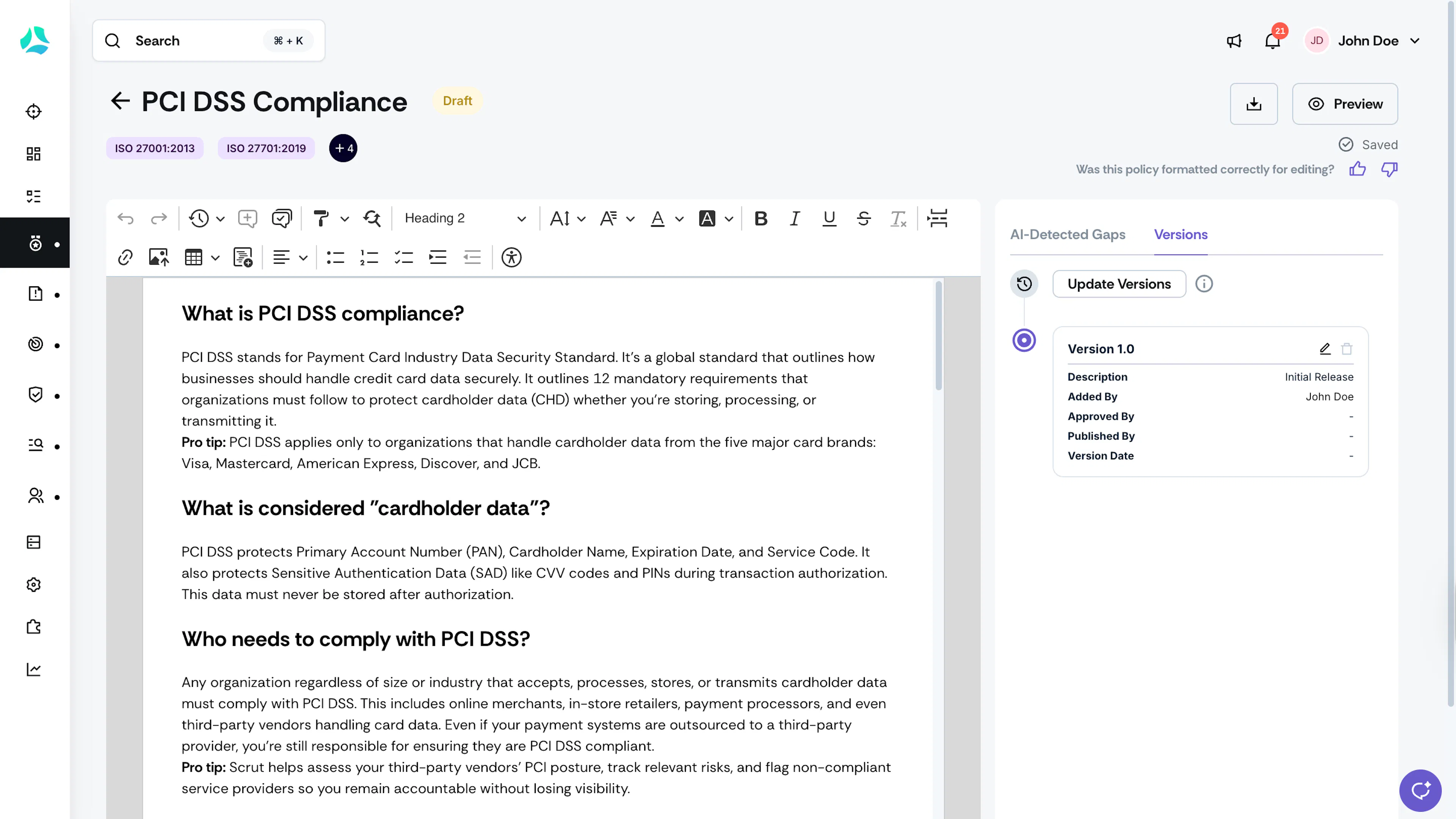
Once complete, the policy moves to Draft state, and the document appears in the Policy Document section. If you chose Open in editor, click the document to open it in the Scrut policy editor.
Next Reads
Reach out to support@scrut.io or contact your CSM for further assistance.