Policies: Walkthrough
Policies are written instructions that define how your organization manages security risk, meets regulatory requirements, and protects sensitive information, such as customer data. In Scrut, policies are a core part of your compliance program and a required component for audit readiness.
What Are Policies?
Policies guide how your organization protects valuable information and technical assets from unauthorized access or harm. They create a framework for keeping data confidential, accurate, and available, and they establish the expected behaviors your team follows to guard against security threats and risks.
Controls are the written rules for adhering to that framework. Policies are the detailed instructions that describe exactly how your company will follow those rules in practice.
- Frameworks (such as SOC 2 or ISO 27001) define the overall compliance standard your organization is working toward.
- Controls represent the specific rules your organization must follow to adhere to a framework. Each control maps to one or more framework requirements.
- Policies are documents that explain how your organization meets those controls. They describe your company's commitments, processes, and standards in concrete terms.
How Policies Support Your Audit
Auditors reviewing your compliance program check two things: what rules your organization has committed to following, and how you follow them. Policies answer both questions.
To be audit-ready, the policies required for your target framework must be published in Scrut and accepted by the employees they apply to. Published policies become part of your compliance evidence and directly satisfy associated policy-related controls in Scrut.
Different frameworks require different policy sets. However, many policies that satisfy SOC 2 requirements also apply to frameworks like ISO 27001 and others. So completing your policy set for one framework often accelerates your readiness for others.
Policy Module Tabs
The policies module has two primary tabs
- The Policy Dashboard gives you a real-time view of all your policies across assignees, departments, frameworks, and review stages. Use it to track policy status, identify gaps, and act on policies that have upcoming reviews.
- The All Policies page in the Policy module provides a comprehensive overview of all your policies.
How to Access the Policy Dashboard
- Sign in to Scrut.
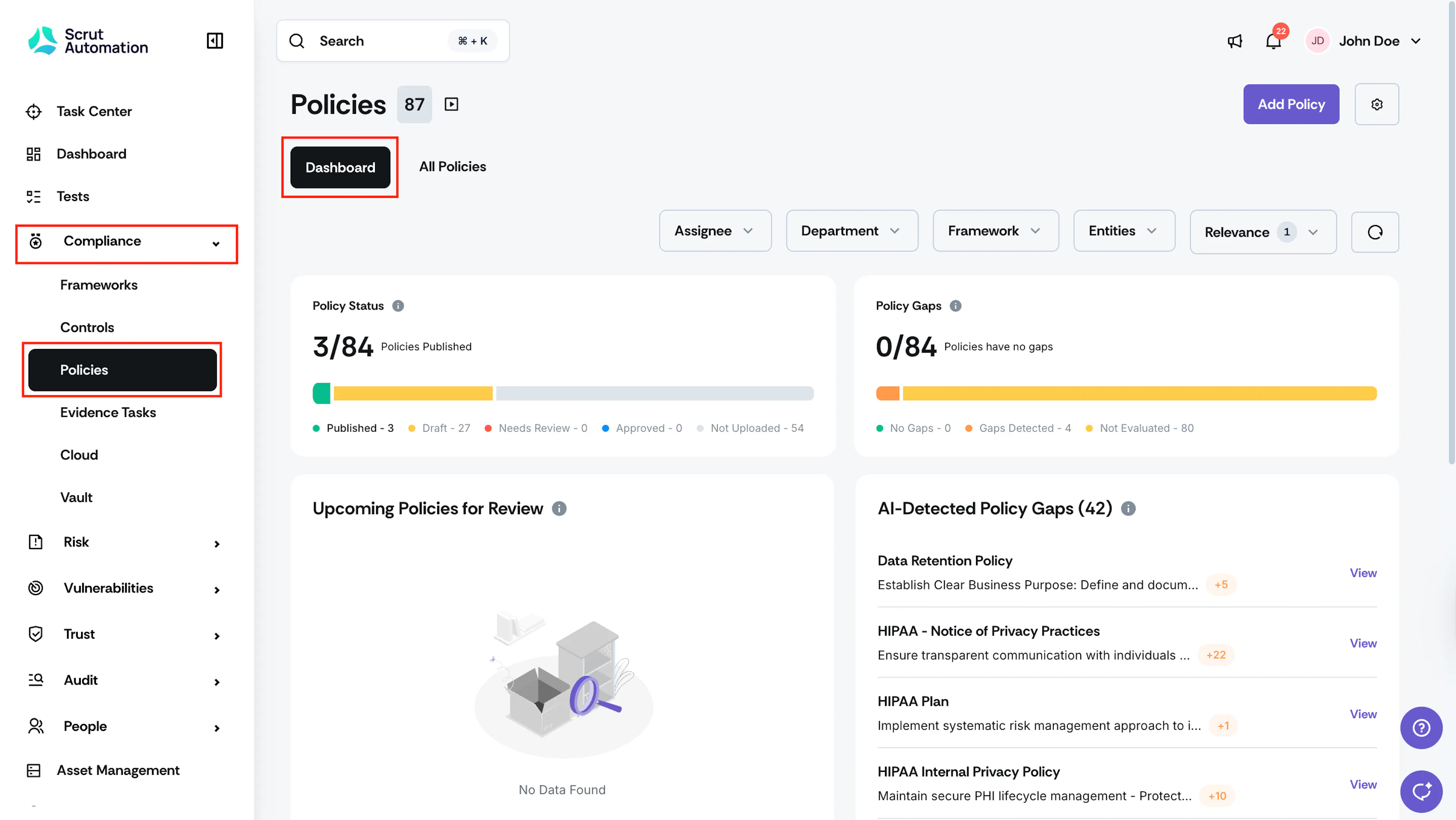
- Navigate to Compliance → Policies.
- Click the Dashboard tab.
Heads Up!
Policies marked as "Not Relevant" are hidden from the dashboard by default. To include them, click the Relevance filter and select Not Relevant.
Dashboard Filters

Use the filters at the top of the dashboard to narrow your view by specific criteria:
- Assignee: View policies assigned to specific users, unassigned policies, policies assigned to deactivated users, or policies assigned to you.
- Department: View policies by department, or find policies with no department linked.
- Framework: View policies mapped to a specific framework. Select No Framework to see all policies without a framework.
- Entities: View policies by entity.
- Relevance: Switch between Relevant and Not Relevant policies.
Pro Tip!
Click the circular reset icon to the right of the filters to clear all applied filters at once.
Policy Status
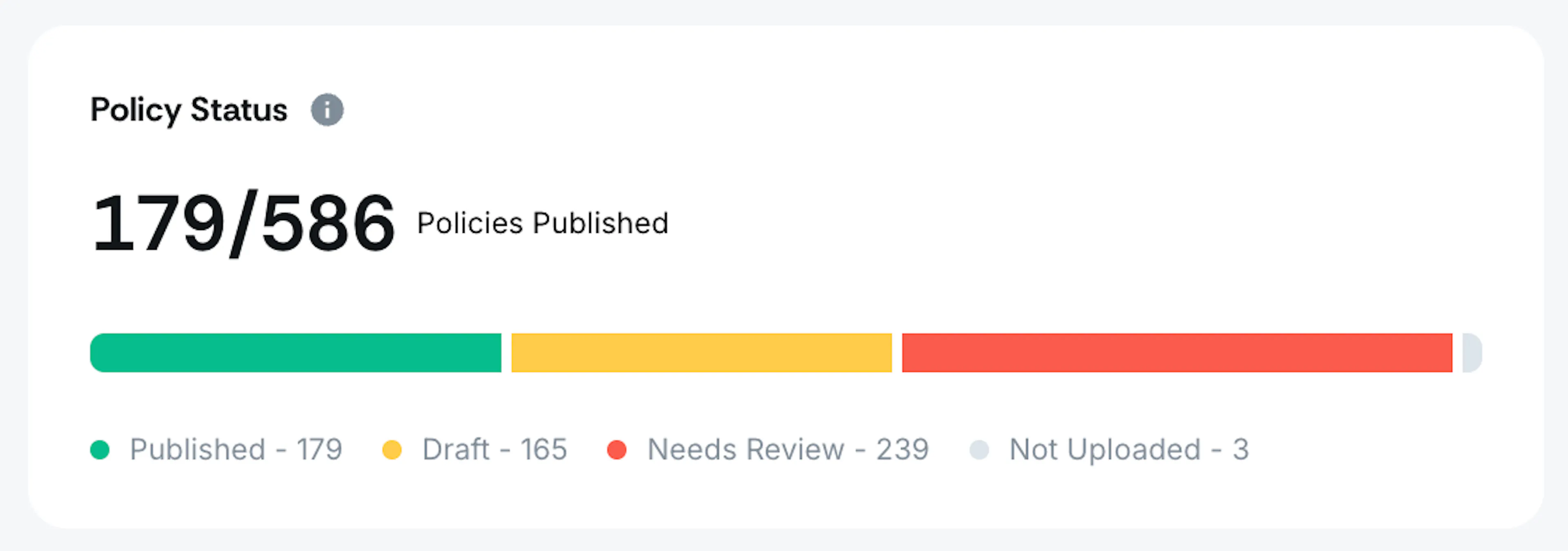
The Policy Status widget at the top of the dashboard shows the count of policies under each review stage: Not Uploaded, Draft, Approved, Needs Review, and Published. Learn more about policy statuses.
Note: Policies move to Approved status only when the policy approval workflow is turned on.
Policy Gap Status
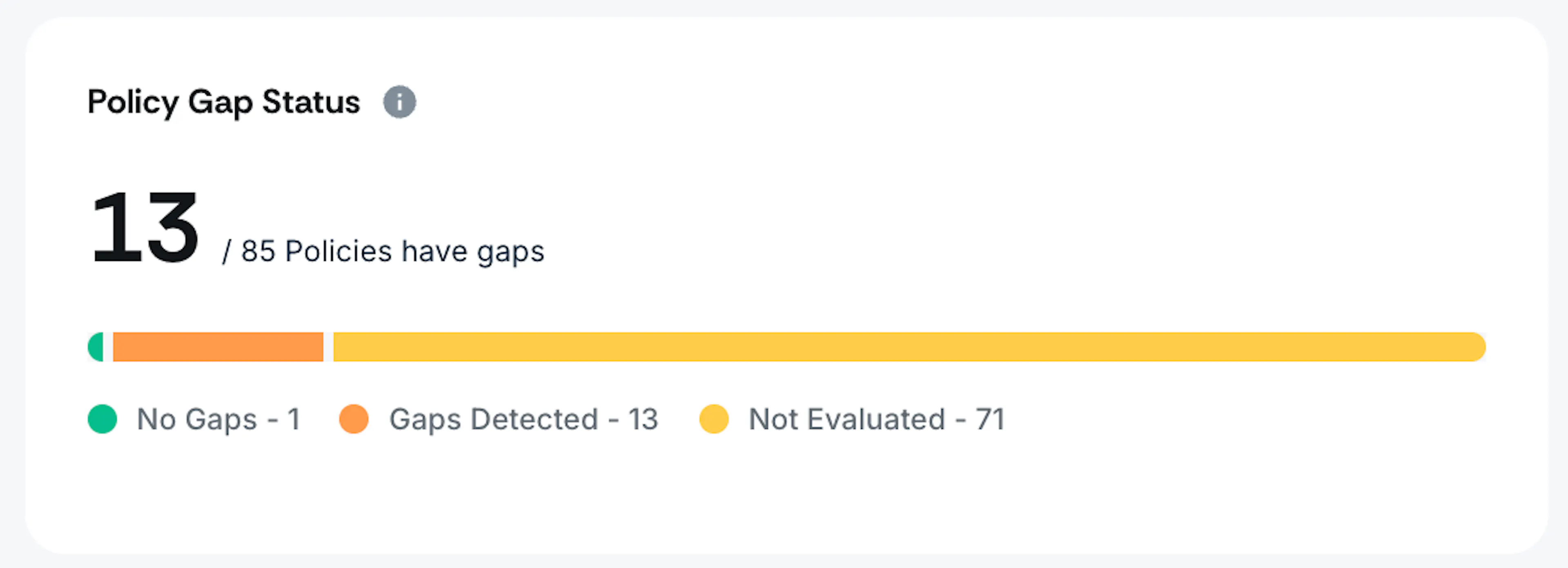
The Policy Gap Status widget gives you a snapshot of how many policies have been evaluated for content gaps. The progress bar breaks down your policies into three states:
- No Gaps: Policies that have been evaluated and have no gaps.
- Gaps Detected: Policies where one or more gaps were found.
- Not Evaluated: Policies that have not yet been evaluated.
The count at the top (for example, 12/586) shows how many of your total policies currently have no gaps.
Upcoming Policies for Review
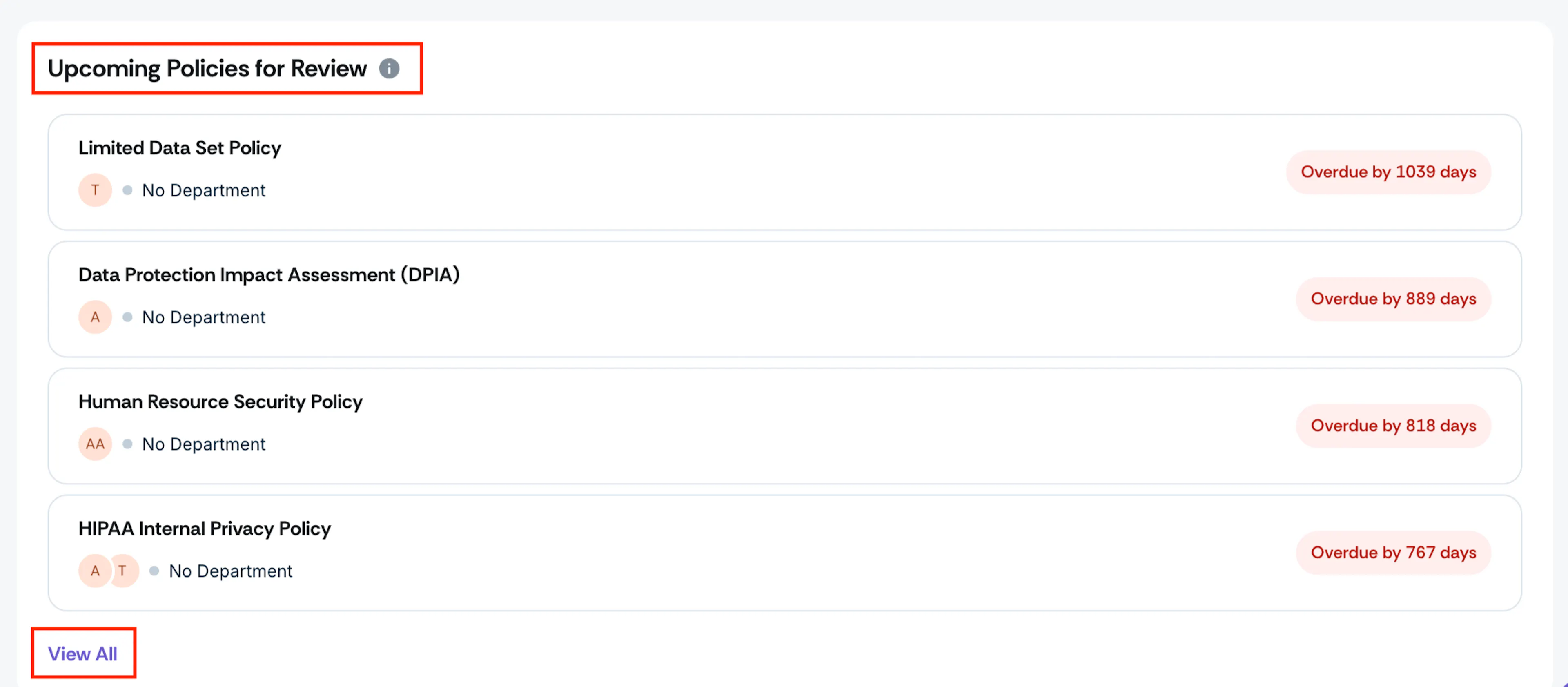
This section lists policies that are overdue for review. Click View All to see the full list of policies marked as Needs Review.
AI-Detected Policy Gaps
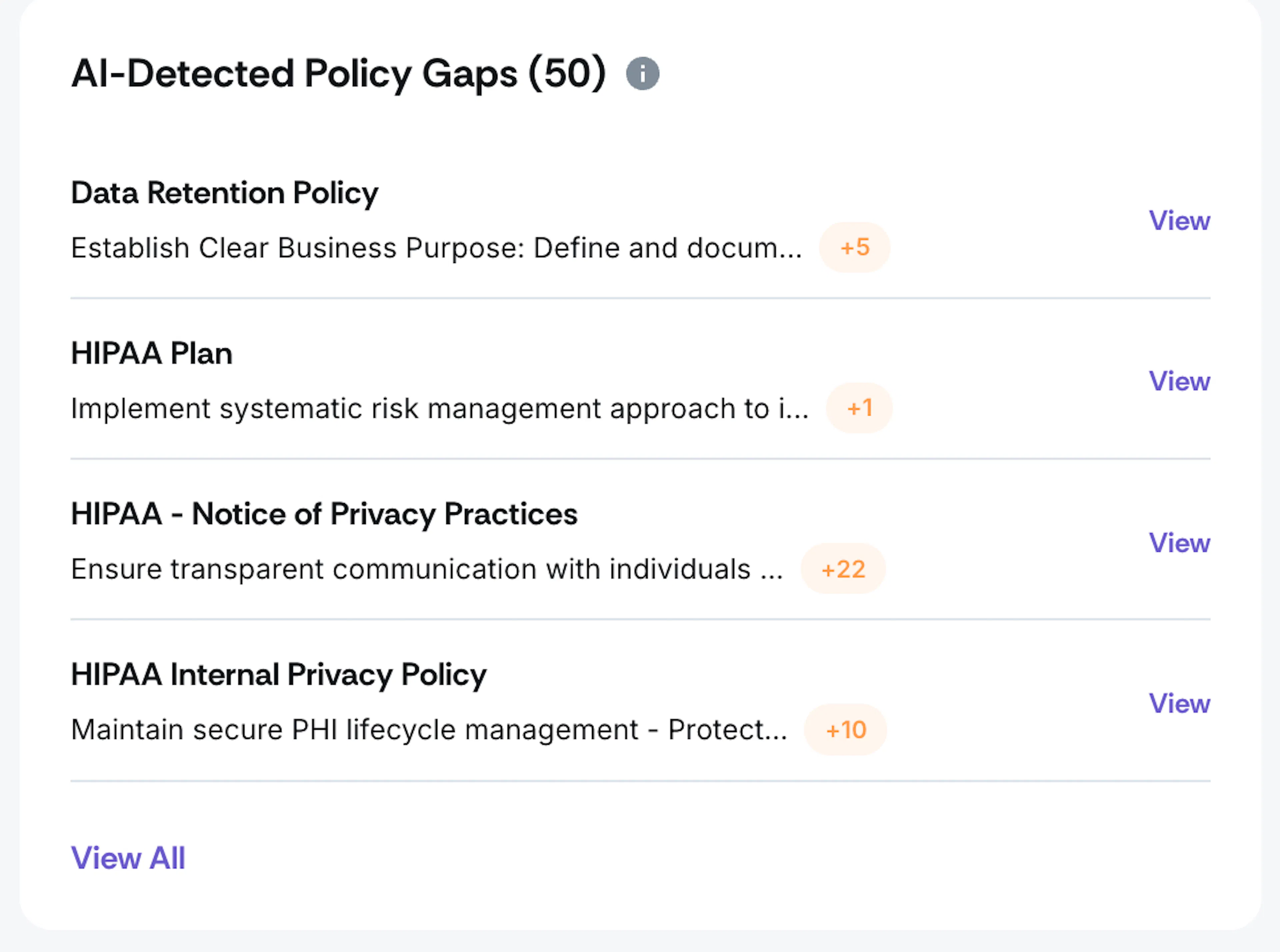
The AI-Detected Policy Gaps section lists policies where Scrut Teammates has identified missing or incomplete content. Each entry shows the policy name and the number of gaps detected. Click View next to any policy to see the specific gaps. Click View All to see the complete list of policies with AI-detected gaps.
Policies by Assignee
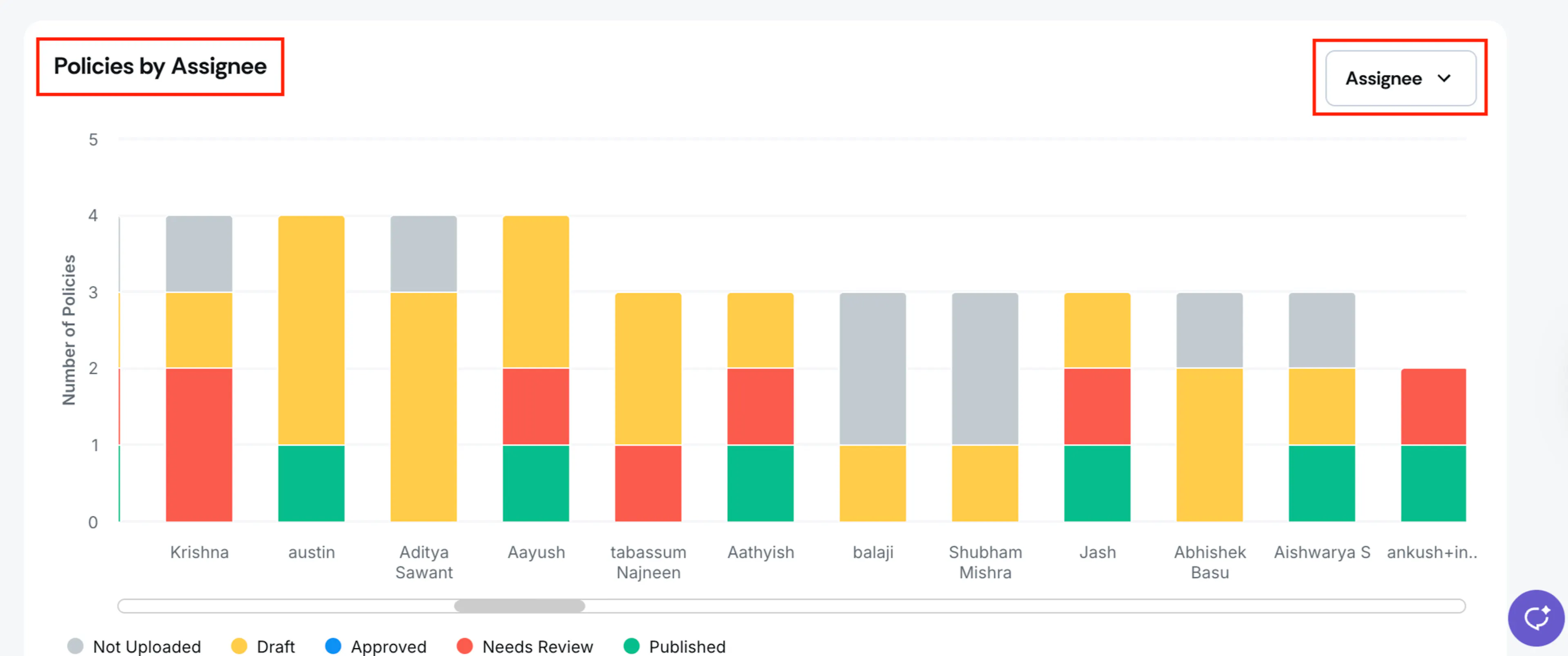
The Policies by Assignee chart shows the number of policies assigned to each user, broken down by status. Click any bar to go to the All Policies page with the assignee and status filters already applied.
Policies by Department
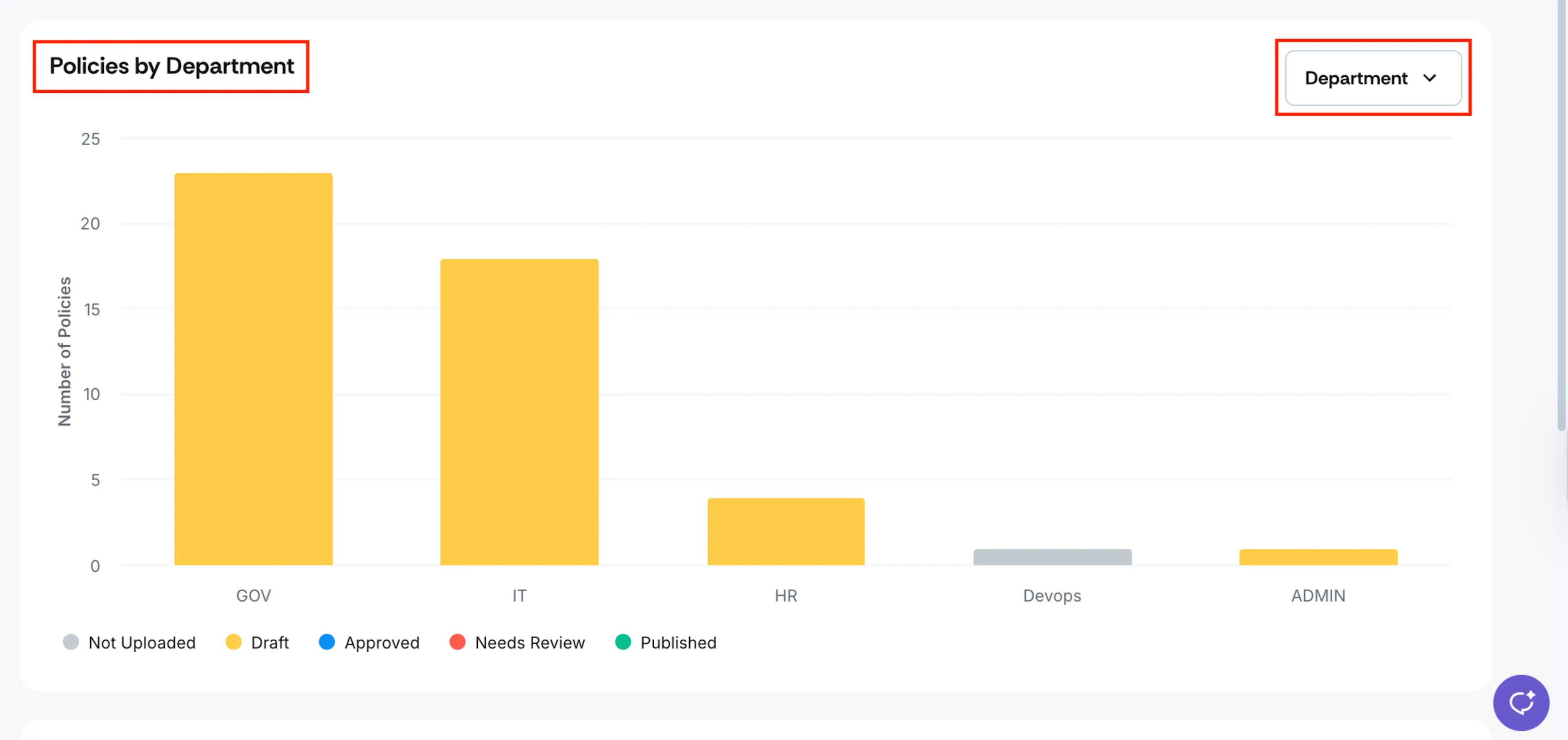
The Policies by Department chart shows the number of policies across each department, broken down by status. Click any bar to go to the All Policies page with the department and status filters already applied.
Policies by Framework
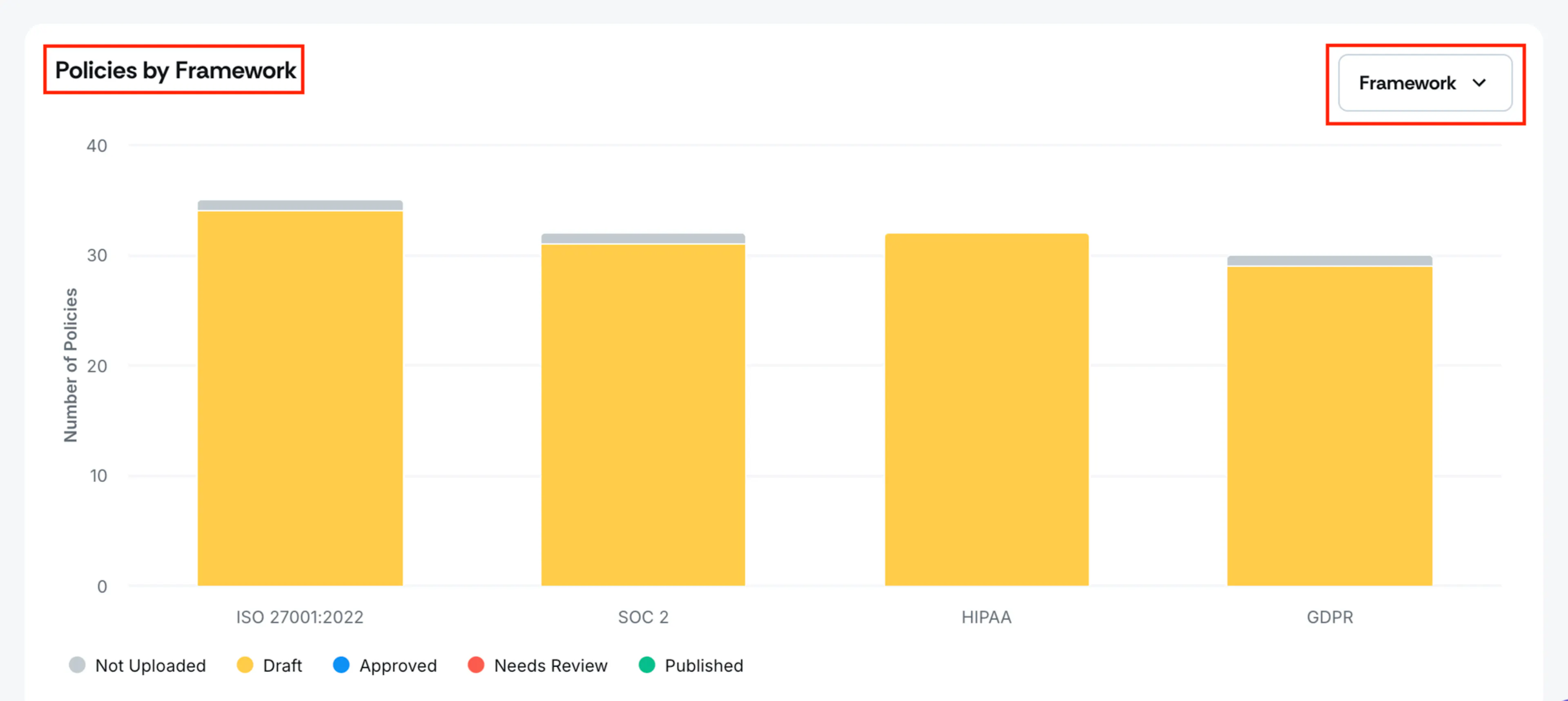
The Policies by Framework chart shows how many policies are mapped to each compliance framework, broken down by status. Click any bar to go to the All Policies page with the framework and status filters already applied.
Heads Up!
Use the dropdown above each chart to switch the view between Assignee, Department, and Framework.
How To Access the All Policies Page
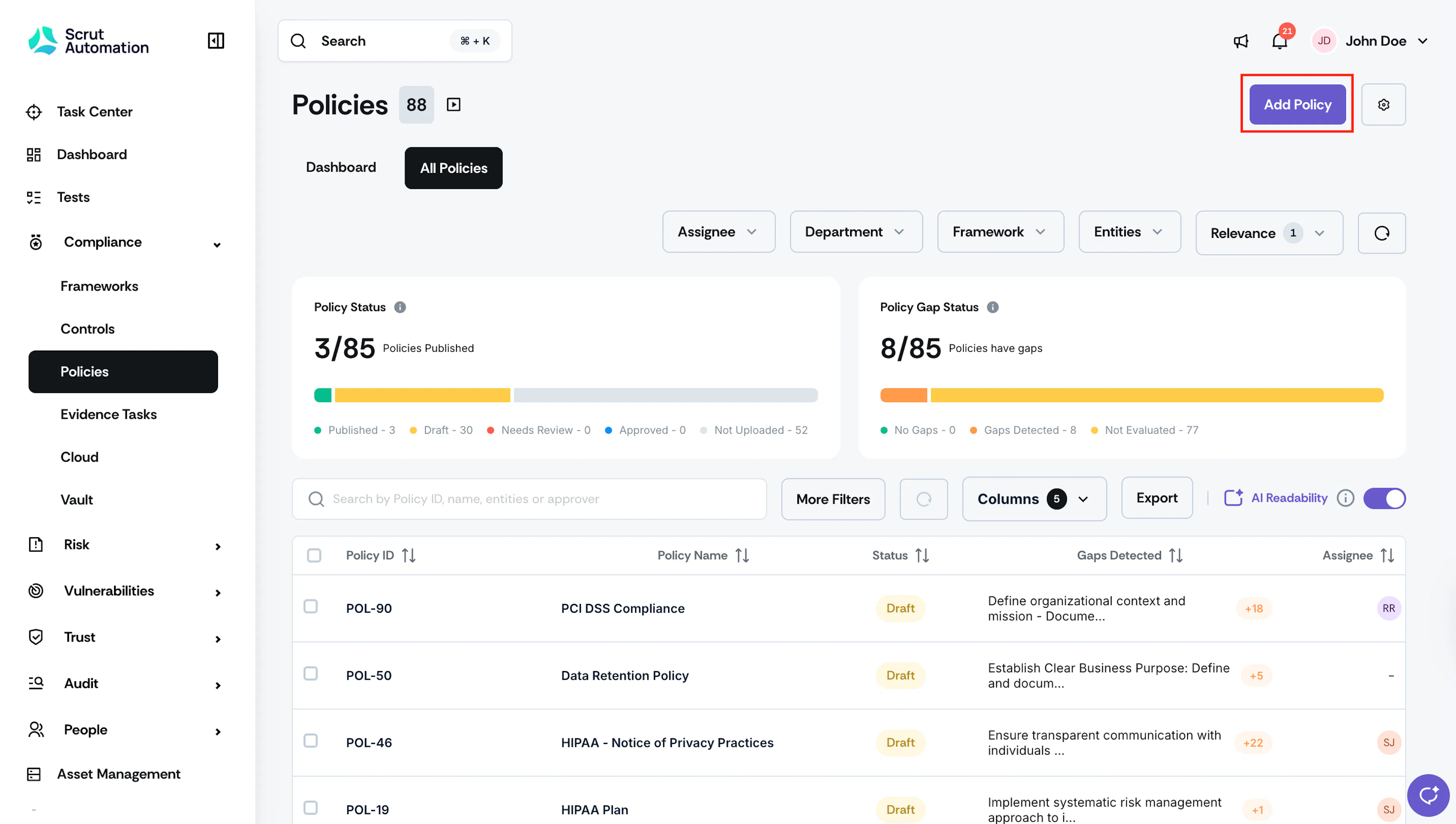
Sign in to Scrut and click Compliance → Policies on the left navigation panel. Click the All Policies tab. Once you’re on this page, you can perform the following key actions:
Create Custom Policies
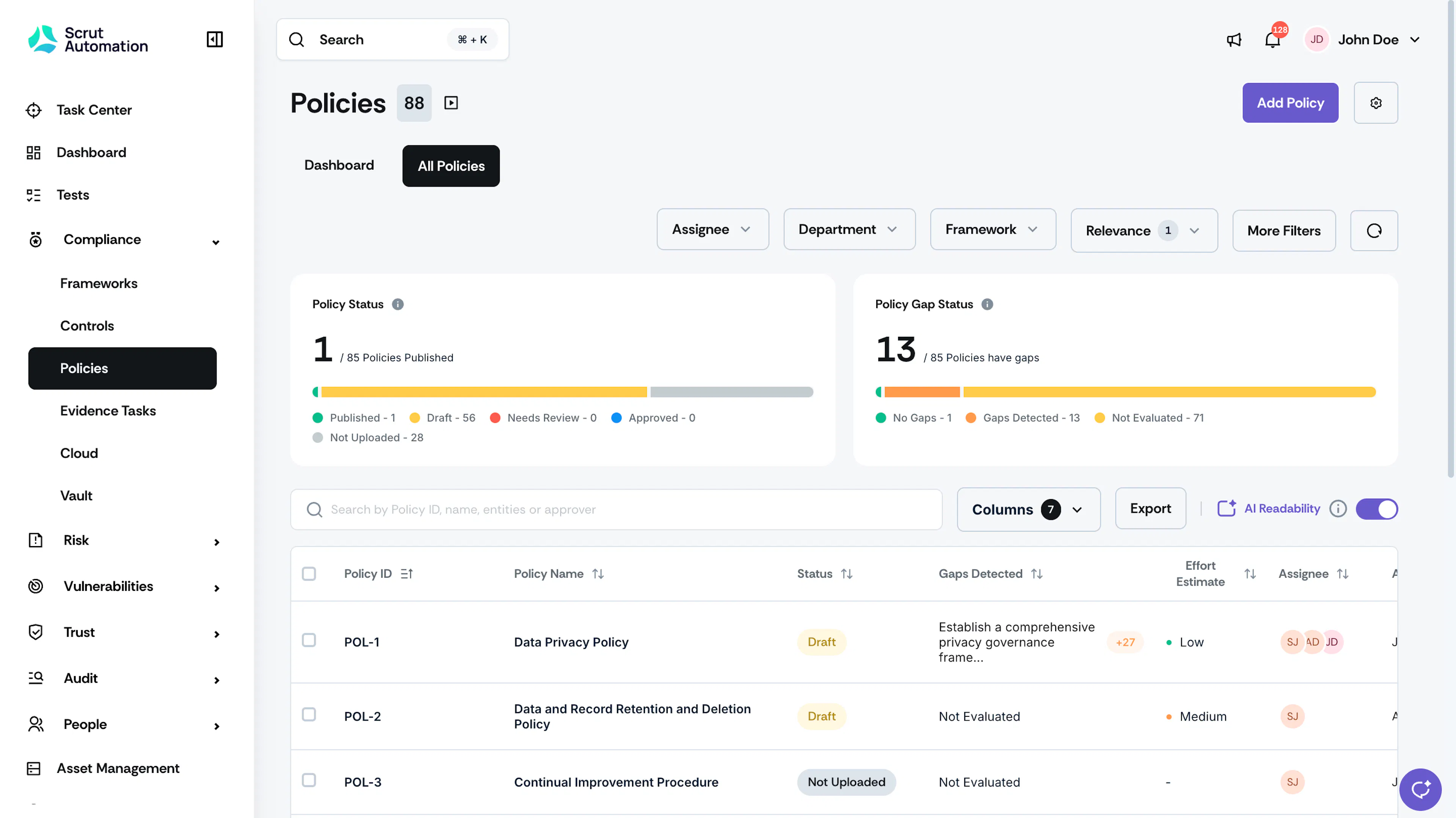
Click the Add Policy button on the top-right to create a custom policy. Refer to this guide for more information on creating custom policies.
Status Cards
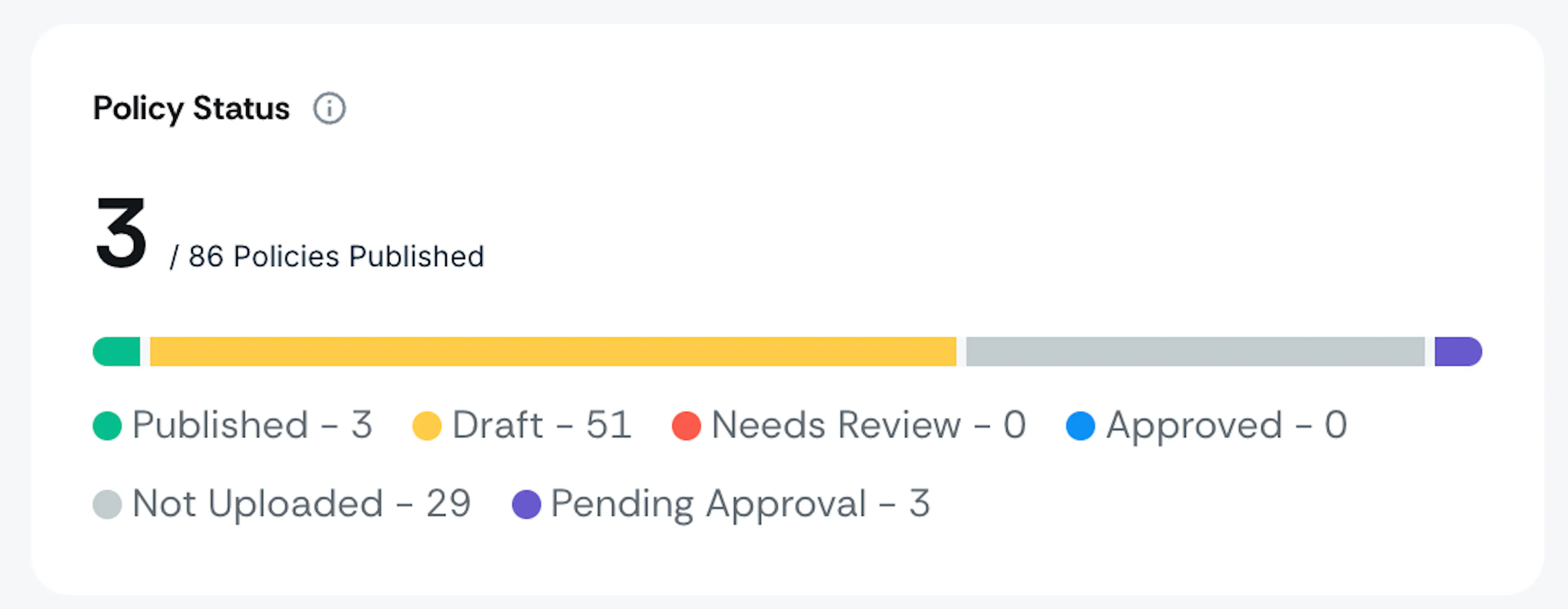
The Status cards show the number of policies under each status. See here to learn more about each policy status.
Note:
Policies move to the Approved status only when the policy approval workflow is turned on.
Table Filters

Use the filters at the top of the table to find policies based on specific criteria:
- Assignee: Use this filter to view policies assigned to specific users. You can also check for policies that aren’t assigned to anyone, assigned to deactivated users, or assigned to you.
- Department: To find policies belonging to specific departments or policies that aren’t linked to any department.
- Framework: To view policies belonging to specific frameworks. Click on No Framework to display all policies not linked to any frameworks.
- Entities: To view policies belonging to specific entities.
- Relevance: To view policies marked as “Relevant” and “Not Relevant.”
Pro Tip!
Click the circular reset icon to the right of the filters to remove all applied filters.
Policy Table
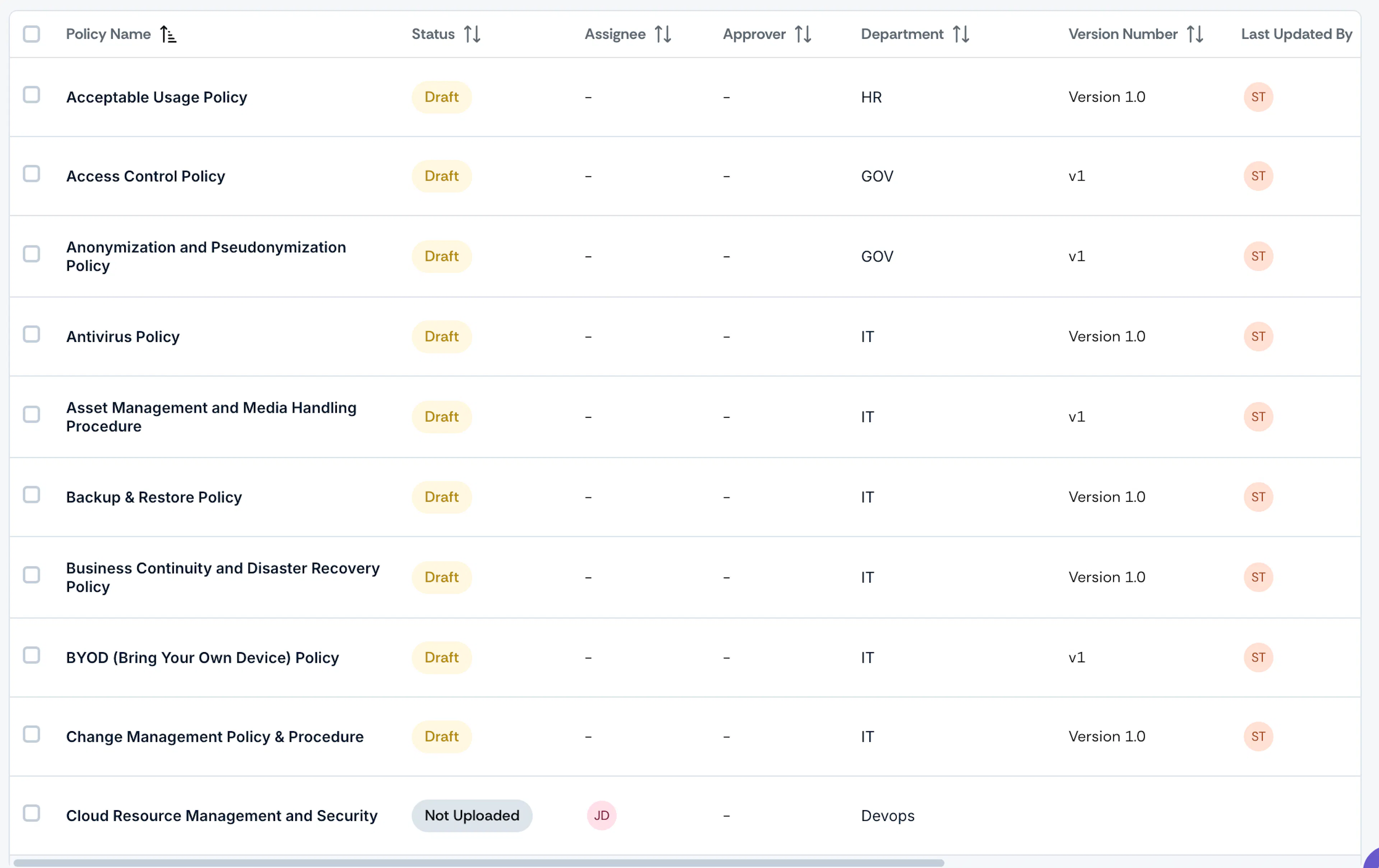
The Policy table provides a quick snapshot of each policy, including relevant metadata such as the policy name, status, assignee, approver, department, version number, and more. Clicking on any policy in the table takes you to the corresponding Policy Details page.
Search Bar
Use the search bar at the top of the table to search policies by name, entities, or approver.

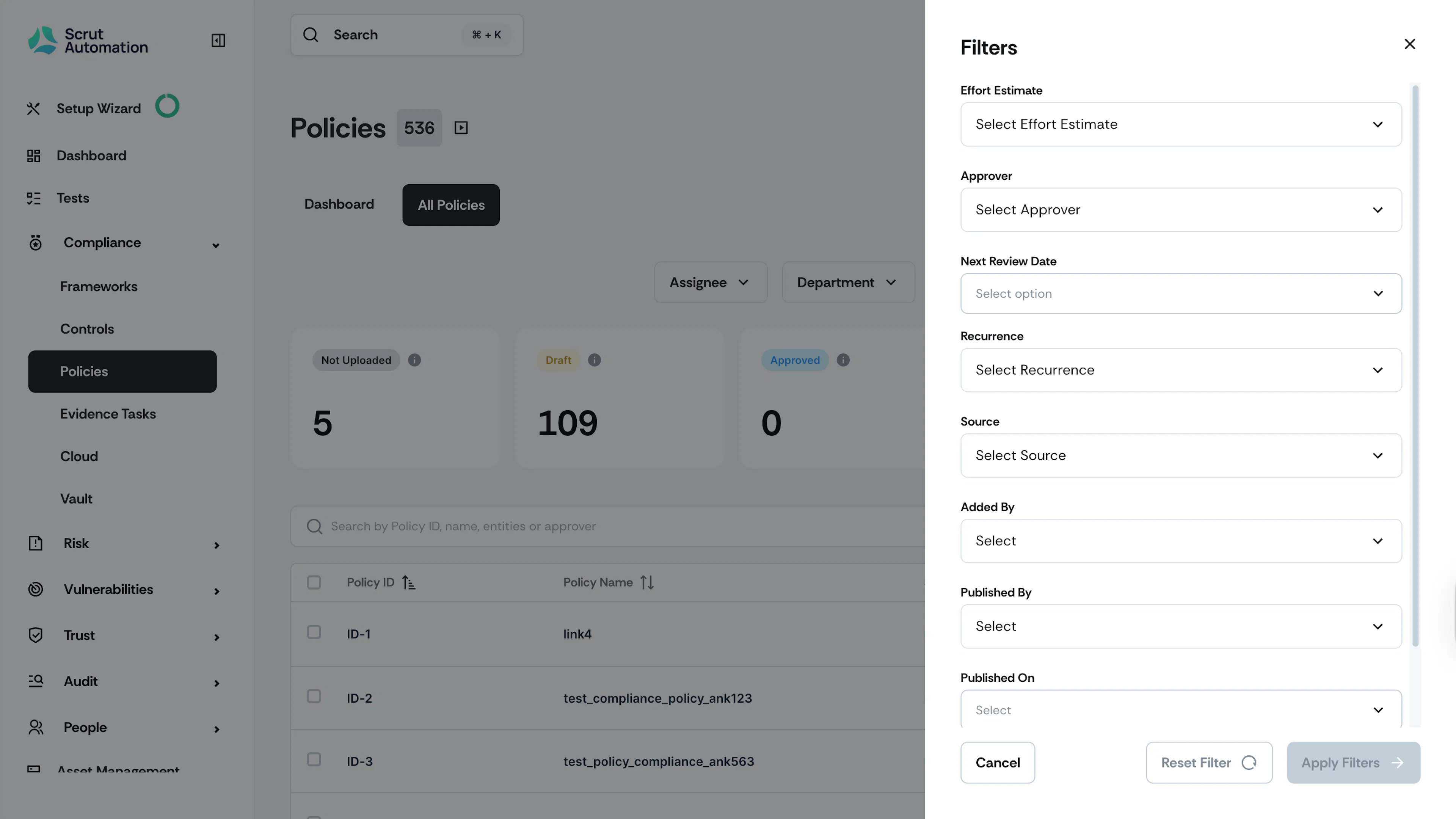
Filters
Filter policies based on:
- Effort Estimate: High, Medium, or Low
- Approver, Created By, Published By
- Next review date: Overdue, current month, next month, current quarter, next quarter, or custom range
- Recurrence: Annually, bi-annually, quarterly, monthly, or never
- Source: Scrut / Custom
- Published On
- Version Number
Column Selector
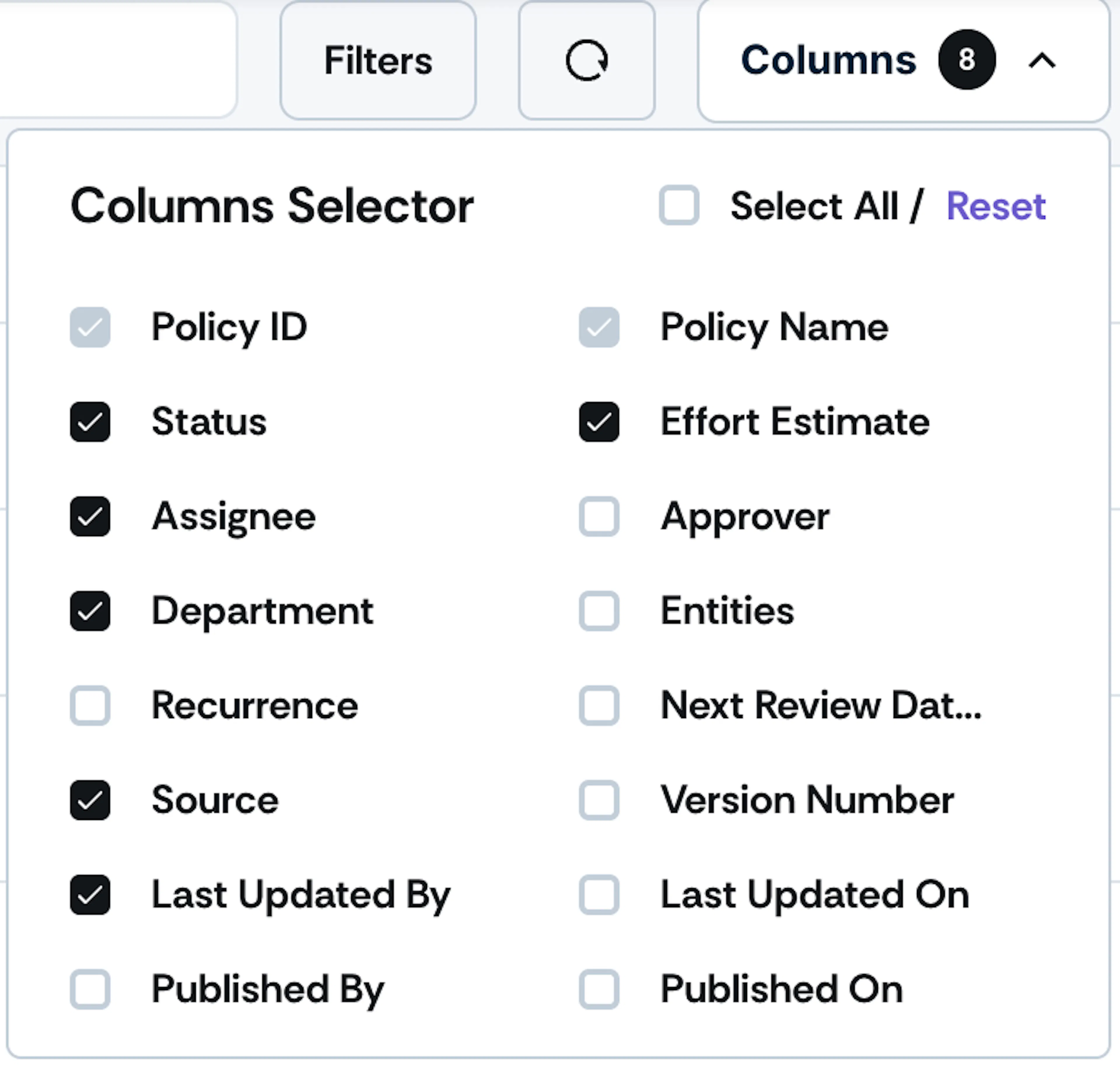
Use the column selector at the top of the table to choose the columns to be visible in the table.