

Link and Unlink Artifacts to a Control
Who can use this feature
- Supported on Foundation, Growth, and Scale plans
Linking Artifacts to a Control
Controls help keep your organization on track by reducing risks. For controls, you’ll need to provide proof of compliance. In the Scrut platform, these evidentiary materials are referred to as Artifacts, which encompass Policies, Evidence, and Tests.
To link artifacts to a control, follow these steps:
-
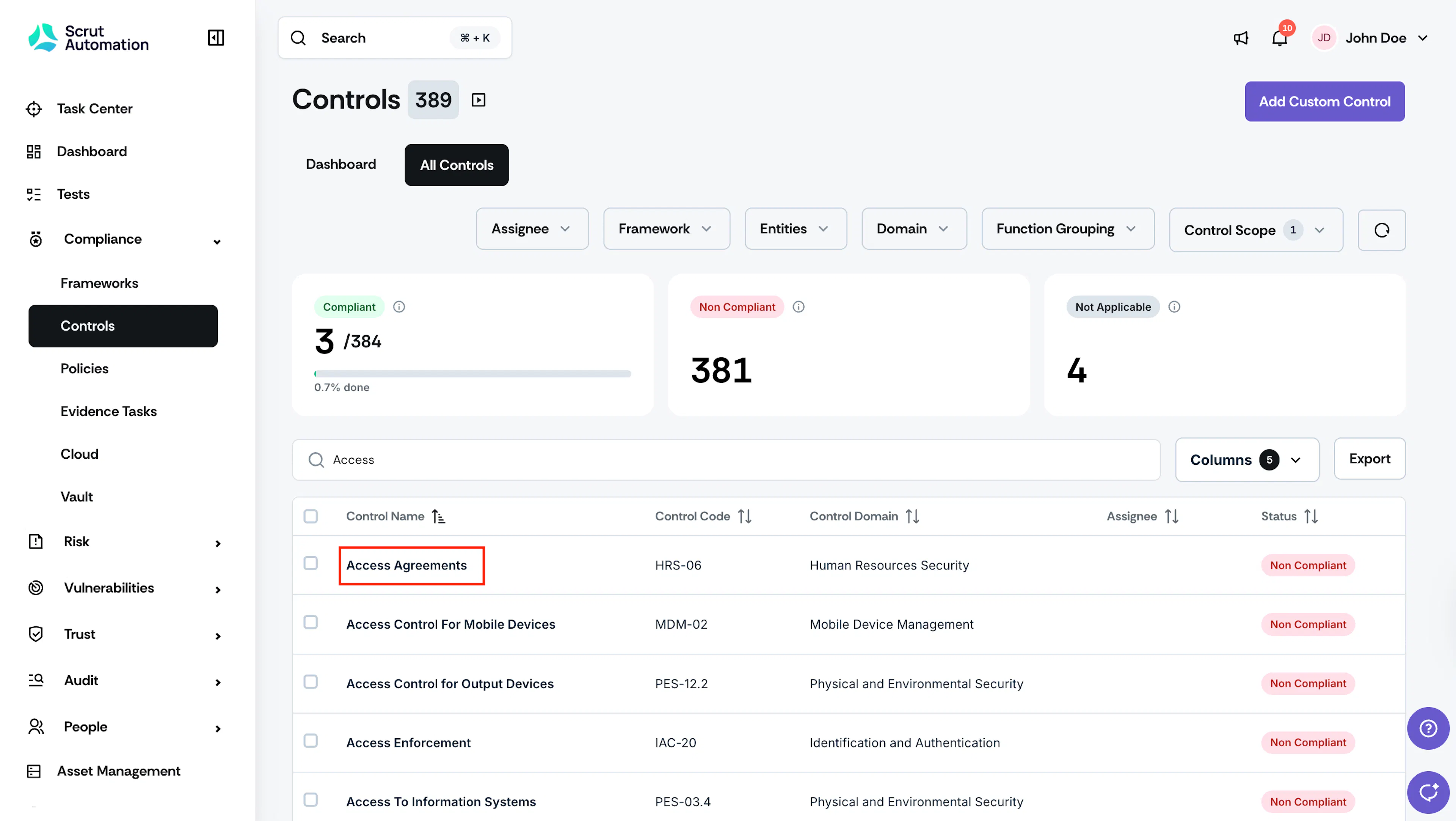
Sign in to Scrut, and click Compliance → Controls on the left navigation panel.
-
Go to the All Controls tab and select the control you want to link artifacts to.
-
Optionally, use the search bar at the top to quickly locate a specific control. Search by the control name or code.
-
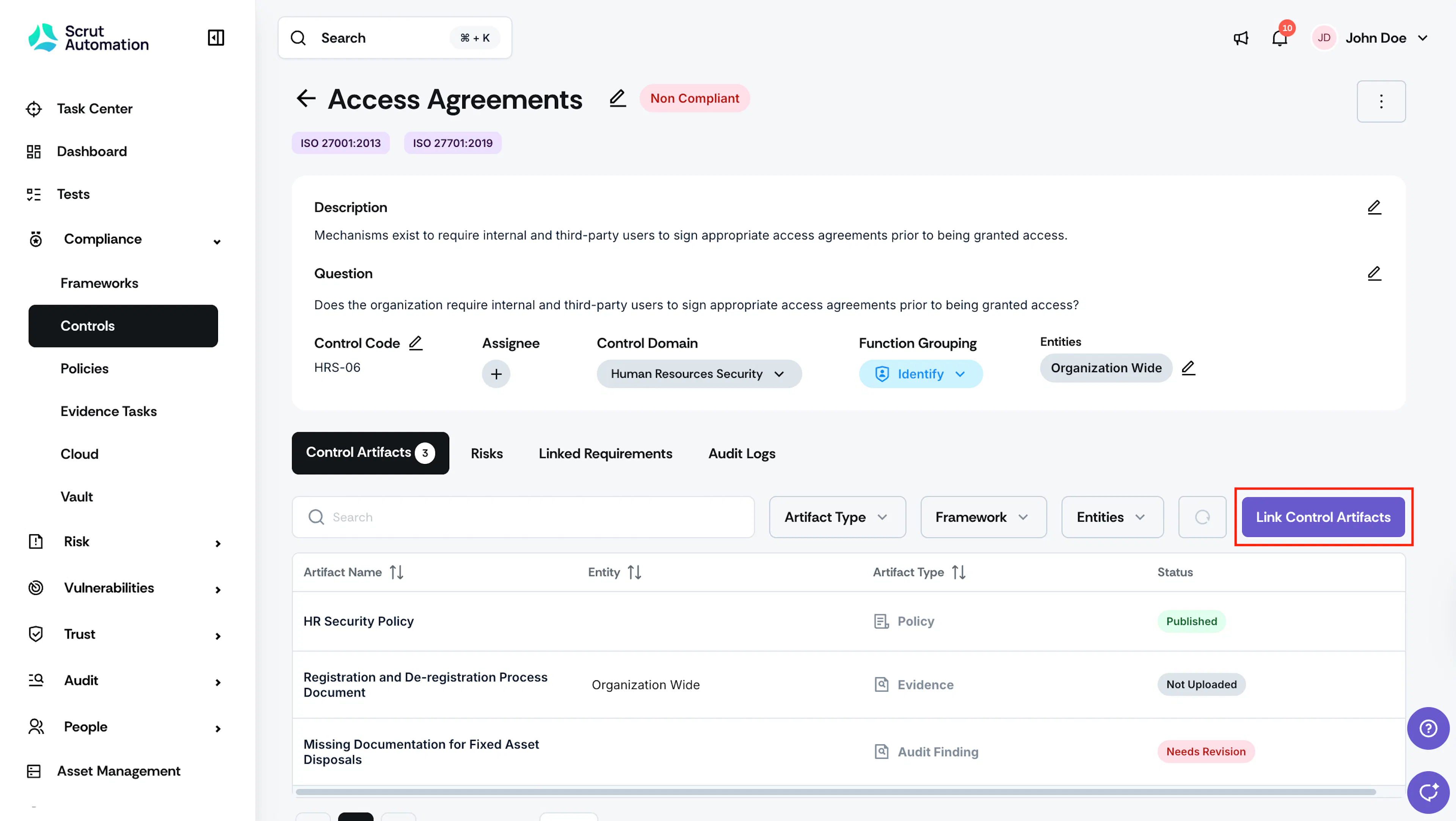
Scroll to the Control Artifacts tab and click the Link Control Artifacts button.
-
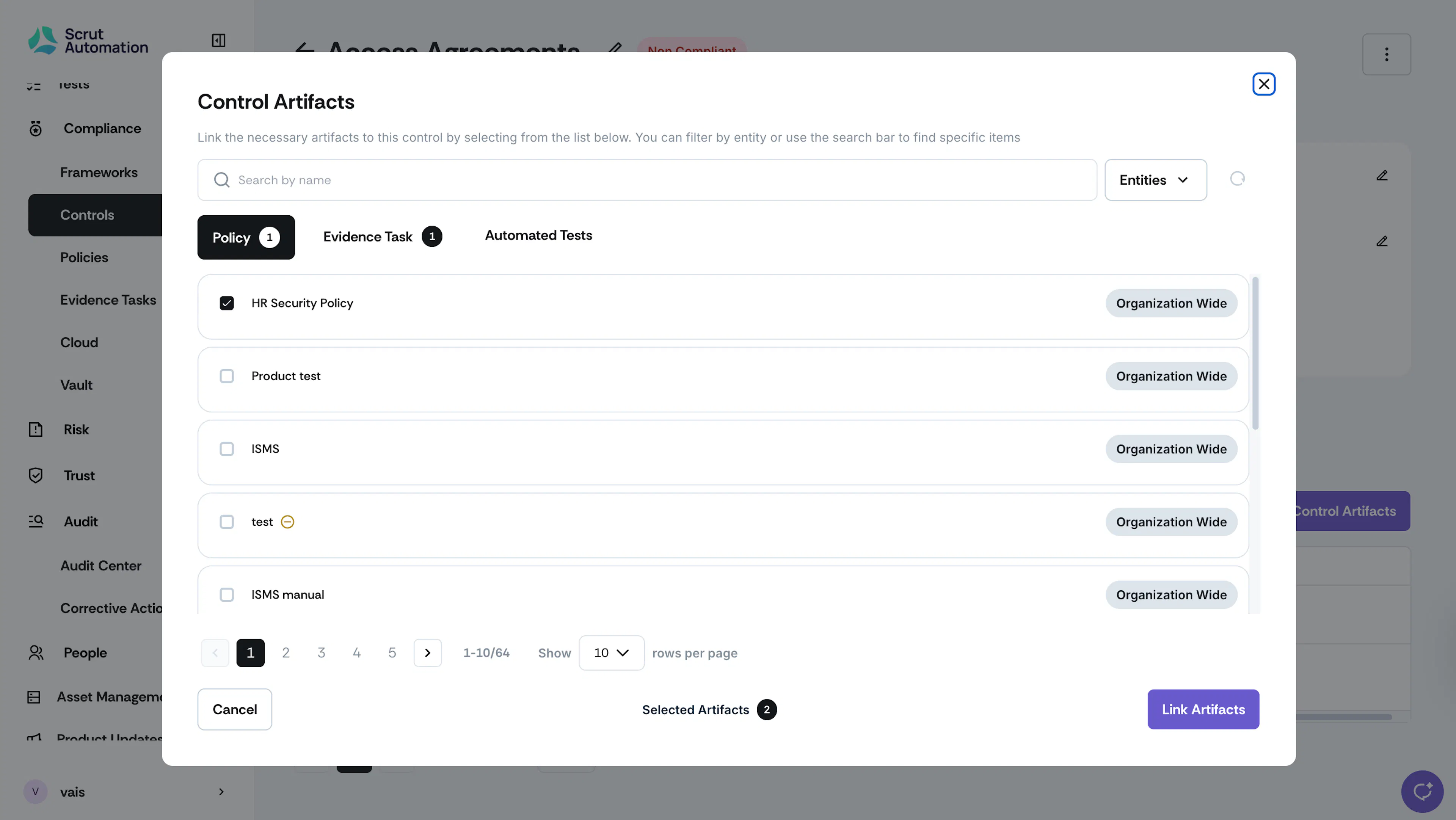
First, choose the type of artifact you want to link. You can link all three types - Policy, Evidence, and Test - to a control.
-
Select the checkbox or checkboxes that correspond to the artifact or artifacts you want to link.
-
Optionally, use the search bar at the top to narrow the list of artifacts.
-
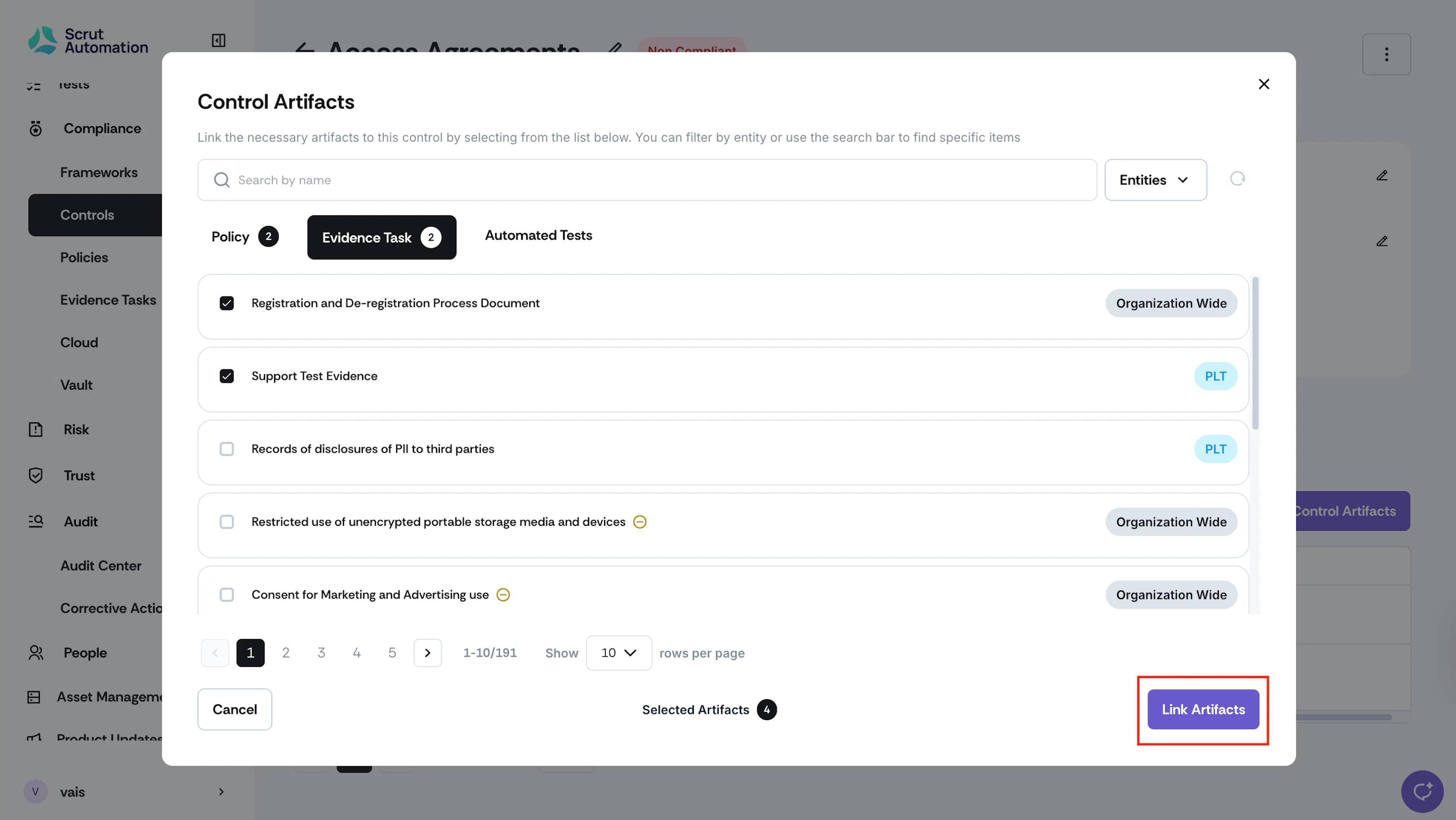
Click Link Artifact.
Unlinking Artifacts to a Control
To unlink an artifact from a control, follow these steps:
-
Sign in to Scrut, and click Compliance → Controls on the left navigation panel.
-
Go to the All Controls tab and select the control you want to link artifacts to.
-
Optionally, use the search bar at the top to quickly locate a specific control. Search by the control name or code.
-
Scroll to the Control Artifacts tab and click the Link Control Artifacts button.
-
De-select the checkbox or checkboxes that correspond with the artifact or artifacts you want to unlink.
-
Click Link Artifacts.