Controls: Walkthrough
Who can use this feature
- Supported on Foundation, Growth, and Scale plans
What are Controls?
Controls are the policies, procedures, and technical measures an organization implements to safeguard its assets, maintain data integrity, and comply with relevant regulations. They act as protective measures to reduce risks and enhance security.
Controls are fundamental to achieving compliance with various industry standards and regulations. They demonstrate an organization's commitment to data protection, risk management, and meeting the requirements set forth by relevant authorities.
Unified Controls Framework (UCF)
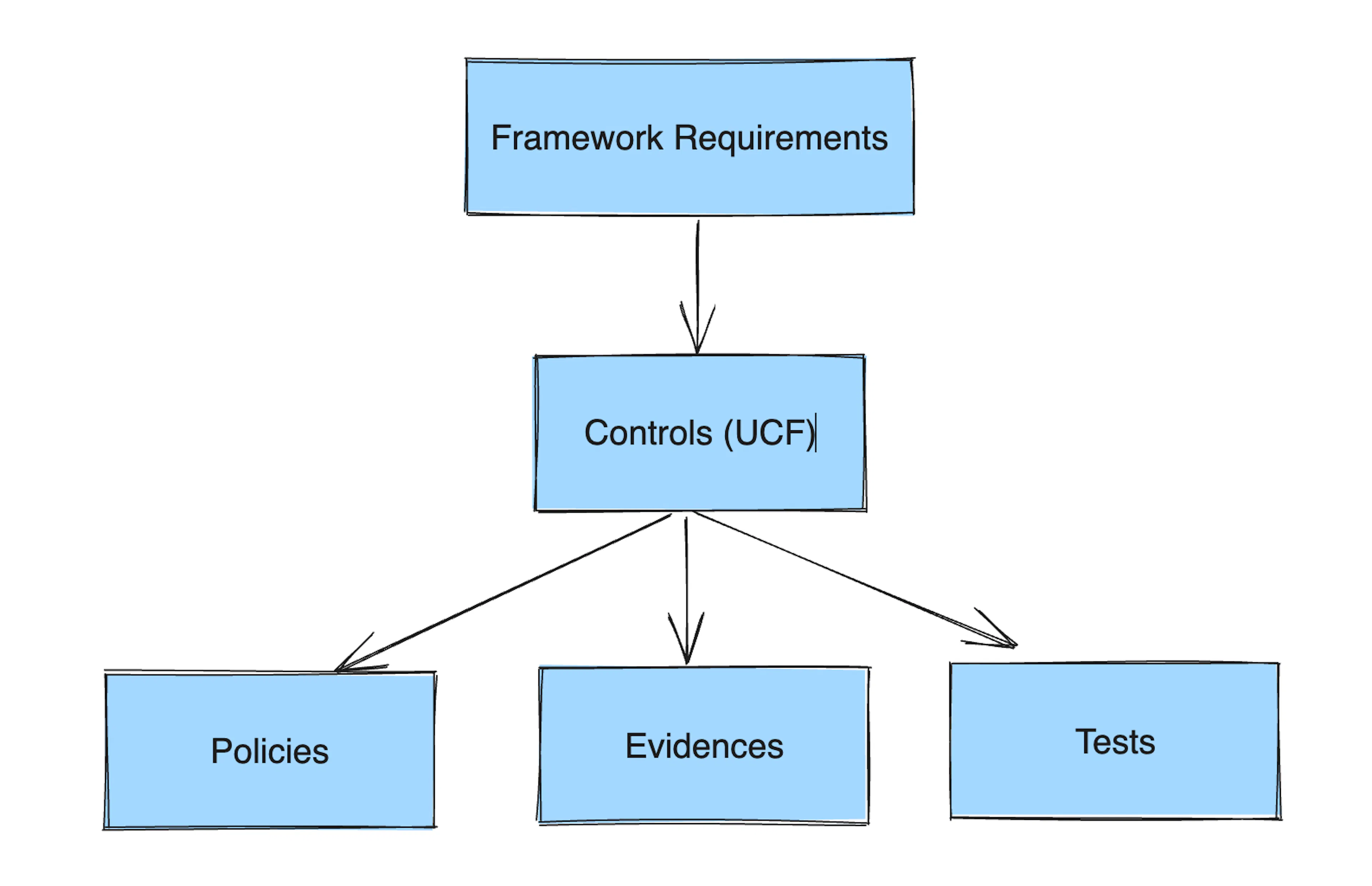
Scrut's proprietary Unified Controls Framework serves as a centralized repository of controls. It allows you to map different compliance requirements from various standards to a single set of controls, eliminating the need for redundant efforts. Controls can then be further mapped to artifacts, including policy, evidence, and test.
Here's a simplified flowchart that illustrates the relationship between framework requirements, controls, and artifacts in the UCF.
How To Access the Controls Dashboard
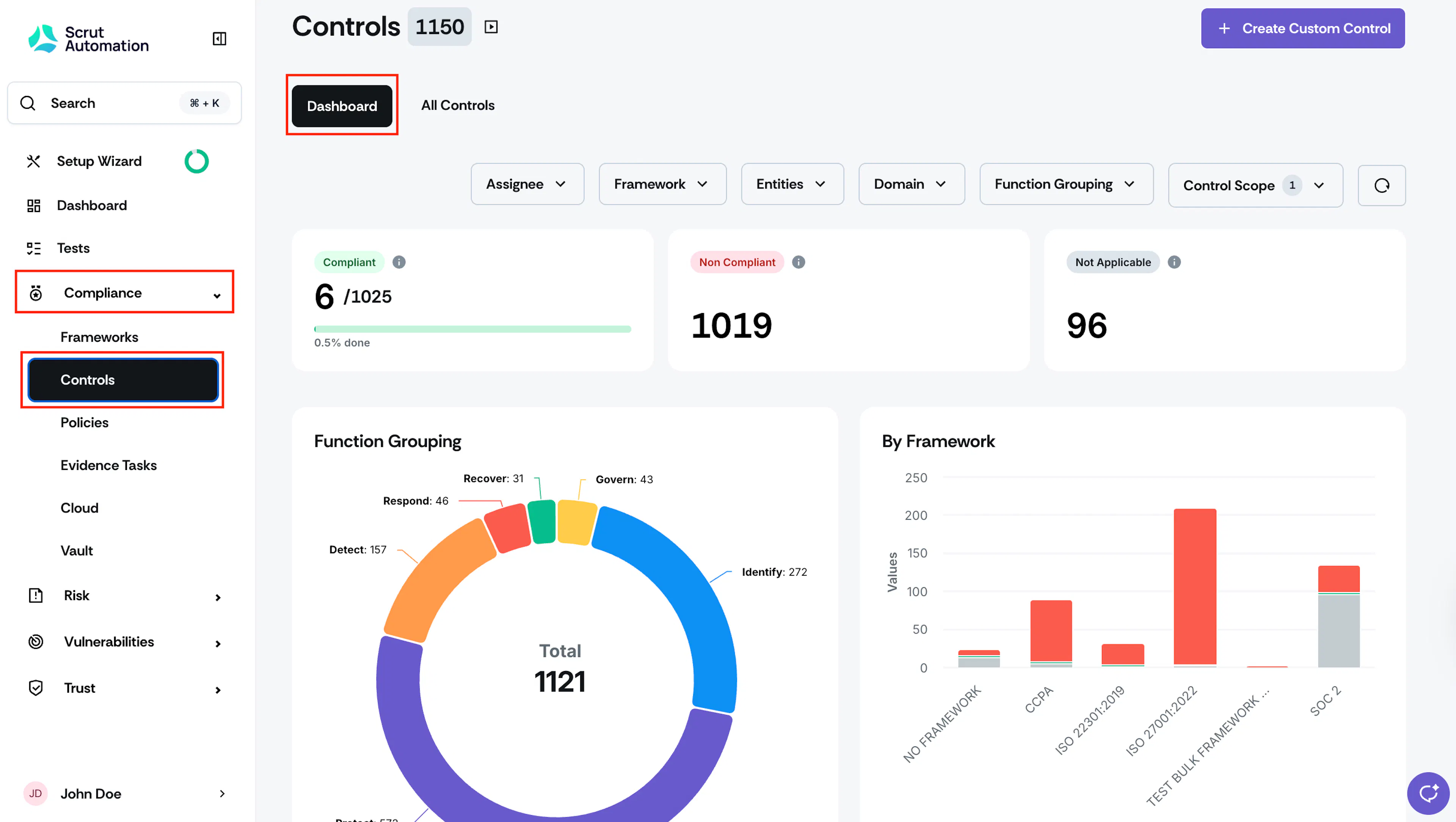
The Controls Dashboard provides an overview of your organization's control compliance, separated by various metrics in distinct sections. To access the controls dashboard:
Sign in to Scrut, and click Compliance → Controls on the left navigation panel.
Control Statuses
Control statuses help you track the compliance status of different controls within your organization. A control can be assigned one of three possible statuses: Compliant, Non-Compliant, or Not Applicable.
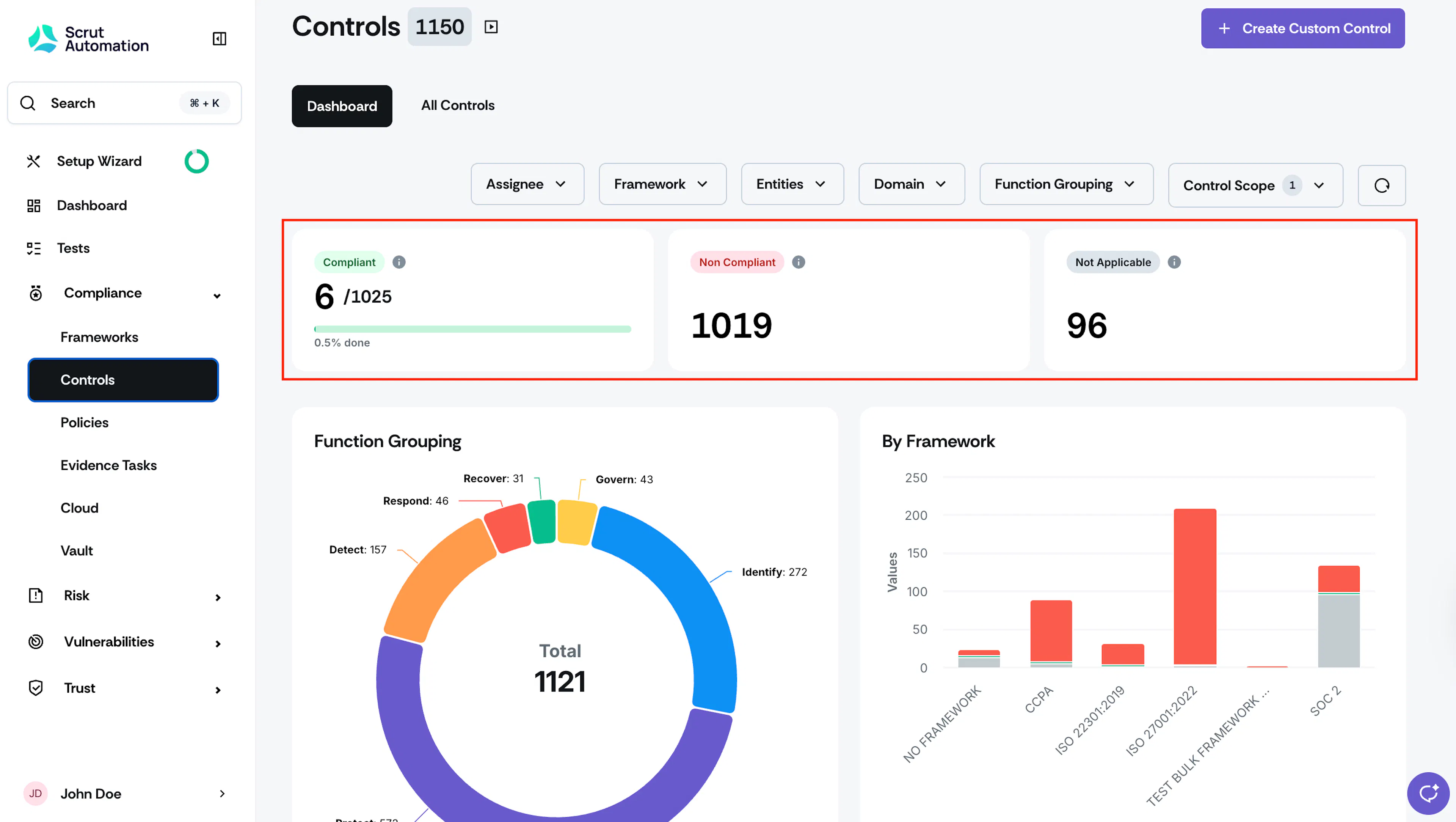
- Compliant: A control is considered Compliant when all the associated artifacts—policy, evidence, and test—are successfully published, uploaded, and compliant with the defined requirements. This status reflects that the control is being effectively implemented and monitored, and all necessary documentation is in place to demonstrate adherence to compliance standards.
- Non-Compliant: A control is marked as Non-Compliant if any one of the associated artifacts—policy, evidence, or test—is not published, uploaded, or is found to be non-compliant. This status indicates that the control's implementation is lacking in one or more areas, potentially leading to a compliance gap. It's important to address non-compliance promptly by rectifying the issues related to the incomplete or non-compliant artifacts.
- Not Applicable: The Not Applicable status is assigned to a control when it has been designated as out of scope for a specific context. Controls might be deemed not applicable if they are irrelevant to a particular process, system, or compliance framework.
Function Grouping
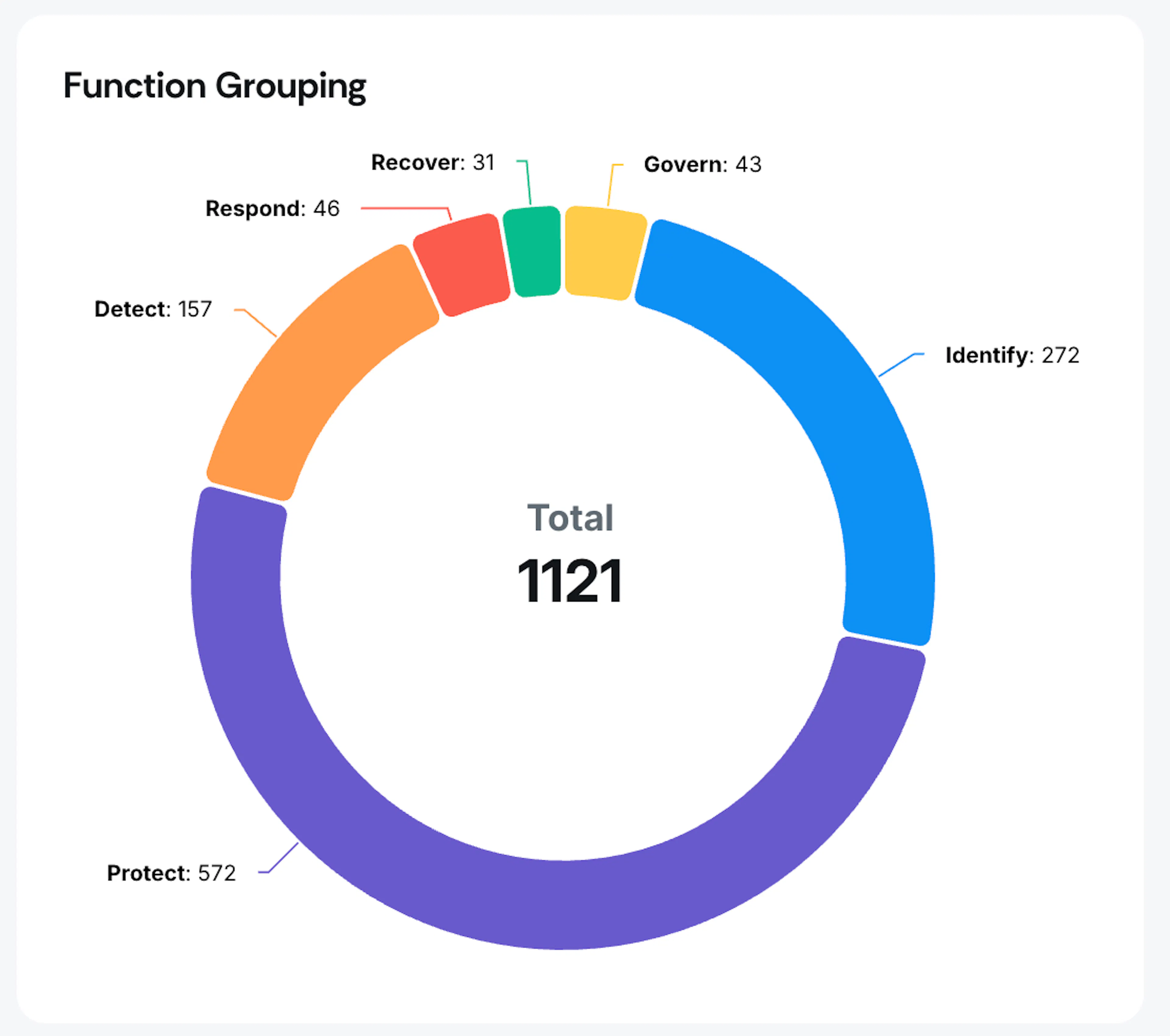
This graph categorizes controls into different functioning groups, such as: Identify, Detect, Recover, Respond, and Protect. Each of these functions plays a critical role in managing and mitigating cybersecurity risks.
- Identify: To develop an organizational understanding of managing and mitigating threats to systems, assets, data, and capabilities, such as assessments, asset management, governance, etc.
- Protect: Develop and implement the appropriate safeguards to ensure the delivery of critical services, including access control, data security, and security awareness.
- Detect: Develop and implement activities to continuously monitor and detect the occurrence of a threat.
- Respond: Develop and implement the appropriate measures to take action when a threat has been detected. The response methods include communication, response planning, analysis, mitigation and improvements.
- Recover: Develop and implement the appropriate activities to maintain plans for resilience and to restore any capabilities or services that were impaired due to an event or threat.
By Framework
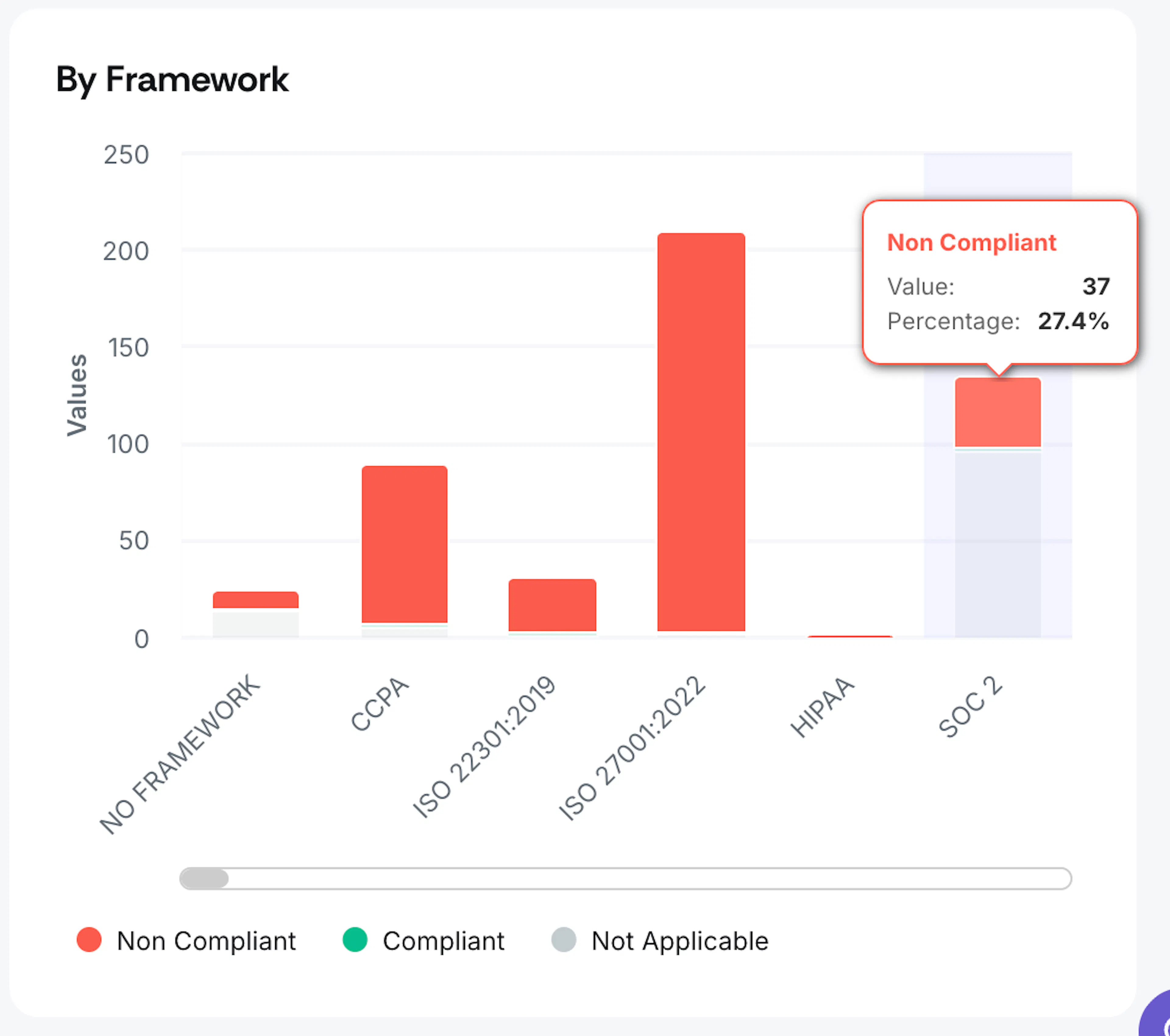
This section helps you understand the control compliance based on frameworks. This allows you to compare each framework's compliance based on the controls.
Pro Tip!
The graph is interactive. You can take the following actions:
- Hover over the graph to see data for Compliant, Non-Compliant and Not Applicable controls for a framework.
- Click on a specific data point to go directly to the corresponding page with the filters applied. For example, if you click on the non-compliant part in the CCPA bar, it takes you to the list of non-compliant controls for CCPA.
Assessing Controls List View
The Controls List View provides a comprehensive list of all Controls within your organization.
- Click Compliance → Controls on the left navigation panel.
- Go to the All Controls tab.
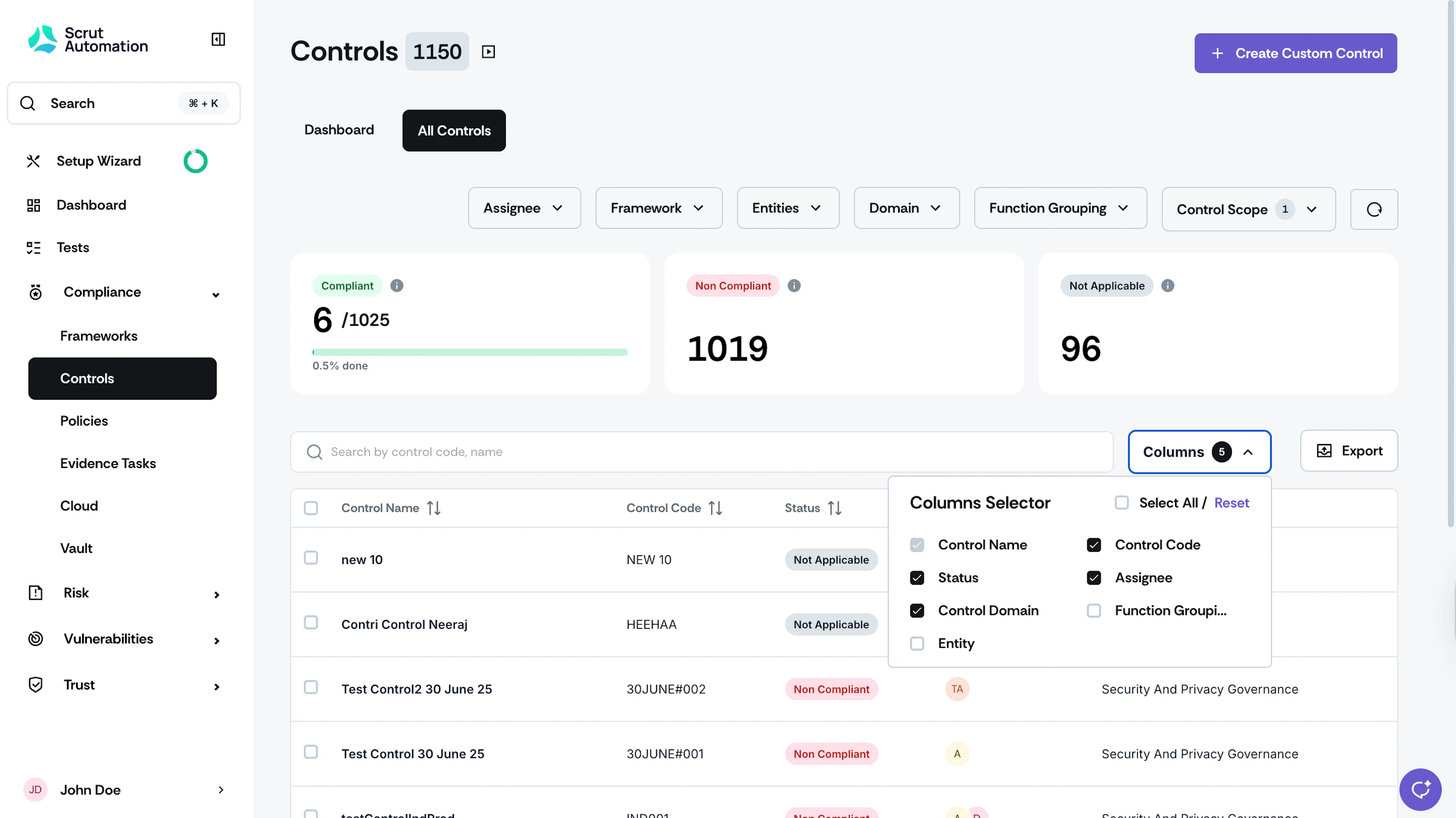
Filters
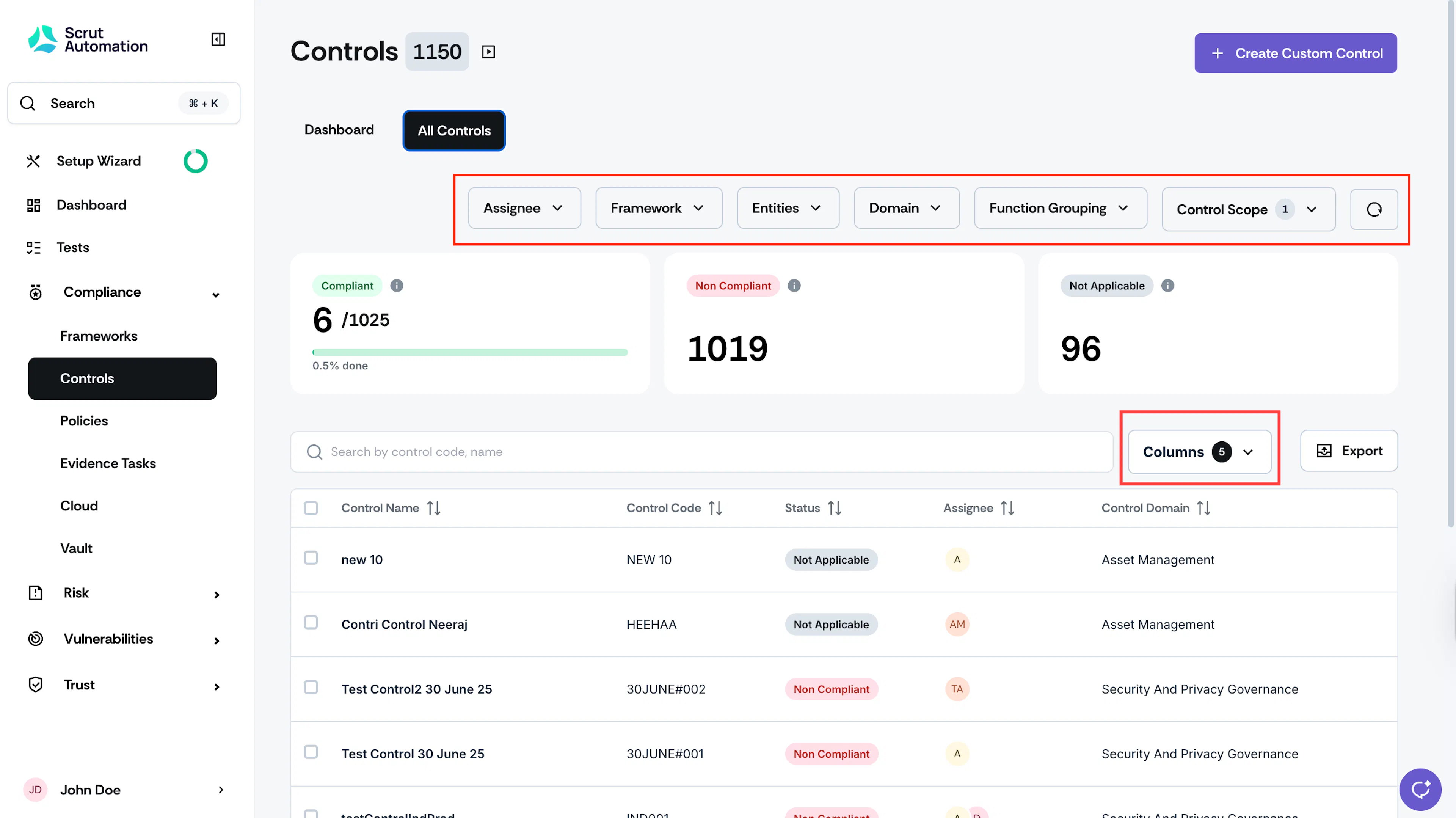
You can filter controls based on Assignee, Framework, Entity, Domain, Function Grouping, and Control Scope. Click the circular reset icon to remove all applied filters.
Note: By default, the Control Scope filter includes only controls “In Scope.” You can also use this filter to view controls that are “Out of Scope.”
Columns Selector
The Columns button allows you to customize the control details displayed in the table. Select and deselect columns, as per your requirements.
Note: The Control Name is a default option, and it cannot be removed.