Create, Upload, or Link Policy Content
Who can use this feature
- Supported on Foundation, Growth, and Scale plans
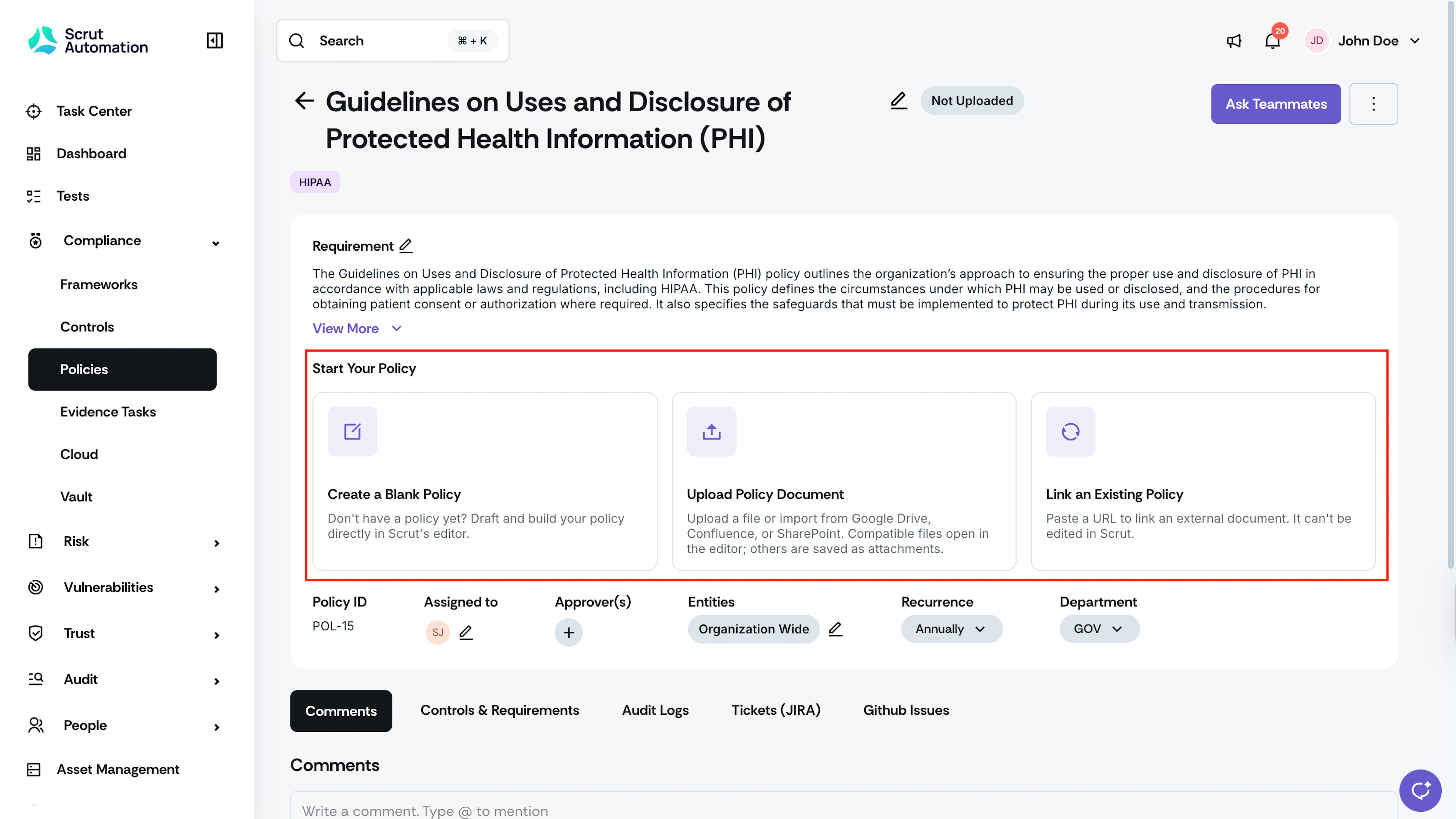
Once a policy has been created, the next step is to add the policy content. You can do it in one of the following ways:
1: Create a Blank Policy
When to use: Use this method to draft policies from scratch or customize Scrut's policy templates to suit your organizational requirements.
-
Sign in to Scrut, click Compliance → Policies via the left navigation panel.
-
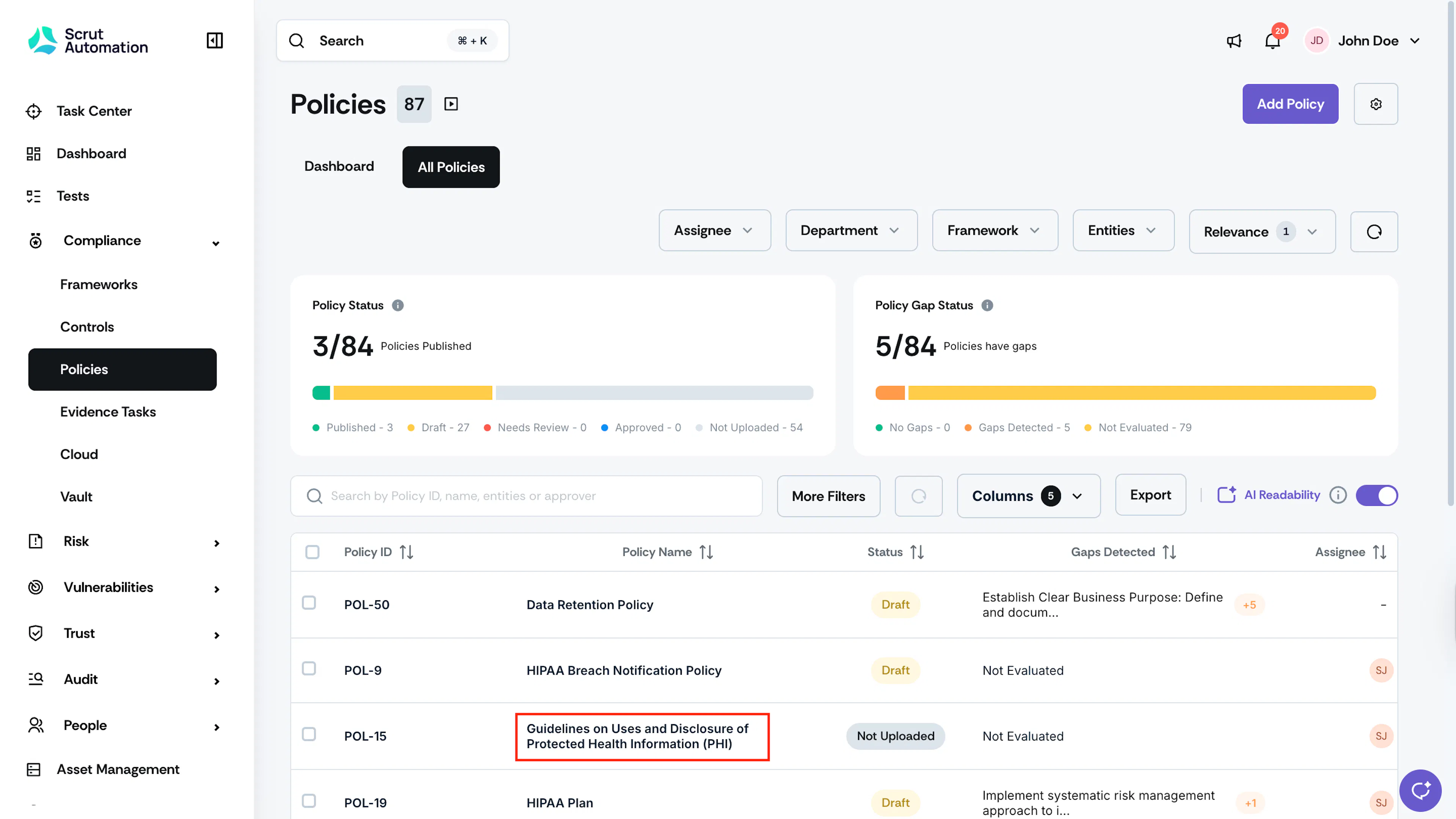
Go to the All Policies tab.
-
Click on a policy that you want to work on.
-
Select Create Policy to launch the policy editor.
-
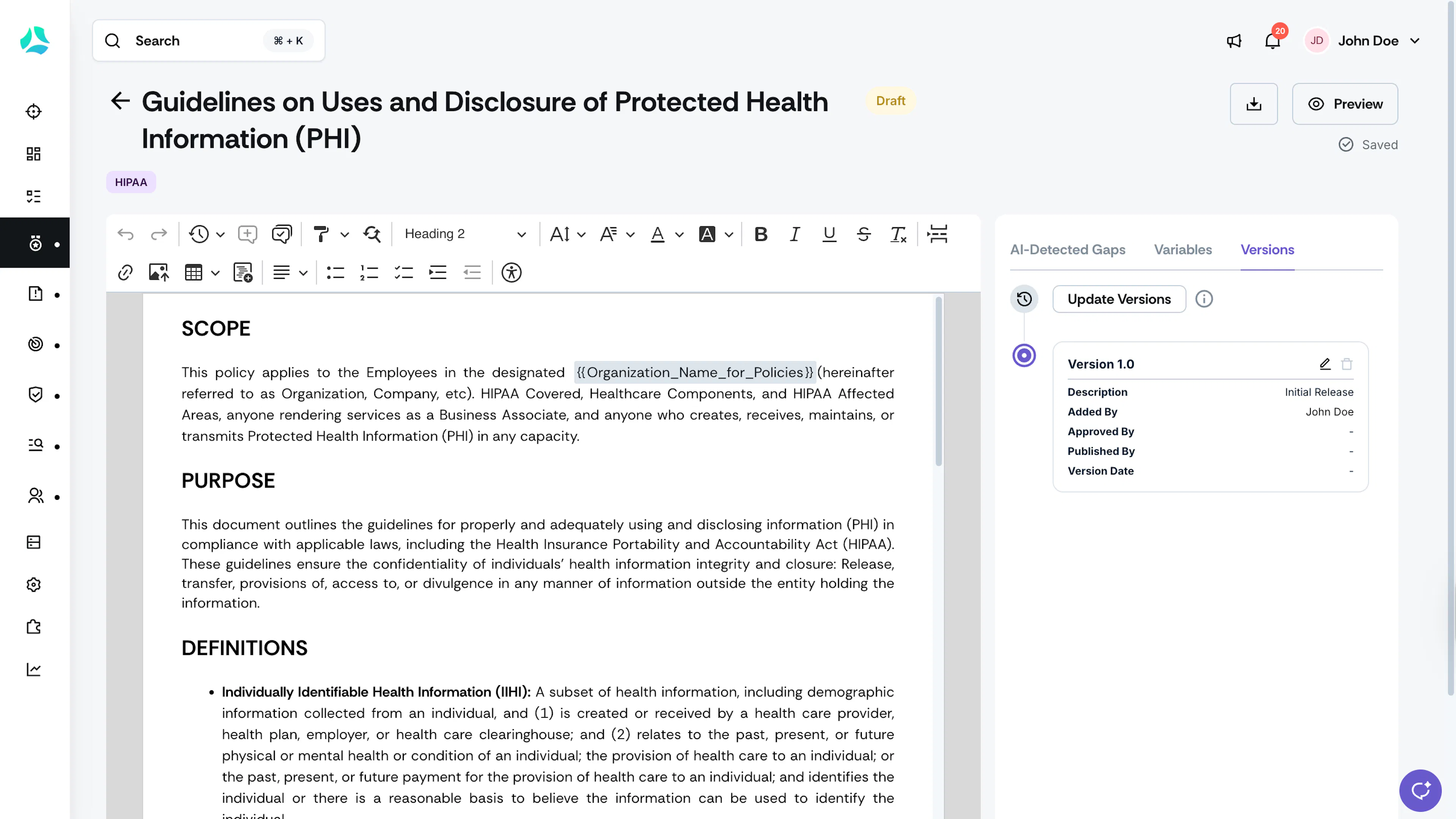
Scrut provides starter templates to help you get started. If a template is available, it will open in the editor. If not, you can start from scratch.
-
Use the editor to draft and format the policy content, adding headings, paragraphs, lists, and other elements as needed.
Note:
The policy remains in Draft state. It must be approved and published so that associated control status changes to compliant.
2: Upload Policy Document
When to use: Choose this method when you have an existing policy document you want to bring into Scrut, either by uploading a file from your computer or by syncing directly from an integrated tool such as Google Drive, SharePoint, or Confluence.
-
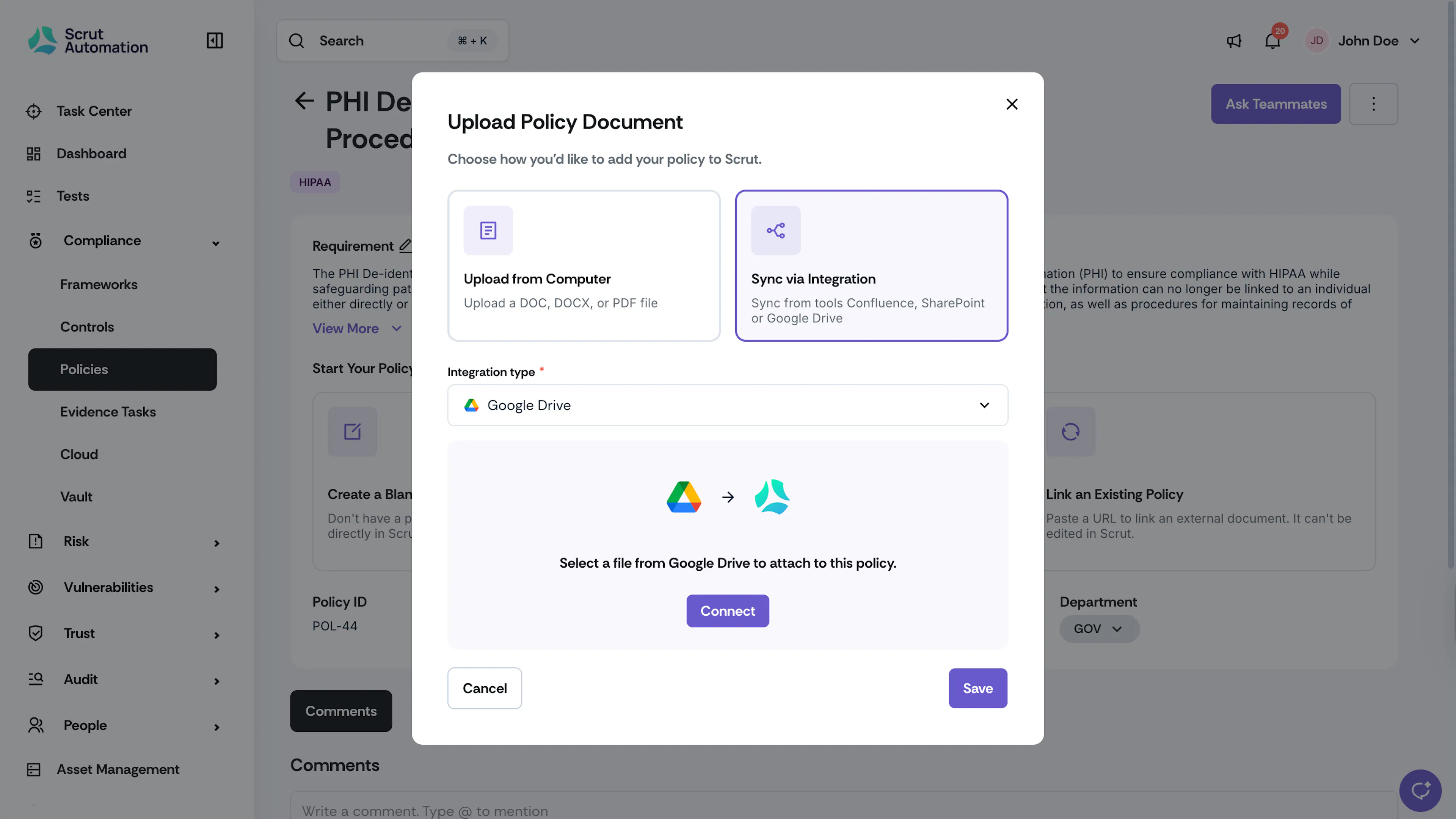
Click Upload Policy Document.
-
Choose one of the following options:
-
Upload from Computer: Upload a DOC, DOCX, or PDF file directly from your device. Compatible files can be opened in the Scrut policy editor; others are saved as attachments.
-
Sync via Integration: Sync a policy document from Confluence, SharePoint, or Google Drive. Select the integration from the Integration type dropdown, then click Connect to authenticate and browse your files.
Heads Up!
- When you sync policies from Confluence or SharePoint, you can add files as attachments only. These files are not editable in the policy editor.
- Google Drive is the only integration that allows you to import a compatible file straight into the editor (or choose attachment instead). For more information, see Import a Policy from Google Drive.
-
-
Click Save.
3: Link an Existing Policy
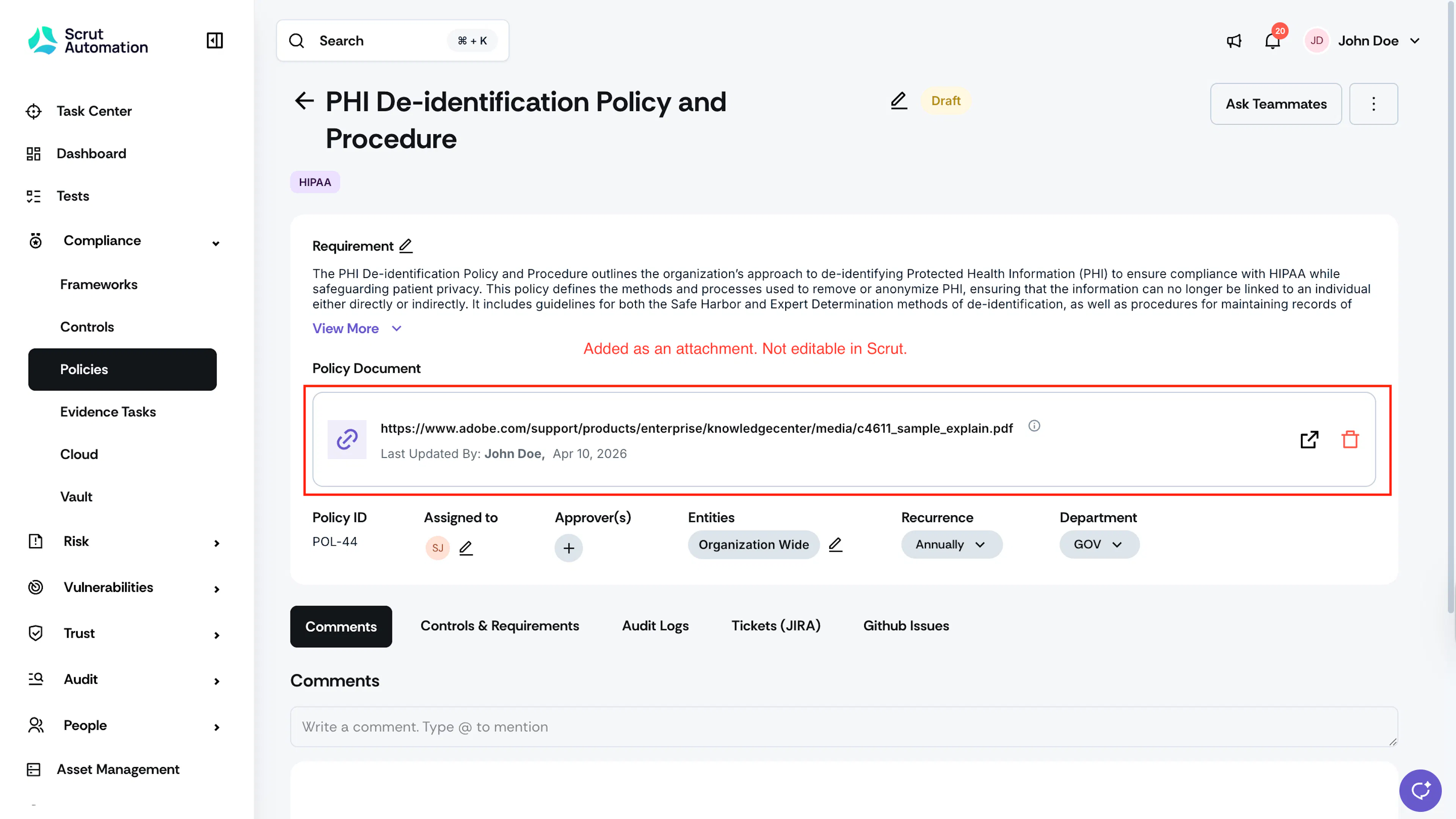
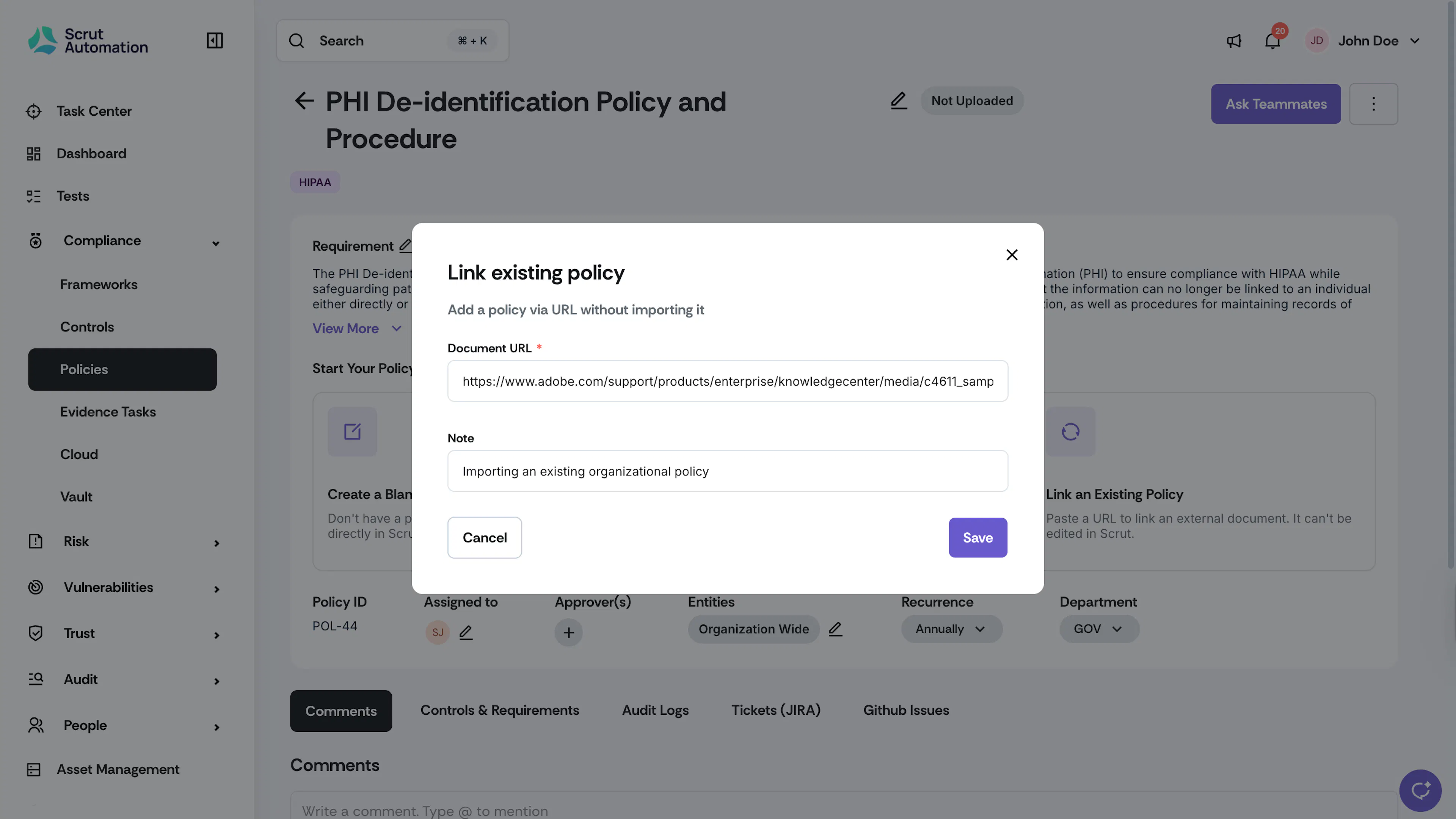
When to use: Use this method when your policy document is hosted externally, and you want to reference it in Scrut via a URL. Linked policies are added as attachments and cannot be edited in Scrut.
-
Click Link an Existing Policy.
-
Paste the URL of the external policy document in the link field.
-
Click Save.