

Edit Policy Name & Details
Who can use this feature
- Supported on Foundation, Growth, and Scale plans
In this article, we explain how to edit a policy’s name and its details:
Editing Policy Name
- Sign in to Scrut and click Compliance → Policies on the left navigation panel.
- Go to the All Policies tab and select your preferred policy.
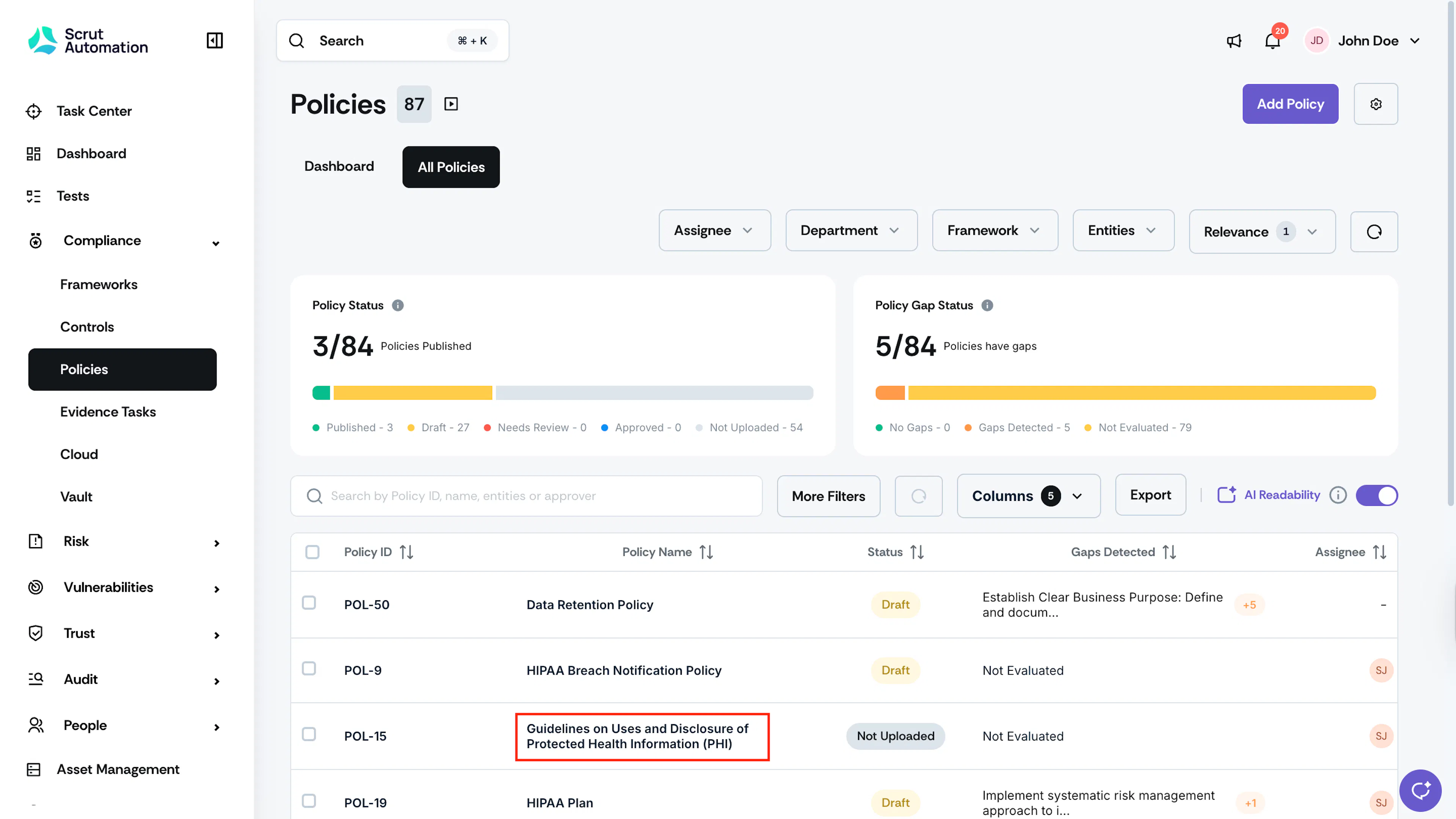
- Click the edit icon next to the policy name.
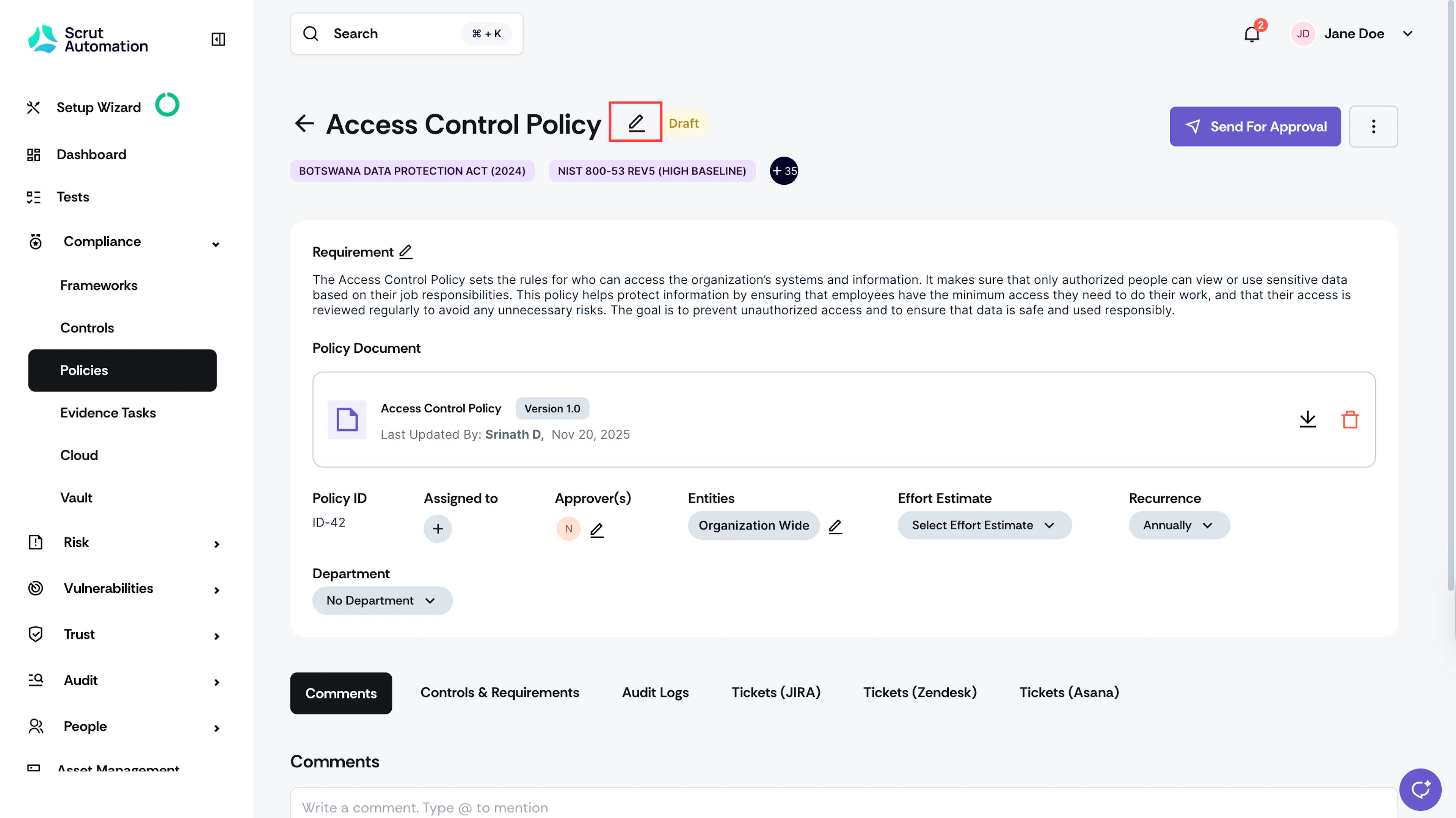
- Modify the policy name as required.
- Click Save.
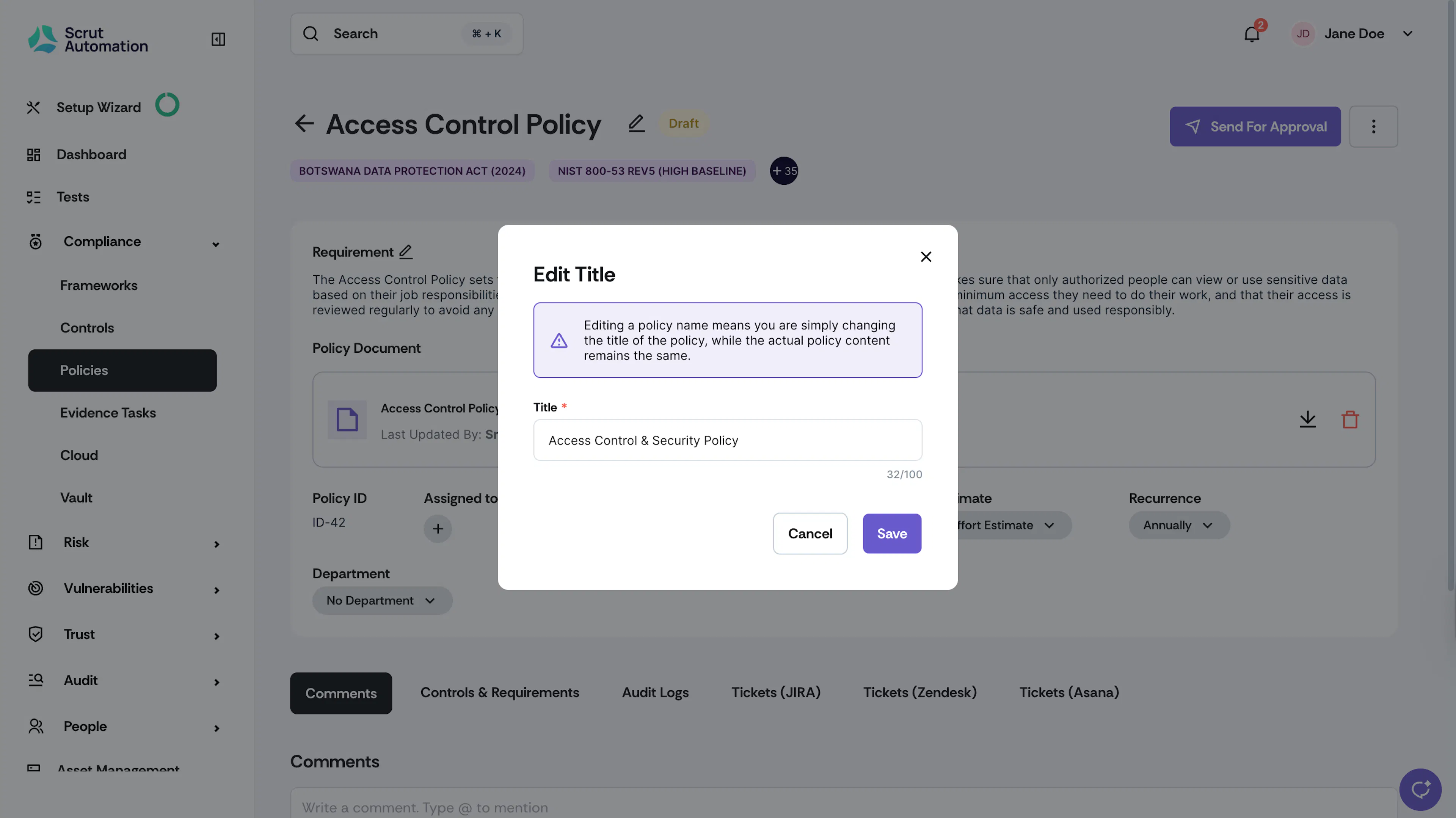
Heads Up!
You’re just changing the Policy Name (Title). The policy content will not be edited and remains the same.
Editing Details of a Single Policy
- Sign in to Scrut and click Compliance → Policies on the left navigation panel.
- Go to the All Policies tab and select your preferred policy.
- This brings you to the Policy Details page.
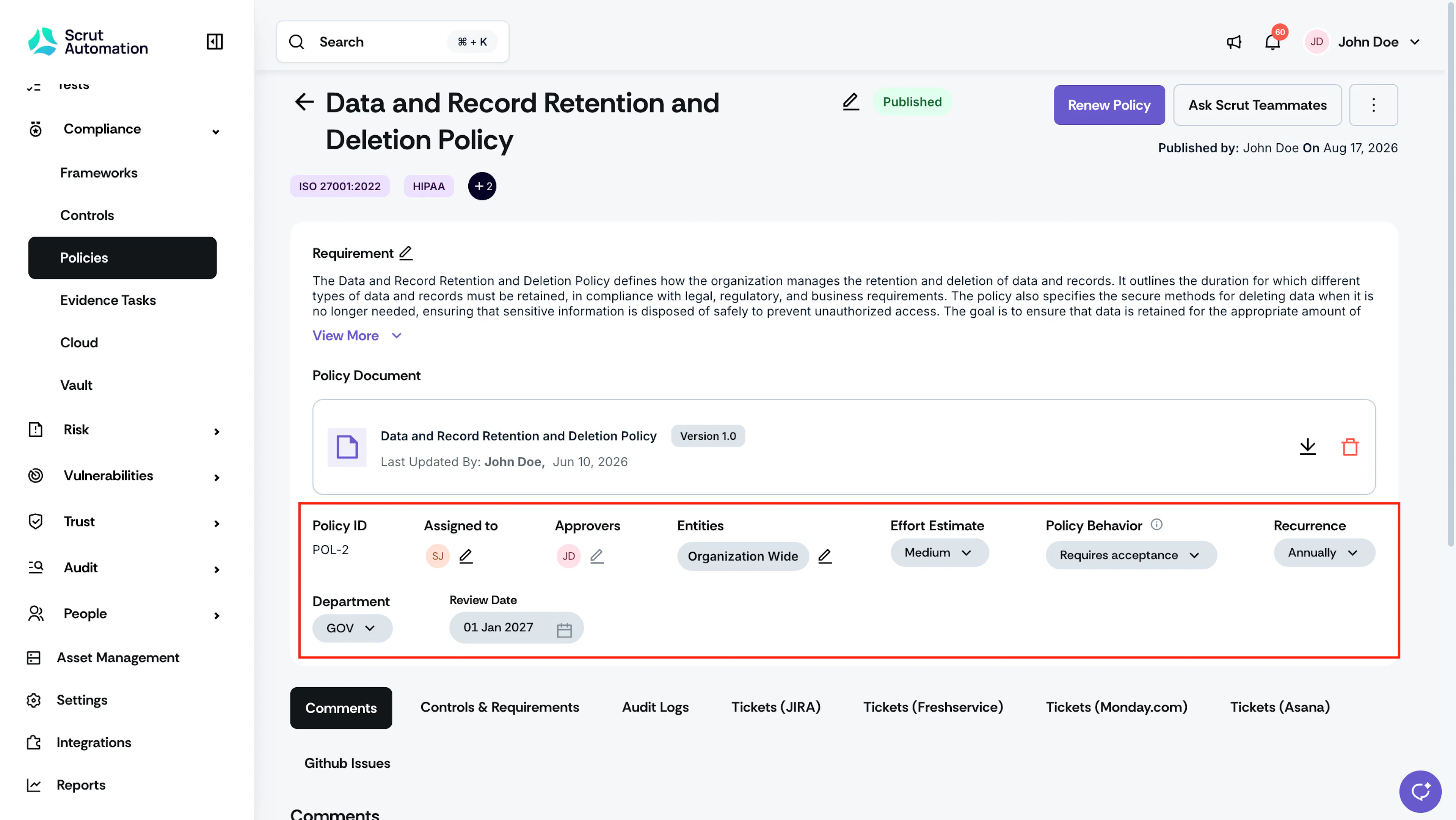
- You can edit policy details, such as:
- Requirement: Edit or modify policy requirements.
- Assigned To: Choose one or more assignees for the policy and click Make Primary to designate a Primary Assignee.
- Approvers: Add up to five approvers for a policy. Drag and drop approvers to arrange them in hierarchical order. You can update approvers only for policies that aren’t in the Published state.
- Entities: Link the policy to the desired entities.
- Effort Estimate: Select the estimated effort to implement this policy. Choose Low, Medium, or High.
- Policy Behavior: Set whether employees must accept the policy. Choose:
- Requires Acceptance to have employees formally acknowledge the policy as part of their checklist
- Read-only to share it as reference material without acceptance tracking. Requires Acceptance is the default for every policy.
- Department: Update the policy department.
- Recurrence: Set the policy recurrence schedule: Annually, Biannually, Quarterly, Monthly, or Never.
- Next Review Date: Set the next review date for the selected policies. This option is only available for policies in the Published or Needs Review status.
Editing Policy Details in Bulk
Scrut also gives you the flexibility to edit the details of multiple policies simultaneously:
- Go to the All Policies tab and select the policies that you want to edit.
- Click the Edit button at the top of the Policy table.
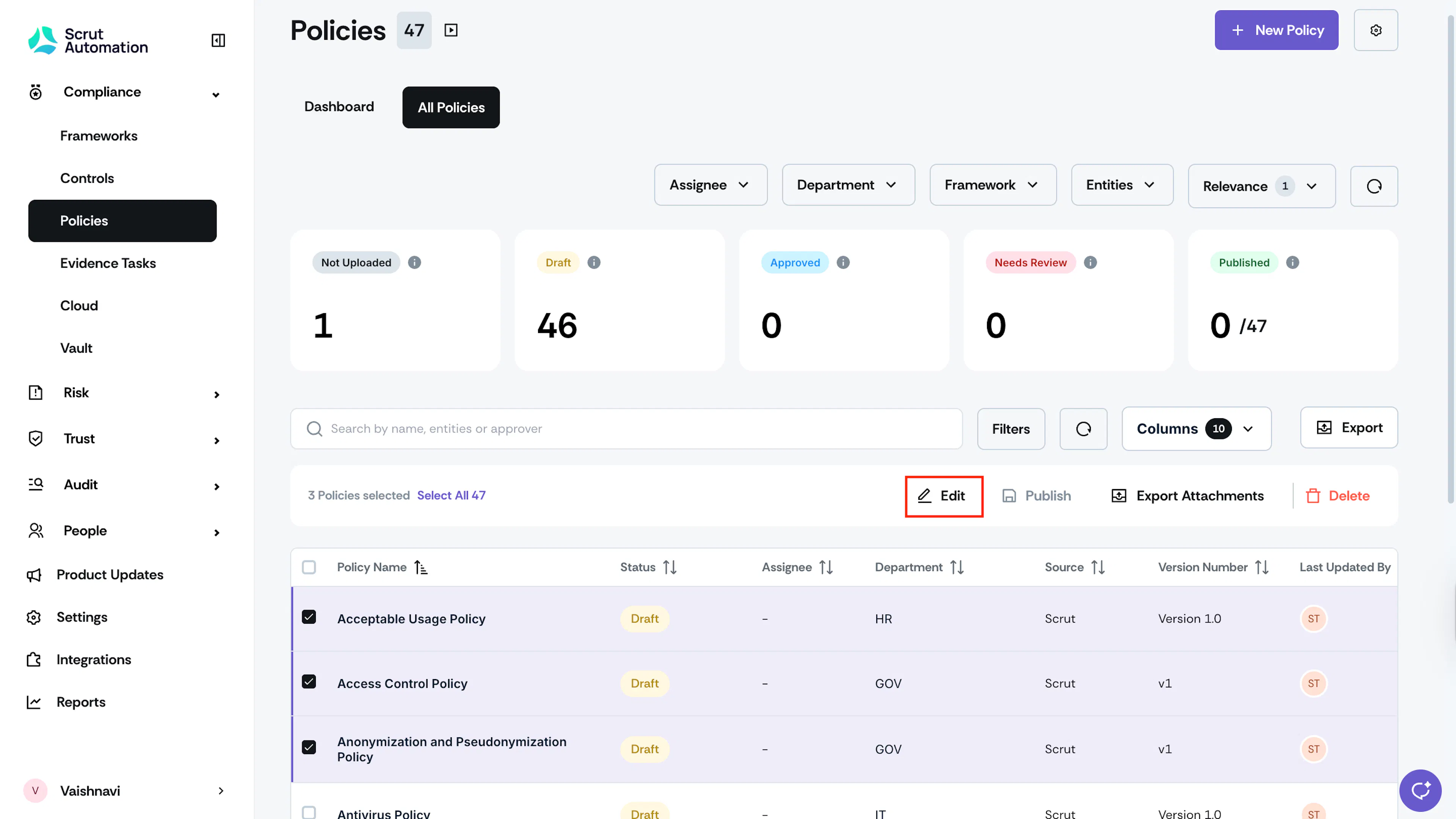
- This opens the Edit details drawer. You can edit the following fields:
- Assignees: Choose one or more assignees for the policies and click Make Primary to designate a Primary Assignee.
- Approvers: Add up to five approvers for a policy. Drag and drop approvers to arrange them in hierarchical order. You can update approvers only for policies that aren’t in the Published state.
- Entities: Link the selected policies to the desired entities.
- Effort Estimate: Select the estimated effort to implement this policy. Choose Low, Medium, or High.
- Recurrence: Set the policy recurrence schedule: Annually, Biannually, Quarterly, Monthly, or Never.
- Department: Modify the departments for selected policies in one go.
- Next Review Date: Set the next review date for the selected policies. This option is only available for policies in the Published or Needs Review status.
- Relevance: Mark all selected policies as relevant or not relevant.
- Click Save. The changes apply to all selected policies.
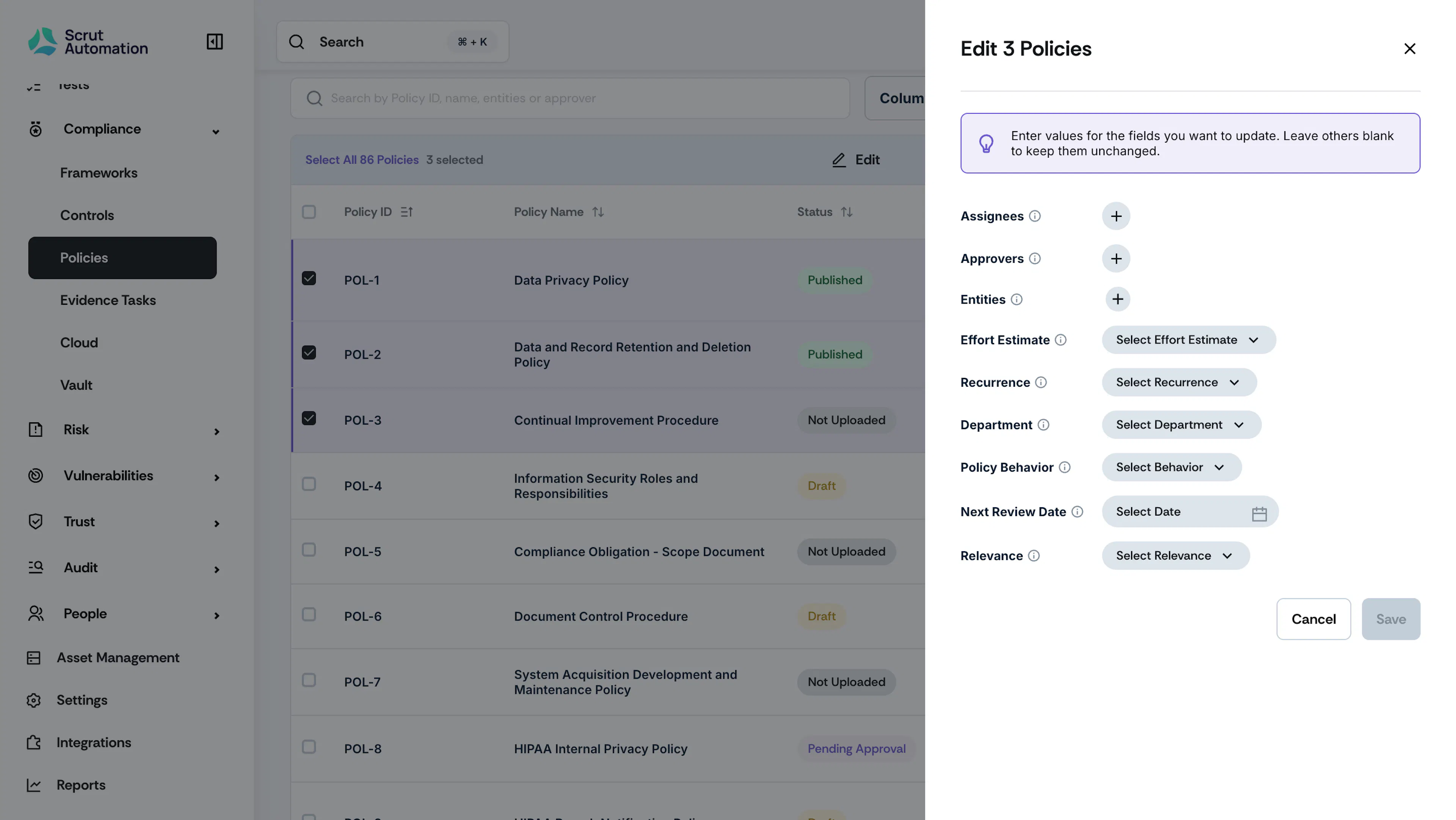
Policy details bulk edit
Note:
If you want to keep the existing values for a field, leave it unchanged. Scrut will update only the fields you've modified in this window, ensuring the other values remain intact.
Was this page helpful?