

Import Vulnerabilities From External Reports
Who can use this feature
- Supported on Foundation, Growth, and Scale plans
Managing vulnerabilities can be overwhelming, especially when tracking issues across multiple sources. The vulnerability import feature overcomes this challenge by importing reports directly from your VAPT engineers and other external stakeholders into Scrut. This allows you to:
- Centralize all your vulnerability data under a single dashboard in Scrut
- Eliminate manual tracking via spreadsheets, emails, etc.
- Streamline the workflow by integrating with project management tools and improving remediation efficiency
How to Import Vulnerabilities
-
Log in to Scrut, click Vulnerabilities → Third Party Scans on the left navigation panel.
-
Click the Import Vulnerabilities button on the top right.
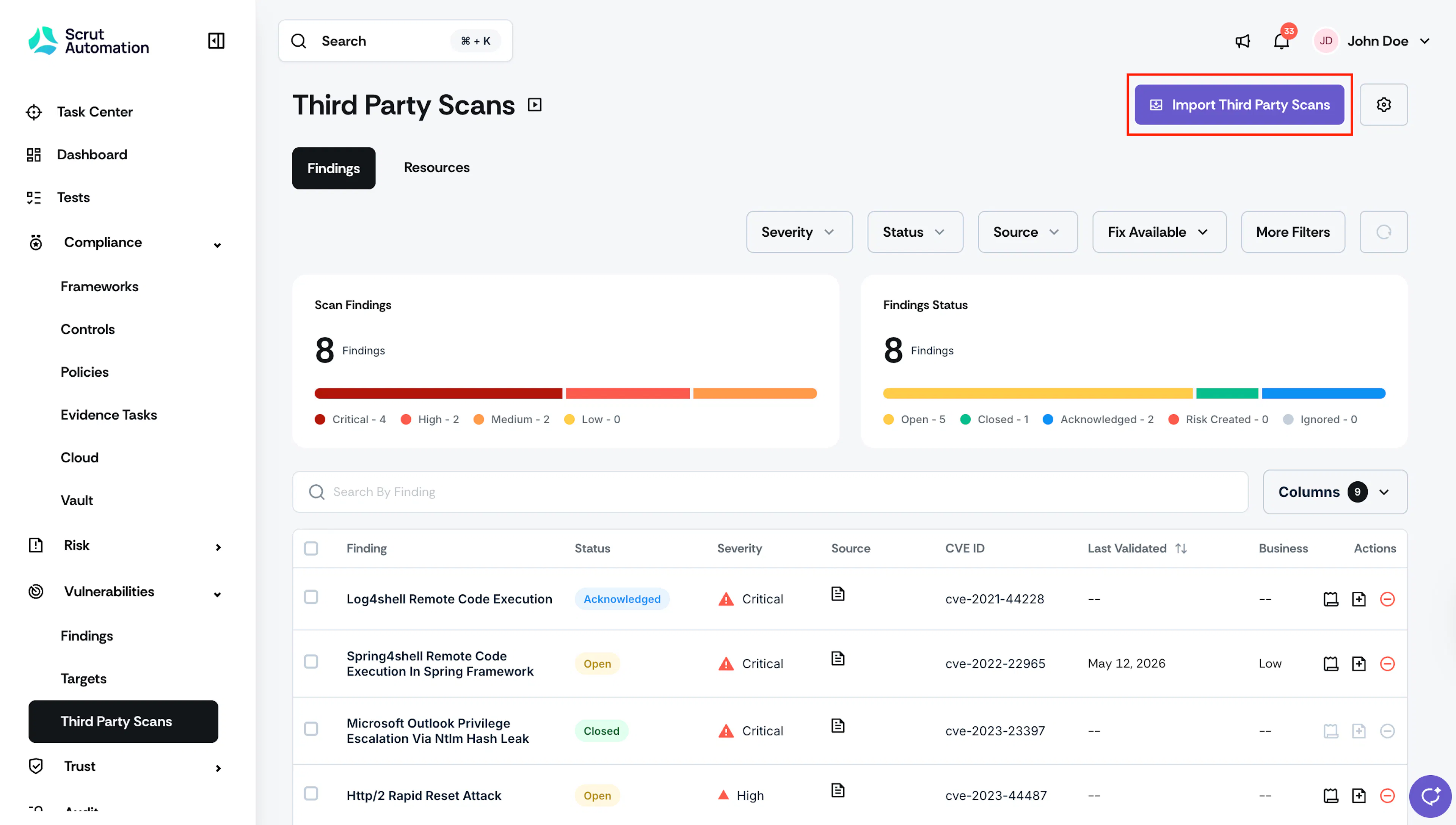
Import Third Party Scans -
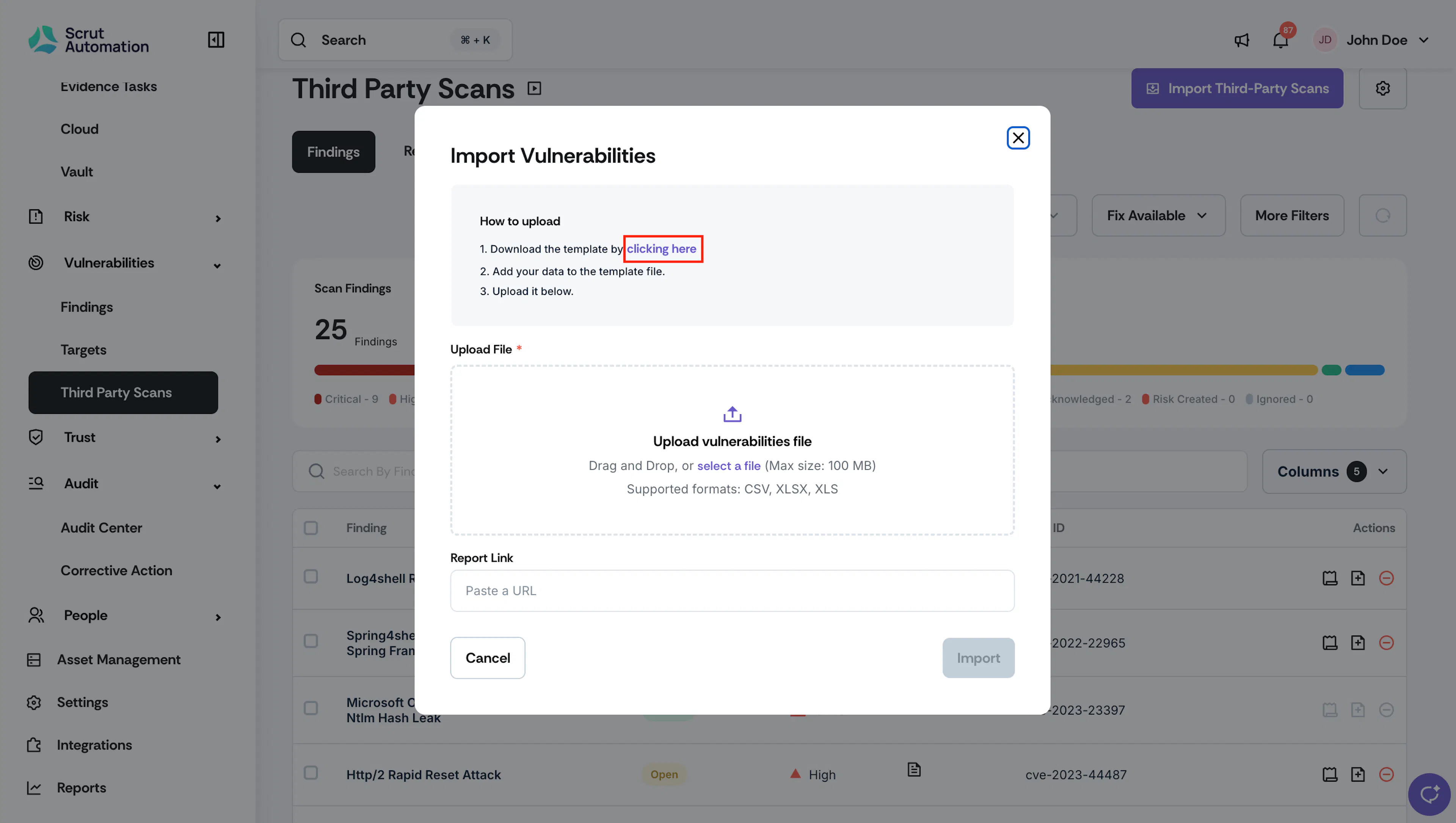
Download the template from the Import Vulnerabilities pop-up window.
-
Fill the template with the relevant data from your external VAPT report. Here’s a table to help you know which fields are mandatory and what data to include in each field:
Field Name Field Type Field Value ID* Mandatory Enter the vulnerability ID. The ID should be a CVE ID or follow a specific pattern, such as “VUL” followed by four digits. Example: VUL-5678 Name* Mandatory Enter the vulnerability’s name. Description Optional Describe the vulnerability. • Max Limit: 750 chars Treatment Plan Optional Enter the recommended steps to resolve the issue. • Max Limit: 750 chars Steps to Reproduce Optional Enter the steps to take to reproduce the vulnerability. • Max Limit: 750 chars Severity* Mandatory Accepted values: • Low • Medium • High • Critical Status* Mandatory Accepted values: • Open • Closed • Acknowledged Fix Available Optional Accepted values: • Yes • No First Seen Optional Enter the date on which your team identified the vulnerability. • Format: DD/MM/YYYY Assets Affected Name Optional Enter the name of the assets affected by the vulnerability. Assets Affected Type Optional Enter the type of assets affected by the vulnerability. Assets Affected Tags Optional Enter up to three tags, separated by commas. Owner Email ID Optional Enter the email ID of the user to whom you want to assign this vulnerability in Scrut. Custom Fields Optional Enter the values for custom fields, if any. Important:
- Make sure to fill in all mandatory fields (ID, Name, Severity, and Status). Other fields are optional.
- You can enter the values for custom fields from Column N. See here for step-by-step instructions for importing vulnerabilities with custom fields.
-
Upload the file.
-
[Optional] Paste the URL of your external VAPT report.
-
Click Import.
Once Scrut imports the vulnerabilities successfully, you’ll see a success message indicating the number of new vulnerabilities created and any existing ones updated.
Best Practices
Please avoid these common mistakes that can break the formatting of your uploaded file.
- Do not format the template (bold, colors, cell merging, wrap text, etc).
- Do not change the column headers
- Ensure you maintain the character limits wherever applicable
- Enter the vulnerability date in DD/MM/YYYY format