

Integrate Datadog
Connecting Datadog with Scrut enables daily automated scanning of your configurations to identify potential security risks. Scrut also pulls user and host data from Datadog to support compliance testing and access reviews.
What This Integration Does in Scrut
- Automated Tests: Runs automated compliance checks that continuously evaluate your Datadog configurations against applicable compliance frameworks.
Prerequisites
Before you begin, make sure you have:
- An active Datadog account with administrator access
- An Application Key and API Key generated in your Datadog account (see Step 1 below for instructions)
- Your Datadog region (AP1, EU, US, US3, US5, or US1-FED)
Permissions and Access Requirements
For Datadog
The Application Key used for this integration must include the following minimum scopes:
monitors_readuser_access_readhosts_read
For Scrut
- Admin access to Scrut, or Contributor access with the Integrations module enabled
Data Collected
- User name, email, and role from Datadog (for access reviews)
- Host name (Host identifier from Datadog)
- Host status
Sync Frequency
Data is synced automatically once every 24 hours. You can also manually trigger a sync from the integration settings page.
Integration Setup
Step 1: Generate Credentials in Datadog
To create an Application Key:
-
Log in to your Datadog account.
-
Go to Organization Settings.
-
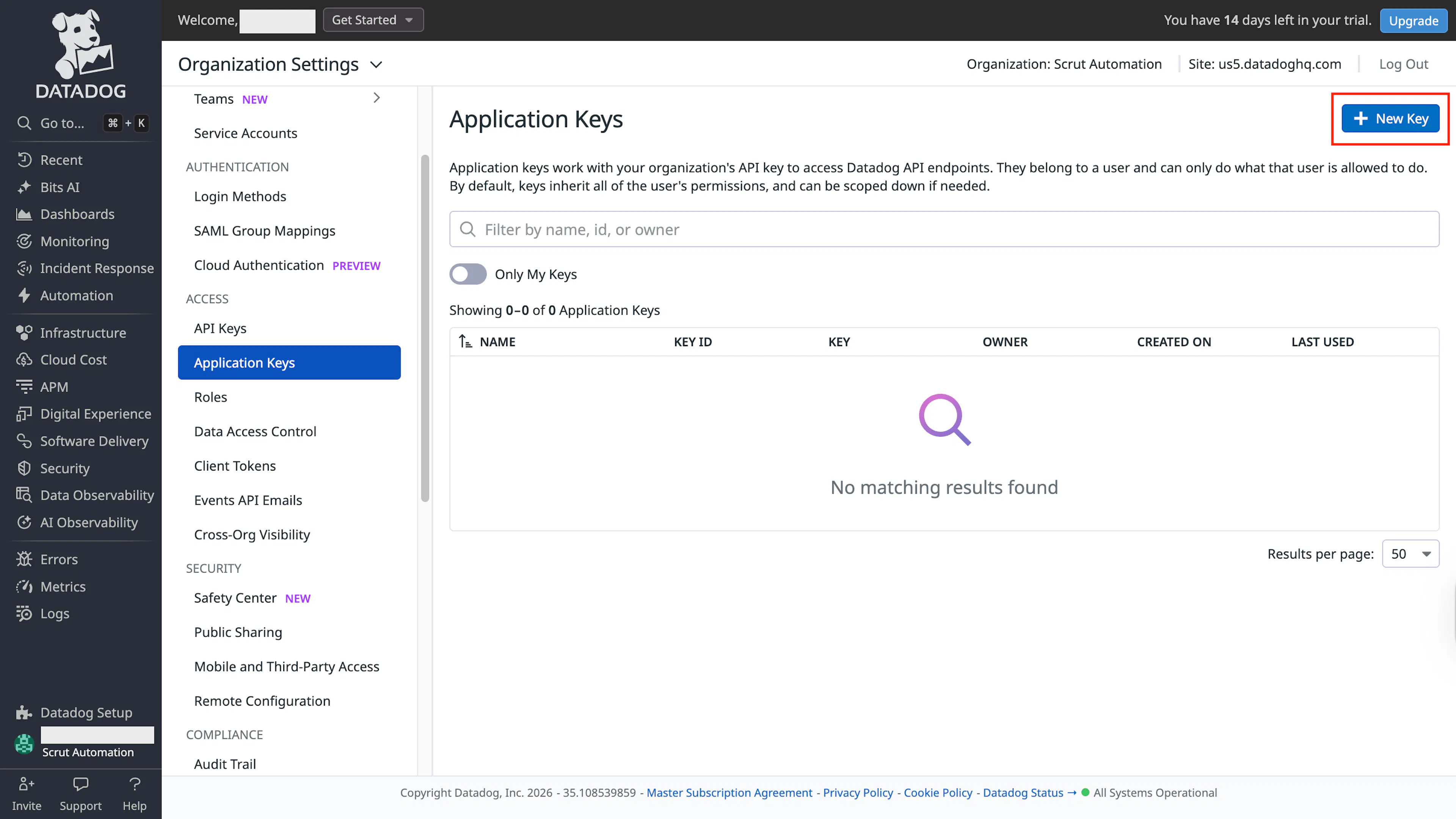
Select Application Keys from the left panel. If you are on an EU instance, navigate to the EU Application Keys page.
-
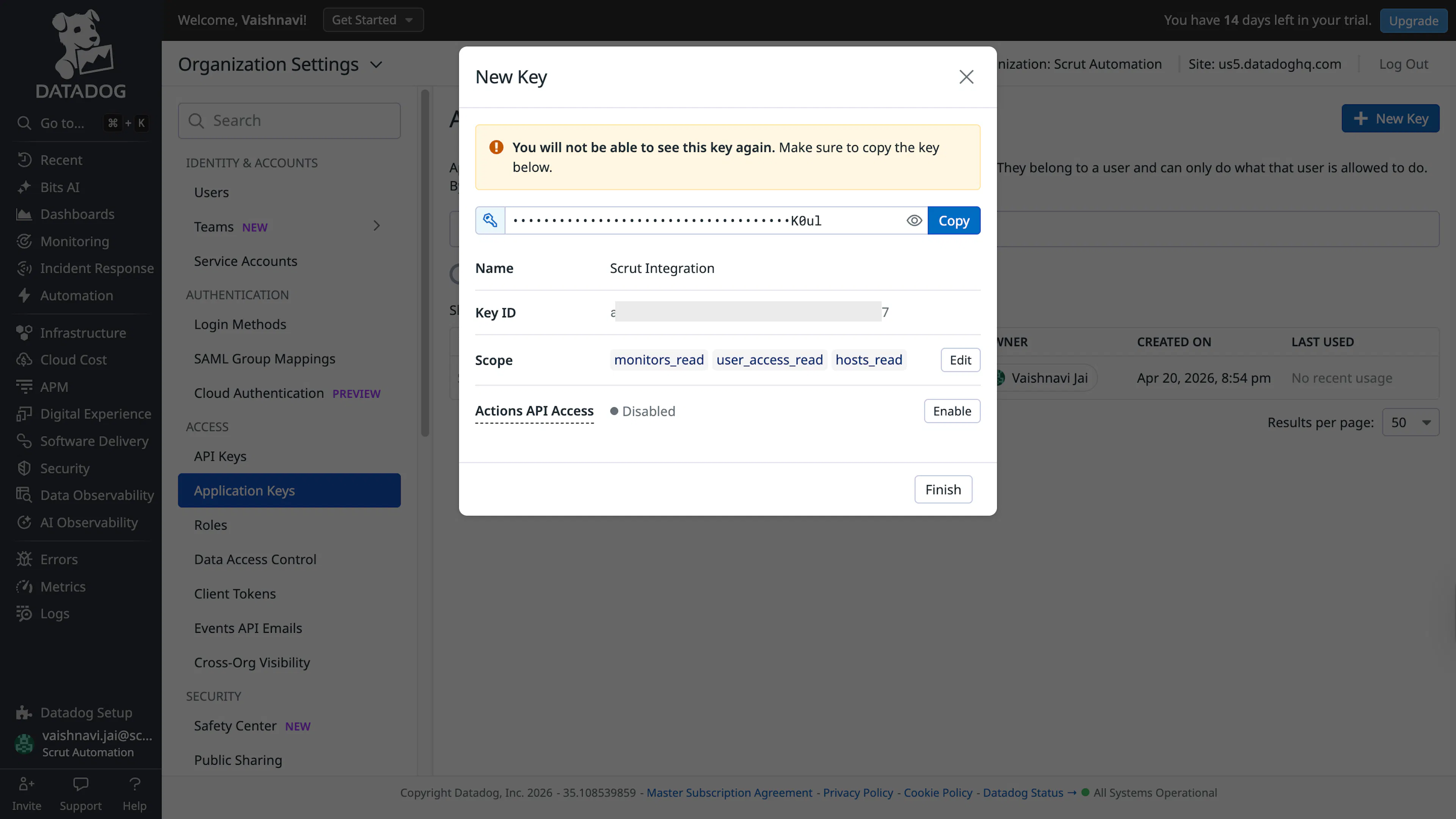
Click New Key and assign it a name.
-
Ensure the key includes the following scopes:
monitors_read,user_access_read, andhosts_read. -
Copy the generated Application Key.
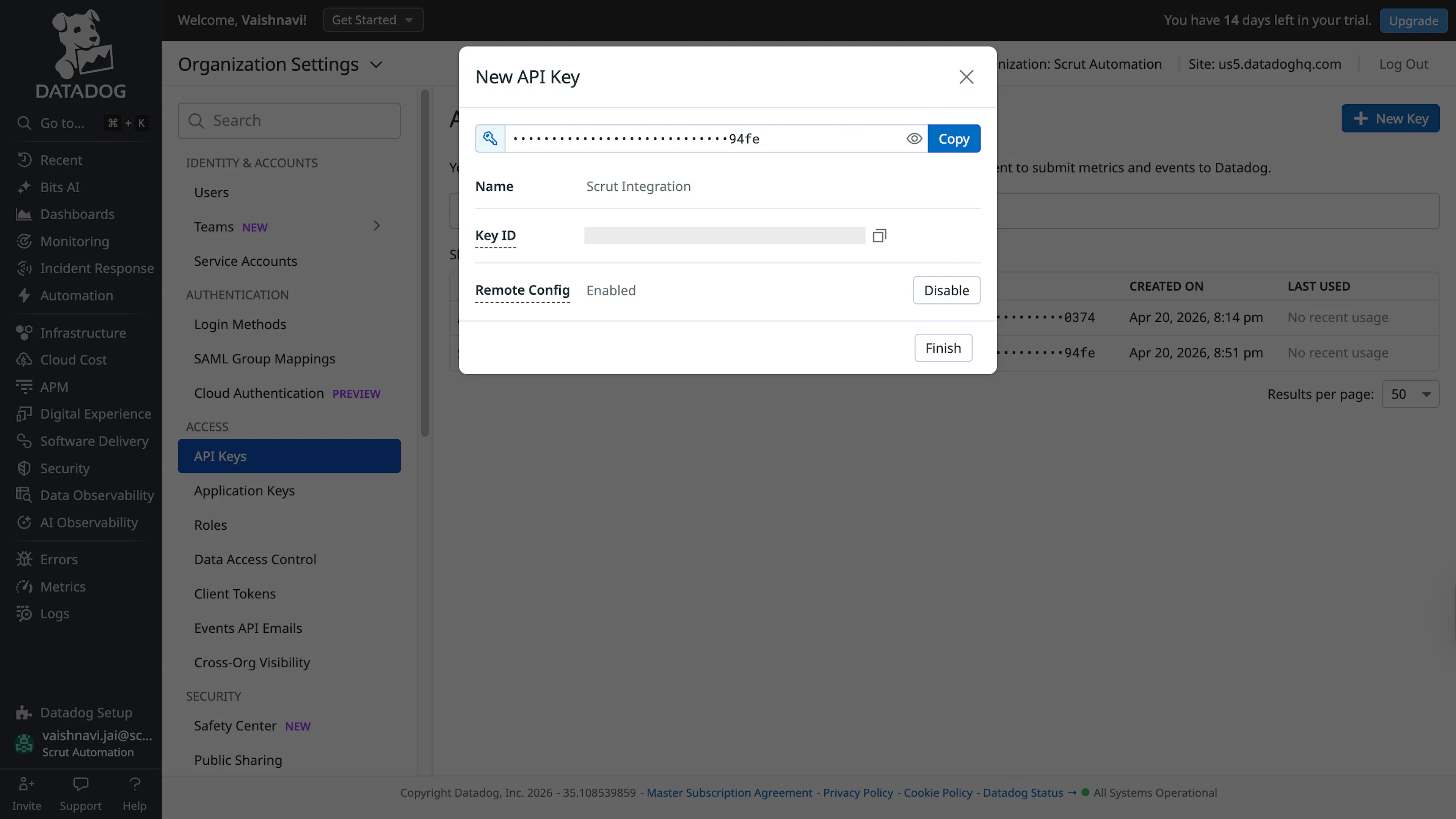
Note: Datadog displays the Application Key and API key values only once. Copy and store it before closing the dialog.
-
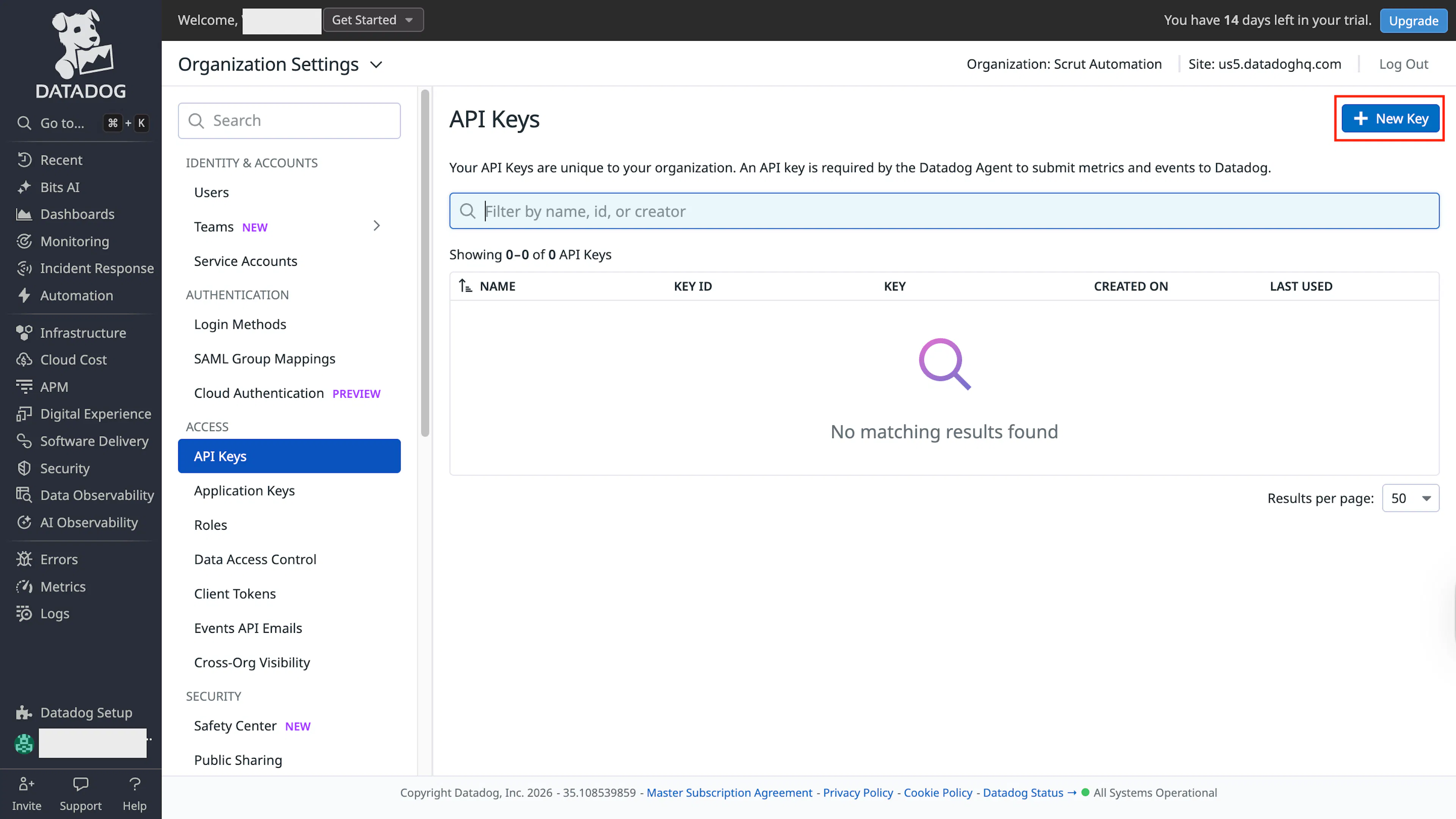
To create an API Key: In Organization Settings, select API Keys from the left panel. If you are on an EU instance, navigate to the EU API Keys page.
-
Click New Key, assign it a name, and copy the generated value.
Step 2: Connect Datadog in Scrut
-
From the left navigation panel in Scrut, select Integrations.
-
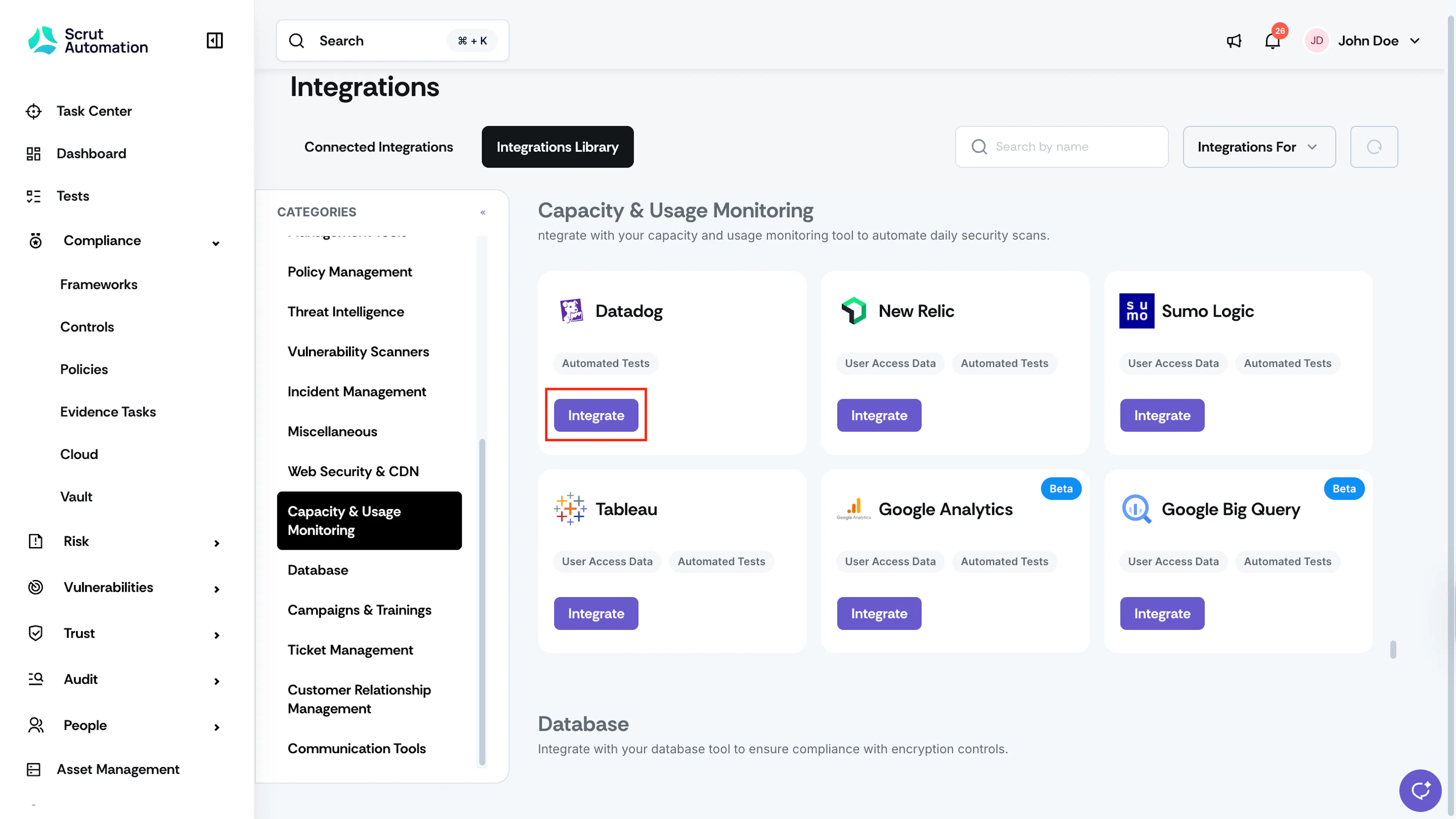
Click Integrations Library.
-
Scroll to the Capacity & Usage Monitoring section and locate Datadog.
-
Click Integrate.
-
On the Datadog integration page, enter the following:
- Application Key: Paste the Application Key you generated in Step 1.
- API Key: Paste the API Key you generated in Step 1.
- Region: Select your Datadog region. Options are AP1, EU, US, US3, US5, or US1-FED. Refer to Datadog's region documentation if you are unsure which applies to your account.
-
Click Submit.
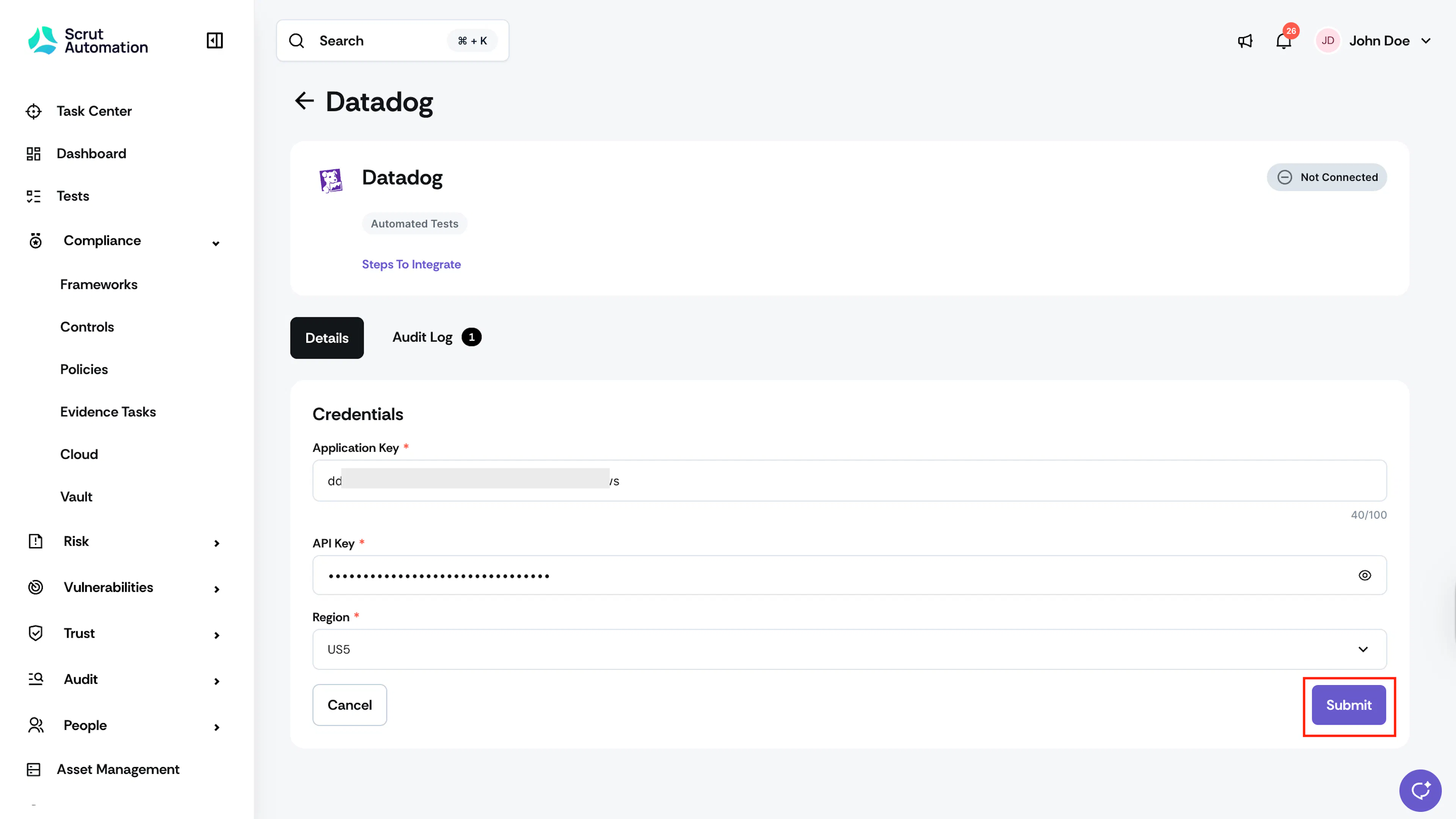
The page updates to show Integration Successful, and the status badge changes to Connected.
What Happens Next?
Initial data sync
Scrut begins pulling data from Datadog automatically after a successful connection. The initial sync may take some time, depending on the volume of users and hosts in your Datadog account. To monitor sync status, go to the Audit Log section on the Datadog integration settings page. You can also trigger a sync manually from the same page at any time.
Review synced data
Once synced, verify that data has landed correctly in Scrut:
- Navigate to Tests to confirm that automated tests linked to Datadog configurations are active and running.
Common Errors and Troubleshooting
Invalid credentials
Cause: The Application Key or API Key entered in Scrut is incorrect, expired, or was regenerated in Datadog after the integration was connected.
Possible solutions:
- Verify that the Application Key and API Key are copied correctly with no leading or trailing spaces.
- If either key was regenerated in Datadog, return to the Datadog integration settings page in Scrut and update the credentials.
- Confirm that the Application Key has not been deleted or restricted in Datadog.
Insufficient scope on Application Key
Cause: The Application Key was created without the required scopes.
Possible solutions:
- In Datadog, go to Organization Settings and open Application Keys.
- Locate your key and check its scope. Confirm that
monitors_read,user_access_read, andhosts_readare all included. - If any scope is missing, create a new Application Key with the correct scopes and update the credentials in Scrut.
Data not appearing in Scrut
Possible solutions:
- Check the Audit Log on the Datadog integration settings page for error entries.
- Confirm that the integration status shows Connected.
- Trigger a manual sync and wait for it to complete.
- If the issue persists, contact support@scrut.io.
FAQs
Reach out to support@scrut.io or contact your CSM for further assistance.