

Integrate Databricks
Connect your Databricks account to Scrut to fetch user access data for Access Reviews and run automated compliance checks against your applicable frameworks.
What This Integration Does in Scrut
- User Access Data: Fetches user details, roles, and permissions from Databricks for Access Reviews.
- Automated Tests: Runs automated checks that continuously evaluate Databricks for security misconfigurations and compliance checks against your applicable compliance frameworks.
Prerequisites
- An active Databricks workspace with administrator access.
- For the API Key method: ability to generate a Personal Access Token from your workspace.
- For the OAuth method: access to the Databricks account console at accounts.cloud.databricks.com to create an app connection.
Permissions and Access Requirements
For Databricks
- Read access to user records in Databricks (view name, email, and user role).
For Scrut
- Admin access to Scrut (or Contributor with access to the Integrations module).
Data Collected
- User Name
- User Email
- User Role
Sync Frequency
Data is synced automatically once every 24 hours. You can also manually trigger a sync from the integration settings page.
Integration Setup
Note:
Databricks supports two authentication methods. Complete only the fields for the method you choose, and leave the rest blank in Scrut.
Step 1: Generate Credentials in Databricks
Use any one of the following methods:
Method 1: API Key Authentication (Personal Access Token)
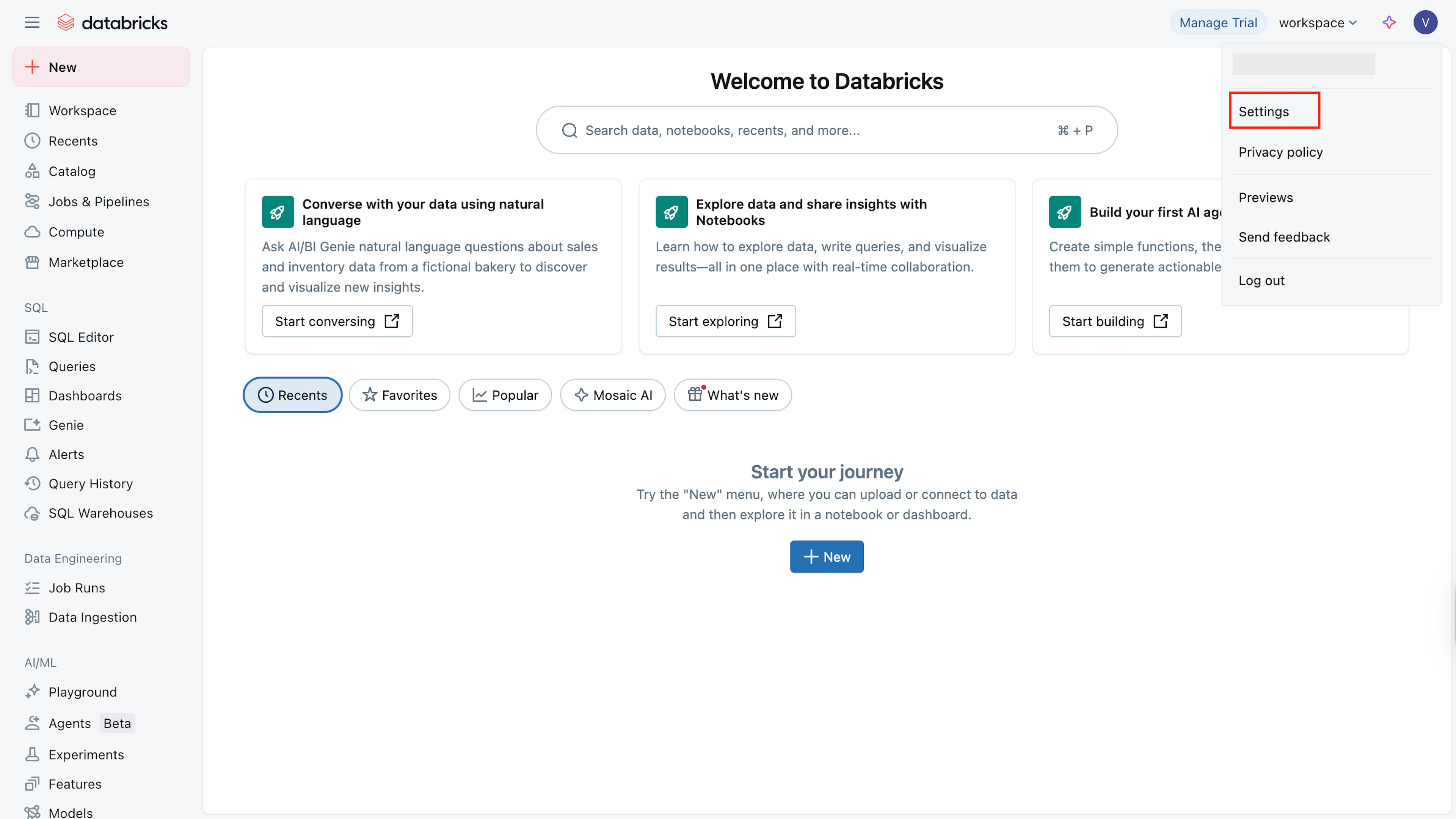
- Sign in to your Databricks workspace, click your username in the top menu, and select Settings.
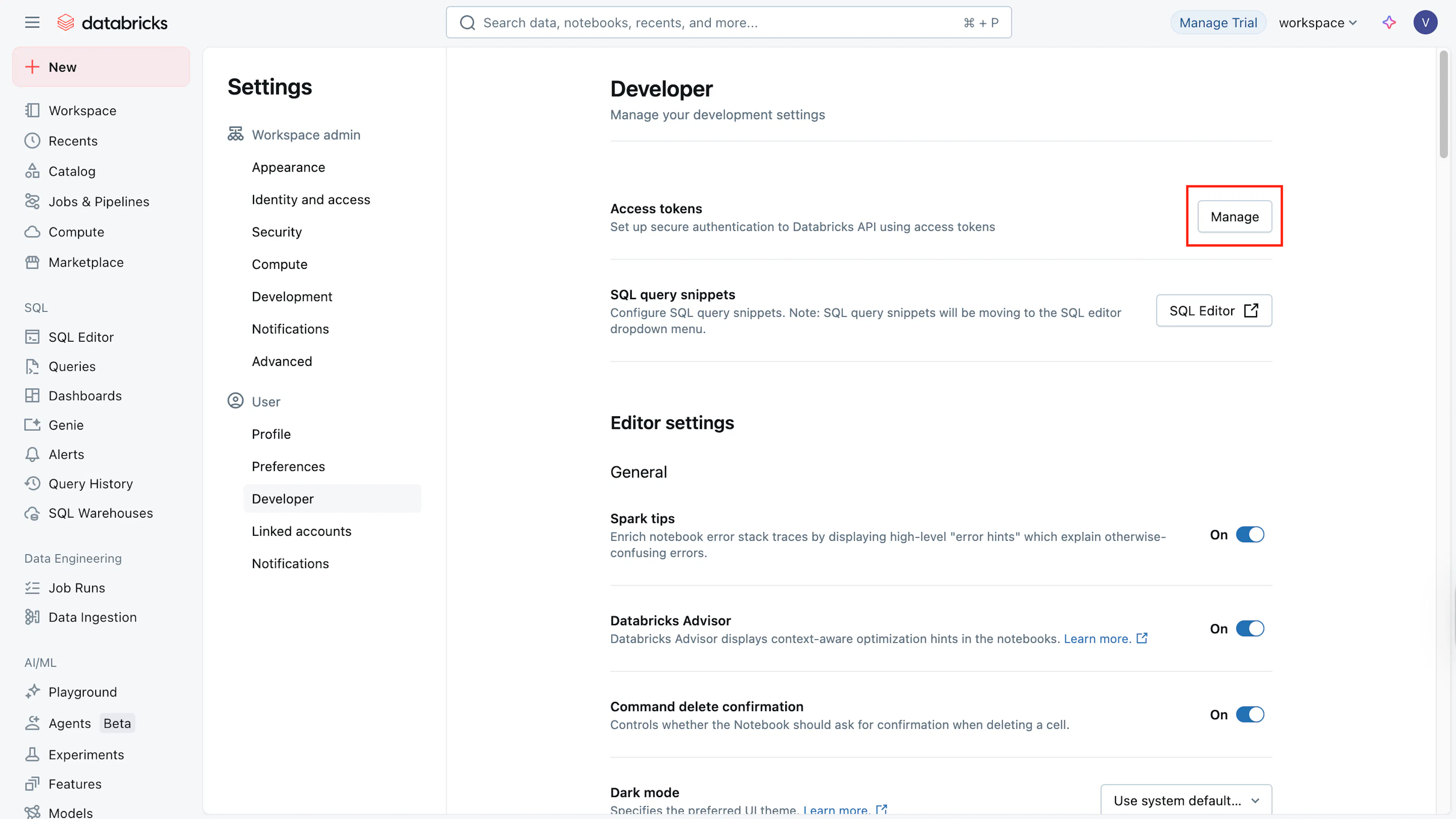
- Click Developer, then click Manage next to Access Tokens.
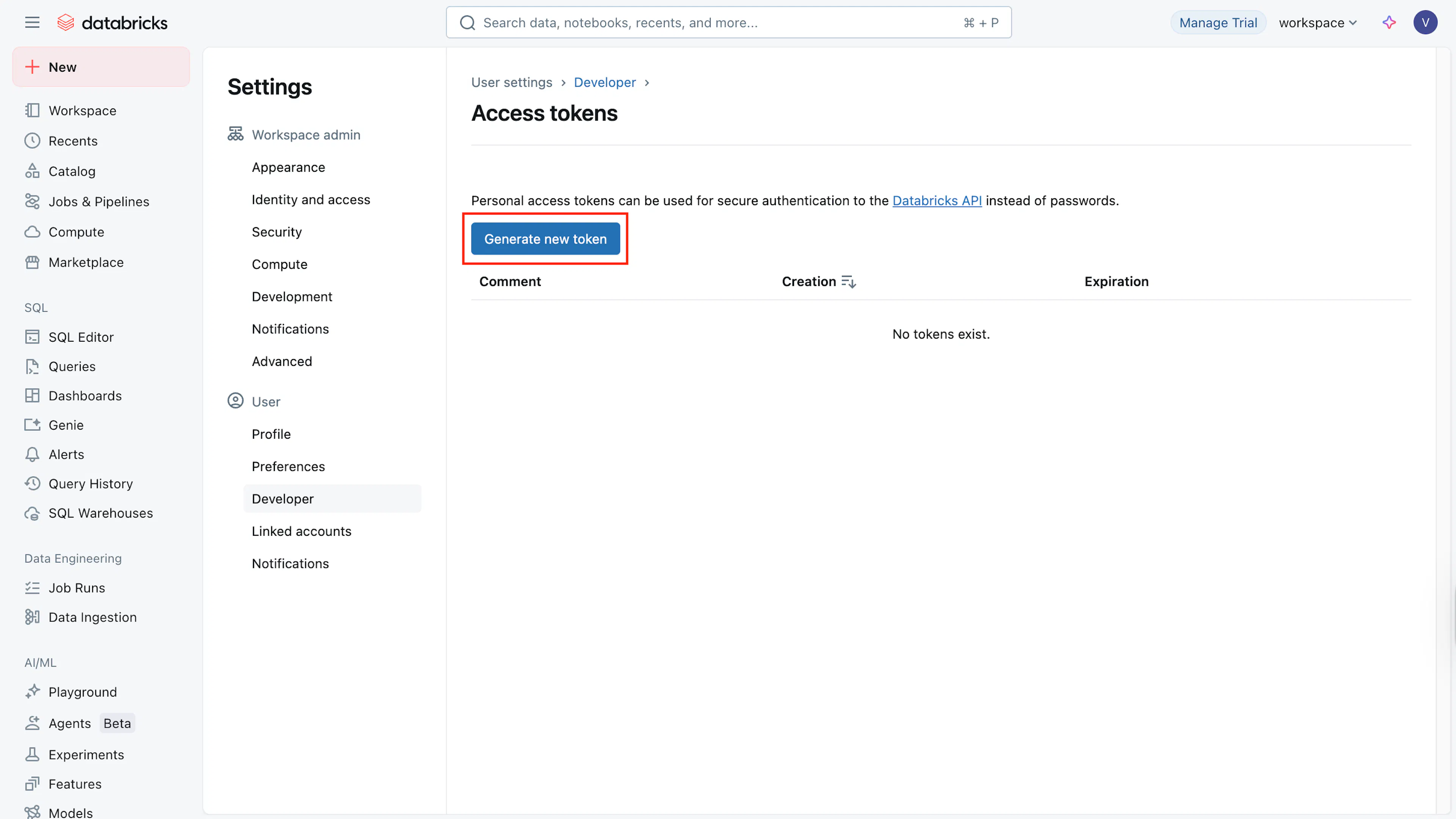
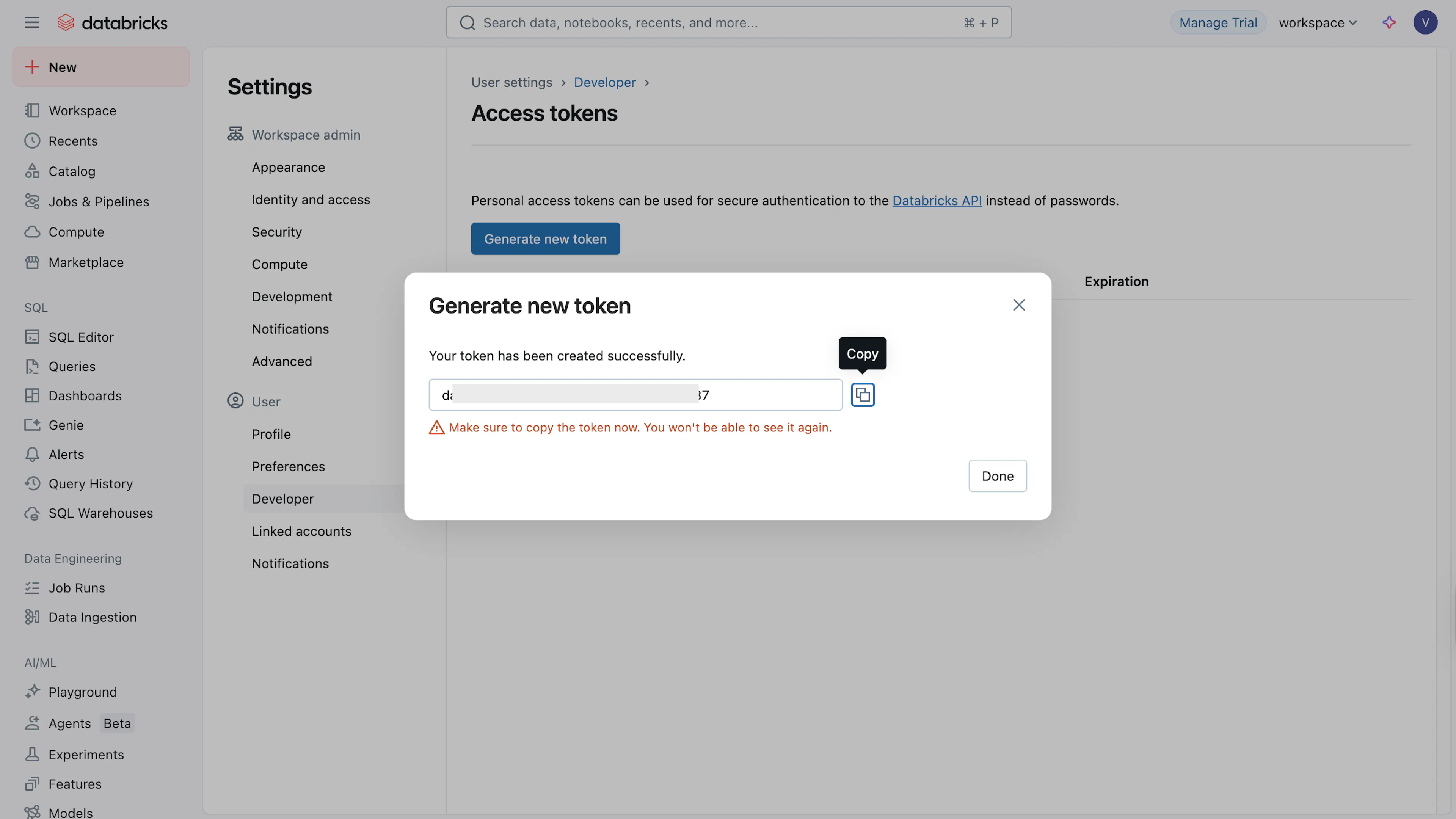
- Click Generate new token.
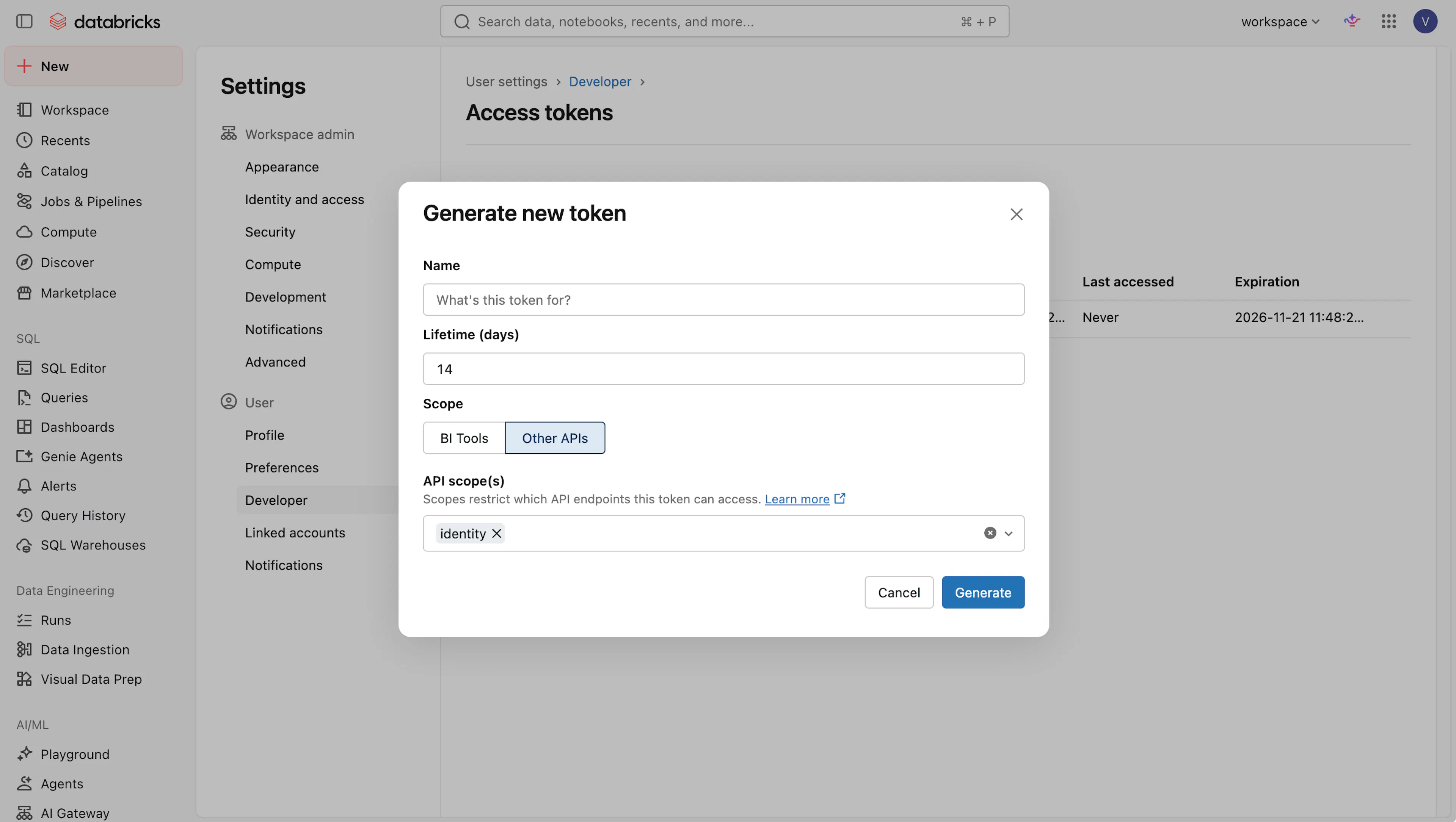
- (Optional) Enter a comment, e.g., Scrut Integration.
- Enter a numerical value for token lifetime, e.g., 120 days.
- If your workspace prompts you to select an access scope for the token, choose Other APIs, not BI Tools. BI Tools only covers connections to BI clients like Tableau or Power BI and won't give Scrut the access it needs.
- Click Generate.
- Copy the displayed token and save it securely.
- Go to Workspaces, click your workspace, and copy the Workspace URL. This is your Base URL. (e.g.,
https://<workspace-id>.cloud.databricks.com). You’ll need to enter this in Scrut.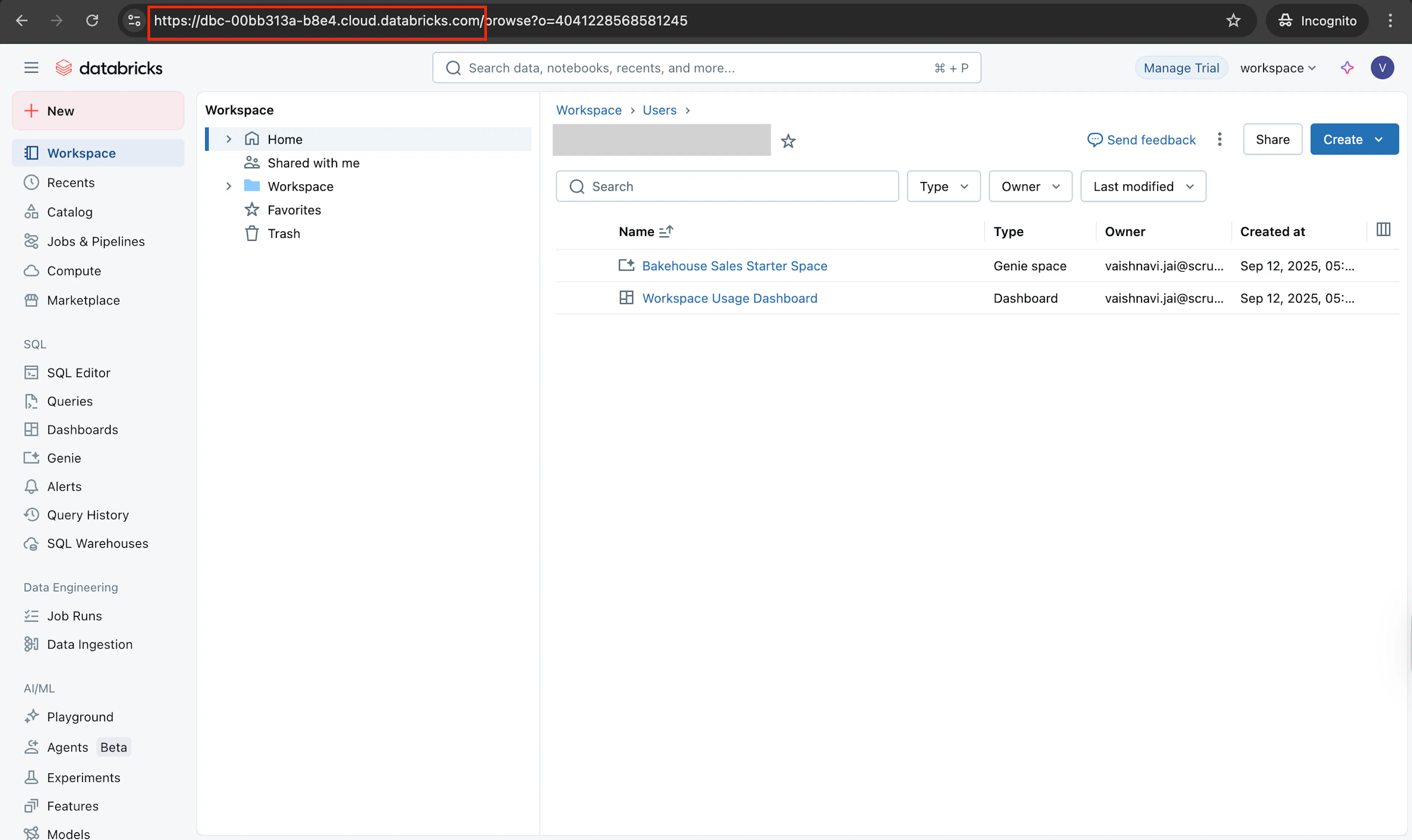
Method 2: OAuth 2.0 Authentication
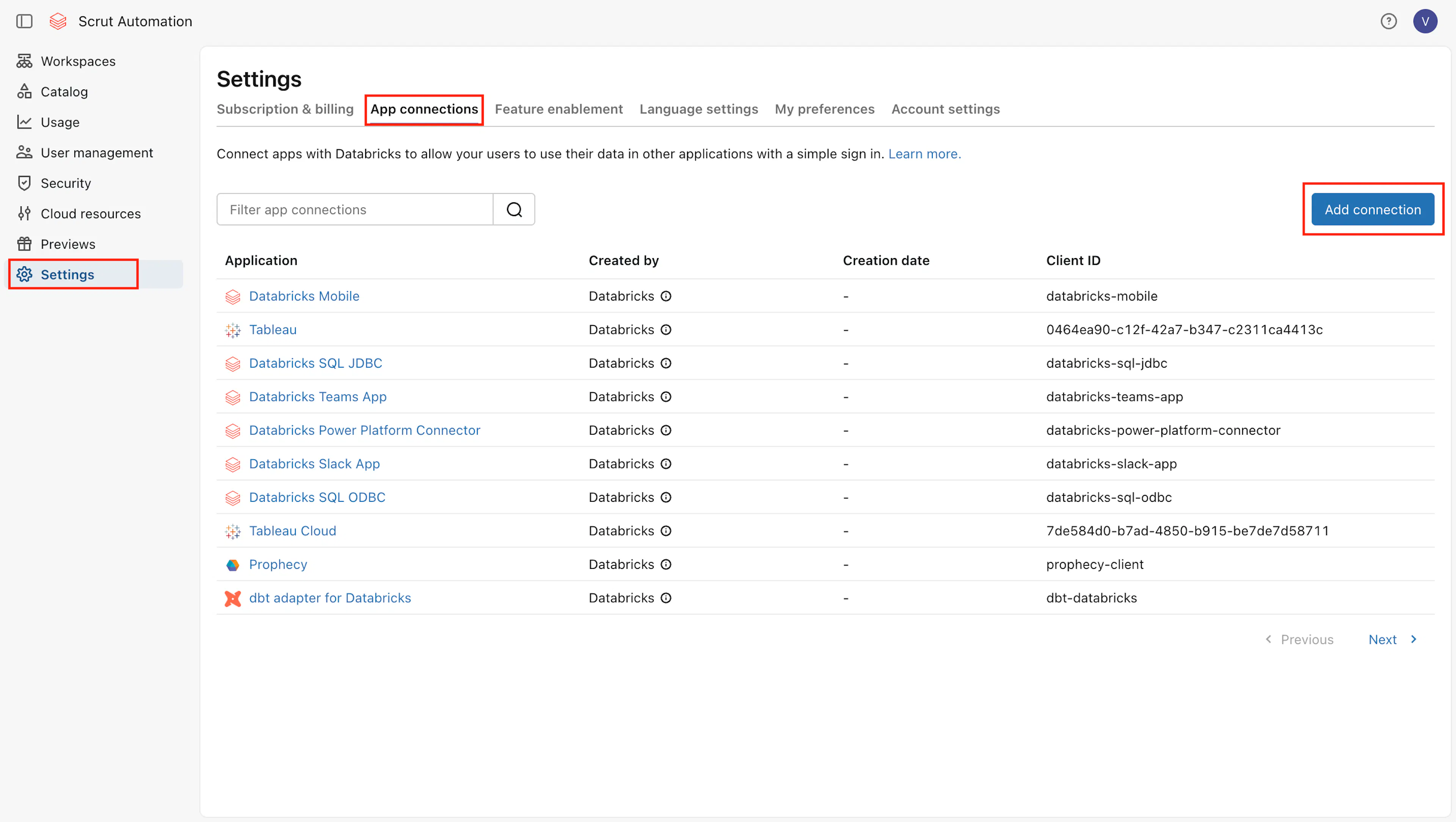
- Log in to your Databricks account console at accounts.cloud.databricks.com.
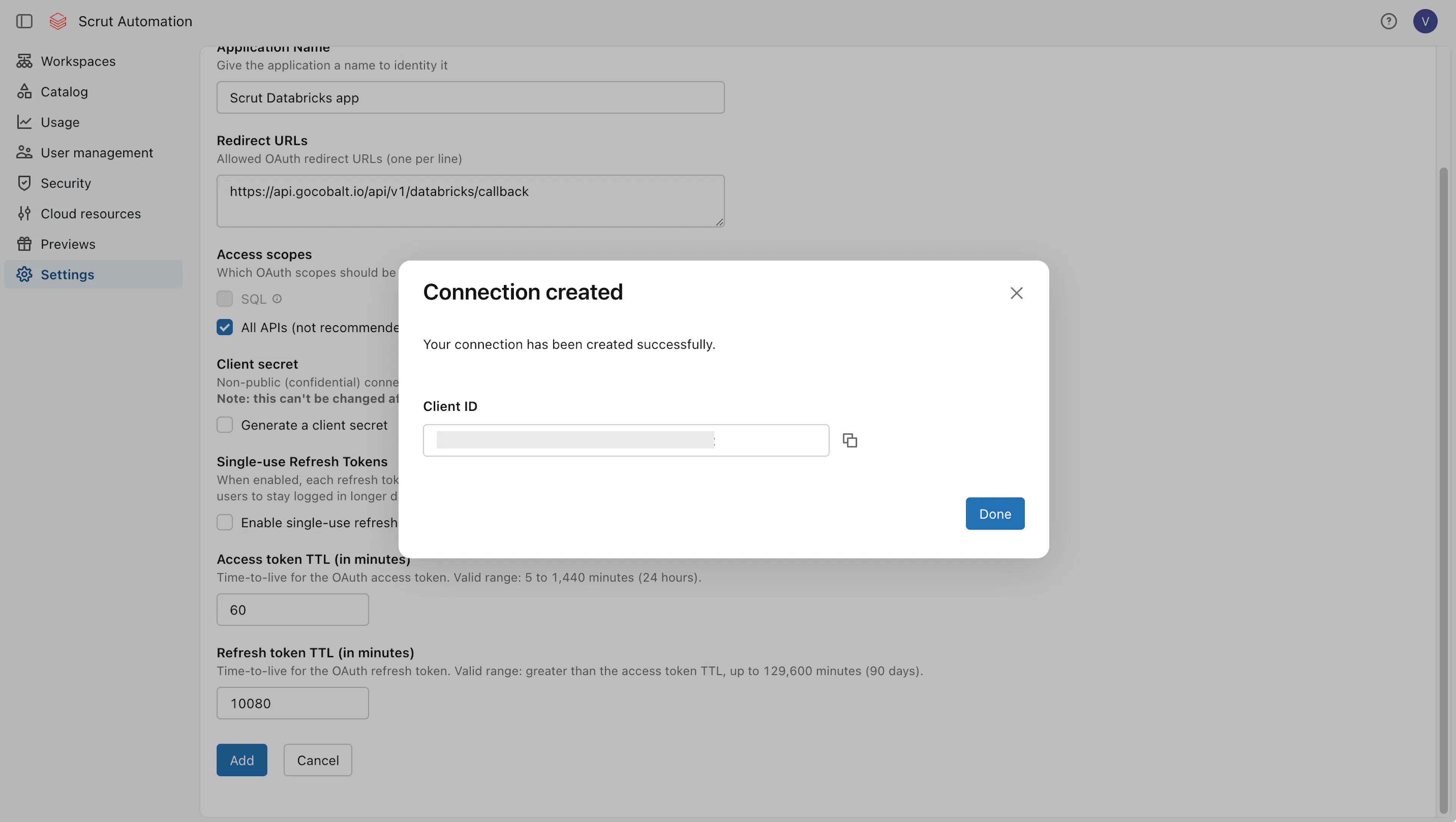
- Click Settings in the left sidebar, then open the App connections tab.
- Click Add connection.
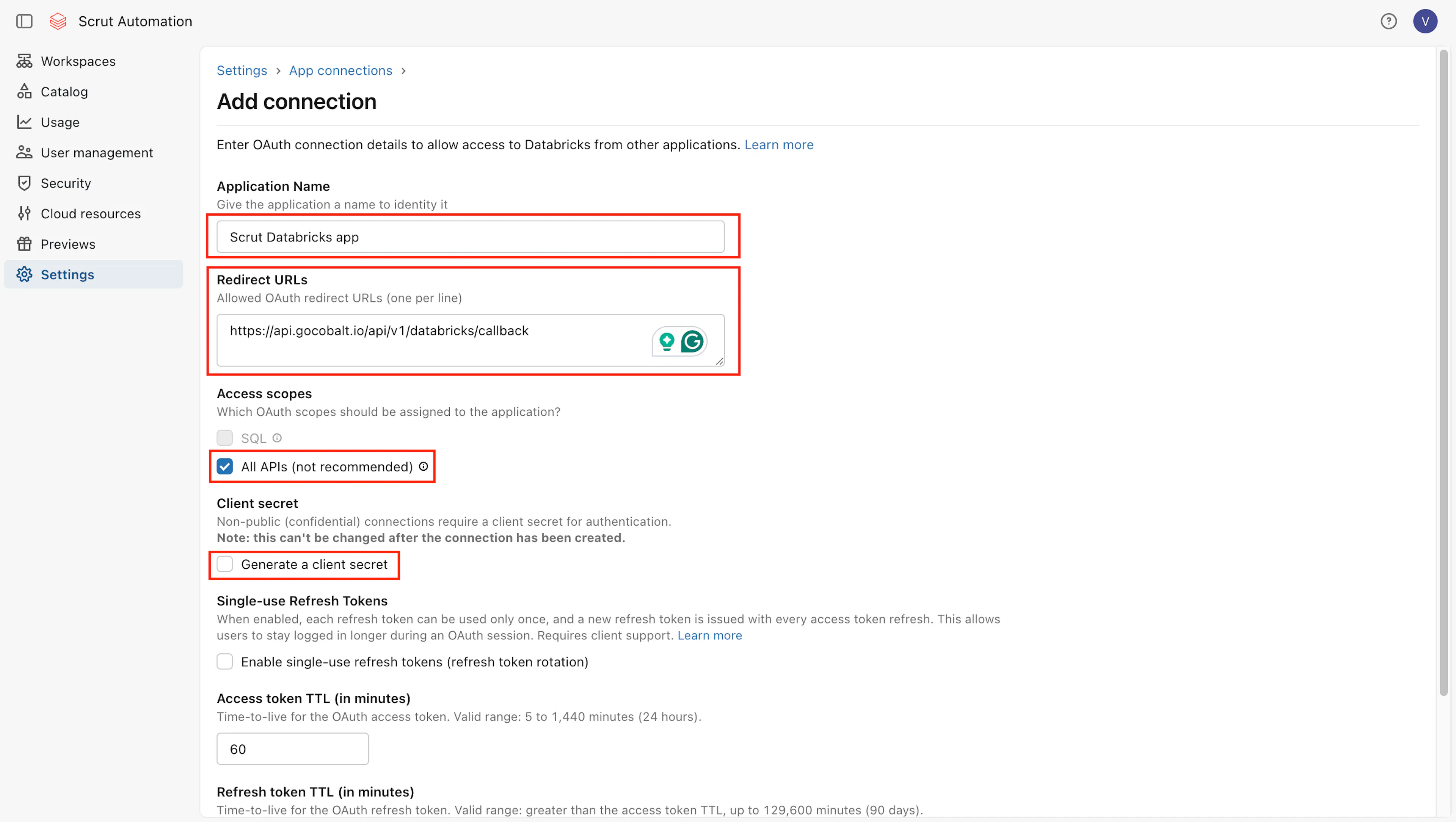
- Fill in the connection details:
-
Application Name (a descriptive name, e.g., Scrut-databricks-app)
-
Redirect URLs: copy this callback URL (
https://api.gocobalt.io/api/v1/databricks/callback)and paste it in Databricks.Note: This field is only needed for the OAuth method; skip it entirely if you're using the API Key method.
-
Access scopes: select All APIs, not SQL. SQL only covers Databricks SQL warehouse access, and Scrut needs broader API access to run its checks.
-
Client secret: leave Generate a client secret unchecked. Databricks OAuth uses PKCE and doesn't issue a client secret for this connection type, so leave that field blank in Scrut. This is unrelated to whether you choose the API Key or OAuth method; Databricks shows it as an optional field on every OAuth app.
-
- Click Add. Copy the Client ID shown in the popup.
- Go to Workspaces, click your workspace, and copy the Workspace URL. This is your Base URL. (e.g.,
https://<workspace-id>.cloud.databricks.com). You’ll need to enter this in Scrut.
Step 2: Add the Credentials to Scrut
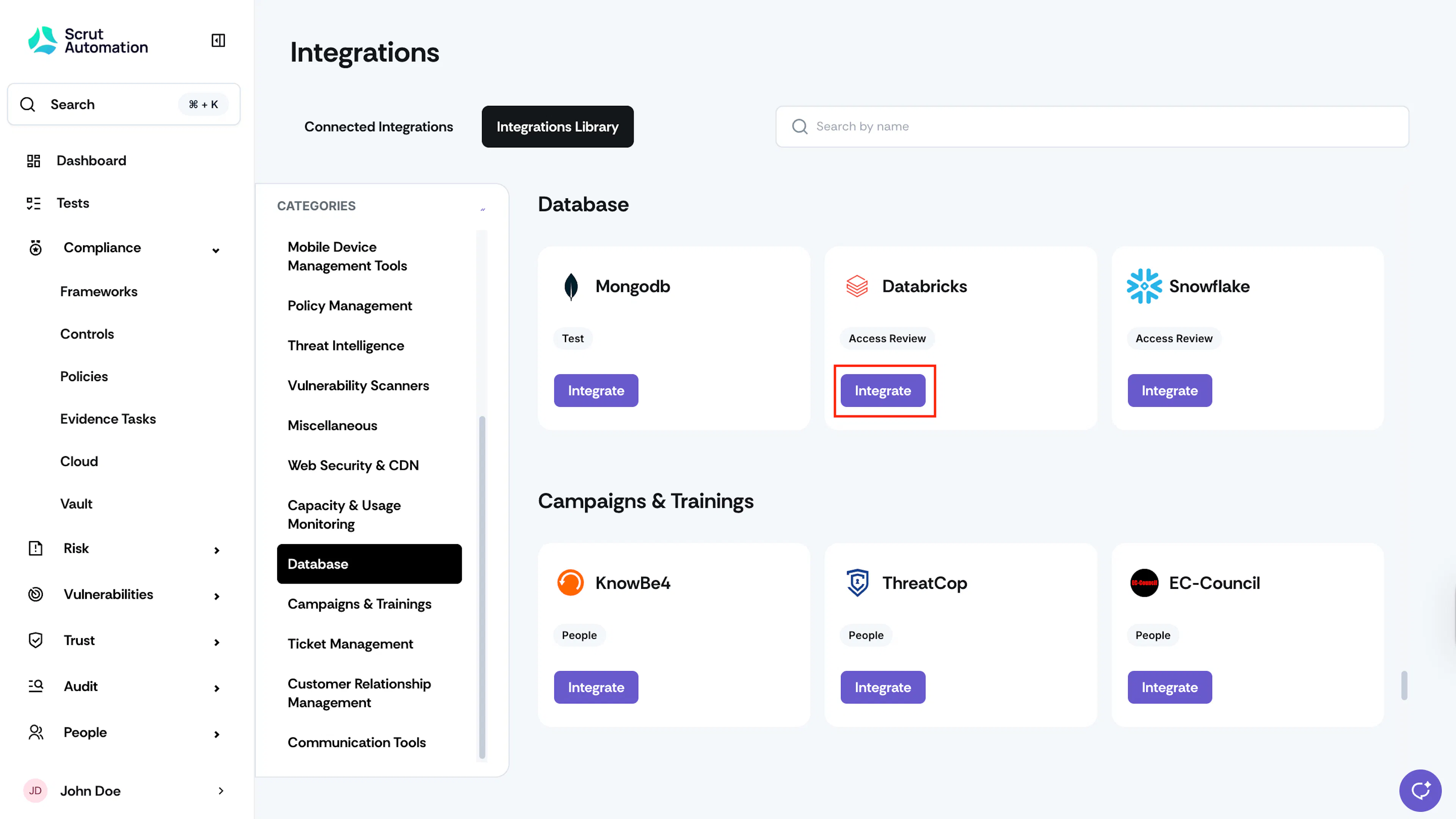
- Sign in to Scrut and click Integrations.
- Go to the Integrations Library tab and select Database from the Categories section.
- Scroll to the Databricks tile and click Integrate.
- On the Databricks integration page, fill in the fields for your chosen method and leave the others blank:
- API Key method: paste the API token from Method 1 into API Key, and enter Base URL
- OAuth method: paste the Client ID from Method 2 into Client ID, enter Base URL, leave Client Secret blank.
- Click Submit.
Once authorization is done, you'll see the "Connected Successfully" message and the Connected status indicator.
What Happens Next?
Initial data sync
The initial sync begins automatically once the integration is connected. To monitor sync status, check the Audit Log on the Databricks integration page in Scrut.
Review synced data
- Navigate to People → Access → Overview to view the user details fetched from Databricks. You can also create or edit an Access Review and include Databricks in scope. See the guide on creating an access review.
- Navigate to Tests → Automated Tests to view the compliance checks Scrut runs for Databricks.
Common Errors and Troubleshooting
Authentication failure on submit
Possible solutions: verify that the credentials you entered match your chosen method exactly; for the API Key method, confirm the Personal Access Token hasn't expired or been revoked; for the OAuth method, confirm the Client ID is correct and that the Client Secret was left blank.
Base URL rejected or connection unreachable
Cause: the Databricks account console URL (accounts.cloud.databricks.com) was entered instead of the workspace URL.
Possible solutions: go to Workspaces in the account console and copy the correct Workspace URL; confirm there's no trailing path beyond the domain.
Data not appearing in Scrut
Possible solutions: check the Audit Log for error entries; confirm the integration status shows Connected; contact support@scrut.io if the issue persists.
FAQs
Reach out to support@scrut.io or contact your CSM for further assistance.