Integrate Salesforce
The Scrut - Salesforce integration enables you to automate approvals for access requests to your Trust Vault. With this integration, you can automatically approve Trust Vault access requests from known contacts and prospects in your Salesforce account. After completing the integration, you can configure the rules to control who gets instant access and who needs to be approved before accessing the Trust Vault.
In this guide, we will show you how to connect your Salesforce account to Scrut.
Pro Tip!
We recommend logging in to your Salesforce account before beginning the integration, to avoid doing so later.
How To Connect Salesforce With Scrut
-
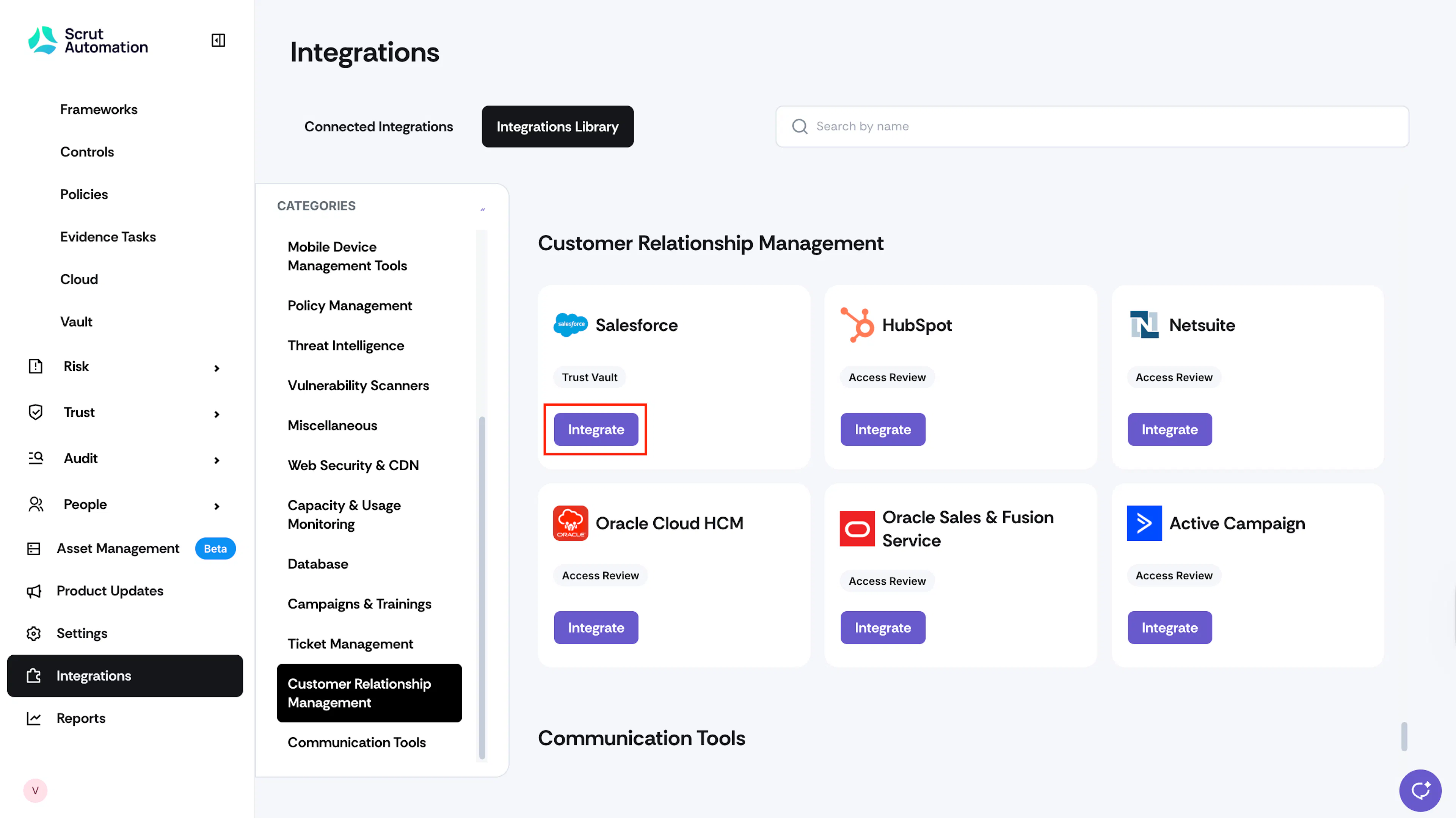
Sign in to Scrut and navigate to Integrations using the left side menu.
-
Go to the Integrations Library tab and in Categories, select Customer Relationship Management.
-
Click the Integrate button on the Salesforce card. You can also use the search bar to find the Google Salesforce integration quickly.
-
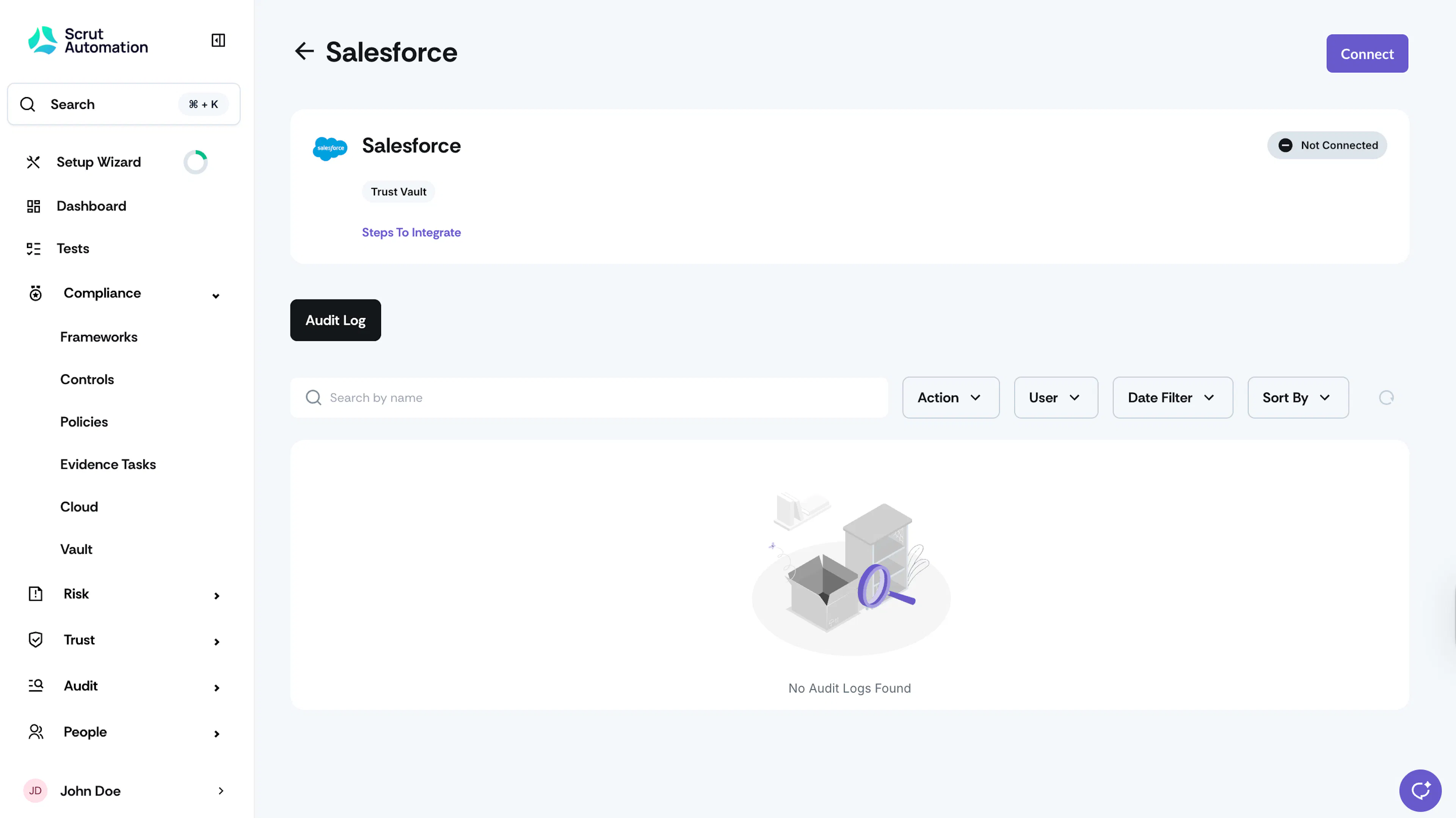
Click the Connect button on the Salesforce integration page.
-
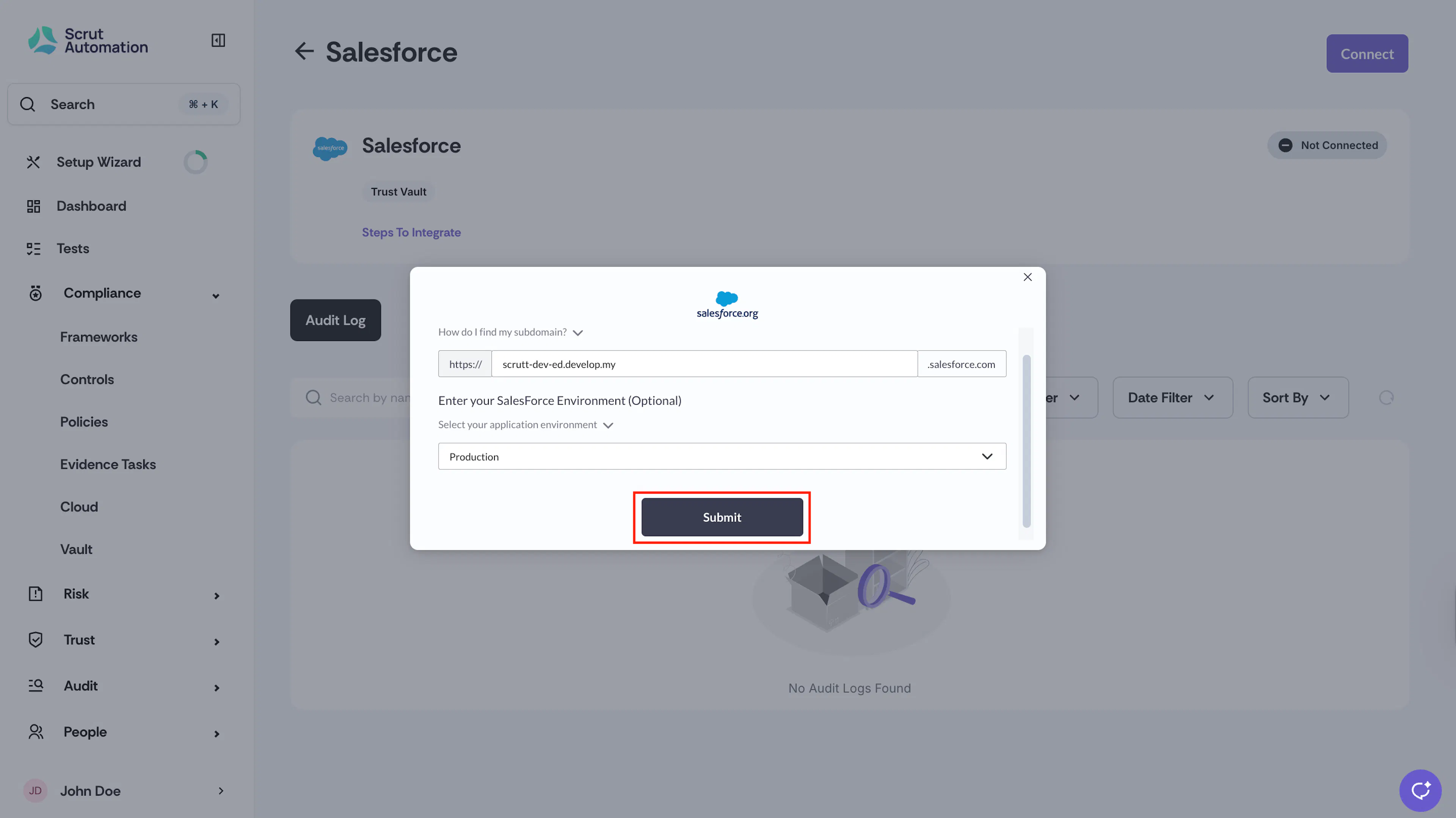
Enter the subdomain of your Salesforce account.
- For example, if you sign in at "acme.salesforce.com," enter "acme."
- Or if you sign in at "acme.lightning.force.com", enter "acme."
- Do not enter the full "acme.salesforce.com."
-
Optionally, select the Salesforce environment that you want to connect with Scrut.
-
Click Submit.
-
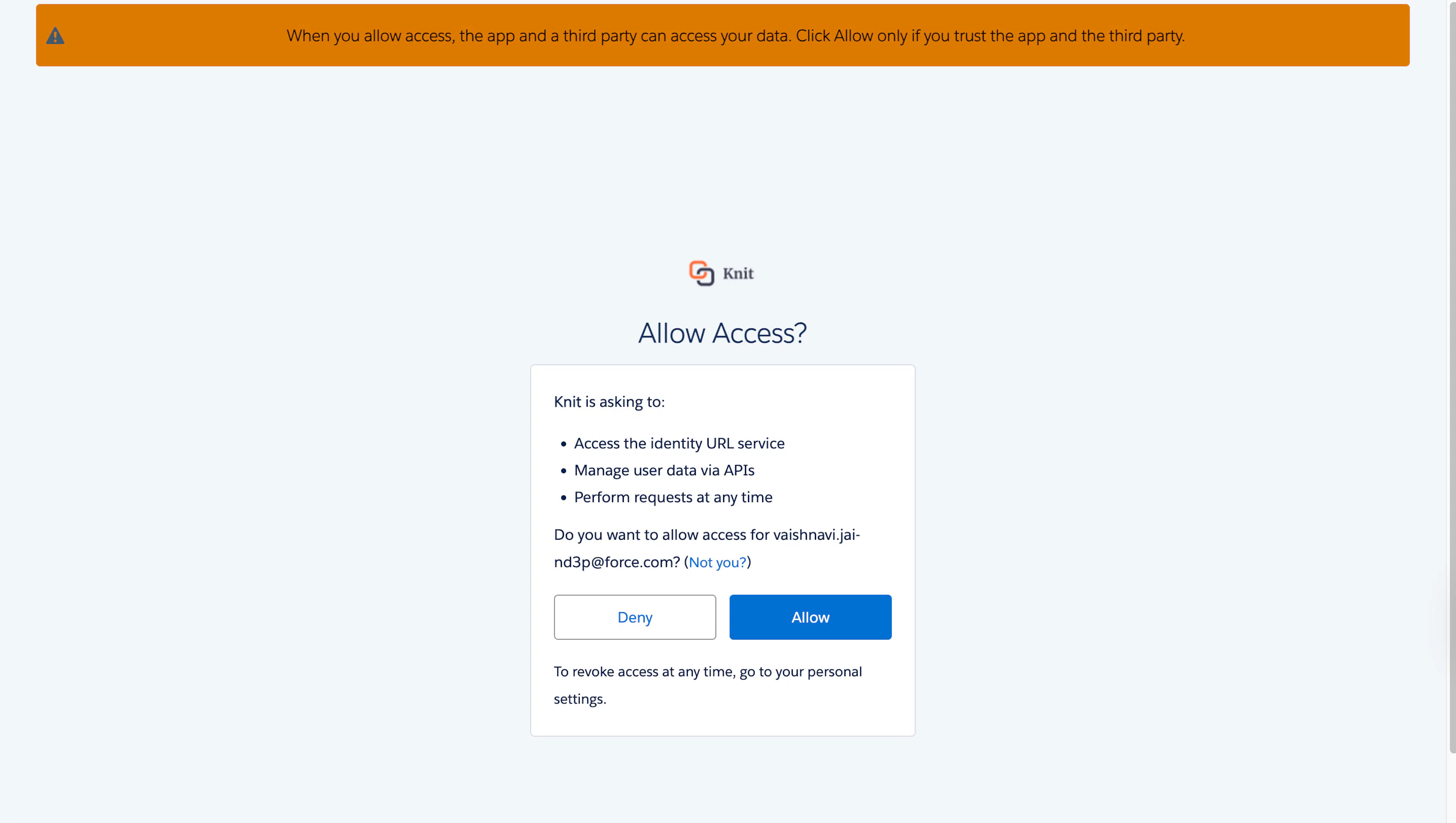
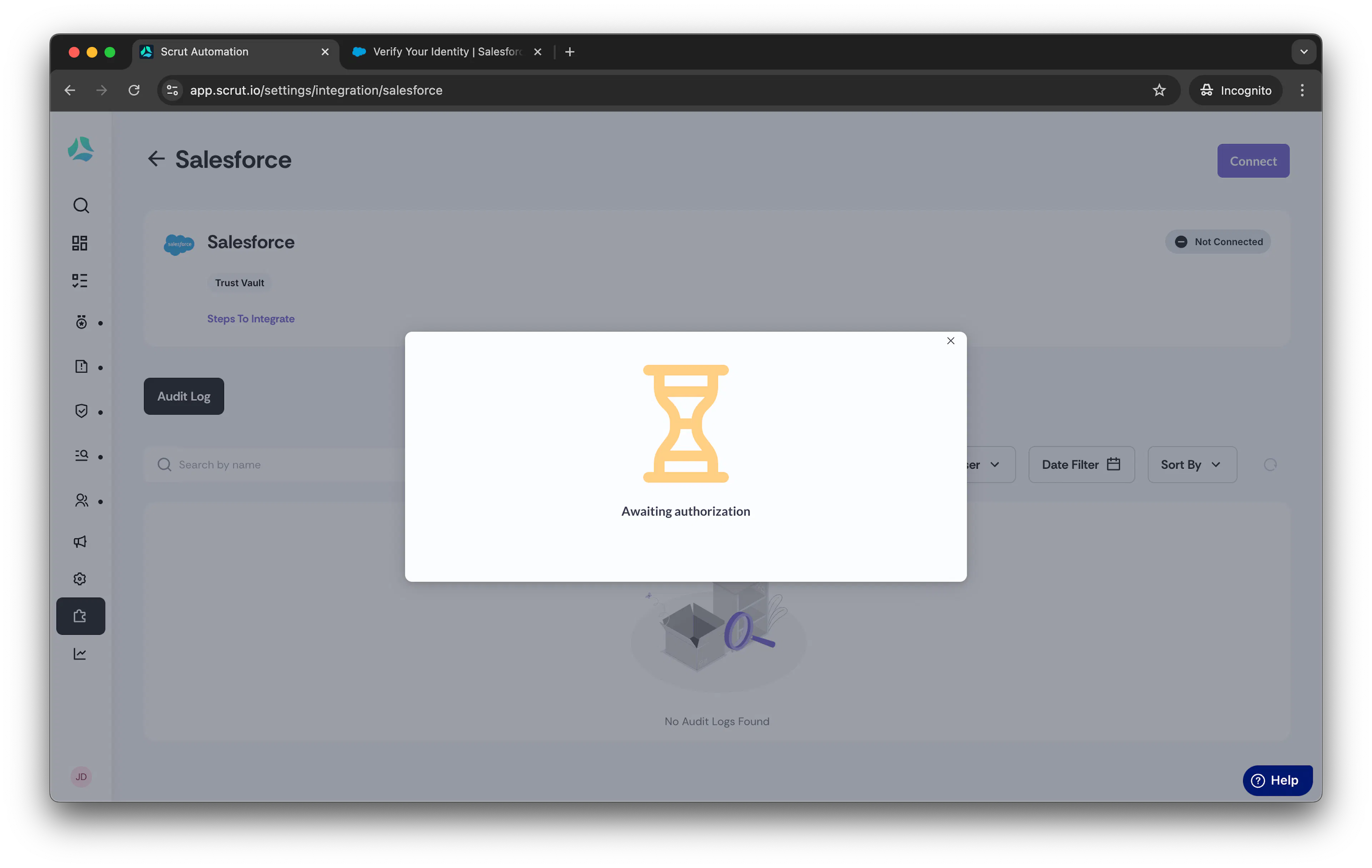
You will be redirected to the Salesforce login page to authenticate.
-
Once authorized, the integration will connect successfully.
Configuring Auto-Approval of Trust Vault Access Requests
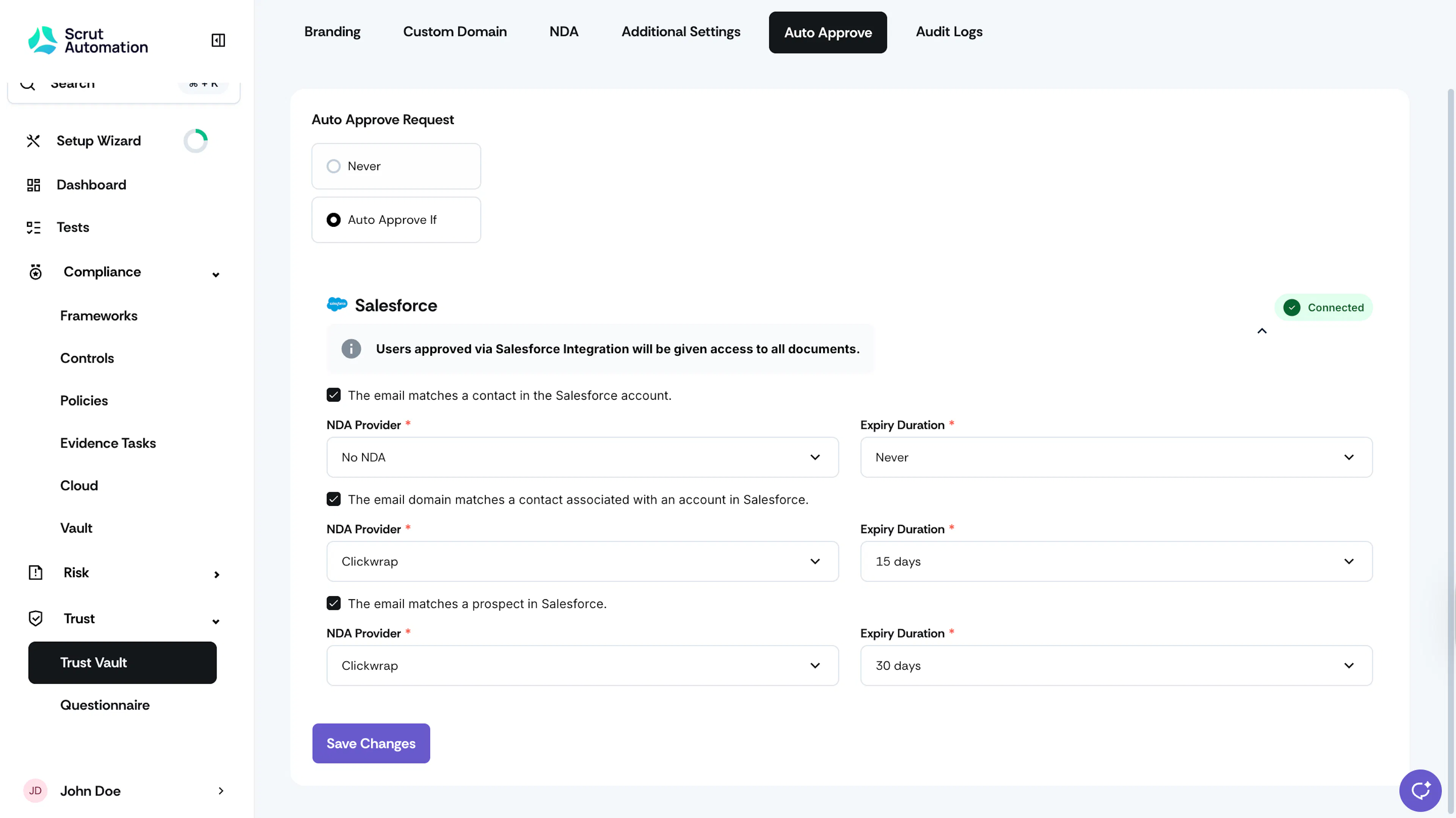
Once you’ve completed the Scrut - Salesforce integration, you can configure auto-approval of Trust Vault access requests. To do this:
-
Click Trust → Trust Vault on the side navigation panel, then click the Settings icon located at the top right.
-
Navigate to the Auto Approve tab.
-
Select the Auto-Approve Request option and set it to Auto-Approve If.
-
Configure the rules for Trust Vault using Salesforce. Select the NDA Options and Expiry Duration for each rule.
-
Click Save Changes.
What Happens Next?
Depending on the rules you’ve configured in the Auto Approve tab, whenever a customer/prospect requests access to your organization’s Trust Vault, the request will get auto-approved if the user’s:
- Email matches a contact in your Salesforce account
- Email domain matches a contact associated with an account in Salesforce
- Email matches a prospect in your Salesforce account
If there is a match, you don’t have to approve the access request. Scrut will automatically grant them access to all documents in your Trust Vault.
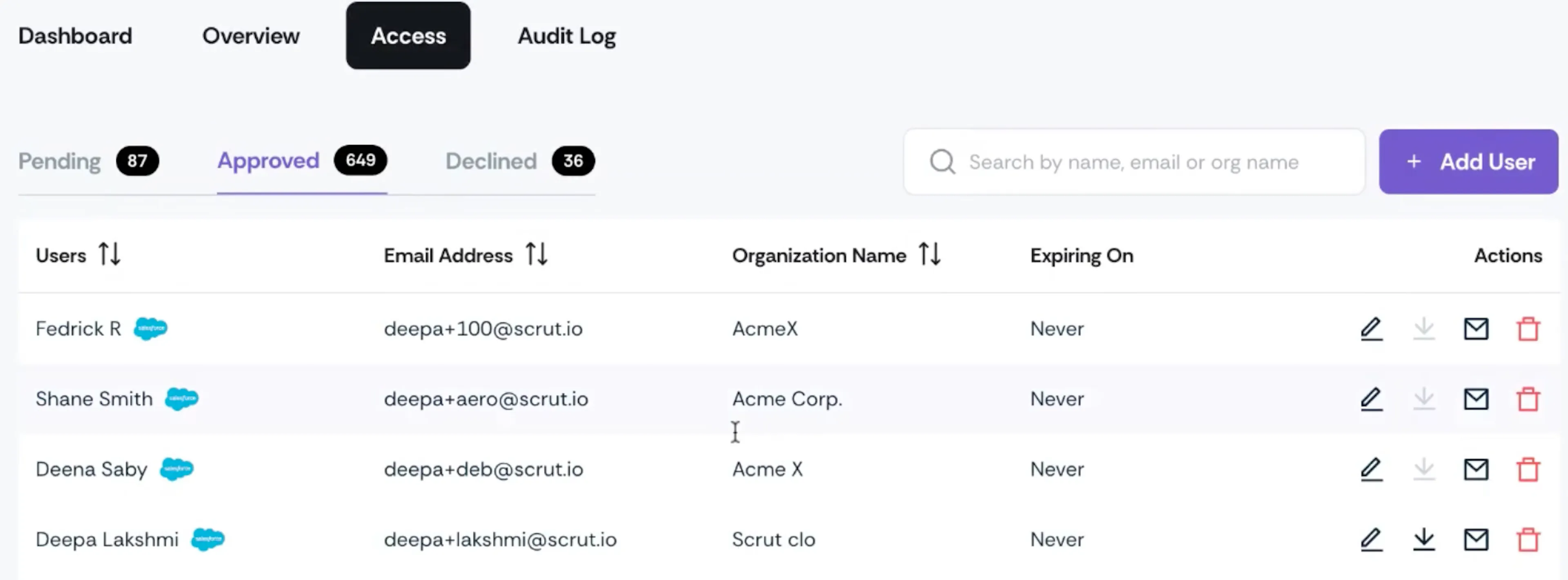
Users who are auto-approved will have the Salesforce tag associated with them. You can check this in the Trust Vault → Access → Approved tab.