

Integrate Freshdesk
Connect your Freshdesk account to Scrut to pull agent records into Access Reviews and run automated compliance checks against your applicable frameworks.
What This Integration Does in Scrut
- User Access Data: Fetches Freshdesk agent details and roles for Access Reviews.
- Automated Tests: Runs automated checks that continuously evaluate Freshdesk for security misconfigurations and compliance checks against your applicable compliance frameworks.
Prerequisites
- A paid Freshdesk plan; API calls aren’t available on the free plan
- Administrator access to your Freshdesk account
Permissions and Access Requirements
For Freshdesk
Administrator role on a paid Freshdesk plan. The API key inherits the permissions of the agent account it belongs to, so an Administrator's API key is required to access agent and role management endpoints.
For Scrut
Admin access to Scrut, or Contributor access with permission to the Integrations module.
Limitations
API calls are not available on the Freshdesk Free plan. A paid plan is required to connect this integration. Role names are resolved by cross-referencing the Freshdesk roles endpoint. If a role is deleted in Freshdesk after integration, the role name may not display correctly in Scrut until the next sync.
Data Collected
- User name: Full name of the Freshdesk agent
- Email Address: Primary email address on the agent record
- Assigned Roles: Role names are fetched by cross-referencing the Freshdesk roles API
Sync Frequency
Data is synced automatically once every 24 hours. You can also manually trigger a sync from the integration settings page.
Integration Setup
Step 1: Retrieve Your Credentials from Freshdesk
- Log in to your Freshdesk account as an Administrator.
- Click your profile picture in the top-right corner and select Profile Settings.
- On the right pane, click View API Key and complete the CAPTCHA verification when prompted.
- Copy the API key and store it securely.
- Note your Freshdesk subdomain from your browser's address bar. If your URL is yourcompany.freshdesk.com, your subdomain is yourcompany.
Note: The API key is only displayed after the agent's email address is verified. Any API activity is governed by the role assigned to the agent account. Resetting the API key disconnects all apps currently using it. If you reset your key, update it in Scrut and any other connected tools to restore access.
Step 2: Connect Freshdesk to Scrut
-
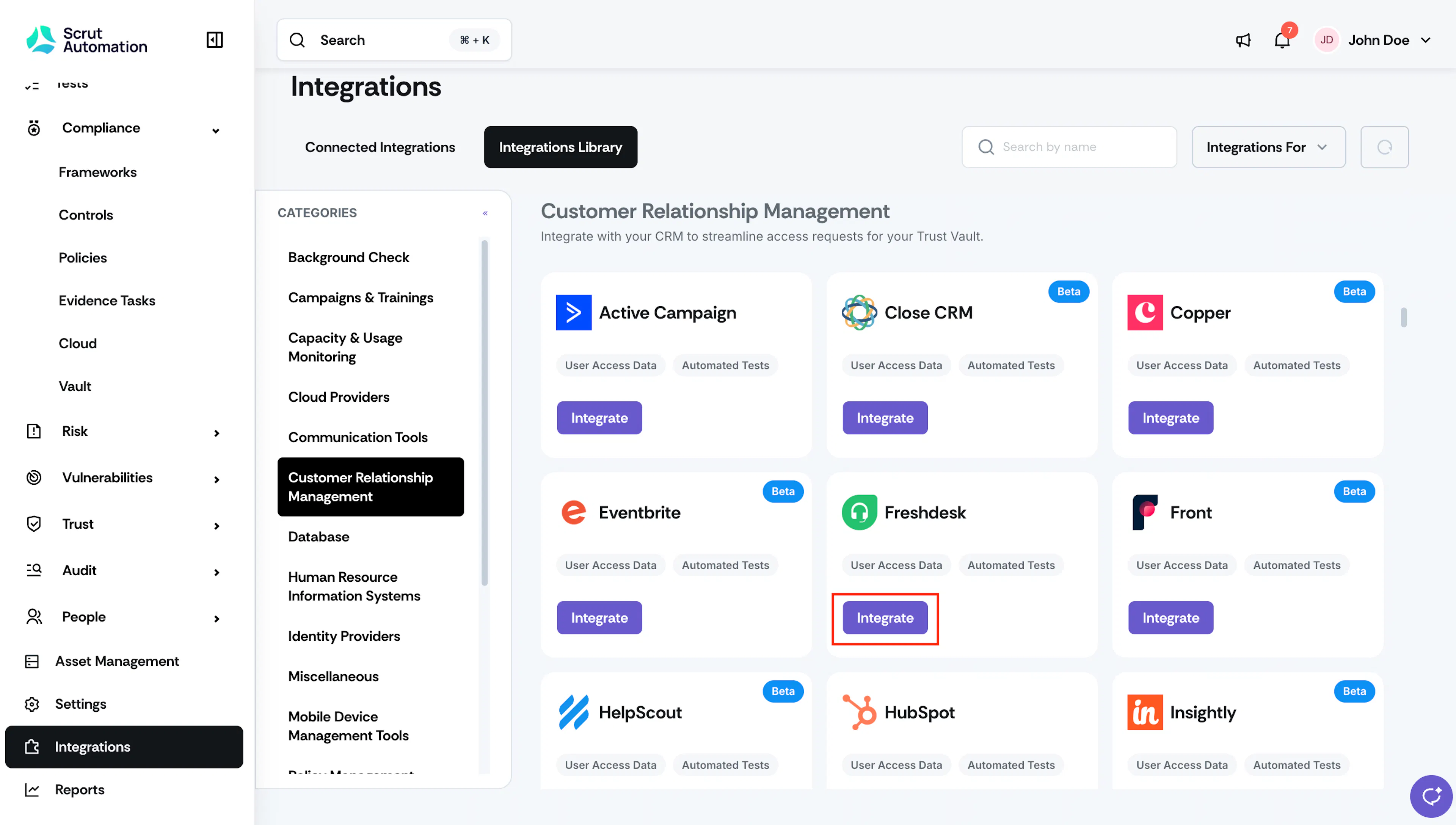
In Scrut, navigate to Integrations in the left sidebar.
-
Click the Integrations Library tab.
-
Scroll to the Customer Relationship Management category, locate the Freshdesk tile, and click Integrate.
-
On the Freshdesk integration page, under Credentials, enter your API key in the API Token field.
-
Enter your Freshdesk subdomain in the domain field (e.g., yourcompany).
Do not include .freshdesk.com.
-
Click Submit.
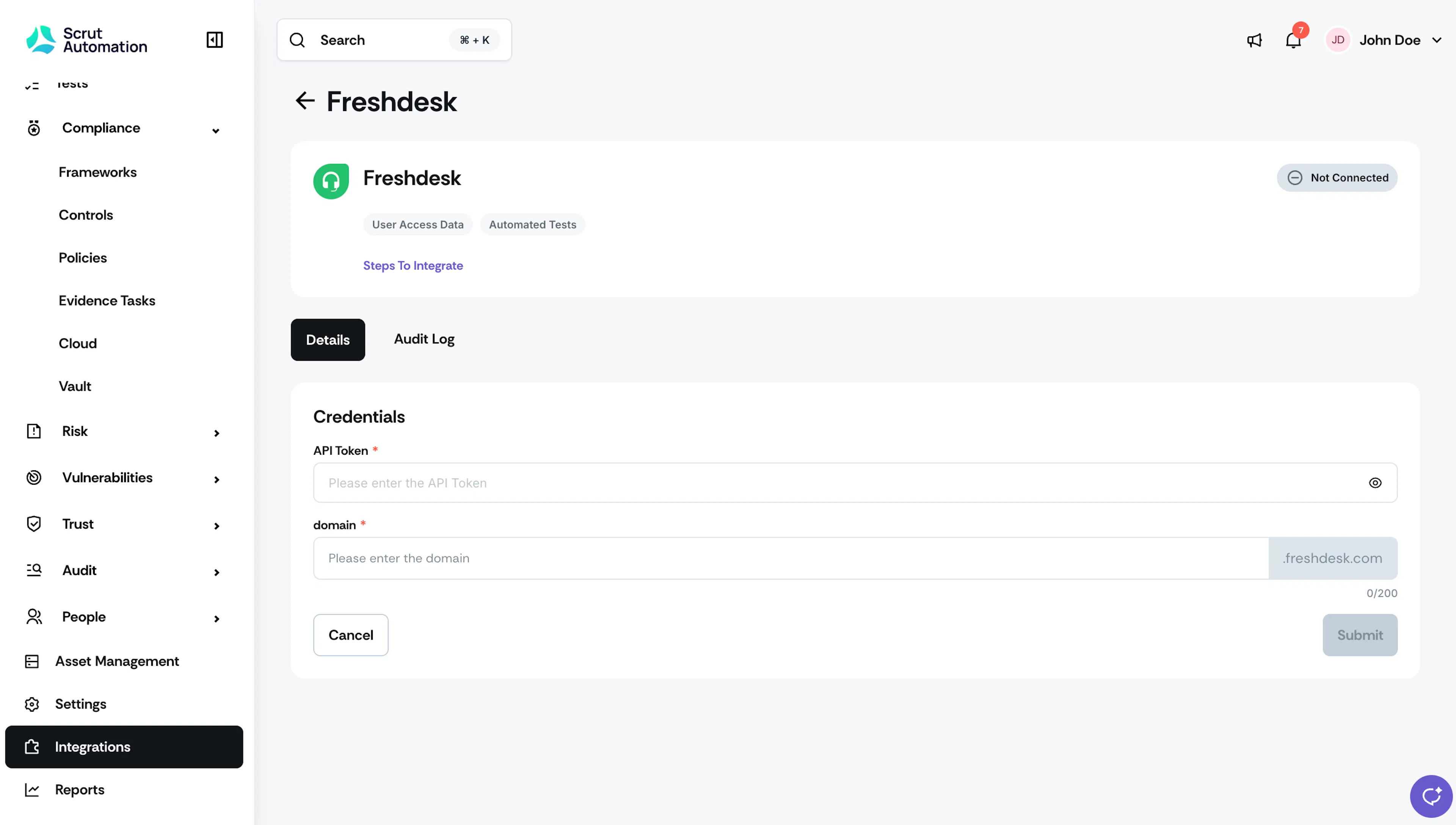
Scrut validates the credentials and establishes the connection. The status badge on the integration page updates to Connected.
What Happens Next?
Initial data sync
Once the connection is established, Scrut automatically begins the initial data sync. You can monitor sync activity and review connection events in the Audit Log tab on the Freshdesk integration page.
Review synced data
- Navigate to People → Access Reviews and create an access review to view synced Freshdesk agent records, including names, email addresses, job titles, and assigned roles.
- Navigate to Tests → Automated Tests and view the compliance checks Scrut runs for Freshdesk.
Common Errors and Troubleshooting
Invalid API key or authentication failure
Cause: The API key entered is incorrect, belongs to a non-Administrator account, or has been reset in Freshdesk.
Possible solutions: Log in to Freshdesk, go to Profile Settings, and verify the current API key. Confirm the API key belongs to an account with the Administrator role. If the key was recently reset in Freshdesk, re-enter the new key in Scrut under Integrations → Freshdesk → Credentials.
Incorrect domain
Cause: The domain field contains the full URL or an incorrect subdomain.
Possible solutions: Re-enter only the subdomain portion. If your Freshdesk URL is yourcompany.freshdesk.com, enter yourcompany only. Check for leading or trailing spaces in the domain field.
Agent data not appearing in Access Reviews
Possible solutions: Confirm the integration status shows Connected on the Freshdesk integration page. Trigger a manual sync from the integration settings and wait for the sync to complete before checking again. Confirm that agents exist in Freshdesk and are active.
Reach out to support@scrut.io or contact your CSM for further assistance.