

Integrate HubSpot
Connect your HubSpot account with Scrut to sync user access data into the Access Review module and run automated compliance checks against your HubSpot configurations. This article explains how to integrate your HubSpot account with Scrut.
What This Integration Does in Scrut
- User Access Data: Fetches user details, roles, and permissions from HubSpot for Access Reviews.
- Automated Tests: Runs automated compliance checks that continuously evaluate your configurations against applicable compliance frameworks.
Prerequisites
- An active HubSpot account with admin access
Permissions and Access Requirements
For HubSpot
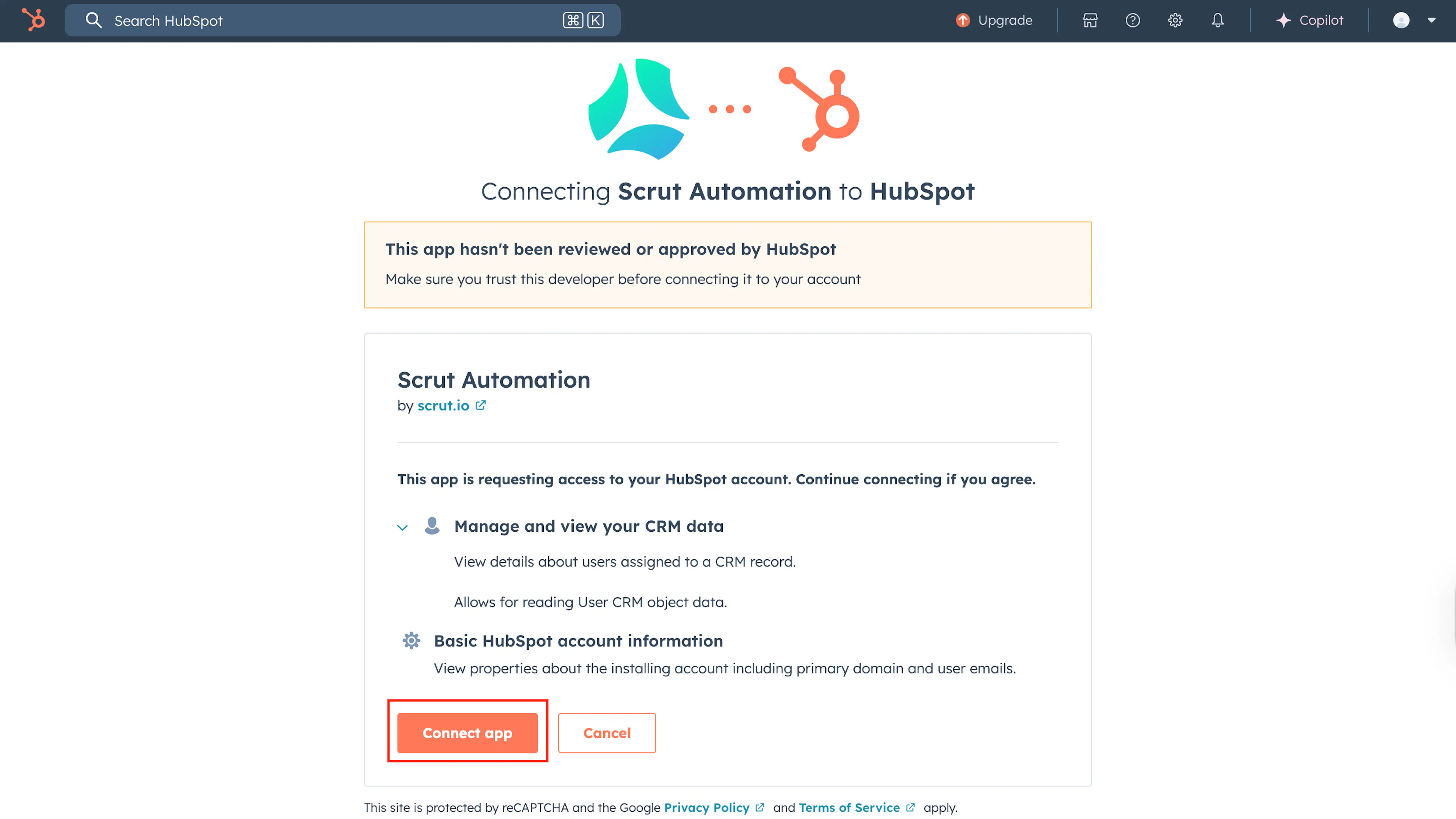
Scrut requests, read-only access to the following data in your HubSpot account:
-
Manage and view your CRM data:
- View details about users assigned to a CRM record
- Read User CRM object data
-
Basic HubSpot account information:
- View properties about the installing account, including primary domain and user emails
For Scrut
- Admin access to Scrut (or Contributor with access to the Integrations module)
Data Collected
- User Name: HubSpot user name
- User Email: HubSpot user email
- User Role: HubSpot role assignment
Sync Frequency
Data is synced automatically once every 12 hours. You can also trigger a manual sync from the HubSpot integration page in Scrut.
Integration Setup
Step 1: Authorize Access in HubSpot
-
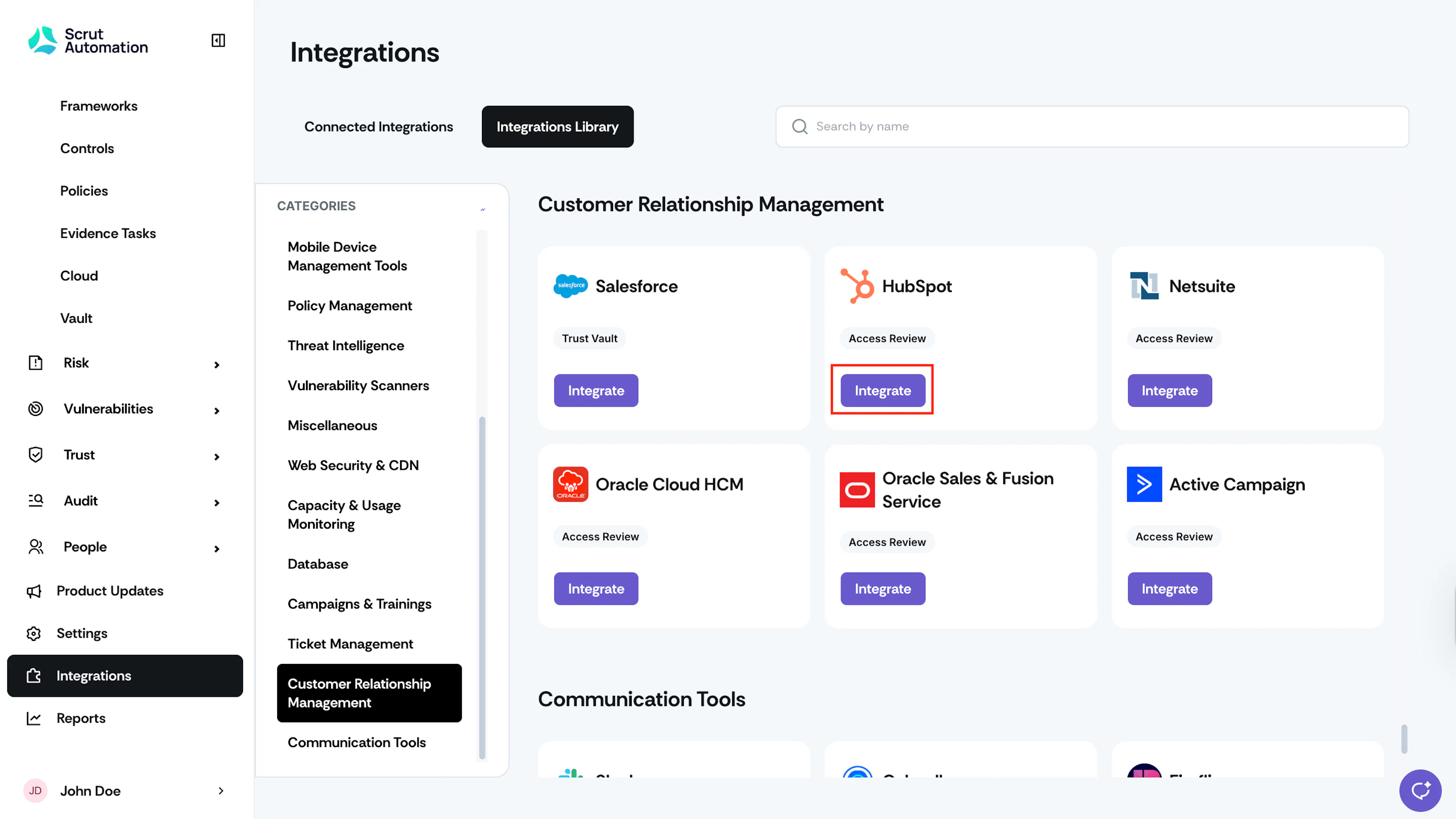
Sign in to Scrut and click Integrations in the left navigation panel.
-
Navigate to the Integrations Library tab and select Customer Relationship Management under Categories.
-
Scroll to the HubSpot tile and click Integrate.
-
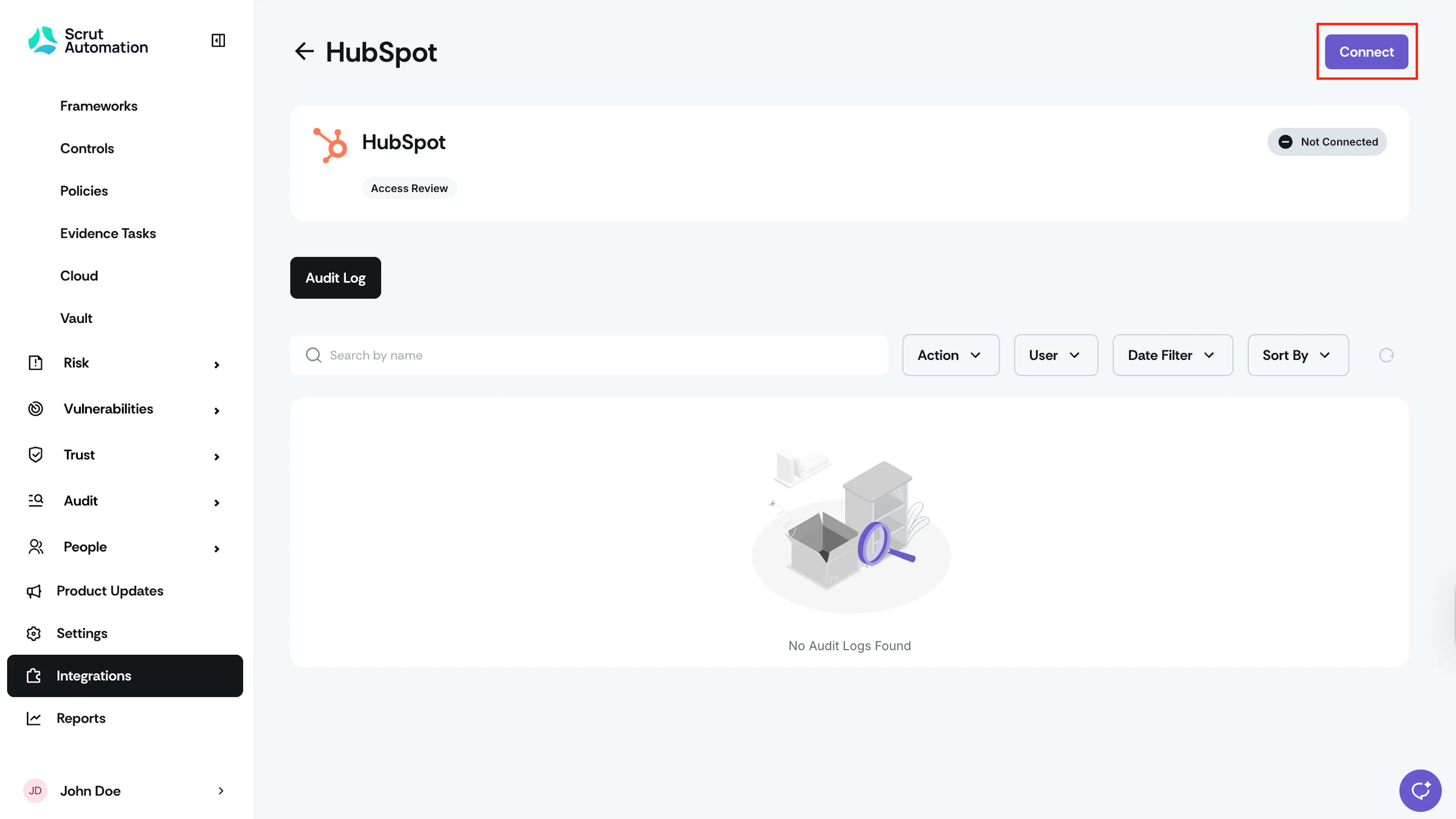
Click Connect at the top right of the HubSpot integration page.
-
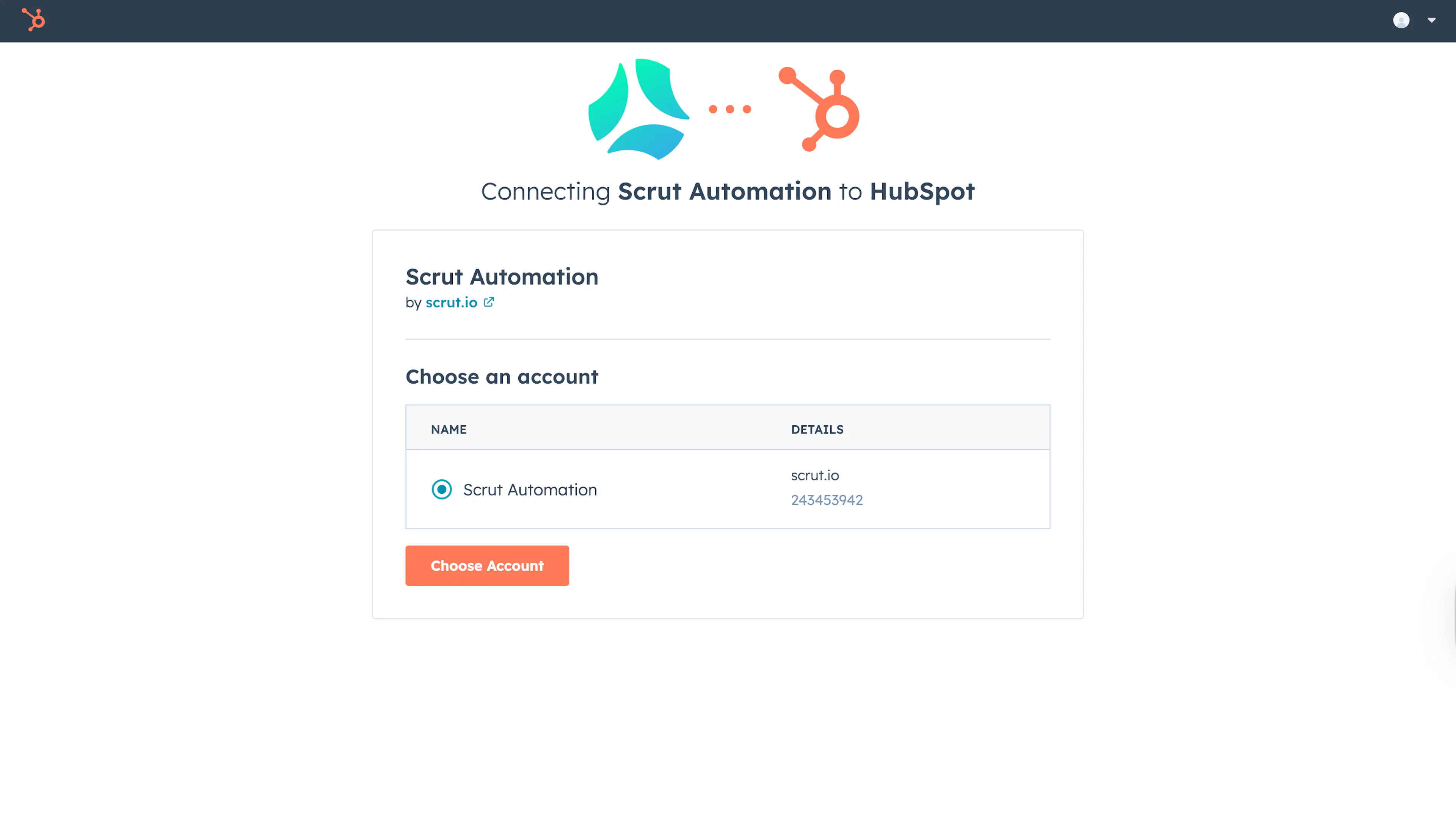
Scrut redirects you to the HubSpot authorization page. Sign in to your HubSpot account if prompted.
-
Select the HubSpot account you want to connect with Scrut and click Choose Account.
-
Review the permissions and click Connect app to complete authorization.
Step 2: Confirm the Connection in Scrut
-
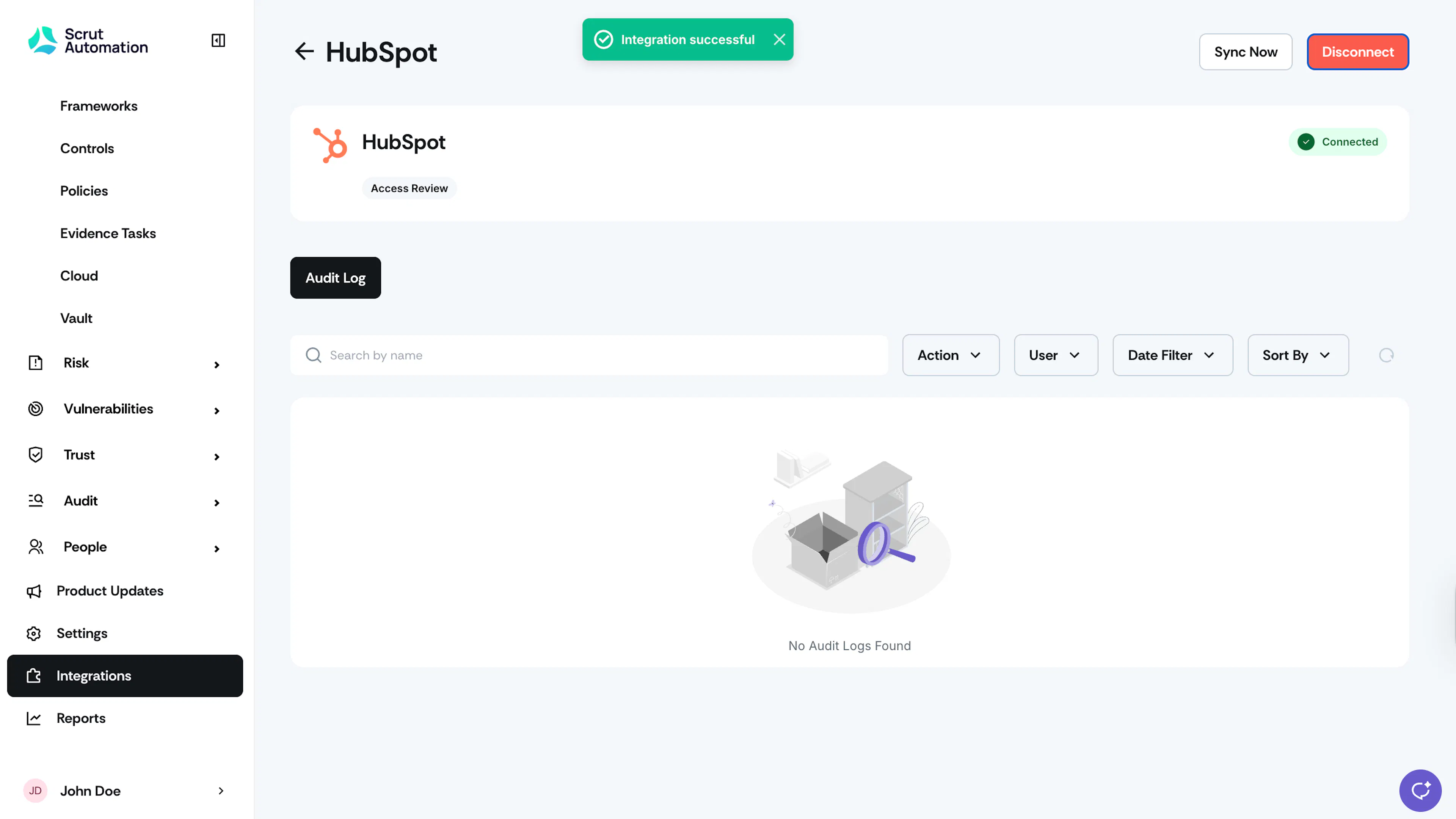
After authorization, you'll see the "Integration successful" banner and a Connected status indicator on the HubSpot integration page.
What Happens Next?
Initial data sync
The initial sync starts automatically after the integration is connected and typically takes a few hours to complete. Monitor sync progress in the Audit Log on the HubSpot integration page in Scrut.
Review synced data
- Navigate to People → Access Reviews to create an access review and validate access data pulled from HubSpot.
- Navigate to Tests to view automated test coverage driven by HubSpot data. Apply the Source filter with HubSpot selected to view tests only for HubSpot.
Common Errors and Troubleshooting
Authorization failure
Possible solutions:
- Confirm that you have admin access to the HubSpot account you're connecting to.
- Clear your browser cache and retry the connection flow.
- Make sure you're selecting the correct HubSpot account on the account selection screen.
Data not appearing in Access Review
Possible solutions:
- Check the Audit Log on the HubSpot integration page to confirm the initial sync has completed.
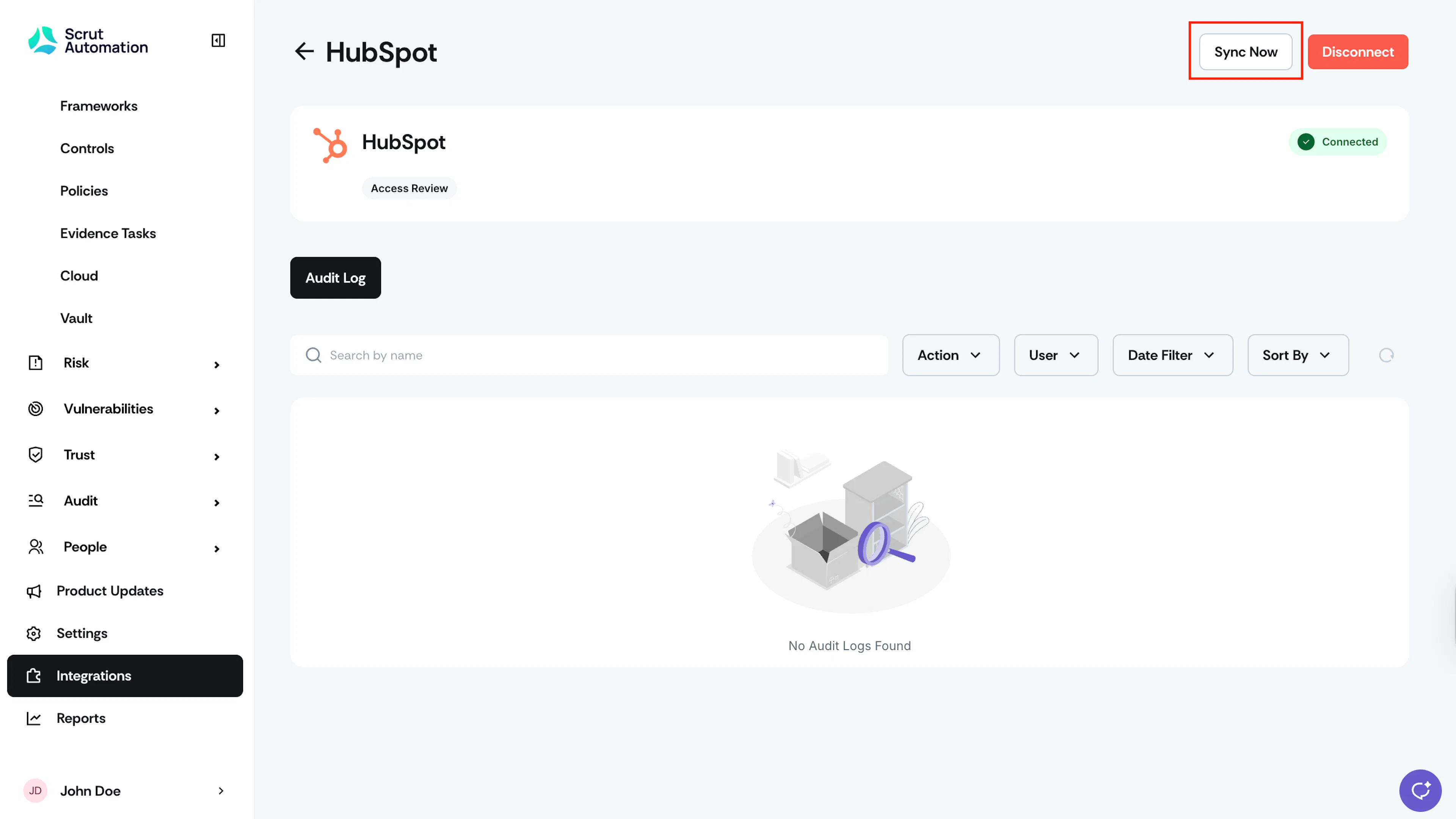
- If the sync is complete but data is missing, click Sync Now to force a refresh.
- Verify that the connected HubSpot account has active users with assigned roles.
Integration shows "Not Connected" after setup
Possible solutions:
- Disconnect and reconnect the integration.
- Confirm the HubSpot account credentials used during setup are still active.
FAQs
Reach out to support@scrut.io or contact your CSM for further assistance.