

Integrate DigitalOcean
Connect your DigitalOcean account to Scrut to automatically collect cloud infrastructure evidence and keep your compliance data up to date. Once connected, Scrut pulls resources like Droplets, Firewalls, and Kubernetes Clusters into your compliance and asset workflows. Learn how to connect your DigitalOcean infrastructure to Scrut.
What This Integration Does in Scrut
- Automated Tests: Runs automated compliance checks that continuously evaluate your DigitalOcean configurations against applicable compliance frameworks.
- Asset Management: Populates the Asset Management module in Scrut with discovered DigitalOcean resources and supports the collection of asset-related compliance evidence.
- Scrut Monitor: Collects evidence through Scrut Monitor. This helps automate evidence gathering and significantly speeds up compliance workflows.
Prerequisites
An active DigitalOcean account with admin-level access.
Permissions and Access Requirements
For DigitalOcean
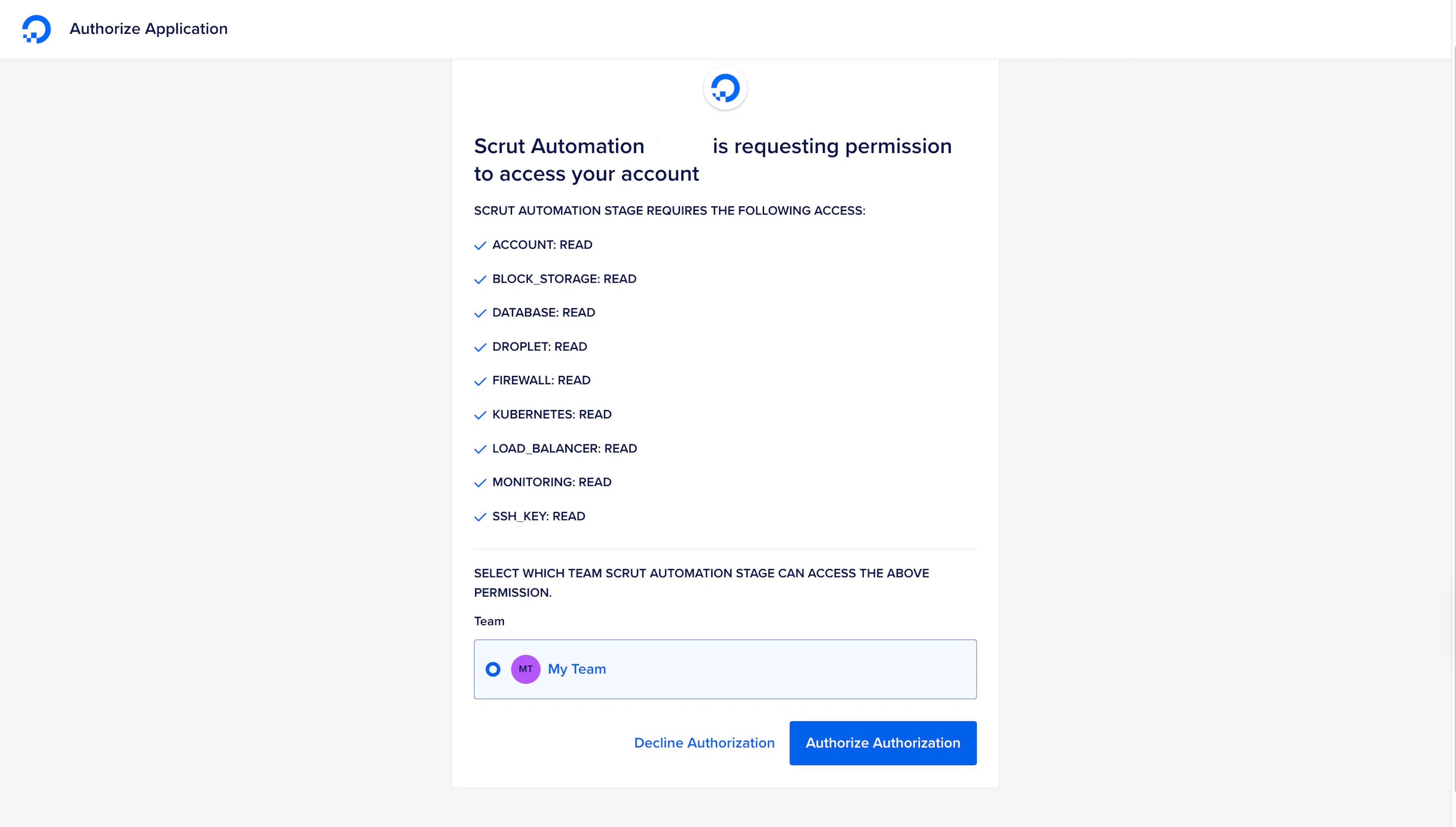
Scrut requests the following OAuth scopes during authentication. These are read-only and do not grant Scrut any write access to your DigitalOcean account.
- account:read
- block_storage:read
- database:read
- droplet:read
- firewall:read
- kubernetes:read
- load_balancer:read
- monitoring:read
- ssh_key:read
For Scrut
- Admin access to Scrut, or Contributor access with the Integrations module enabled.
Data Collected
- Droplets: Includes Droplet name, region, size, and status
- Load Balancers: Includes configuration and associated Droplets
- Kubernetes Clusters: Includes cluster name, version, and node pool details
- Block Storage Volumes: Includes volume name, size, and attachment status
- Database Clusters: Includes engine type, version, and cluster status
- Alert Policies: Includes policy name, type, and target resources
- Firewalls: Includes inbound and outbound rules and associated Droplets
Sync Frequency
Data is synced automatically once every 24 hours. You can also manually trigger a sync from the integration settings page in Scrut.
Integration Setup
Step 1: Connect DigitalOcean to Scrut
-
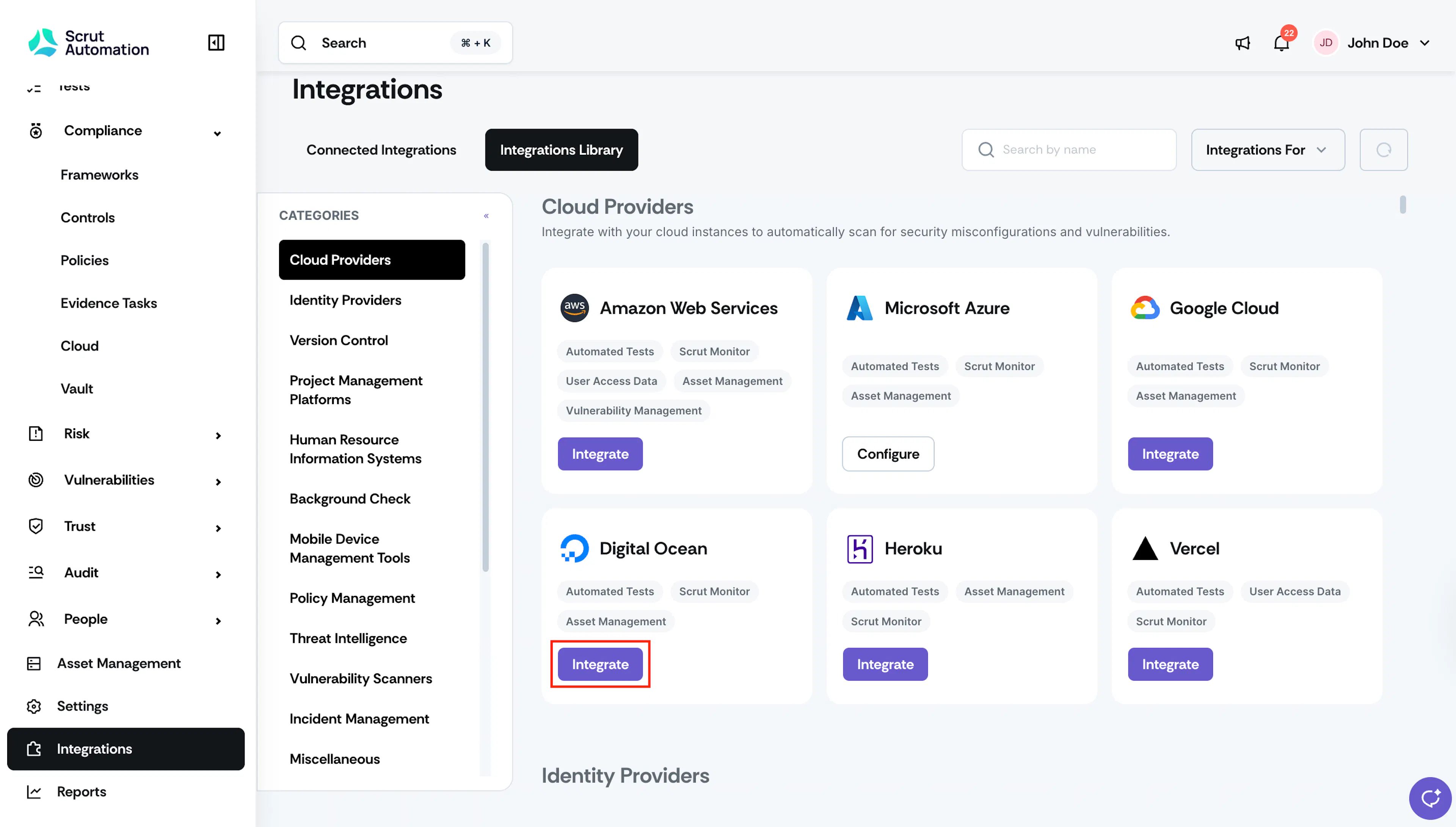
From the left navigation panel, click Integrations.
-
Navigate to the Integrations Library tab.
-
Scroll to the Cloud Providers section and locate DigitalOcean.
-
Click Integrate.
-
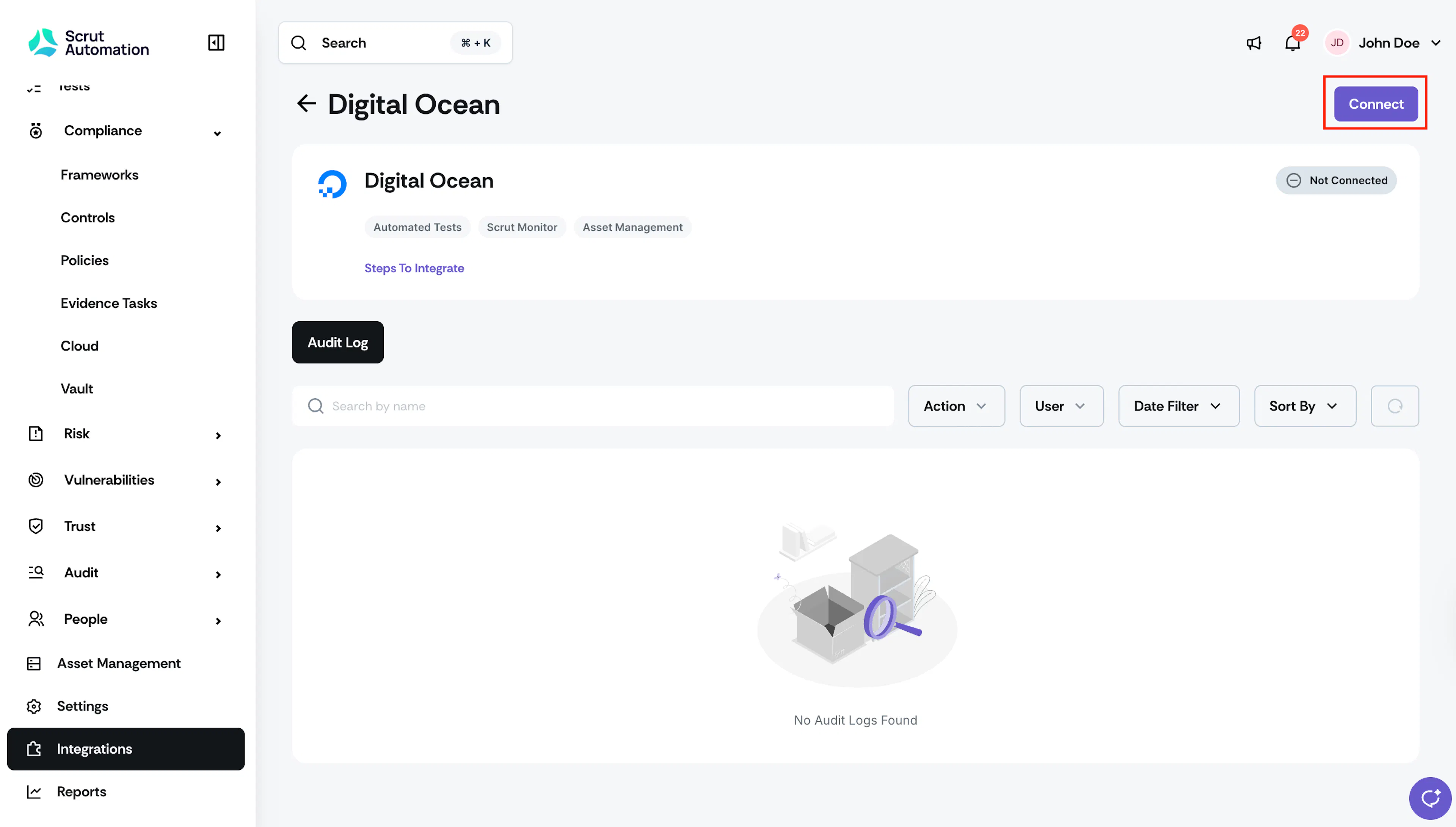
On the DigitalOcean integration page, click Connect.
Important: You need admin-level access. The integration will fail if the authenticating account lacks the required permissions.
-
You are redirected to DigitalOcean's authentication page. Log in with your admin account credentials and authorize the requested scopes.
-
Select the Digital Ocean team that Scrut can access.
-
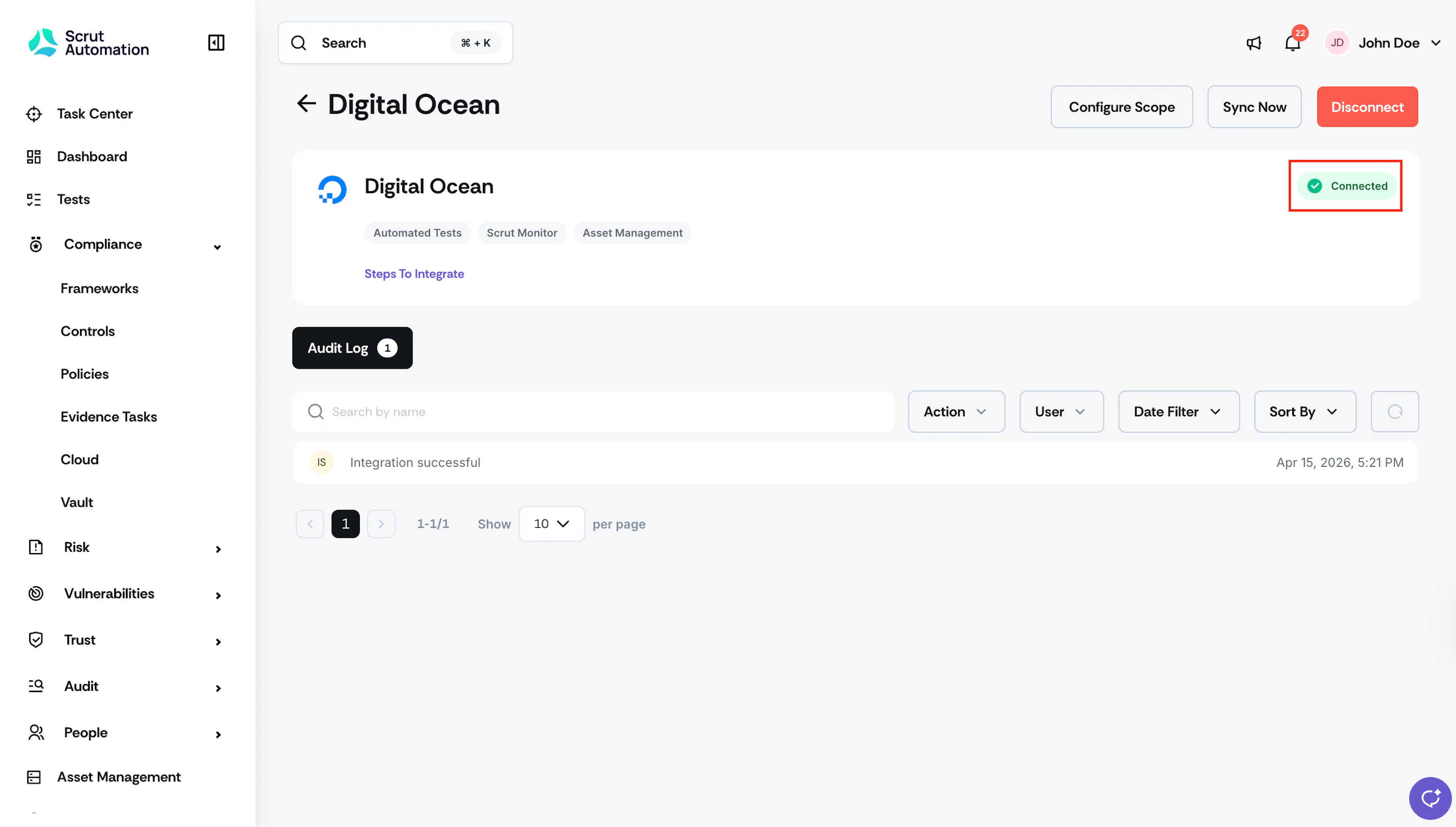
On successful authentication, you are redirected back to Scrut. The integration status updates to Connected.
Step 2: Configure Resource Scope
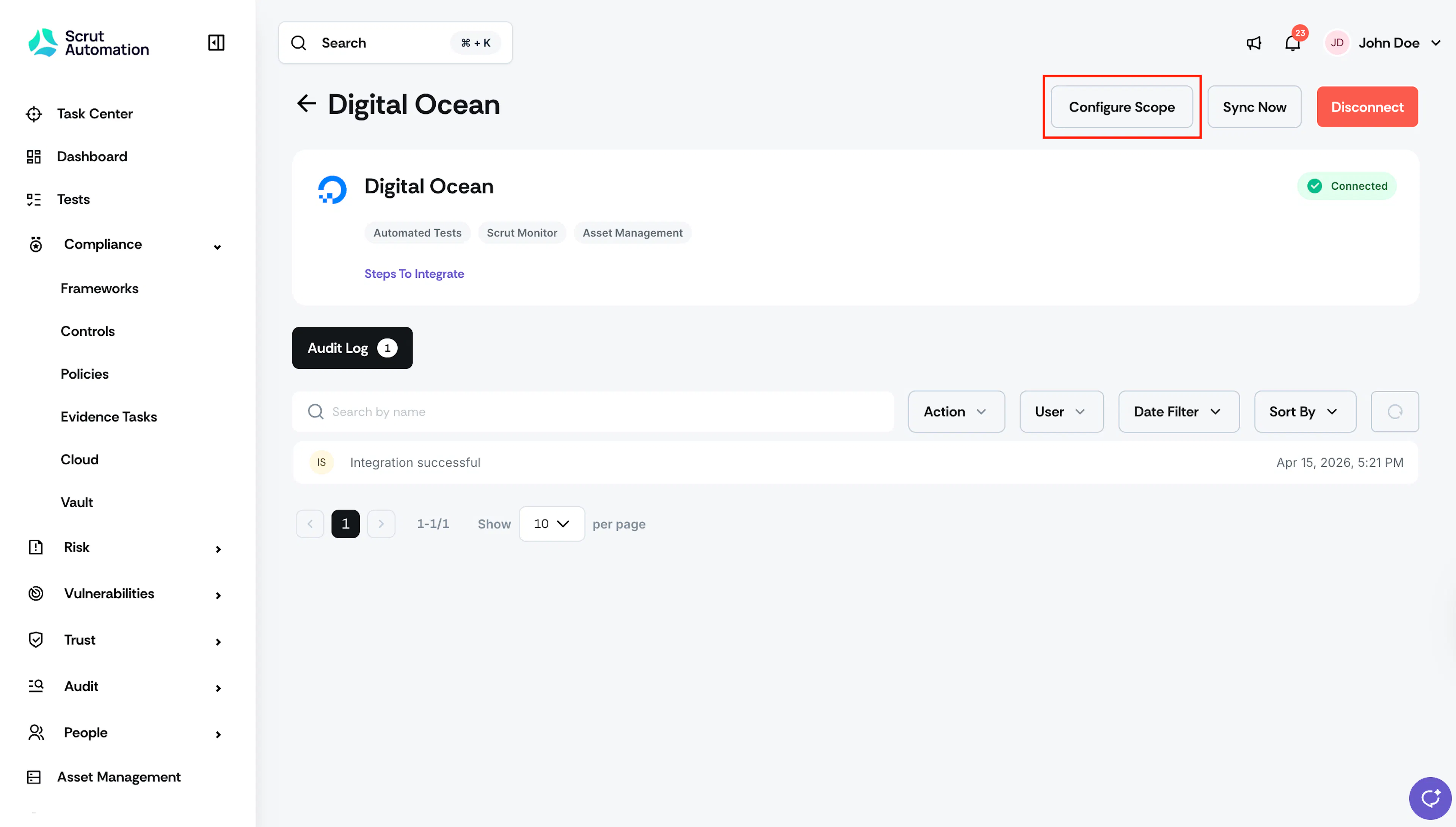
- Click Configure Scope on the Digital Ocean integration page.
- In the Apps in Scope panel, toggle on each resource type you want Scrut to sync.
- Click Save to confirm your selections.
What Happens Next?
Initial data sync
The first sync starts automatically after you save your scope configuration. You can monitor sync activity and review connection history in the Audit Log section of the DigitalOcean integration settings page.
Review synced data
Once the sync completes, verify that data has landed correctly in the following modules:
- Navigate to Tests to view automated test results and flagged misconfigurations.
- Navigate to Evidence Tasks to set up Scrut Monitors to automate evidence collection from Digital Ocean.
- Navigate to Asset Management to view discovered Digital Ocean assets.
Common Errors and Troubleshooting
Authentication failure
Cause: The DigitalOcean account used during setup does not have admin-level access, or the OAuth authorization was not fully completed.
Possible solutions: Verify that the account you authenticated with has admin access in DigitalOcean. Disconnect the integration and reconnect using a DigitalOcean admin account.
Data not appearing in Scrut
Possible solutions: Check that the relevant resource types are toggled on in Configure Scope. Trigger a manual sync from the integration settings page and wait a few minutes. Review the Audit Log on the DigitalOcean integration page for any sync errors.
Resources missing from Asset Management
Possible solutions: Confirm the resources exist in your DigitalOcean account and are in an active state. Check that the corresponding data type is enabled in your scope configuration.
FAQs
Reach out to support@scrut.io or contact your CSM for further assistance.