

Integrate GCP
If your organization uses GCP (Google Cloud Platform) for your cloud infrastructure, connecting it to Scrut can save you countless hours of manual compliance work while strengthening your security posture.
The Scrut - GCP integration enables automated collection of compliance evidence from your connected GCP project(s). Instead of manually checking your GCP cloud configurations and gathering audit evidence, Scrut automatically scans your GCP infrastructure every 24 hours, identifies security misconfigurations, and fetches audit-ready documentation. You can integrate one or more GCP projects, as needed.
In this guide, we walk you through the step-by-step process of completing this integration.
Overview
Scrut uses a least-privilege, impersonation-based model for the integration. For each GCP project you onboard, the setup script creates a project-specific read-only service account. This account is granted only the minimal read-only roles required for asset discovery, IAM review, and configuration checks.
Scrut's central service account (scrut-cp-sa@scrut-cloudscanner.iam.gserviceaccount.com) is then given impersonation rights on your project's scanner service account. All access happens via short-lived token impersonation using the GCP IAM Credentials API. Scrut never receives persistent credentials, keys, or write permissions.
What This Integration Does in Scrut
- Automated Tests: Runs automated compliance checks that continuously evaluate your GCP configurations against applicable compliance frameworks.
- Scrut Monitor: Collects evidence through Scrut Monitor. This helps automate evidence gathering and significantly speeds up compliance workflows.
- Asset Management: Populates the Asset Management module in Scrut with discovered GCP assets and supports the collection of asset-related compliance evidence.
Prerequisites
Before starting the integration, ensure you have the following access and permissions:
Account Requirements
- You must be a Scrut Admin (or Contributor with access to the Integration module)
- You must have the Service Account Creator role (
roles/iam.serviceAccountCreator) in GCP or a custom role with equivalent permissions
Enable the Cloud Resource Manager API
Enable the Cloud Resource Manager API for the GCP project you’re connecting with Scrut. Refer to the Google Cloud documentation for more information about the API.
Permissions and Access Requirements
For GCP
Scrut follows the principle of least privilege. We request only the minimum permissions necessary for effective compliance monitoring. The service account you create for this integration requires the following IAM roles:
-
Viewer (
roles/viewer): Grants read-only access to GCP resources and their metadata. Scrut uses this to discover and inventory resources such as VMs, storage buckets, and databases, without the ability to modify, create, or delete them. -
Security Reviewer (
roles/iam.securityReviewer): Grants read-only access to IAM policies. Scrut uses this to review access permissions and verify that IAM configurations align with security best practices. -
Stackdriver Accounts Viewer (
roles/stackdriver.accounts.viewer): Grants read-only access to Cloud Logging and Cloud Monitoring data. Scrut uses this to review log entries and metric data for compliance checks.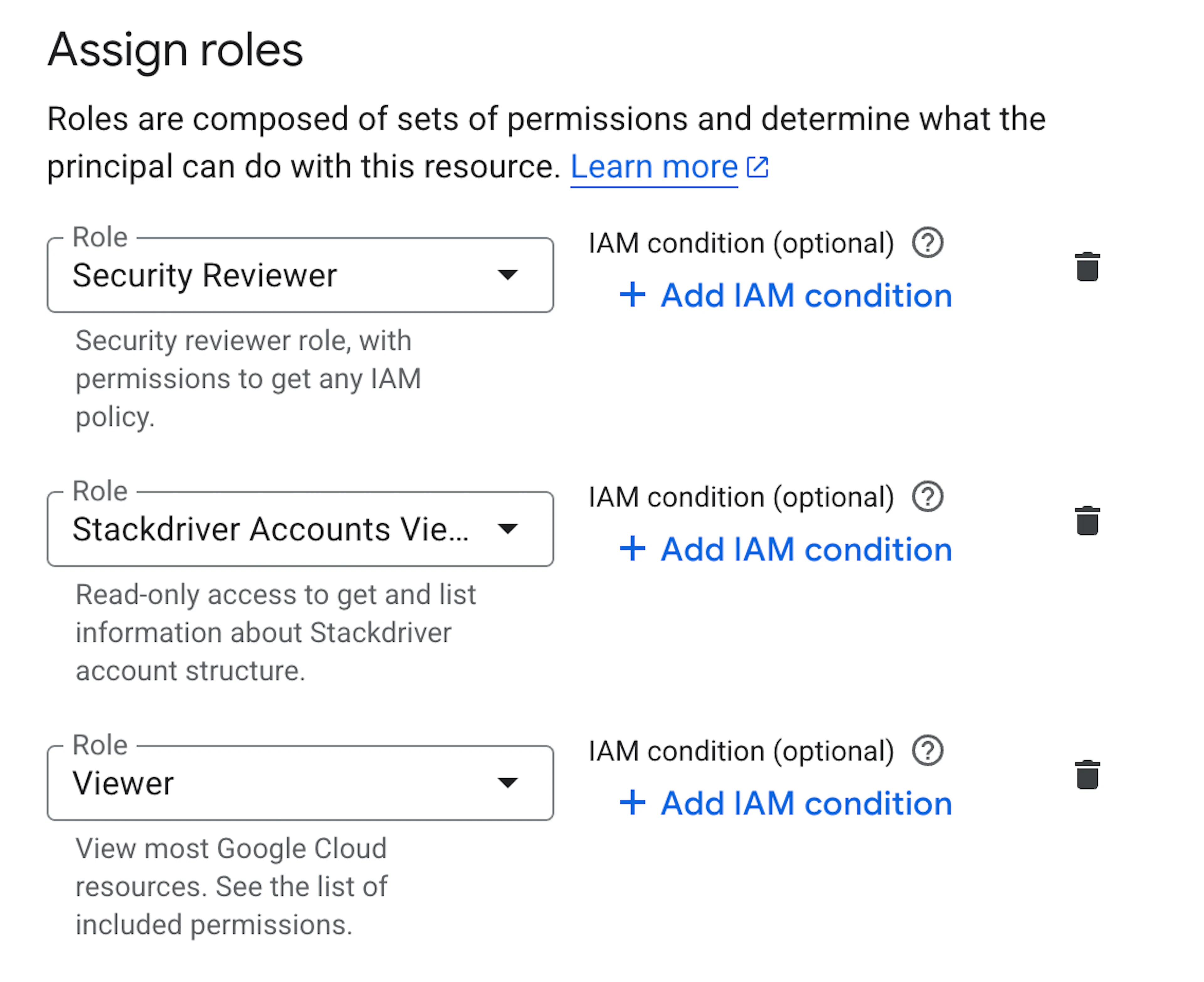
For Scrut
- Admin access to Scrut or Contributor access with the Integration module enabled.
Data Collected
- Projects: Top-level organizational unit for all GCP resources
- Zones: Deployment zones within a GCP region
- Regions: Geographic regions where GCP resources are hosted
- Storage Buckets: Cloud Storage buckets and their configurations
- Disks: Persistent disk configurations
- Firewalls: VPC firewall rules and their settings
- IAM Roles: Role definitions and bindings across the project
- Images: Compute Engine images
- Instance Templates: Templates used to create VM instances
- Networks: VPC networks
- Subnets: Subnetworks within VPC networks
- Running Instances: Active Compute Engine
- VM instances Snapshots: Disk snapshots
- SQL Instances: Cloud SQL database instances
- SSL Policies: SSL policy configurations for load balancers
- Backup: Backup configurations for applicable resources
Sync Frequency
Data is synced automatically once every 24 hours. Manual sync is not supported for this integration.
How To Integrate Your GCP Account
Heads Up!
If you’re integrating multiple GCP projects (more than 10), refer to this guide for a script-based integration process.
Step 1: Create a Service Account and Define Its Permissions
-
Log in to your GCP console and switch to the project you wish to integrate with Scrut.
-
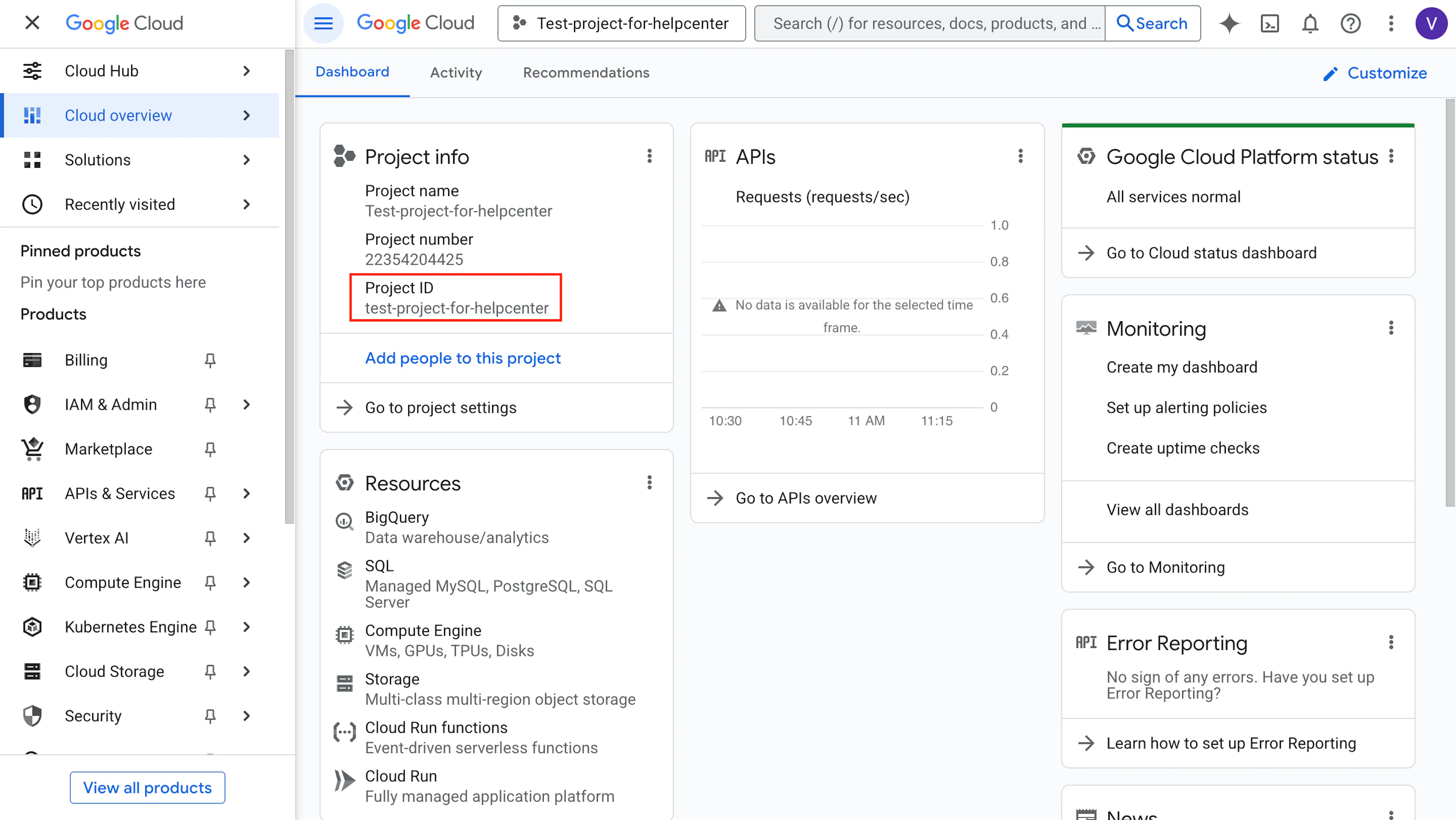
Copy the project ID from your project dashboard. You’ll need to enter this in Scrut in Step 3.
-
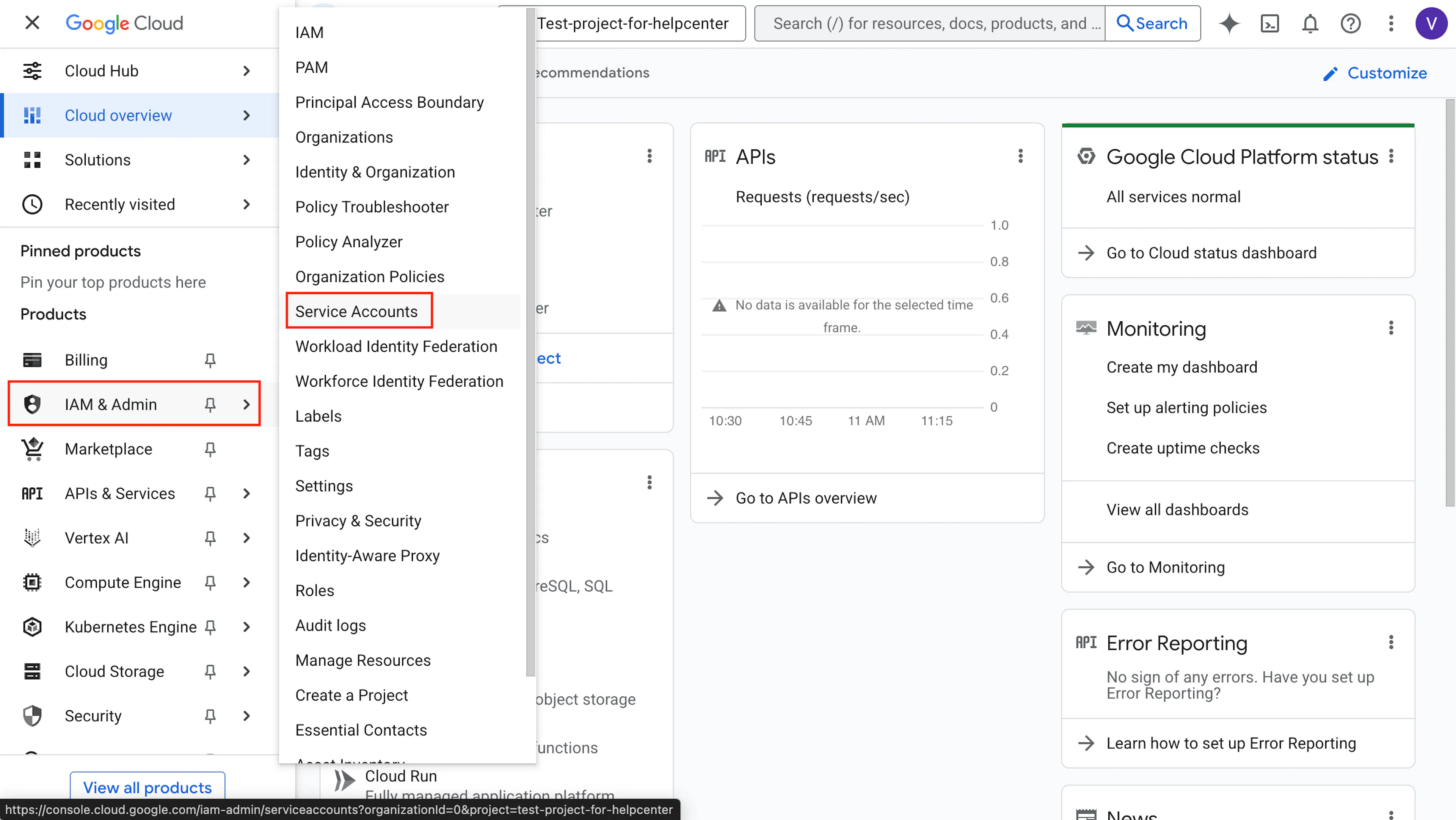
In the left navigation menu, click on IAM & Admin, then select Service Accounts.
-
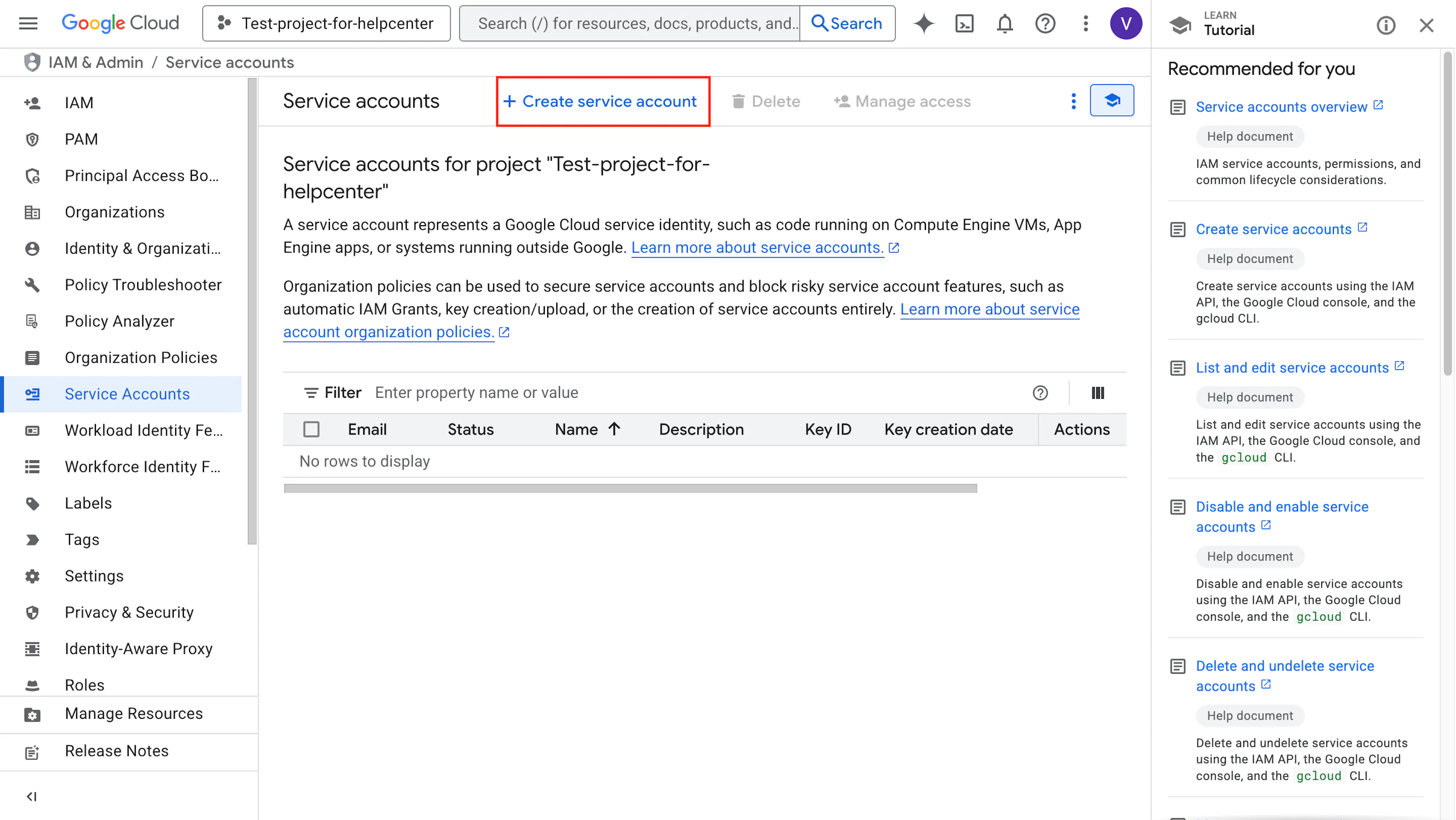
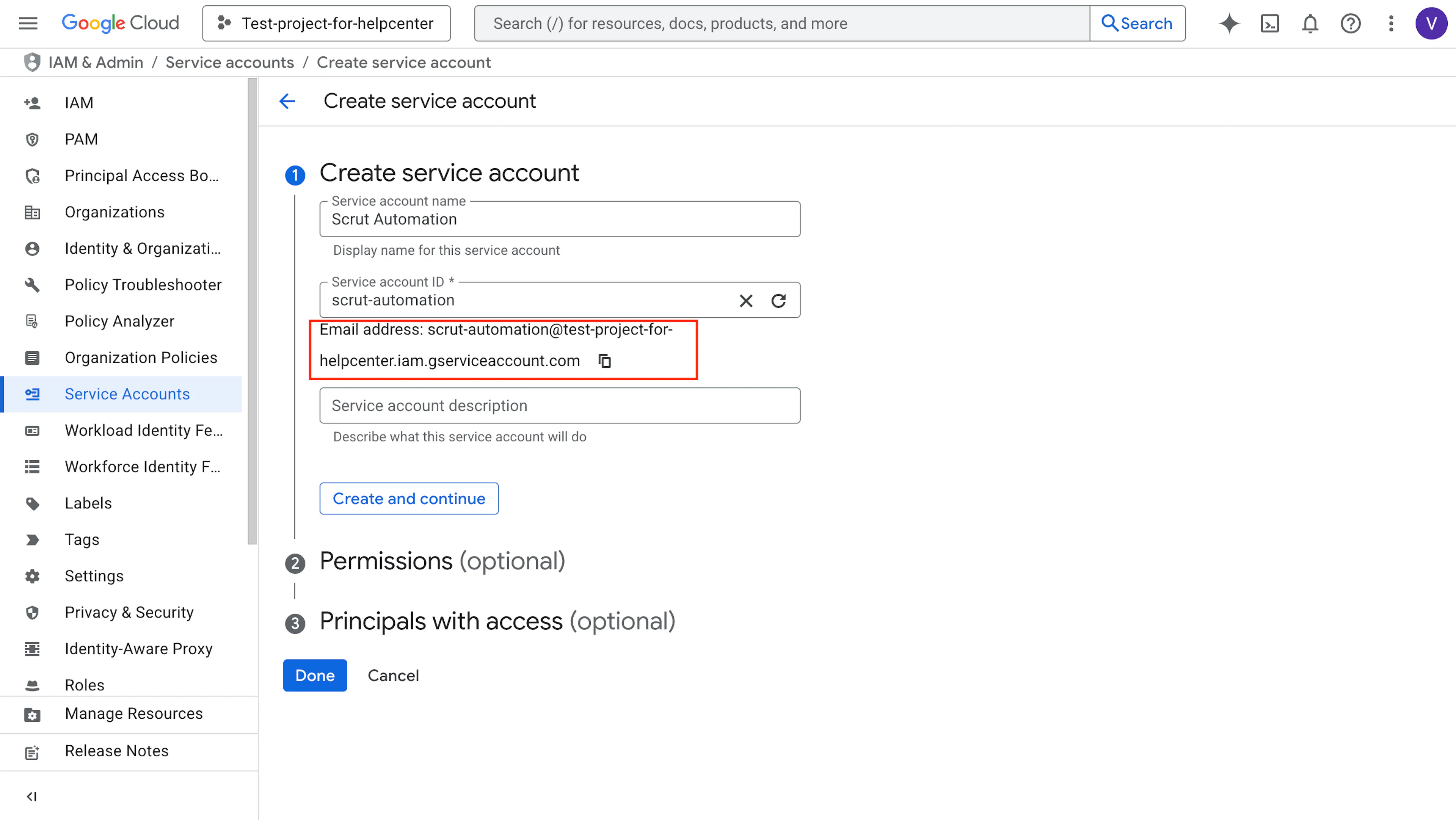
Click the +Create Service Account button.
-
Enter a name for the service account and verify the service account ID.
-
Copy the email address created for the service account.
-
Click Create and Continue.
-
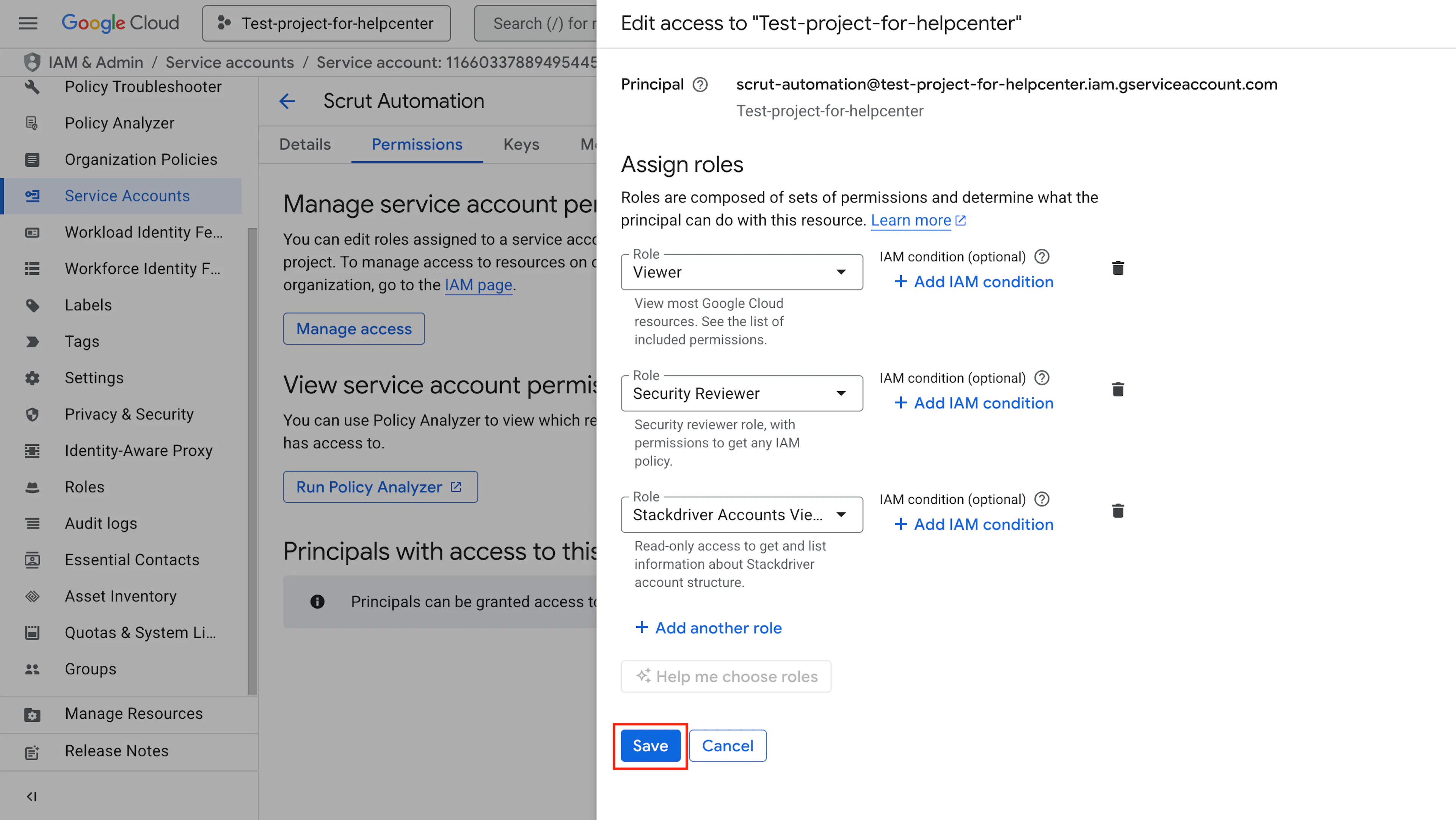
Go to the Permissions tab and add the following roles to the service account you created:
-
Viewer
-
Security Reviewer
-
Stackdriver Accounts Viewer
-
Pro Tip!
Refer to these Google Cloud documentation to learn more about:
Step 2: Enable Scrut to Impersonate the Service Account
-
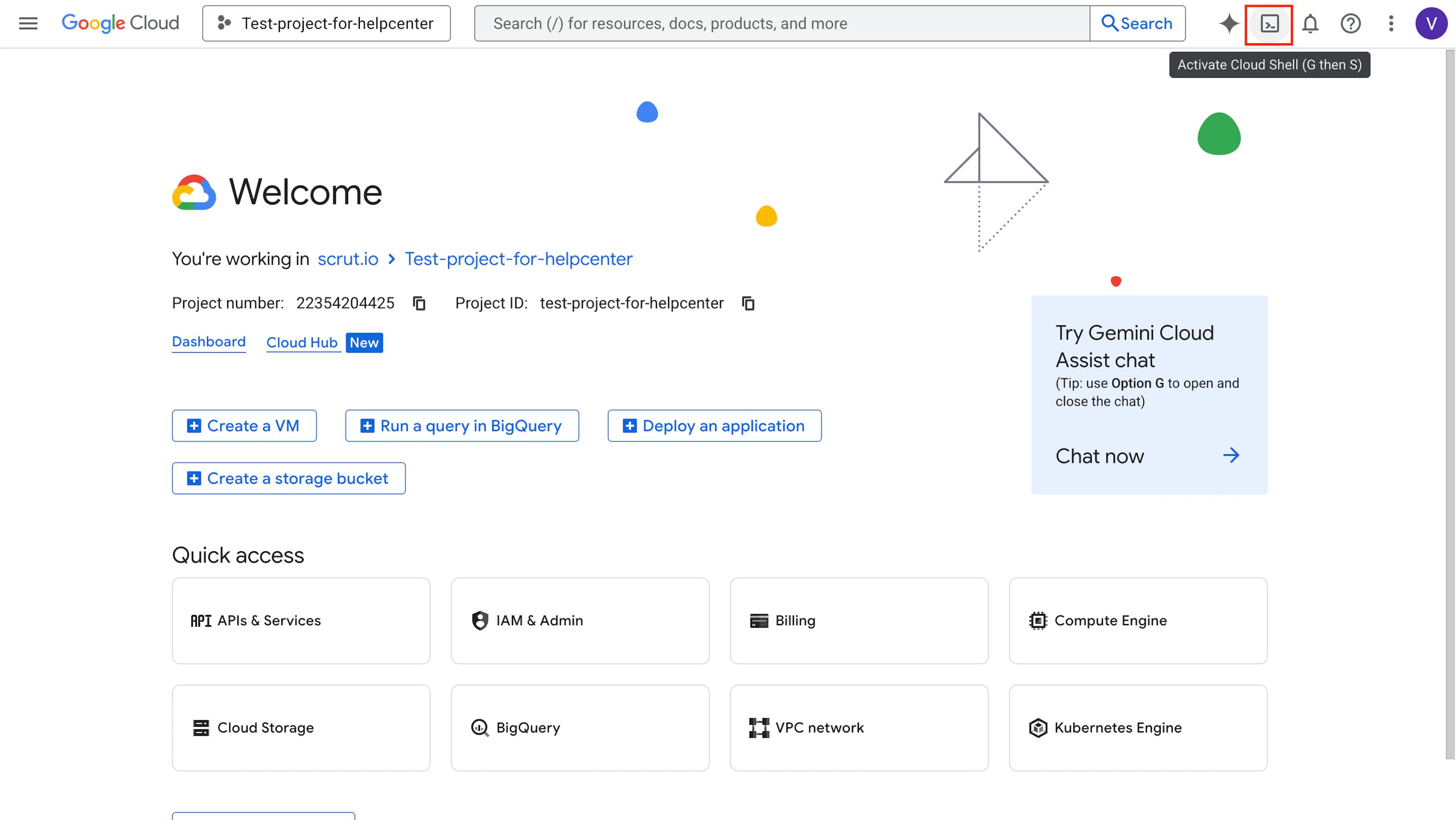
Activate the GCP Cloud Shell.
-
Make sure the project you chose on step 2 is selected, else switch to this project by running the command:
gcloud config set project [PROJECT_ID] -
Enable the IAM and Service Account Credentials APIs by running the following command:
gcloud services enable iam.googleapis.com iamcredentials.googleapis.com cloudresourcemanager.googleapis.com -
To enable Scrut to impersonate the service account (you created in Step 1), run the following command after replacing the placeholder text your_service_account_email with the service account email you noted down earlier.
gcloud iam service-accounts add-iam-policy-binding your_service_account_email \
--member serviceAccount:scrut-cp-sa@scrut-cloudscanner.iam.gserviceaccount.com \
--role roles/iam.serviceAccountTokenCreator
This enables Scrut’s service account scrut-cp-sa@scrut-cloudscanner.iam.gserviceaccount.com to impersonate the service account you created.
Step 3: Enter Project ID and Service Account Email in Scrut
-
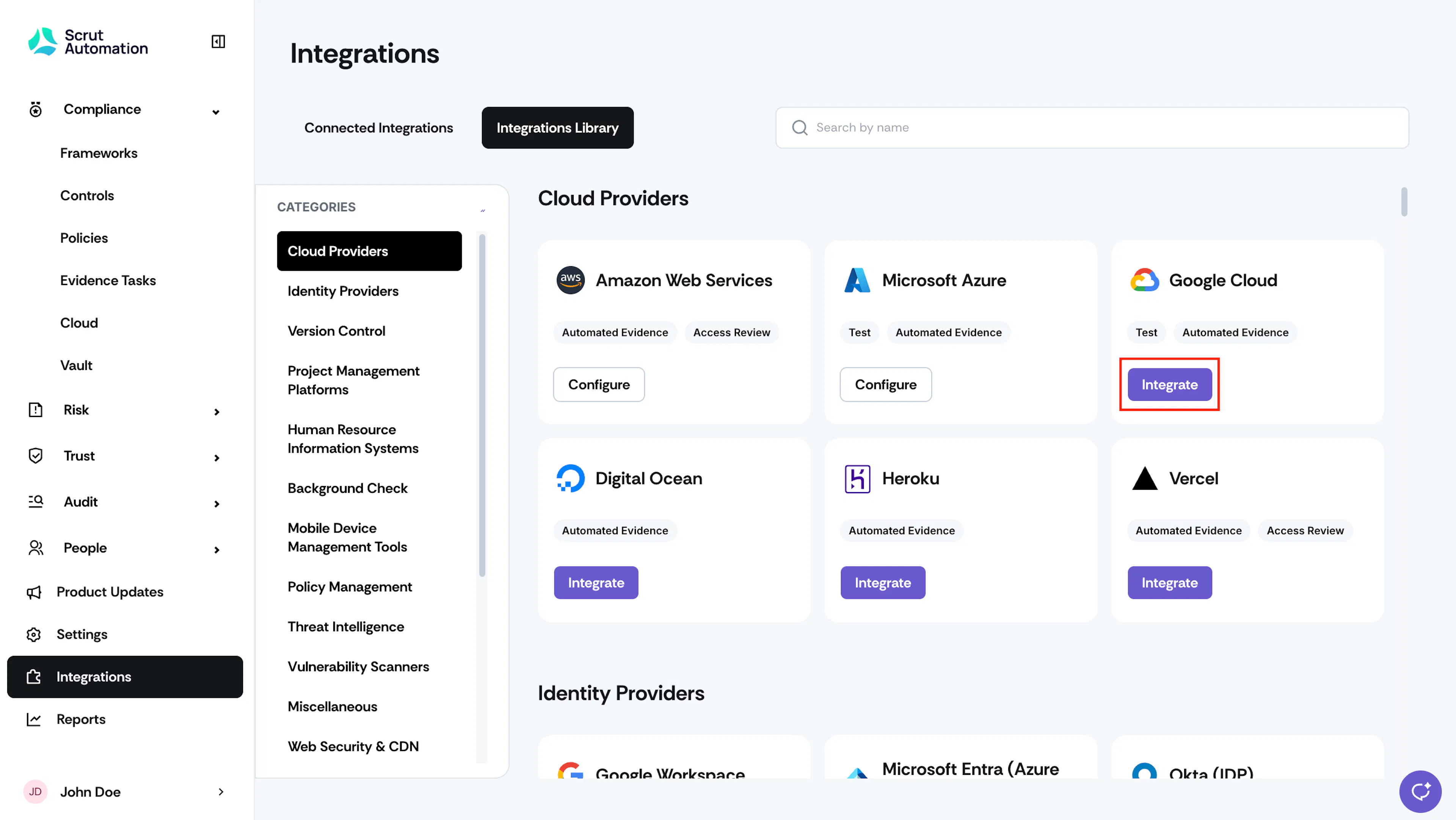
Sign in to Scrut and click Integrations on the left navigation panel.
-
Go to the Integrations Library tab and scroll to Cloud Providers in the Categories section.
-
Look for the Google Cloud tile and click Integrate.
-
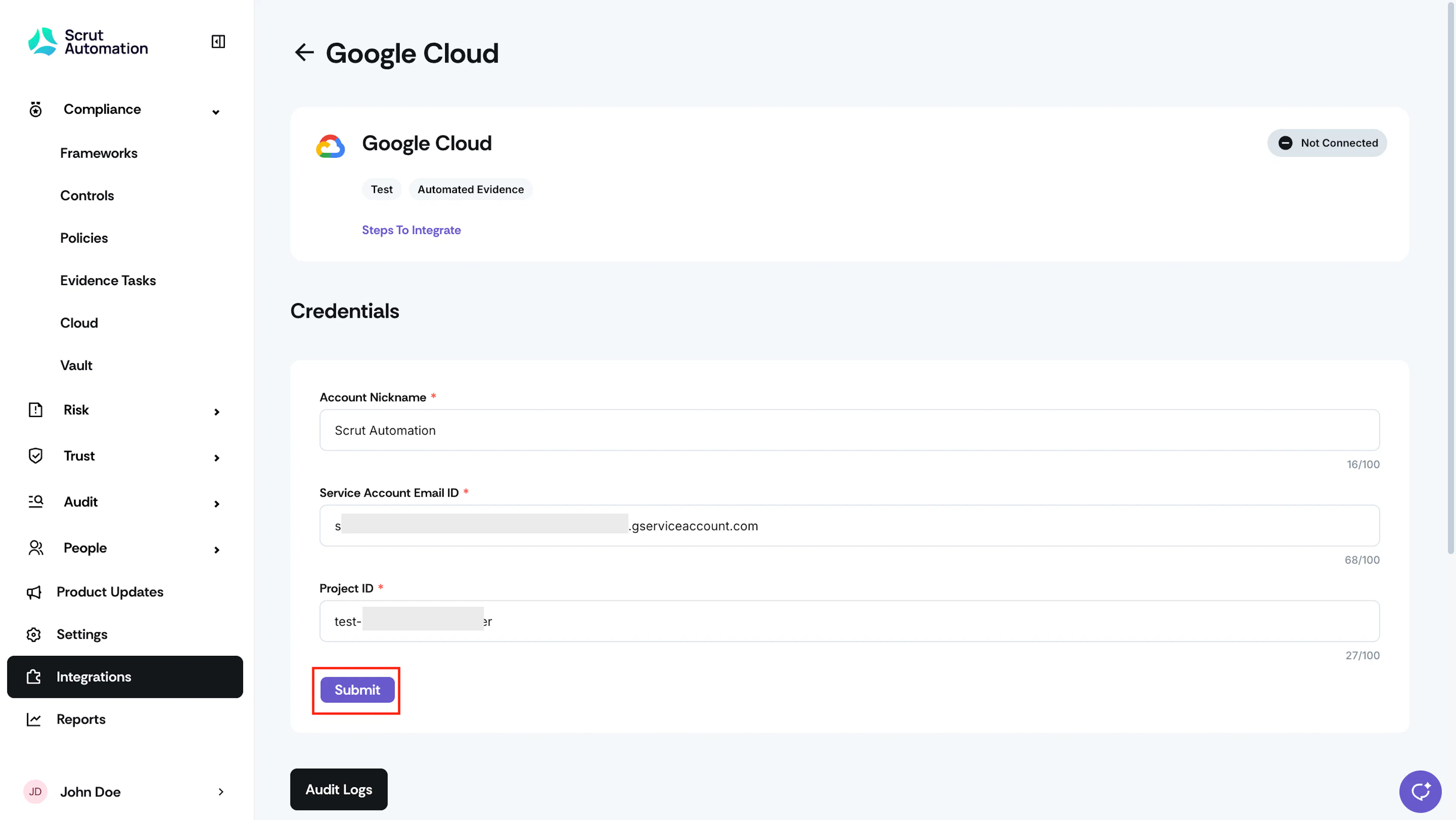
On the GCP integration page, enter the following details:
- Account Nickname: Enter a nickname for the service account you’re connecting with Scrut.
- Service Account Email ID: Paste the Service Account Email ID you copied from GCP in Step 2.
- Project ID: Paste the Project ID you copied from GCP in Step 1.
-
Click Submit.
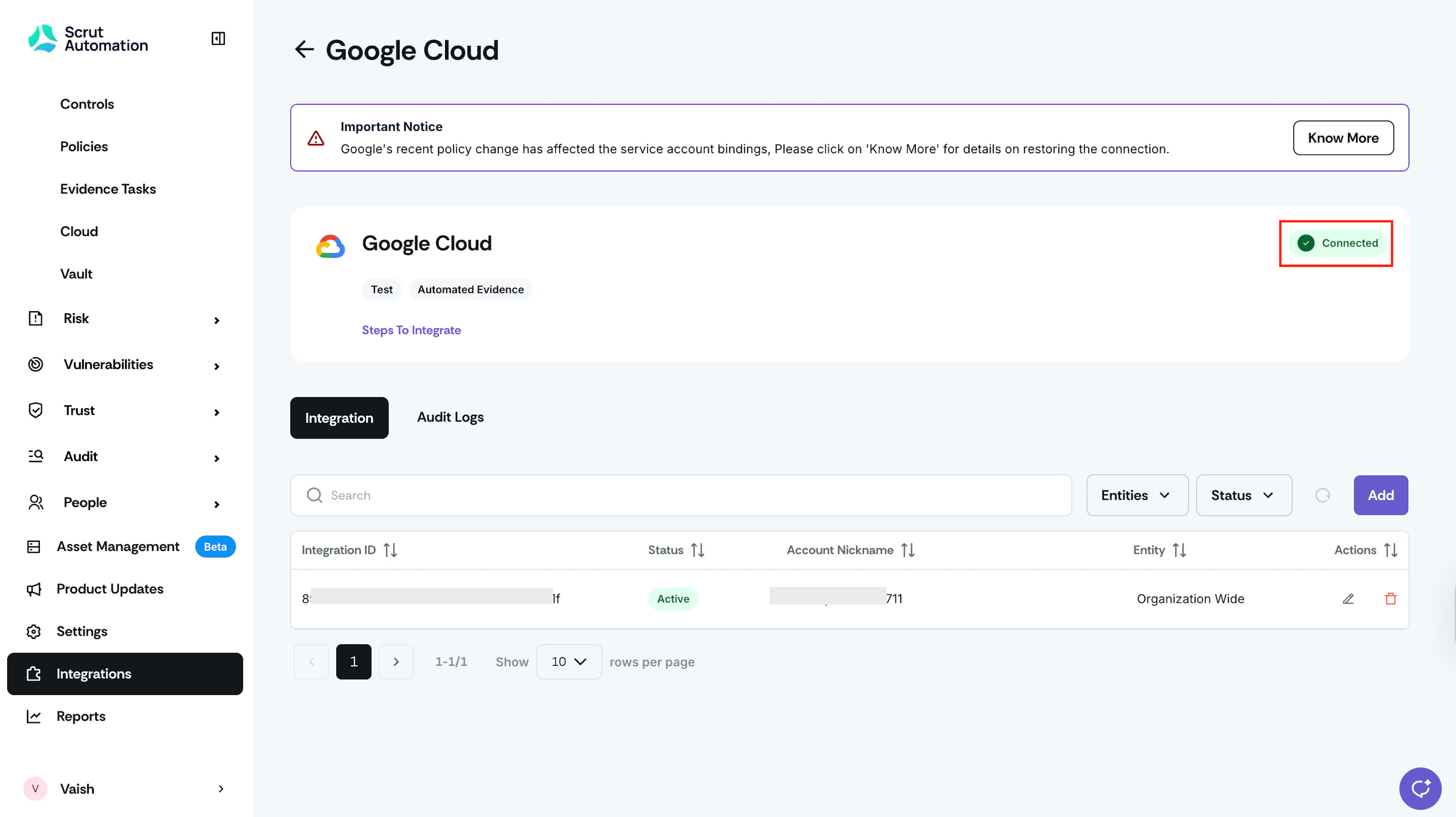
Watch out for the success toast message and the Connected status flag.
Integrating Multiple GCP Projects With Scrut
You can connect multiple GCP projects with Scrut. To connect to an additional project:
-
Sign in to Scrut and click Integrations on the left navigation panel.
-
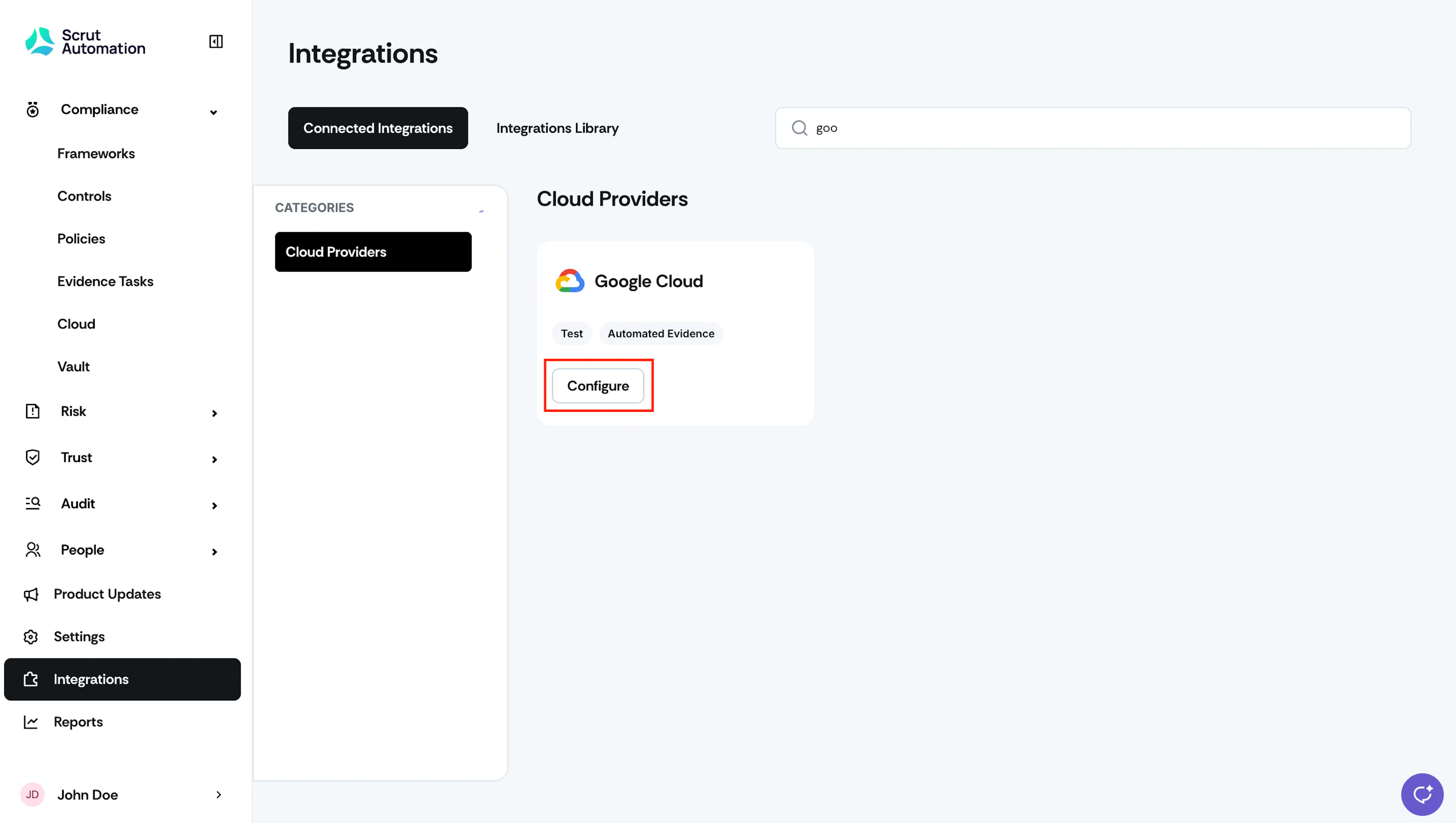
Navigate to the Connected Integrations tab and search for 'Google Cloud'.
-
Click the Configure button on the GCP integration tile.
-
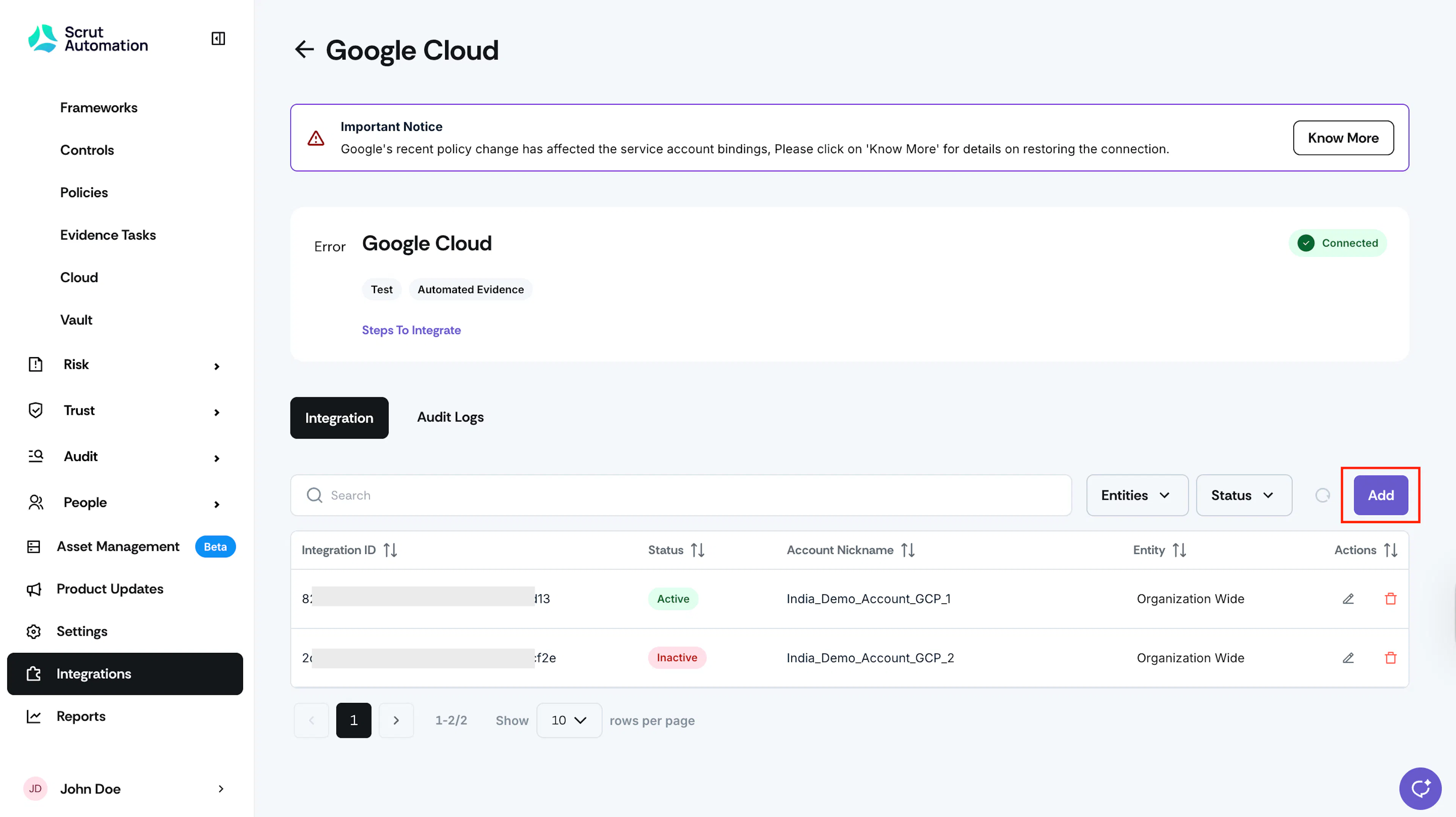
Click the Add button.
-
The remaining steps are the same as those for integrating your first GCP project.
What Happens Next?
Initial data sync
After the integration is set up, Scrut begins scanning your GCP project within 24 hours. You can monitor scan activity and review any errors from the Audit Logs tab on the GCP integration page in Scrut.
Review synced data
Once the initial scan is complete, verify that data has landed correctly by navigating to the following locations in Scrut:
- Navigate to Asset Management to view discovered GCP resources, including instances, storage buckets, SQL instances, and networks.
- Navigate to Compliance → Evidence Tasks and open any evidence task to set up a Scrut Monitor to automate evidence collection.
- Navigate to Compliance → Cloud → Tests to view automated test results mapped to your connected GCP project. Click the GCP filter to view tests only for GCP.