

Integrate AWS
Learn how to connect your AWS infrastructure with Scrut.
Connecting your Amazon Web Services (AWS) infrastructure to Scrut automates compliance evidence collection, eliminates manual configuration checks, and evaluates your security posture across your AWS environment. On successful integration, Scrut automatically scans your AWS infrastructure every 24 hours. You can integrate one or multiple AWS accounts, as needed.
What This Integration Does in Scrut
The AWS integration performs the following functions in Scrut:
- Automated Tests: Runs automated compliance checks that evaluate your AWS configurations against applicable compliance frameworks.
- Scrut Monitor: Collects evidence through Scrut Monitor. This helps automate evidence gathering and significantly speeds up compliance workflows.
- User Access Data: Fetches user details, roles, and permissions from AWS for Access Reviews.
- Asset Management: Populates the Asset Management module in Scrut with discovered AWS assets and supports the collection of asset-related compliance evidence.
- Vulnerability Management: Ingests vulnerability and affected asset data from AWS Inspector and Security Hub into Scrut, enabling end-to-end vulnerability tracking, assignment, and remediation.
Prerequisites
- An active AWS account with administrator access.
- IAM permissions to create and manage roles and policies in AWS.
Pro Tip!
Log in to your AWS console before starting the integration setup. This keeps the CloudFormation steps uninterrupted.
Permissions and Access Requirements
For AWS
- An IAM Role with the following AWS Managed Policies attached:
- arn:aws:iam::aws:policy/SecurityAudit - Grants read access to security configuration metadata across AWS services.
- arn:aws:iam::aws:policy/ReadOnlyAccess - Grants read-only access to AWS services and resources for comprehensive visibility.
For Scrut
- Admin access to Scrut (or Contributor Role with access to the Integration module).
Data Collected
Scrut collects configuration metadata across the following AWS services:
- IAM: Users, Groups, Roles, Policies, Password Policy
- EC2: Instances, Images, Snapshots, Volumes, Network Compliance, Security Groups
- VPC: VPCs, Subnets, VPN Endpoints
- S3: Buckets
- Backup: Backup Plans
- EKS: Clusters, Workloads
- RDS: Instances
- Inspector: Findings
- Security Hub: Findings
- Code Commit: Repositories, Branches, Commits, Pull Requests
- CloudWatch: Alarms, Log Groups
- ELB: Load Balancers
- SSM: Parameters
- DocumentDB: Clusters
- DLM: Lifecycle Policies
Sync Frequency
Data is synced automatically once every 24 hours from your AWS infrastructure to Scrut.
Integration Setup
The Scrut - AWS integration setup involves the following steps:
Step 1: Copy the Role ARN Value from AWS
- Open the CloudFormation template link: https://us-east-1.console.aws.amazon.com/cloudformation/home?region=us-east-1#/stacks/quickcreate?templateURL=https://scrut.io.s3.us-east-1.amazonaws.com/scrut-cloudformation-templates/iam-role-based-access.yaml&stackName=ScrutIntegrationRole
- This redirects you to the Quick create stack page on your AWS console.
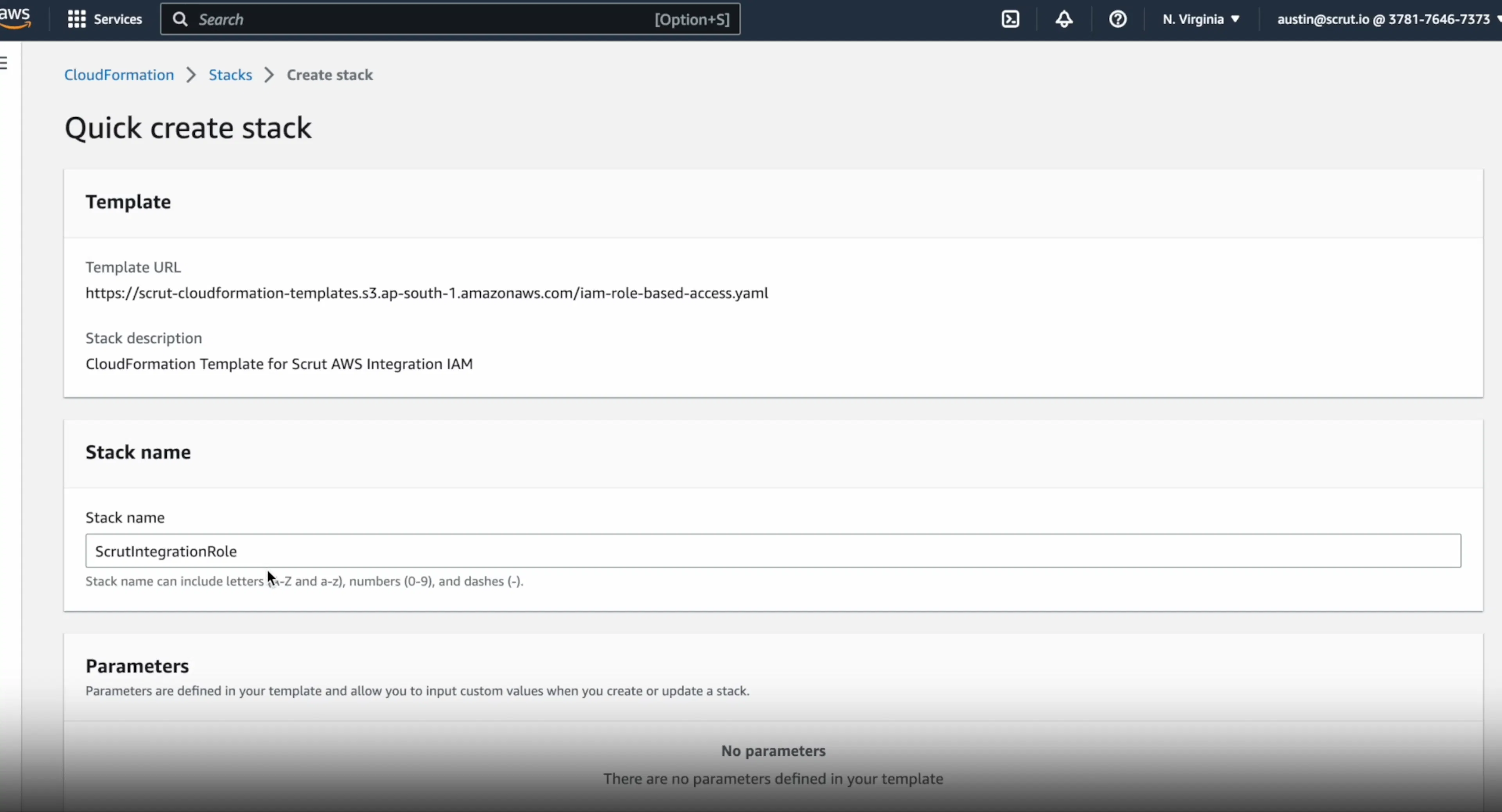
- In the Stack name field, enter the value “ScrutIntegrationRole.”
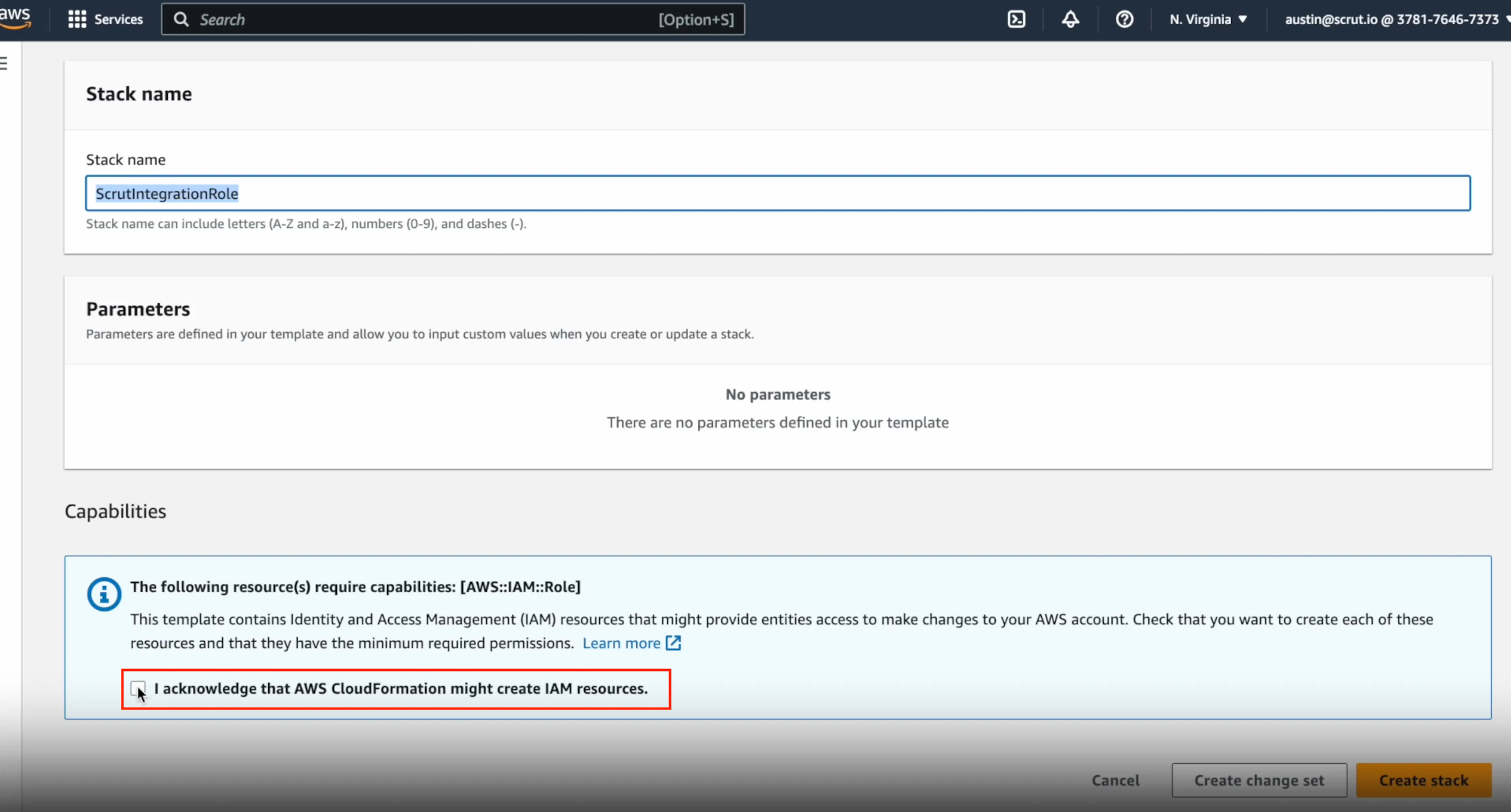
- Ensure you select the acknowledgment box to allow AWS CloudFormation to create IAM resources.
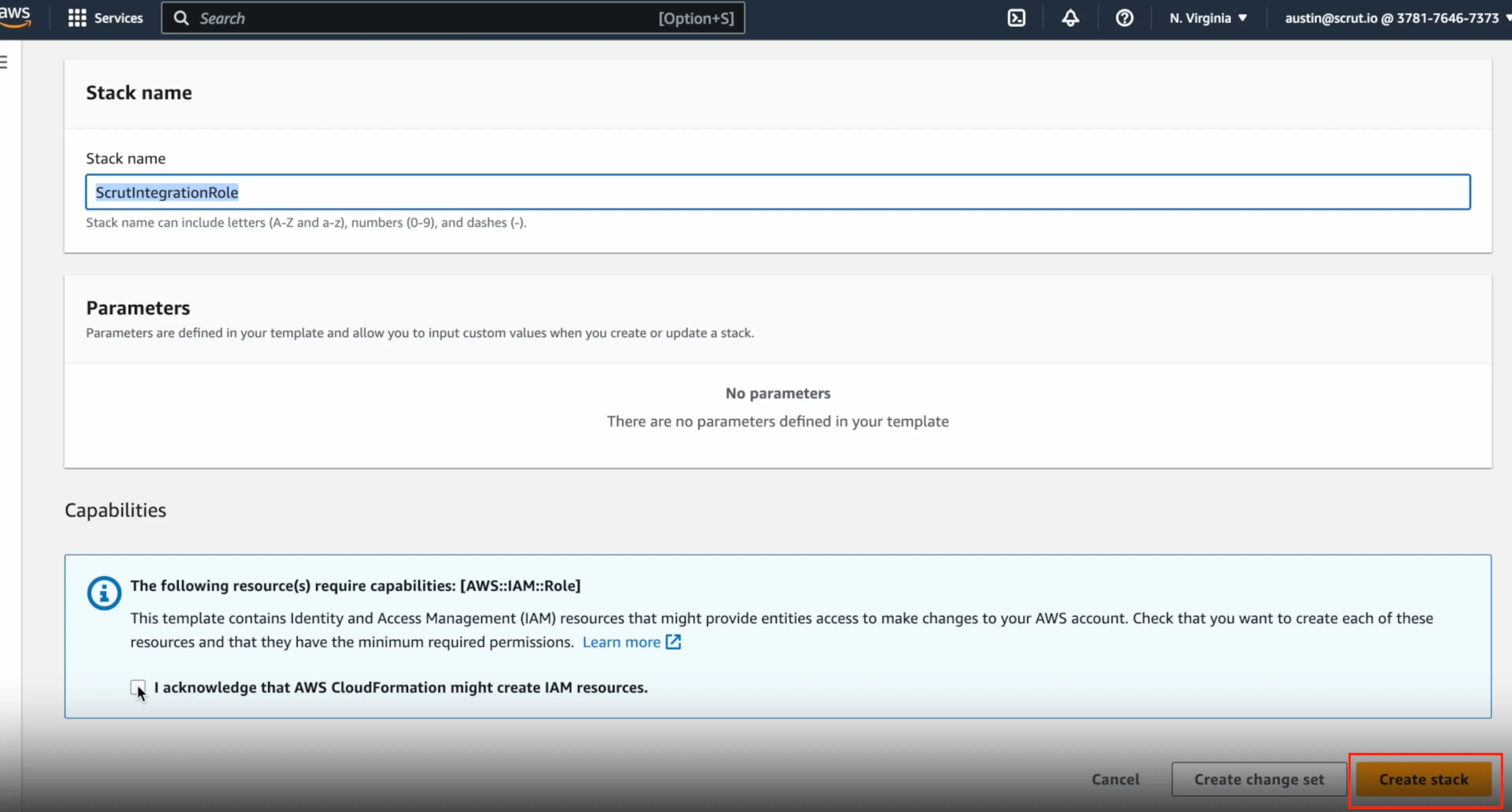
- Click Create Stack.
- Once the stack is created, open it, go to the Outputs tab, and copy the ARN value.
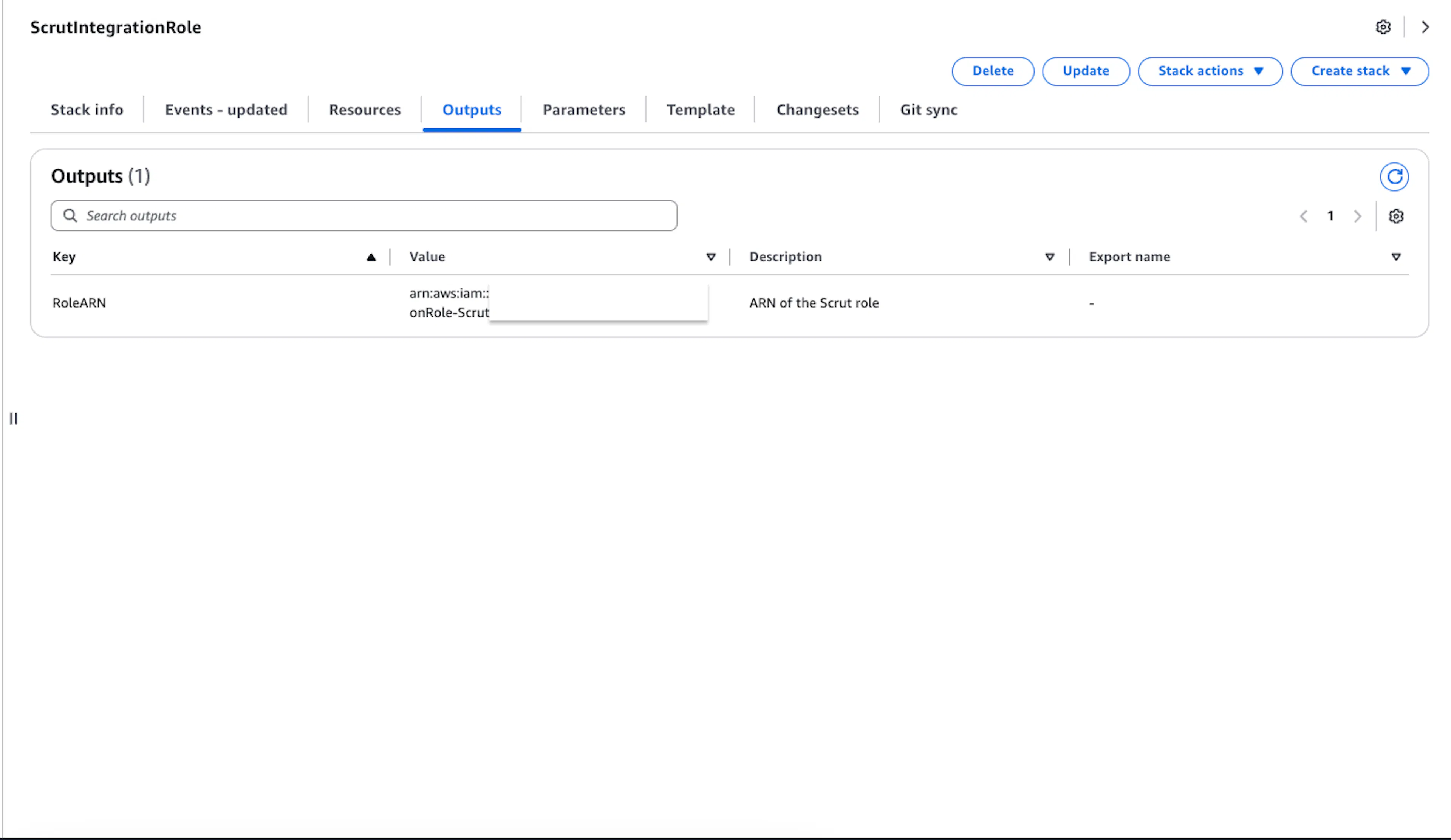
- You will need to enter this value in the AWS integration page on Scrut in the next step.
Step 2: Connect Your AWS Account in Scrut
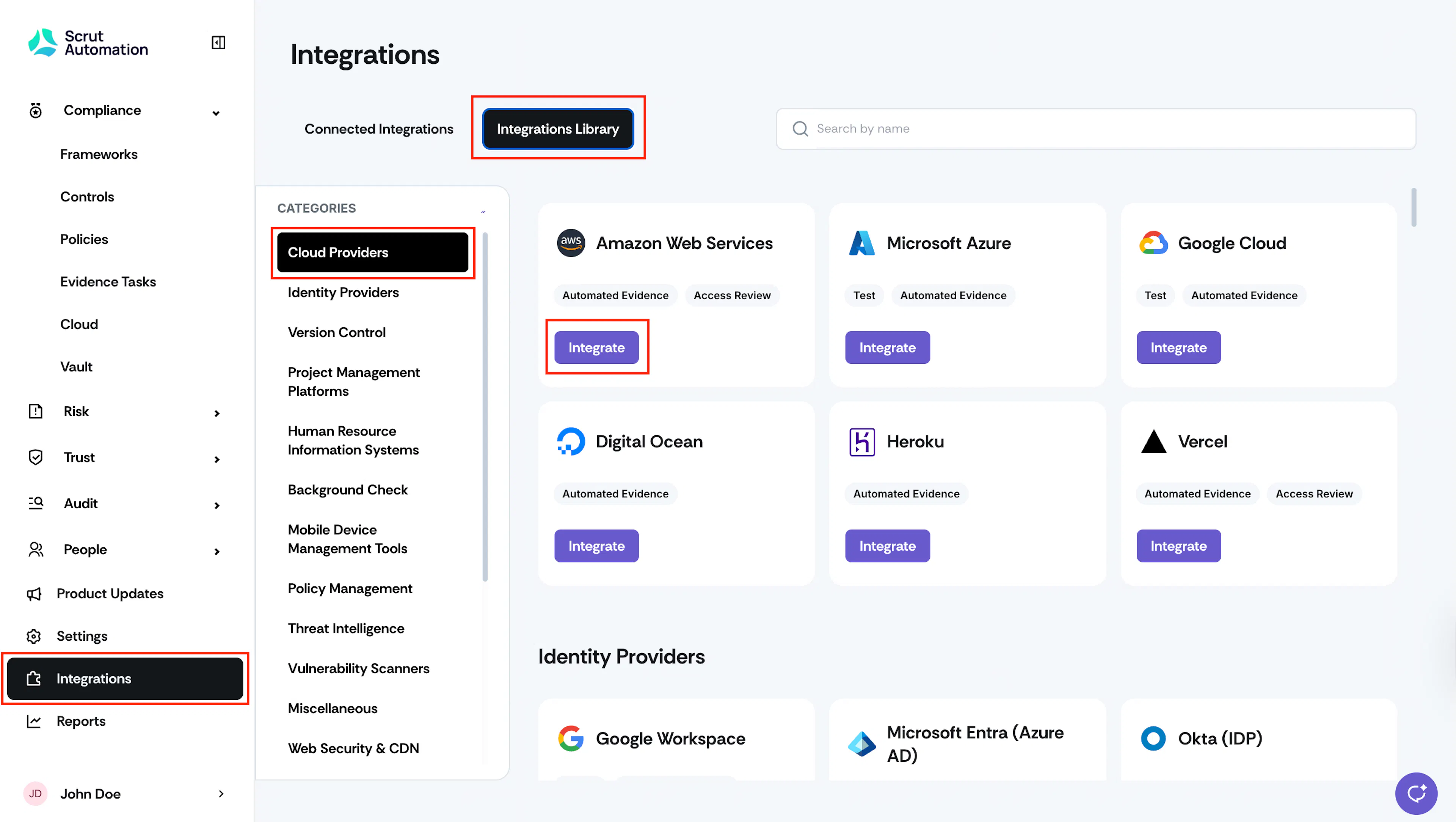
- Sign in to Scrut and click Integrations on the left navigation panel.
- Click the Integrations Library and navigate to Cloud Providers in the Categories section.
- Locate the AWS integration tile and click Integrate.
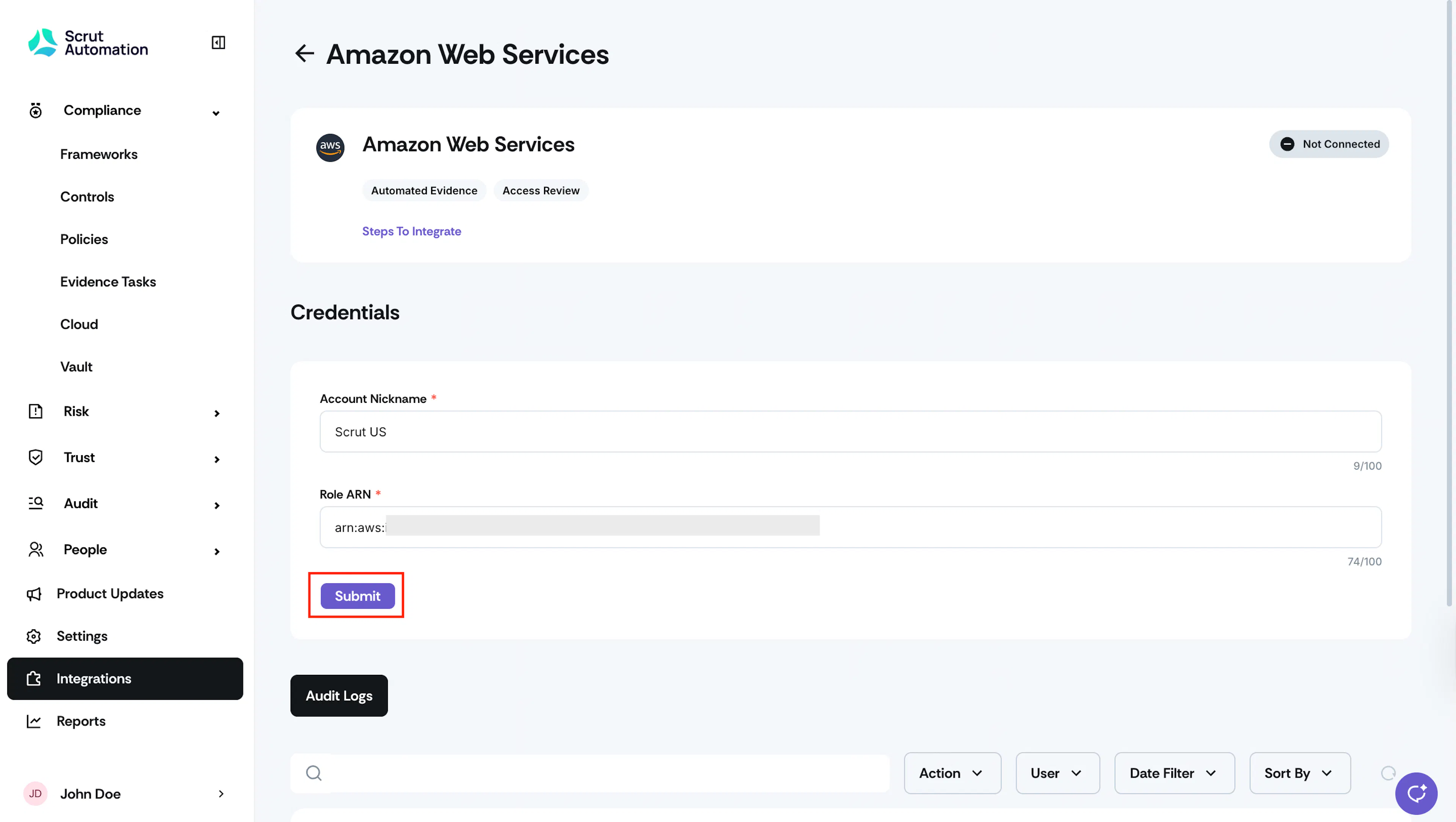
- On the AWS integration page, you must enter the following details:
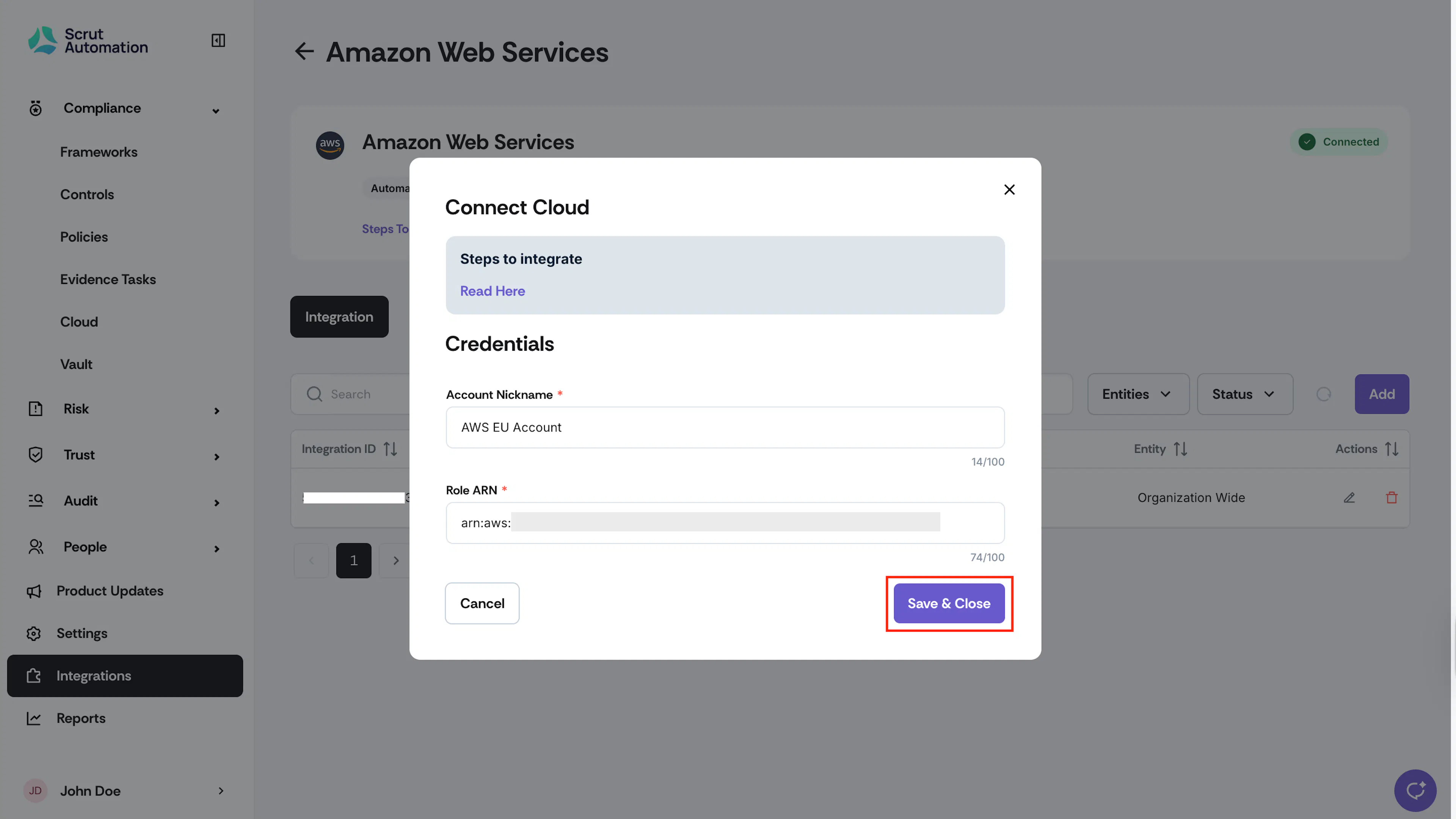
- In the Account Nickname field, enter a suitable name for the AWS account you’re connecting with Scrut.
- In the Role ARN field, paste the Role ARN you fetched from AWS in Step 1.
- Click Submit.
- Watch out for the successful connection notification and the Connected flag.
Step 3: Configure Scope
After connecting your account, configure the AWS services, regions, and resources that Scrut scans.
Services Configuration
- Select or deselect specific AWS services (e.g., Redshift, S3, SES, etc.) you want Scrut to scan
- Unselected services will not be scanned
- Tests for unselected services will not appear in the Cloud module
Region Configuration
- Configure specific production regions (e.g., Ohio, Mumbai) to scan
- Exclude staging/development regions to avoid scanning test or dummy data
- Only resources from selected regions will appear in the Cloud module
Tag-based Filtering
- Filter resources based on tags (e.g., Environment: Production)
- Only resources matching configured tags will be scanned and appear in the Cloud module
- Use the "Refresh Tags" button to fetch the latest tags (Note: There is a 24-hour cooldown between refreshes)
Note:
- Your configuration directly affects test counts and compliance metrics. Deselecting services or excluding regions will decrease the total number of tests and flagged resources.
- Any new resources that you add to your AWS instance with matching tags are automatically picked up in the next scan.
- Scope settings apply only to the Cloud module. Asset Management imports all discovered AWS assets.
Steps to Configure AWS Integration Scope
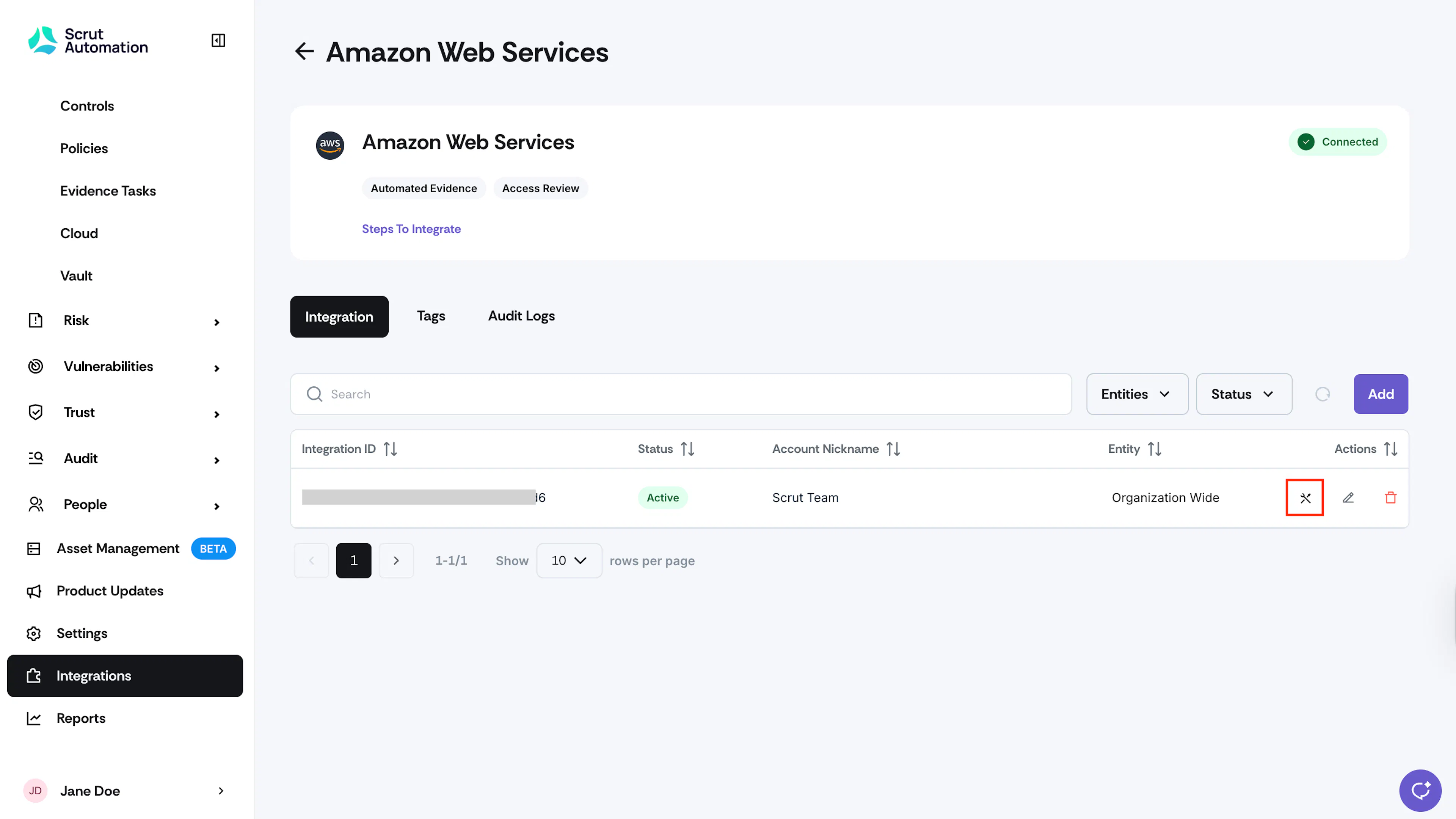
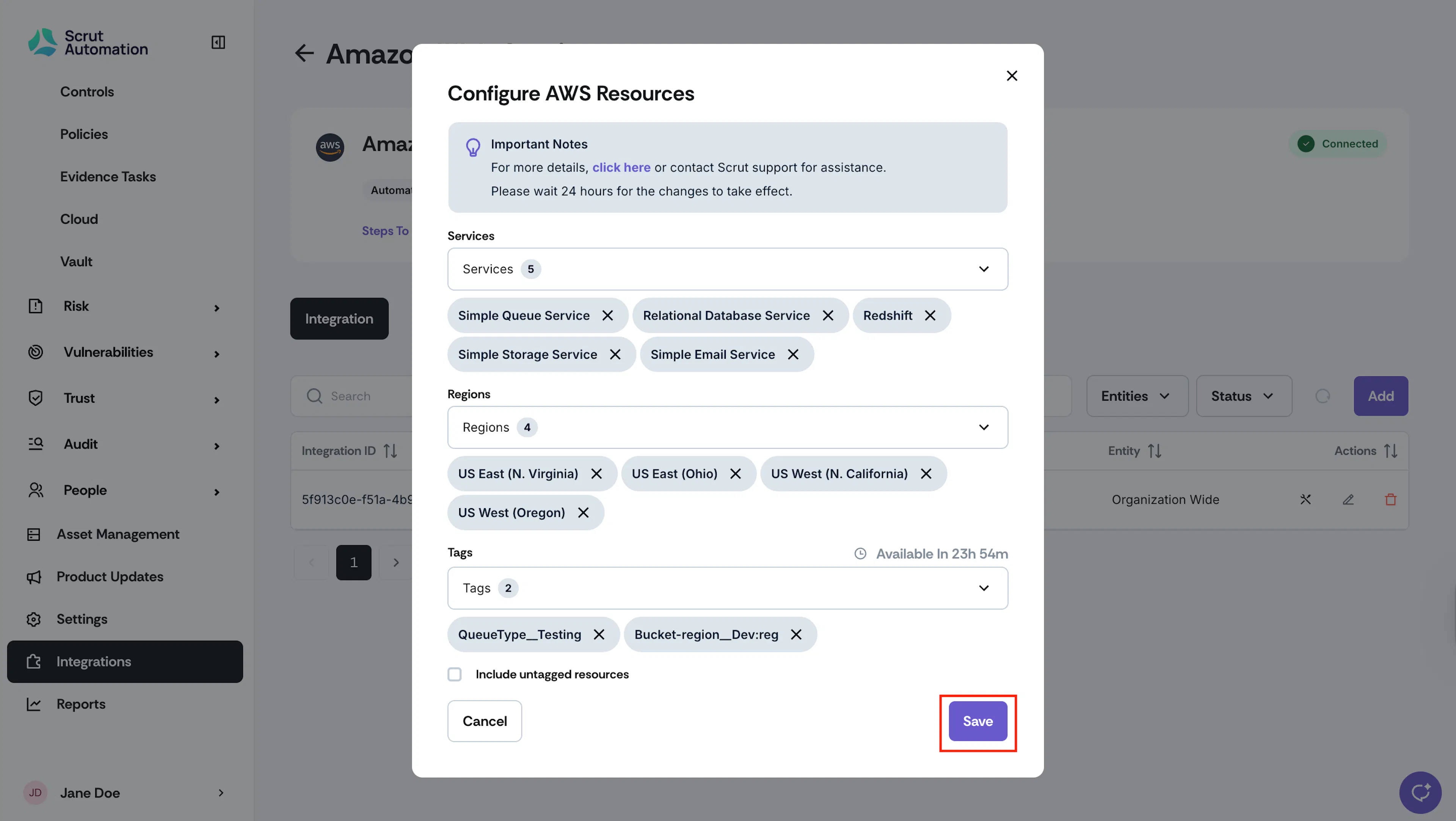
- On the AWS integration page, click the Configure icon in your connected AWS integration.
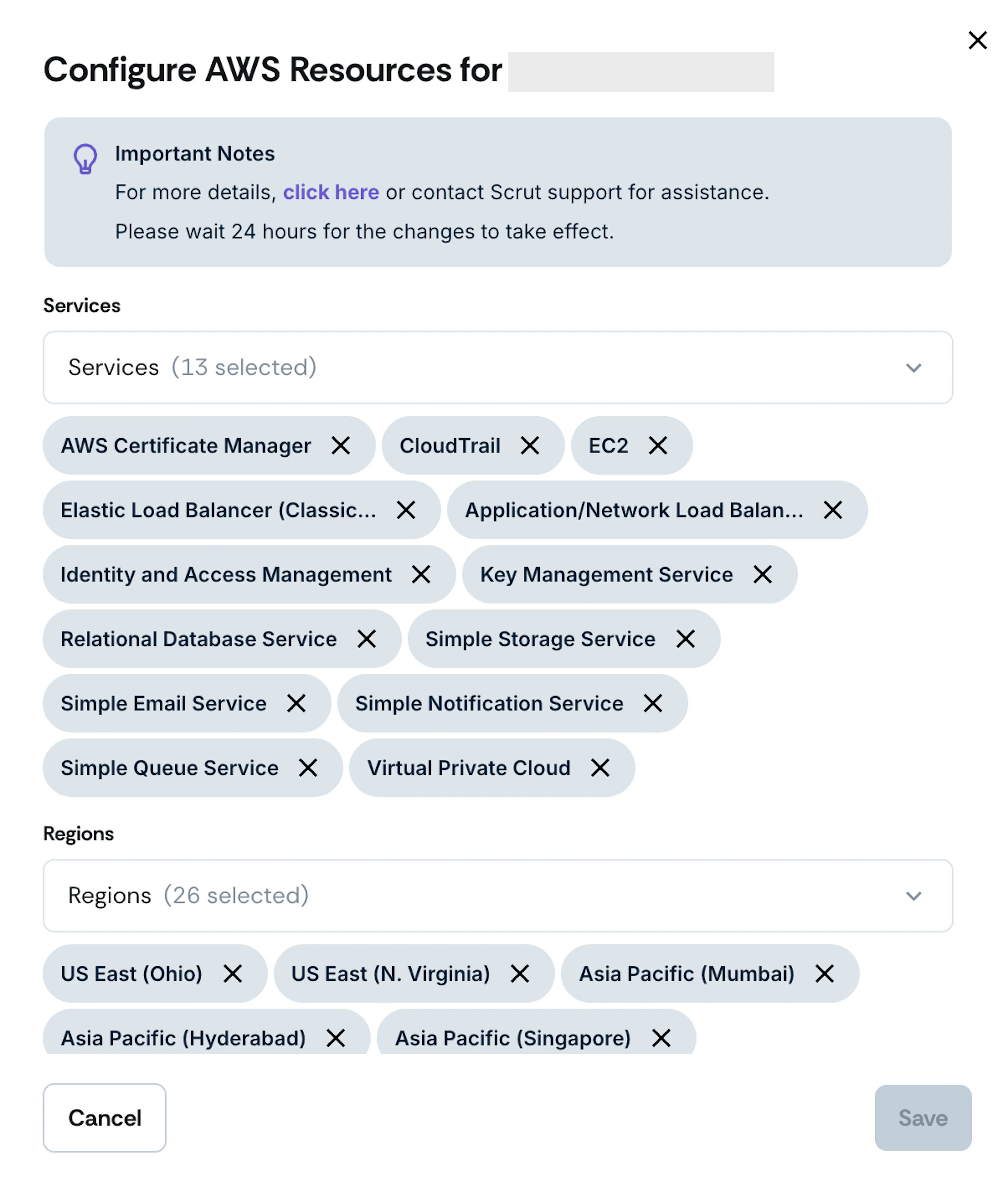
- Select the AWS services you want Scrut to monitor (e.g., ACM, EC2, IAM, S3, VPC). You can select as many services as needed.
- Select the AWS regions where you want Scrut to monitor resources.
- Based on your selections, Scrut will fetch relevant tags so you can select the ones needed to filter resources. To get the latest tags, click the Refresh Tags button (available once every 24 hours).
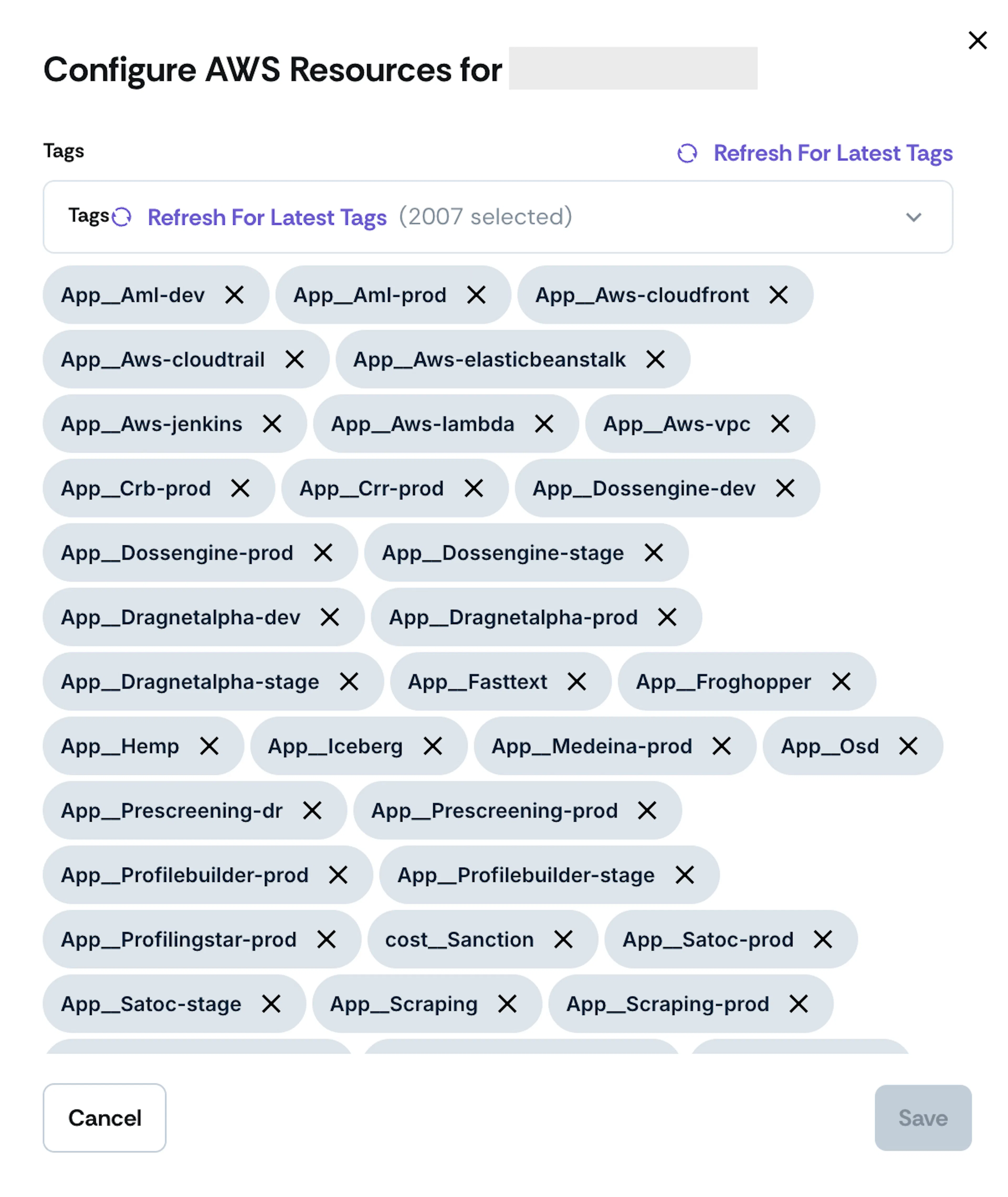
- If you want to include resources without tags, check the Include Untagged Resources checkbox.
- Click Save to apply your scope configuration.
- Watch for the success notification.
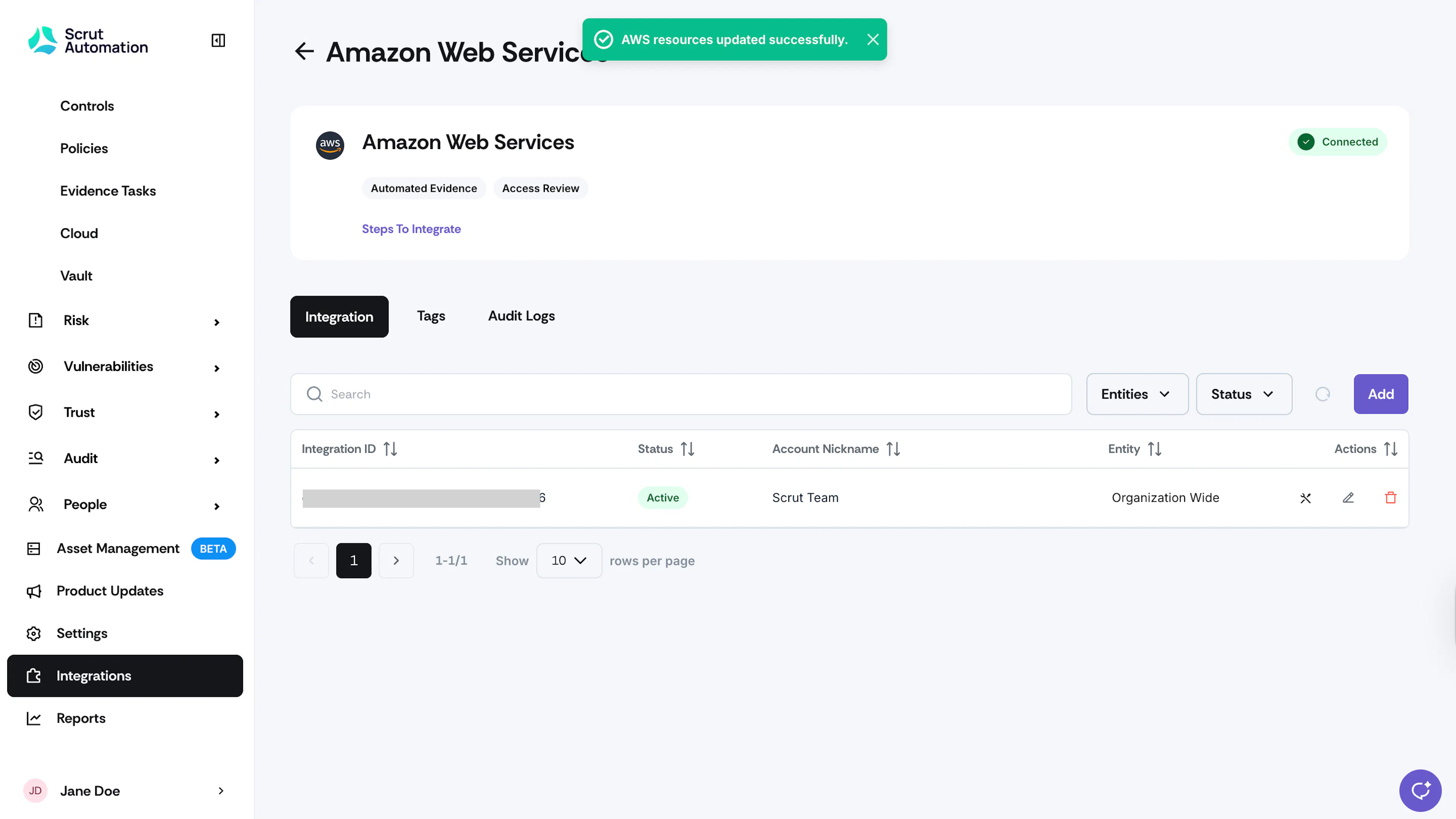
Scrut will automatically trigger a resource discovery job to apply your new scope.
Note:
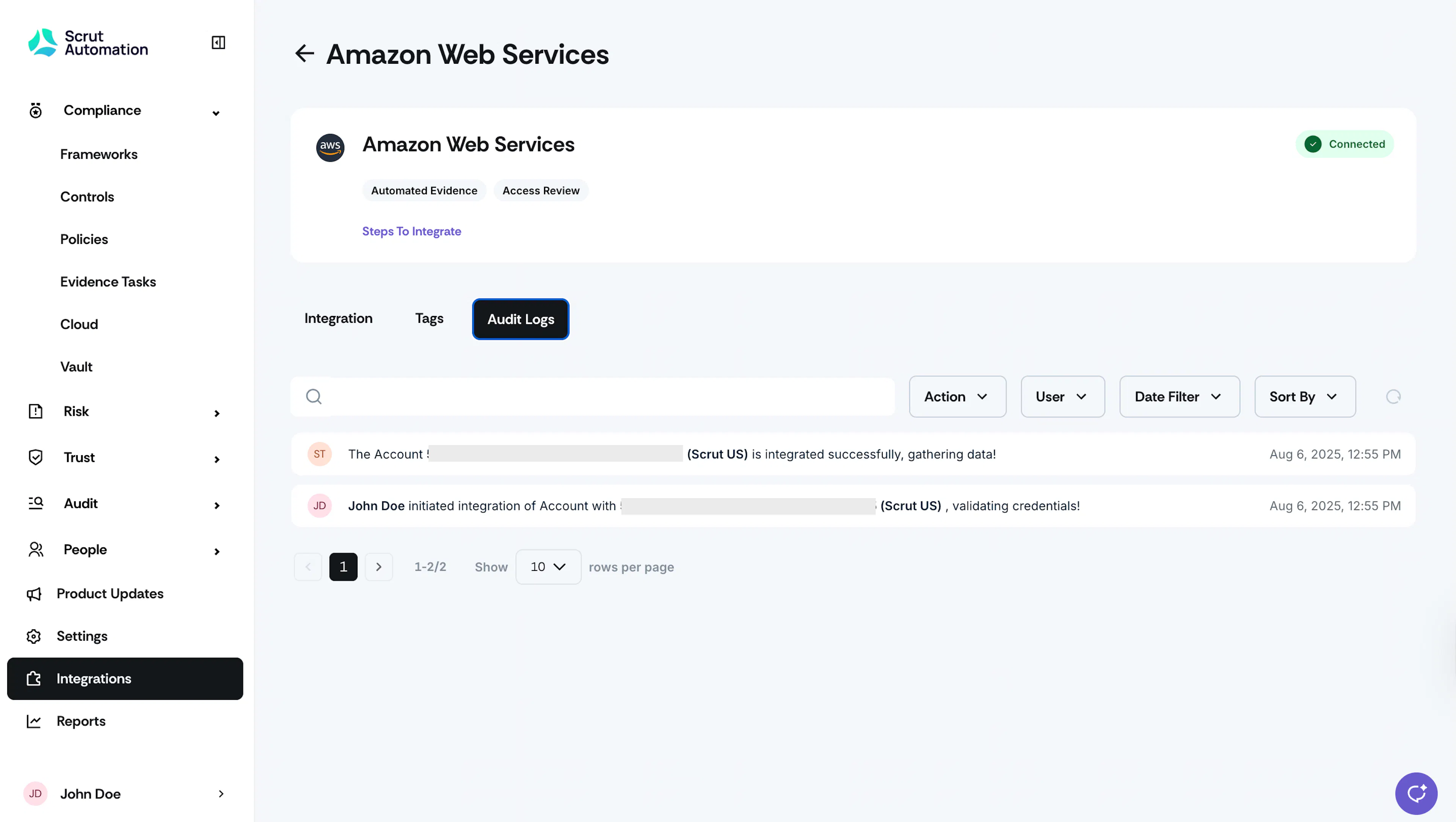
It might take some time for Scrut to fetch the resources based on your configuration. Check the Audit Logs tab on the AWS integration page to track the status.
Connecting Multiple AWS Accounts
Follow these steps to integrate another AWS account with Scrut:
- Click Integrations on the left navigation panel.
- Go to the Connected tab and navigate to Cloud Providers in the Categories section.
- Locate the AWS tile and click Configure.
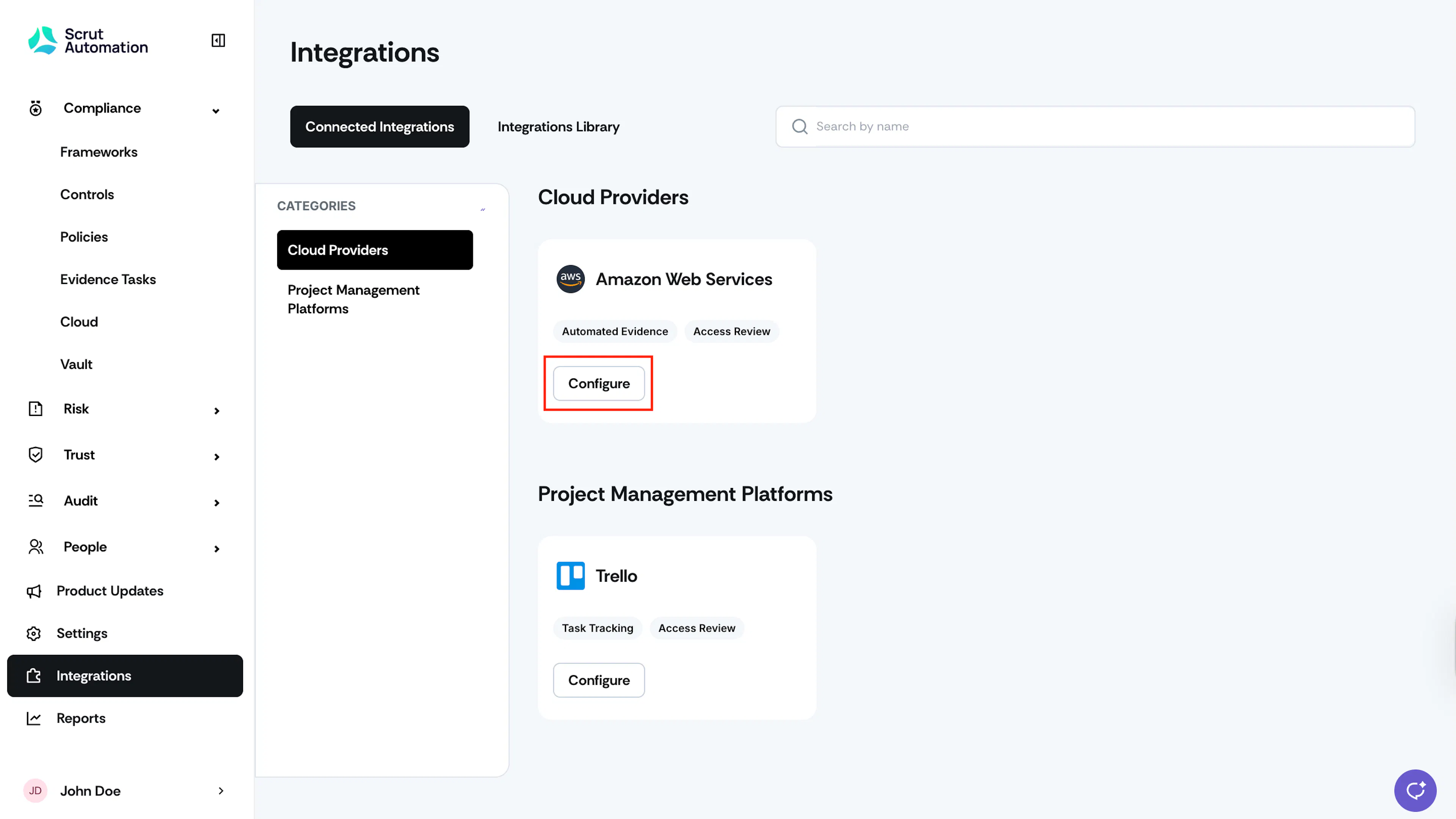
- Click the Add button.
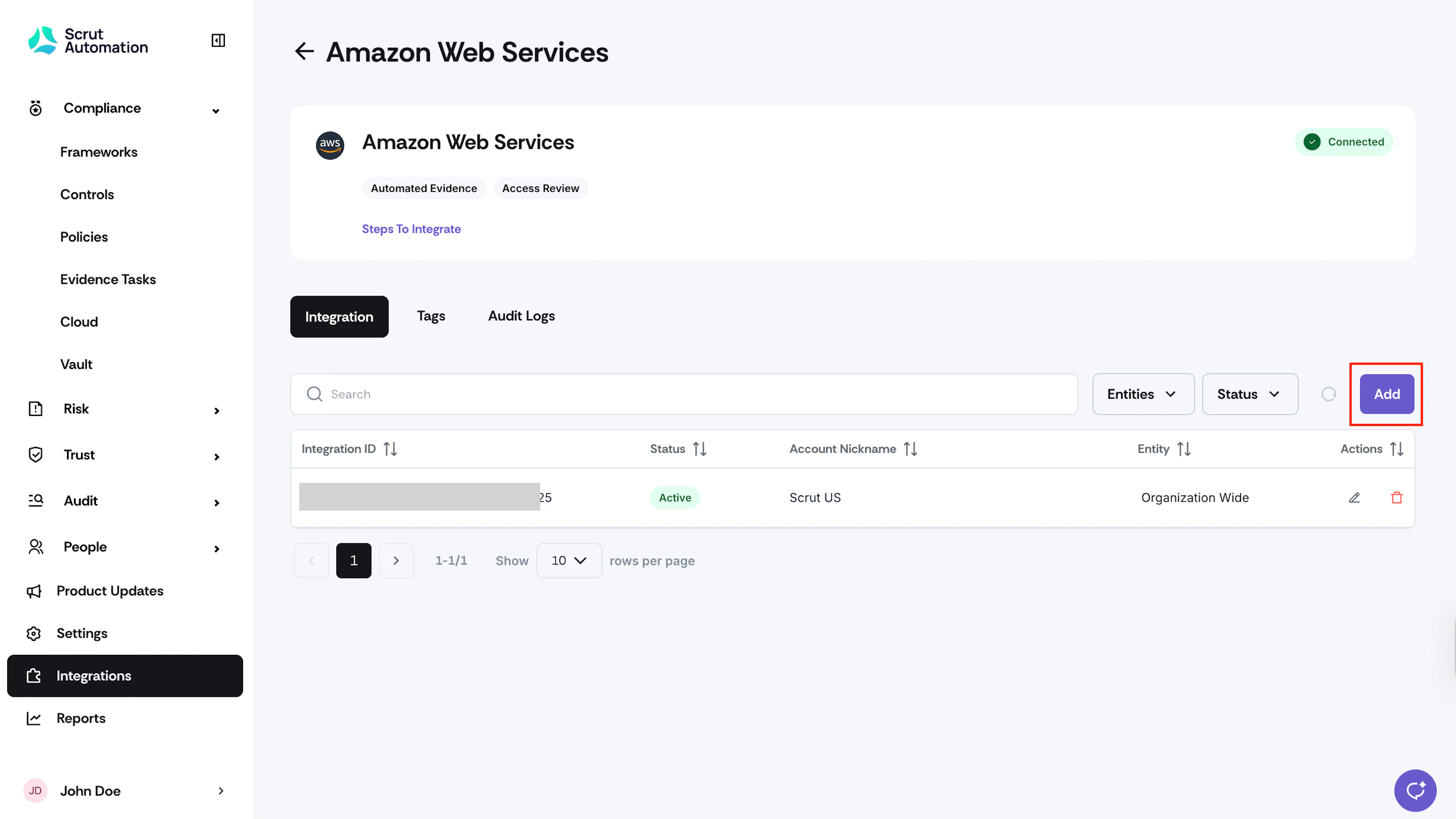
- The remaining steps are the same as those for connecting your first AWS account. Enter the account nickname and Role ARN and click Save & Close.
Note:
You can add as many AWS accounts as needed. Scrut will monitor and fetch evidence automatically from all your connected AWS accounts.
What Happens Next?
Initial Data Sync
The initial sync begins automatically after setup. It may take up to 24 hours for Scrut to populate the first scan results. Check the Audit Logs tab on the AWS integration page to track the sync status.
Note: If results are not available after 24 hours, contact support@scrut.io for help.
Review Synced Data
Once the sync completes, verify that data has landed correctly in the following modules:
- Navigate to Cloud to view automated test results and flagged misconfigurations.
- Navigate to Evidence Tasks to set up Scrut Monitors to automate evidence collection from AWS.
- Navigate to People → Access Reviews to create an access review and validate access data pulled from IAM.
- Navigate to Asset Management to view discovered AWS assets.
- Navigate to Vulnerabilities to track findings from AWS Inspector and Security Hub.
Common Errors and Troubleshooting
Integration shows as not connected after submitting
Possible solutions:
- Verify that the Role ARN was copied correctly from the Outputs tab in CloudFormation. Leading or trailing spaces can cause validation failures.
- Confirm that the CloudFormation stack status shows CREATE_COMPLETE before copying the ARN.
- Ensure the acknowledgment checkbox is selected before creating the stack. Without it, IAM resources are not created.
Data not appearing after 24 hours
Possible solutions:
- Check the Audit Logs tab on the AWS integration page to confirm whether the scan completed successfully.
- Verify that the selected services and regions in your scope configuration match the resources in your AWS account.
- If the scan shows errors in Audit Logs, contact support@scrut.io with the error details.
Resources are missing in the Cloud module
Possible solutions:
- Confirm that the relevant AWS service is selected in your scope configuration.
- Confirm that the region where the resource is deployed is included in your region configuration.
- If tag-based filtering is enabled, confirm that the resource has a matching tag. Resources without matching tags are excluded unless Include Untagged Resources is selected.
Asset Management shows resources outside my configured scope
This is expected. Service, region, and tag filters apply only to the Cloud module. Asset Management imports all AWS assets that Scrut discovers, whether or not they match your scope.