

Configure Scope for AWS Integration
The Scrut - AWS integration has been enhanced to provide you with improved control over the AWS resources you want to sync for compliance monitoring. Now, you can easily filter resources by:
- Type (EC2 instances, S3 buckets, RDS databases, etc.)
- Region
- Tags
This gives you granular control in selecting the specific AWS resources that you want Scrut to monitor.
How This Benefits You
Previously, the AWS integration monitored all accessible resources within a connected AWS account. With this enhancement, you can now:
-
Configure precise scope: You can precisely control which AWS resources to sync with Scrut based on the following criteria:
-
Resource Types: Choose from EC2 instances, S3 buckets, RDS databases, Lambda, etc.
-
AWS Regions: Choose from different AWS regions, including global resources like IAM
-
Tags: Select specific tags based on your selected resource types and regions
This setup ensures Scrut only scans the resource types and regions you specify, along with the selected tags.
-
-
Improve compliance accuracy: For example, if your AWS account includes development, testing, and production resources, but only production resources are relevant for your SOC 2 audit, you can configure the integration scope to monitor only production resources.
-
Streamline Scrut data: Reduce noise and unnecessary data in the Cloud Tests module by excluding out-of-scope resources.
Important Reminder!
Your current AWS integration will continue to function as intended. However, to fully leverage the benefits of this enhancement, it’s crucial that you complete the steps below to configure the resource scope.
AWS Integration Scope Configuration Guide
Follow these steps to configure the resource scope for your existing AWS integration:
Prerequisites
- You must be a Scrut Admin (or a Contributor with access to the Integration module)
- You must have completed the Scrut - AWS integration (If you haven’t yet integrated AWS with Scrut, follow the steps here)
- Your AWS role must have the necessary permissions to create and manage roles and policies, including
tag:GetResources
Step 1: Navigate to AWS Integration in Scrut
- Sign in to your Scrut account, click Integrations on the left navigation panel.
- Click Connected Integrations and search for AWS.
- Click the Configure button on the AWS integration tile.
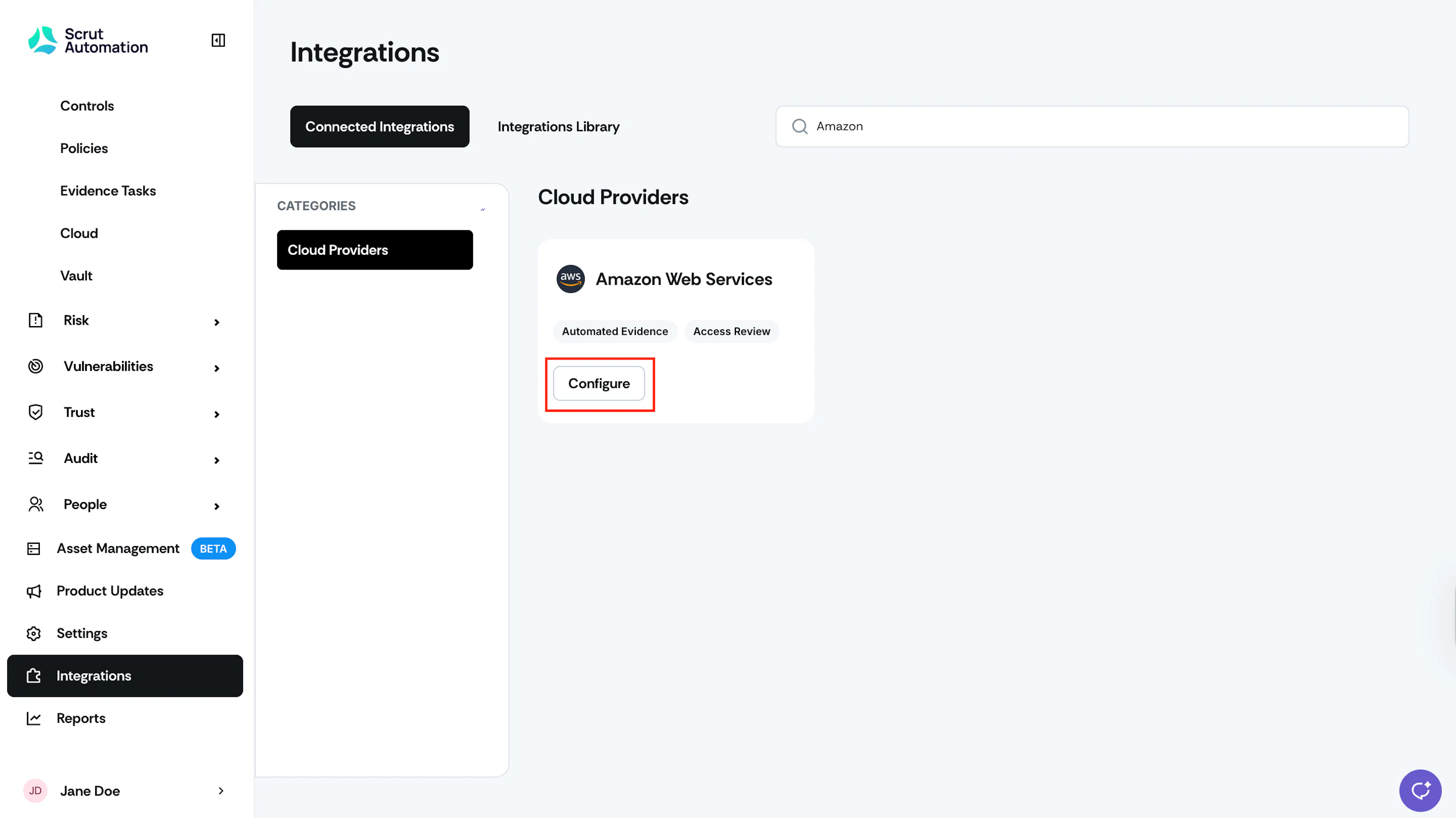
Step 2: Configure Resource Scope
-
On the AWS integration page, click the Configure icon in your connected AWS integration.
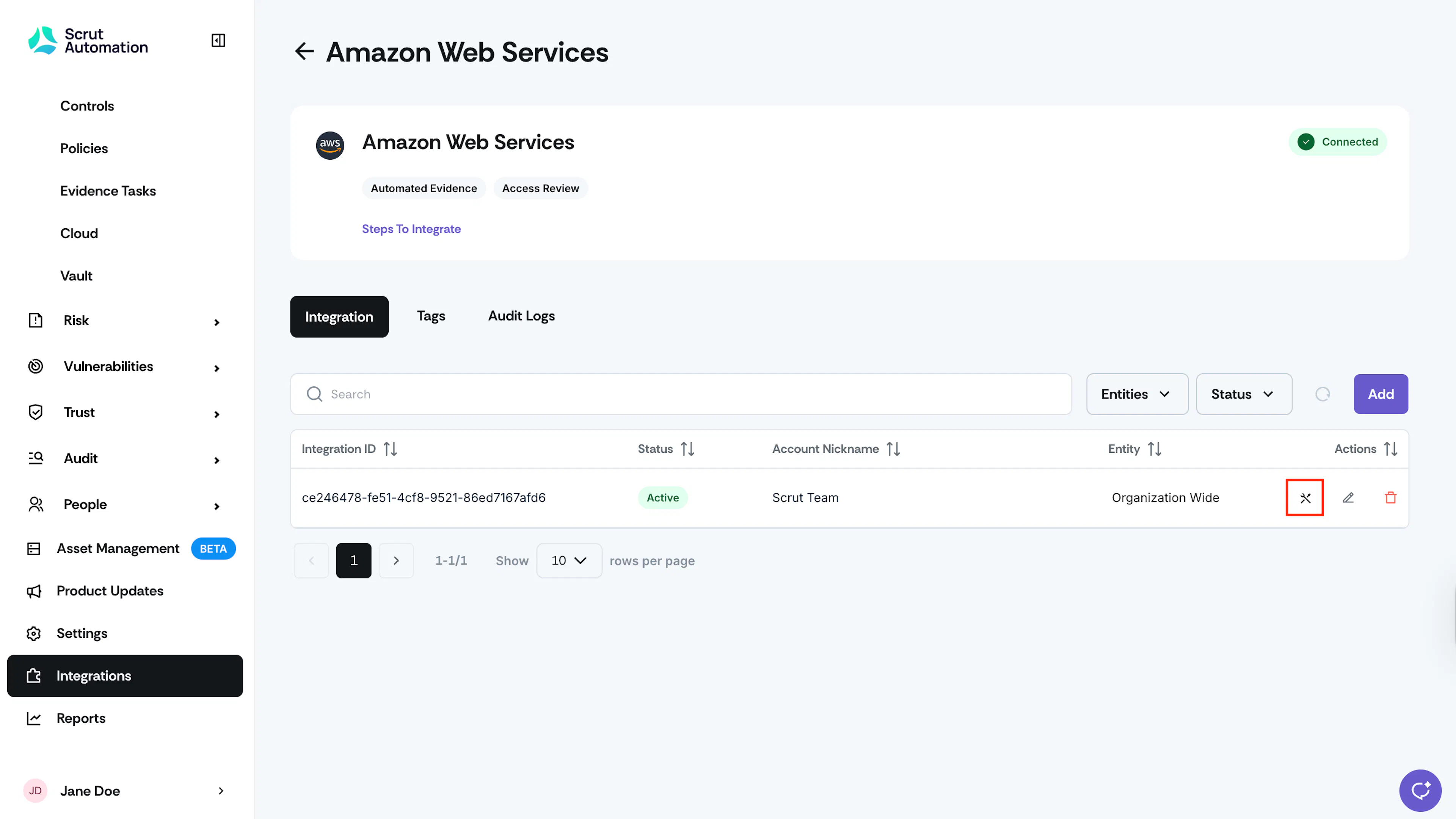
-
Select the AWS services you want Scrut to monitor (ACM, EC2, IAM, S3, VPC, etc.). You can select any number of services as required.
-
Select the AWS regions where you want Scrut to monitor resources.
-
Based on your selections, Scrut will fetch relevant tags, allowing you to select the ones needed to filter resources. To get the latest tags, click the Refresh Tags button (available once every 24 hours).
-
If you want to include resources without tags, check the Include Untagged Resources checkbox.
-
Click Save to apply your scope configuration.
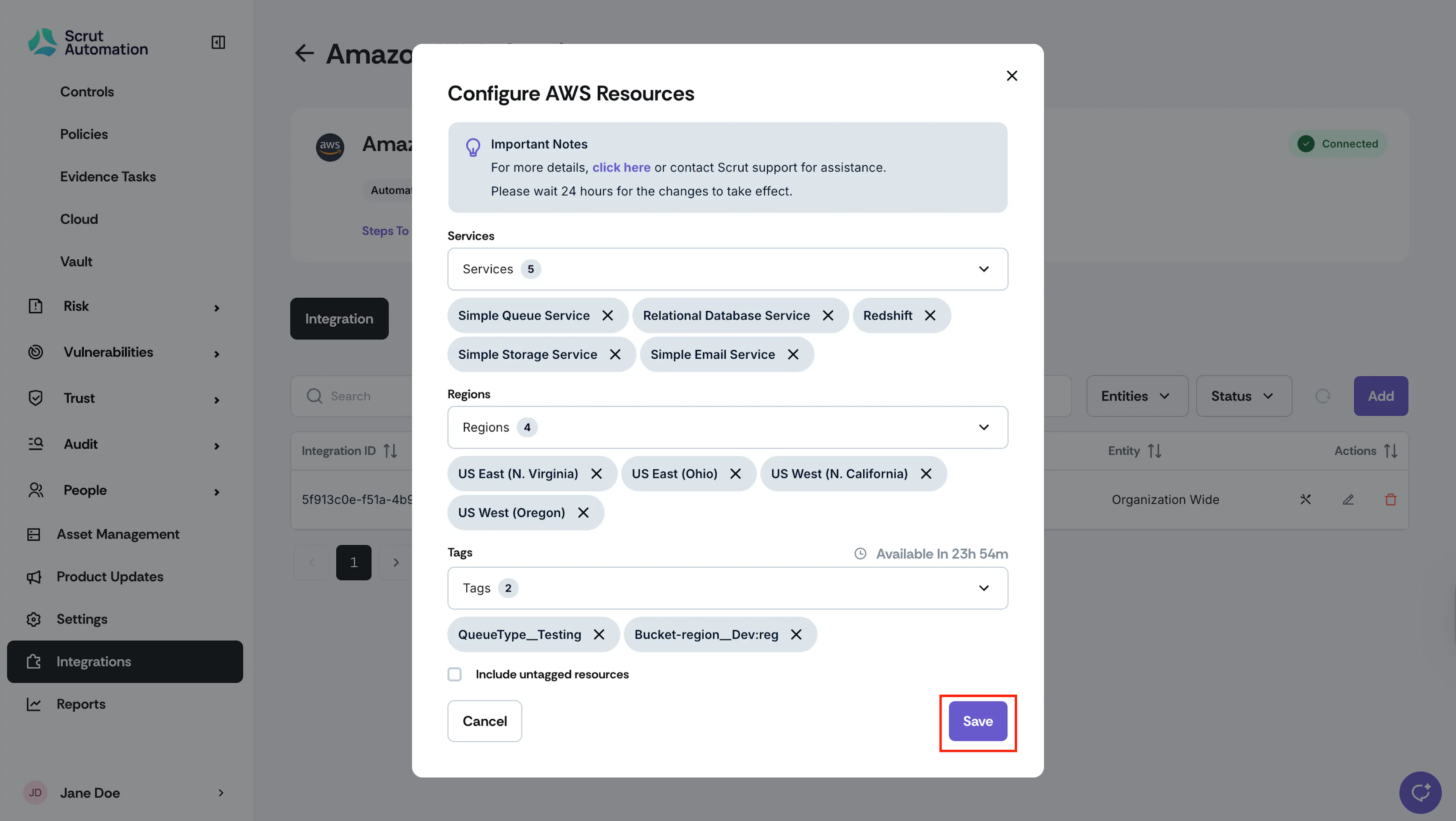
-
Watch for the success notification.
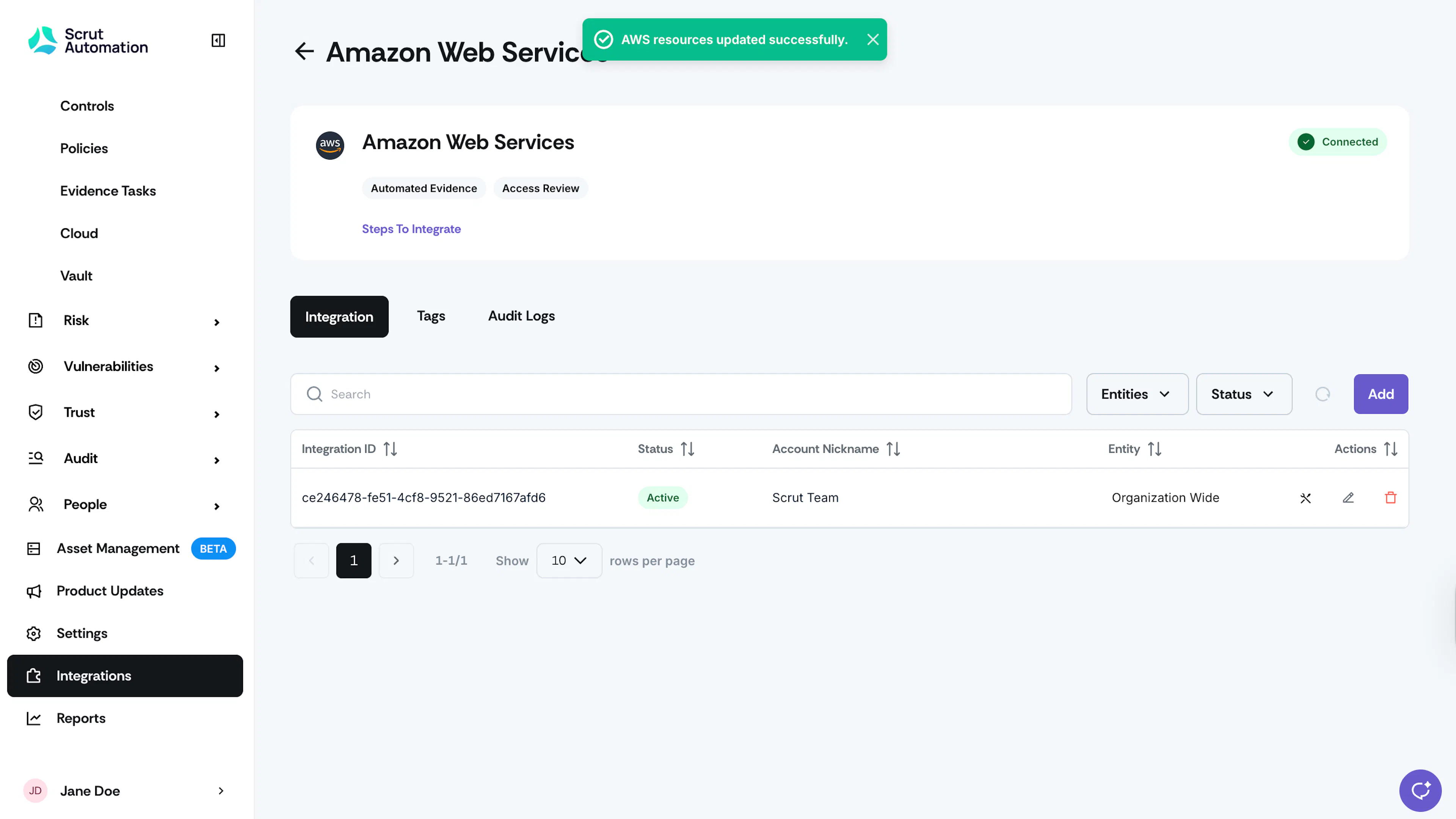
Scrut will automatically trigger a resource discovery job to apply your new scope.
Heads Up!
It might take sometime for Scrut to fetch the newly added resources. Check the Audit Logs to track status.
Viewing Filtered Data in Scrut
-
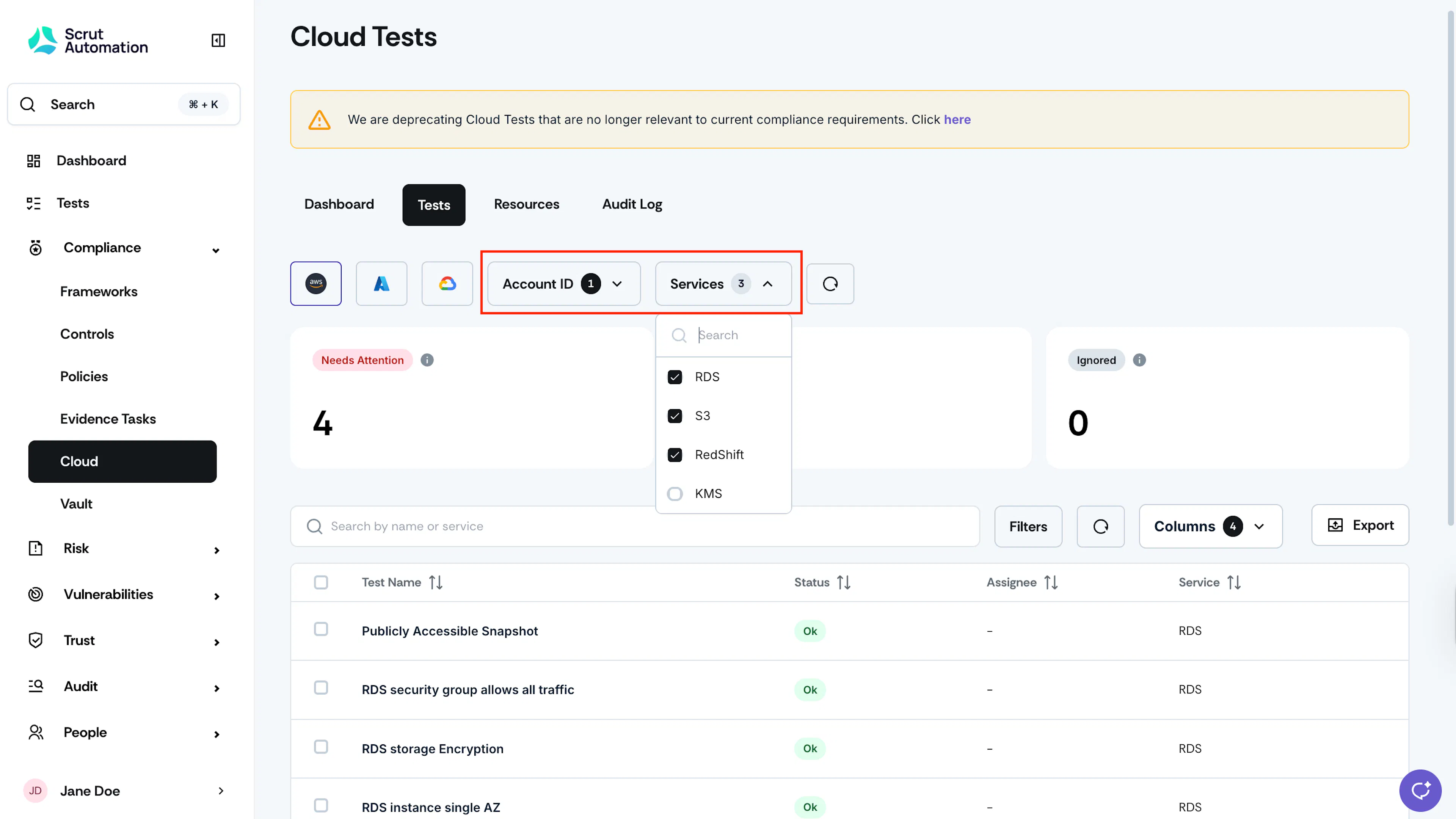
Go to the Cloud module and click the AWS filter.
-
Select the specific AWS Account ID and use the Services filter to view resource-specific data.
-
This scope filter is available across the following modules:
- Cloud → Dashboard
- Cloud → Tests
- Cloud → Resources