

Integrate Vercel
Connect your Vercel account to Scrut to automate compliance evidence collection across your cloud infrastructure and keep your security posture continuously monitored.
What This Integration Does in Scrut
- Automated Tests: Runs automated compliance checks that continuously evaluate your Vercel configurations against applicable compliance frameworks.
- User Access Data: Fetches user details, roles, and permissions from Vercel for Access Reviews.
- Scrut Monitor: Collects evidence through Scrut Monitor. This helps automate evidence gathering and significantly speeds up compliance workflows.
Prerequisites
- An active Vercel account with permission to create and manage personal access tokens.
Permissions and Access Requirements
For Vercel
You need permission to create personal access tokens in Vercel. When creating the token, set the scope to Full Account to allow Scrut to collect data across all your projects. If you want Scrut to collect data from a specific project only, set the scope to that project instead.
For Scrut
- Admin access to Scrut, or Contributor access with the Integration module enabled.
Data Collected
Scrut requires read-only access to the following data in your Vercel account:
- Teams: Top-level account or team data
- Users: User details and roles within the account
- Projects: All projects within the connected scope
- Domains: Domains associated with Vercel projects
Sync Frequency
Data is synced automatically once every 24 hours. You can also manually trigger a sync from the integration settings page in Scrut.
Integration Setup
Step 1: Generate an API Token in Vercel
-
Log in to your Vercel dashboard, click your profile picture in the upper-right corner, and select Settings.
-
Select Tokens from the sidebar.
-
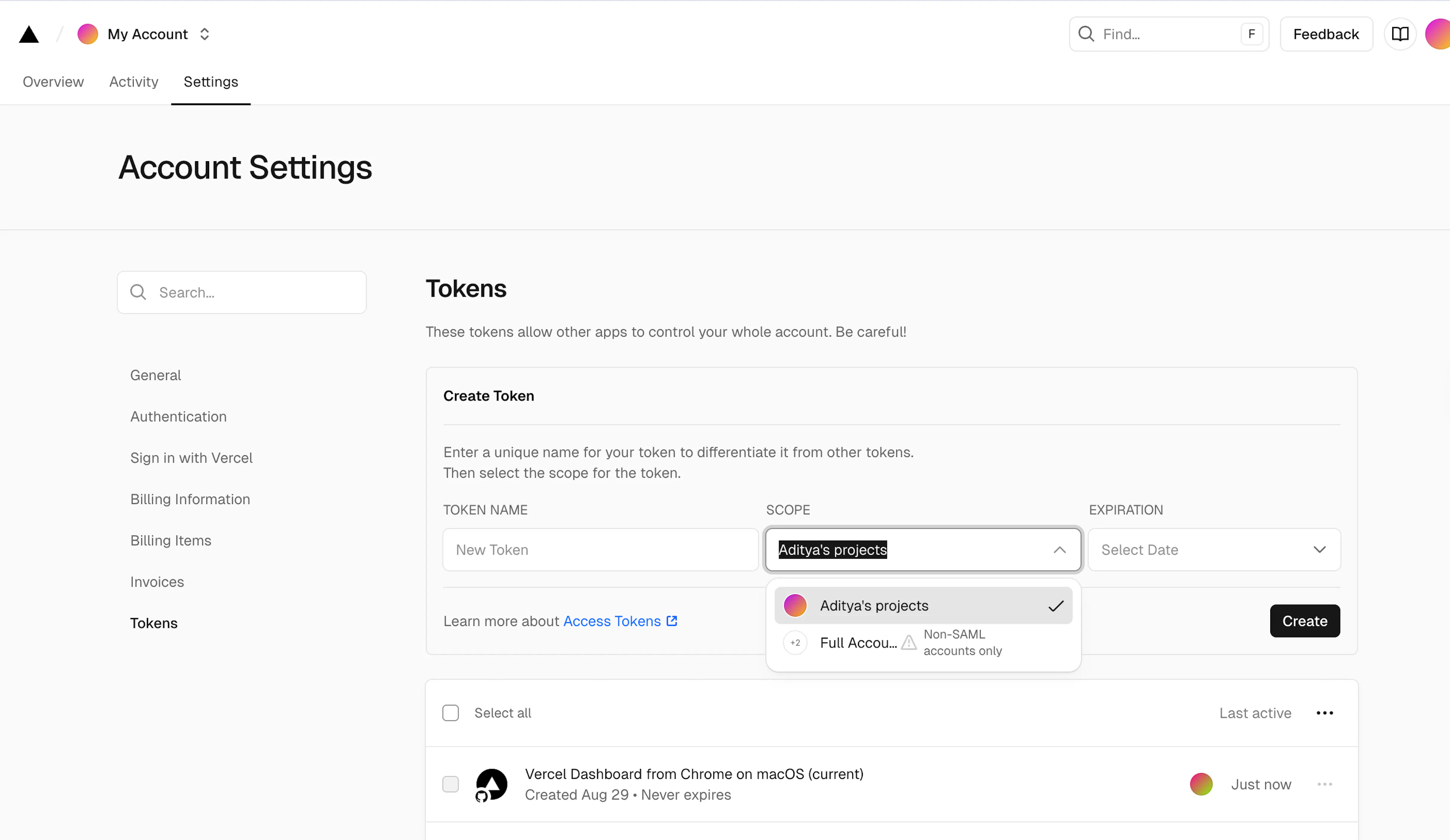
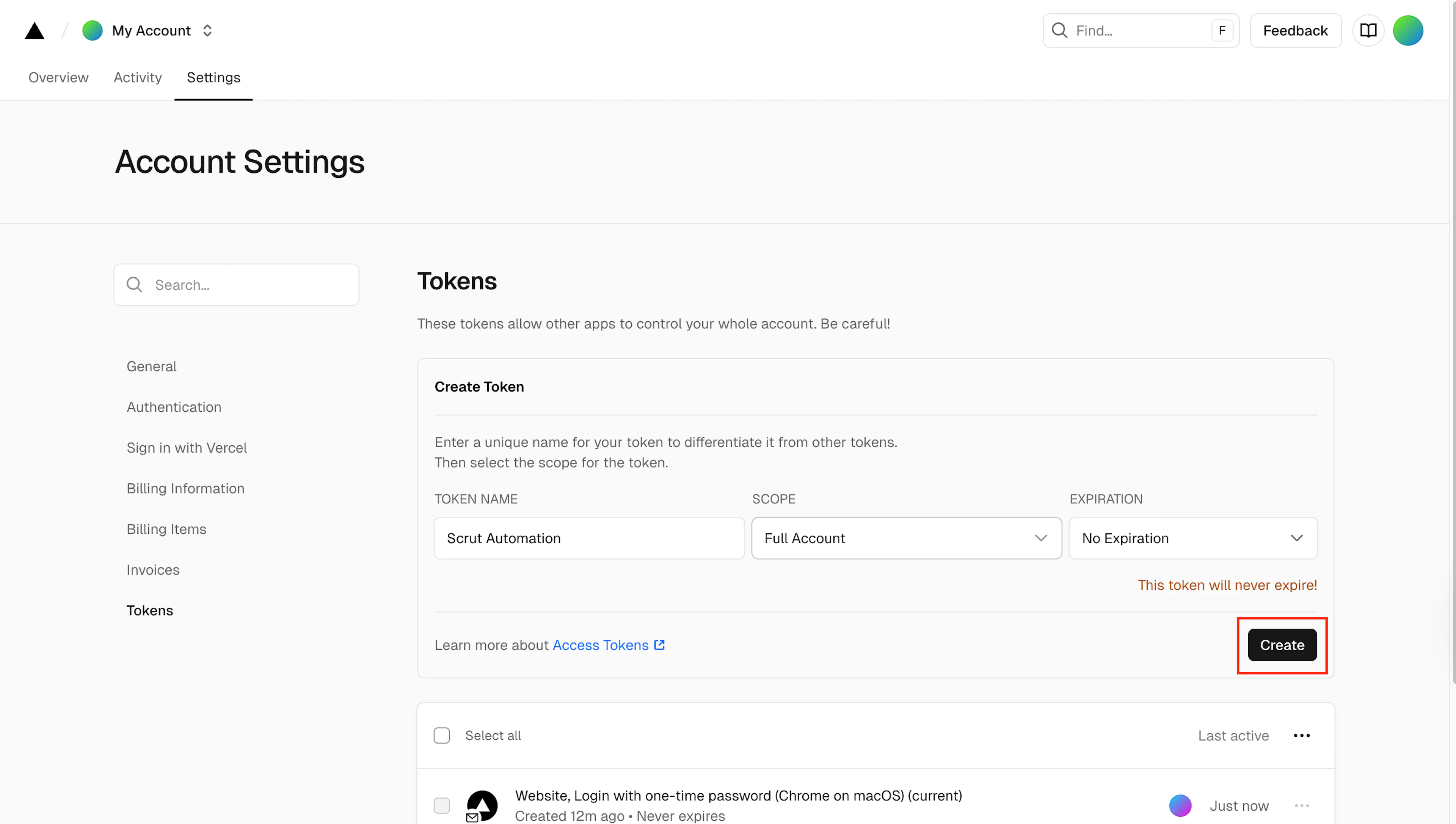
Enter a descriptive name for the token, such as Scrut Integration.
-
Set the Scope to Full Account. If you want Scrut to collect data from a specific project only, select that project from the Scope dropdown instead.
-
Set an expiration date for the token.
-
Click Create.
-
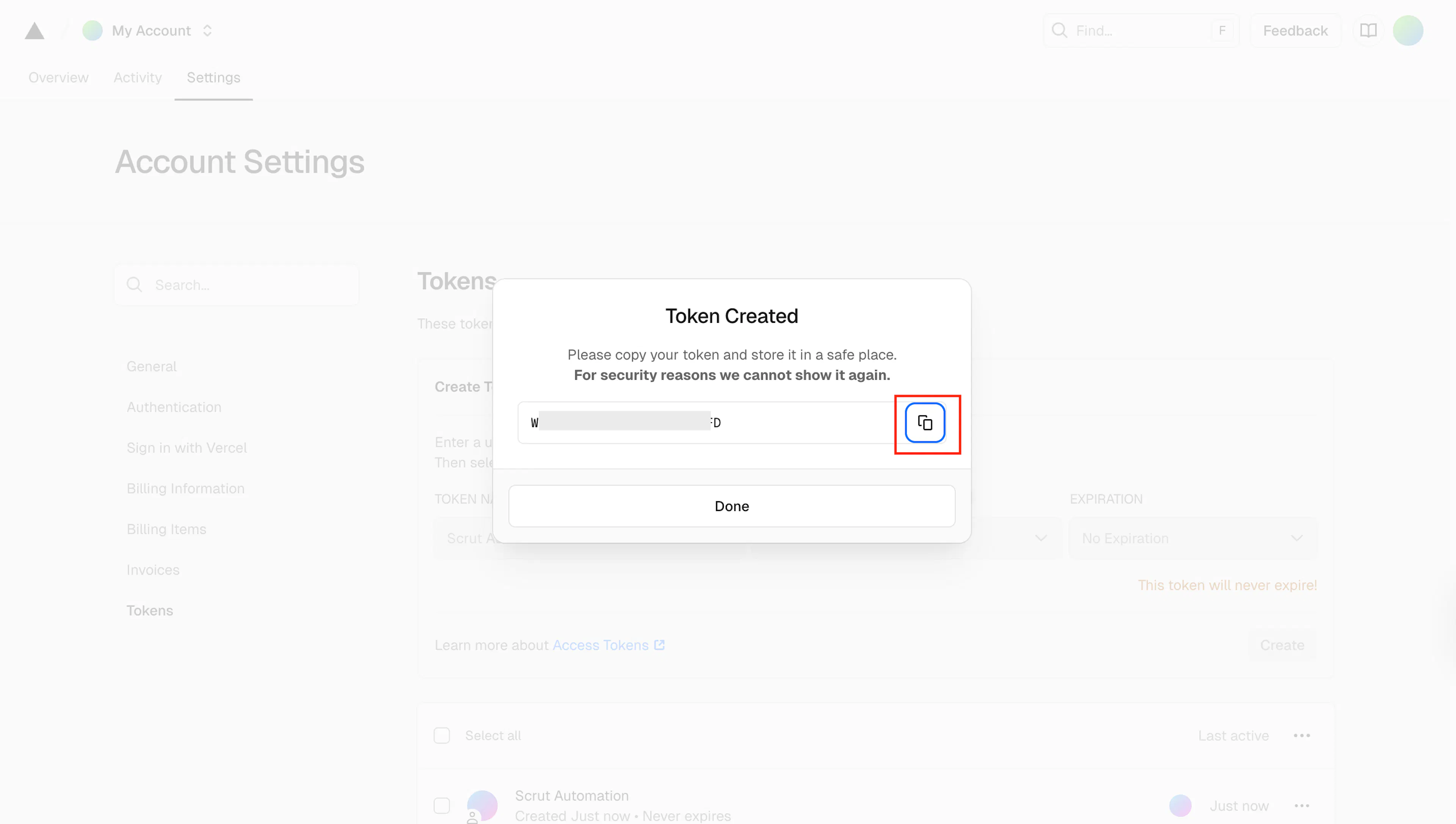
Copy the token value and store it securely. You will need it in the next step.
Note: The token is displayed only once. Copy it before closing this screen. Vercel cannot retrieve it again.
Note: Refer to Vercel help documentation to learn more about Vercel access tokens.
Step 2: Connect Vercel in Scrut
-
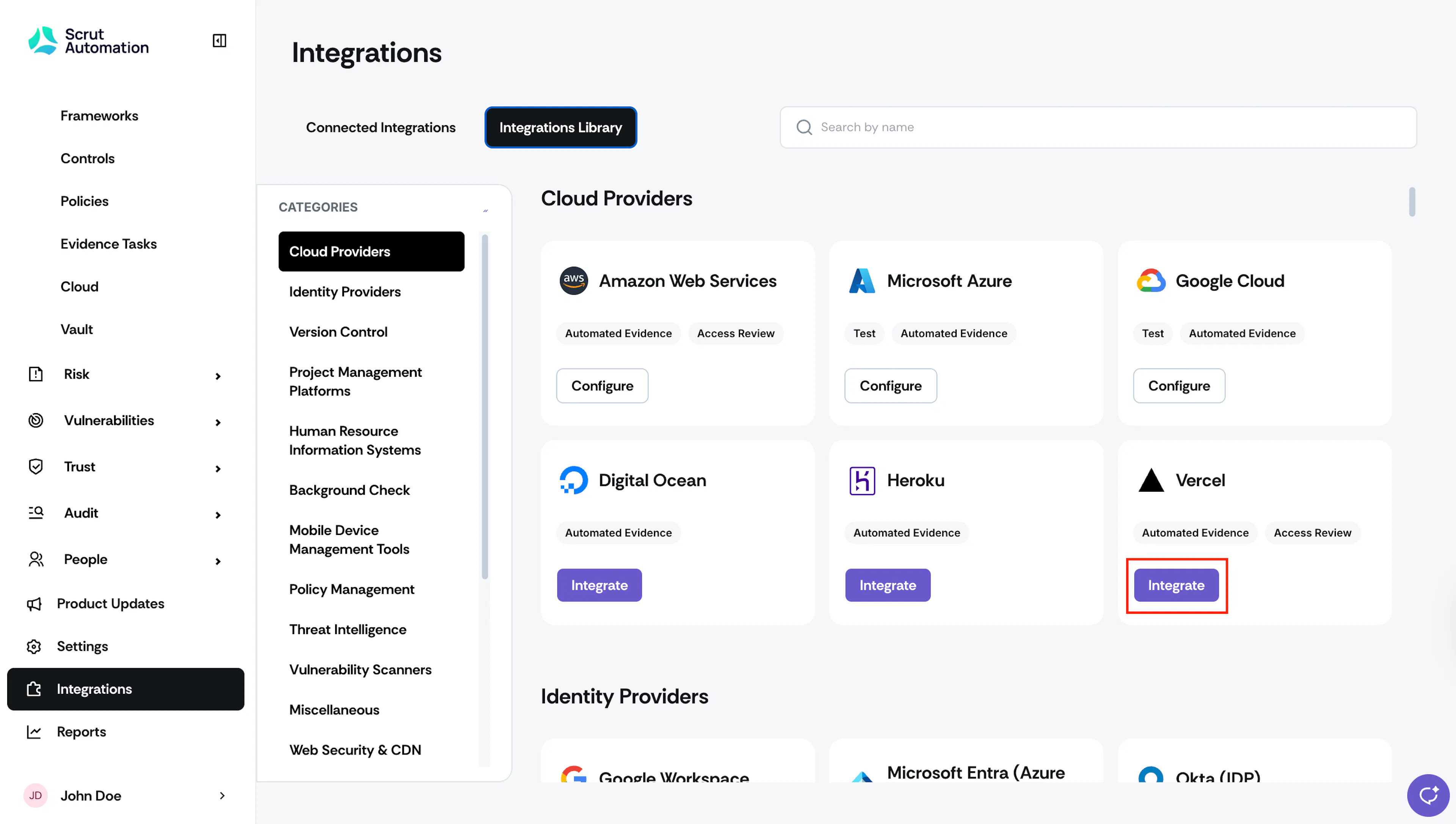
Sign in to Scrut and click Integrations in the left navigation panel.
-
Go to the Integrations Library tab.
-
Scroll to the Categories section and select Cloud Providers.
-
Find the Vercel tile and click Integrate.
-
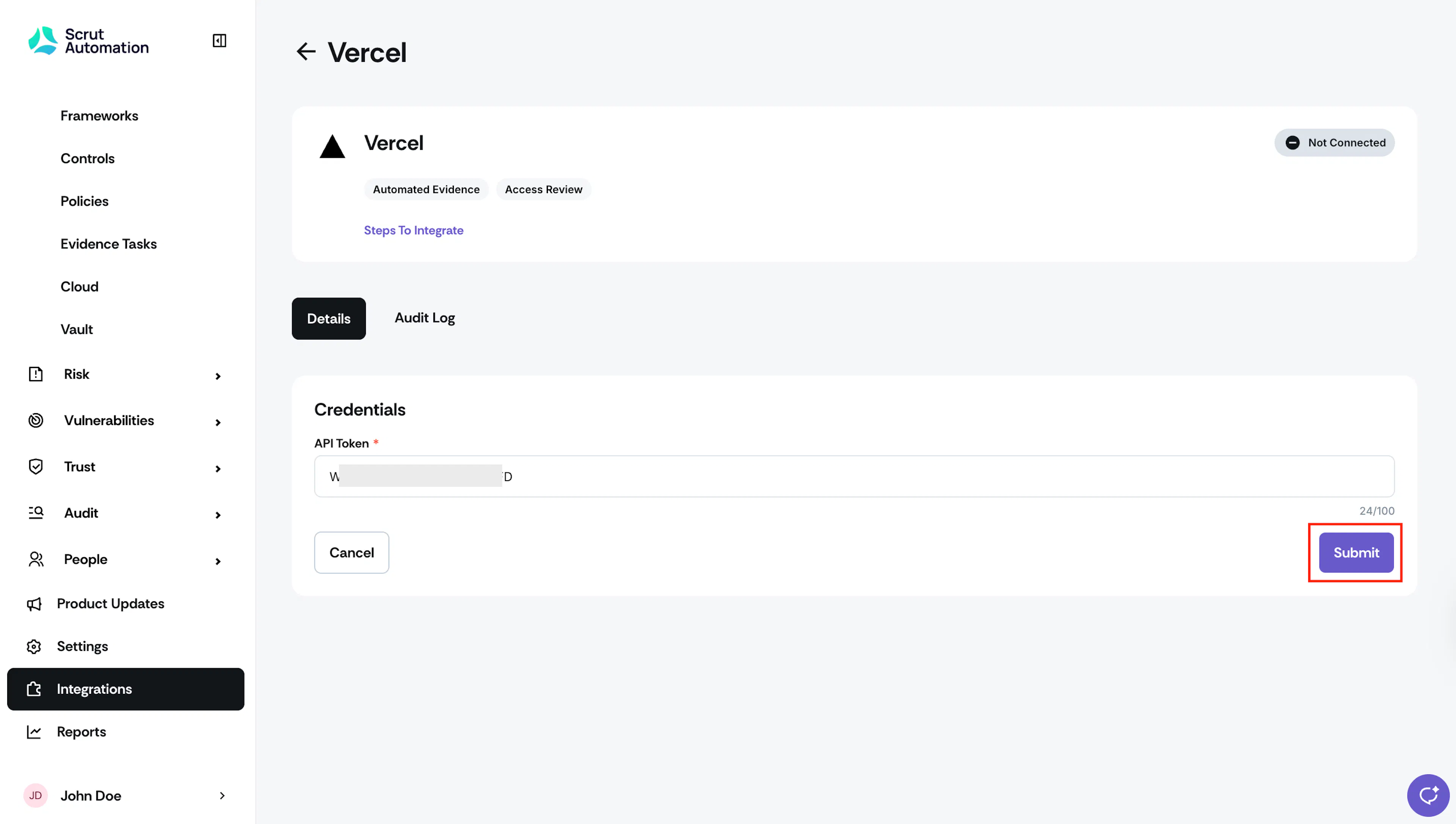
Paste the API token you copied in Step 1 into the API Token field.
-
Click Submit.
-
Confirm that the success toast appears and that the status indicator shows Connected.
What Happens Next?
Initial data sync
Scrut begins the initial data sync automatically after the integration is connected. You can monitor sync activity and review any errors by going to Integrations, opening the Vercel tile, and selecting the Audit Log tab.
Review synced data
After the sync completes, verify that data has landed correctly in Scrut.
- Navigate to Tests to review automated test results for Vercel.
- Navigate to Compliance → Evidence Tasks to set up a Scrut Monitor to automate evidence collection from Vercel.
- Navigate to People → Access Reviews to review user access data fetched from Vercel.
Common Errors and Troubleshooting
Invalid or Expired API Token
Cause: The token entered during setup has expired or was copied incorrectly.
Possible solutions: Return to Vercel Settings → Tokens and generate a new token. In Scrut, navigate to Integrations → Connected Integrations → Vercel and update the API Token field with the new token. Confirm there are no leading or trailing spaces when pasting the token.
Data not appearing in Scrut
Possible solutions: Check the Audit Log tab on the Vercel integration page for any sync errors. Confirm that the token scope covers the projects you expect Scrut to collect data from. Trigger a manual sync from the integration settings page and wait a few minutes before checking again.
Automated Tests Not Running
Possible solutions: Verify that the integration status on the Vercel integration page shows Connected. If the issue persists, contact support@scrut.io with your Audit Log details.
Specific project data missing
Cause: The token scope may have been set to a single project, excluding others.
Possible solutions: If you need data from multiple projects, generate a new token with Full Account scope and update the credentials in Scrut. If the scope is intentionally limited to one project, this behavior is expected.
FAQs
Reach out to support@scrut.io or contact your CSM for further assistance.