

Integrate Checkr
Integrating your Checkr account with Scrut enables automated collection and monitoring of employee background verification data to support compliance and risk management requirements.
What this Integration Does in Scrut
This integration:
- Automatically syncs background check status for employees from Checkr into the Tasks → Ongoing → Background Checks section in the People → Employees module in Scrut
- Centralizes background check data for audit and compliance reporting
- Enables real-time monitoring of the background verification processes of employees
- Provides evidence for compliance frameworks requiring employee background checks
Prerequisites
Permissions and Access Requirements
For Checkr:
- Active Checkr account with administrator access
- Ability to access the Checkr dashboard
- Permission to view and generate API keys
For Scrut:
- Admin role (or Contributor with access to the Integrations module) in Scrut
How To Integrate Checkr with Scrut
Step 1: Fetch API Key from Checkr
- Log in to your Checkr account and navigate to the Account page on the dashboard.
- Select the Developer settings tab and click Create Key.
- Enter the required details and generate the API key.
- Copy the key as you’ll need to enter it in Scrut in the next step.
Pro Tip!
Refer to Checkr’s documentation for more information on the API key.
Step 2: Connect Your Checkr Account in Scrut
-
Log in to your Scrut account and click Integrations on the left navigation panel.
-
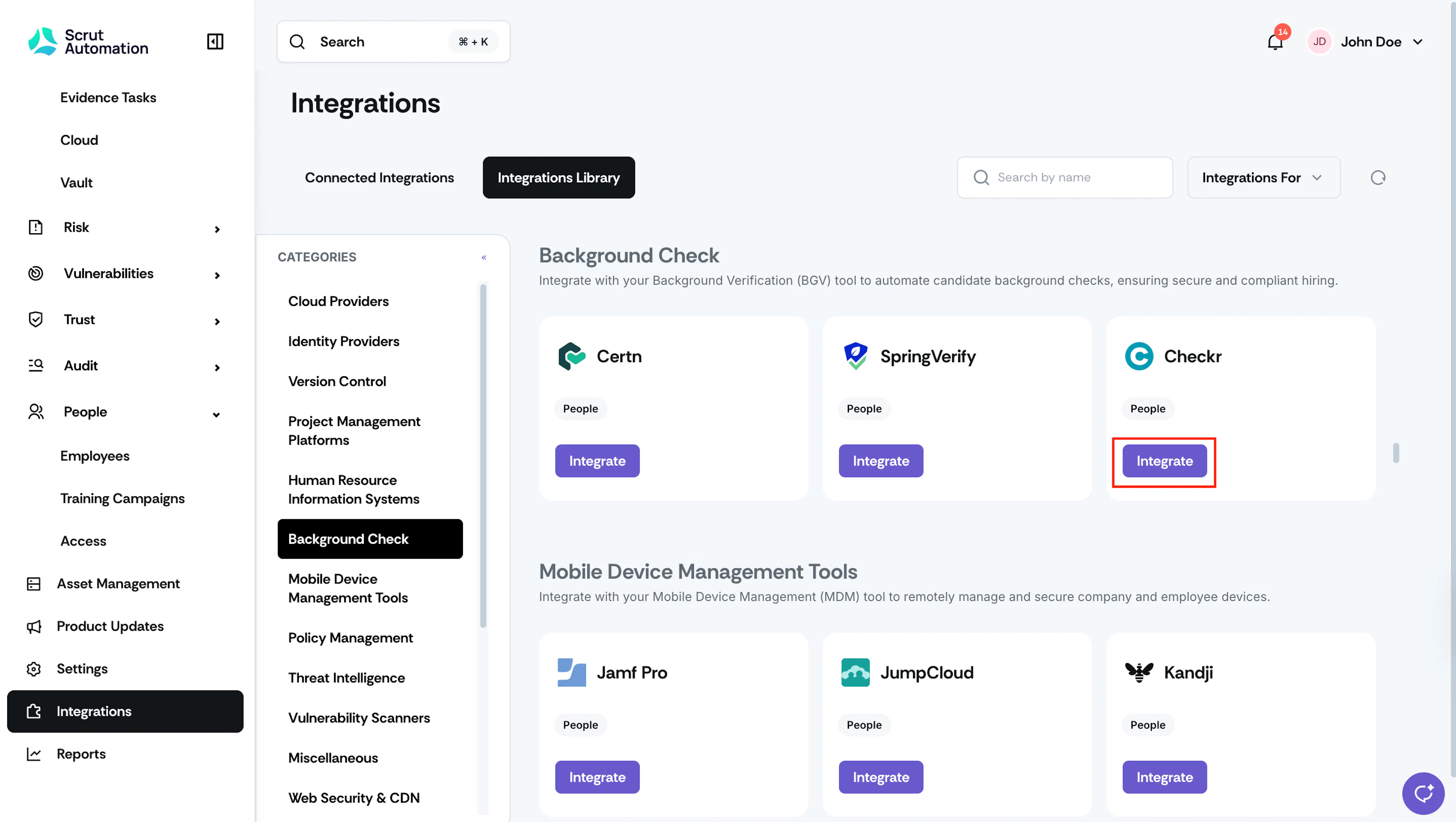
Click the Integrations Library tab at the top, and in the Categories section, click Background Check.
-
Locate the Checkr card, or use the search bar at the top of the page to find it, and click the Integrate button.
-
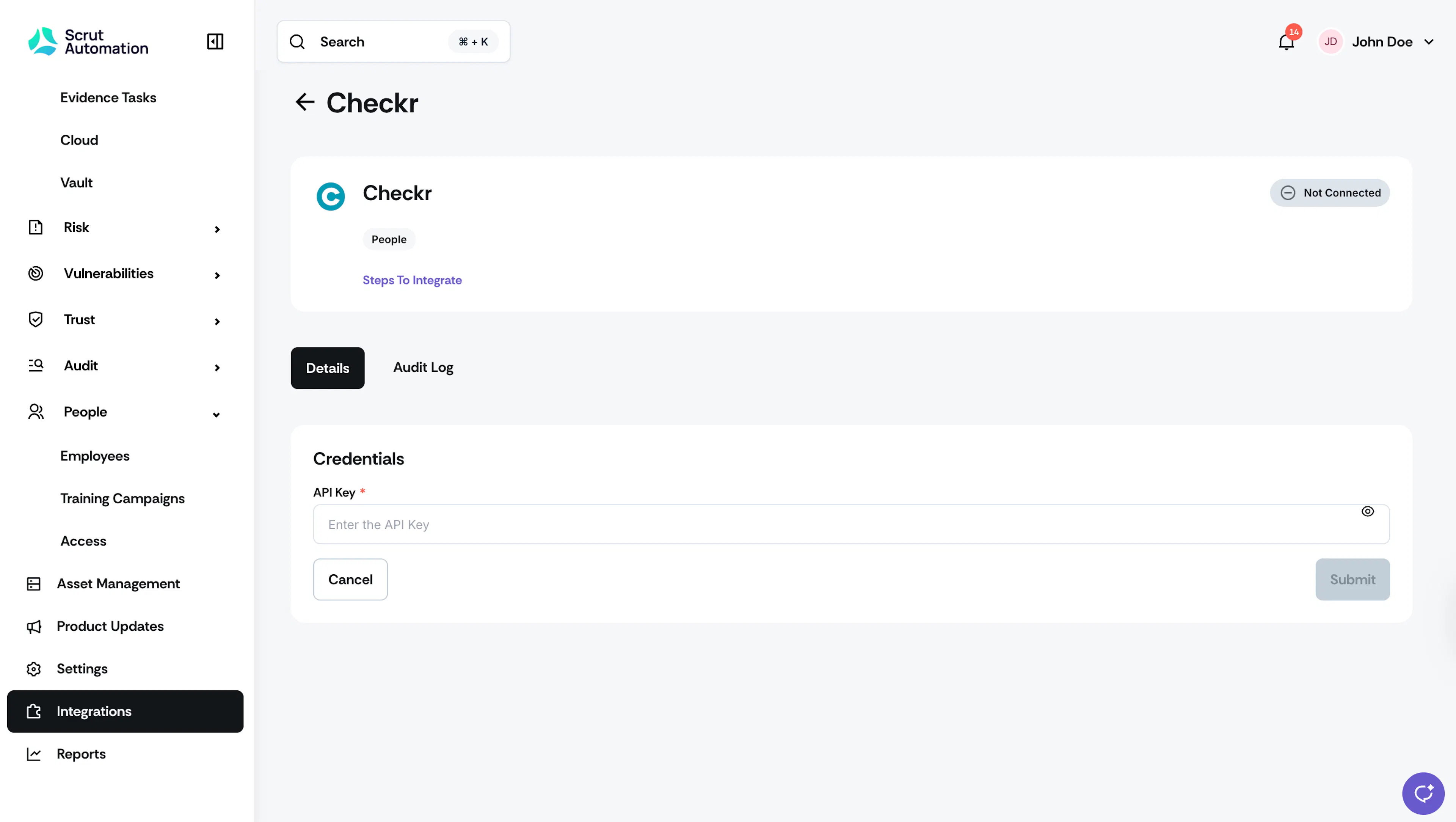
Enter the API Key you copied from Checkr and click Submit.
What Happens Next?
- The integration will begin syncing background verification data for employees from your Checkr account.
- The background check status will populate on employee detail pages in the Tasks → Ongoing → Background Checks section in the People → Employees module in Scrut.
- Check Checkr integration Audit Logs to view data sync status and confirm successful integration.
FAQs & Troubleshooting
For further questions or assistance, connect with Scrut Support (support@scrut.io).
Was this page helpful?