

Integrate ZincWork
Connect ZincWork with Scrut to track background verification checks for your employees, with results automatically reflected in each employee's profile based on their BGV status in ZincWork.
What This Integration Does in Scrut
-
Background Verification: Syncs background verification data to Scrut if enabled in employee checklists. The verification results appear in each employee's profile under People → Employees → Tasks.
Note: Background check results are fetched from ZincWork only for employees marked as BGV Required in the employee checklist configuration in Scrut.
-
Automated Tests: Runs automated checks that continuously evaluate ZincWork for security misconfigurations and compliance checks against your applicable compliance frameworks.
Prerequisites
- An active ZincWork account with administrator access.
- A ZincWork API key. Refer to Step 1 below to retrieve it.
Permissions and Access Requirements
For ZincWork
- Admin access on your ZincWork account.
For Scrut
- Admin access to Scrut, or Contributor access with permissions to the Integration module.
Data Collected
| Scrut Field | Zinc Work Source Field | Notes |
|---|---|---|
| BGV Status | results[].result | Mapped as: clear = Passconsider = Failno result = Pending |
| Report URL | reportUrl | Links to the full background check report in ZincWork |
| Package Name | metadata.package.name | Name of the background check package used |
| Employee Name | candidate.firstName + candidate.lastName | Full name of the employee |
| Employee Email | candidate.email | Used to match the result to the employee record in Scrut |
| BGV Check Timestamp | checks[].report.completedAt | Timestamp of when the BGV was completed |
Sync Frequency
Data syncs automatically every 24 hours. You can also manually trigger a sync from the integration settings page.
Integration Setup
Step 1: Retrieve Your API Key from ZincWork
-
Log in to your ZincWork account (
https://app.zincwork.com). -
Click your account name or profile icon in the top-right corner and select Settings.
-
Go to the API Keys section.
-
Copy your API key and store it securely. You will need it in the next step.
Note: You need to enter both the API key and Base URL in Scrut to complete the integration setup.
The Base URL is
https://api.zinc.iofor all standard production accounts. If you are using a staging account, usehttps://stagingapi.zinc.io.
Step 2: Configure the Integration in Scrut
-
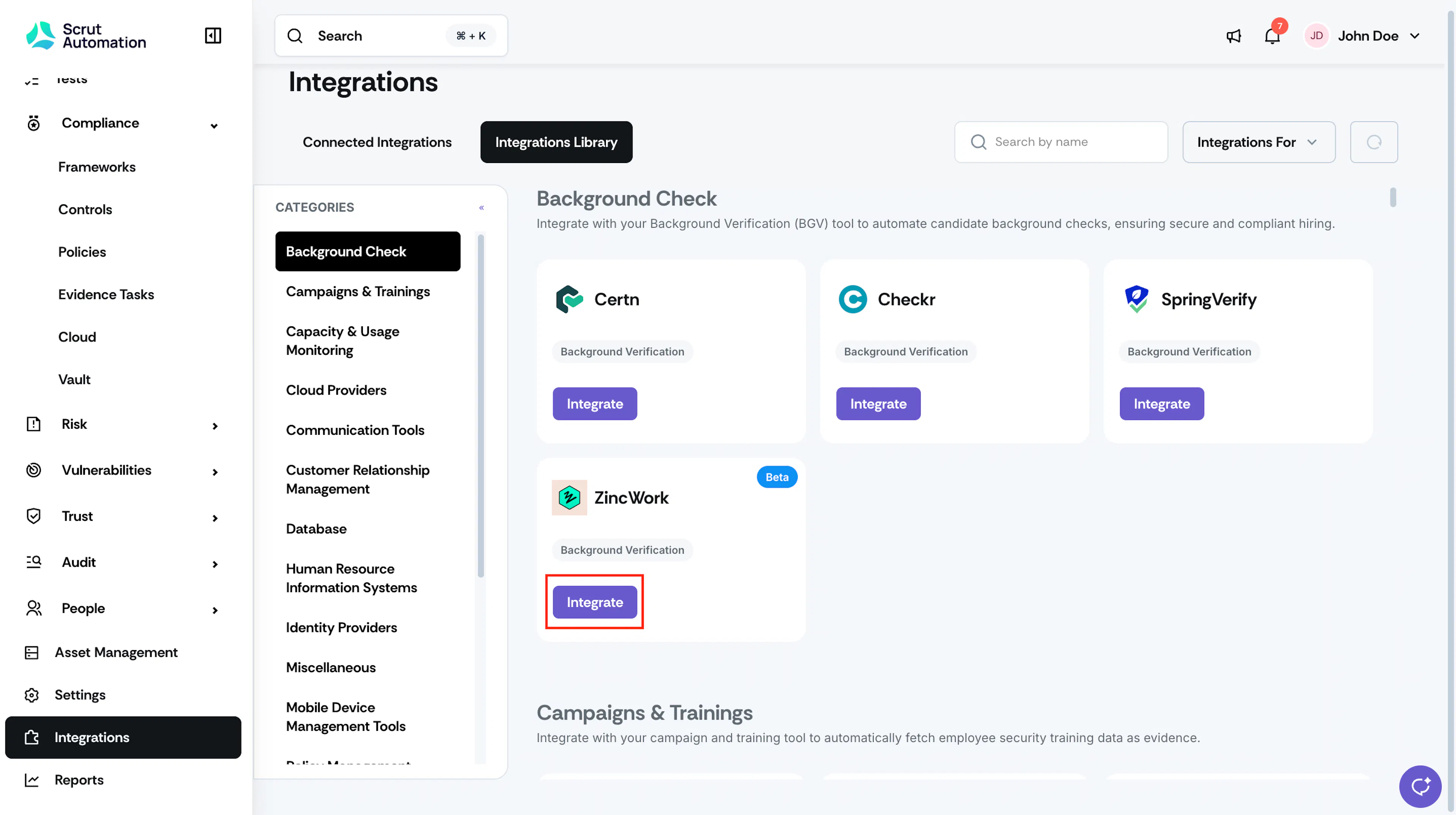
In Scrut, navigate to Integrations → Integration Library → Background Check.
-
Click Integrate on the Zinc Work tile.
-
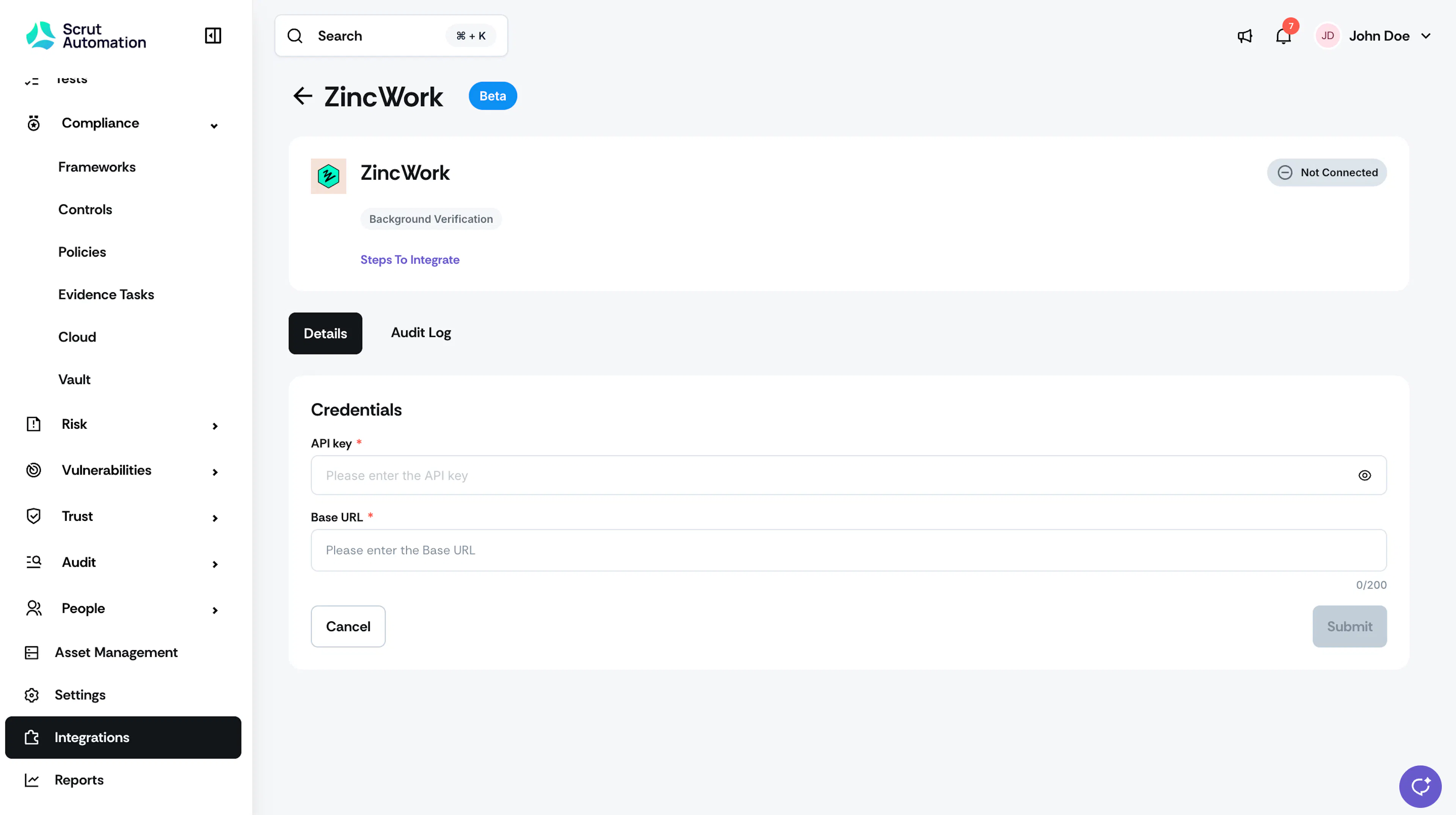
Enter your API key in the API Key field.
-
Enter your Base URL in the Base URL field.
-
Click Submit to complete the setup.
What Happens Next?
Initial data sync
After the integration is connected, the initial data sync begins automatically. You can monitor sync status and review connection activity in the Audit Logs section of the integration settings page.
Review synced data
- Navigate to People → Employees → Tasks → Ongoing to view background verification results for individual employees.
- Navigate to Automated Tests to view compliance check results for ZincWork.
Common Errors and Troubleshooting
Authentication failure
Possible solutions:
- Confirm that the API key you entered is correct and has not been revoked in ZincWork.
- Verify that the Base URL matches your account environment. Use
https://api.zinc.iofor production andhttps://stagingapi.zinc.iofor staging accounts. - If the issue persists, regenerate the API key in ZincWork and re-enter it in Scrut.
Background check results not appearing
Possible solutions:
- Confirm that the employee is marked as BGV Required in their checklist configuration in Scrut. Results are only fetched for eligible employees.
- Confirm the candidate email used in ZincWork matches the email address on the employee's Scrut profile.
- Wait for the next scheduled sync or trigger a manual sync from the integration settings page.
- Verify that the background check is complete and a result is available in ZincWork.
Integration disconnected or sync stopped
Possible solutions:
- Check whether the API key has been rotated or deactivated in ZincWork. If so, retrieve the new key and update it in Scrut.
- Reconnect the integration by re-entering your credentials in Integrations → Integration Library → Background Verification.
BGV Status Showing as Pending
Possible solutions:
- Confirm that the background check is complete in ZincWork. If ZincWork returns no result for an employee, Scrut displays the status as Pending.
- If the check is complete in ZincWork but Pending persists in Scrut, trigger a manual sync or wait for the next scheduled sync.
FAQs
Contact support@scrut.io or your CSM for further assistance.