

Rebind GCP - Service Account
A recent change to Google's policies has impacted permissions for service account bindings, potentially disrupting the cloud connections. To restore these connections, we recommend following the steps outlined below.
- Activate your GCP cloudshell, and run the following command:
gcloud config set project [PROJECT_ID]
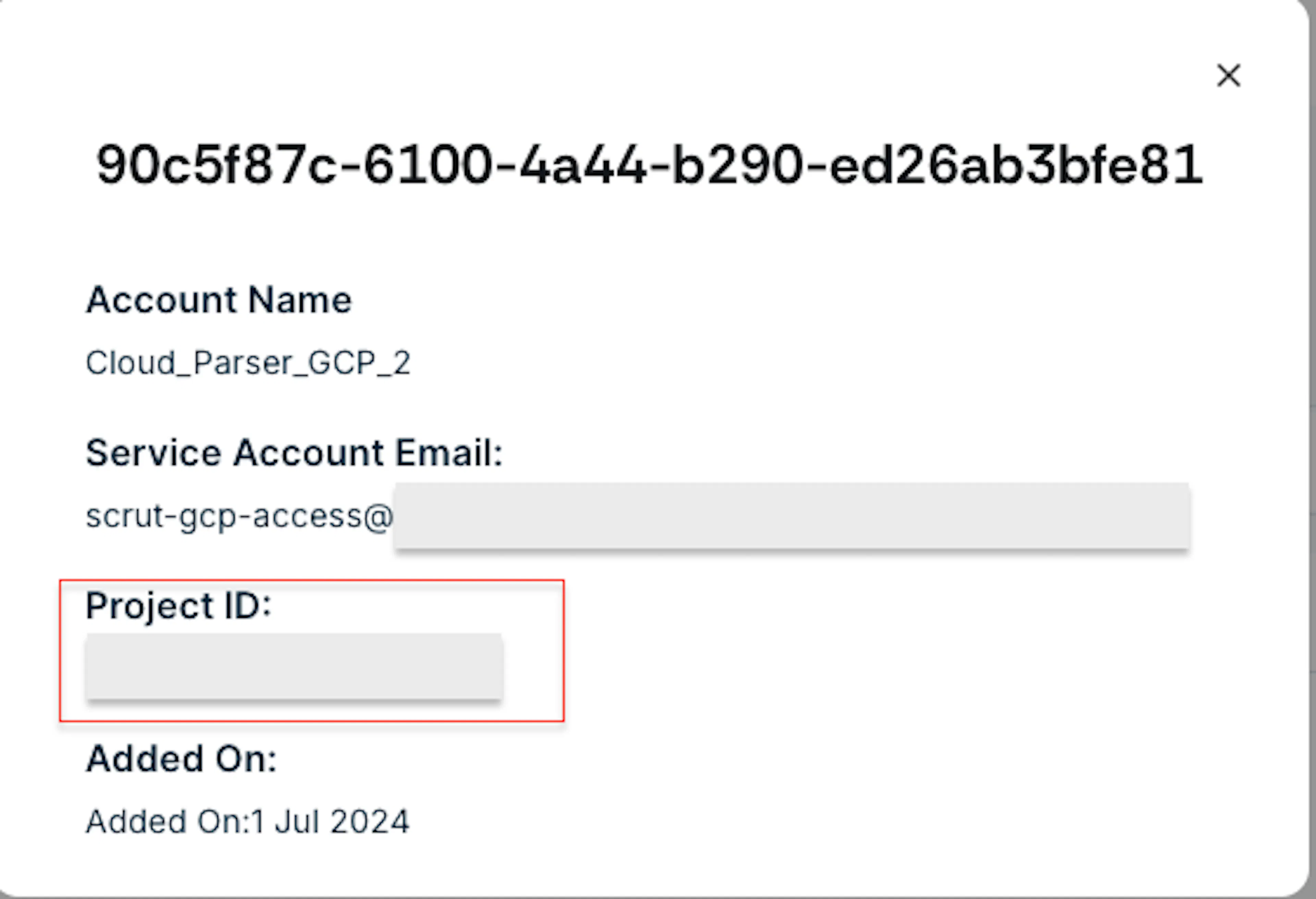
- To retrieve the Project ID, click on the relevant Integration ID as shown below

- Copy the Project ID, as shown below
- Enable the IAM and Service Account Credentials APIs by running the following command on your cloudshell:
gcloud services enable iam.googleapis.com iamcredentials.googleapis.com
- Enable Scrut to impersonate your service account , run the following command in the cloudshell by replacing
<your-service-account-email>with the service account email used for integration
 gcloud iam service-accounts add-iam-policy-binding <your-service-account-email> \
    --member serviceAccount:scrut-cp-sa@scrut-cloudscanner.iam.gserviceaccount.com \
    --role roles/iam.serviceAccountTokenCreator
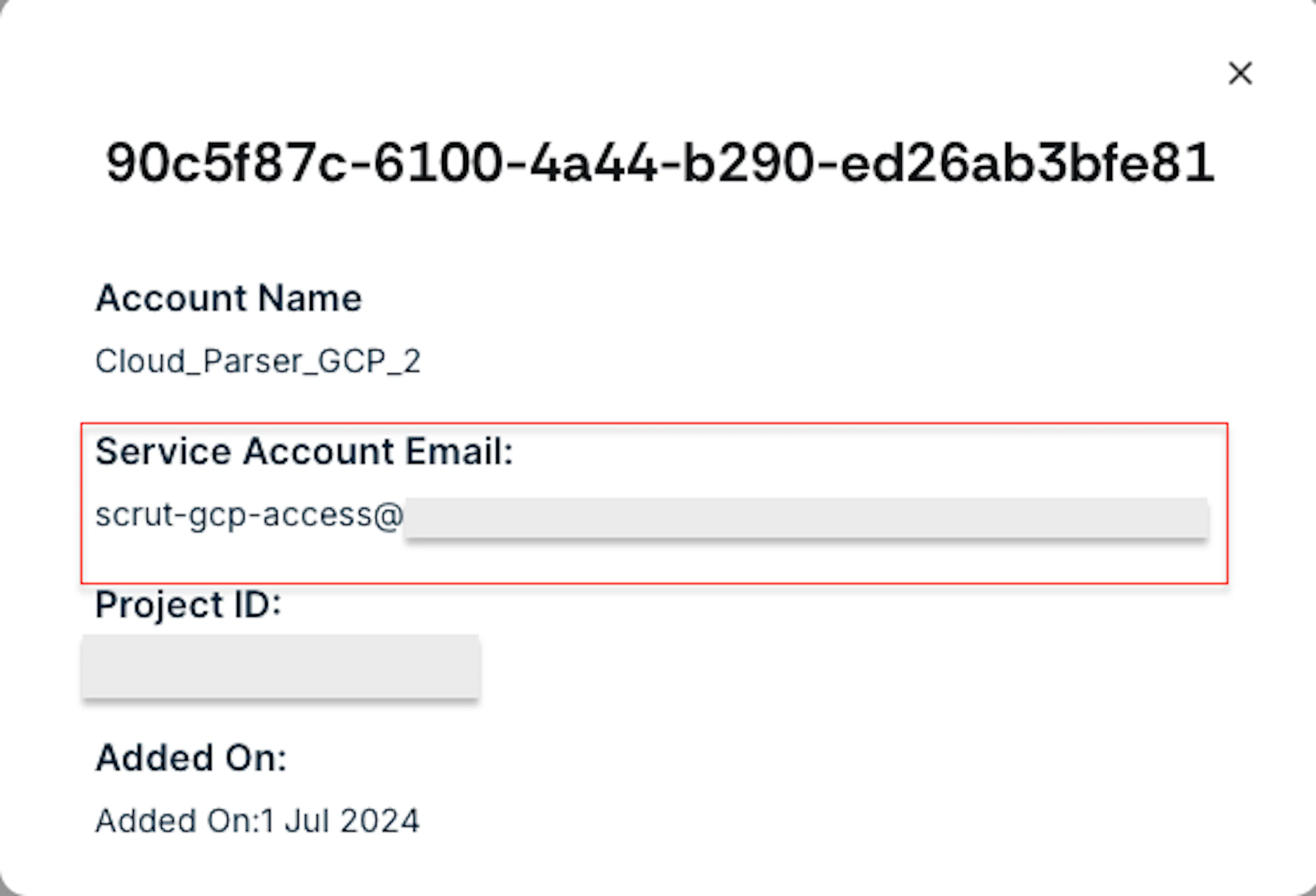
- To retrieve the Service Account Email, click on the relevant Integration ID as shown below
- Copy the Service Account Email, as shown below
After completing these steps, the connection status will update to "Active" during the next scan.
Was this page helpful?