

Integrate Harvest
Connect your Harvest account to Scrut to pull user records into Access Reviews and run automated compliance checks against your connected frameworks.
What This Integration Does in Scrut
- User Access Data: Fetches user details, roles, and permissions from Harvest for Access Reviews.
- Automated Tests: Runs automated checks that continuously evaluate Harvest for security misconfigurations and compliance checks against your applicable compliance frameworks.
Prerequisites
An active Harvest account with a Personal Access Token generated from your Harvest profile. Any Harvest user can generate one; administrator access is not required.
Permissions and Access Requirements
For Harvest
Any Harvest user can generate a Personal Access Token from their own profile. No elevated permissions are required to authenticate this integration.
For Scrut
Admin access to Scrut, or Contributor access with permissions to the Integrations module.
Data Collected
- User Name: Full name of the Harvest user
- Email Address: Primary email address on the Harvest account
- Role: User's assigned role in Harvest
Sync Frequency
Data is synced automatically once every 24 hours. You can also manually trigger a sync from the integration settings page.
Integration Setup
Step 1: Generate Credentials in Harvest
-
Log in to your Harvest developer account (https://id.getharvest.com/developers)
-
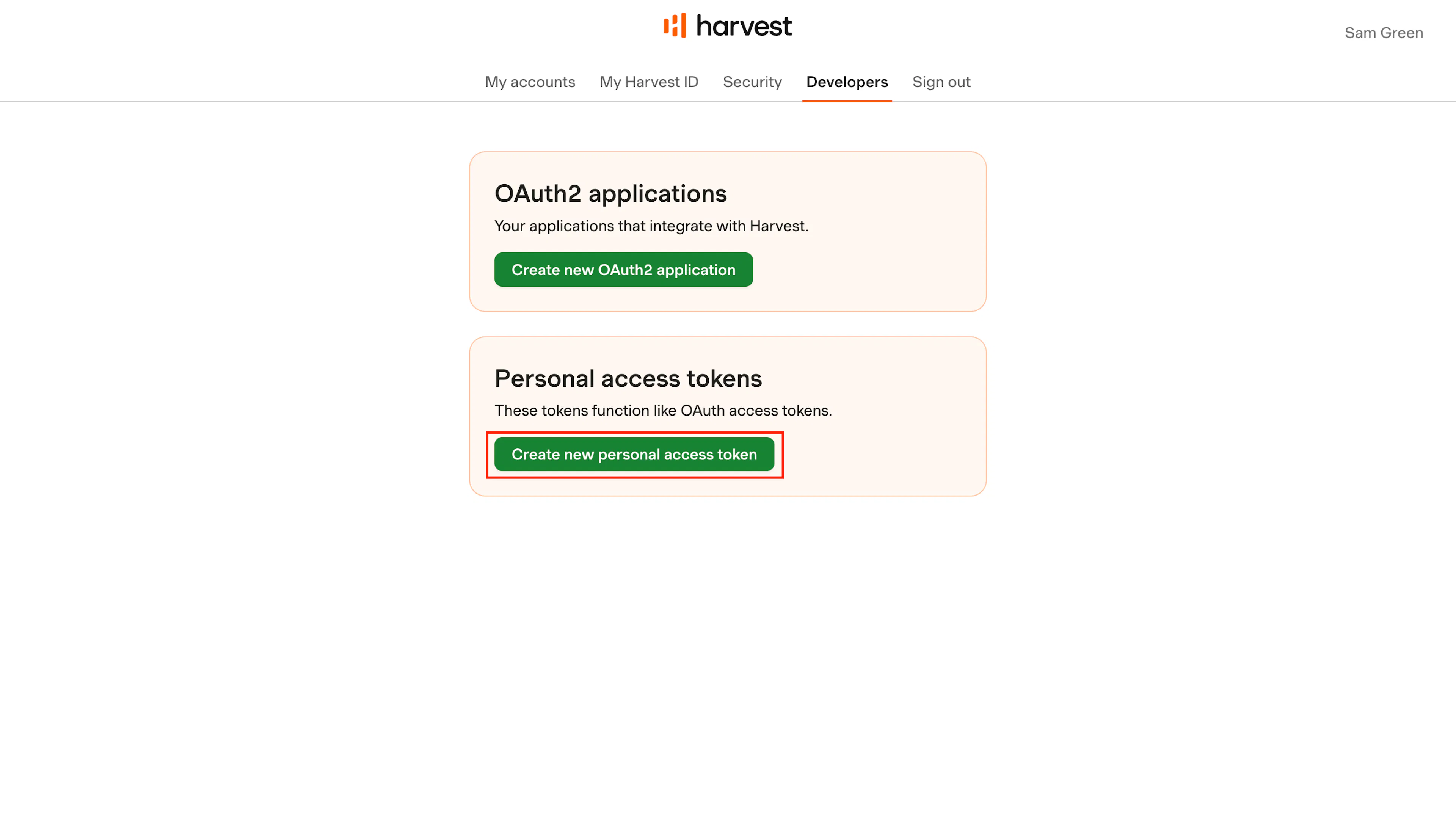
Go to the Developers tab and click Create New Personal Access Token.
-
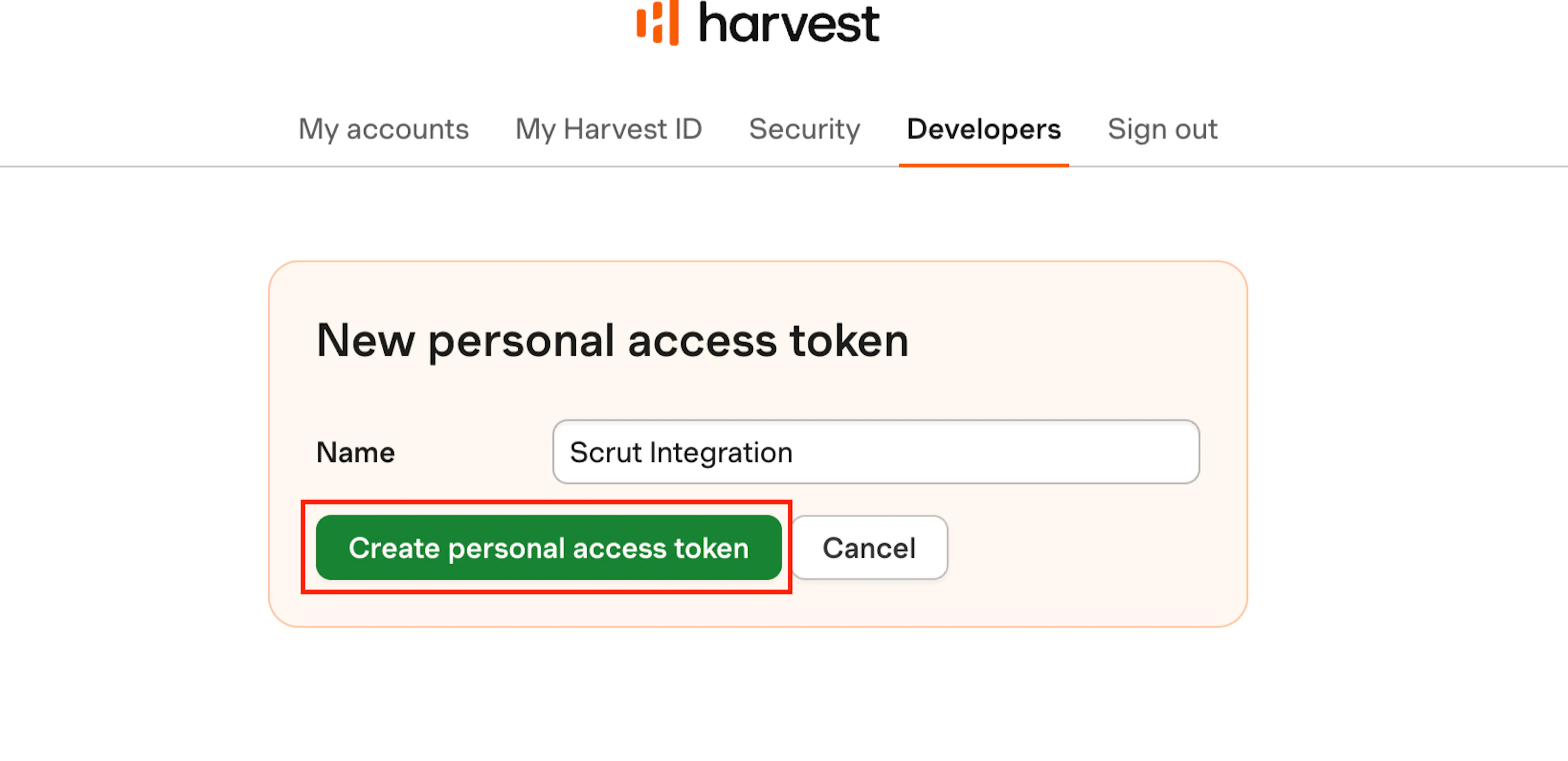
Enter a name for the token in the Name field. For example: Scrut Integration.
-
Click Create Personal Access Token.
-
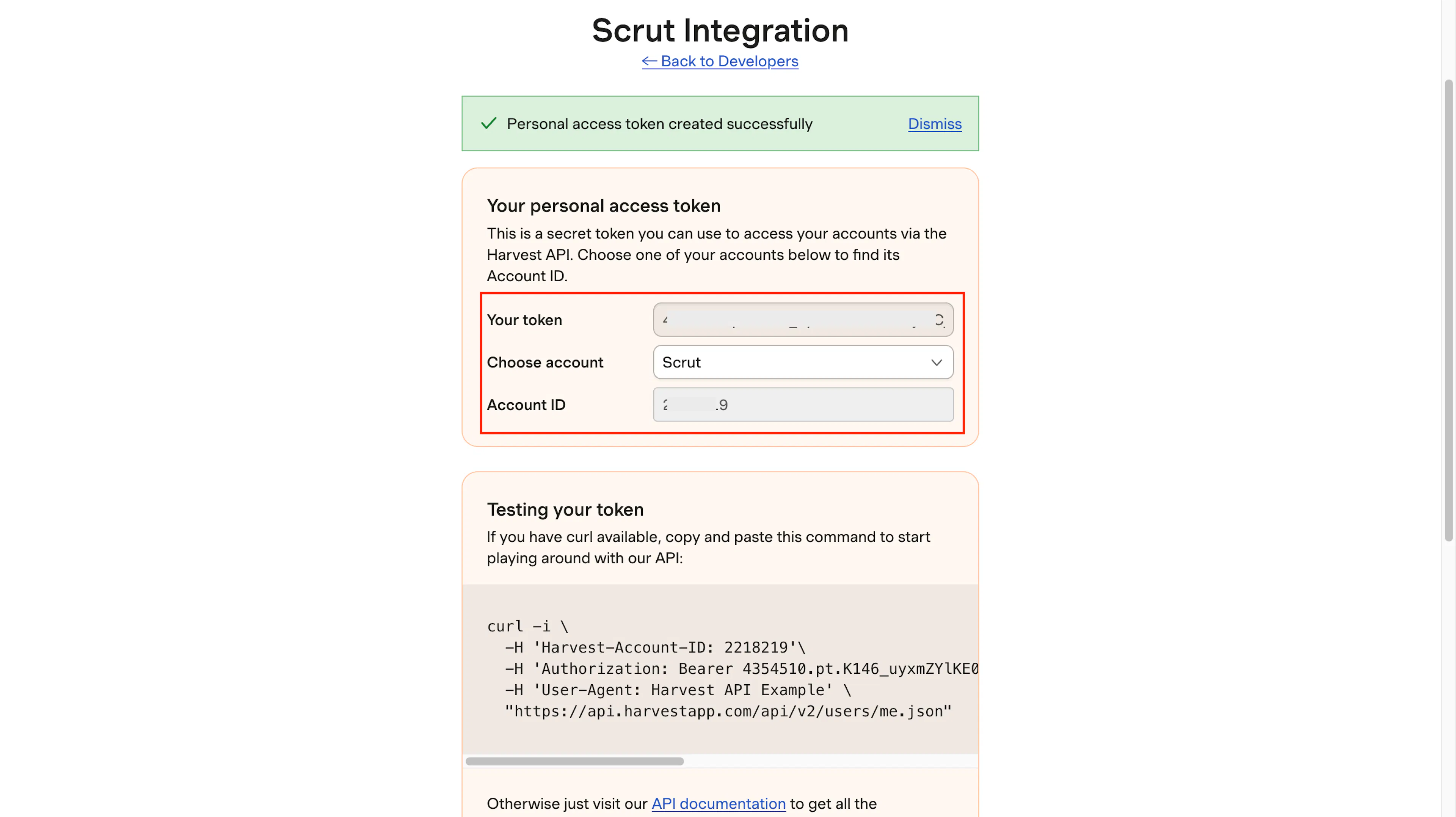
Copy the Personal Access Token displayed on the page and store it securely.
-
Copy the Account ID shown on the same page. Both values are required in the next step.
Note: Harvest displays the Personal Access Token only once. Copy it before navigating away from the page.
Step 2: Connect Harvest in Scrut
-
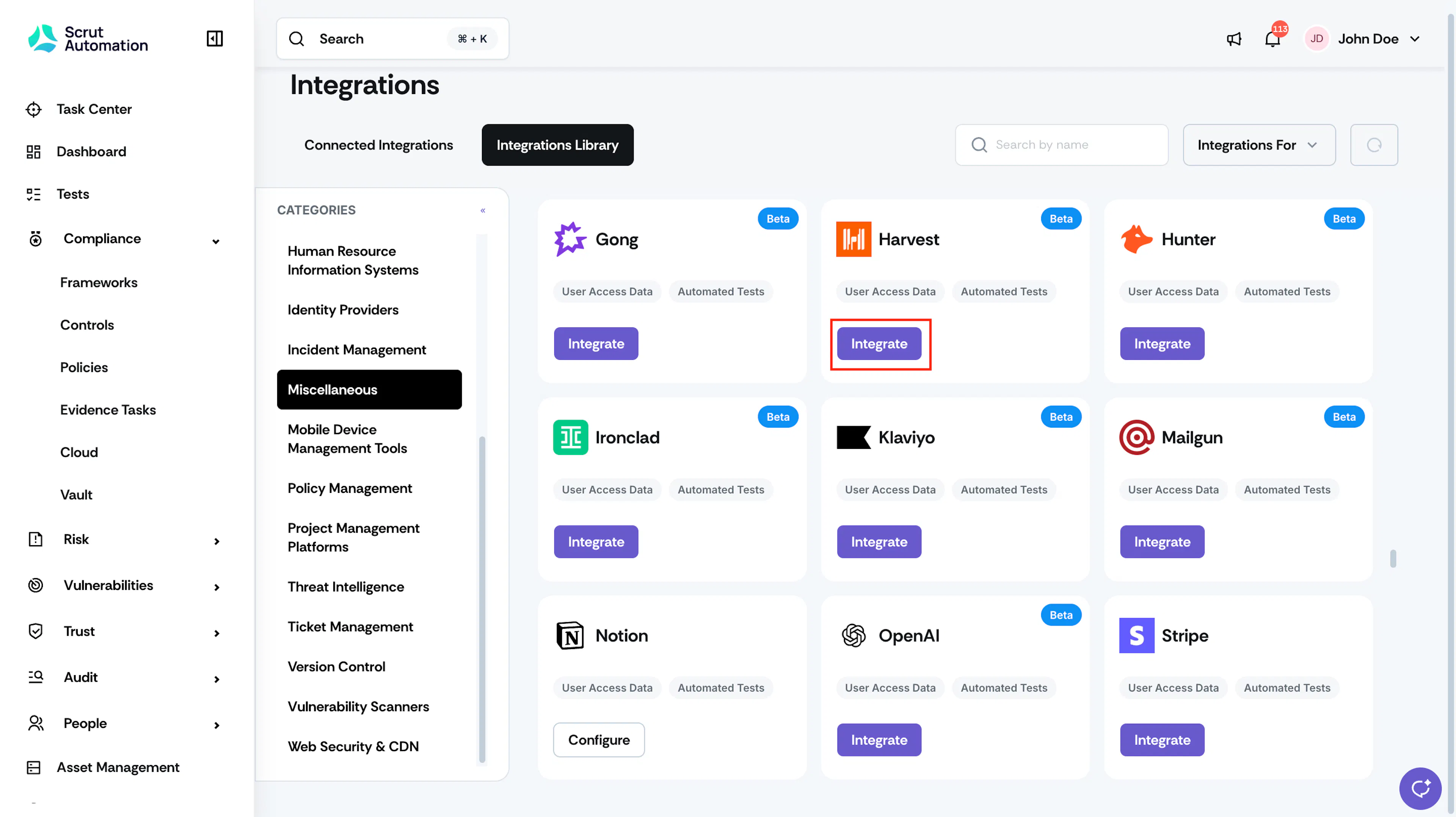
Log in to Scrut and navigate to Integrations → Integrations Library.
-
Search for Harvest or scroll to the Miscellaneous section and click Integrate on the Harvest tile.
-
Paste your Personal Access Token into the Personal Access Token field.
-
Paste your Account ID into the Account ID field.
-
Click Submit.
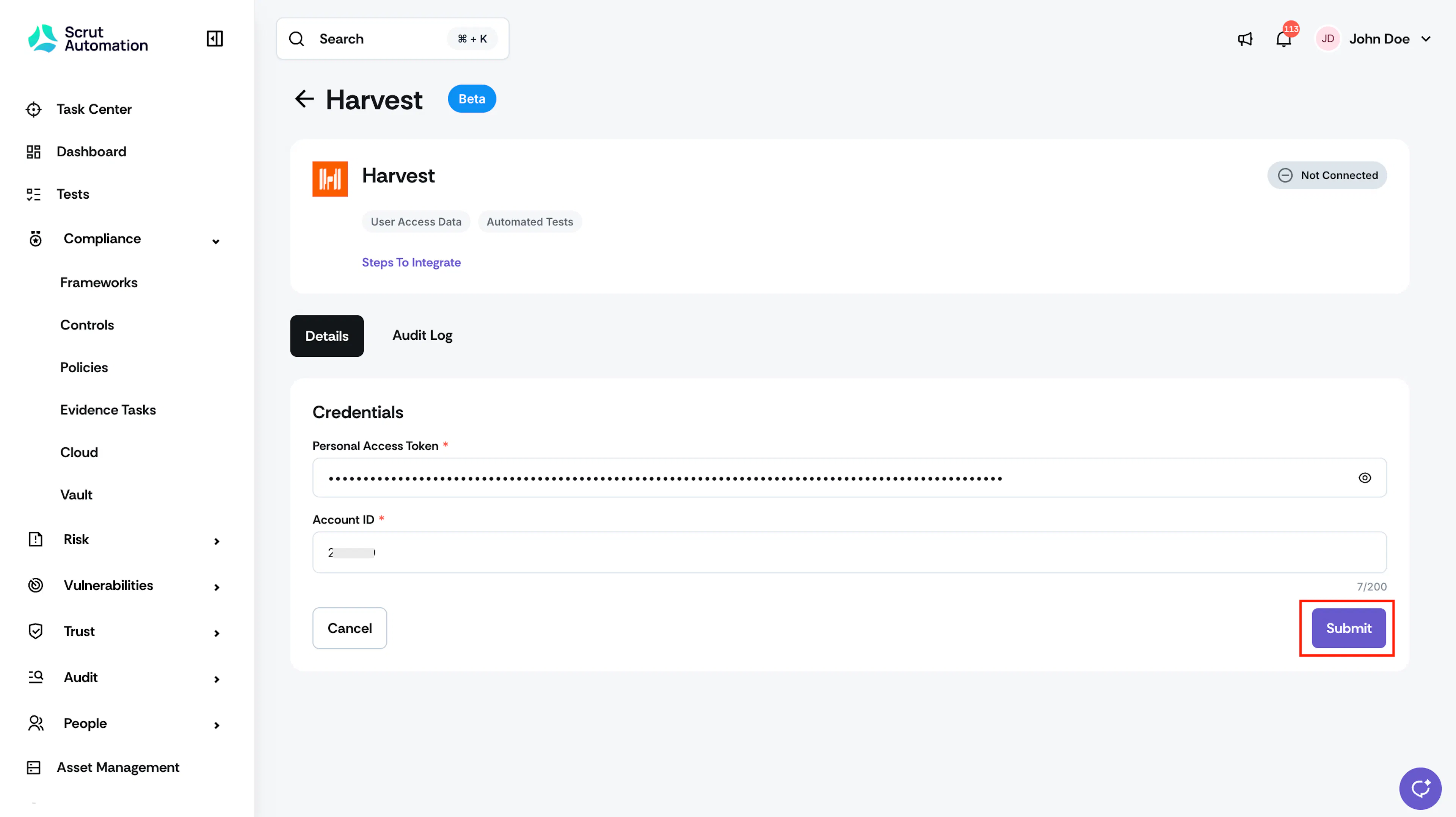
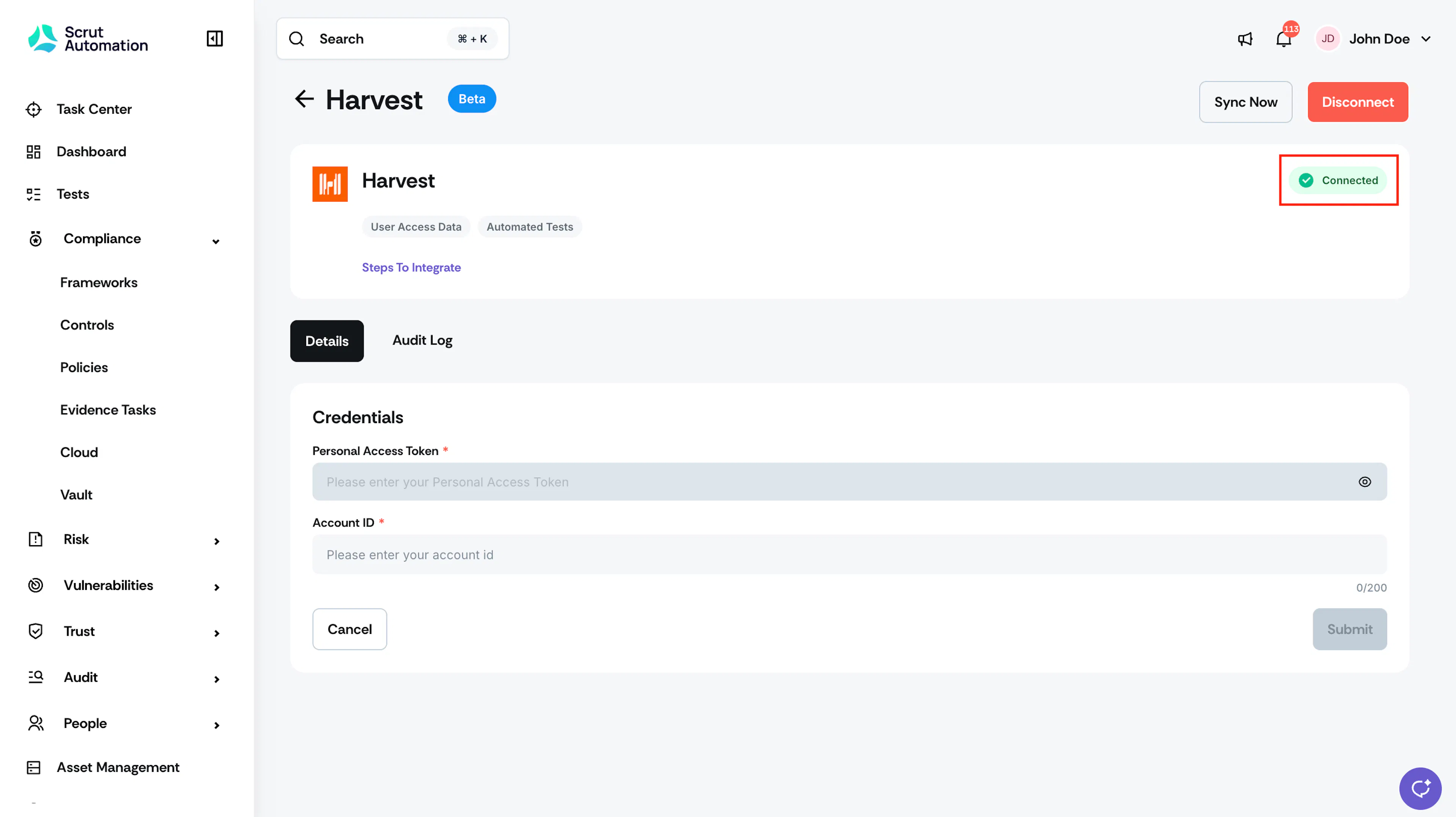
Scrut validates your credentials and initiates the first data sync.
What Happens Next?
Initial data sync
After the integration is connected, Scrut begins the initial data sync automatically. You can monitor sync activity by navigating to the Harvest integration card in Integrations and checking the Audit Logs tab.
Review synced data
- Navigate to People → Access Reviews module in Scrut to view the user records fetched from Harvest, including name, email address, and role.
- Navigate to Tests → Automated Tests to view the compliance checks that Scrut runs for Harvest.
Common Errors and Troubleshooting
Invalid credentials
Cause: The Personal Access Token or Account ID entered in Scrut is incorrect or has been regenerated in Harvest since the integration was connected.
Possible solutions: Return to Harvest (profile icon > Developers) and generate a new Personal Access Token. Re-enter both the Personal Access Token and Account ID in Scrut's integration settings. Confirm you are using the Account ID from the Developers page, not an account name or URL.
Users Not Appearing in Access Reviews
Possible solutions: Confirm the integration status shows as Connected in Scrut. Trigger a manual sync from the Harvest integration settings page and wait for the sync to complete. Check Audit Logs for error messages that indicate which step failed.
Reach out to support@scrut.io or contact your CSM for further assistance.