

Integrate Kandji (Iru)
Connect your Kandji account to Scrut to pull employee endpoint and device data into Scrut for compliance evidence collection, asset tracking, and access reviews. This guide walks you through the step-by-step process of connecting your Kandji account with Scrut.
What This Integration Does in Scrut
The Kandji integration performs the following functions in Scrut:
- Asset Management: Populates the Asset Management module in Scrut with discovered assets and supports the collection of asset-related compliance evidence.
- User Endpoint Devices: Fetches employee device details, including security posture and installed software. These devices are mapped to employees and visible in their profile under the People → Employees → Technicals section.
- Automated Tests: Runs automated compliance checks that continuously evaluate your configurations against applicable compliance frameworks.
Prerequisites
- An active Kandji account with administrator access
- Devices enrolled in Kandji
Permissions & Access Requirements
For Kandji
You need to generate an API token in Kandji with the following permissions enabled. These are scoped to read-only GET requests under the Prism API and Device endpoints.
Required API permissions:
- Device list: /devices
- Device: /devices/{device_id}
- Device details: /devices/{device_id}/details
- Application list: /devices/{device_id}/apps
- Device library items: /devices/{device_id}/library-items
- Prism - Gatekeeper and XProtect: /api/v1/prism/gatekeeper_and_xprotect
Note:
The Prism API permissions are not enabled by default for new or existing API tokens. You must enable them manually for the token you create for Scrut. This is required for antivirus checks to work correctly on devices that use XProtect, Apple's built-in antivirus.
For Scrut
- Admin access to Scrut, or a Contributor role with access to the Integrations module.
Data Collected
-
Device Name
-
Device OS Version
-
Device Serial Number
-
Antivirus Installed
- Antivirus status (Requires Prism - Gatekeeper and XProtect API permission to populate)
-
HD Encrypted
- Encryption status
-
Screenlock Enabled
- Screenlock status
-
Installed Applications
- Application list (Full list of installed apps per device)
Sync Frequency
Data is synced automatically once every 24 hours. You can also manually trigger a sync from the Integrations settings page in Scrut.
Integration Setup
Step 1: Generate an API Token in Kandji
-
Log in to your Kandji account.
-
Go to Settings and select the Access tab.
-
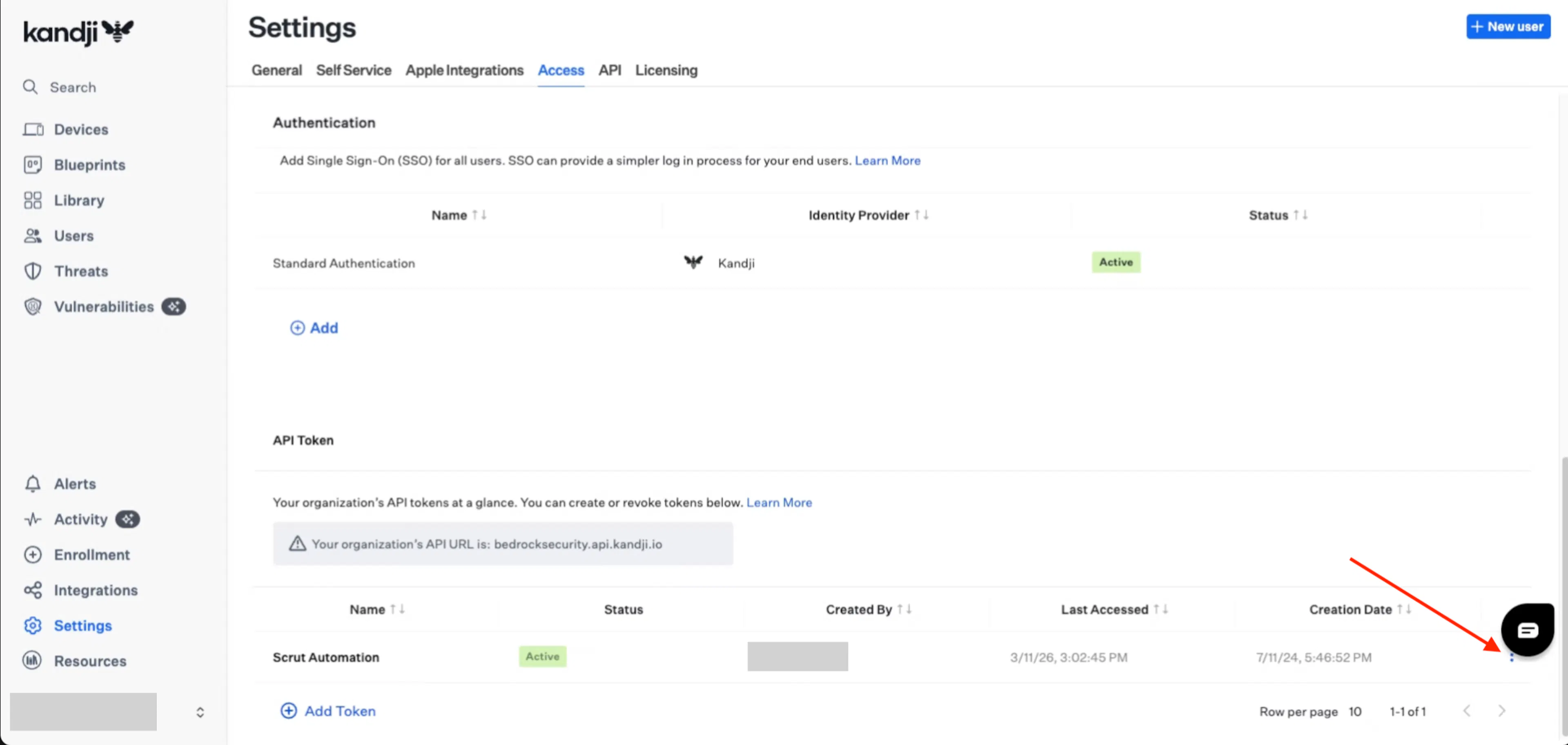
Scroll to the API Token section and click Add Token.
-
Enter a name and description for the token (for example, "Scrut Automation"), then click Create.
-
Kandji displays a modal with the generated API token. Click Copy Token to save it securely. You will not be able to view this token again after closing the modal.
-
Click Next, then click Configure to set the token's API permissions.
-
Enable the following permissions:
- Device list: /devices
- Device: /devices/{device_id}
- Device details: /devices/{device_id}/details
- Application list: /devices/{device_id}/apps
- Device library items: /devices/{device_id}/library-items
-
To enable Prism API permissions for antivirus detection, click the three-dot menu (vertical ellipsis) next to the Scrut API token and select View.
-
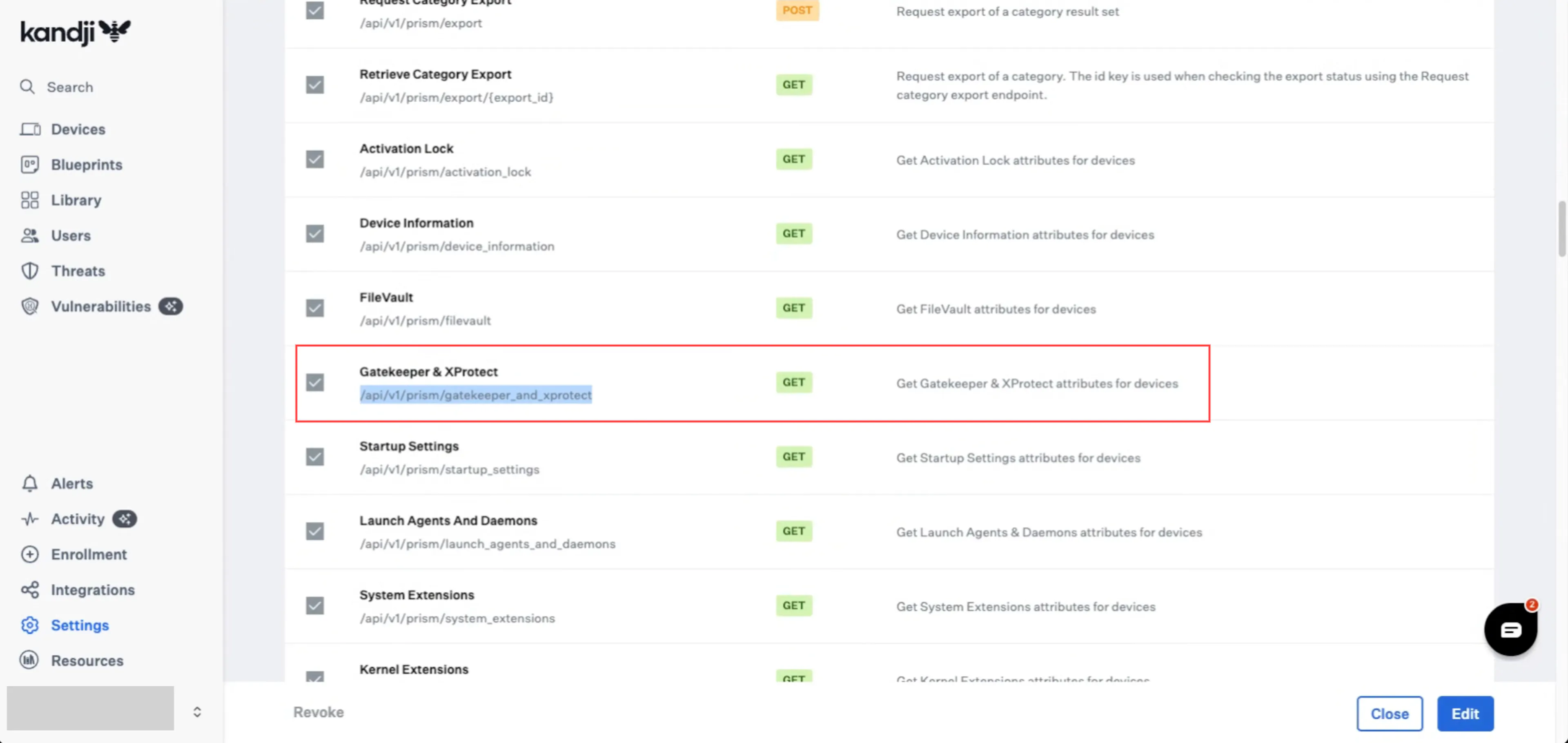
Open the Permissions tab and scroll to the Prism section.
-
Enable Gatekeeper and XProtect: /api/v1/prism/gatekeeper_and_xprotect.
-
Click Edit in the lower-right corner, then save your changes.
Important:
The Prism API permissions are not enabled by default. If you skip this step, the Antivirus Installed field will not populate correctly in Scrut for devices using XProtect.
- After saving the token, your instance-specific Kandji API URL is displayed on the Access page. Copy this URL for use in Scrut.
Step 2: Connect Kandji in Scrut
-
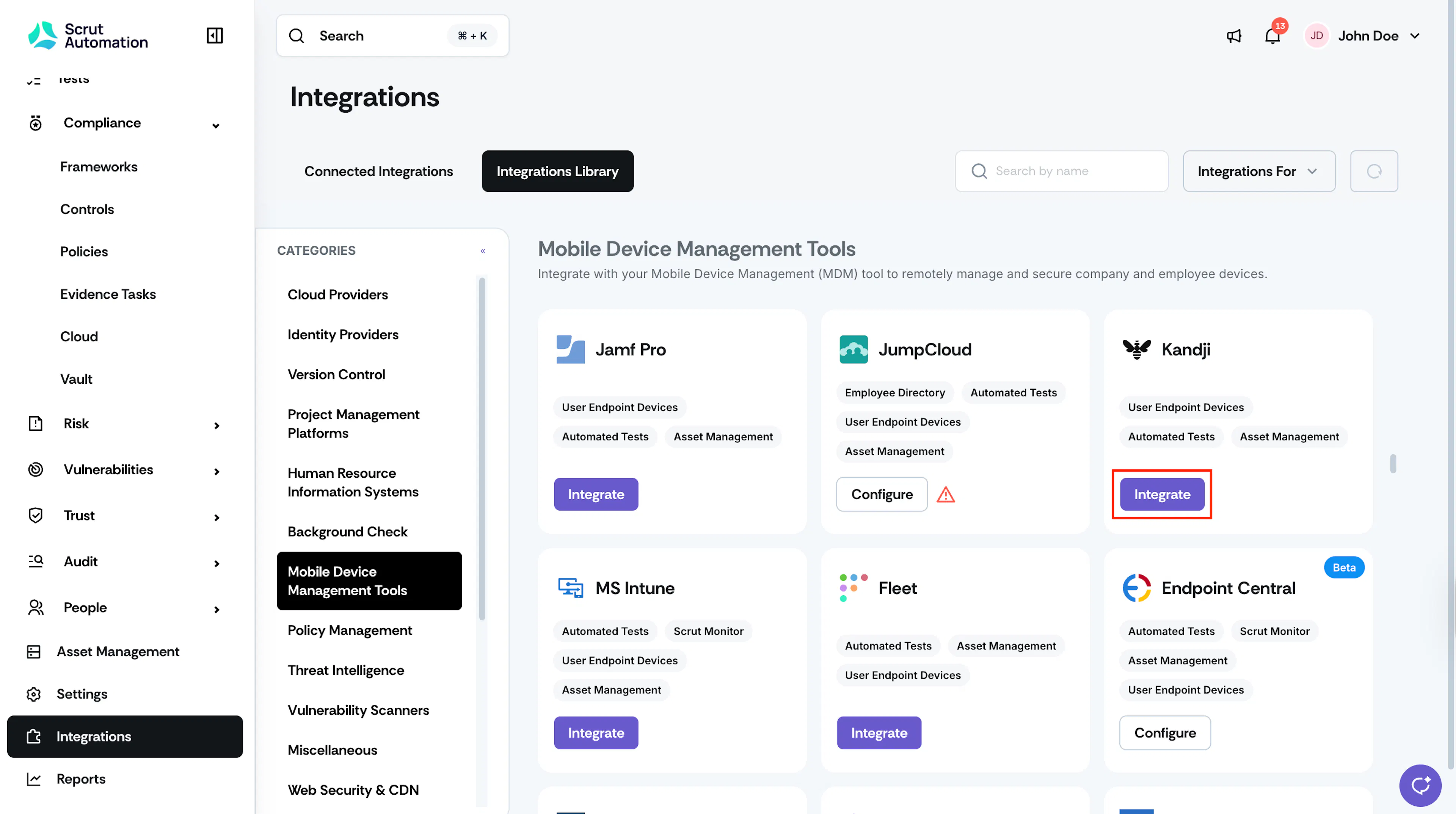
In Scrut, go to Integrations in the left navigation panel.
-
Scroll to the Mobile Device Management Tools section in the Integrations Library tab and find Kandji.
-
Click Integrate on the Kandji tile.
-
Enter the API Token and the Kandji API URL you copied from Kandji.
-
Click Save.
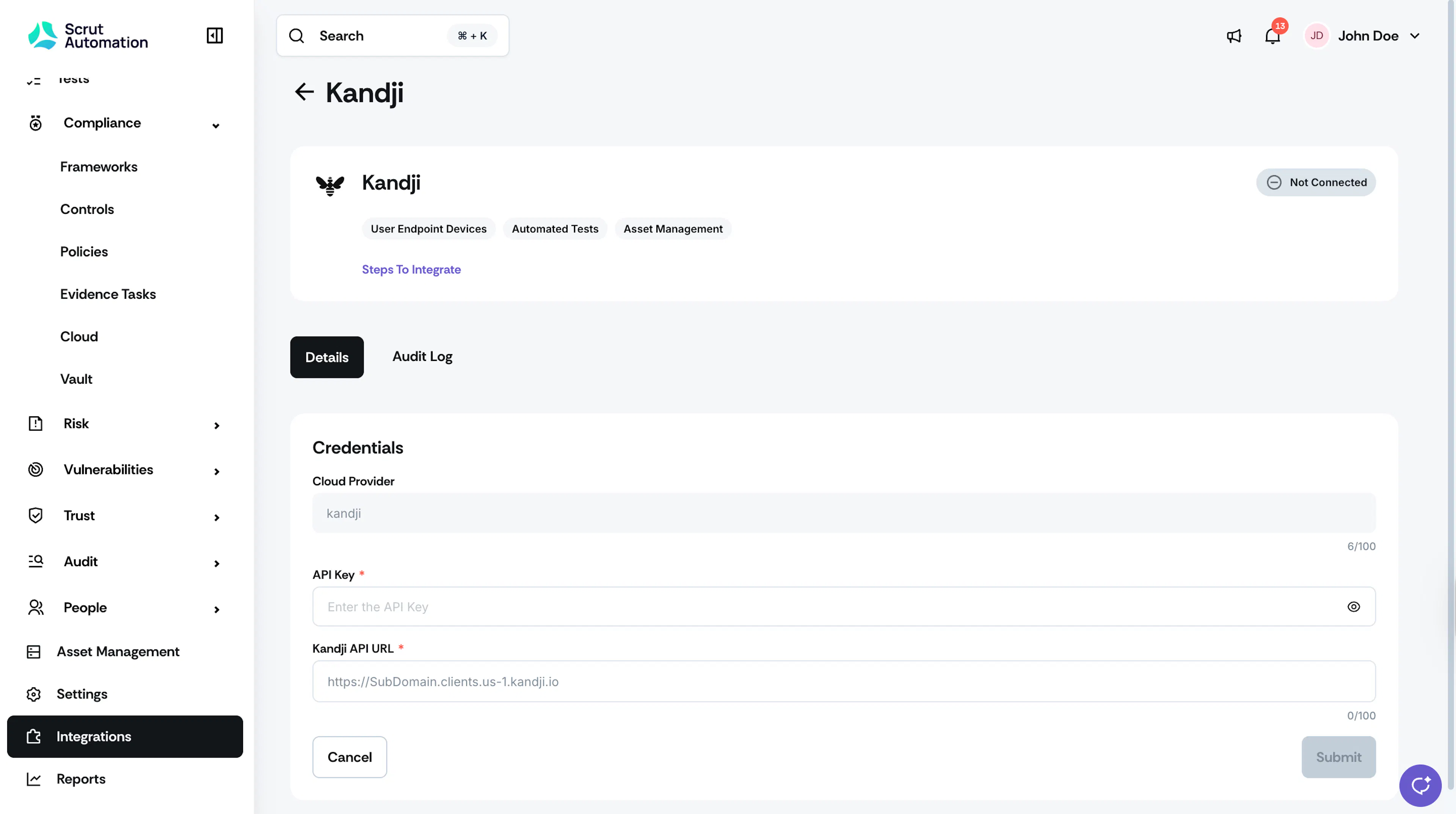
After a successful connection, Kandji displays a Connected status in the Integrations page.
What Happens Next?
Initial data sync
The initial sync begins automatically after the integration is saved. You can monitor sync status and history by going to Integrations, selecting Kandji, and viewing the Audit Logs tab.
Review synced data
Once the sync completes, navigate to the following locations to verify the data:
- Navigate to People → Employees → Technical to view device records mapped to employees.
- Navigate to Asset Management to view all devices pulled from Kandji.
- Navigate to Tests to check automated test results driven by device data. Use the Application filter to view only Kandji tests.
Common Errors & Troubleshooting
Authentication Failure
Cause: The API token entered in Scrut is invalid, has been revoked, or lacks the required permissions.
Possible solutions: Verify that the token is active in Kandji under Settings → Access → API Token. Confirm that all required API permissions are enabled for the token. If the token was revoked, generate a new one and update it in Scrut.
Antivirus Status Showing as Unknown or Not Populated
Cause: The Prism API permissions for Gatekeeper and XProtect are not enabled on the Scrut API token in Kandji.
Solution: In Kandji, go to Settings → Access → API Token. Click the three-dot menu next to the Scrut token and select View. Open the Permissions tab, scroll to the Prism section, and enable Gatekeeper and XProtect. Save the changes and trigger a manual sync in Scrut.
Device Data Not Appearing in Scrut
Possible solutions: Confirm that devices are enrolled and active in Kandji. Check that the Kandji API URL entered in Scrut matches the instance-specific URL shown in your Kandji account under Settings → Access. Wait up to 24 hours for the next automatic sync, or trigger a manual sync from the Integrations page in Scrut.
Sync Failing After API Token Rotation
Cause: The API token stored in Scrut no longer matches the active token in Kandji.
Possible solutions: Generate a new API token in Kandji and copy it. In Scrut, go to Integrations, select Kandji, and update the API token. Save and verify that the integration reconnects successfully.
FAQs
Reach out to support@scrut.io or contact your CSM for further assistance.