

Integrate JumpCloud
Heads Up!
If you’re looking to connect JumpCloud SSO with Scrut, see here.
Connecting JumpCloud with Scrut brings your endpoint device data, employee records, and compliance evidence into Scrut, so your team spends less time on manual data collection and more time on staying audit-ready.
What This Integration Does in Scrut
- User Endpoint Devices: Fetches employee device details, including security posture and installed software. These devices are mapped to employees and visible in their profile under People → Employees → Technical.
- Automated Tests: Runs automated compliance checks that continuously evaluate your configurations against applicable compliance frameworks.
- Asset Management: Populates the Asset Management module in Scrut with discovered assets and supports collecting asset-related compliance evidence.
- Employee Directory: Syncs employee and group data into Scrut's People module. These users can then access the Employee Portal for training, policy acceptance, and device-related activities.
Prerequisites
Before you begin, make sure you have the following in place:
- An active JumpCloud account with administrator access.
- System Insights enabled globally in JumpCloud or toggled on for each target device in your JumpCloud Admin Console. This is only required if you want Scrut to verify password managers installed as browser extensions rather than native applications.
- Employees enrolled in JumpCloud with valid email addresses.
Permissions and Access Requirements
For JumpCloud
JumpCloud uses API key-based authentication. No scope selection is required when generating the API key. You only need to set an expiration period for the key. Any admin-level JumpCloud user can generate and copy the API key from their profile settings.
Note: For more information, refer to JumpCloud’s API documentation.
For Scrut
Admin access to Scrut, or Contributor access with permissions for the Integrations module.
Limitations
- System Insights is required for browser extension checks. If System Insights is not enabled globally or per device in your JumpCloud Admin Console, Scrut cannot fetch browser extension data for that device. The device will be evaluated using installed application data only.
- Browser coverage. Scrut checks password manager extensions in Chrome, Safari, Firefox, and Internet Explorer/Edge only. Employees using other browsers, such as Brave, will not be detected as compliant through the extension check and must have the password manager installed as a native application instead.
- JumpCloud System Insights reports on its own scheduled polling interval, not in real time. Password manager compliance status in Scrut reflects JumpCloud's most recent System Insights sync, which may lag behind a device's actual state.
Data Collected
People module
- User Name: Pulled from JumpCloud user profile
- User Email: Used to match and deduplicate employee records
- JumpCloud user groups: Determines which employees sync to Scrut
- Account status: Suspension in JumpCloud triggers an offboarding notification in Scrut
Asset Management and People → Employees → Technicals
- device_name
- os_version
- serial_number
- antivirus_installed (Yes / No)
- hd_encrypted (Yes / No)
- screenlock_enabled (Yes / No)
- List of installed applications
Browser Extension Data (for Password Manager Verification)
For organizations with System Insights enabled, Scrut also fetches browser extension data from JumpCloud to verify password managers that are installed as browser extensions rather than native applications. This covers Chrome, Safari, Firefox, and Internet Explorer/Edge.
For each browser extension found, Scrut stores:
- Extension name: The display name of the extension
- Extension ID: The unique identifier assigned to the extension. Scrut matches on this, not the name, to confirm it is the official password manager and not a similarly named spoof.
- Version: The installed version of the extension
- Browser source: Which browser the extension was found in
- State: Whether the extension is enabled or disabled
Sync Frequency
Data syncs automatically every 24 hours. You can also manually trigger a sync from the JumpCloud integration page in Scrut.
Integration Setup
Step 1: Retrieve Your API Key from JumpCloud
-
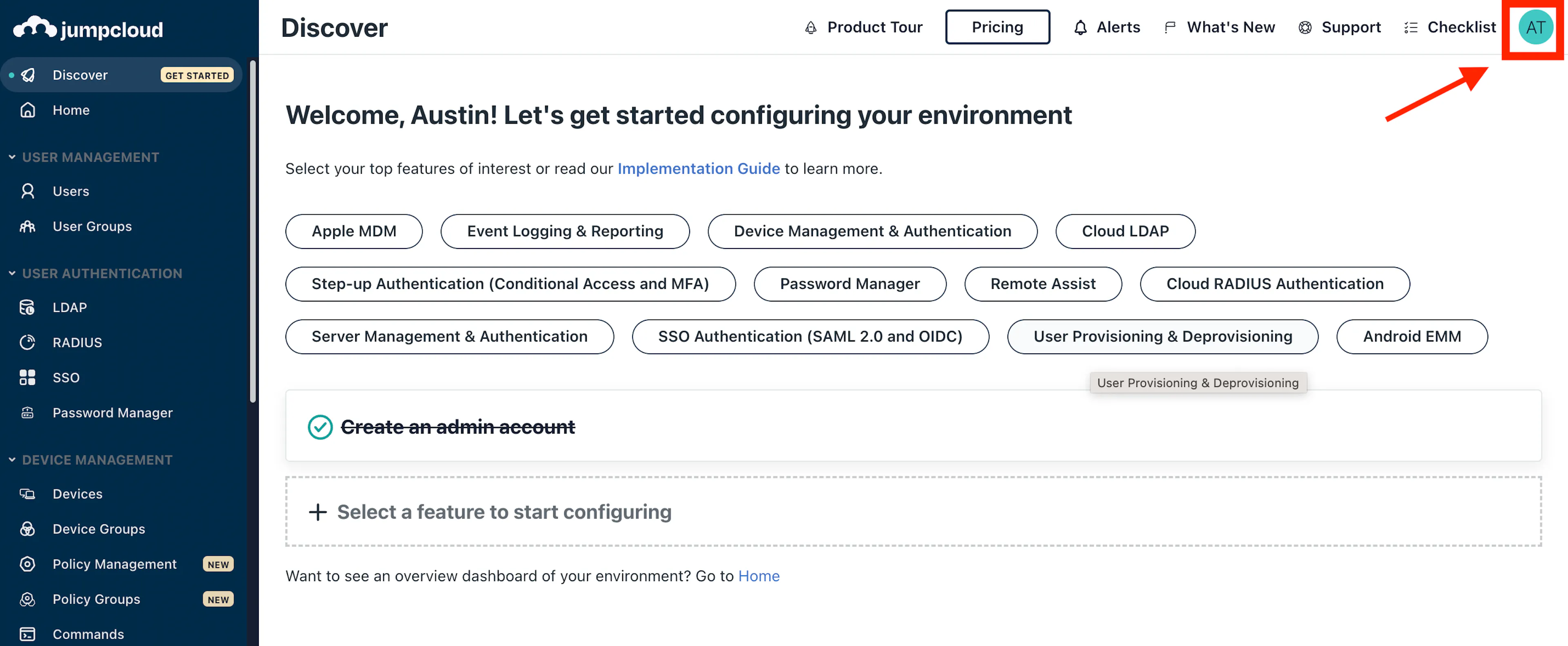
Log in to JumpCloud and click your profile icon in the top-right corner.
-
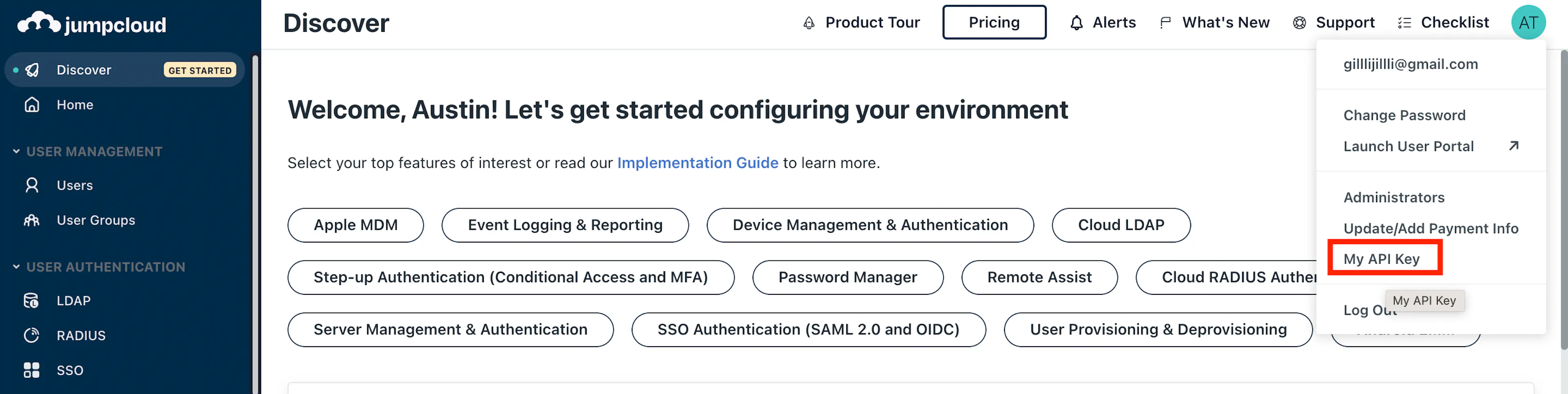
Click My API Key.
-
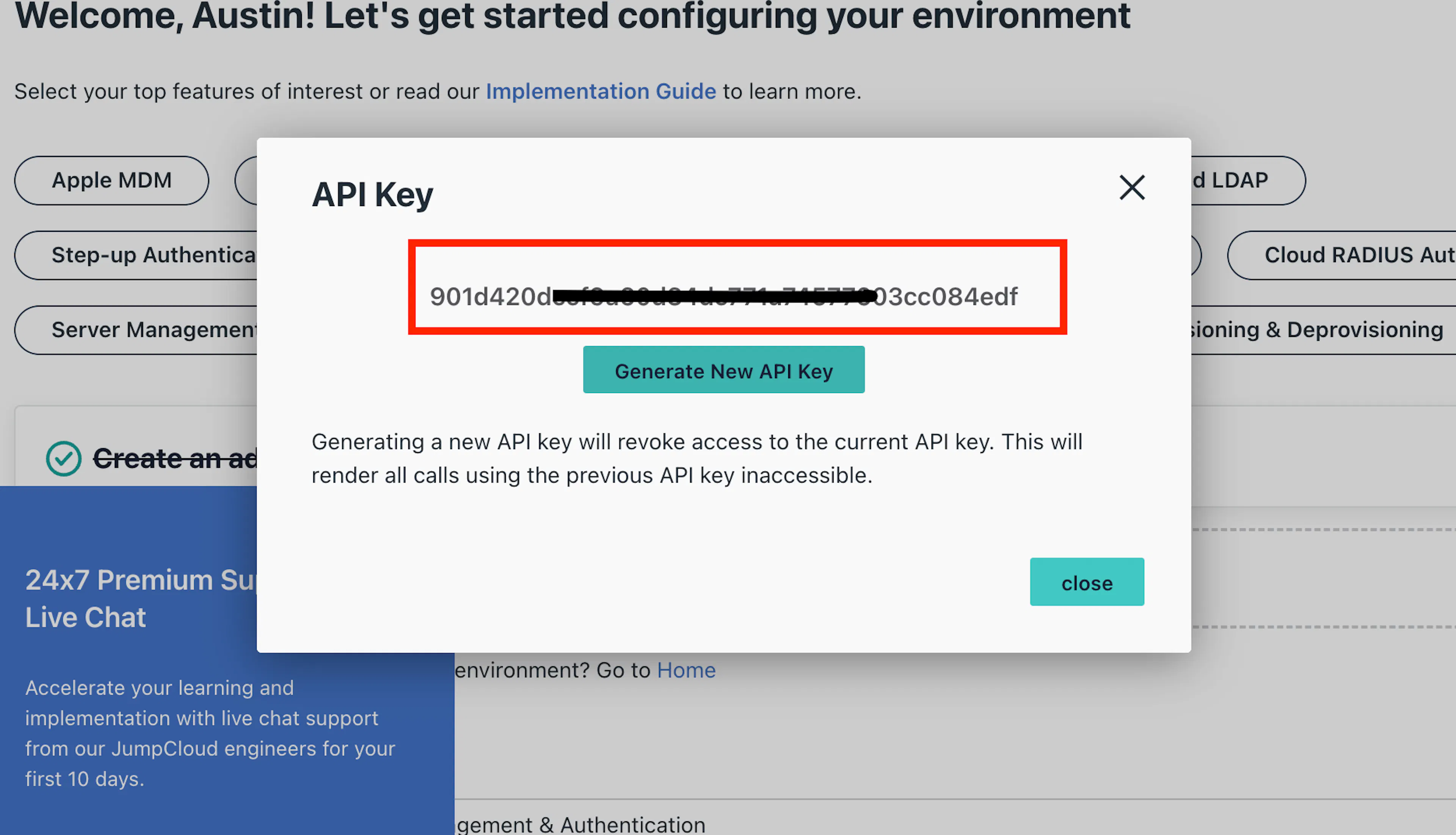
Copy the API key displayed in the dialog box.
Note:
Generating a new API key in JumpCloud immediately revokes the existing one. If you regenerate the key, update it in Scrut as well to avoid losing the connection.
Step 2: Connect JumpCloud in Scrut
-
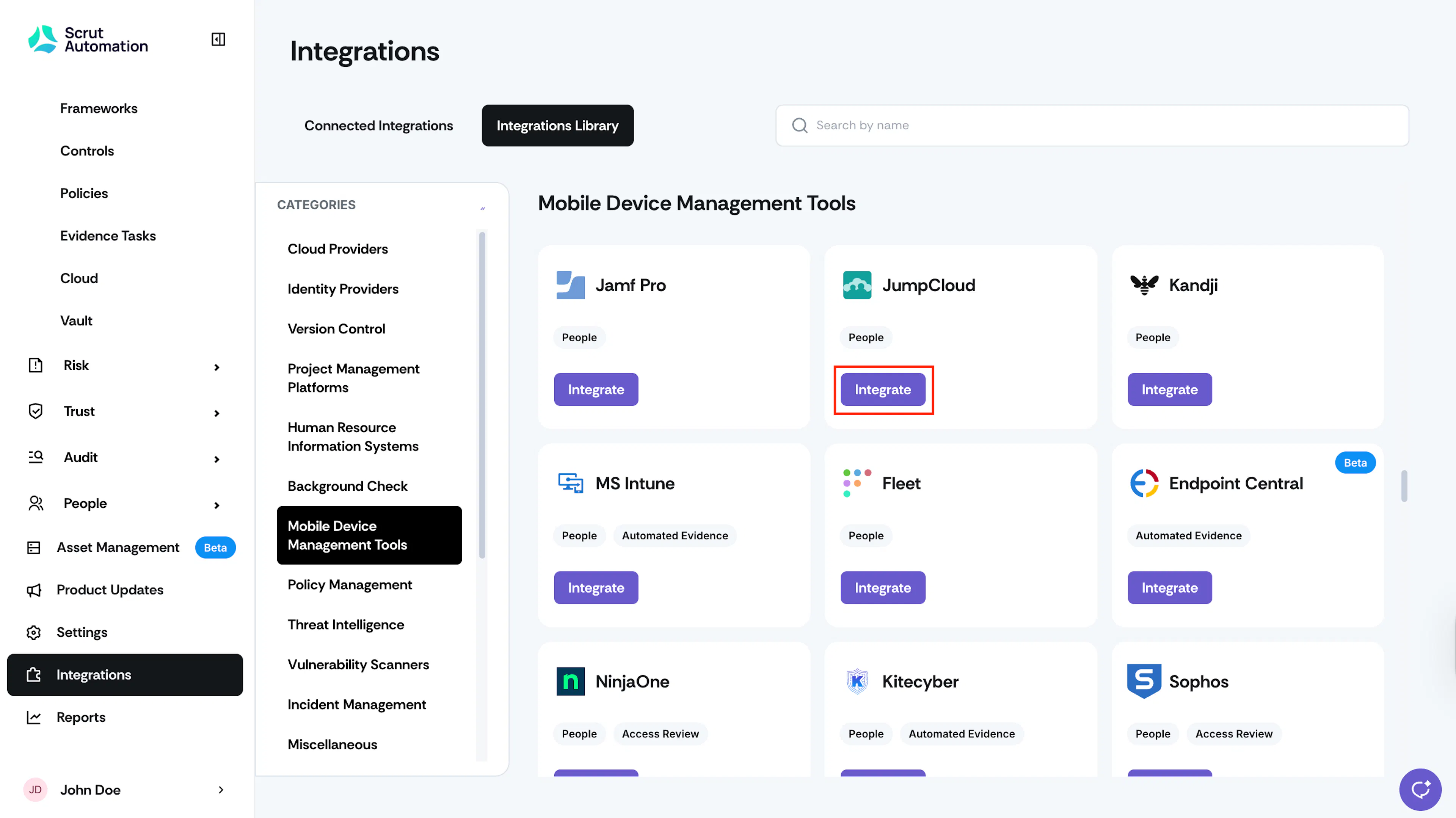
Sign in to Scrut, and click Integrations on the left navigation panel.
-
Click the Integrations Library tab at the top, and scroll to Mobile Devices Management (MDM) Tools in the Categories section.
-
Search for JumpCloud and click the Integrate button in the JumpCloud tile.
-
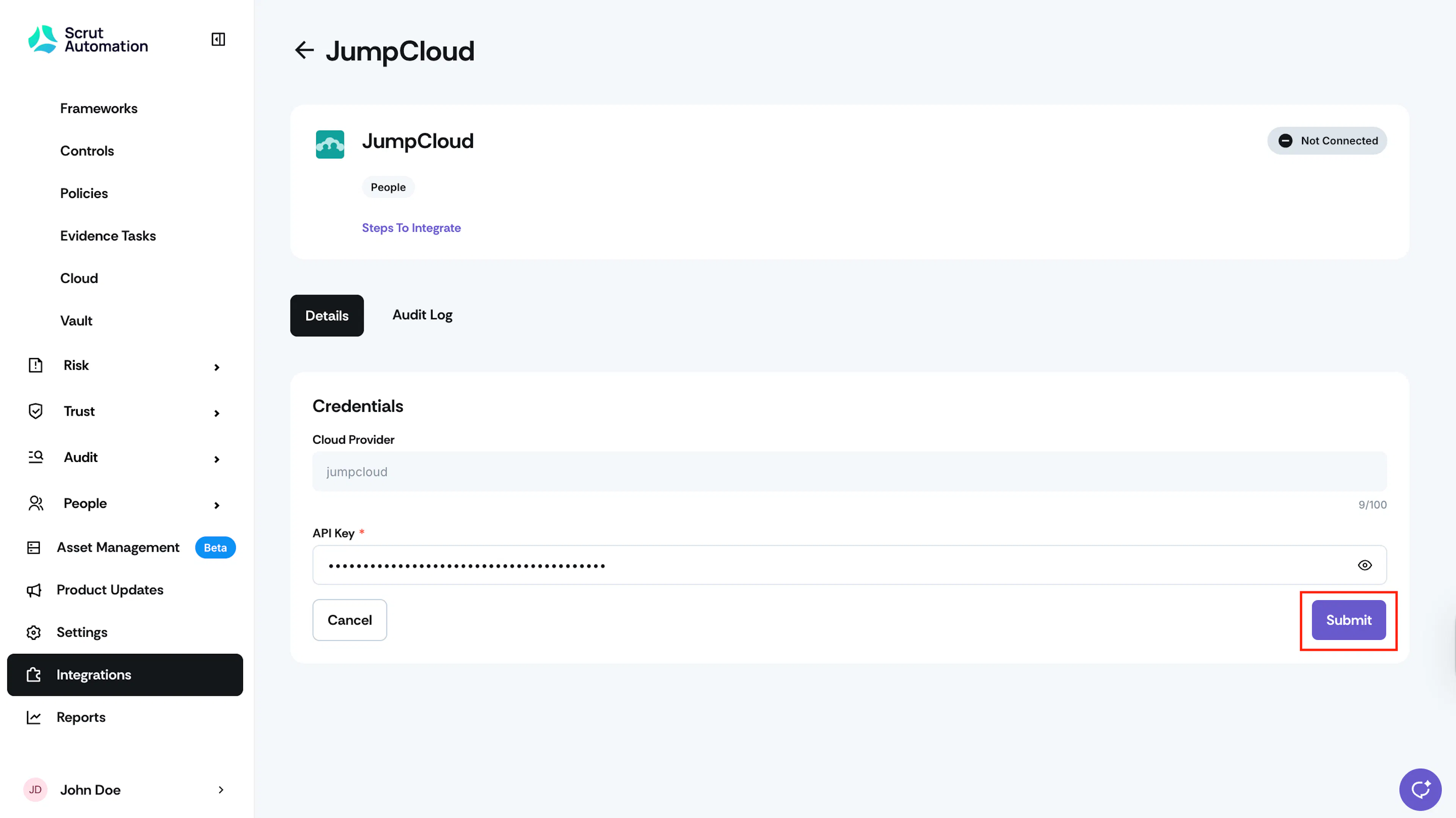
On the JumpCloud integration page, enter the API key you copied in the API Key field.
-
Click Submit.
-
Confirm that the Connected status indicator appears at the top right of the integration page.
Step 3: Configure Employee Groups (for JumpCloud as IdP)
If you use JumpCloud as your IdP to manage employees, configure groups to import employee data into Scrut. Without it, Scrut cannot automatically sync employee records from JumpCloud groups.
-
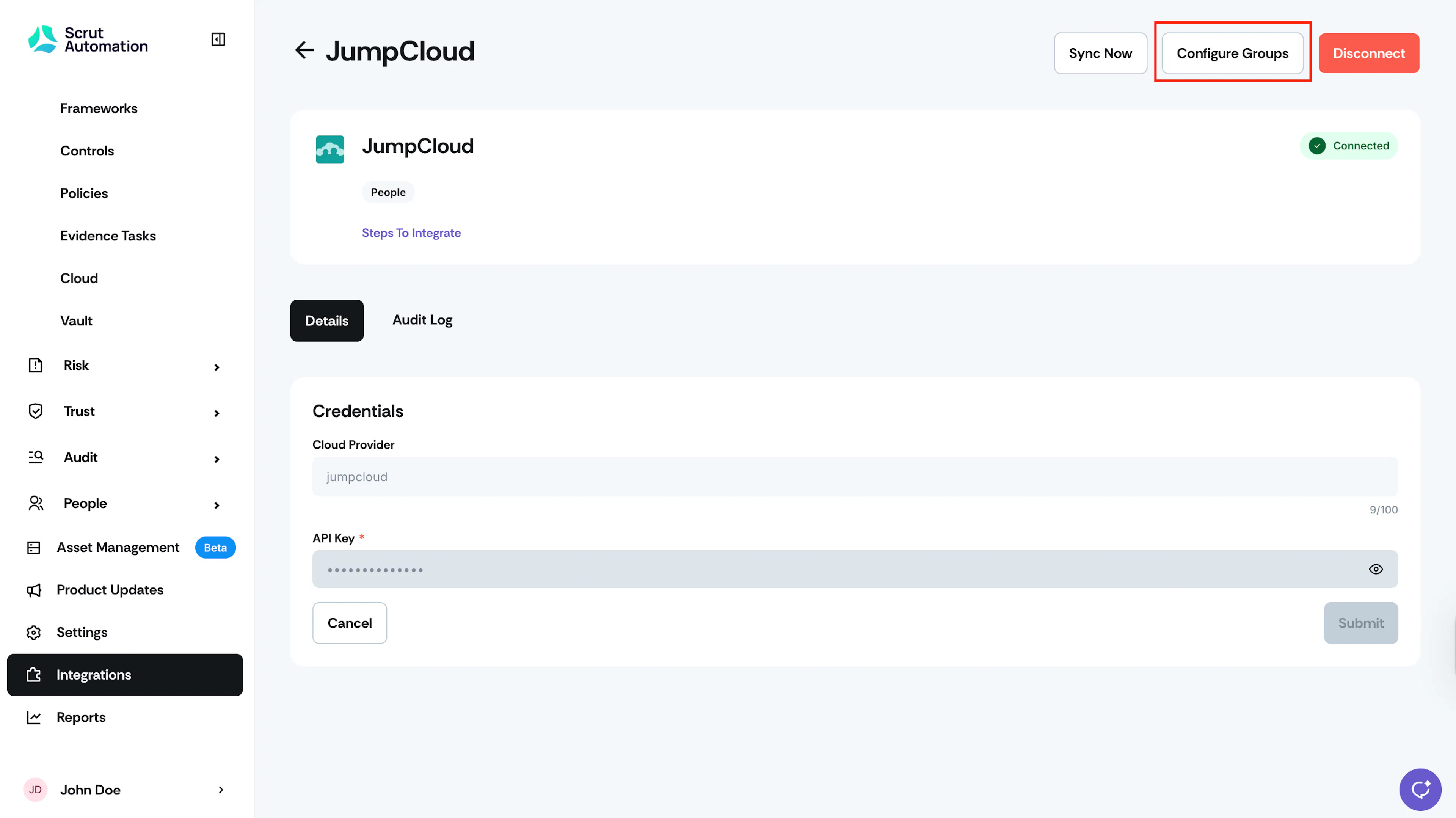
On the JumpCloud integration page, click Configure Groups.
-
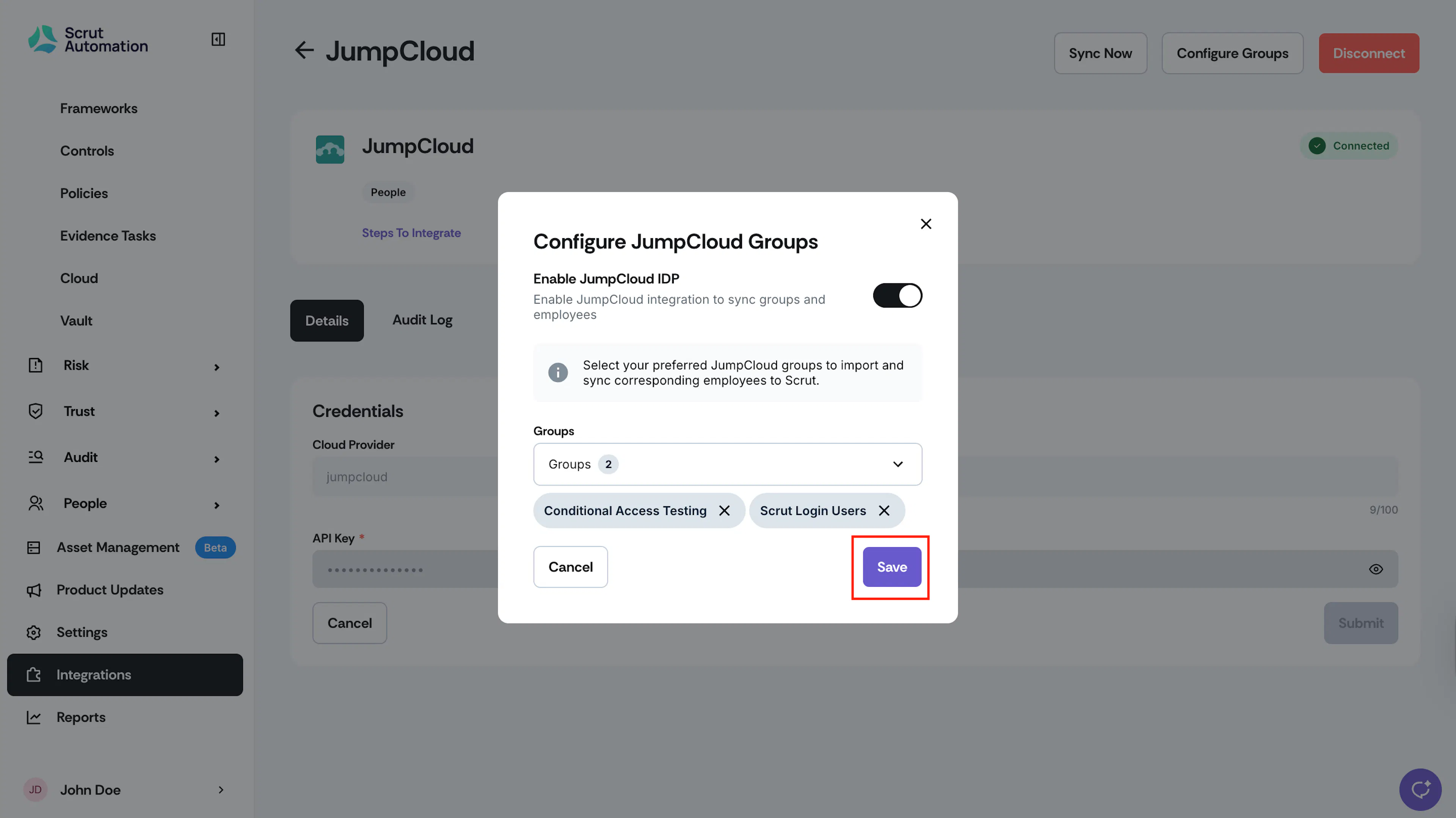
Turn on the Enable JumpCloud IDP toggle.
-
Use the Groups dropdown to select the JumpCloud groups you want to import employees from.
-
Click Save.
What Happens Next?
Initial data sync
After setup is complete, Scrut automatically begins syncing data from JumpCloud. The initial sync may take up to 24 hours. To monitor the sync status, navigate to Integrations, open the JumpCloud integration page, and click the Audit Log tab.
Review synced data
Once the sync is complete, verify your data in the following locations:
- Navigate to People → Employees → Technicals to view device records mapped to each employee.
- Navigate to Asset Management to view devices populated as assets.
- Navigate to People → Employees to verify employee records synced from JumpCloud groups. This is available only after you complete Step 3.
- Navigate to Tests to review automated test results tied to JumpCloud device data.
Common Errors and Troubleshooting
Invalid API key
Possible solutions:
- Confirm you copied the full API key from JumpCloud without extra spaces.
- If a new API key was generated in JumpCloud after the initial setup, update it in Scrut by navigating to the JumpCloud integration page and re-entering the new key in the API Key field, then clicking Submit.
Integration shows connected, but no data appears
Possible solutions:
- Allow up to 24 hours for the initial sync to complete.
- Check the Audit Log on the JumpCloud integration page for sync errors or status messages.
- Trigger a manual sync by clicking Sync Now on the integration page.
Employees not syncing to Scrut
Possible solutions:
- Confirm that the Enable JumpCloud IDP toggle is turned on in Configure Groups.
- Confirm that the correct groups are selected in the Groups dropdown.
- Verify that employees in the selected groups have valid email addresses in JumpCloud, since Scrut uses email to match and deduplicate records.
Password managers installed as browser extensions are not appearing
Cause: System Insights is not enabled for the device in JumpCloud, so the System Insights API returns an empty response for that device.
Possible solutions:
- Confirm System Insights is turned on globally, or for the specific device, in your JumpCloud Admin Console.
- Confirm the JumpCloud plan includes System Insights. It is not available on all pricing tiers.
- After enabling System Insights, trigger a manual sync from the JumpCloud integration page in Scrut and allow up to the next scheduled JumpCloud polling interval for data to appear.
FAQs
Contact support@scrut.io or your CSM for further assistance.