

Integrate Jamf Pro
Jamf Pro integration fetches employees' endpoint/device data to Scrut. This data is displayed in the People Dashboard and the People → Employee module. The following data is fetched from Jamf Pro:
- Device name
- OS version
- Serial number
- Antivirus Installed(Yes/No)
- HD Encrypted(Yes/No)
- Screenlock Enabled(Yes/No)
- List of Applications installed on the device
Integrating Jamf Pro
Step 1: Create a read-only user in JamfPro
-
Log in to your Jamf Pro administrator account.
-
Create a new user with the Auditor privilege set. If you have the option to select an access level, select Full Access.
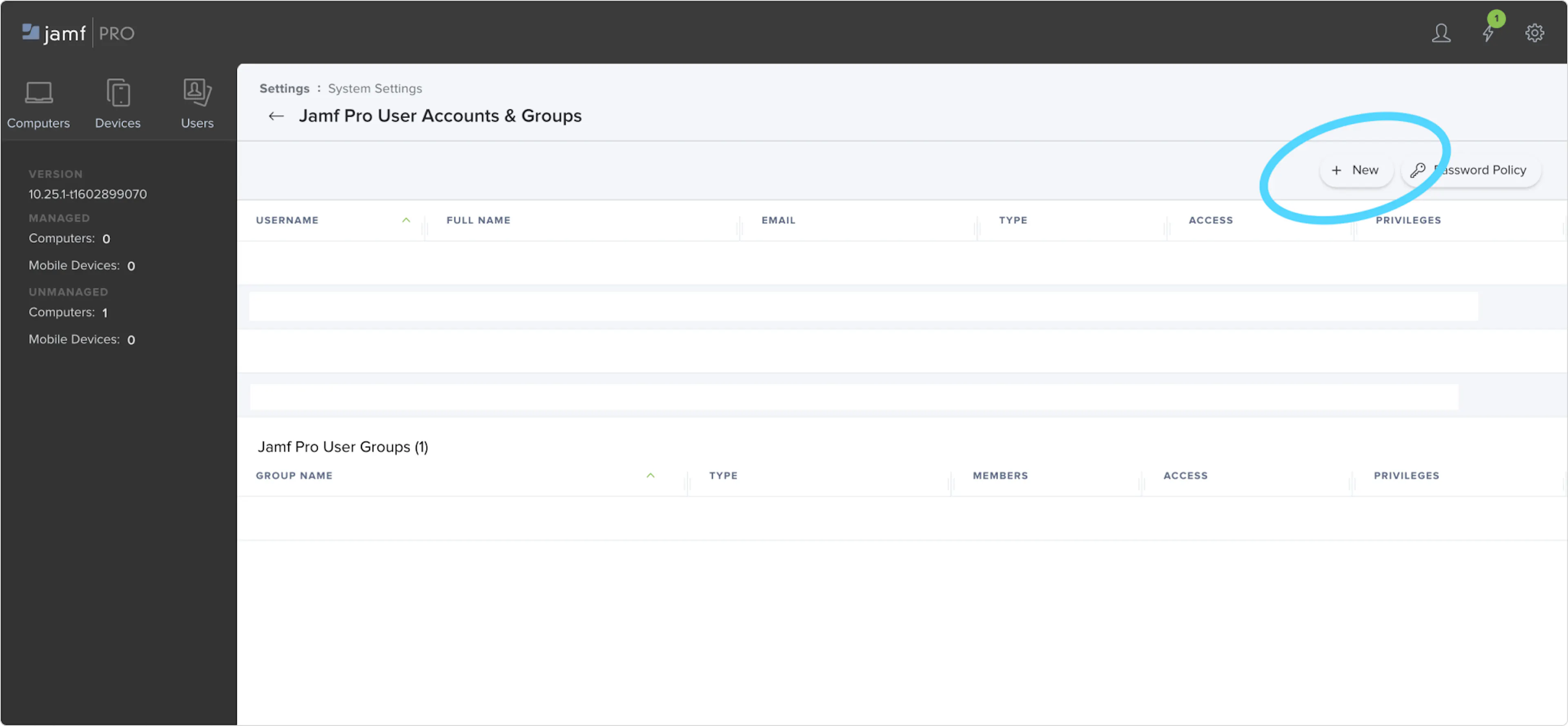
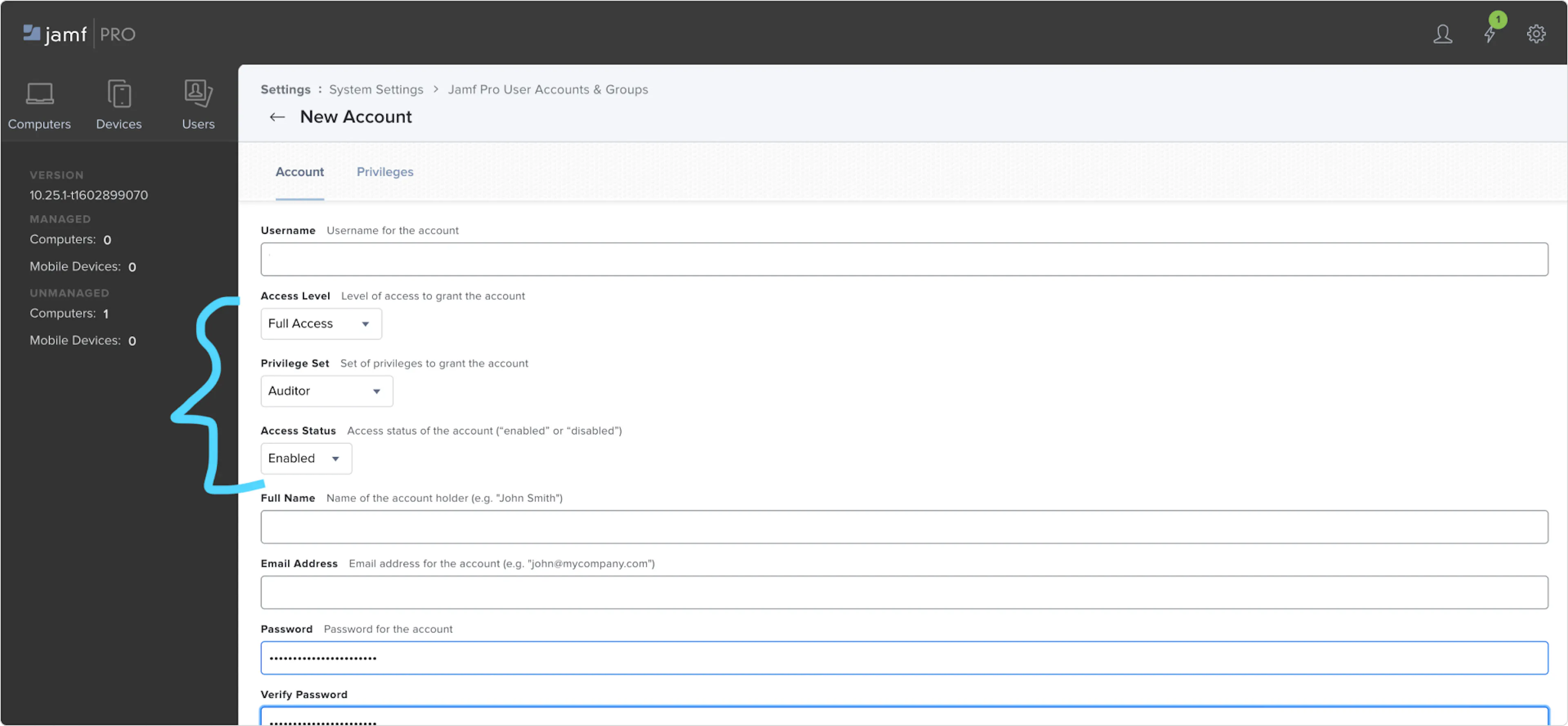
- Copy the username/password–you’ll need to add them to Scrut.
Step 2: Enter the user's credentials in Scrut
-
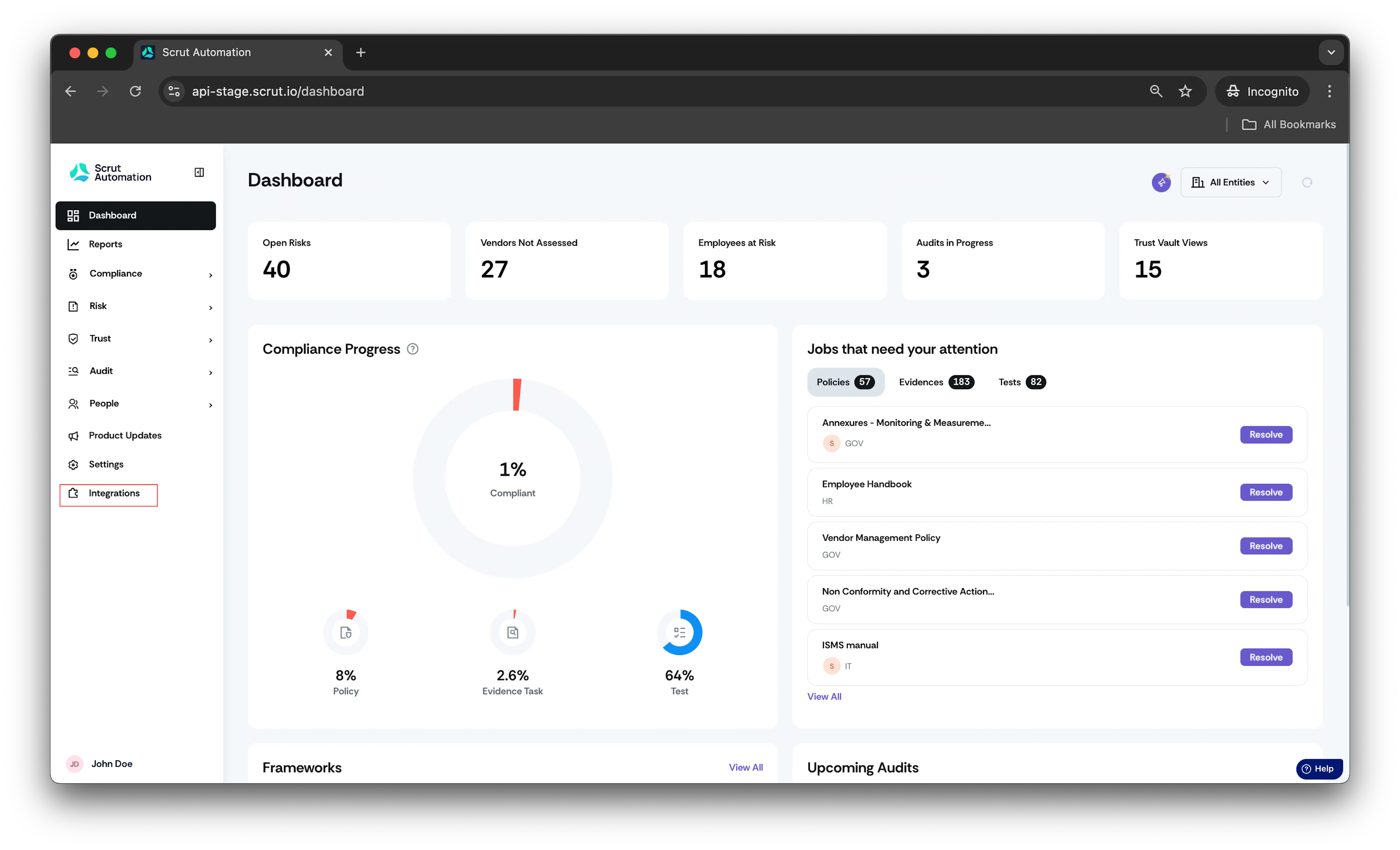
From the left navigation menu, click Integrations.
-
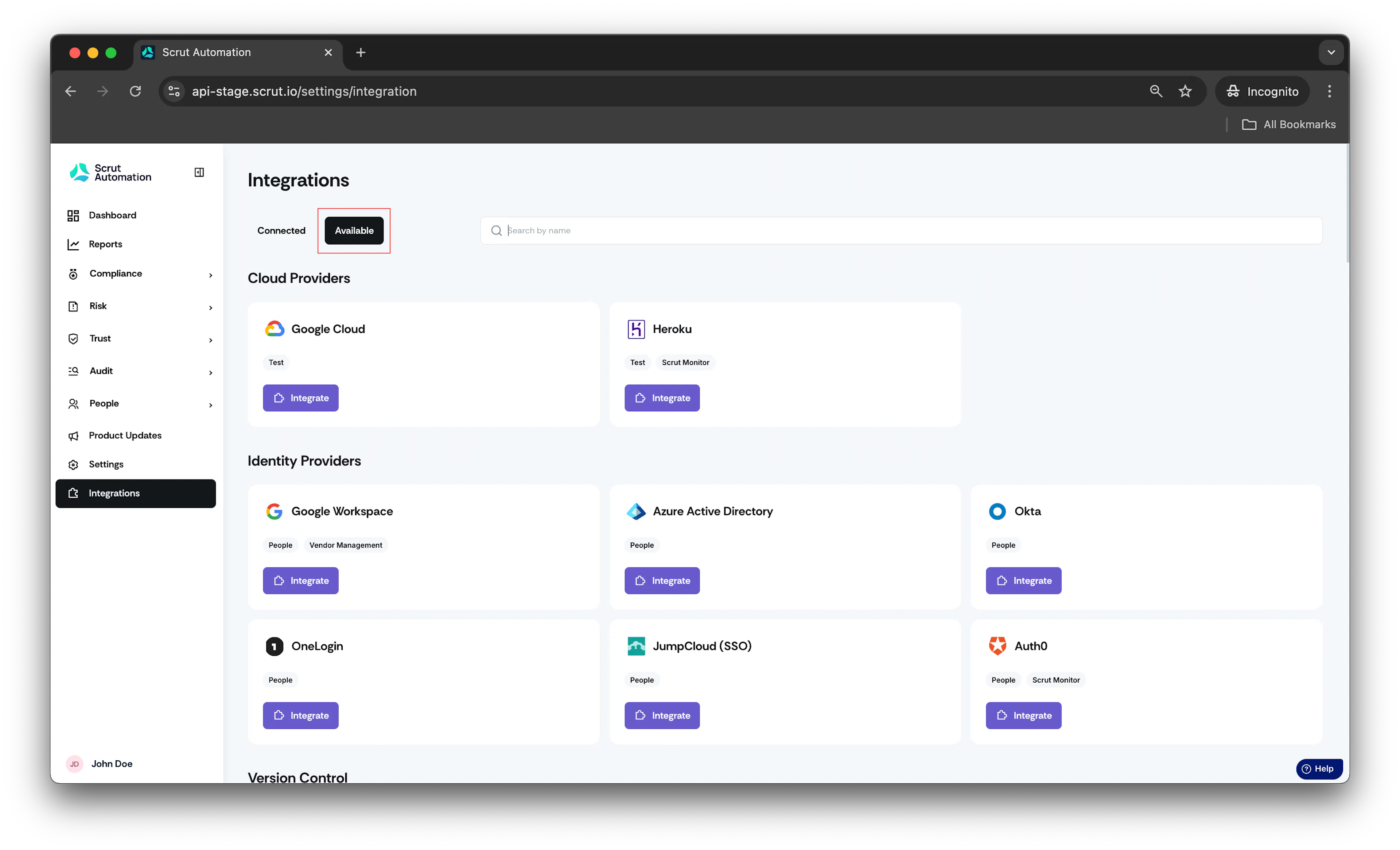
Click Available.
-
Scroll to Mobile Device Management Tools section and find Jamf Pro.
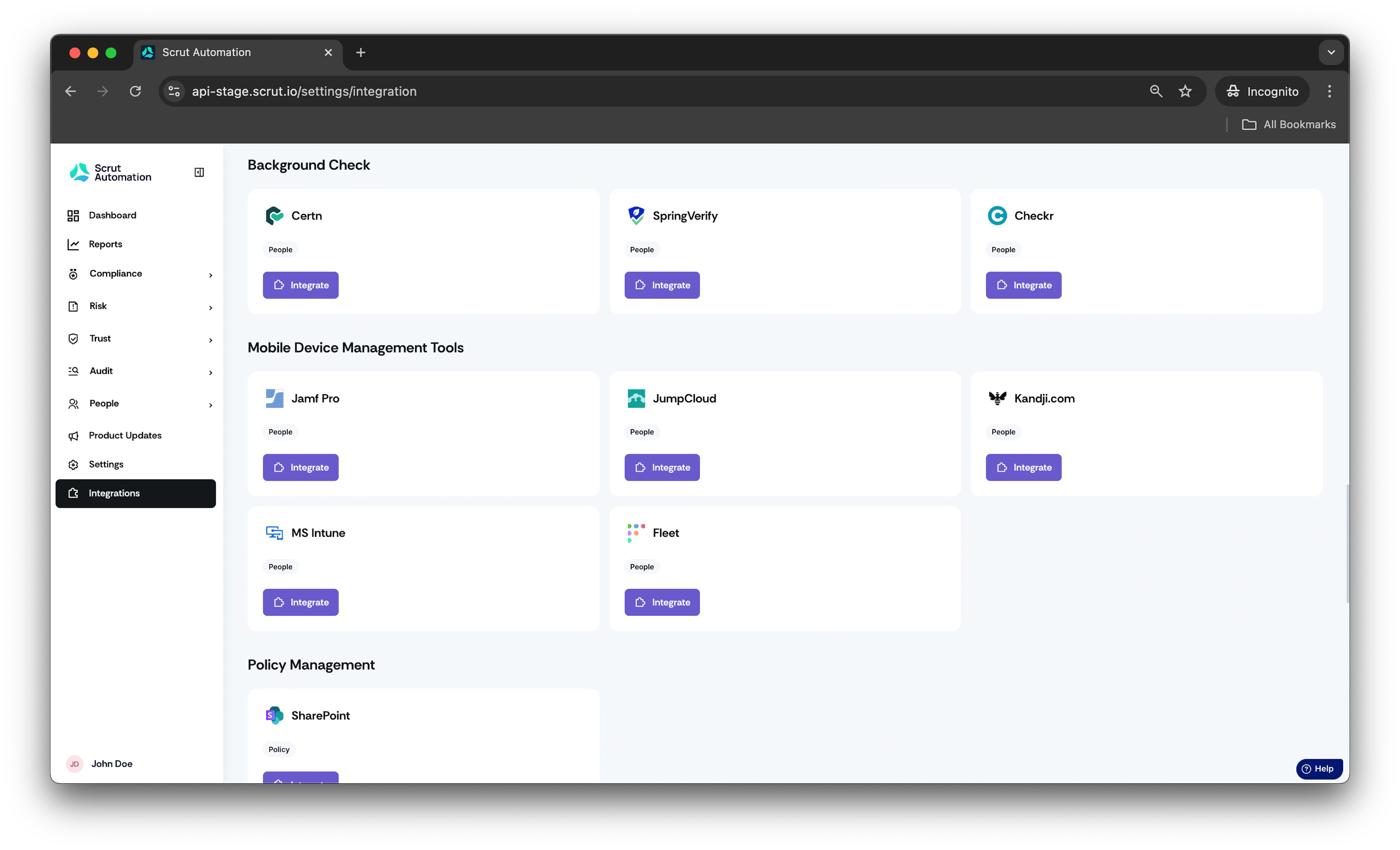
-
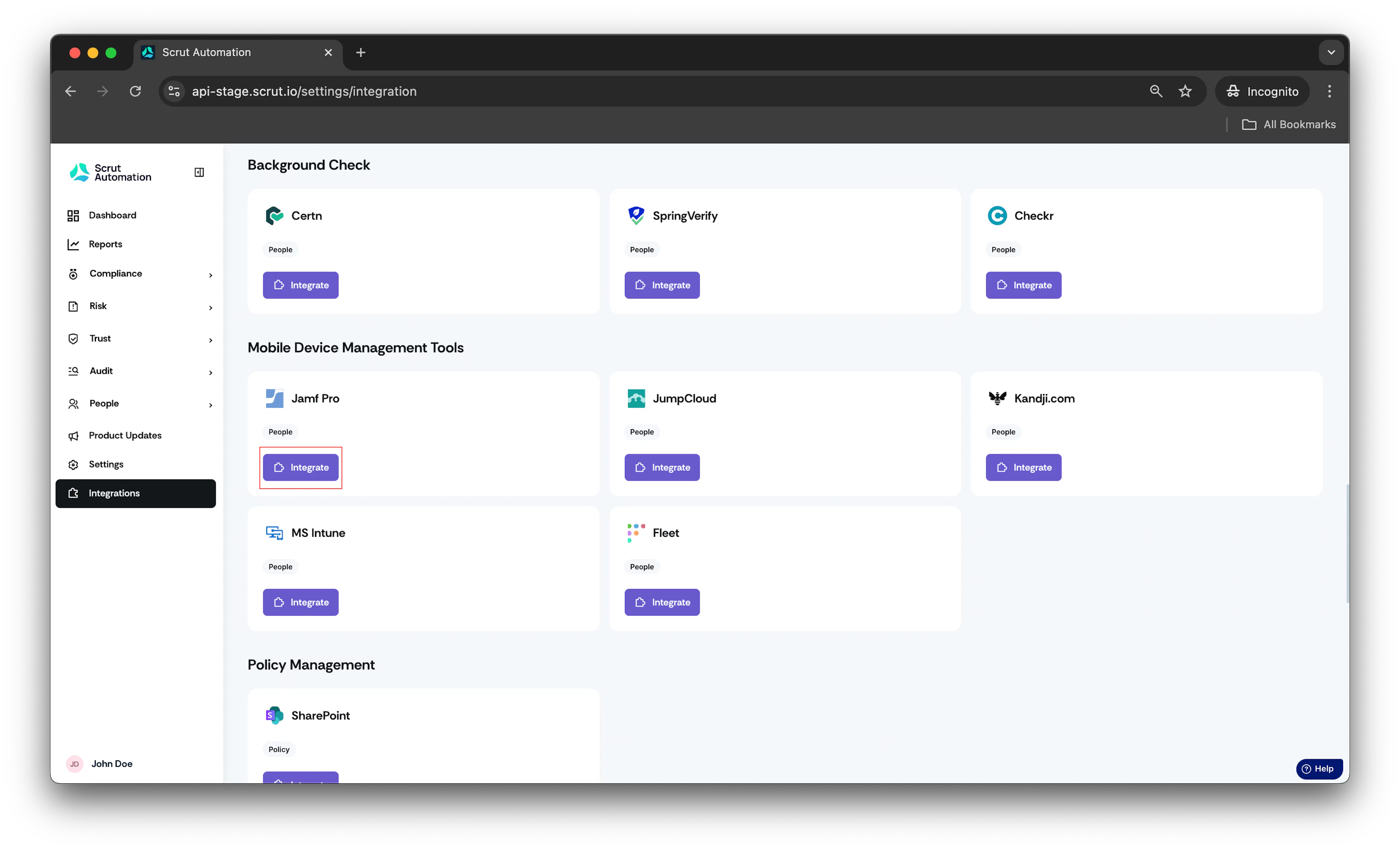
Click Integrate.
Jamf Pro integration page opens.
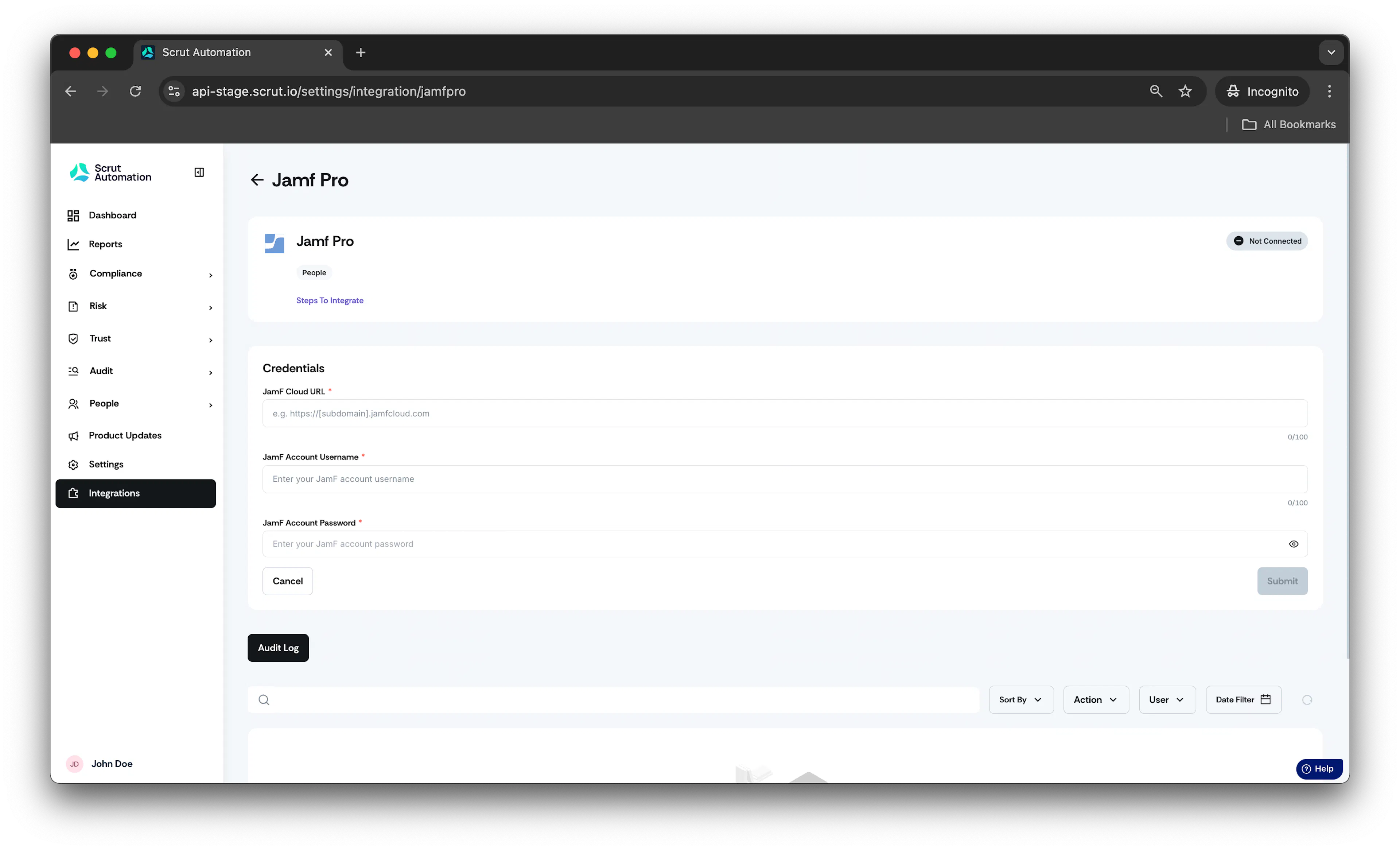
- In Jamf Cloud URL field, enter the cloud url of your jamf pro instance.
- In username and password field, enter the credentials obtained in step 1.
- Click Connect.
You will receive either a confirmation that the credentials are configured correctly or an error message explaining how they’re misconfigured.
- Once the integration is successful the user will have to click on the Configure icon in the integration page and select Configure Profiles in Jamf Pro.
- A list of Profiles will be displayed.
- Toggle On the Profiles you want to enable.
- Once configured, AV Installed and Screenlock details will be visible in the people section.
Info:
- Employees device data will start syncing immediately. Incremental data will be synced every 24 hours.
- Data can also be manually synced by clicking the three dots and choosing the Sync Now option.
Was this page helpful?