

Integrate Sophos
The Scrut-Sophos Integration fetches your employees’ device/endpoint data from your Sophos account and sends it to Scrut. Upon completing the integration, Scrut will display the fetched data in the following modules:
How To Integrate Scrut With Sophos
Prerequisites
Before starting the integration, ensure you have the following permissions for your Sophos account:
-
Account Information: The login email address for your Sophos Central account
-
Admin Access: You must be a Sophos admin to grant the following permissions:
- Read access: To allow Scrut to monitor data and the organization structure
- Offline access: To enable read access to your Sophos account, even when you’re offline
Pro Tip:
We recommend logging into your Sophos account before starting the integration to avoid doing so later.
Step 1: Copy Client ID and Client Secret from Sophos
-
Sign in to Sophos Central.
-
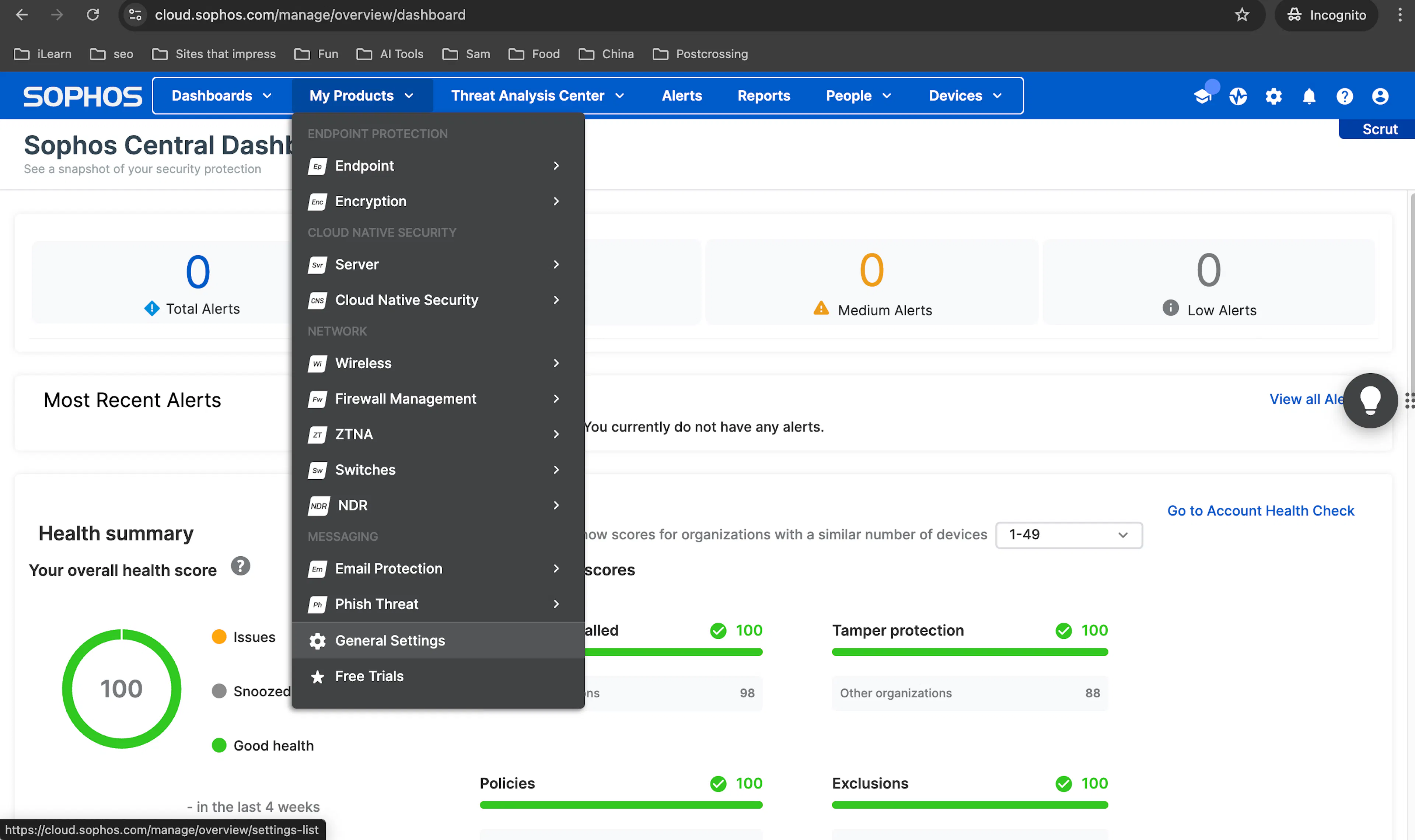
Go to My Products → General Settings.
-
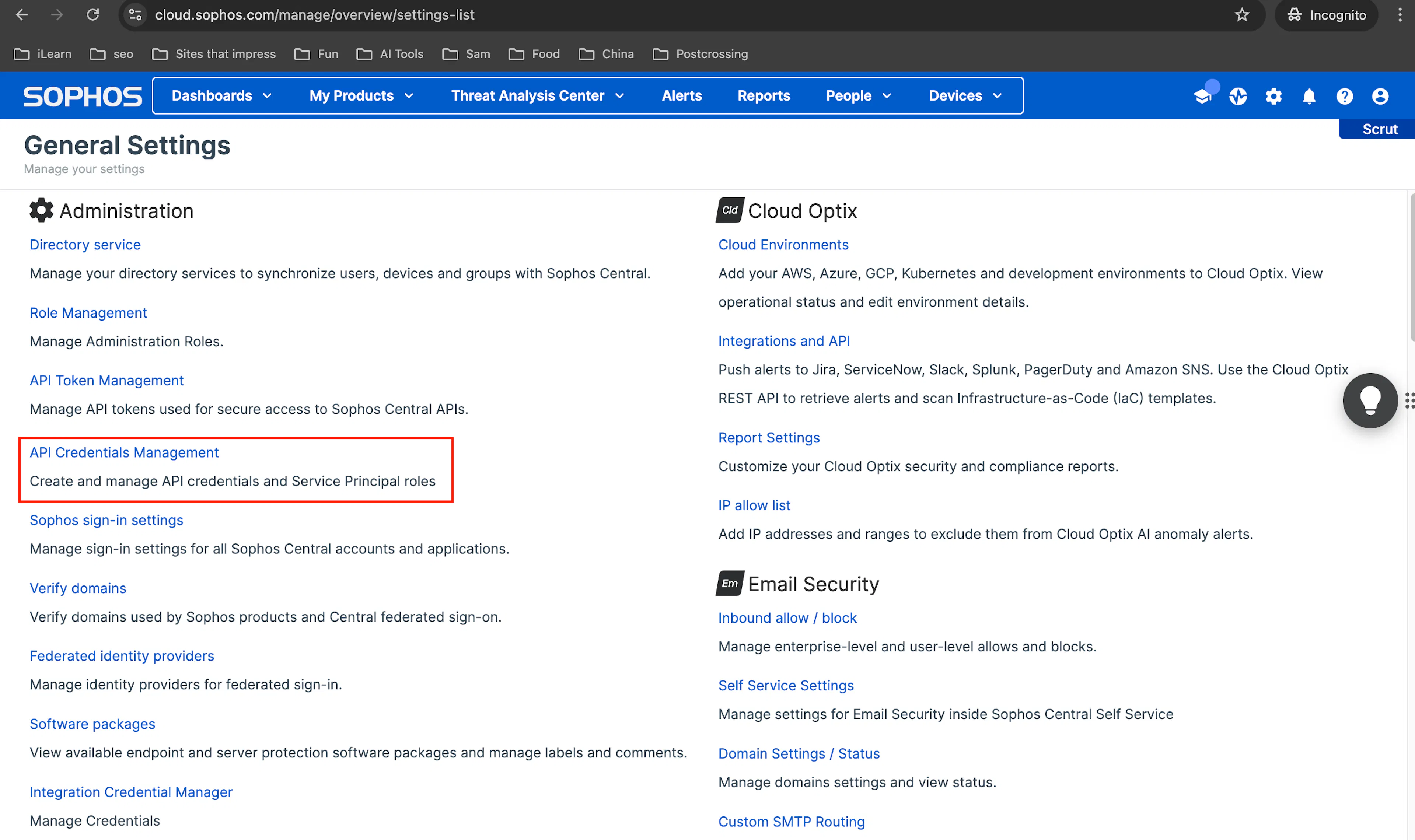
Click API Credentials Management.
-
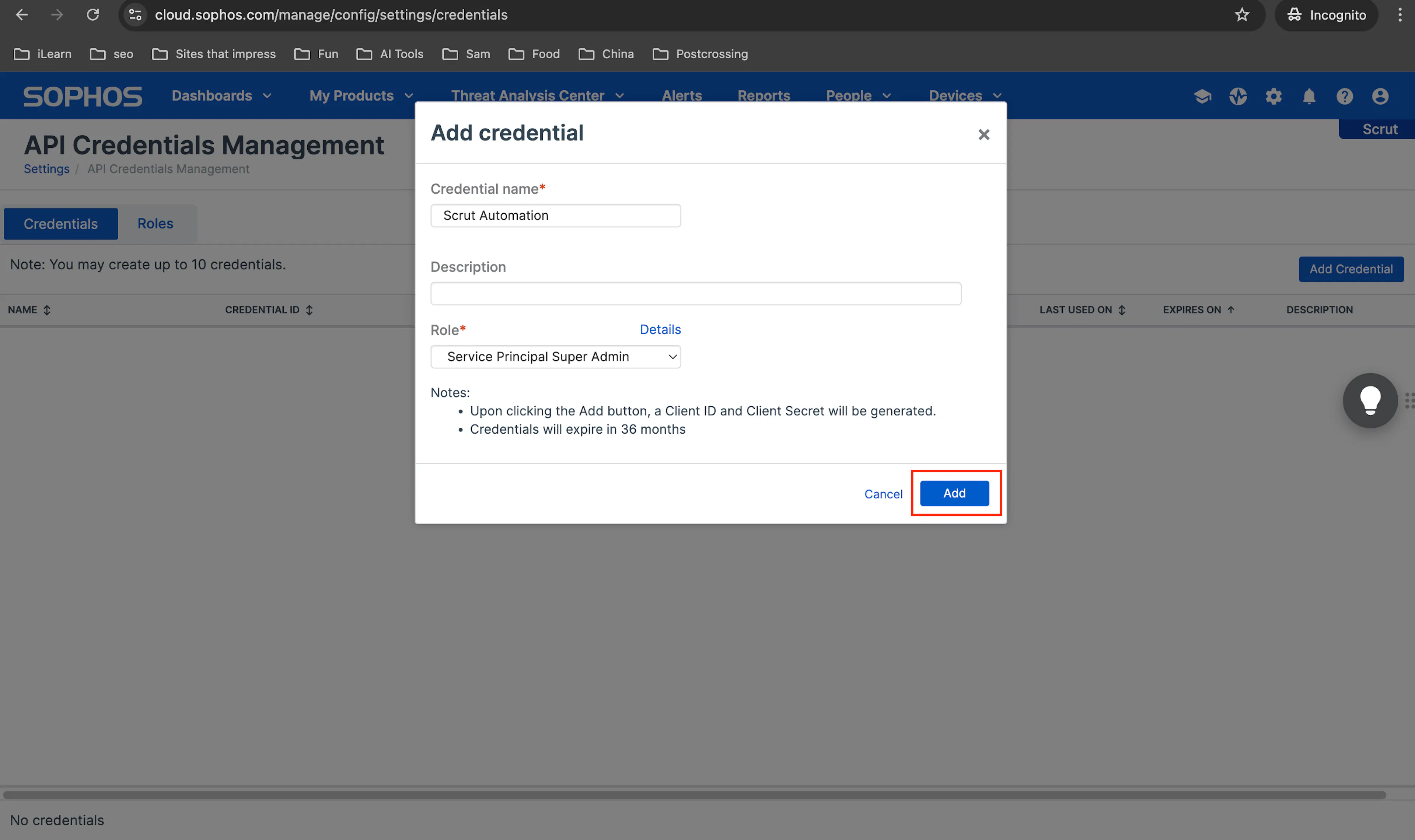
Click Add Credential.
-
Enter a Credential name, such as Scrut Automation.
-
For Role, select Service Principal Super Admin.
-
Click Add.
-
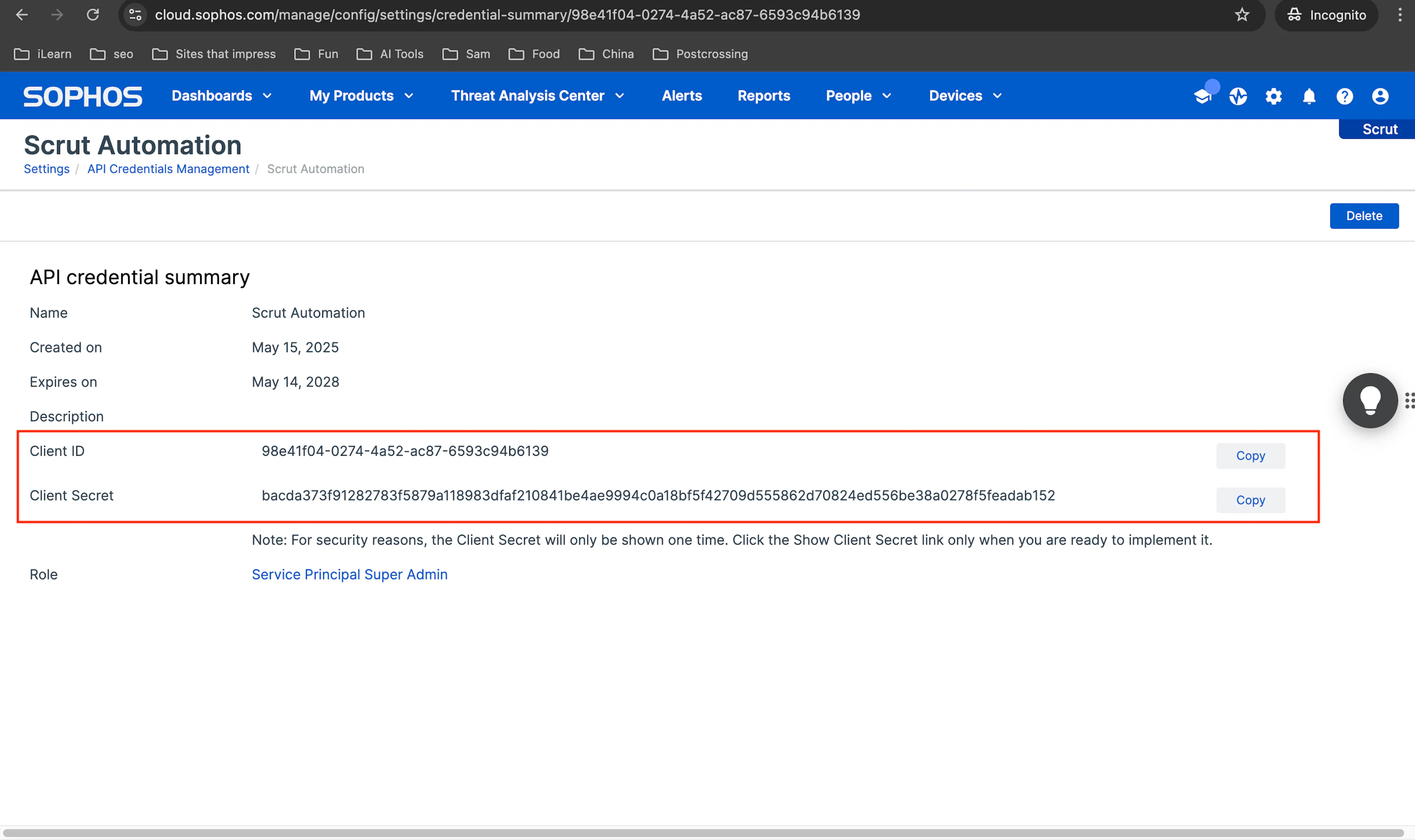
Copy and save the Client ID and Client Secret.
Note:
For security reasons, the Client Secret will be shown only once. So, make sure to save it safely for use later.
Step 2: Connect Your Sophos Account in Scrut
-
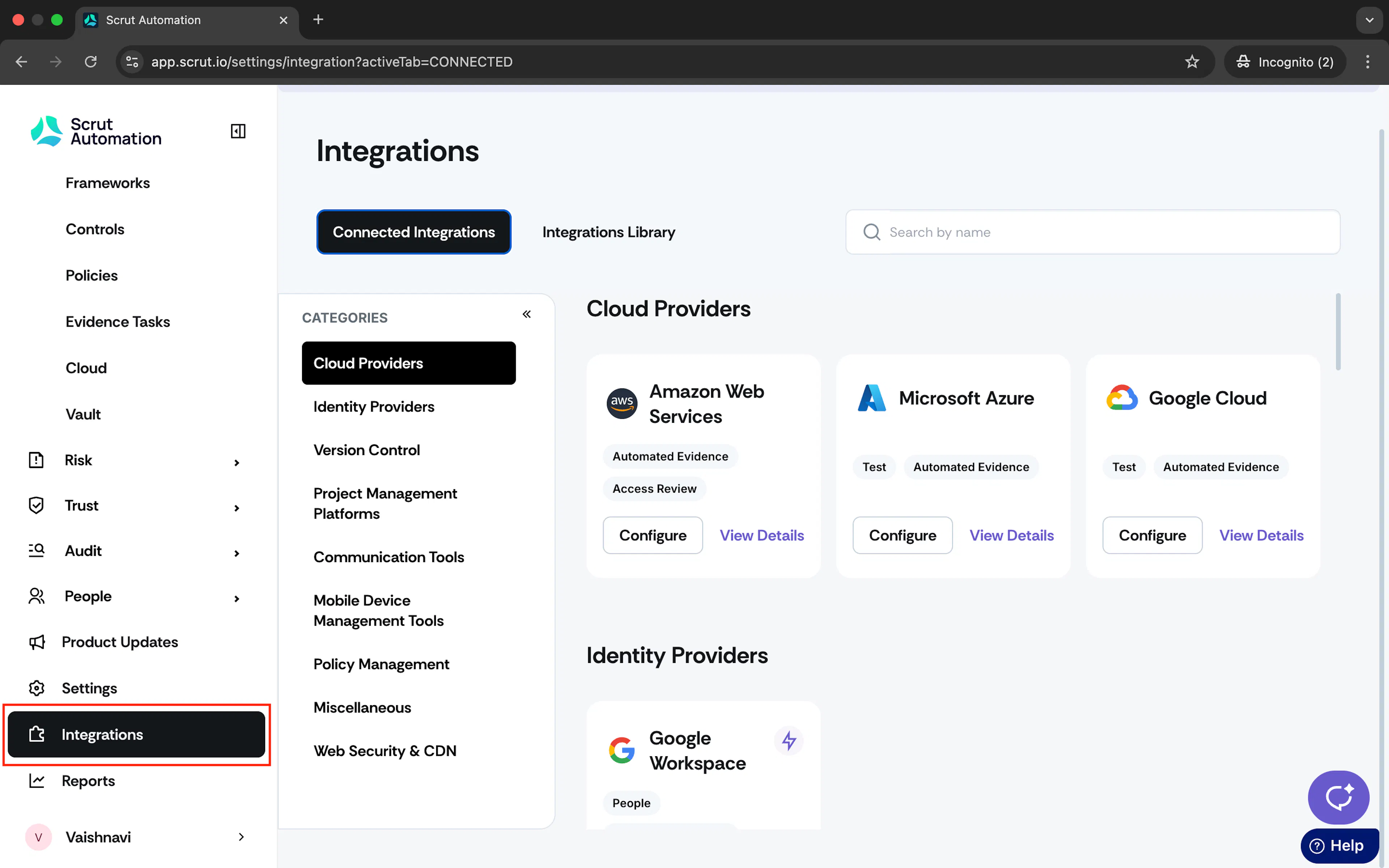
Log in to your Scrut account and click Integrations on the left navigation panel.
-
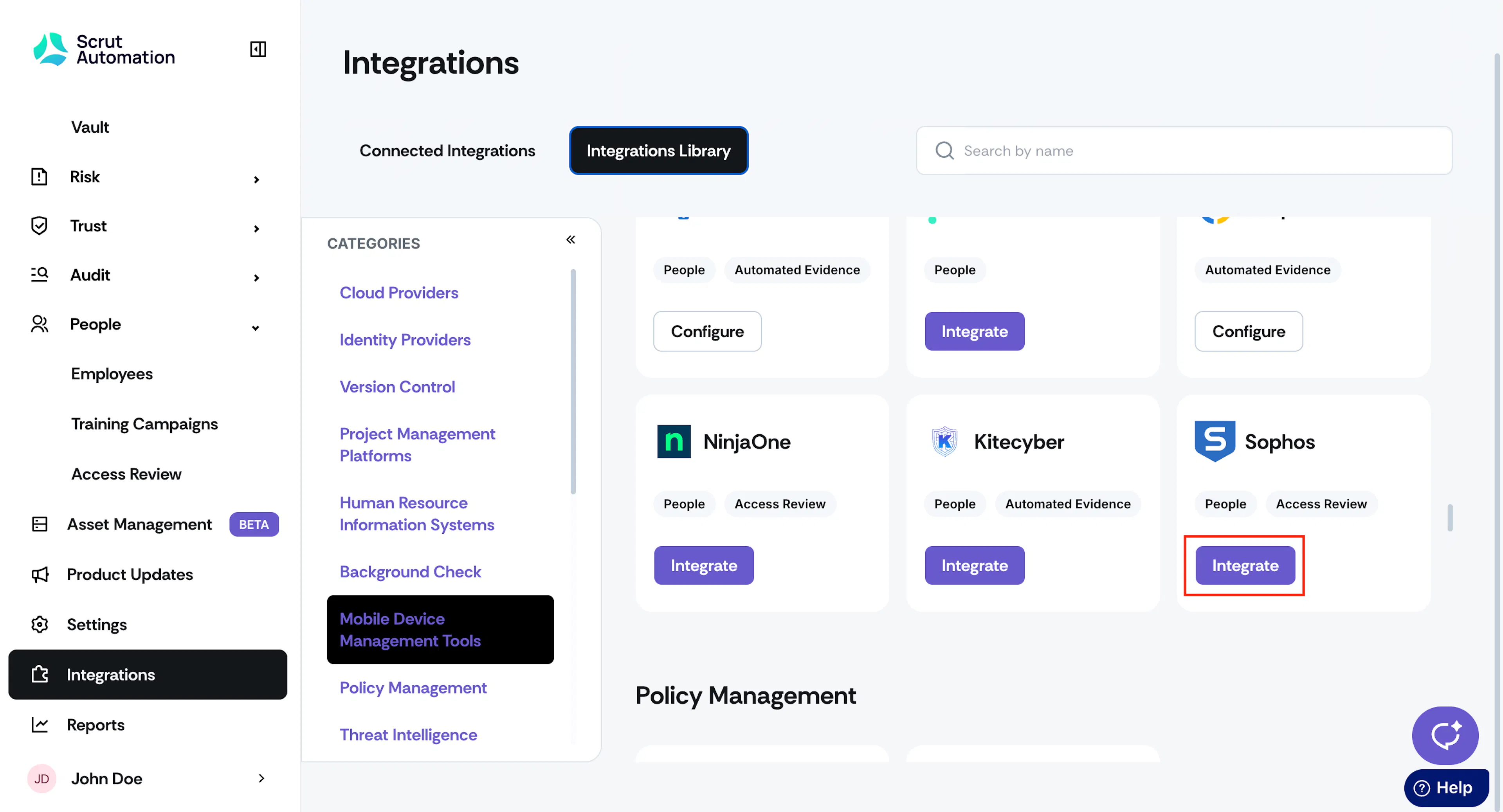
Navigate to the Integrations Library tab and choose Mobile Device Management Tools in the Categories section.
-
Scroll to the Sophos tile and click Integrate.
-
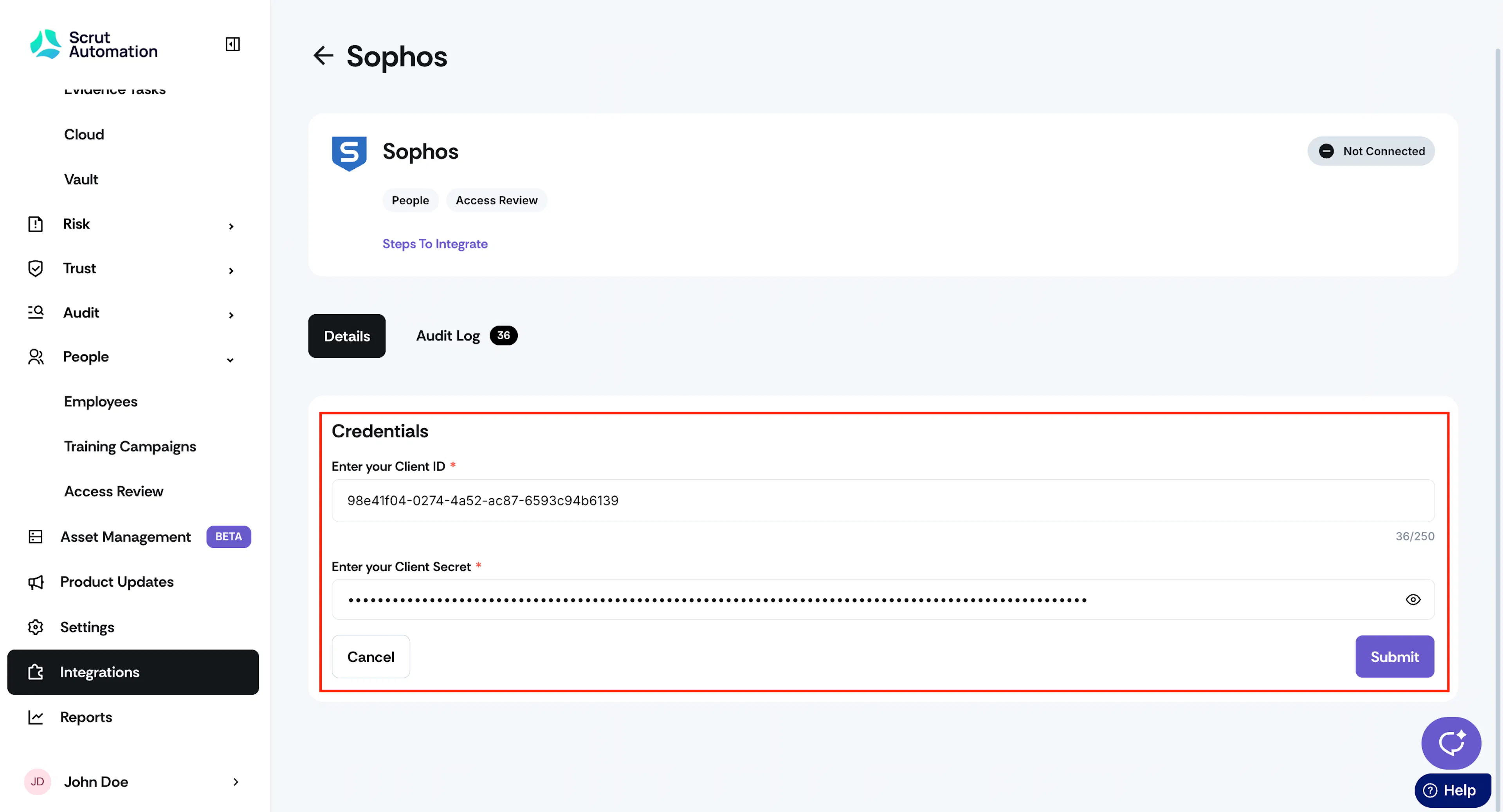
On the Sophos integration page, enter the following details from Step 1.
- Client ID
- Client Secret
-
Click Submit.
-
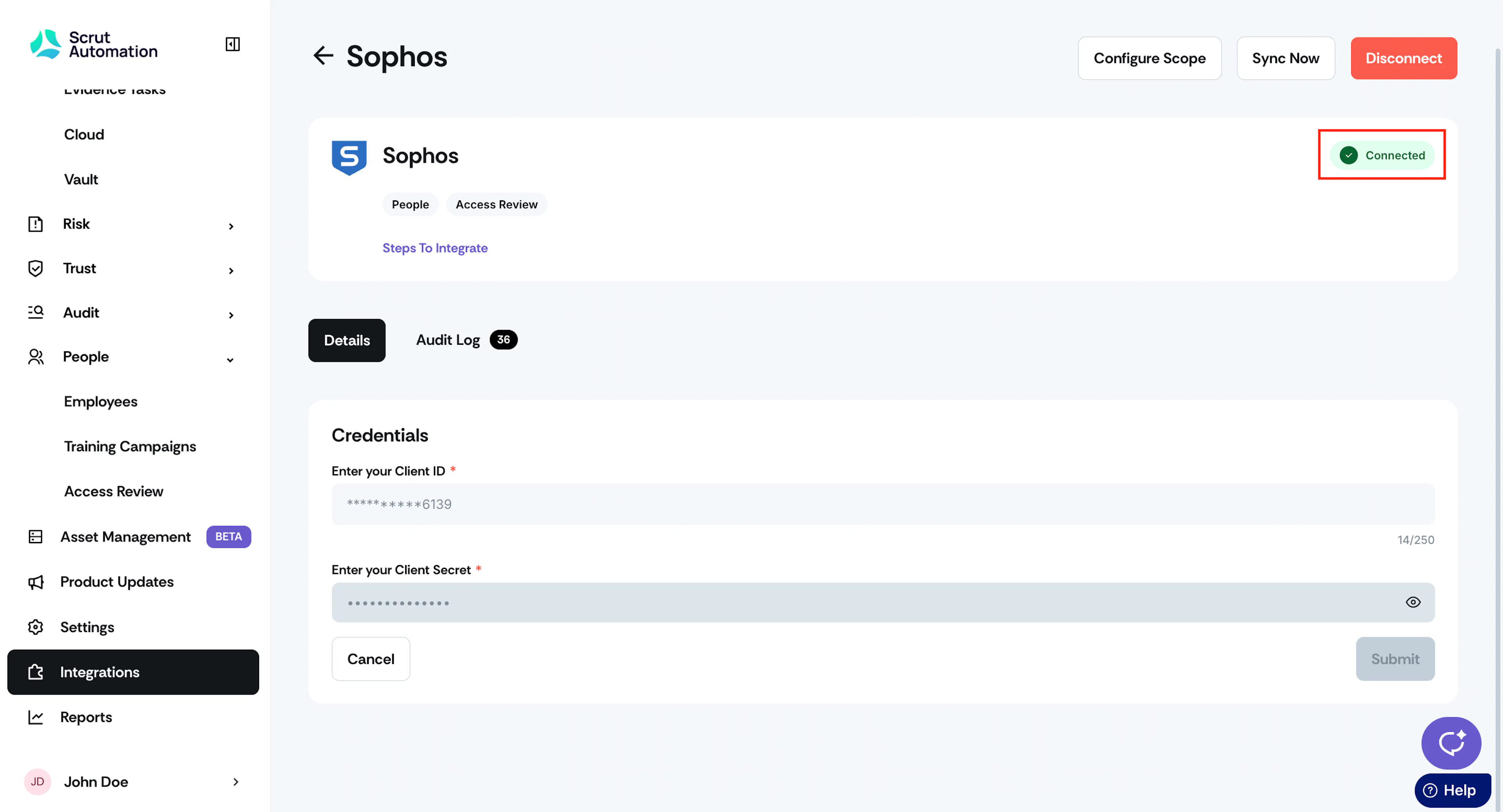
Once authorization is done, you’ll see the “Connected Successfully” message and the Connected status indicator.
Step 3: Configure Scope
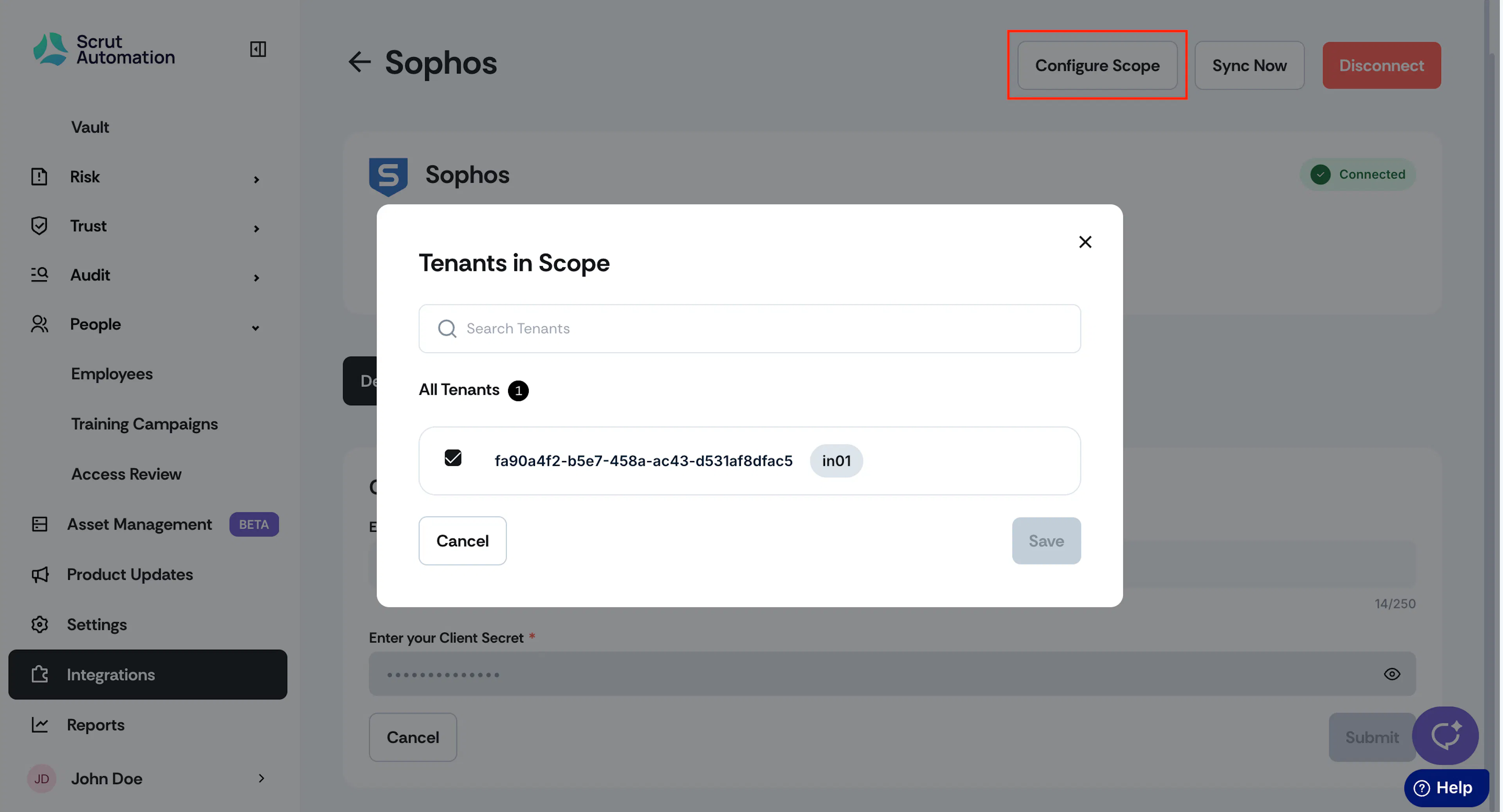
If you have multiple tenants in Sophos, you can select the specific ones to include in the integration.
- Go to the Sophos integration page in Scrut and click the Configure Scope button to choose the tenants you wish to include.
Synchronization Details
- Initial Sync: On completing the integration, Scrut will sync employees’ device data from Sophos immediately.
- Recurring Sync: After this, Scrut performs the sync every 24 hours to fetch incremental data.
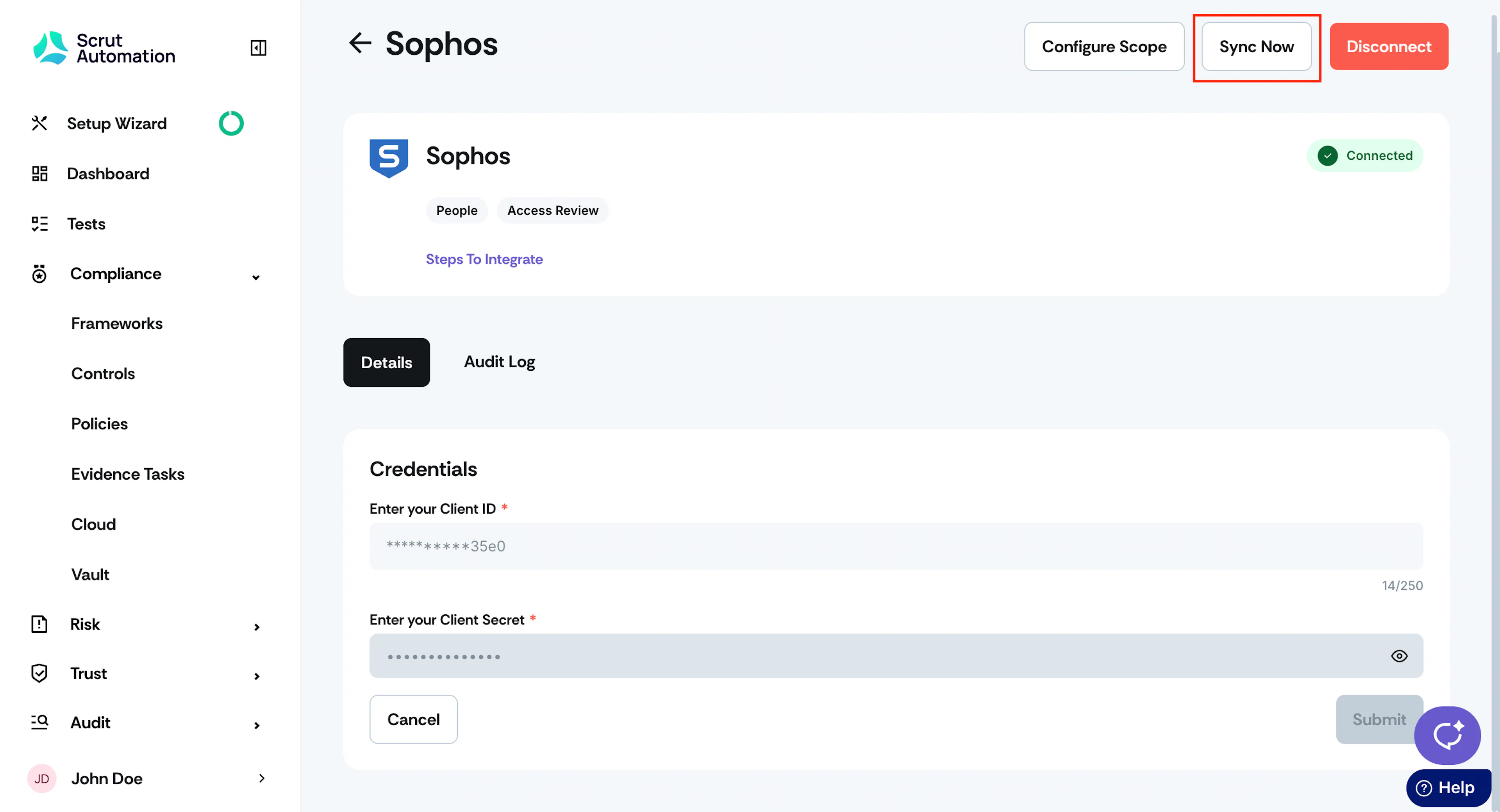
- Manual Sync: If you prefer, you can initiate a manual sync by clicking the Sync Now button on the Sophos integration page.
Device Data Fetched from Sophos
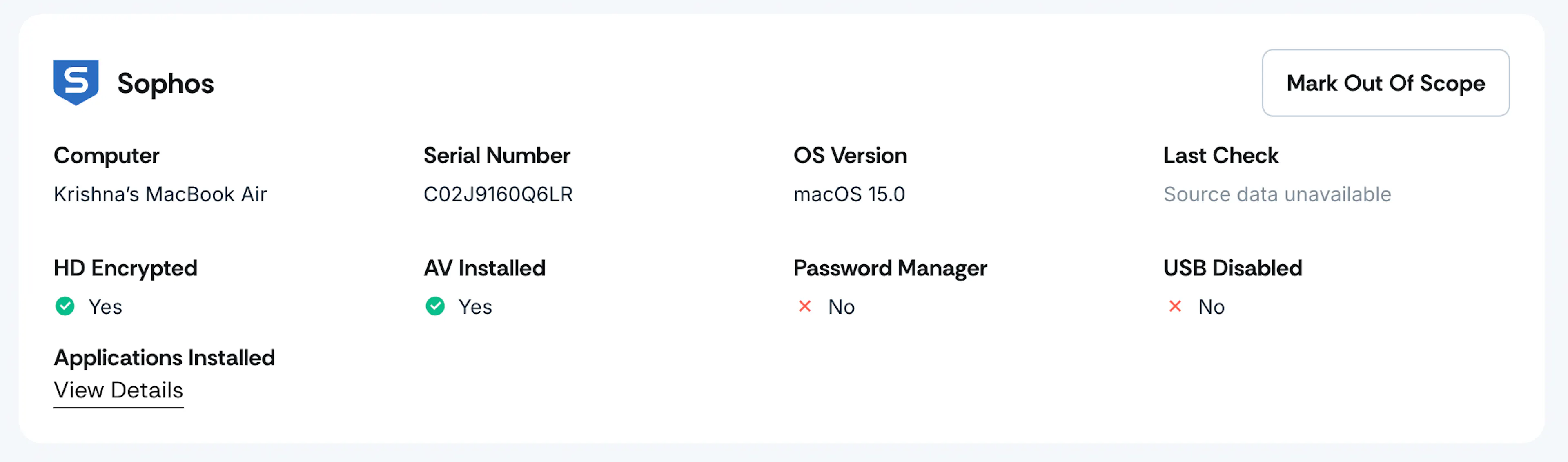
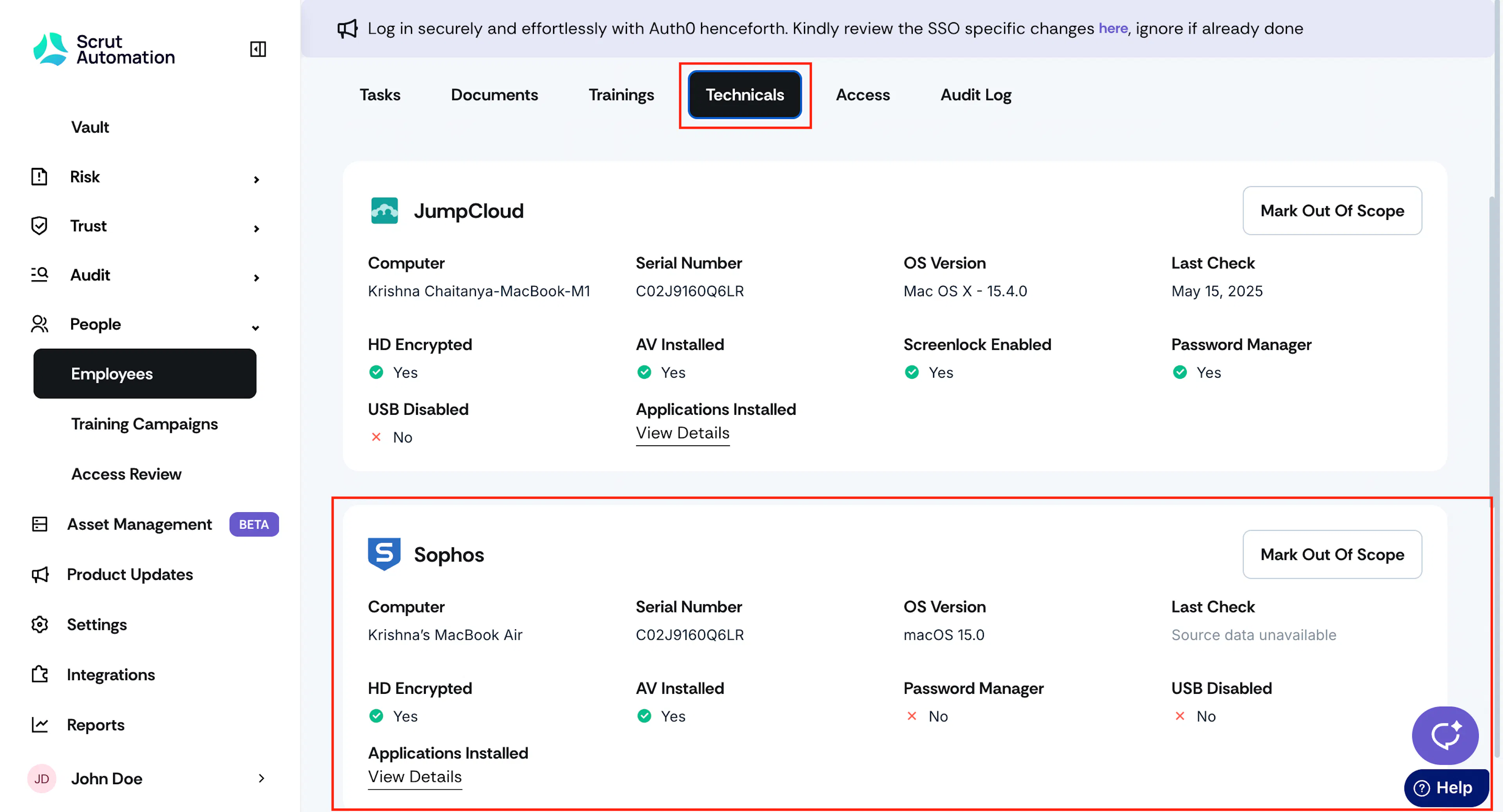
Scrut fetches the following data points for each employee device from Sophos:
- Device name
- Serial Number
- OS Version
- Last Checked Date
- Hard Drive Encrypted (Yes/No)
- Antivirus Installed (Names)
- Password Manager (Names)
- USB Disabled (Yes/No)
- Count and List of Applications Installed on the Device (Click View Details to view the application name and version number)
Viewing Sophos Data in Scrut
To view Sophos data in Scrut:
-
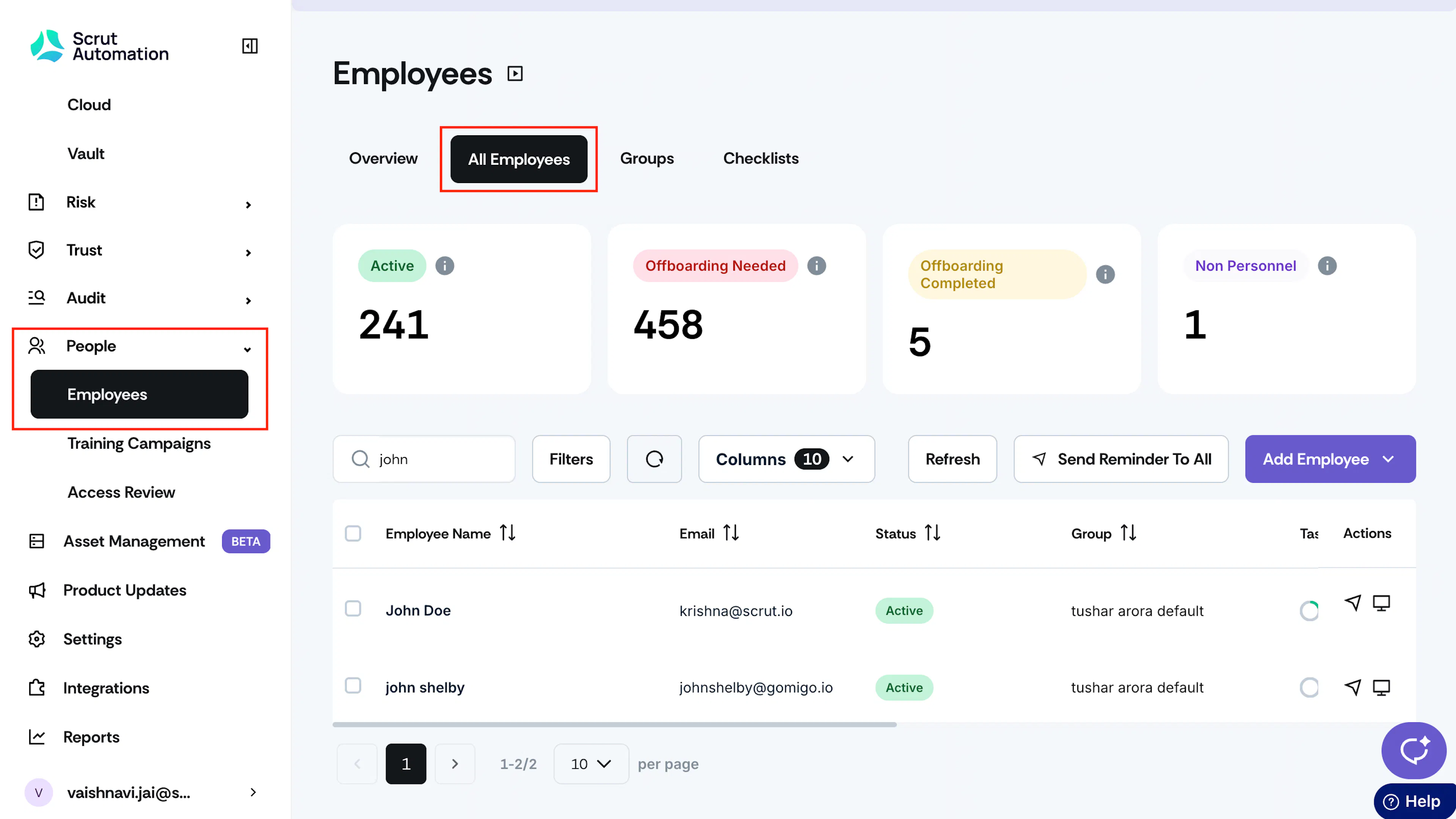
Click People → Employees on the left navigation panel in Scrut.
-
Navigate to the All Employees tab, search, and click on a specific employee.
-
On the Employee page, click the Technicals tab to view the data Scrut fetches from Sophos.
Limitations
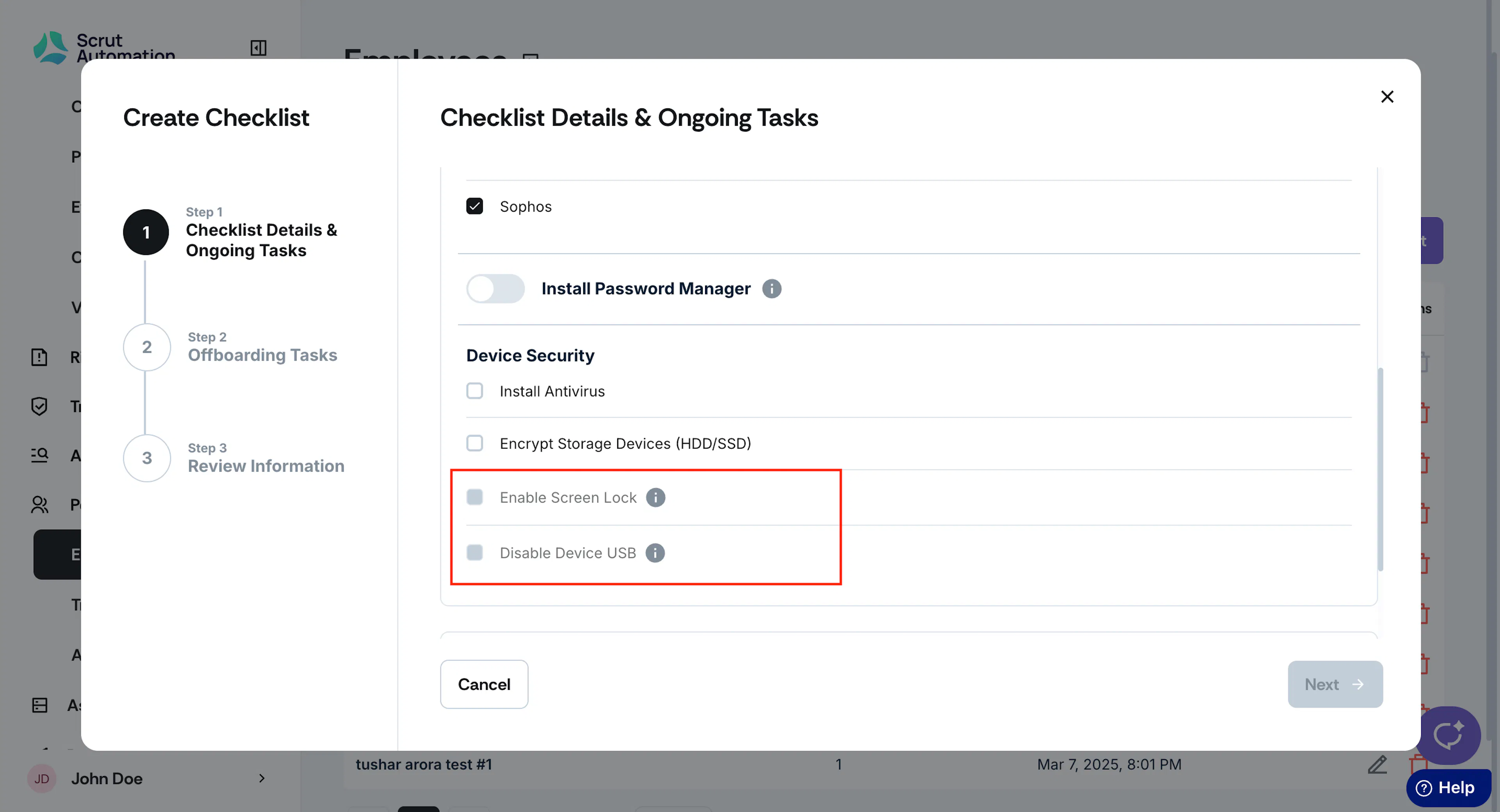
1: Screen Lock and Device USB settings cannot be monitored
When using Sophos as your monitoring agent in Scrut (via People → Employees → Checklists), please be aware that the following device security checks cannot be automatically verified:
- Enable Screen Lock
- Disable Device USB
2: List of installed apps not available
Sophos doesn’t share the list of all installed apps via its APIs to Scrut. So, the information on applications installed on employee devices is unavailable in the Technicals tab in the People → Employees → All Employees page.
Pro Tip!
We recommend using an alternative monitoring agent like Scrut Agent to verify these security measures.