

Integrate SentinelOne
Connect your SentinelOne account with Scrut to centralize endpoint security data, track vulnerabilities, and review user access, all within your compliance workflows.
What This Integration Does in Scrut
- Automated Tests: Runs automated checks that continuously evaluate SentinelOne for security misconfigurations and compliance checks against your applicable compliance frameworks.
- User Access Data: Fetches user details, roles, and permissions from SentinelOne for Access Reviews.
- Asset Management: Populates the Asset Management module in Scrut with discovered assets and supports the collection of asset-related compliance evidence.
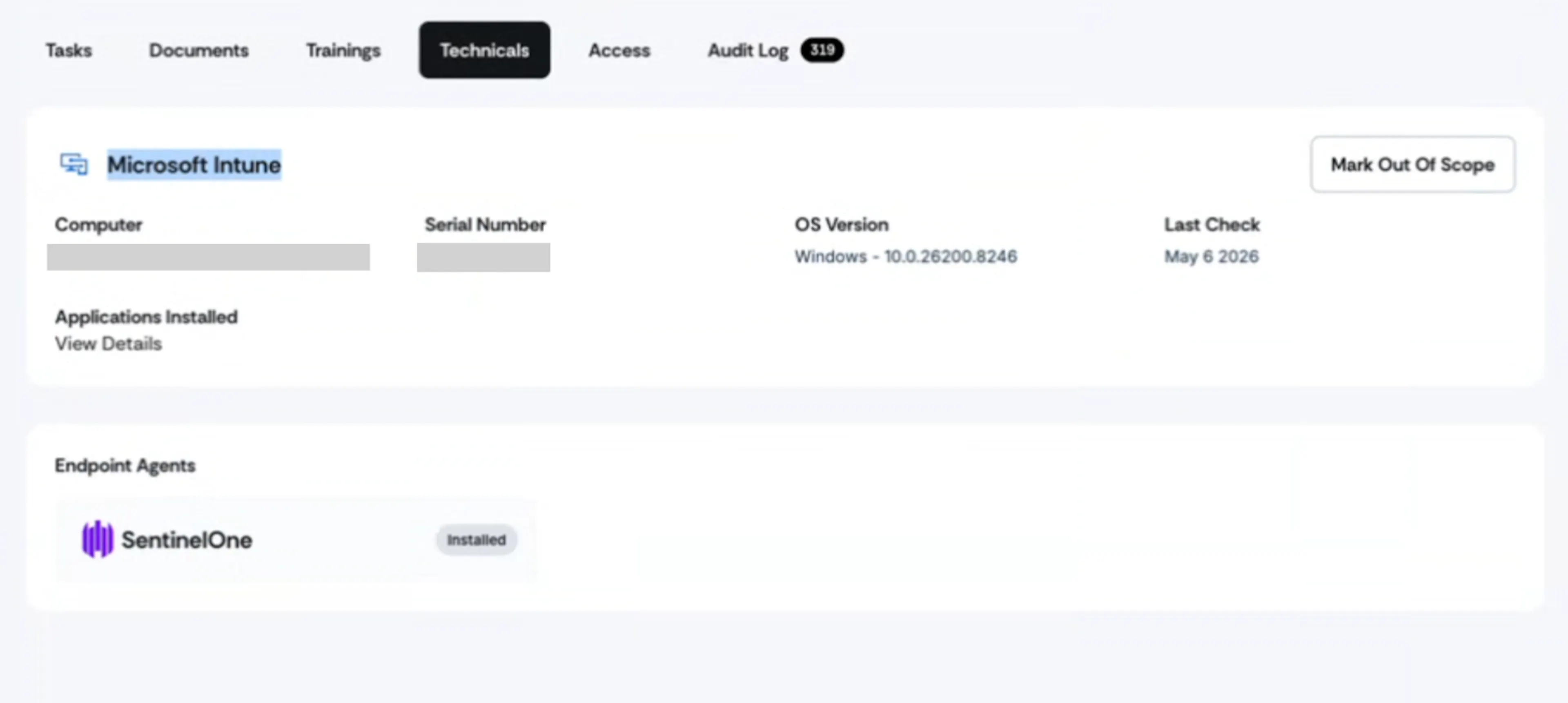
- User Endpoint Devices: Fetches employee device details, including security posture and installed software. These devices are mapped to employees and visible in their profile under People → Employees → Technical.
- Vulnerability Management: Ingests vulnerability and affected asset data into Scrut, enabling end-to-end vulnerability tracking, assignment, and remediation.
Prerequisites
- An active SentinelOne account with admin access.
- Your SentinelOne management server hostname or URL.
- An API token generated from your SentinelOne account (see Step 1 below).
Permissions and Access Requirements
For SentinelOne
Admin-level access to the SentinelOne management console. This is required to navigate to Settings, manage users, and generate an API token.
For Scrut
Admin access to Scrut, or Contributor access with permission to the Integrations module.
Limitations
1: Active MDM integration
SentinelOne data appears in the Technicals tab (People → Employees → Technicals) of an employee's profile in Scrut only when a compatible MDM integration is also active in Scrut. Scrut matches devices by device number between SentinelOne and the connected MDM. If no MDM is configured or the device numbers do not match, the Technicals tab will not show SentinelOne device data for that employee.
2: Access review
Access Review surfaces only users who have been explicitly added to SentinelOne (for example, as administrators or managed users). Employees who have the SentinelOne endpoint agent installed on their device but are not added as users in SentinelOne will not appear in Access Review.
Data Collected
- User name and role
- Endpoint device data
- Endpoint agent status
- Installed software applications on the endpoint
- Threat and vulnerability data
Sync Frequency
Data is synced automatically once every 24 hours. You can also manually trigger a sync from the integration settings page.
Integration Setup
Step 1: Generate an API Token in SentinelOne
-
Log in to your SentinelOne management console.
-
Navigate to Settings → Users.
-
Click the Admin User for whom you want to generate the API token.
-
Click Generate.
Note: If you see Revoke and Regenerate instead of Generate, a token already exists for this user. Revoke removes the current token authorization. Regenerate revokes the existing token and creates a new one. Any scripts or automations using the current token will stop working if you revoke or regenerate it.
-
Click Regenerate. A message appears showing the existing token string and its expiry date.
-
Click Download and copy the API token. You will paste this into Scrut in the next step.
Step 2: Connect SentinelOne in Scrut
-
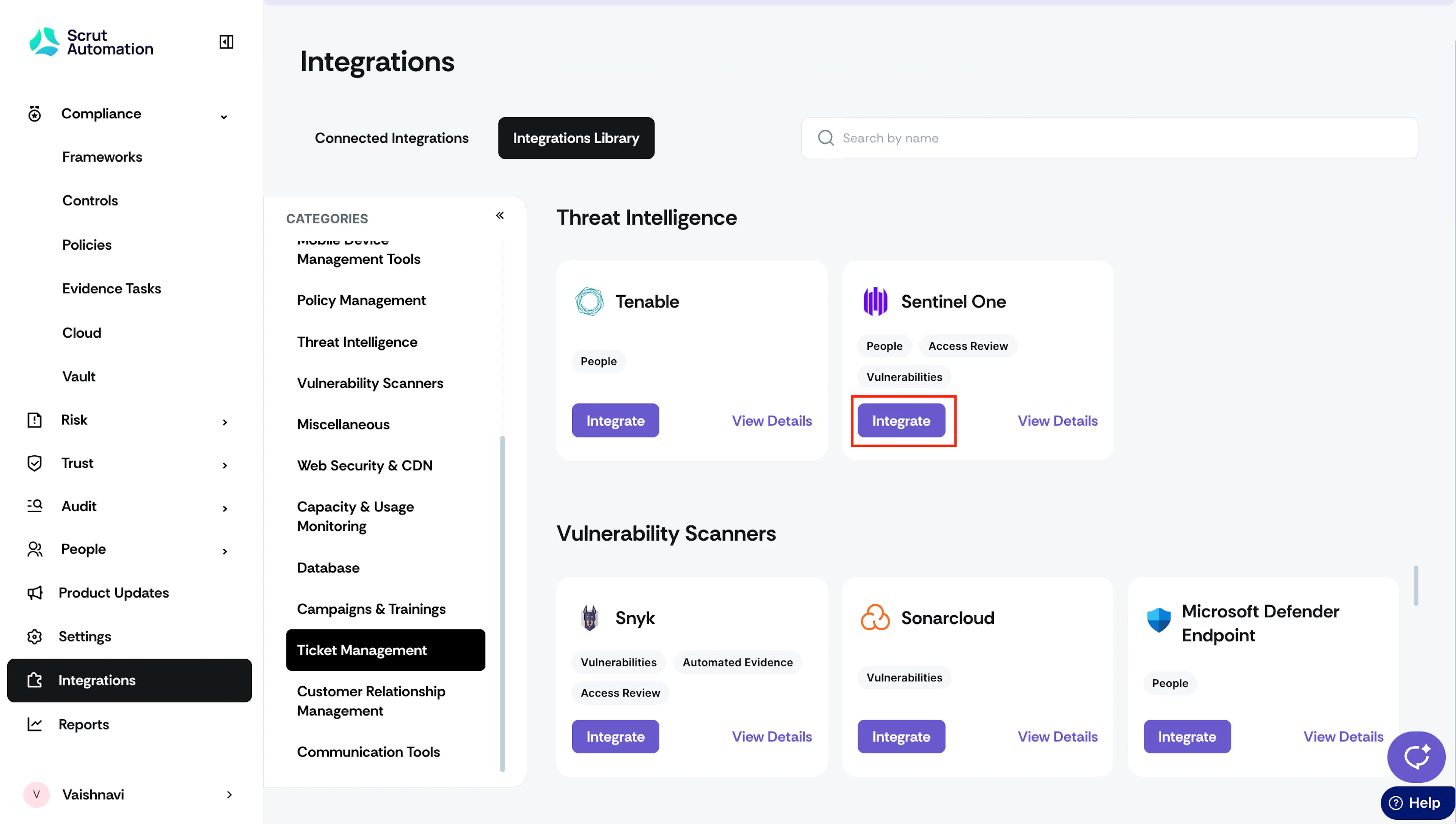
Log in to Scrut and click Integrations in the left navigation panel.
-
Go to the Integrations Library tab.
-
In the Categories panel on the left, click Threat Intelligence.
-
Locate the SentinelOne card and click Integrate.
-
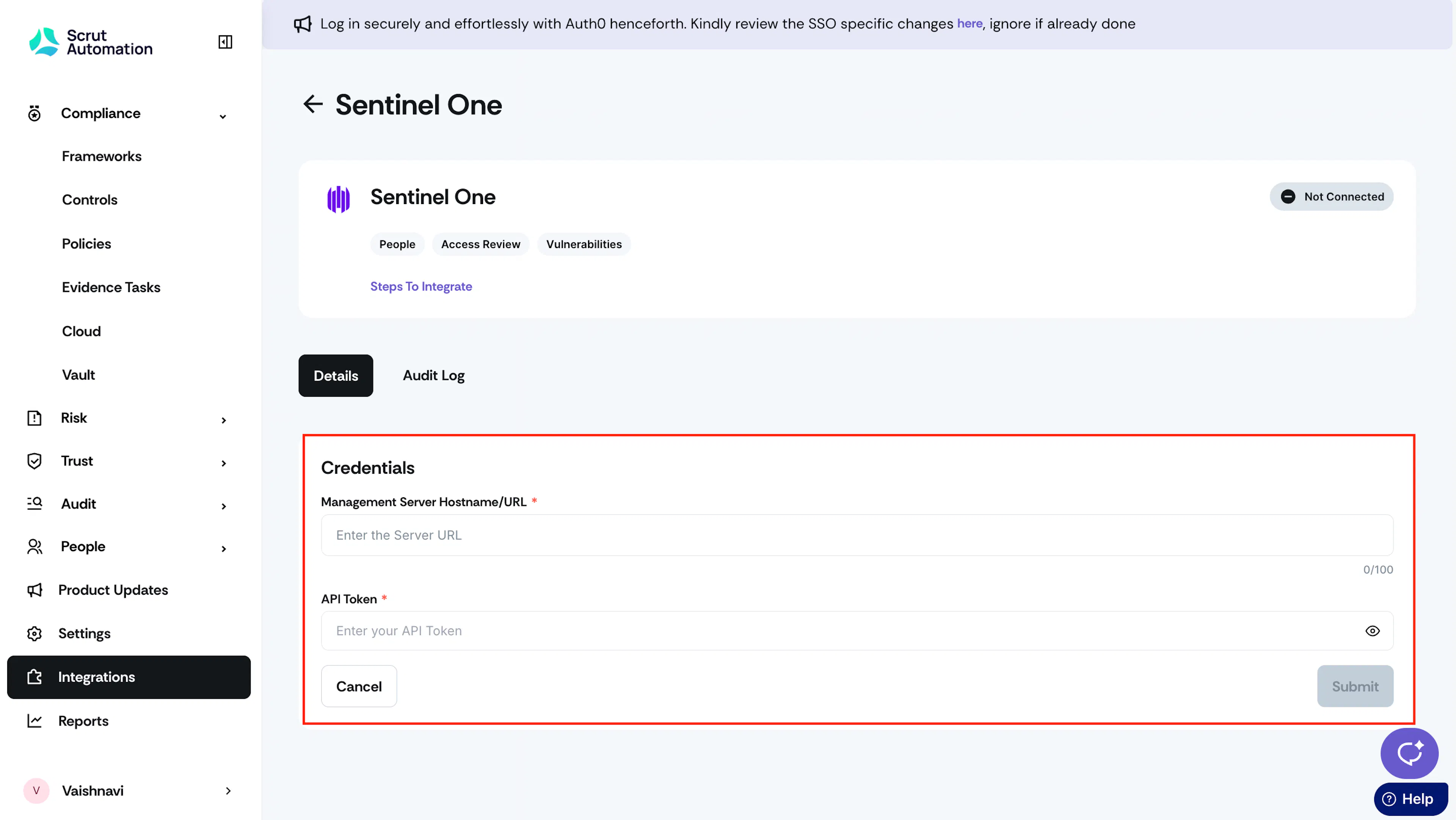
Enter the following credentials:
- Management Server Hostname/URL: Enter the base URL of your SentinelOne server, for example: https://mycompany.sentinelone.net. Copy this from your browser's address bar. Do not include any path segments after .net. For example, if your full URL is https://mycompany.sentinelone.net/path/to/page, enter only https://mycompany.sentinelone.net.
- API Token: Paste the API token you copied in Step 1.
-
Click Submit to validate the connection.
-
Once the integration is successful, the Connected tag appears at the top of the SentinelOne integration page.
What Happens Next?
Initial data sync
The first sync begins automatically after the integration is connected. You can monitor sync activity and review logs from the Audit Log tab on the SentinelOne integration page.
Review synced data
After the sync completes, verify the data landed correctly in the following locations:
- Navigate to People → Employees → [Employee Profile] → Technicals to view endpoint device details. Heads Up: SentinelOne device data appears here only when a matching MDM device record exists for the employee.
- Navigate to People → Access Reviews to view SentinelOne user access data. Only users explicitly added to SentinelOne (not all endpoint users) appear here.
- Navigate to Vulnerabilities → Third-Party Scans → Import Third-Party Scans to view security findings ingested from SentinelOne.
- Navigate to Asset Management to view asset data synced from SentinelOne.
- Navigate to Tests → Automated Tests to view tests that Scrut runs for SentinelOne. Apply the application filter to view tests only for SentinelOne.
Common Errors and Troubleshooting
Integration fails on submit
Possible solutions: Verify that the Management Server Hostname/URL does not include any path segments after .net. Only the base domain should be entered. Check that the API token is valid and has not been revoked or regenerated since you copied it. Confirm that your SentinelOne account has admin-level access. If the issue persists, regenerate a new API token in SentinelOne and re-enter it in Scrut.
SentinelOne data not appearing in the Technicals tab
Cause: Scrut maps SentinelOne endpoint data to an employee profile only when a matching device record from an MDM integration exists. If no MDM is connected, or the device identifiers do not match between SentinelOne and the MDM, the Technicals tab will not display SentinelOne data.
Possible solutions: Confirm that at least one MDM integration (for example, Microsoft Intune, JumpCloud, Jamf, or others) is active and synced in Scrut. Check that the device is enrolled in both the MDM and SentinelOne, and that the device identifiers match. Trigger a manual sync from the integration settings page and wait for the sync to complete before checking again.
Users are missing from access review
Cause: Access Review only surfaces users who are explicitly added to SentinelOne as managed users or administrators. Employees with the SentinelOne endpoint agent on their device but no SentinelOne user account are excluded.
Possible solutions: Confirm that the expected users have SentinelOne user accounts and not just endpoint agents installed on their devices. Trigger a manual sync and allow it to complete, then check Access Review again.
Vulnerabilities not appearing in Scrut
Possible solutions: Allow up to 24 hours for the initial sync to complete. Confirm that SentinelOne has active findings or threats to report. If there are no active findings, the Vulnerabilities module will show no data. Trigger a manual sync from the integration settings page.
FAQs
Reach out to support@scrut.io or contact your CSM for further assistance.