

Integrate OneLogin
Connect OneLogin with Scrut to enable SSO-based login for your team and automatically sync employee and access data into Scrut.
What This Integration Does in Scrut
- Employee Directory: Syncs employee and group data into Scrut's People module. These users can then access the Employee Portal for training, policy acceptance, and device-related activities.
- SSO: Enables admins and employees to log in to Scrut and the Employee Portal, respectively, using their OneLogin accounts.
Prerequisites
- An active OneLogin account with account owner or administrator access.
- Users must be added to your OneLogin portal to access Scrut via SSO.
Permissions and Access Requirements
For OneLogin
-
Account owner or administrator role to access the Developers section and create API credentials.
-
Manage All scope selected when creating API credentials.
- Refer to the FAQs below for details on why Scrut requires the Manage All permissions.
For Scrut
- Admin access, or Contributor role with access to the Integrations module.
Data Collected
- Full Name (First + Last)
- Email Address
- Joining Date (Reflects the date the user was created in OneLogin)
- Role / Job Title
- Department
Sync Frequency
Data is synced automatically once every 24 hours. You can also manually trigger a sync from the integration settings page.
Integration Setup
Step 1: Generate API Credentials in OneLogin
Note: Only account owners or administrators can access the Developers section to create API credentials.
-
Log in to OneLogin as an account owner or administrator.
-
Navigate to Developers → API Credentials.
-
On the API Access page, click New Credential. To know more, refer to OneLogin’s documentation on API credentials.
-
Enter a name for the credential pair.
-
Under Select a scope, choose Manage All.
-
Click Save.
-
On the API Access page, click the newly created credential row.
-
Copy the Client ID and Client Secret values. You will need these in Step 2.
-
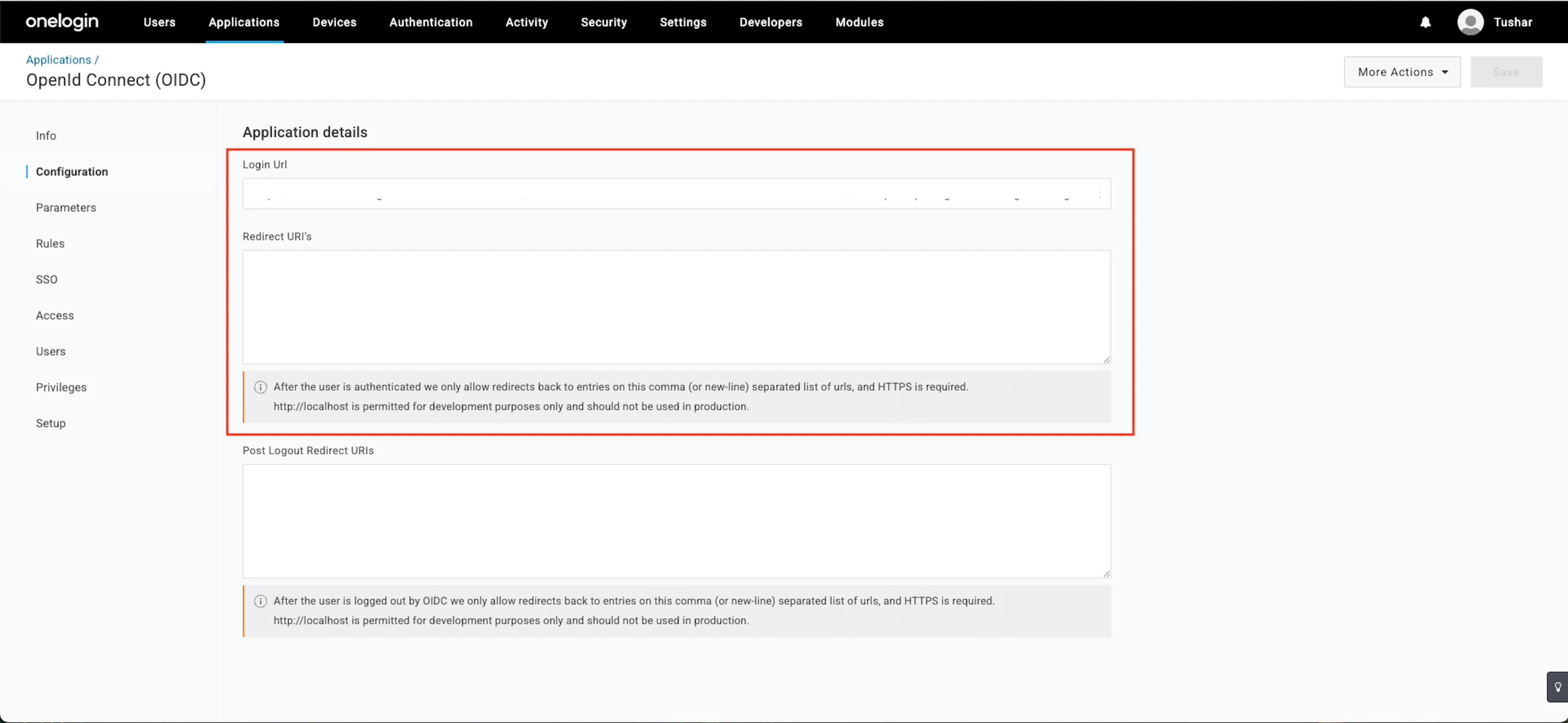
In the Redirect URIs field in your OneLogin portal (under Applications → your OIDC app → Configuration), add the following URI: https://scrut.eu.auth0.com/login/callback
Important: This redirect URI is required for the integration to work with Scrut's Auth0 configuration. The integration will fail without it. To know more, see here.
Step 2: Connect OneLogin in Scrut
-
In Scrut, go to Integrations from the left navigation panel.
-
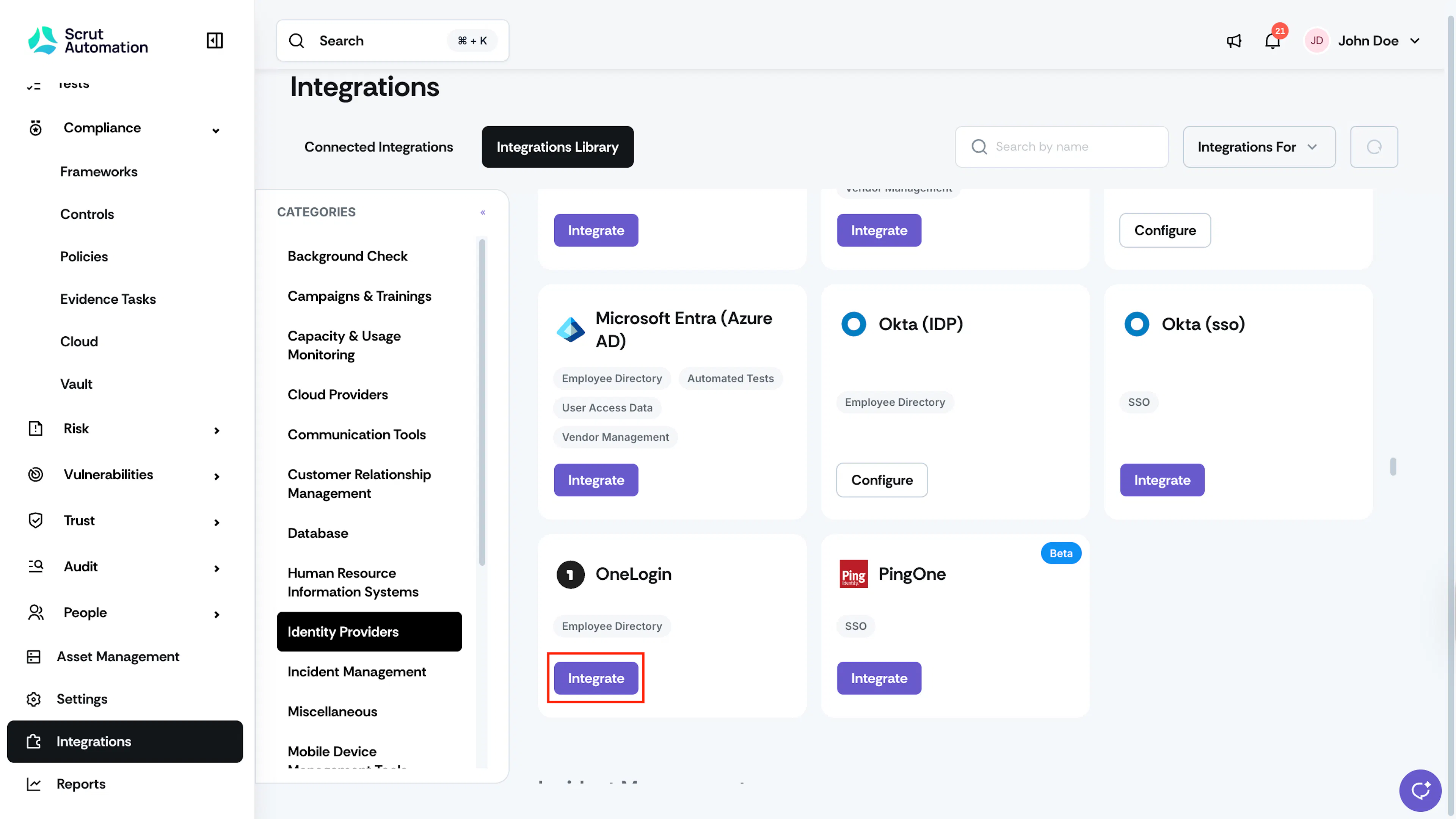
Click the Integrations Library tab and scroll to the Identity Providers section, and locate OneLogin.
-
Click Integrate. The OneLogin integration page opens.
-
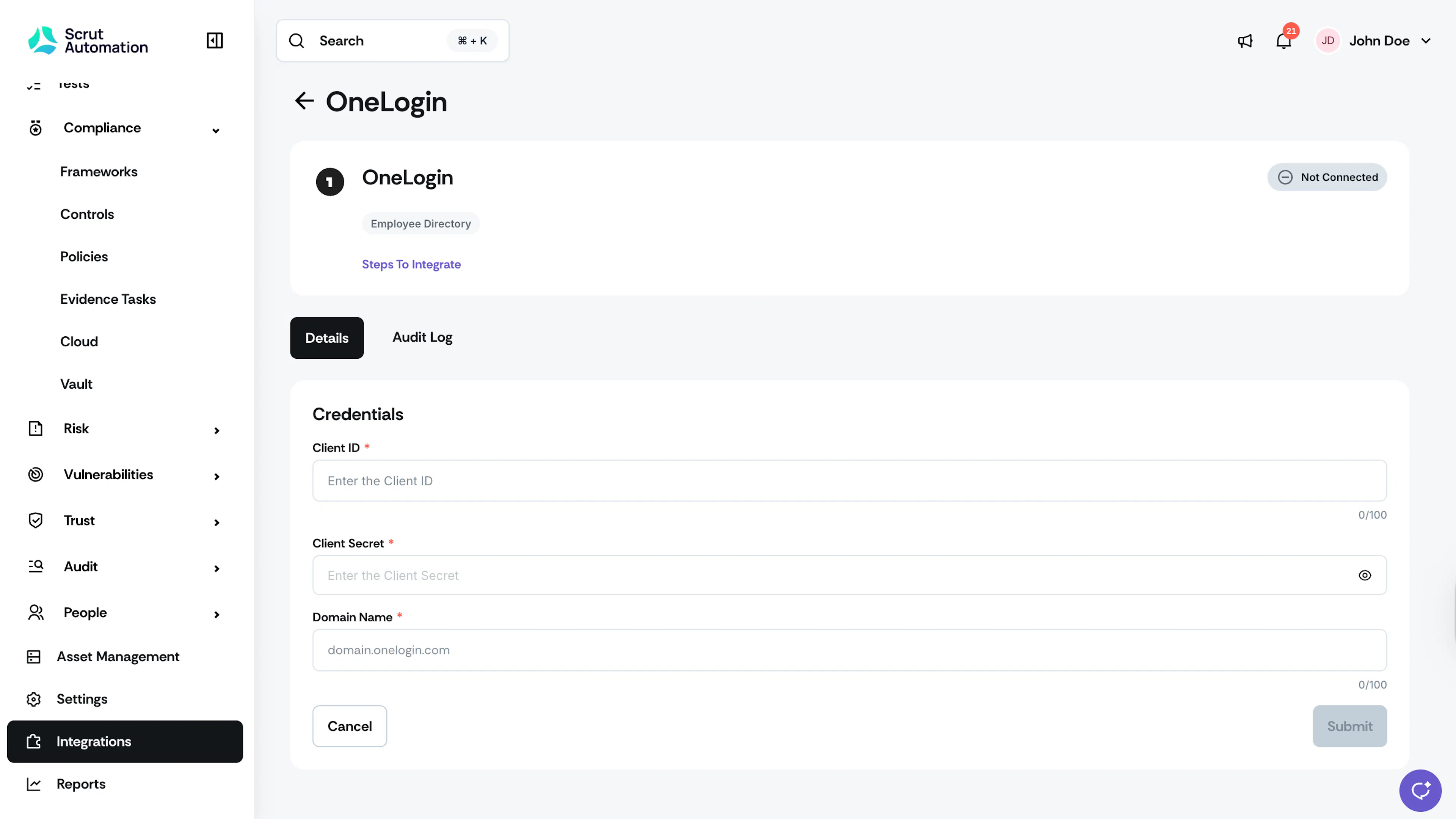
Enter the Client ID, Client Secret, and Domain Name in the respective fields.
Important: Do not add a trailing slash ( / ) at the end of your domain name when entering it in Scrut.
-
Click Submit.
Note: When you connect OneLogin, Scrut automatically creates and configures an OIDC application in your OneLogin portal. To activate SSO access, make sure the relevant users are added to this app in OneLogin.
What Happens Next?
Initial data sync
After a successful connection, Scrut begins the initial data sync automatically. You can monitor sync activity and review any errors in the Audit Log section at the bottom of the OneLogin integration page in Scrut.
Review synced data
- Navigate to People → Employees to view synced employee records from OneLogin.
- Navigate to Settings → Administration → Login Methods to enable OneLogin SSO. This enables admins and employees to log in to Scrut and the Employee Portal, respectively, using their OneLogin accounts.
Common Errors and Troubleshooting
Invalid credentials
Cause: The Client ID, Client Secret, or Domain Name entered in Scrut is incorrect or has expired.
Possible solutions:
- Return to OneLogin under Developers → API Credentials and verify the Client ID and Client Secret.
- Re-enter the credentials in the Scrut OneLogin integration page and click Submit.
- Confirm the domain name does not have a trailing slash.
Integration failed at authentication
Possible solutions:
- Verify that the redirect URI https://scrut.eu.auth0.com/login/callback is added in your OneLogin OIDC app under Configuration → Redirect URIs.
- Confirm the API credential scope is set to Manage All.
- Check the Audit Log on the OneLogin integration page in Scrut for a specific failure reason.
Employees not appearing in Scrut
Possible solutions:
- Confirm the integration status shows Connected on the OneLogin integration page.
- Check that the users exist in your OneLogin portal and are assigned to the Scrut OIDC application.
- Wait up to 24 hours for the next automated sync, or manually trigger a sync from the integration settings page.
Users are unable to log in via SSO
Possible solutions:
- Confirm that the user is added to the Scrut OIDC application in your OneLogin portal.
- Verify the redirect URI is correctly configured.
- Ask the user to clear their browser cache and retry.
FAQs
Reach out to support@scrut.io or contact your CSM for further assistance.