

Integrate JumpCloud SSO
Heads Up!
This guide covers the JumpCloud SSO integration only. If you want to integrate JumpCloud as an MDM or IDP, see here.
Connecting JumpCloud to Scrut as an SSO provider lets your admins and employees log in to Scrut and the Employee Portal using their JumpCloud accounts, without needing a one-time password each time.
What This Integration Does in Scrut
- SSO: Enables admins and employees to log in to Scrut and the Employee Portal, respectively, using their JumpCloud accounts.
Prerequisites
Before you begin, make sure you have an active JumpCloud account with administrator access
Permissions and Access Requirements
For JumpCloud
Administrator access to create and configure an SSO application in JumpCloud (Only the email scope is consumed during authentication)
For Scrut
Admin access to Scrut, or Contributor access with the Integrations module enabled
Data Collected
- User identity: Email address (Pulled from the email scope in JumpCloud)
- JumpCloud SSO session: Used to authenticate users into Scrut
Sync Frequency
Data is synced automatically once every 24 hours. You can also manually trigger a sync from the integration settings page.
Integration Setup
Step 1: Configure the SSO Application in JumpCloud
- Log in to your JumpCloud Admin Portal.
- Follow the steps in the JumpCloud SSO (OIDC) Guide to create a new SSO application for Scrut. This generates your Client ID and Client Secret.
- Copy both values as you’ll need to enter them in Scrut in Step 2.
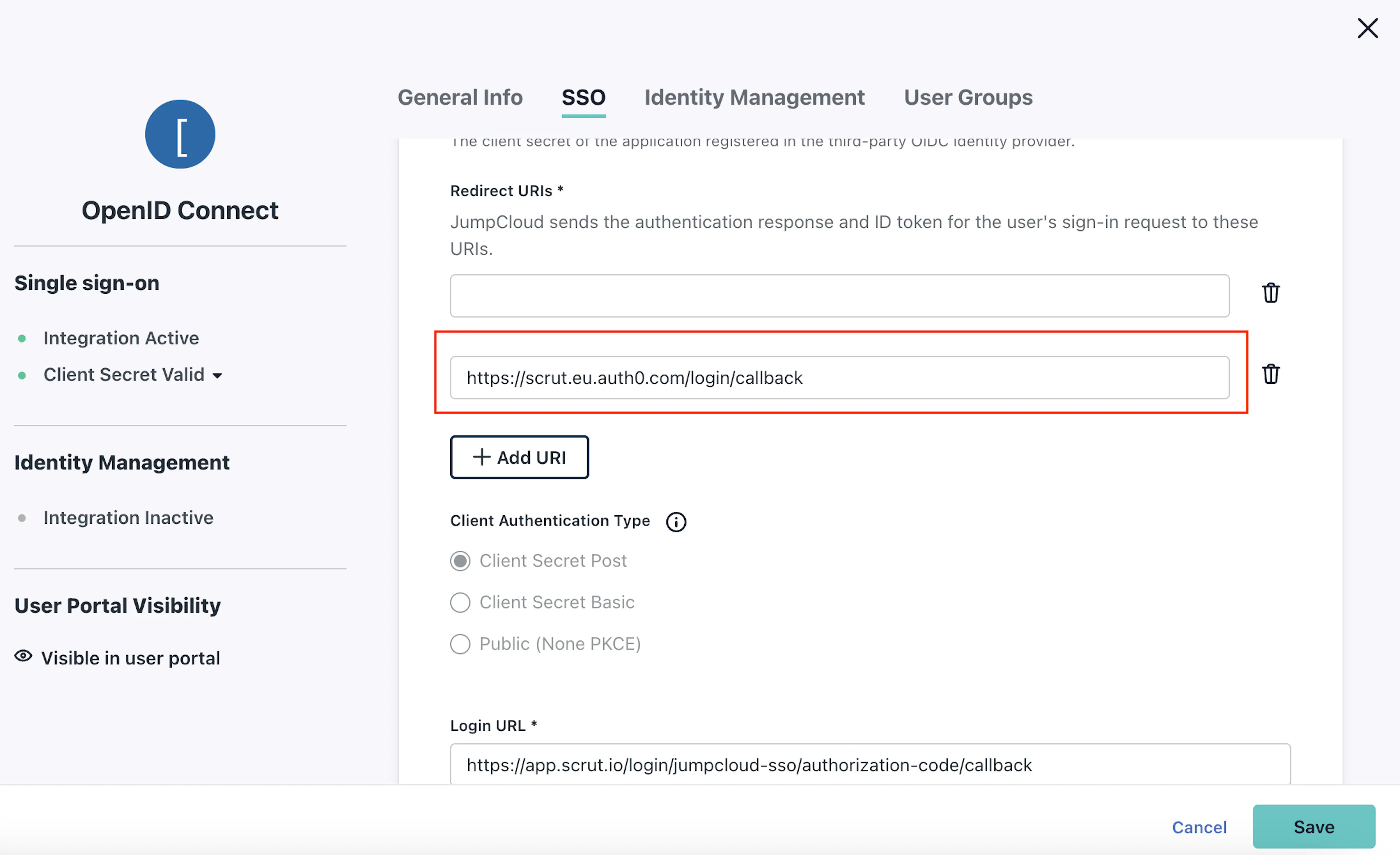
- In the SSO tab of the application, enter the Login URL that matches your Scrut account region:
- In the Redirect URIs field, add the region-specific URL.
Important: You must also add the following Redirect URI in addition to the links mentioned above. https://scrut.eu.auth0.com/login/callback. This is critical to ensure that the integration works successfully with Scrut’s Auth0 migration. To learn more, see here.
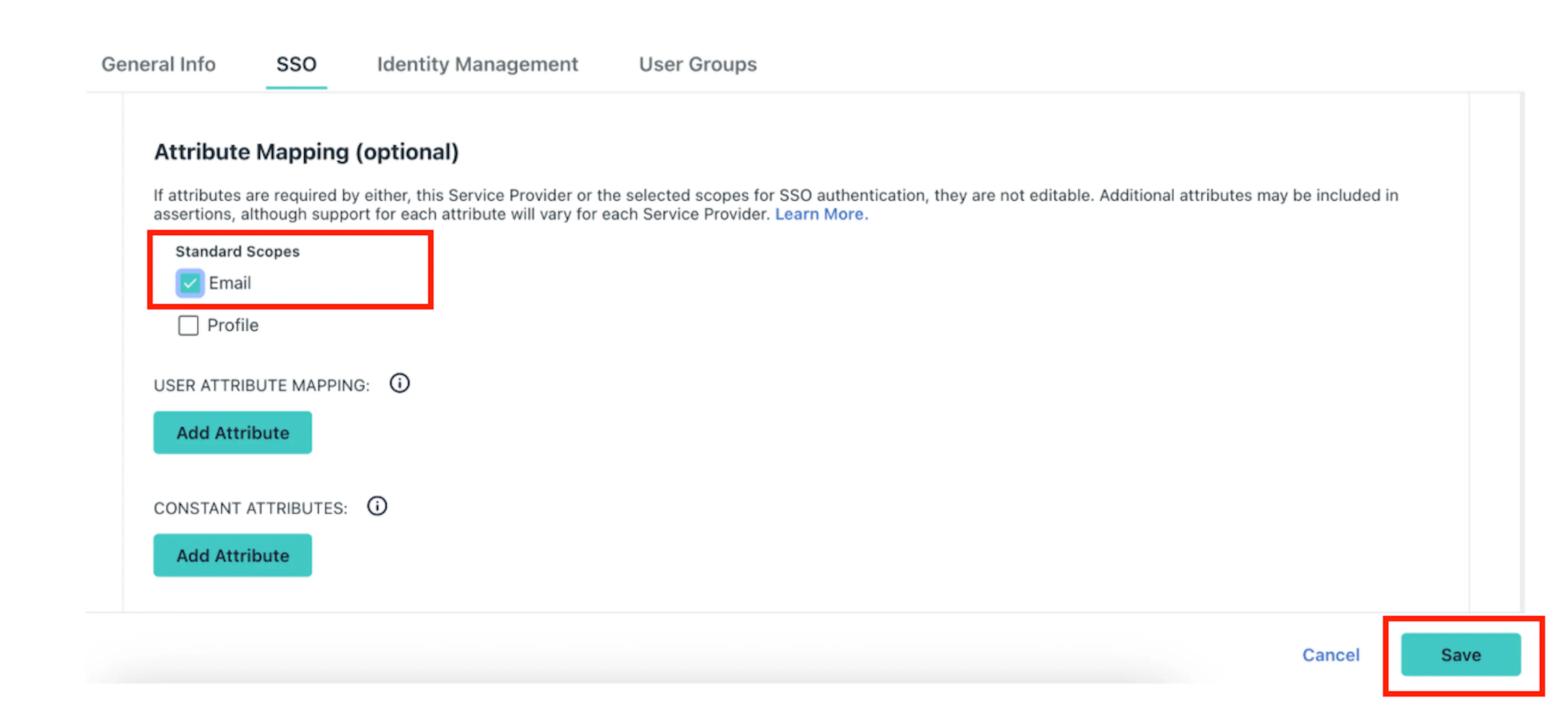
- Scroll to the Attribute Mapping section in the SSO tab.
- Under Standard Scopes, select the Email checkbox.
Important: Selecting the Email scope is mandatory. Without it, users will not be able to authenticate into Scrut.
- Click Save.
Step 2: Connect JumpCloud in Scrut
- Sign in to Scrut and click Integrations in the left navigation panel.
- Click the Integrations Library tab at the top of the page.
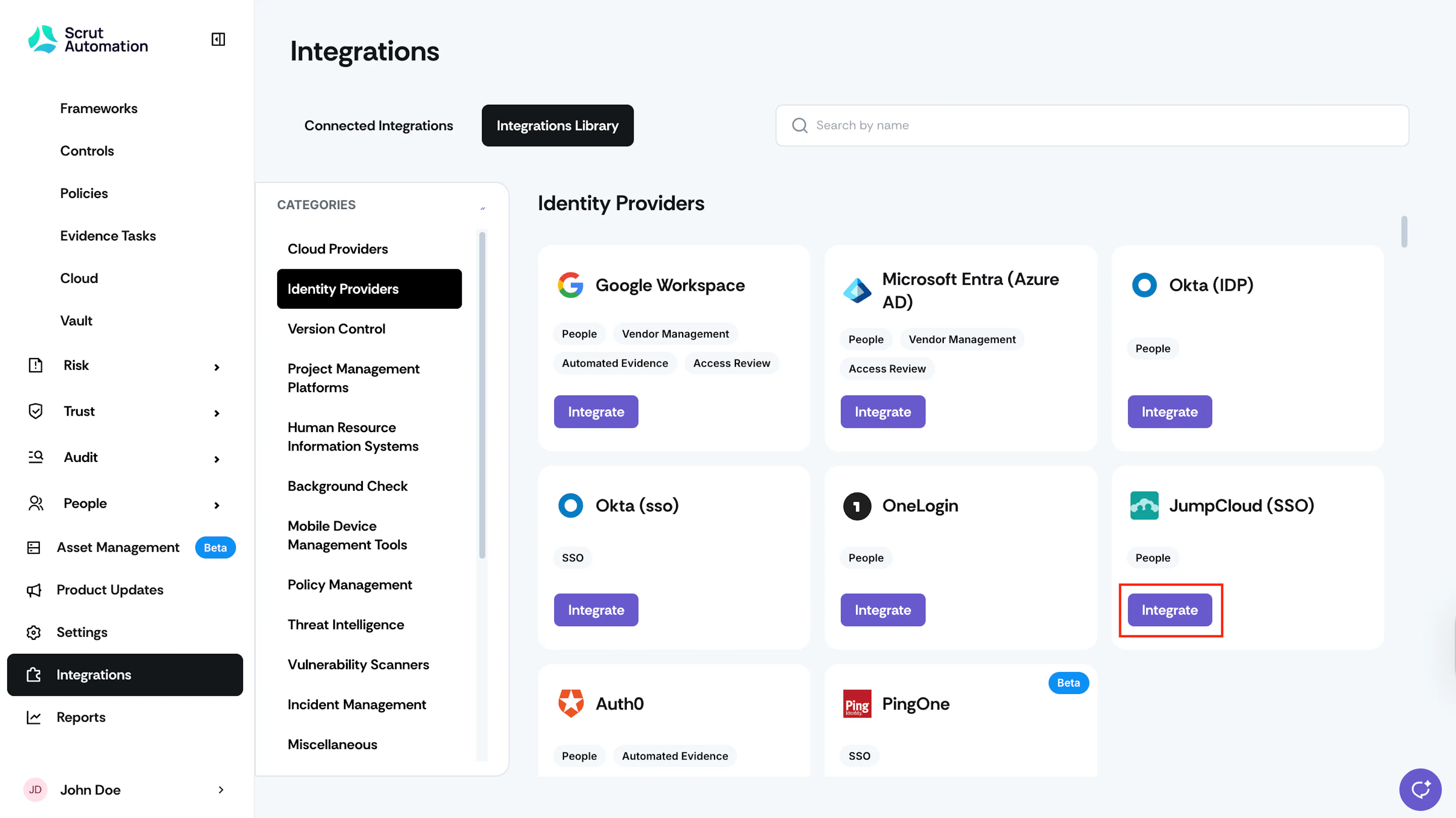
- In the Category panel on the left, scroll to Identity Providers. Search for JumpCloud in the search bar.
- Click Integrate on the JumpCloud (SSO) tile. This opens the JumpCloud (SSO) integration page.
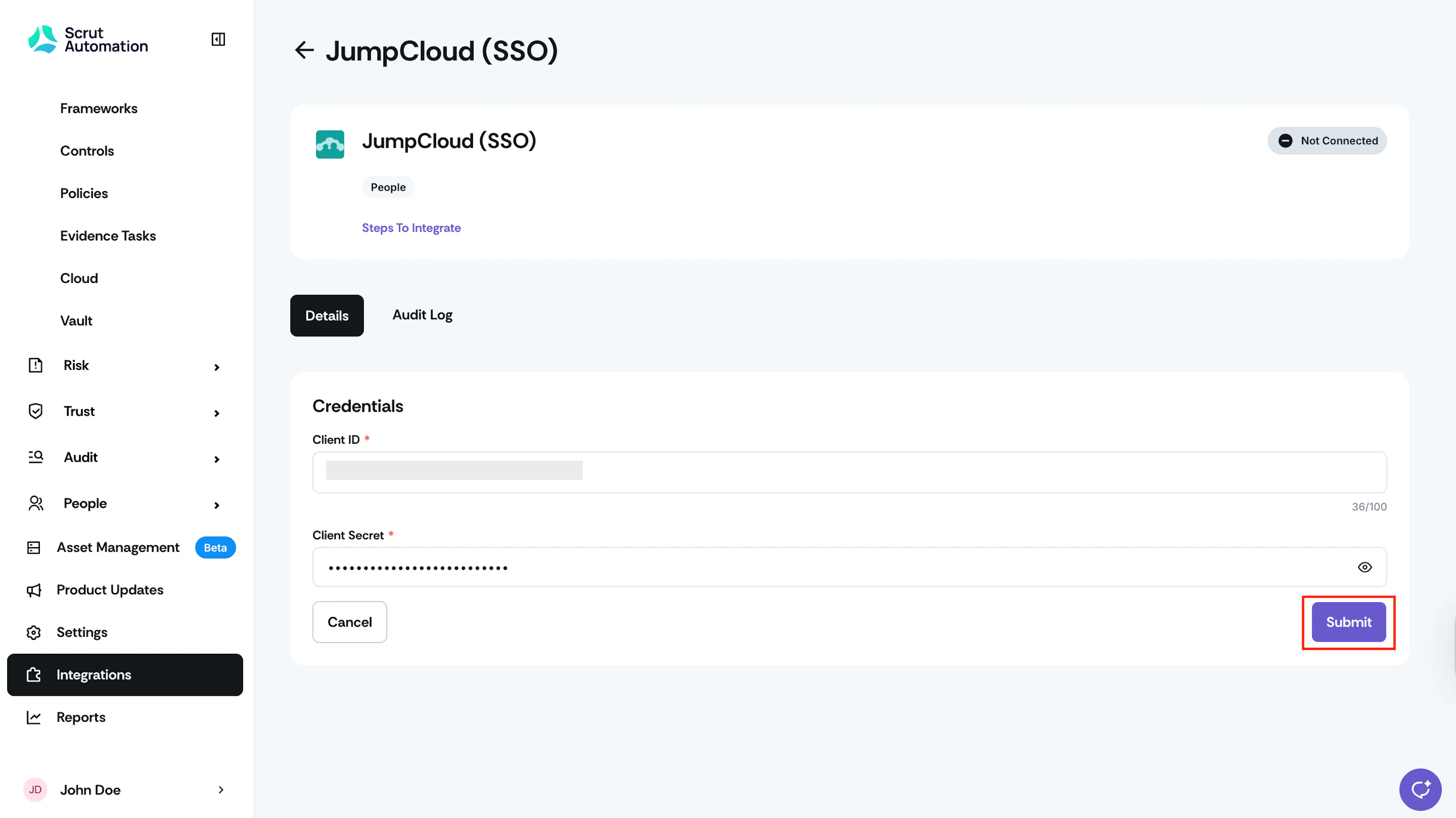
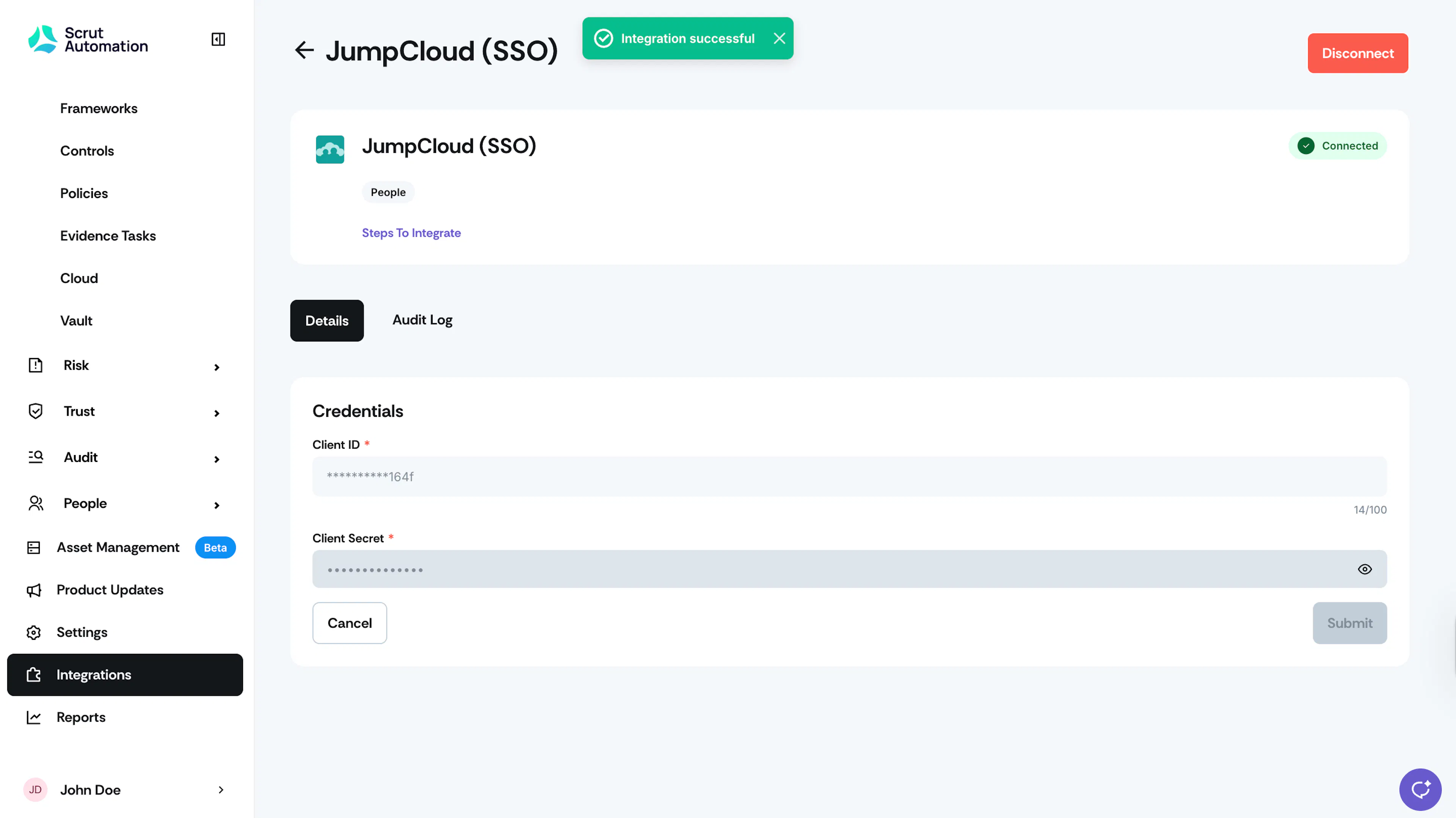
- In the Credentials section, paste the Client ID and Client Secret you copied from JumpCloud.
- Click Submit.
- A success toast message appears, and the status updates to Connected.
What Happens Next?
Initial data sync
After the integration is connected, Scrut begins syncing user data automatically. You can monitor sync activity from the Audit Log tab on the JumpCloud (SSO) integration page.
Review synced data
- Navigate to Settings → Administration and turn on the JumpCloud (SSO) toggle. Once this is done, your team members will be able to access the Scrut platform (app.scrut.io) and the employee portal using their JumpCloud credentials.
FAQs
Reach out to support@scrut.io or contact your CSM for further assistance.