

Scrut Authentication System Migration
Scrut is upgrading our internal authentication system from AWS Cognito to Auth0. This migration demonstrates our ongoing commitment to implementing industry-leading security measures that protect your data while delivering an exceptional user experience. Scrut ensures a smooth transition to the new authentication system with no downtime. We'll carry out the migration behind the scenes, ensuring minimal interruptions.
How Does the Migration Benefit You?
- Enhanced Security: Auth0's robust security framework includes advanced threat detection and anomaly identification, significantly improving protection against unauthorized access attempts and brute force attacks.
- Comprehensive Data Protection: Auth0's end-to-end encryption protocols ensure your credentials and sensitive information remain protected at every stage of the authentication process.
- Compliance: Auth0 complies with multiple frameworks and certifications, such as FAPI, GDPR, HIPAA & HITECH, CSA STAR, ISO 27001/27018, PCI DSS, PSD2, and SOC2, maintaining industry security standards when handling sensitive data.
- Improved User Isolation - Auth0 Organizations enable better separation between different customer environments, protecting sensitive data across organizational boundaries.
- Streamlined Login Experience: With Auth0, you'll experience a more intuitive login process that eliminates unnecessary friction, making secure access more convenient.
- Customized Login Options: With this migration, you'll only see the enterprise SSO options your organization has integrated with Scrut on the login page. This is a significant improvement over the previous version, where users were presented with a static list of all possible providers. Refer to this guide for step-by-step instructions on customizing the SSO login options for your users.
What’s Changing?
First Login After Migration
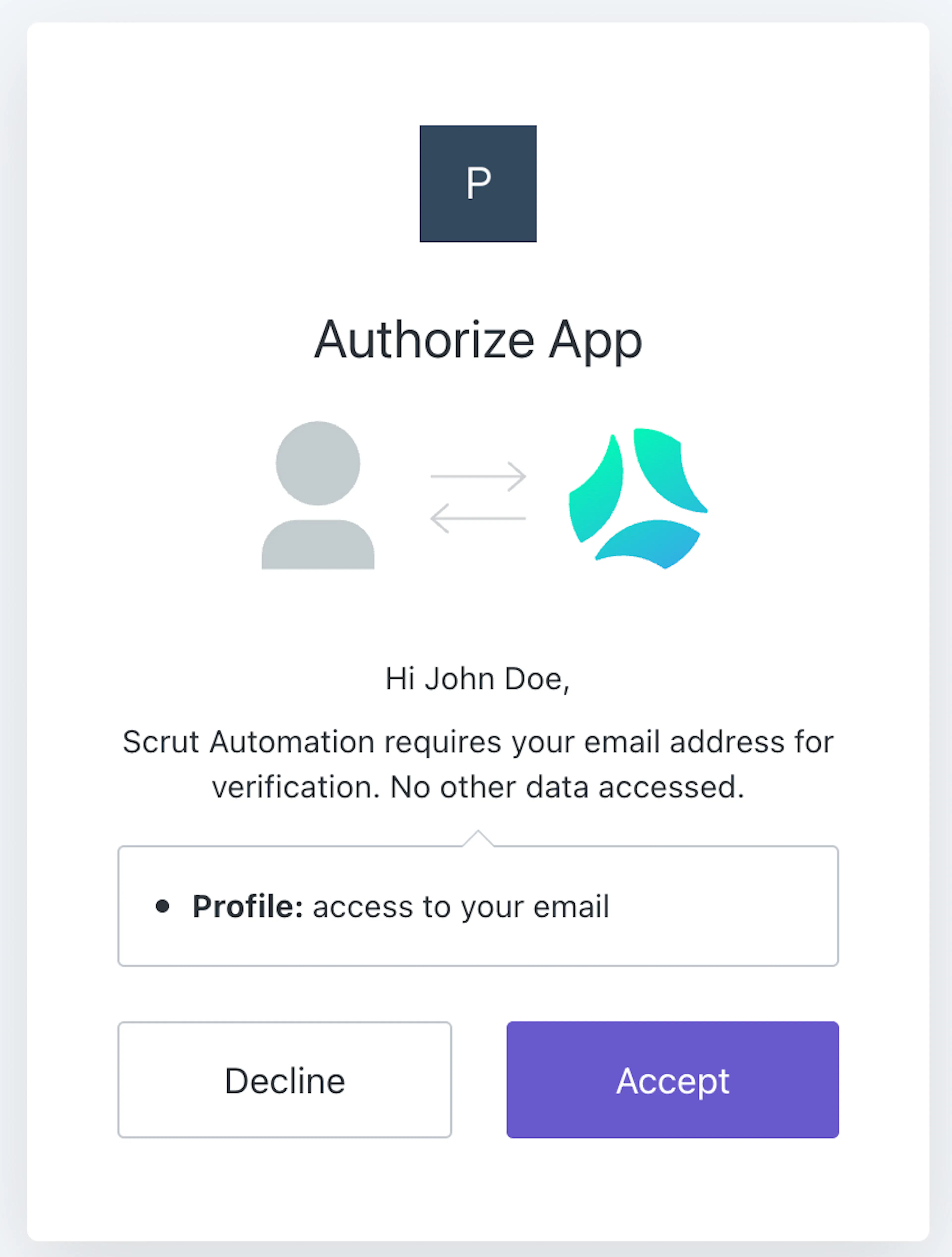
It’s important to note that the first time you and your employees log into Scrut after the migration, the platform will prompt you to re-authenticate the application. You’ll see a standard consent screen, where you must click Accept to continue. This step is done to register your email address in Scrut’s Auth0 system. We do not fetch, read, or store confidential or sensitive information from your systems.
No Enterprise SSO
No Action Required
If your organization doesn’t use enterprise SSO with Scrut, you do NOT have to take any further actions.
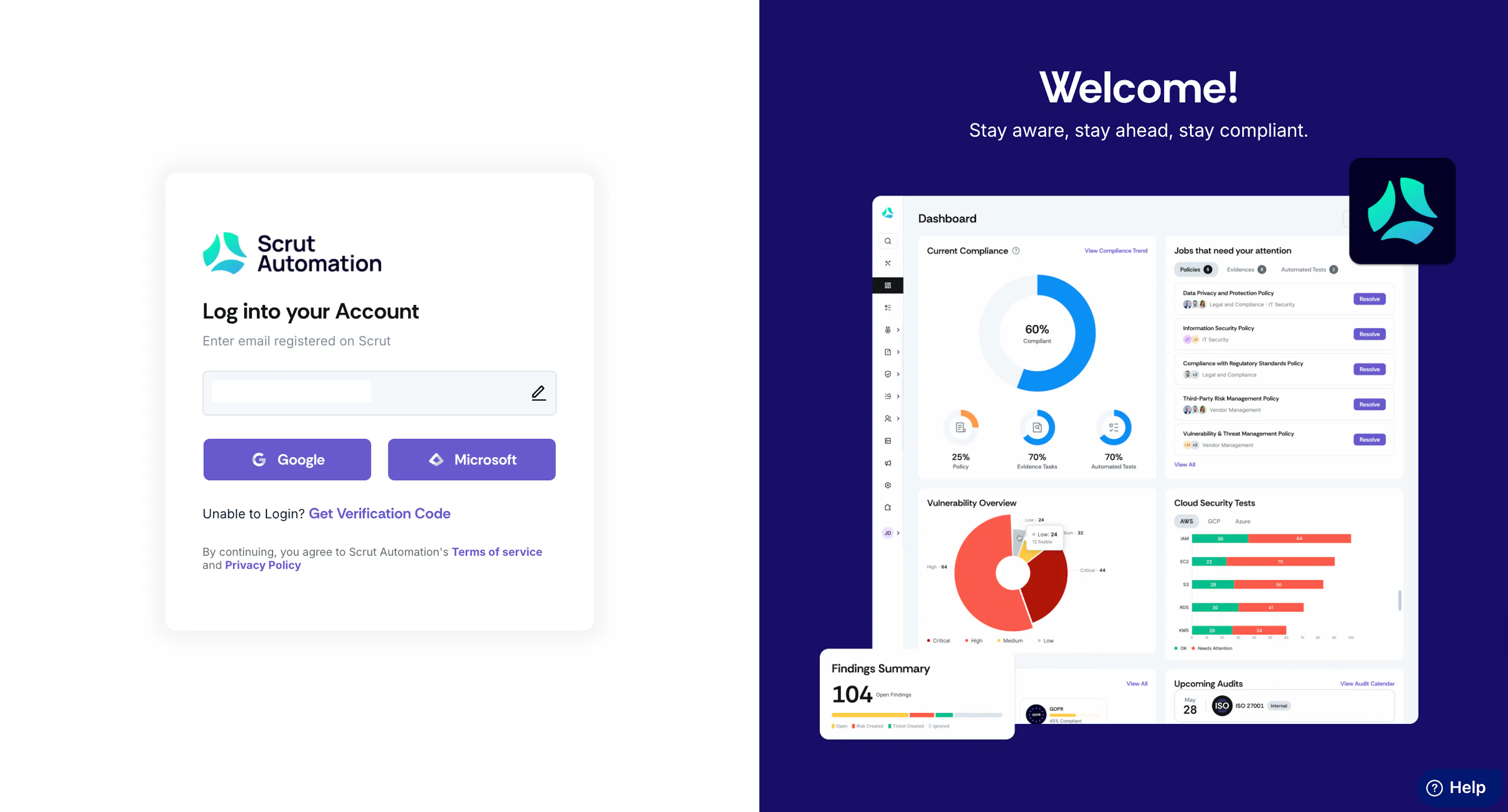
If you don't have any enterprise-level SSO (Single Sign-On) integrated with Scrut, theloginpage will show these default authentication methods:
- Via Google: Log in using your Google Workspace email.
- Via Microsoft: Log in with your Microsoft account.
- Get Verification Code: Receive a One-Time Password (OTP) in your email inbox and copy-paste it for access.
The login process using the default authentication mechanisms will work as usual post-migration without any changes on your end.
When Using Enterprise SSO
Heads Up!
Currently, this migration is not applicable for Okta SSO.
⚠️ Action Required for SSO Configuration Update ⚠️
If your organization uses enterprise SSO with Scrut, you MUST complete the steps below for continued access after this migration.
To ensure that your SSO options work seamlessly after the migration, follow the instructions in this section.
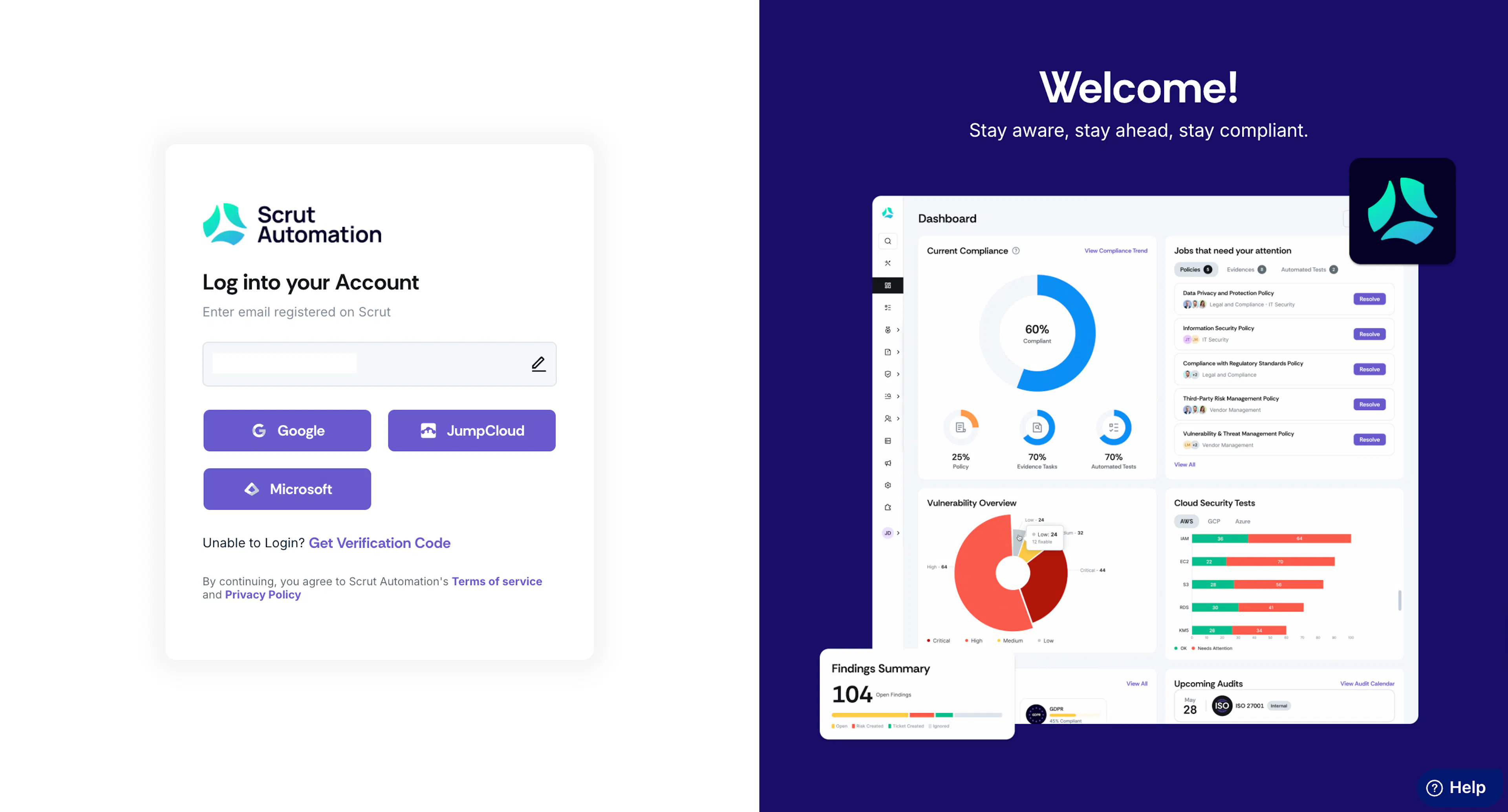
If you have enterprise SSO options integrated with Scrut, the login screen will dynamically display those SSO options you’ve connected with Scrut. For example, if you’ve integrated OneLogin and JumpCloud with Scrut, the login page will include these authentication mechanisms along with the default options mentioned above.
However, for the enterprise SSO options to work, you must complete these steps:
Step 1: Navigate To Your SSO Console
- Log in to your SSO application console with admin access and navigate to the Applications section.
- Under the OIDC application, search for the app created for Scrut integration.
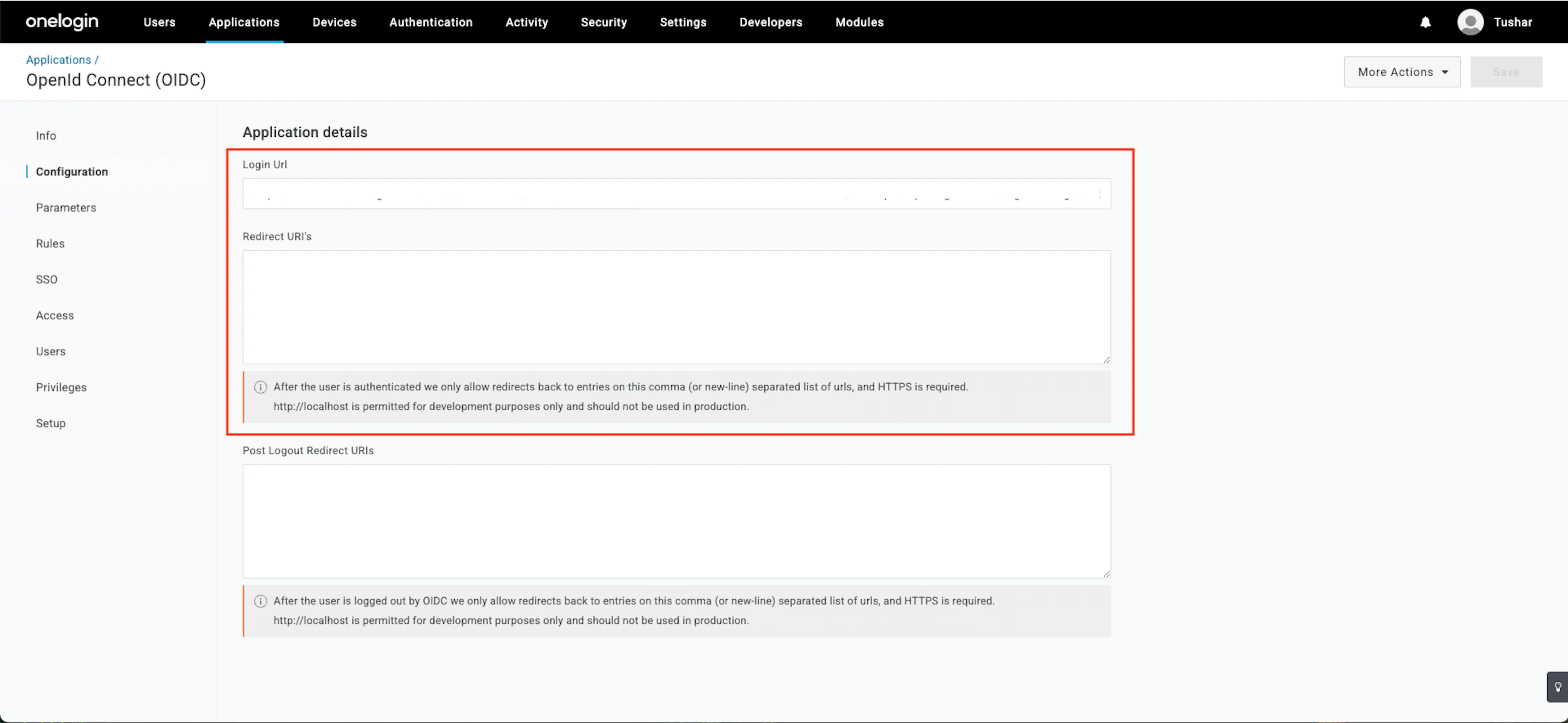
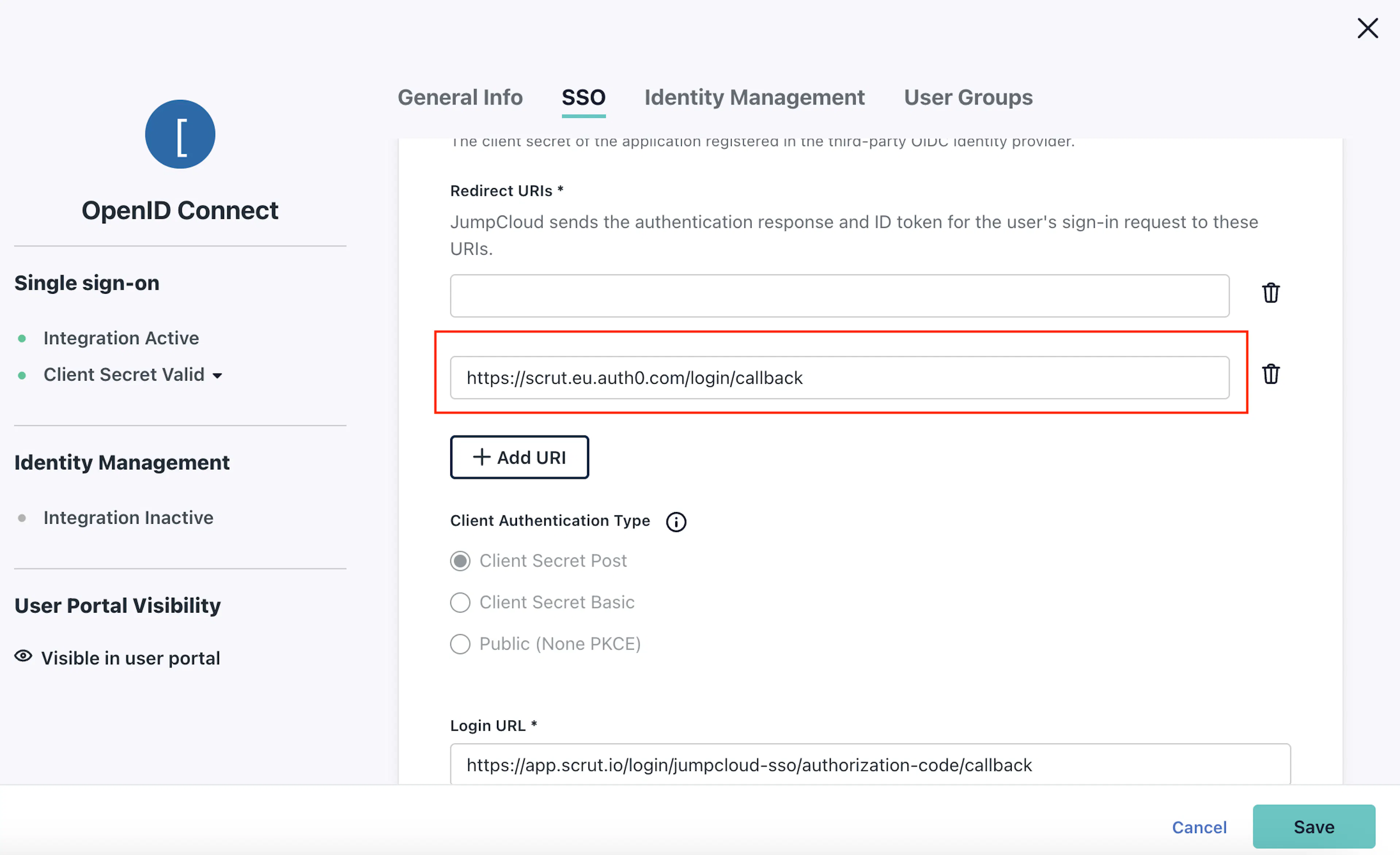
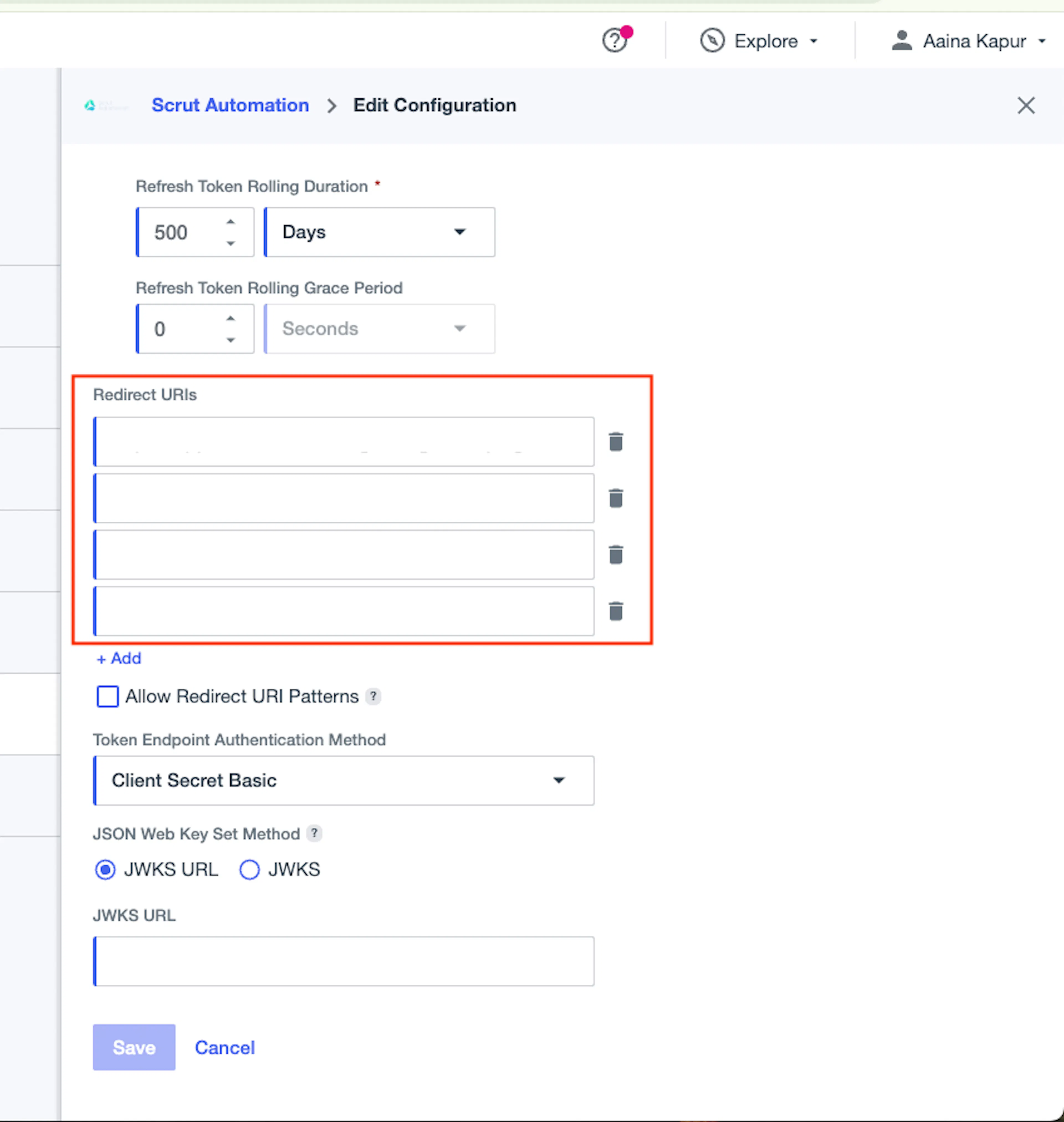
Step 2: Add the Redirect URL
Add the following redirection URL to your OIDC system.
https://scrut.eu.auth0.com/login/callback
Note: The page where you input the redirect URL will vary depending on your SSO application.
Important:
There are no changes to existing URLs. Add the Redirect URL mentioned above in addition to the URLs you’ve already included.
Pro Tip!
Refer to this guide to customize the SSO options shown on the login screen.
Contact Support
The Scrut team aims to make this transition seamless with minimal disruptions. If you have any further questions or concerns about this migration, please get in touch with your CSM or the Scrut support team (support@scrut.io).