

Configure SSO Login Methods
Scrut allows you to customize the Single Sign-On (SSO) login methods available to your organization’s users. This feature allows you to select which specific SSO providers are active and visible on Scrut’s login page. This guide explains how to configure these settings.
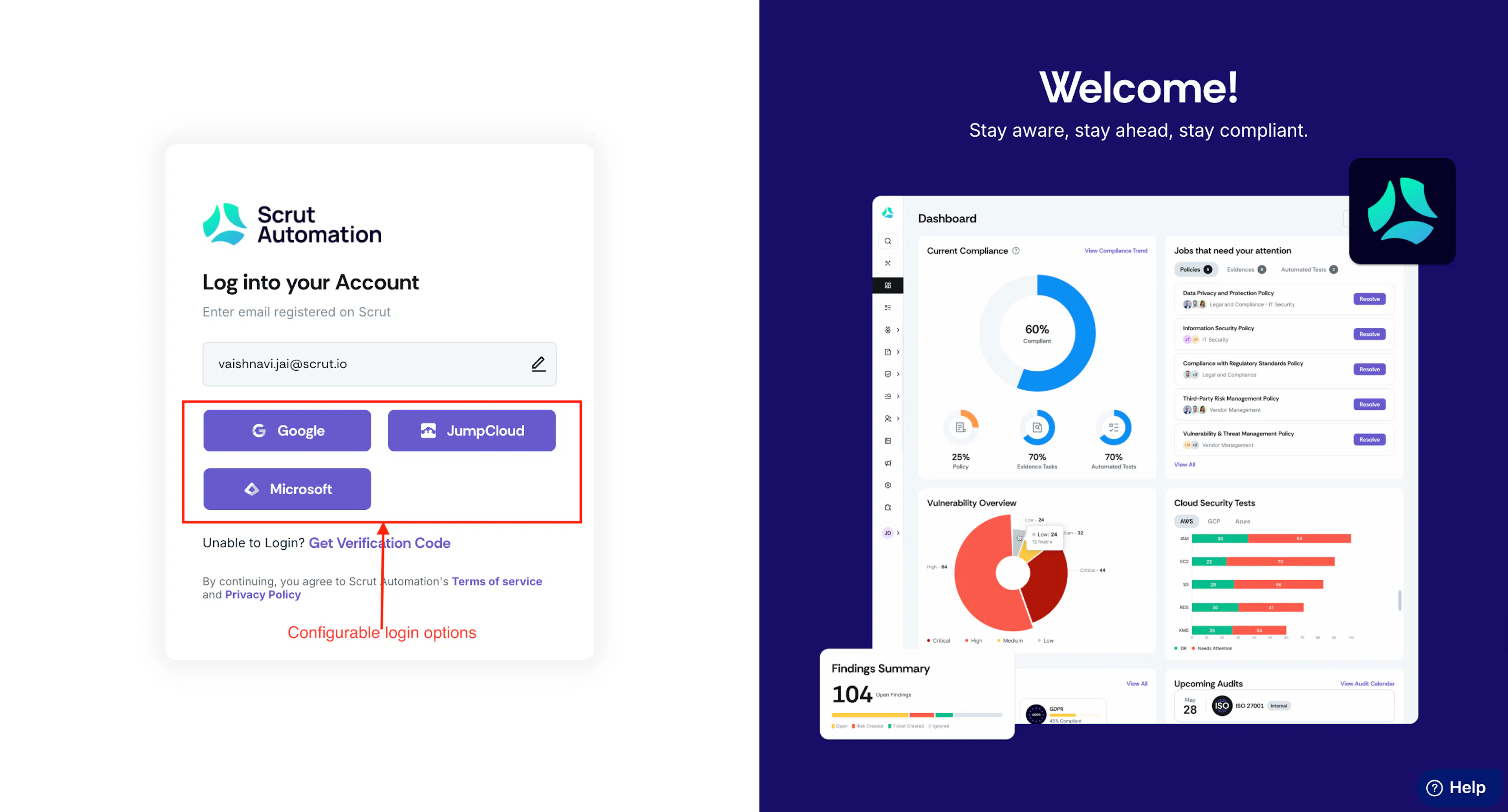
Available SSO Login Options
Scrut offers the following SSO login options:
Social SSO
When you use a social login, users don’t need to set or remember passwords. The login provider (Google or Microsoft) will authenticate the user and pass the information to Scrut. Supported social logins include:
- Google (Google Workspace)
- Microsoft
Note:
If enabled, social SSO options are available immediately on the login page. No integration is needed.
Enterprise SSO
When you enable enterprise SSO login, users don’t need to set or remember passwords specifically for Scrut. Instead, your chosen SSO provider handles authentication and securely passes the verified user information to Scrut. Supported enterprise SSOs include:
- Google Workspace
- Microsoft Entra (Azure AD)
- Okta (SSO)
- OneLogin
- JumpCloud
- PingOne
Heads Up!
To enable enterprise SSO options, you must first complete the corresponding integration. Refer to the step-by-step guides for assistance with the integration process.
Limitations
Currently, Single Sign-On (SSO) login is only available through the Scrut login page. Users cannot directly log in via their SSO provider’s page and must go to the Scrut login page for authentication.
How To Customize SSO Login Options
-
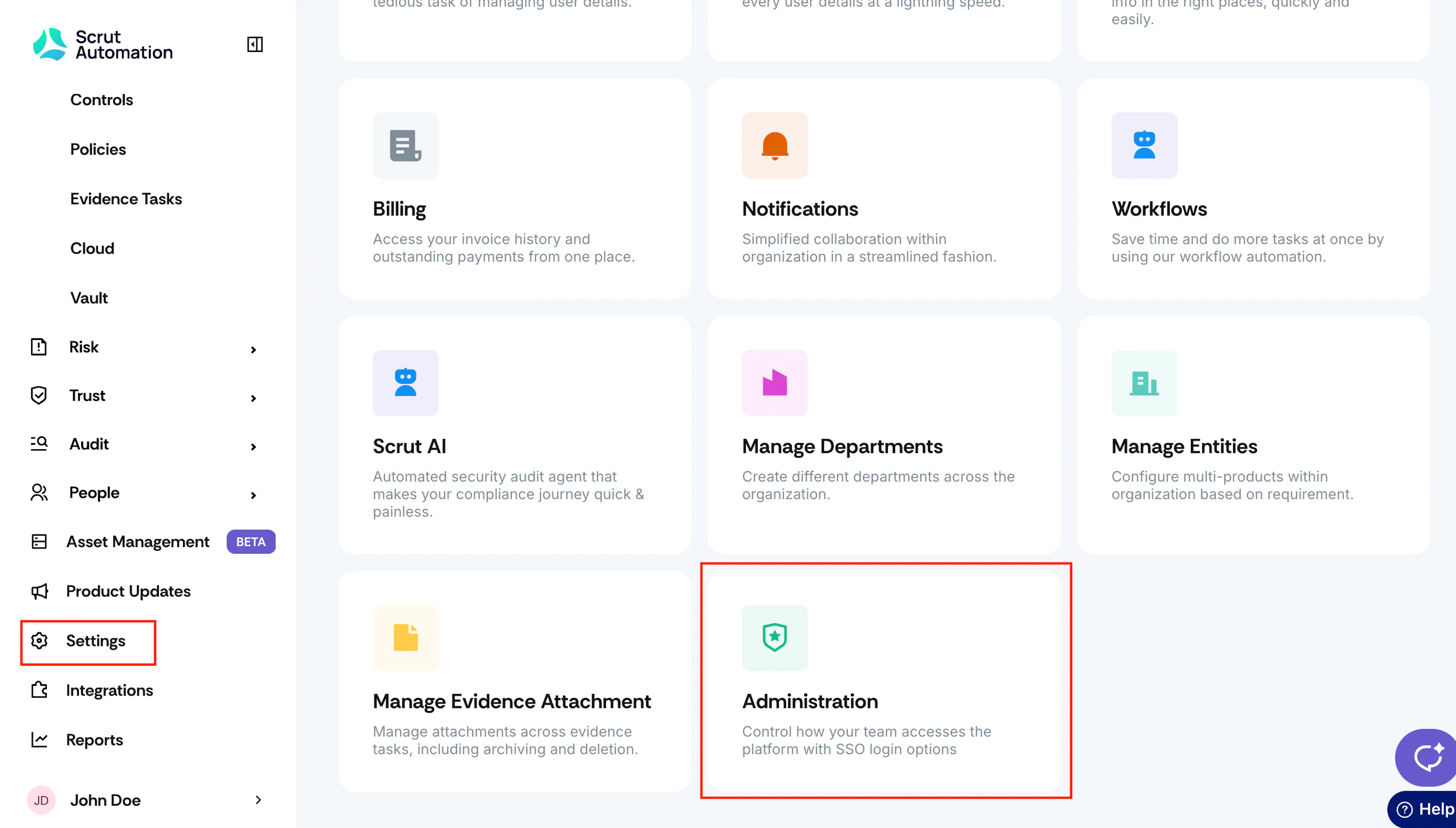
Sign in to your Scrut account and click Settings → Administration.
-
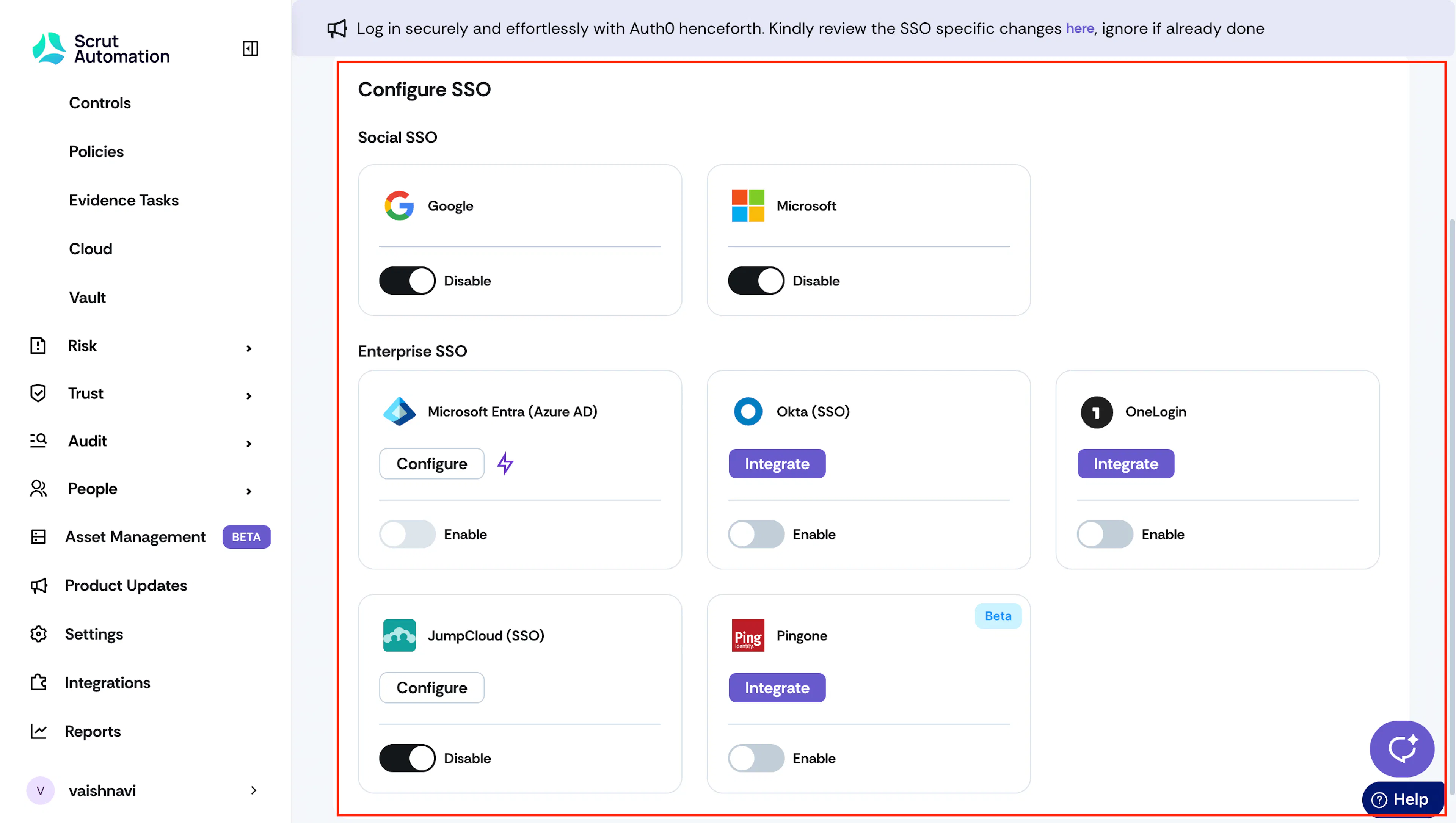
Turn on the toggle button for your desired SSO providers.
Note: The Enable toggle will be available only after you’ve completed the integration for enterprise SSOs. Click the Integrate button to begin integrating with the corresponding SSO provider.
Scrut will display the SSO options you’ve enabled on the login page, allowing users to sign in using their preferred method.
Things To Note
Default Behavior
By default, the login page shows:
- Both social SSOs (Google and Microsoft) and
- All integrated enterprise SSOs
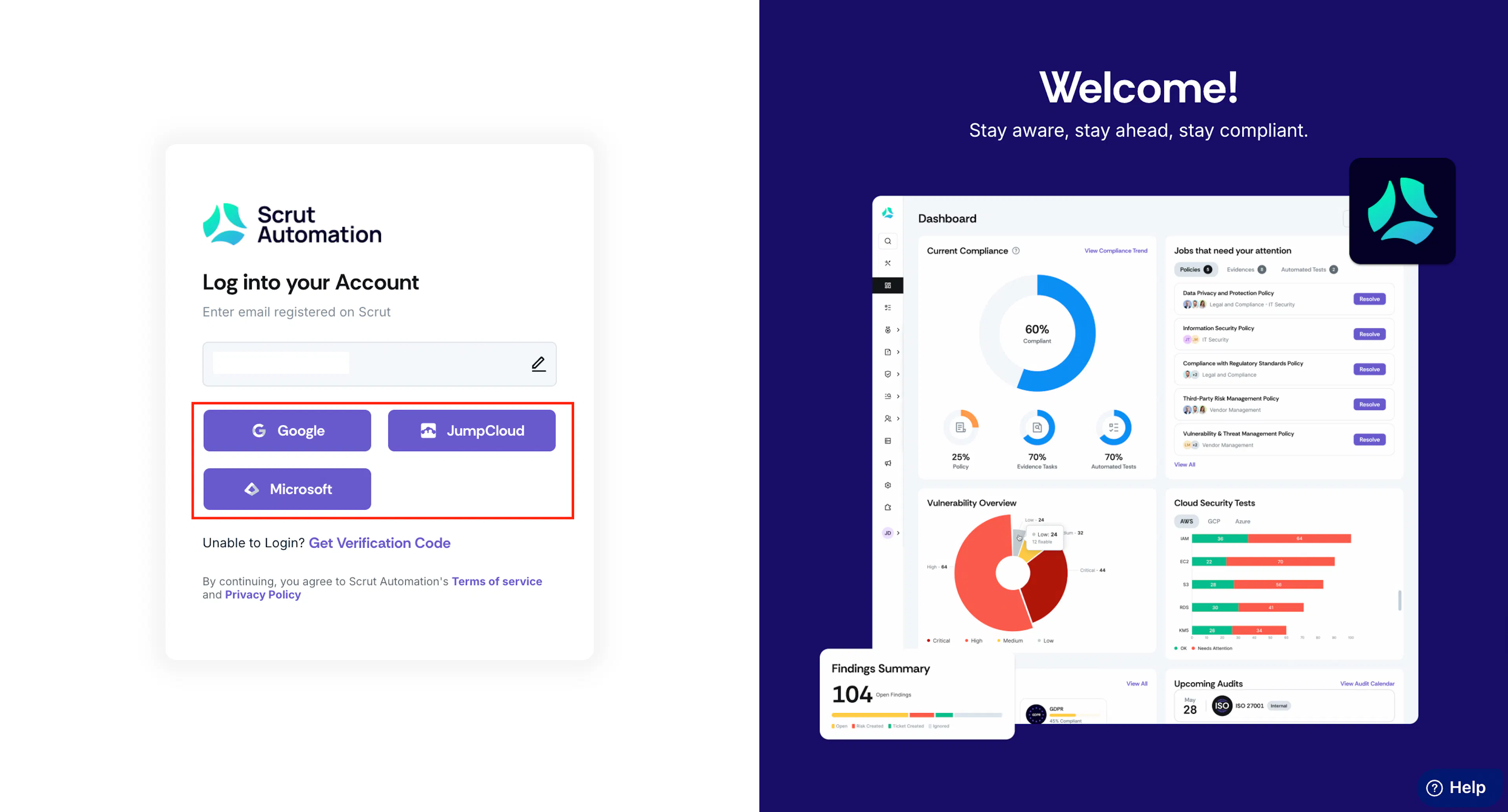
If you don’t want any of these options to be available on the login page, you’ll have to disable them in the Settings → Administration module.
User Impact
When you change login methods:
- Current sessions: Existing user sessions will continue to work regardless of the login method.
- Next login attempt: Changes will apply when users log in again after their session expires.
- Direct links: If users try to log in via a bookmarked login page, they’ll be automatically redirected to the available SSO options.
Email Login
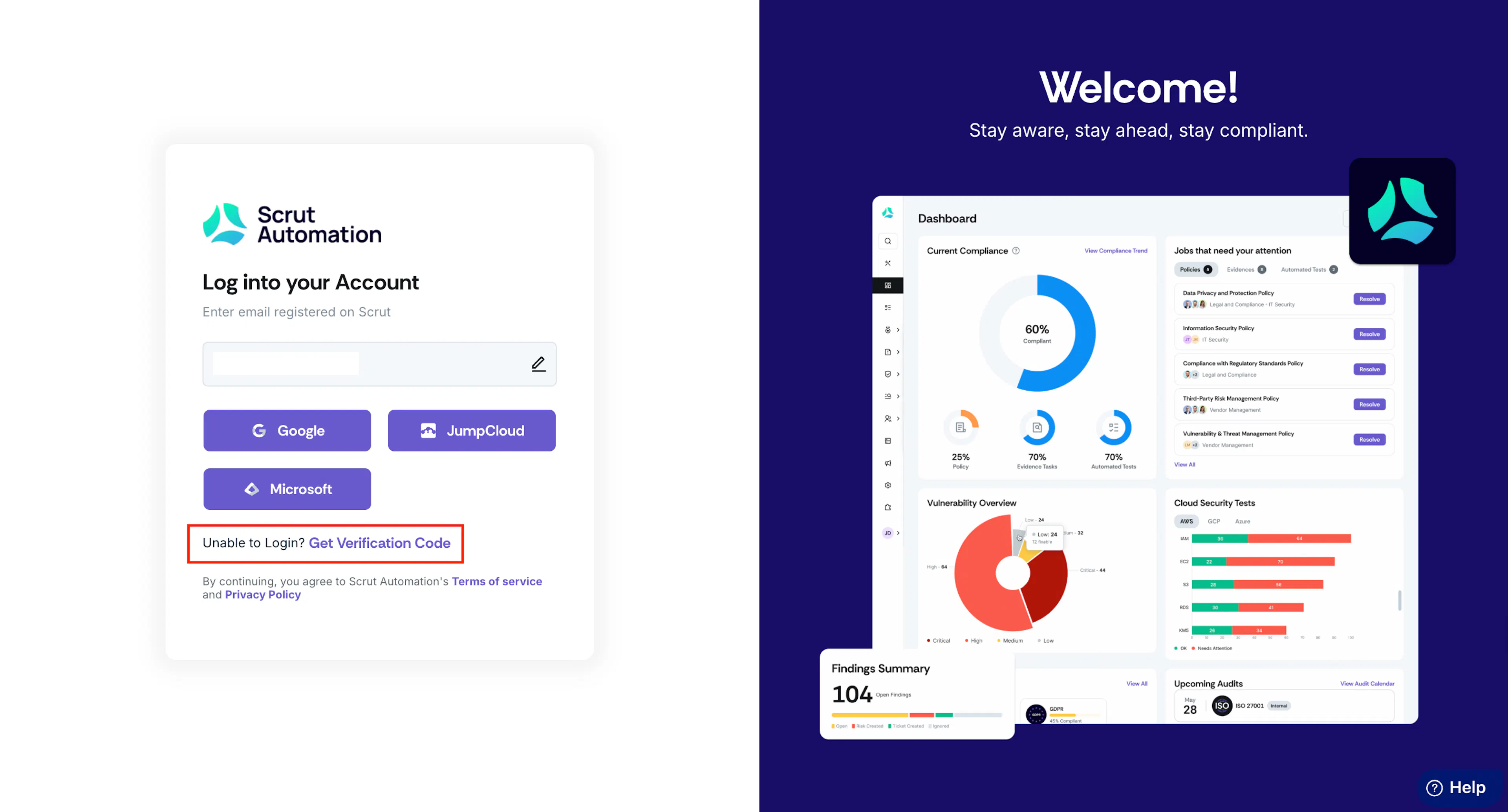
In addition to SSO login options, Scrut provides email login via OTP as a fallback. This approach prevents users from getting locked out if the SSO login options encounter issues. Users can click Get Verification Code to log in via the one-time password sent to their email.
Pro Tip!
Make sure to inform users before changing login methods. This will help them easily log in next time via the chosen SSO providers.
Audit Logs
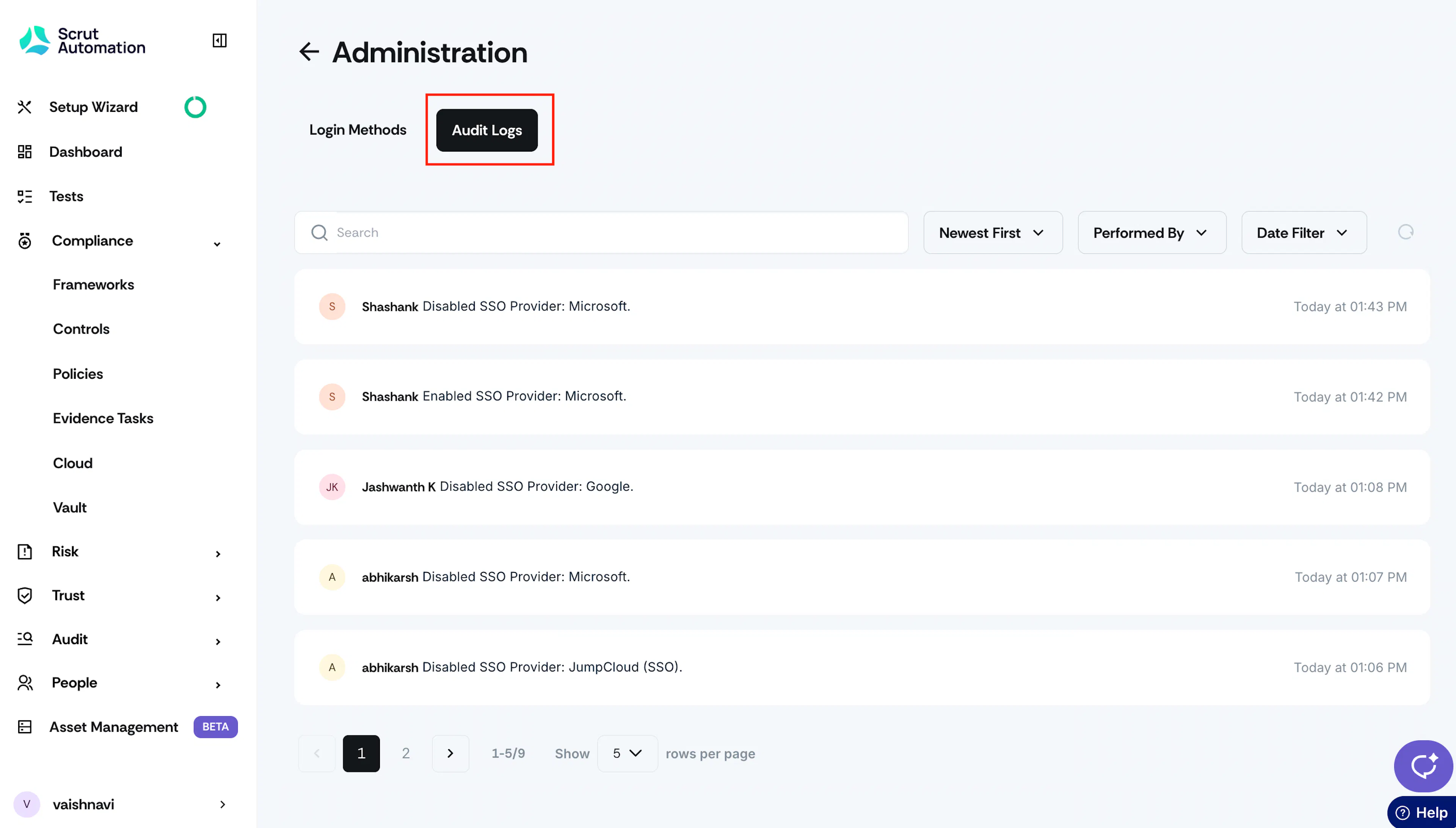
Scrut captures all changes to the Settings → Administration module in the corresponding audit log. Review the logs to gain insights into who made what changes and when they occurred.
FAQs & Troubleshooting
Need more help? Contact Scrut Support at support@scrut.io.