

Manage Users: Walkthrough
The Manage Users section in Settings allows you to create, edit and remove users in Scrut.
How To Access the Manage Users Section
- Sign in to Scrut, then click Settings in the left navigation panel.
- Click Manage Users.
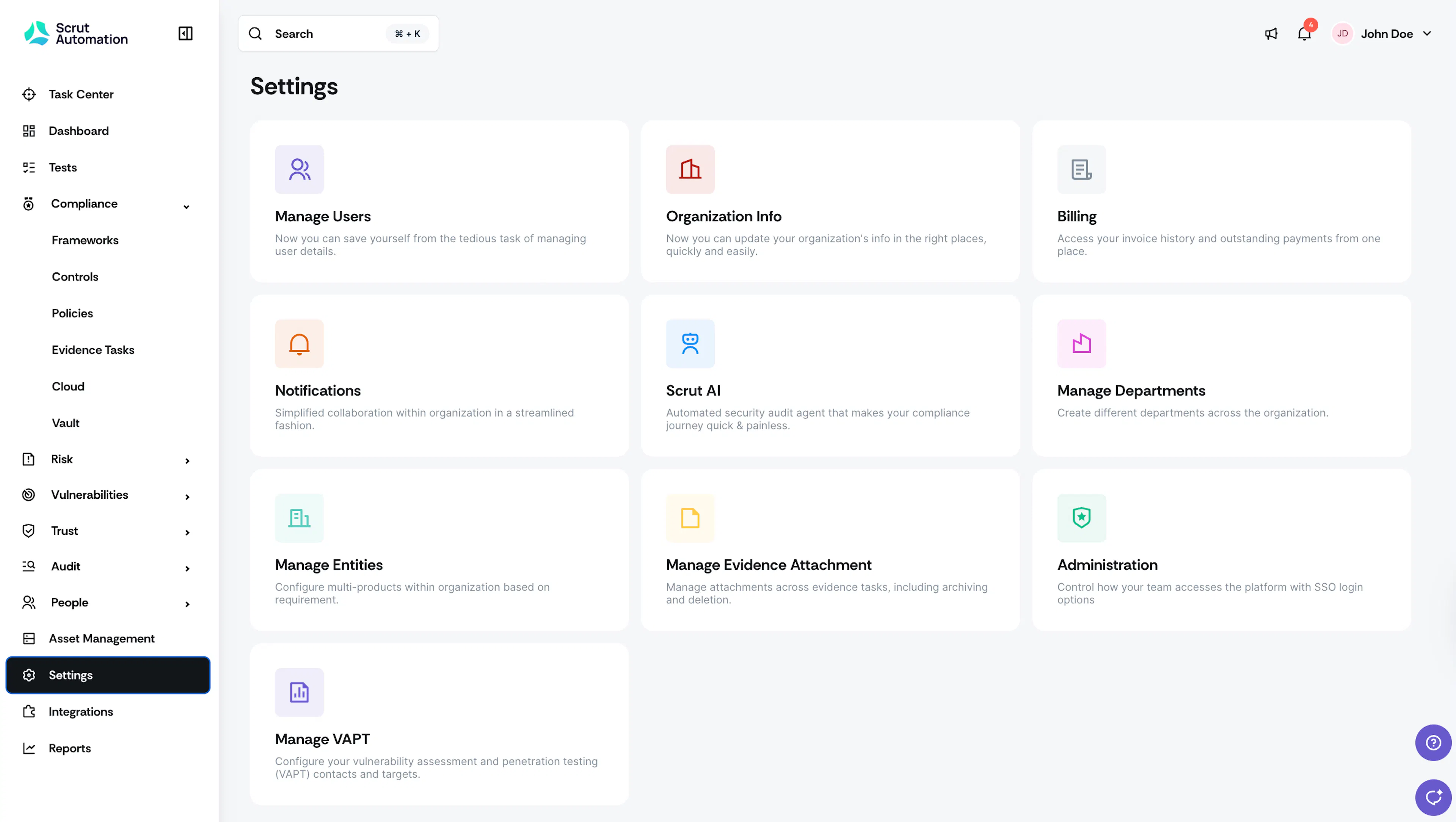
Manage Users Page
The Manage Users table provides a comprehensive view of all Scrut users and has several tools for efficient user management.
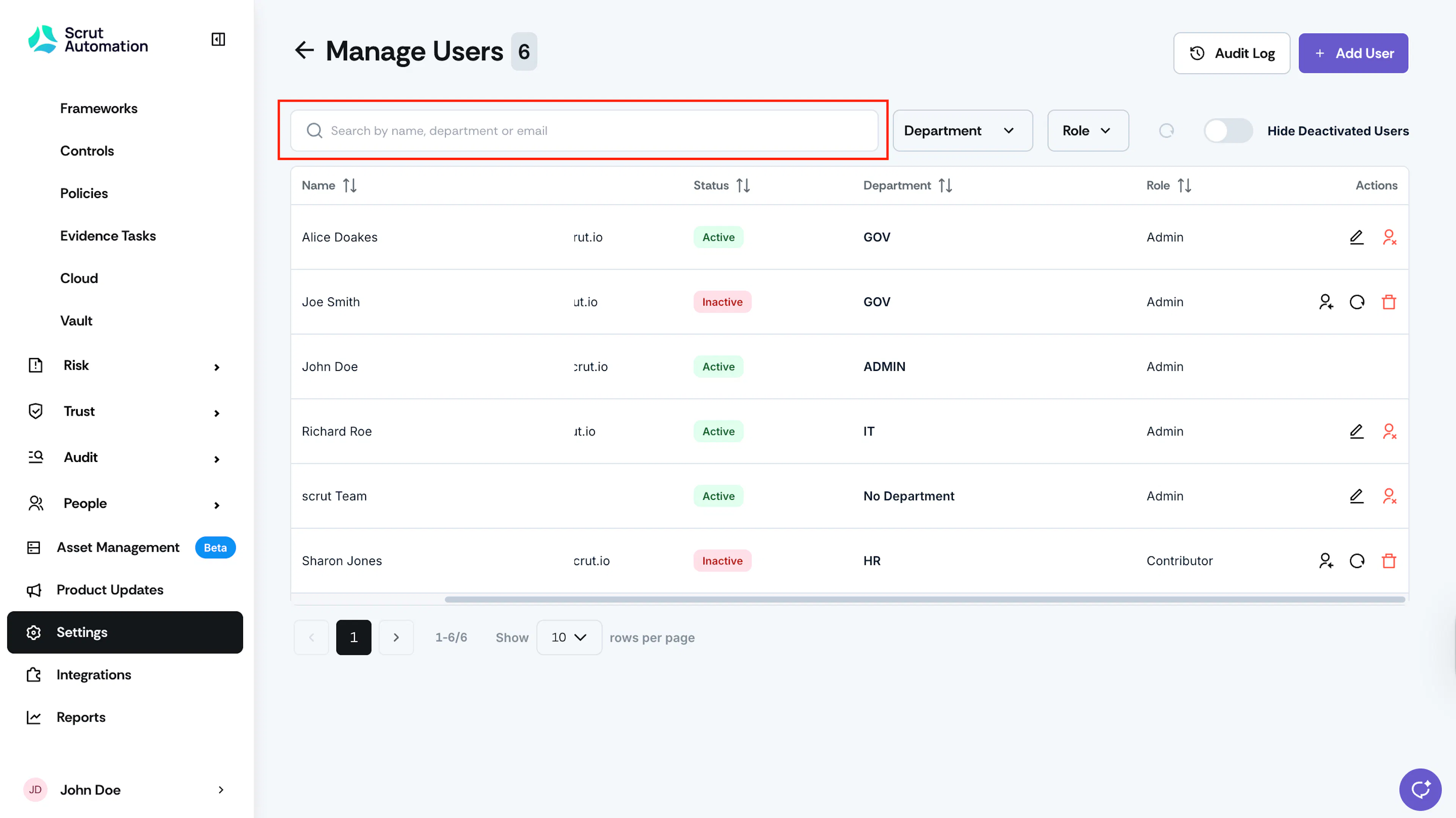
Search
Use the search bar at the top to quickly locate specific users by name, email, or department.
Filters
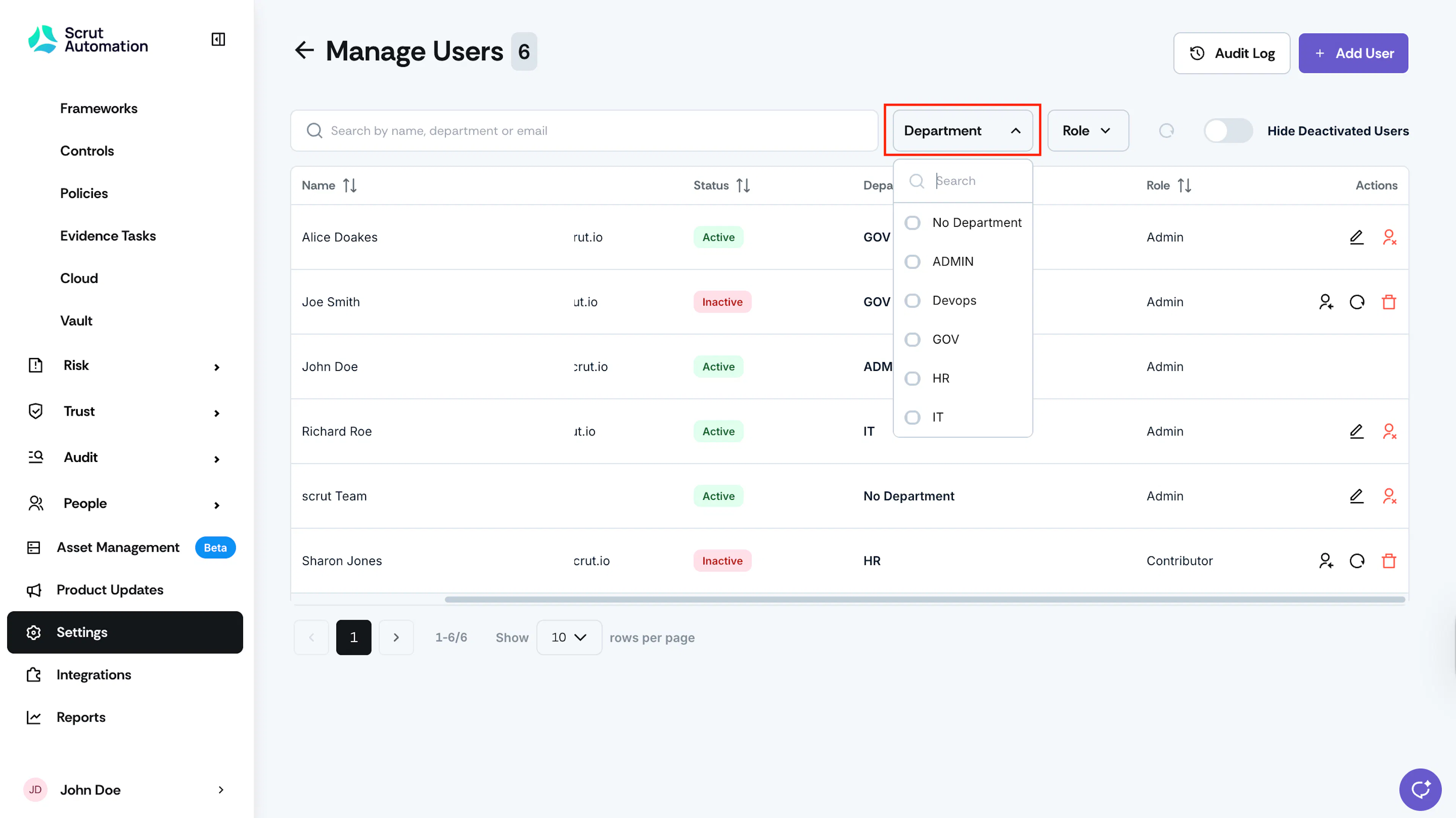
Filter By Department
- Narrow down the user list by selecting specific departments
- Helpful in managing users within particular teams or organizational units
- Note: Contributors and Auditors assigned to specific departments can only access data related to their assigned department(s)
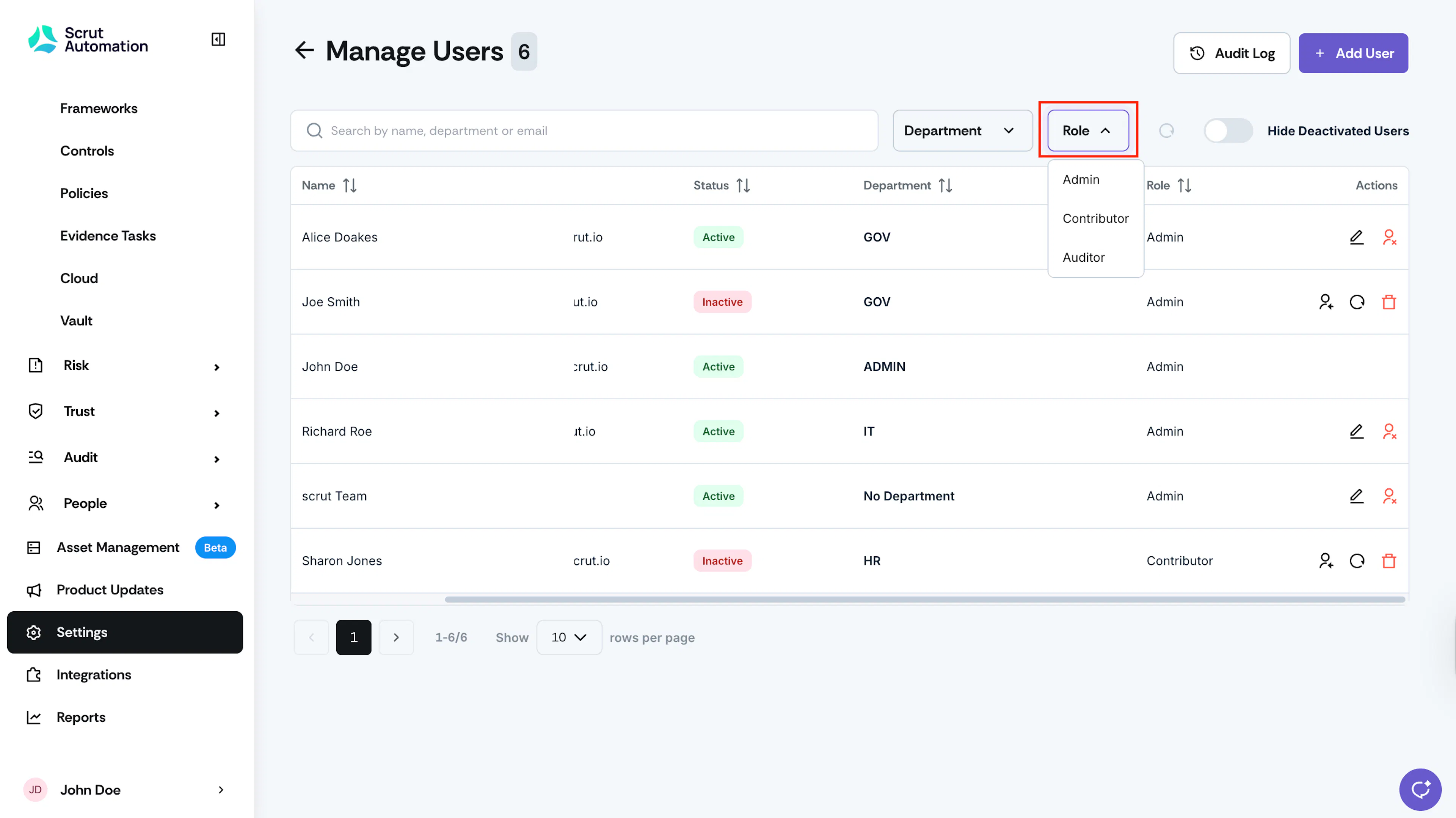
Filter By Role
Filter users based on their assigned platform roles.
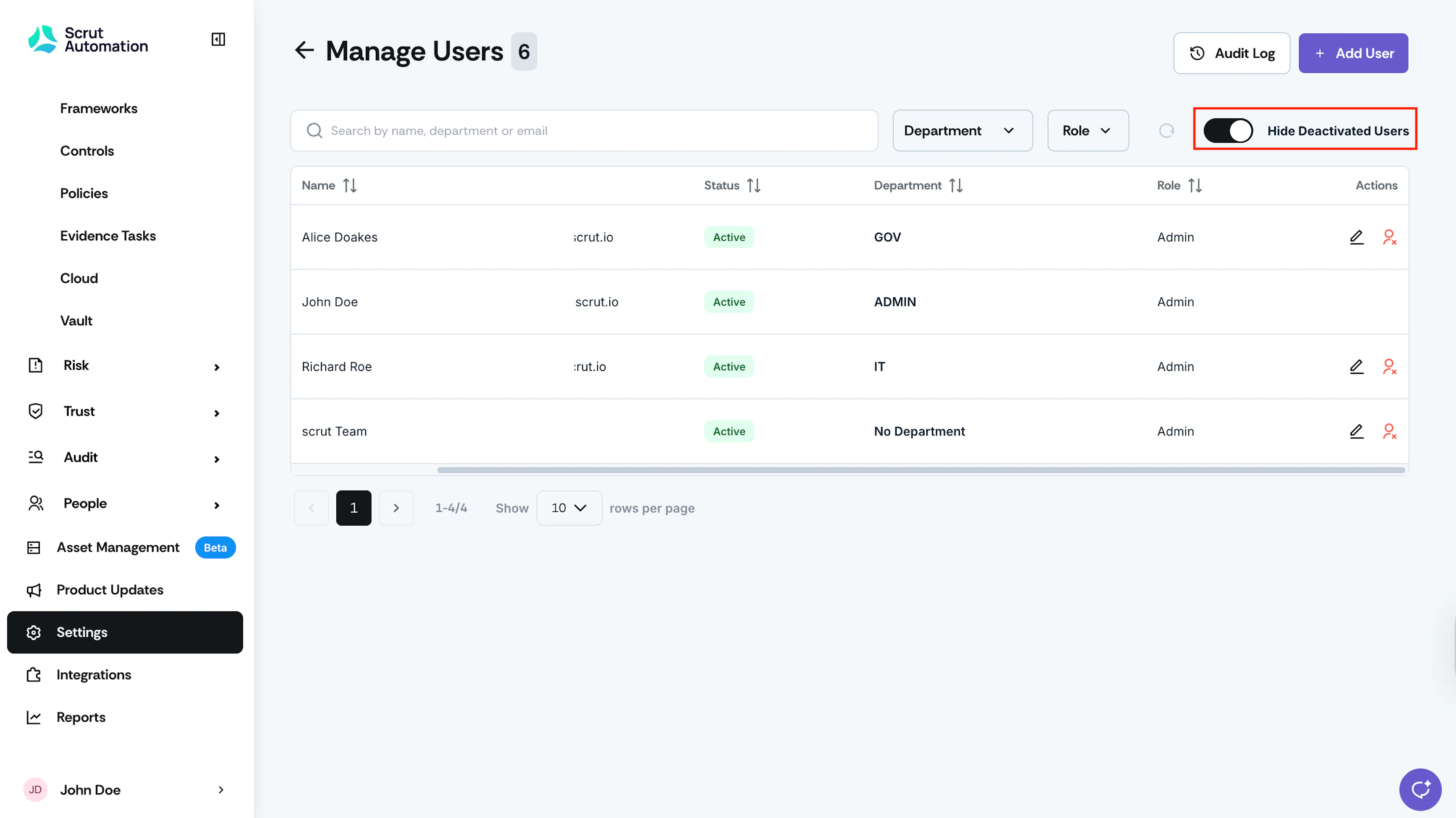
Hide Deactivated Users
Turn on this toggle to hide deactivated users from the Users table.
User Table
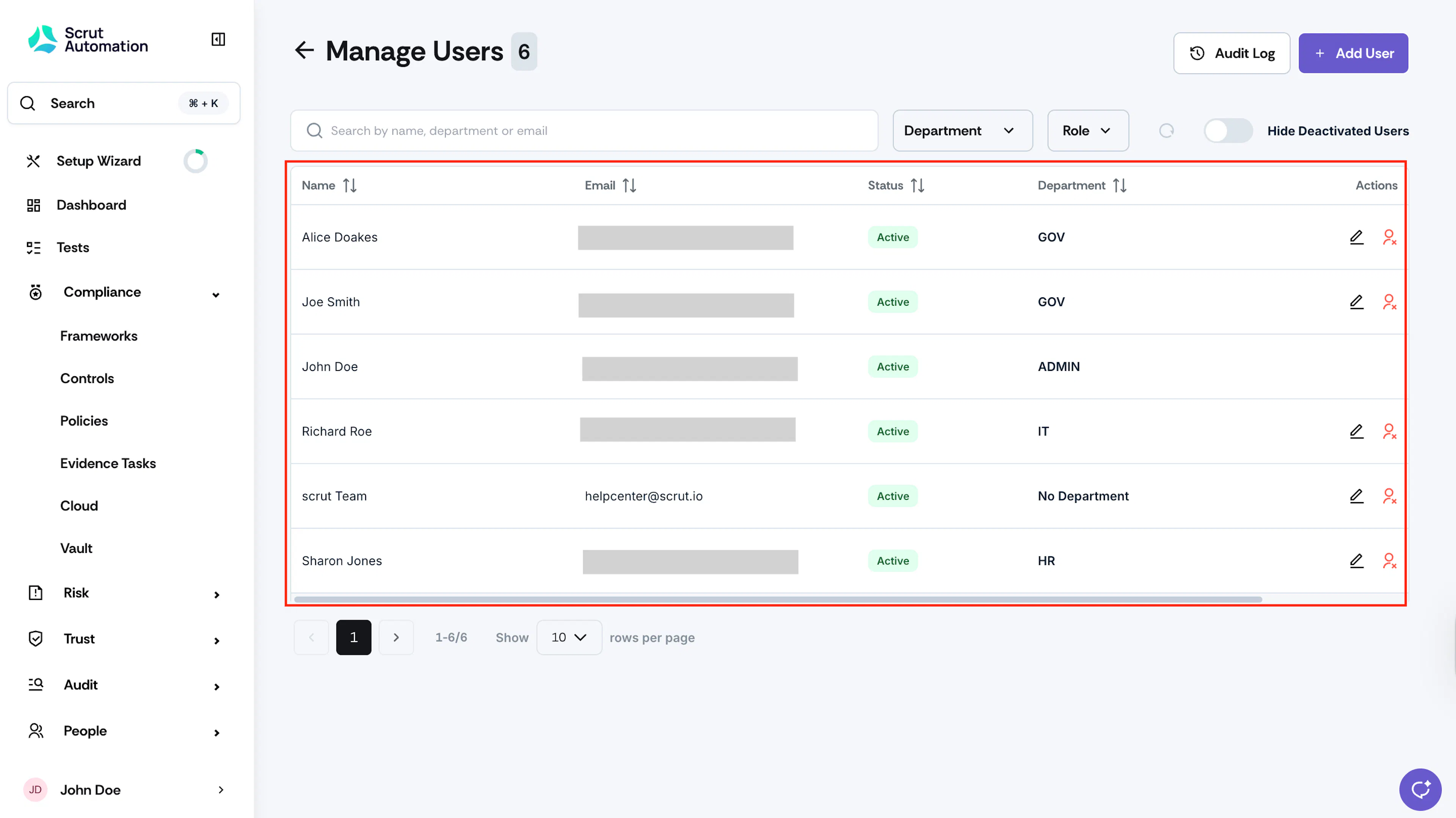
The Manage Users section has a table displaying all users with the following information:
- Name: Full name of each platform user
- Email: User's registered email address
- Status: Indicates whether they’re active or inactive (deleted/deactivated)
- Department: Department assignment
- Role: Role assignment (Admin, Contributor, or Auditor)
- Actions: Quick access buttons for editing, deactivating, reassigning tasks, or deleting user accounts
Audit Logs
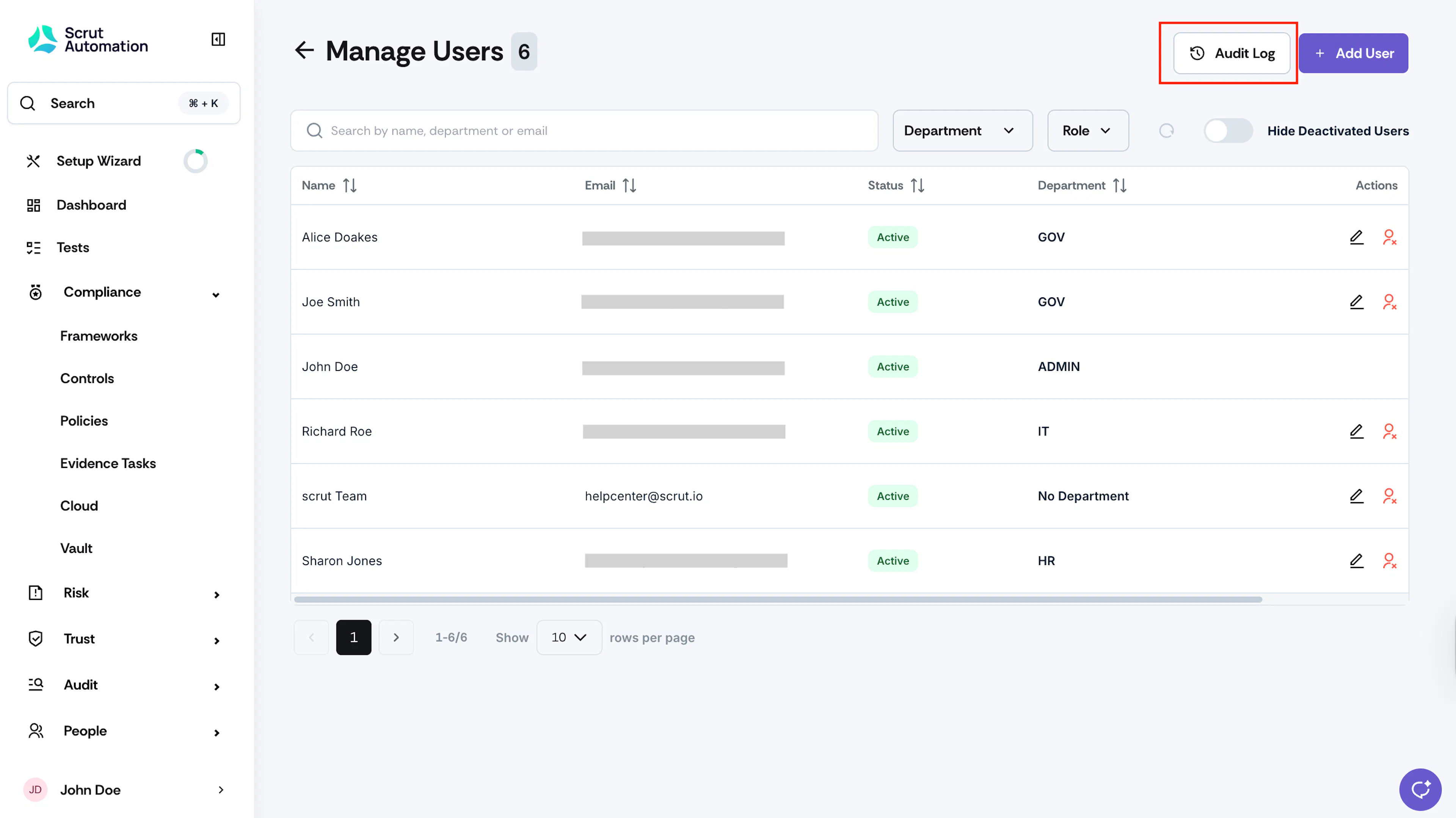
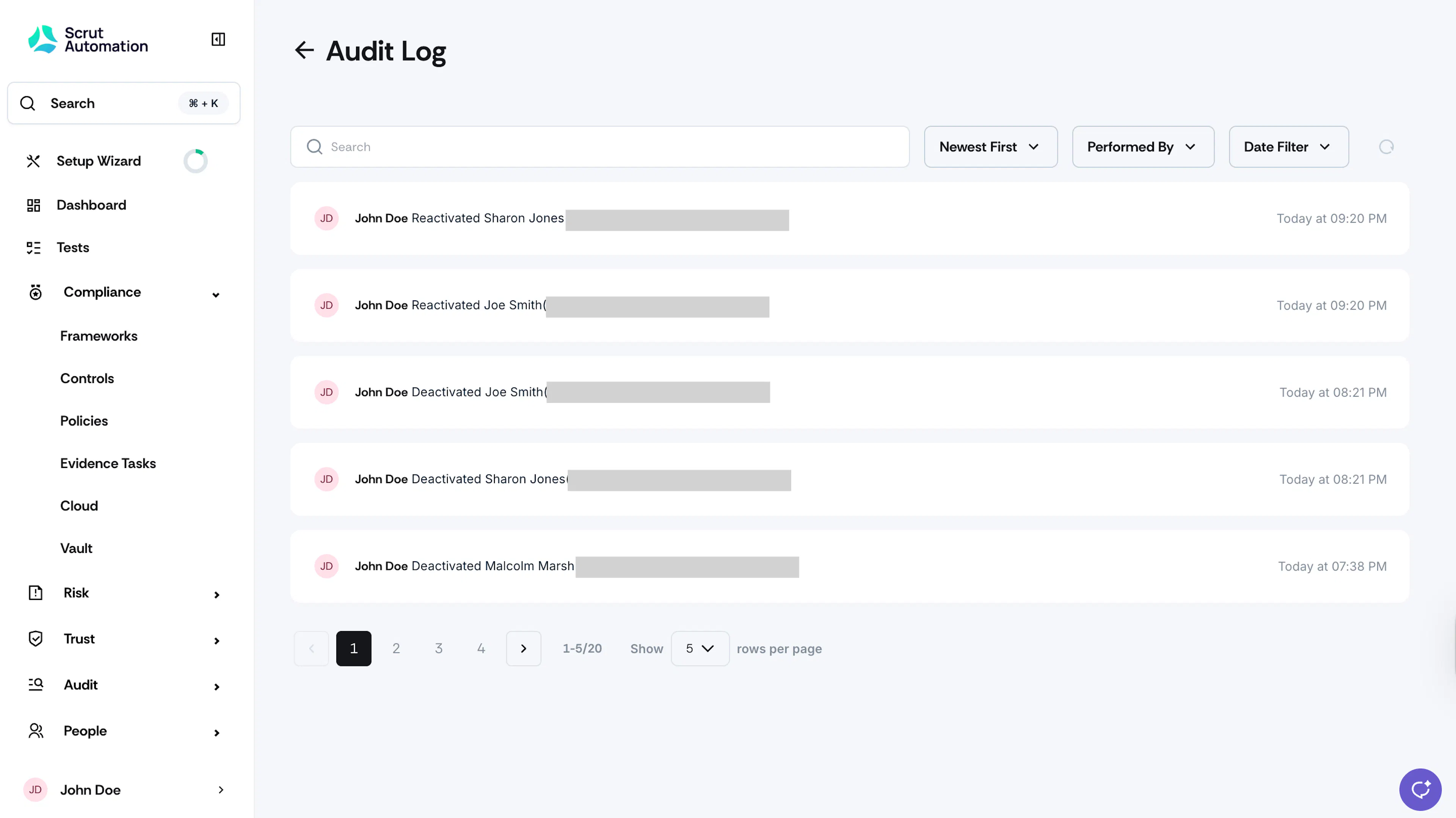
The audit logs provide a comprehensive timeline of all user management activities.
Was this page helpful?