

Deactivate & Reactivate Users
Scrut makes it easy to safely remove users from the platform while preserving audit history and managing their assigned tasks.
How To Deactivate a User
There may be situations where you might need to remove a user from Scrut temporarily. For example, if an employee goes on extended leave or a contractor's work ends. In these cases, deactivate the user and reassign their pending tasks to other team members. Once they resume work, you can reactivate them.
To deactivate a user:
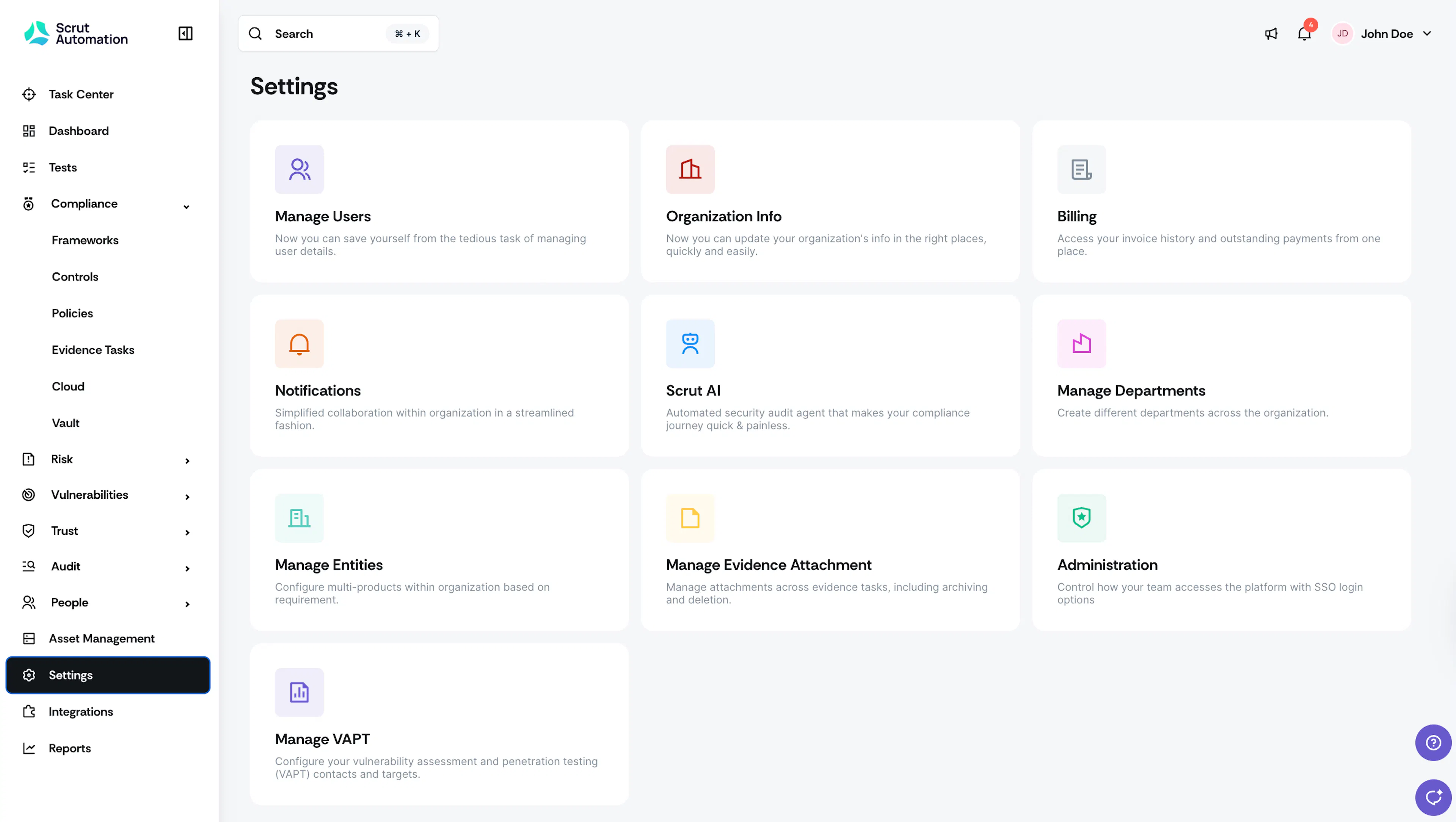
- Navigate to Settings → Manage Users.
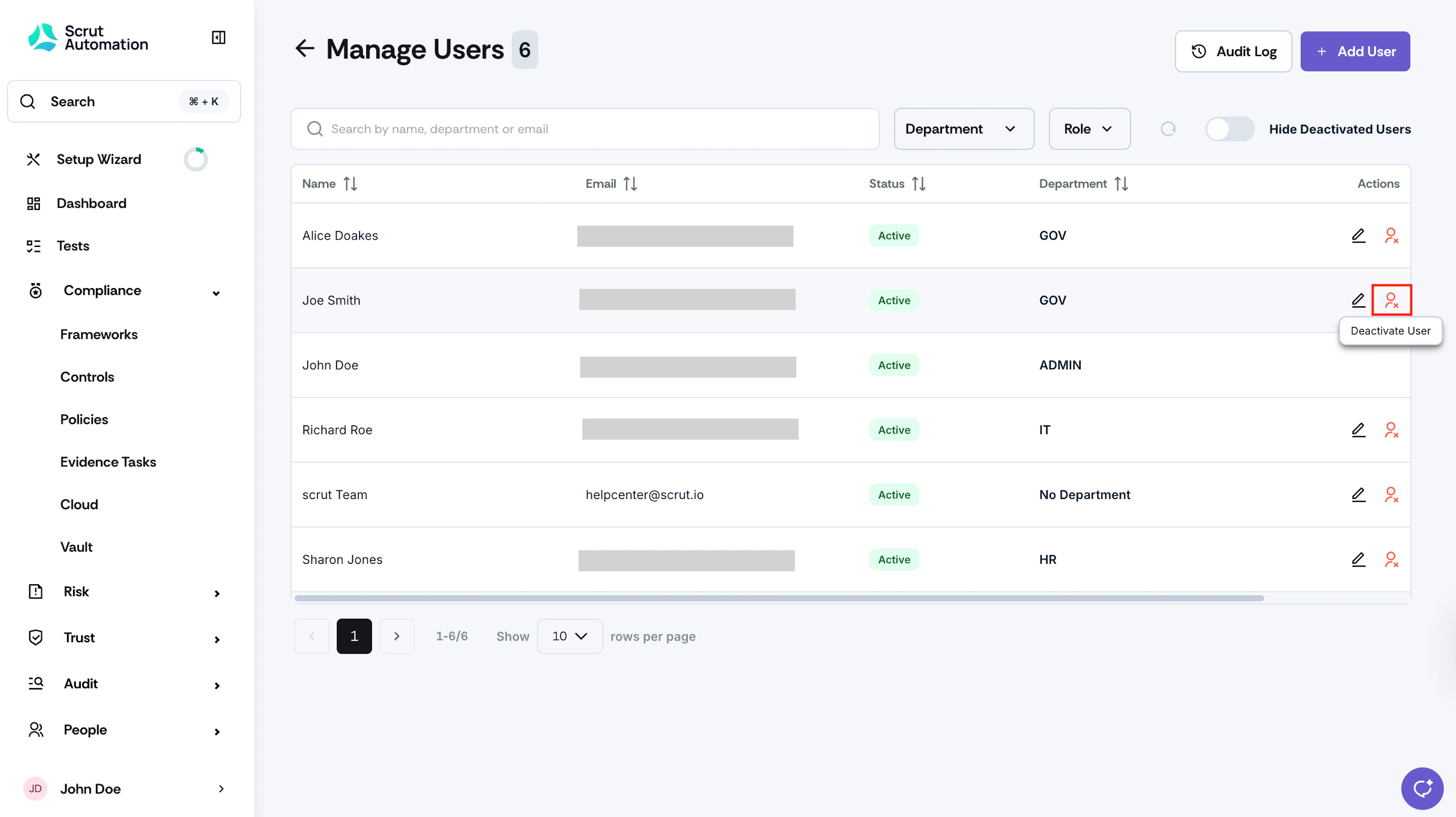
- Find the user you want to deactivate, and click the Deactivate User icon in the Actions column.
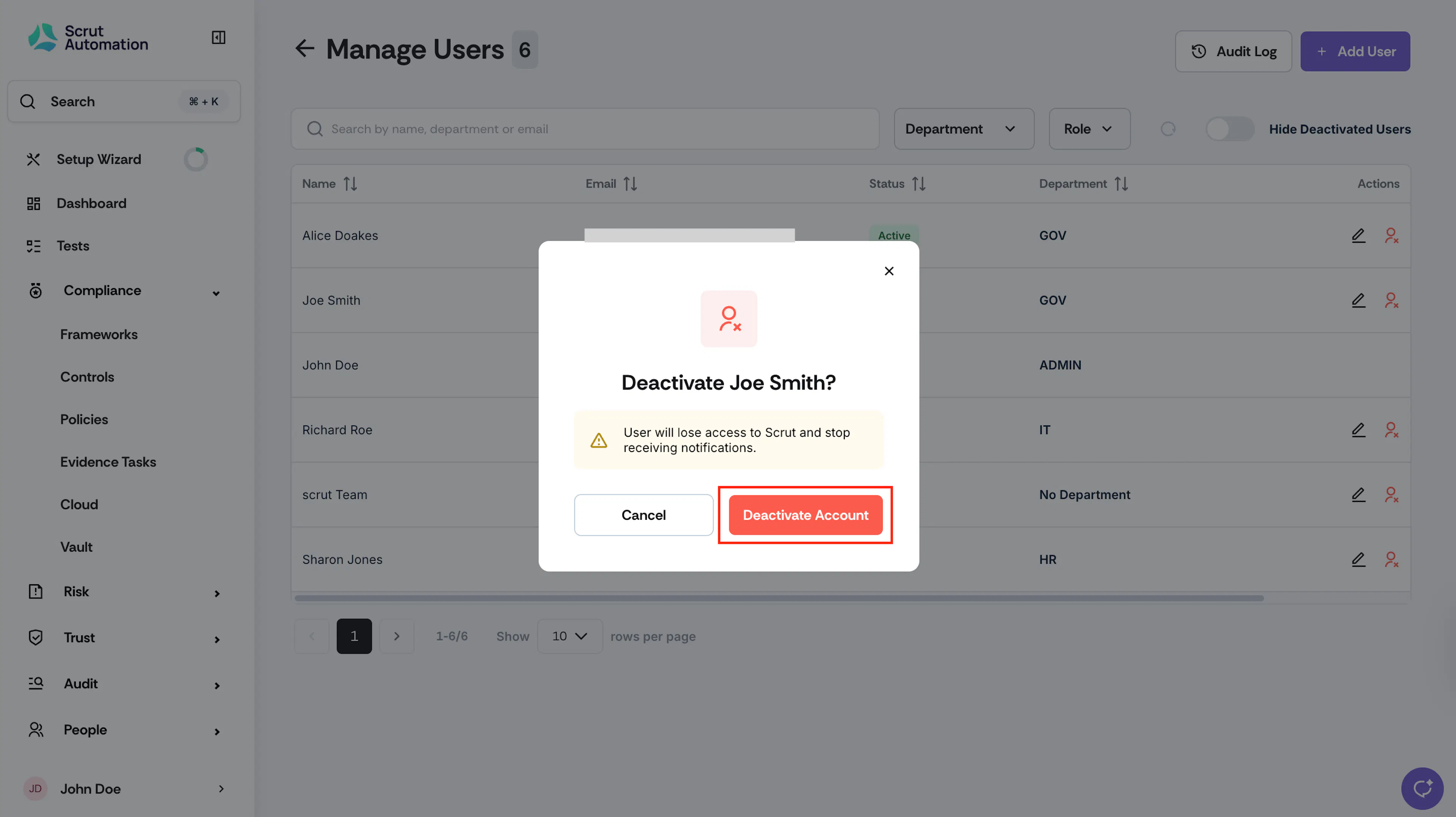
- Click Deactivate Account in the confirmation modal.
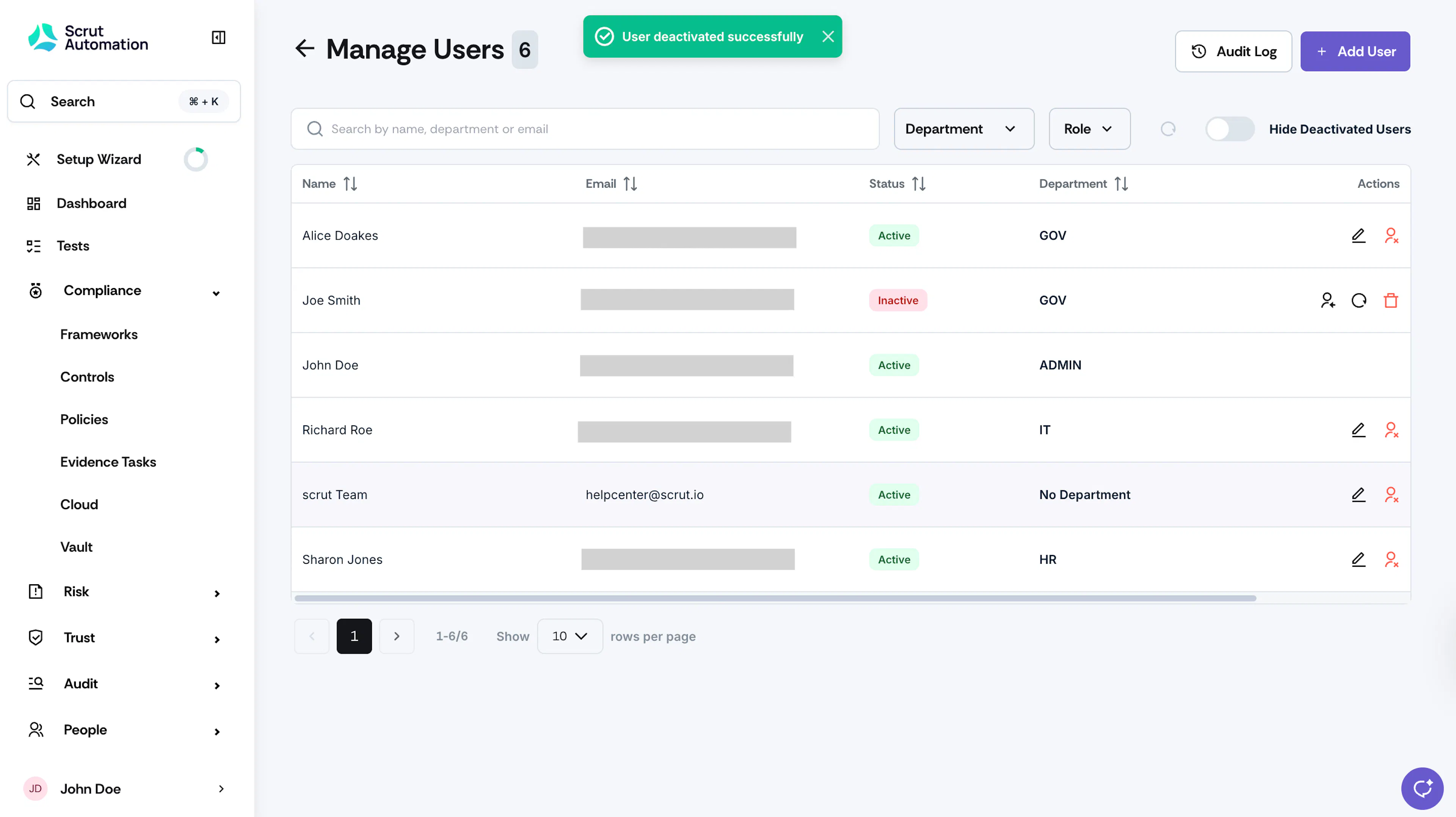
What Happens on User Deactivation
- The user will not be able to log into Scrut, and if they’re logged in, their session will end immediately.
- They will no longer receive notifications from Scrut, including reminder emails and messages on Slack and Teams.
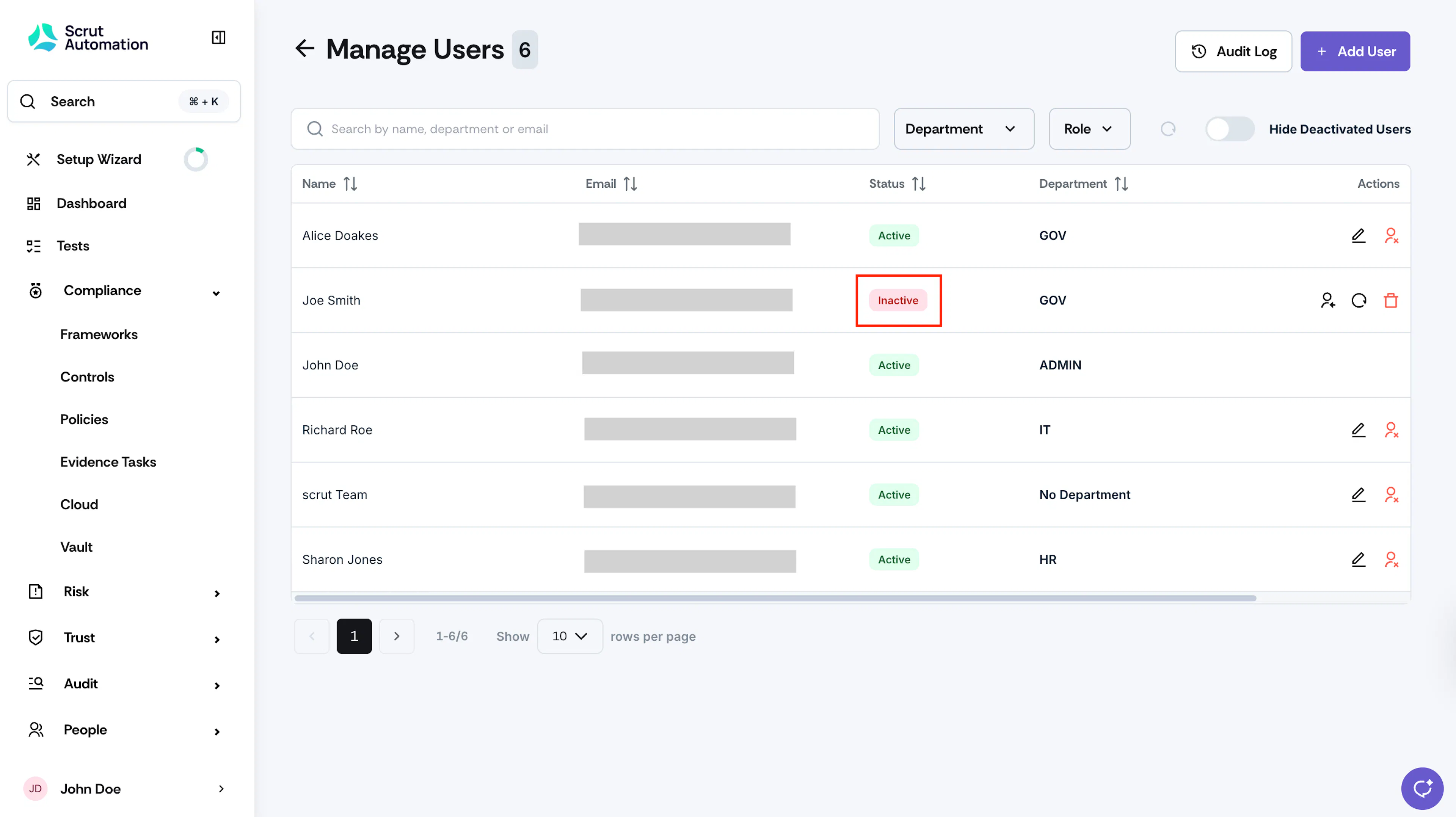
- The user is marked as “Inactive” in the Users table.
- Scrut will email all workspace admins to notify them of the user’s deactivation and remind them to reassign tasks to active users.
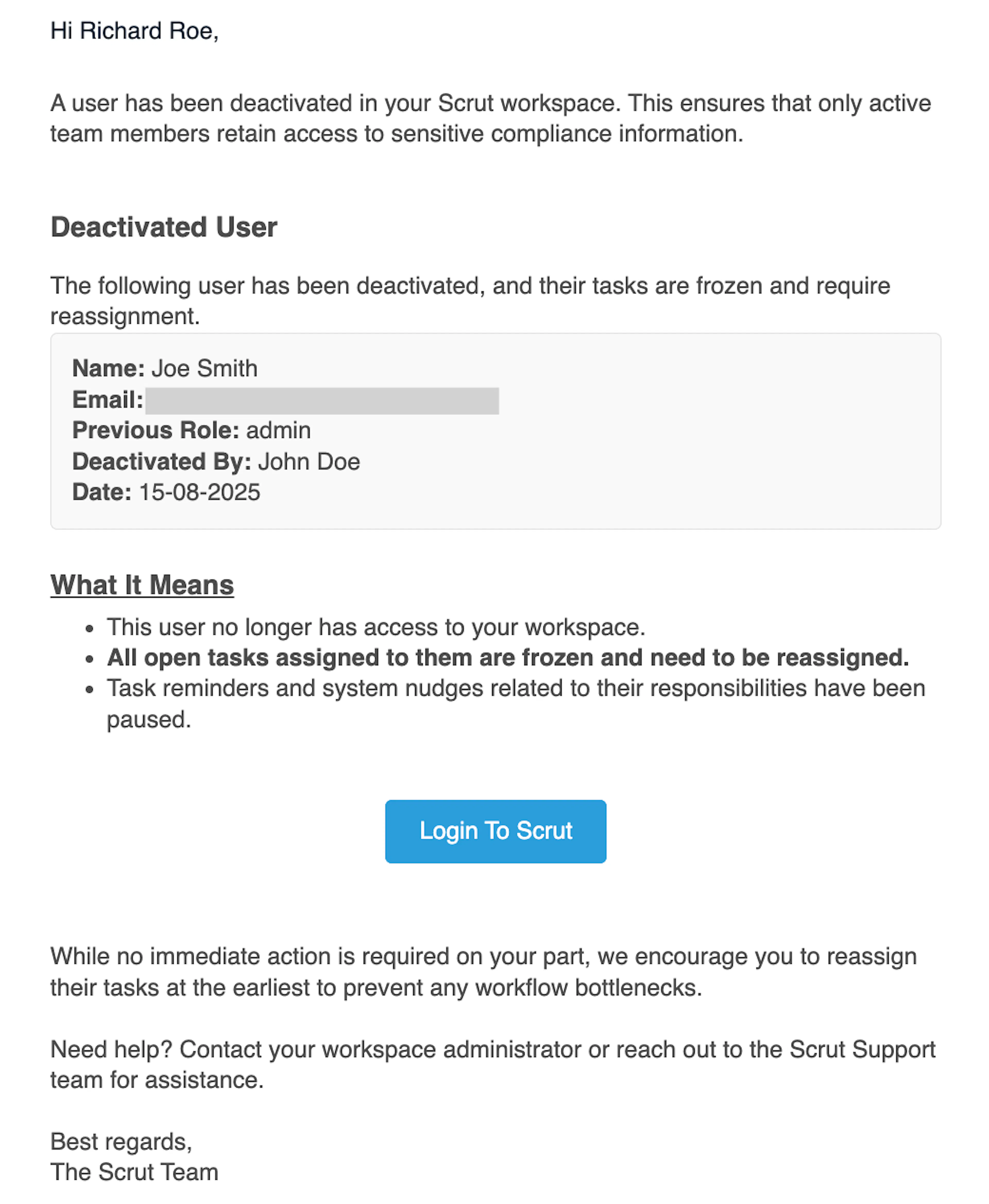
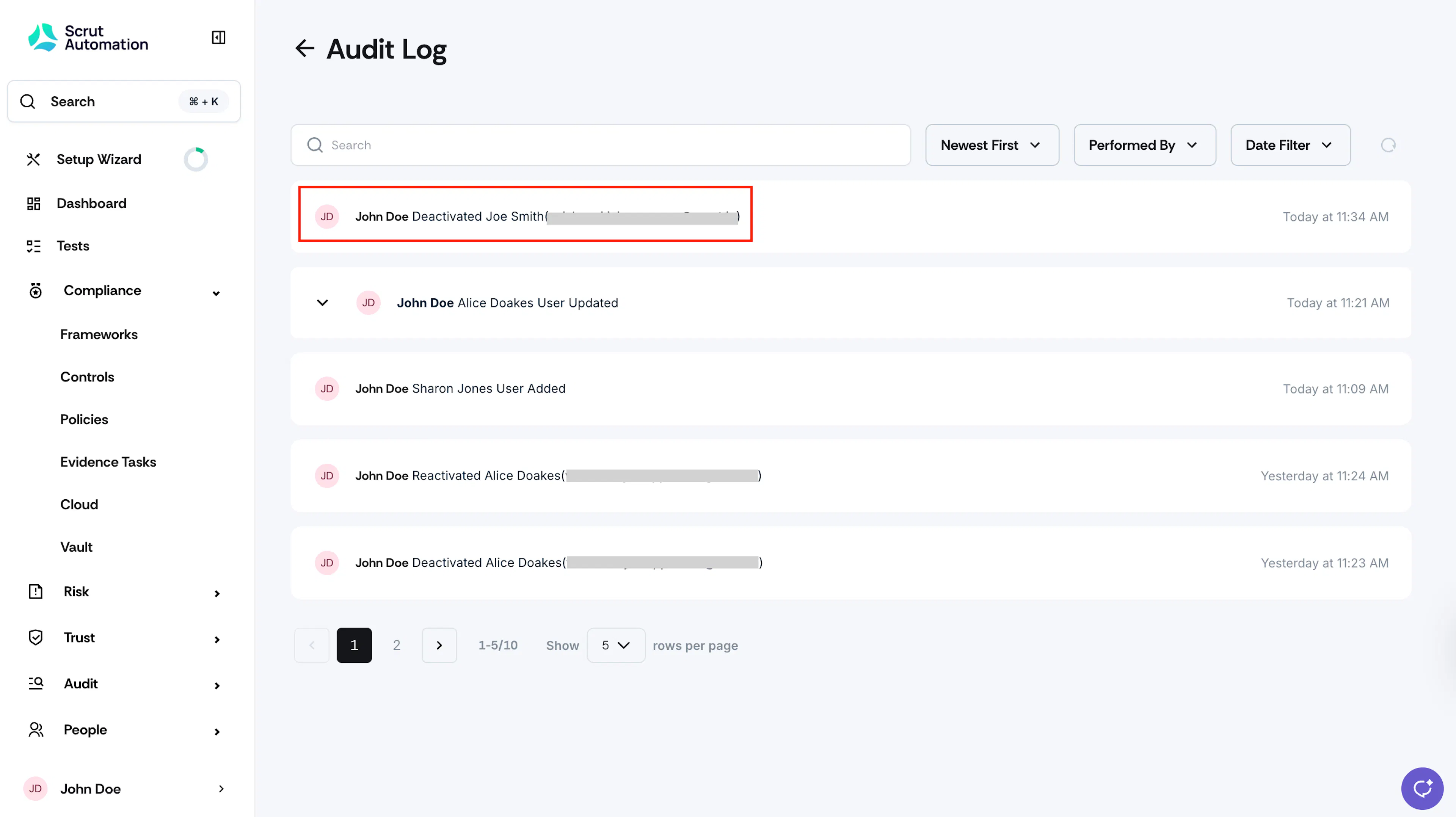
Scrut email on user deactivation - The audit log records who deactivated the user and when.
Pro Tip!
Scrut recommends reassigning deactivated users' tasks to avoid workflow disruption and ensure timely completion.
Reassigning Tasks
After you deactivate a user, Scrut lets you reassign all their existing tasks with a single click. This ensures that all pending tasks are reassigned to another active user for proper completion. You can move all of the tasks of a deactivated user to another user in one step. You don't need to reassign items one by one.
To reassign tasks:
-
Navigate to Settings → Manage Users.
-
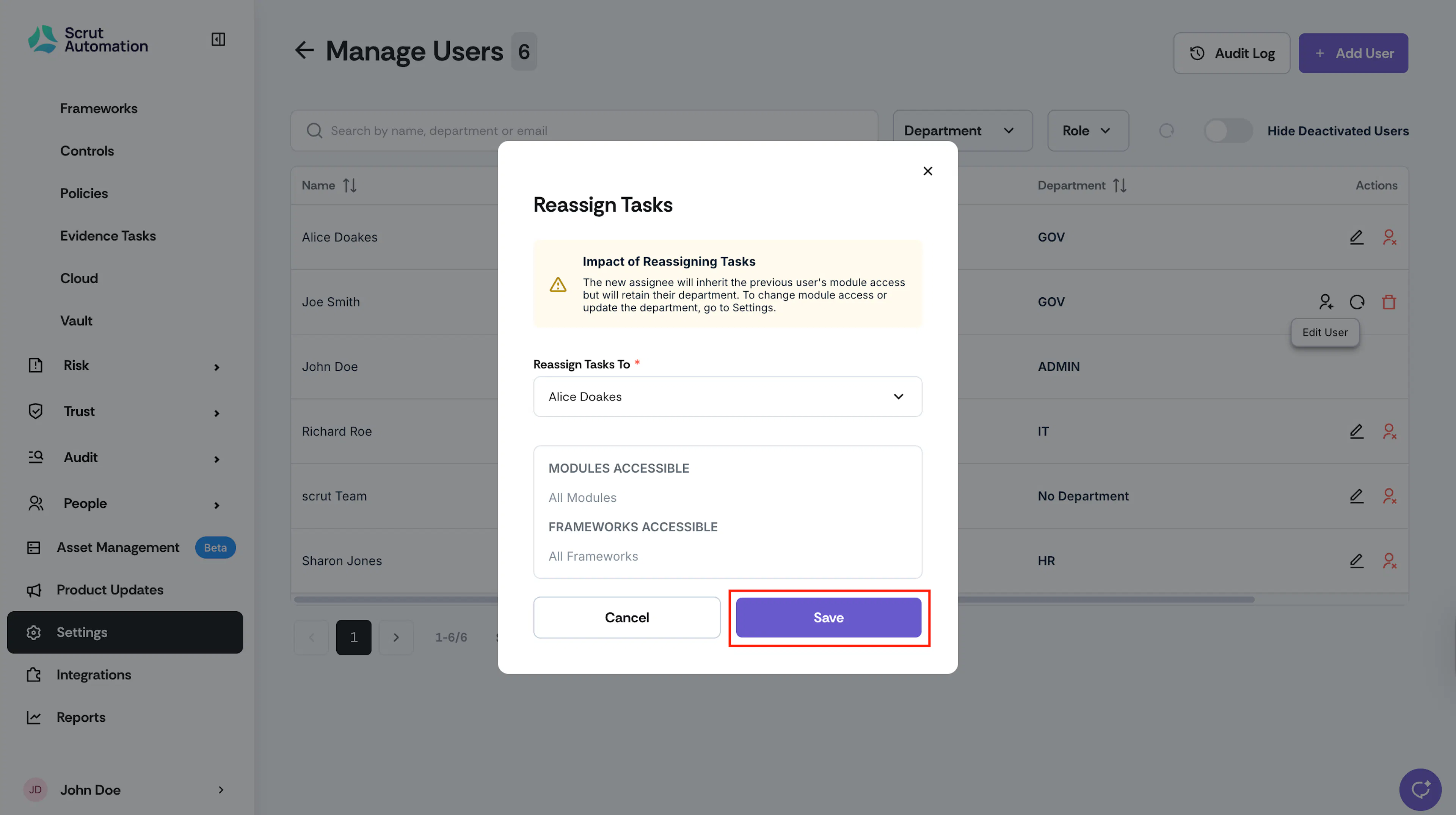
Find the deactivated user and click the Reassign Tasks icon in the Actions column.
-
Select the new assignee from the Reassign Tasks To list. The Modules Accessible section shows the modules the deactivated user had access to.
Note: The new assignee gets the deactivated user's module access in addition to their own, but keeps their own department. To change their module access or department, go to Settings.
-
Click Save.
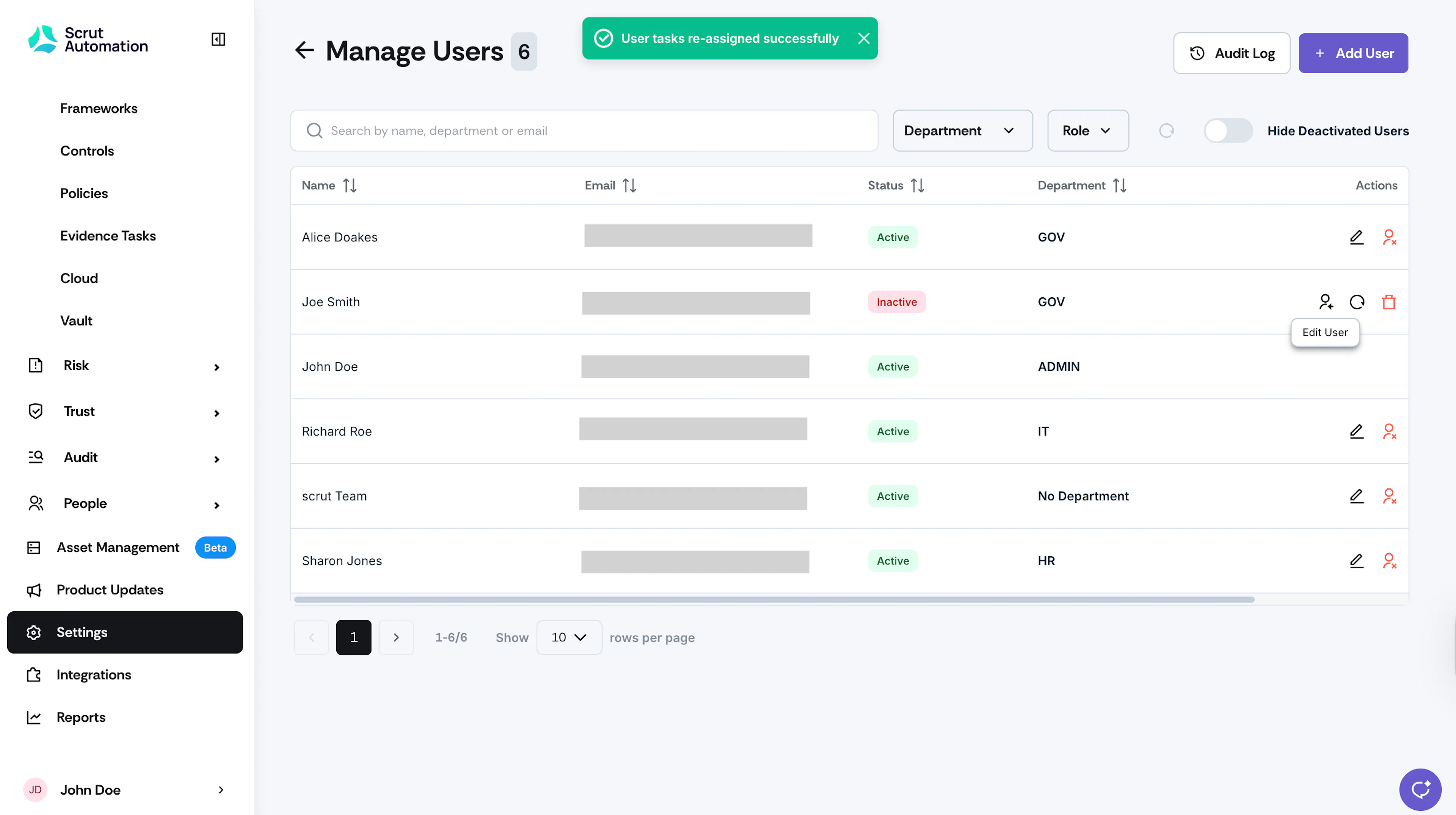
What Happens on Reassigning Tasks
- The new assignee receives an email notification stating that they’ve been assigned additional tasks.
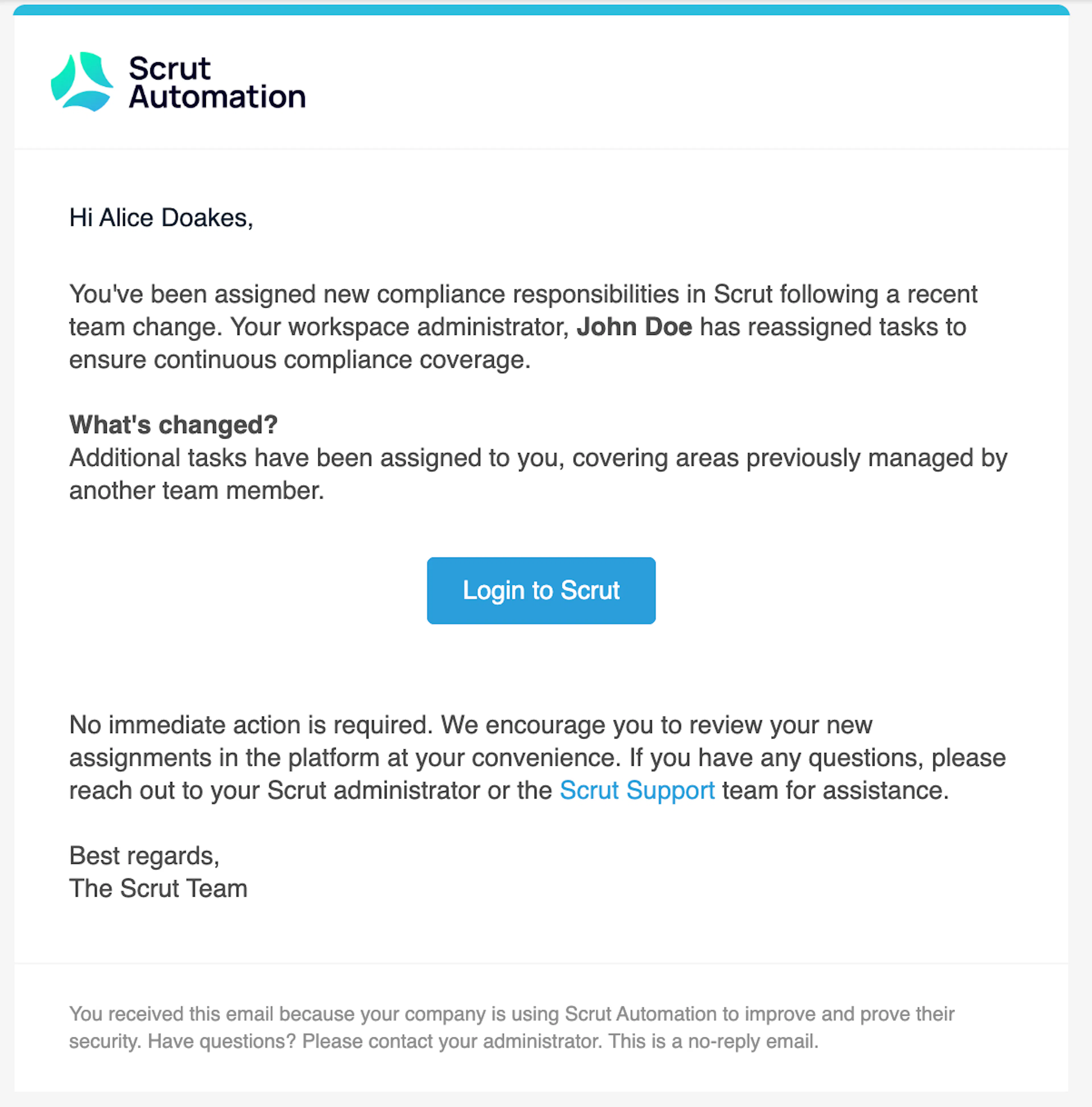
Sample email sent to the new assignee - An audit log entry is created specifying who reassigned the tasks and to whom.
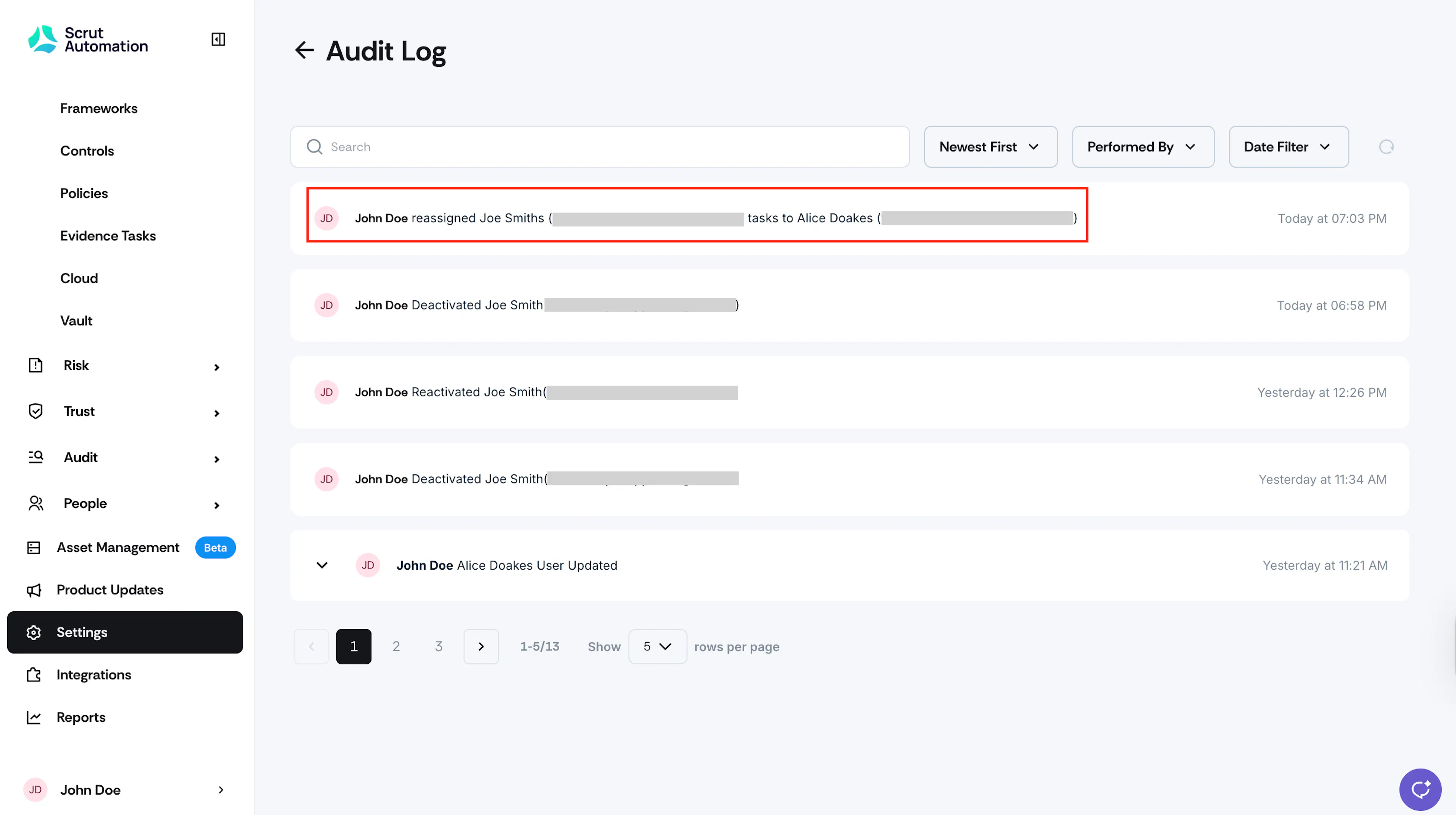
How To Reactivate a User
When an employee returns from their leave or a contractor’s engagement is renewed, you can reactivate them by following these steps:
-
Navigate to Settings → Manage Users.
-
Find the user you want to deactivate, and click the Reactivate User icon in the Actions column.
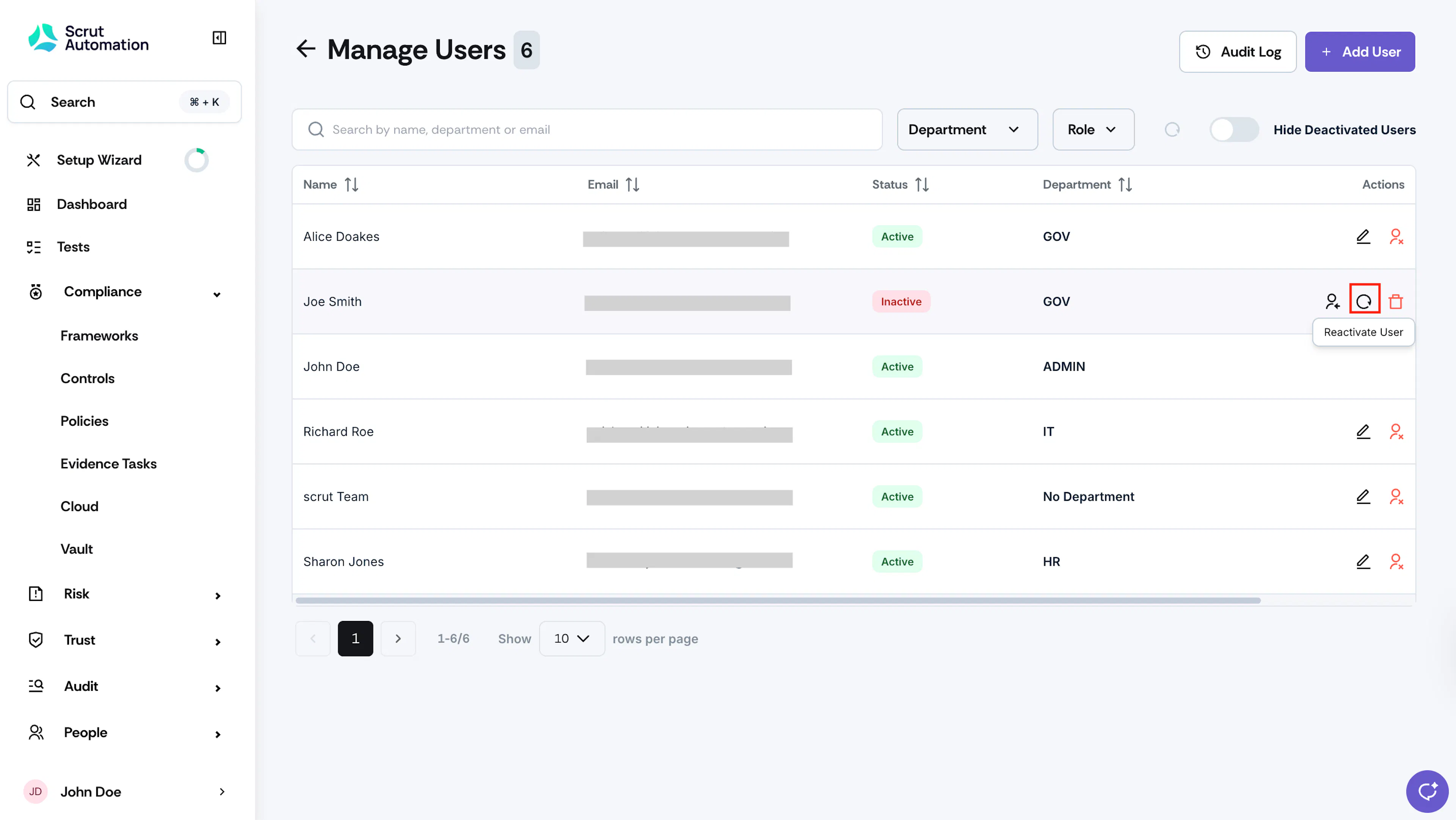
-
Click Reactivate User in the confirmation modal.
Note:
- The user’s previous tasks remain with the new owners. It will NOT be reassigned to them.
- However, tasks not reassigned will be restored to the reactivated user.
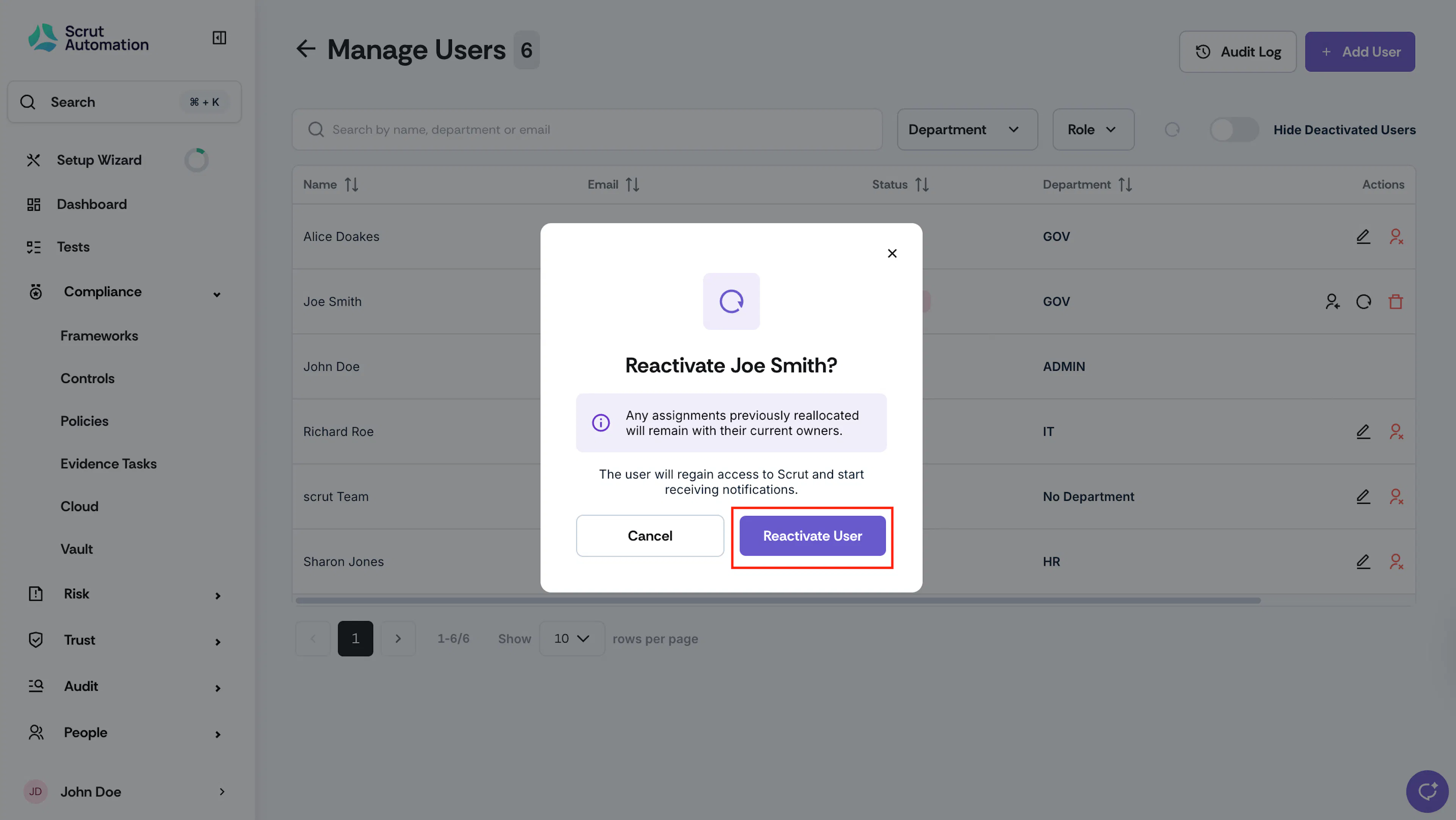
What Happens on User Reactivation
- The user’s login access to Scrut is restored, and they will resume receiving emails and notifications on Slack and Teams.
- User returns to Active status in the Users table.
- Audit log captures the user reactivation action.
- Previously reassigned tasks will remain with their new owners.
- However, tasks not reassigned will be restored to the reactivated user.
Key Points to Remember
- Deactivated users cannot use the Scrut platform. However, deactivating a user doesn’t impact their employee status.
- Employee status changes cascade to user accounts. Offboarding or marking as non-personal will automatically deactivate associated user accounts.
- Reactivation restores the previous state. Users regain their previous permissions and roles when reactivated. But their previous tasks will remain with the new owners.
- Employees who are offboarded or marked non-personal cannot be given user accounts later.