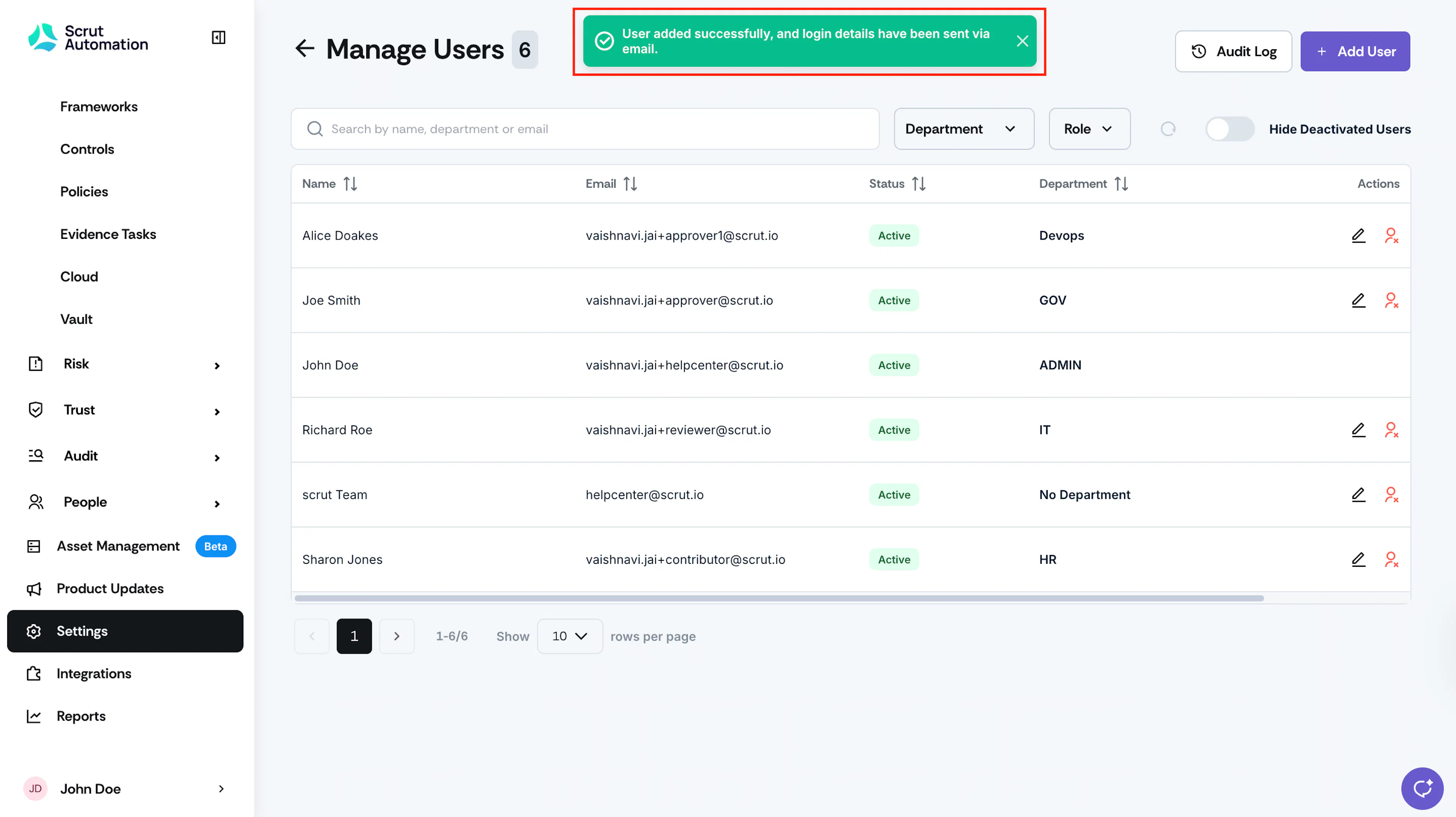
Add Users
To add a user to your Scrut account:
-
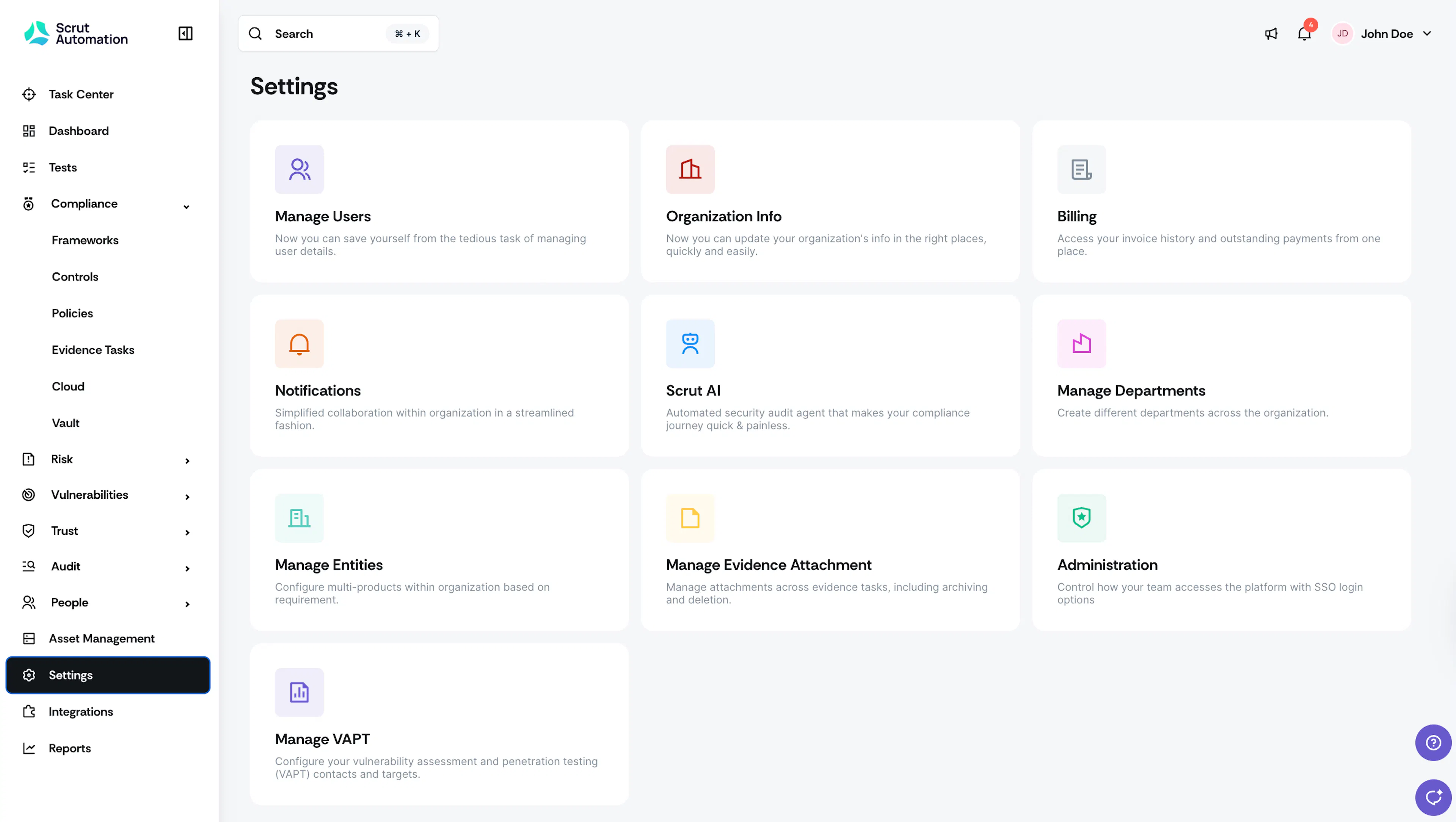
Sign in to your Scrut account, and click Settings on the left navigation panel.
-
Click Manage Users.
-
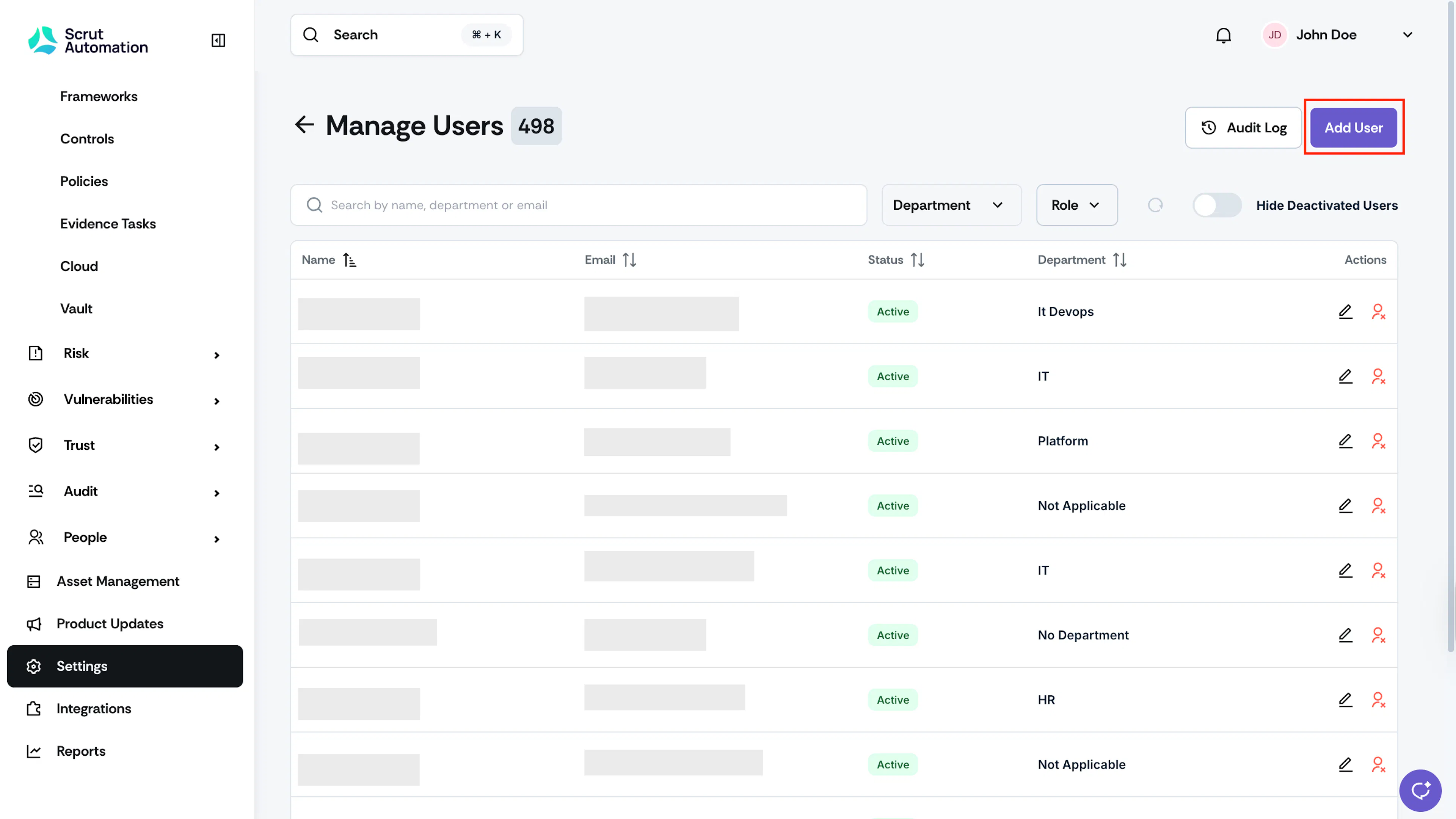
Click the Add User button on the top right.
-
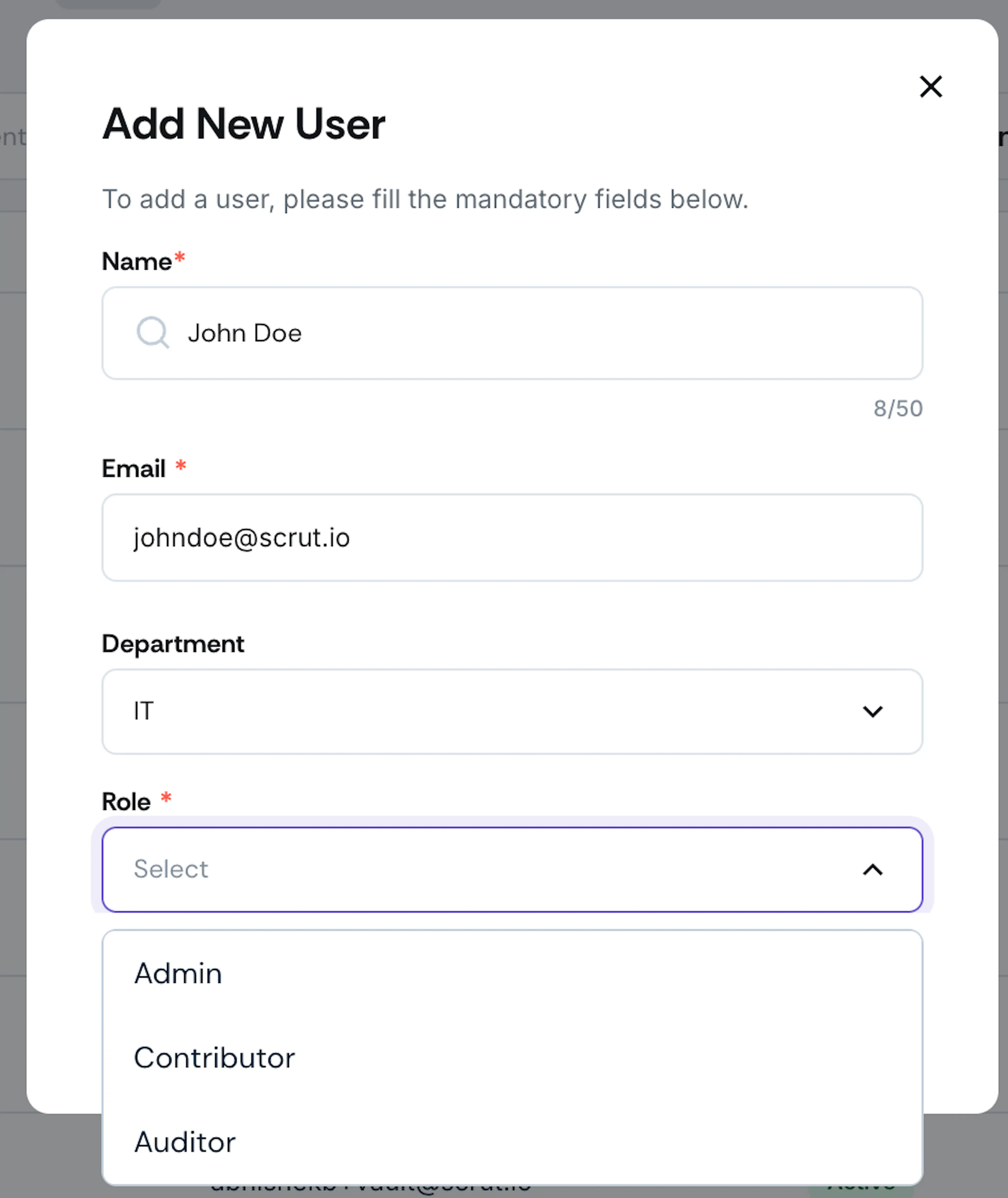
Enter the user details, including Name, Email, and Department.
Note:
Once you enter the username, Scrut will check if it exists in the employee list. If it does, the email will auto-populate. If not, you can manually enter the email.
-
Select the user role. You can choose from: Admin, Contributor, or Auditor.
-
If you’re adding a user as a contributor or auditor, you’ll have to select the modules to which you want to grant them access. Module selection is not required for admins, as they have access to all modules by default.
-
For contributors, you can select the departments to which you want to grant them access.
Note:
You can limit contributor access by department for specific modules like policy, evidence, vendor management, and risk management. Contributors will only see artifacts linked to their accessible departments and cannot view those mapped to No Department.
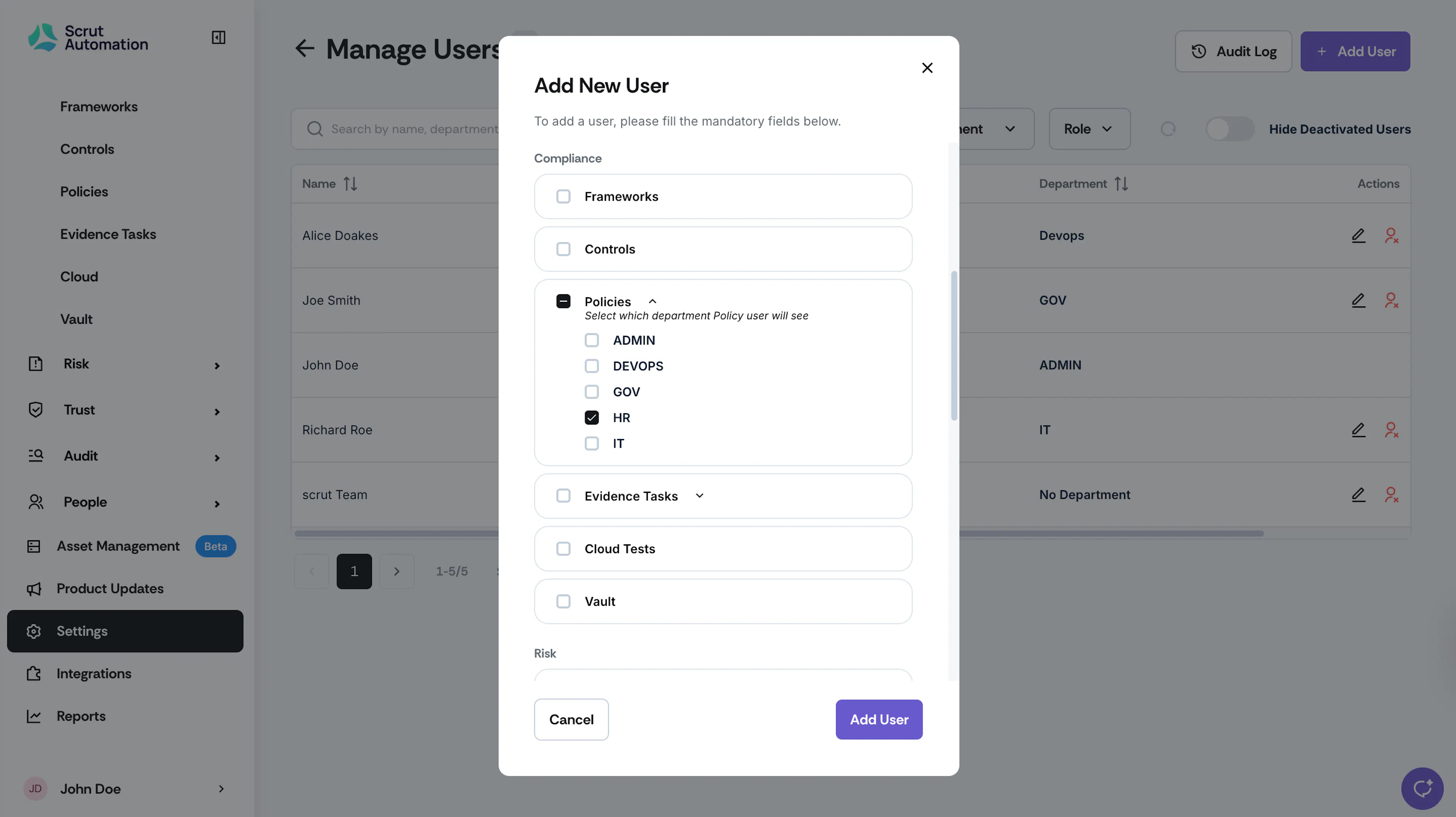
-
Click Add User.